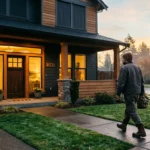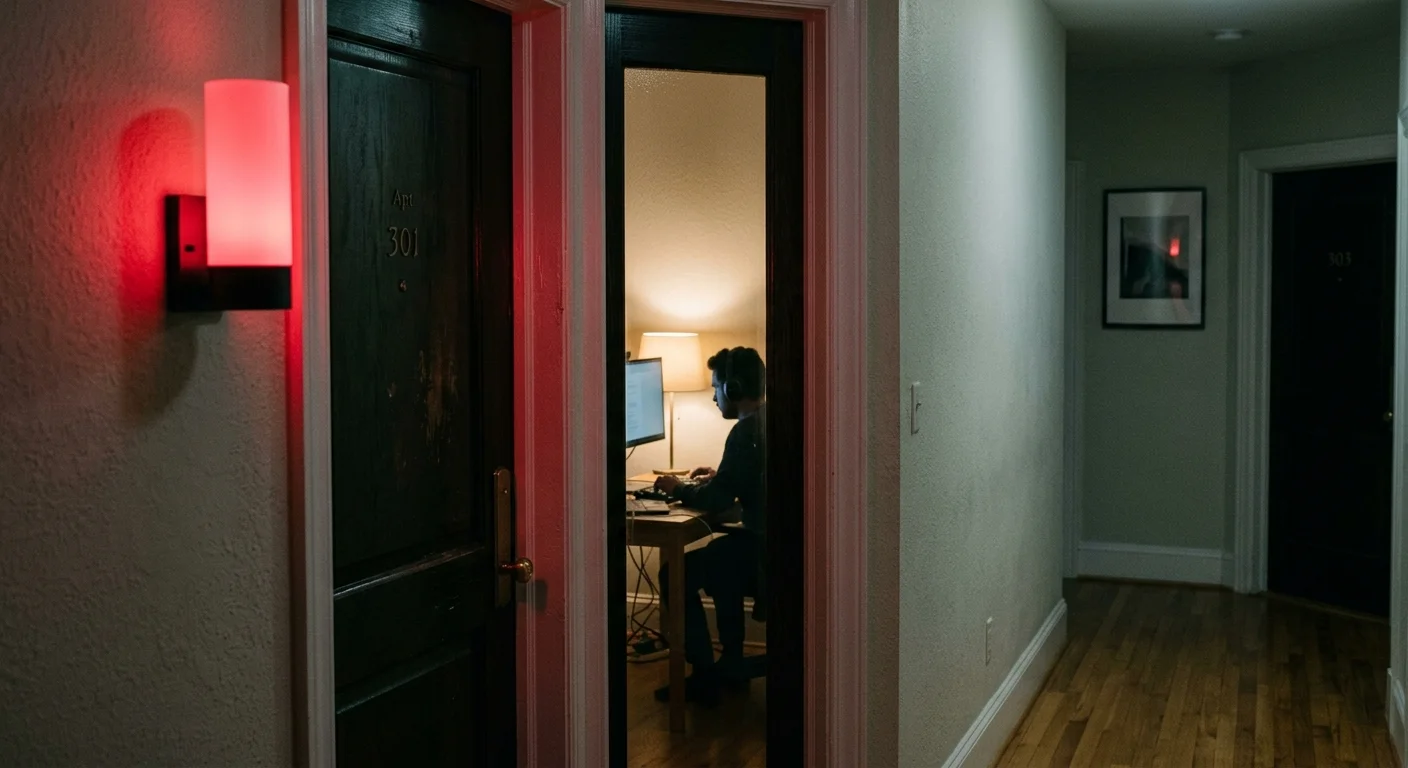
Working inside a 600-square-foot condo means a single misplaced step turns your client presentation into your partner’s accidental background cameo. You can eliminate awkward room interruptions without waving your arms or keeping doors permanently locked.
Most commercial busy indicators rely on enterprise cloud APIs that require corporate administrator consent, demand recurring fees, and lag by up to 60 seconds. Running a free, native desktop webhook listener bypasses corporate firewalls to trigger a physical Zigbee hallway beacon in under 300 milliseconds.
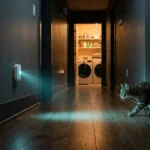
This setup ensures your partner spots your active call status before touching the office door handle.
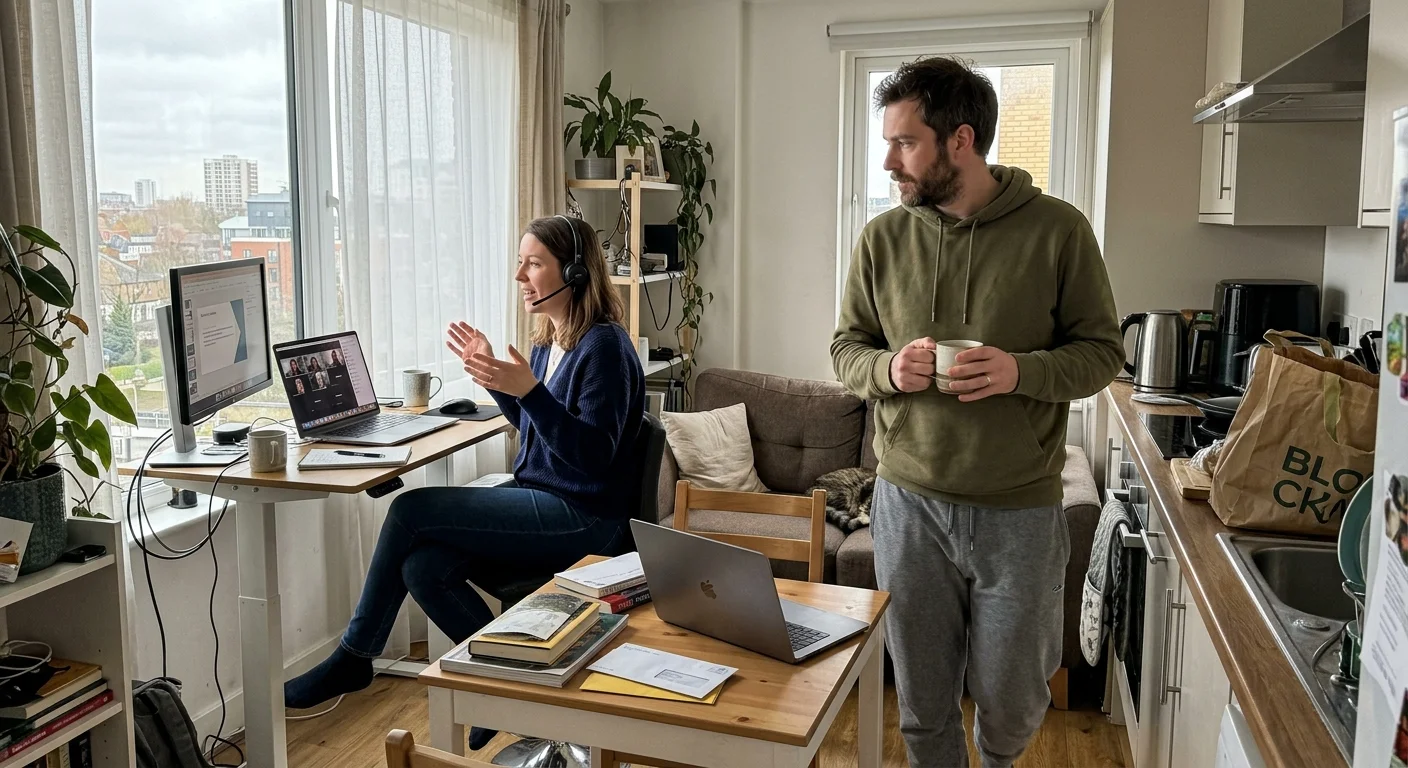
The 600-Square-Foot Condo Dilemma: Why Cloud Status Indicators Fail
Small-space living magnifies every workplace disruption. Modern apartments often feature hollow-core doors with low Sound Transmission Class ratings, allowing spoken audio to carry directly into living rooms.
Proper desk visibility matters just as much as outside signals, particularly when dialing in bias and ambient lighting for compact workspaces carved out of tight floor plans.
Clear presence indicators are a vital component of broader smart home routines for working from home, preventing everyday household noise from colliding with professional obligations.
When you take an unscheduled client meeting, your partner receives no warning. They might enter the frame carrying laundry or run a blender nearby during your executive presentation.
Most commercial solutions attempt to solve this problem by querying cloud APIs. Microsoft Graph and Zoom cloud integrations poll remote servers at fixed intervals to determine user presence.
This cloud polling introduces lag between 30 and 90 seconds. In a fast-paced workday, a one-minute status delay renders your work from home on air light practically useless.
Enterprise security policies create an even larger roadblock for remote workers. Corporate IT administrators routinely block third-party OAuth marketplace permissions on managed enterprise laptops.
Local webhook listeners resolve this conflict entirely. By capturing hardware states directly from your operating system, you monitor activity without requesting elevated cloud permissions or installing unauthorized cloud integrations.
Smart home installations succeed when triggers fire instantaneously. Reliable smart lighting automations depend heavily on local control architecture rather than sluggish cloud relays.
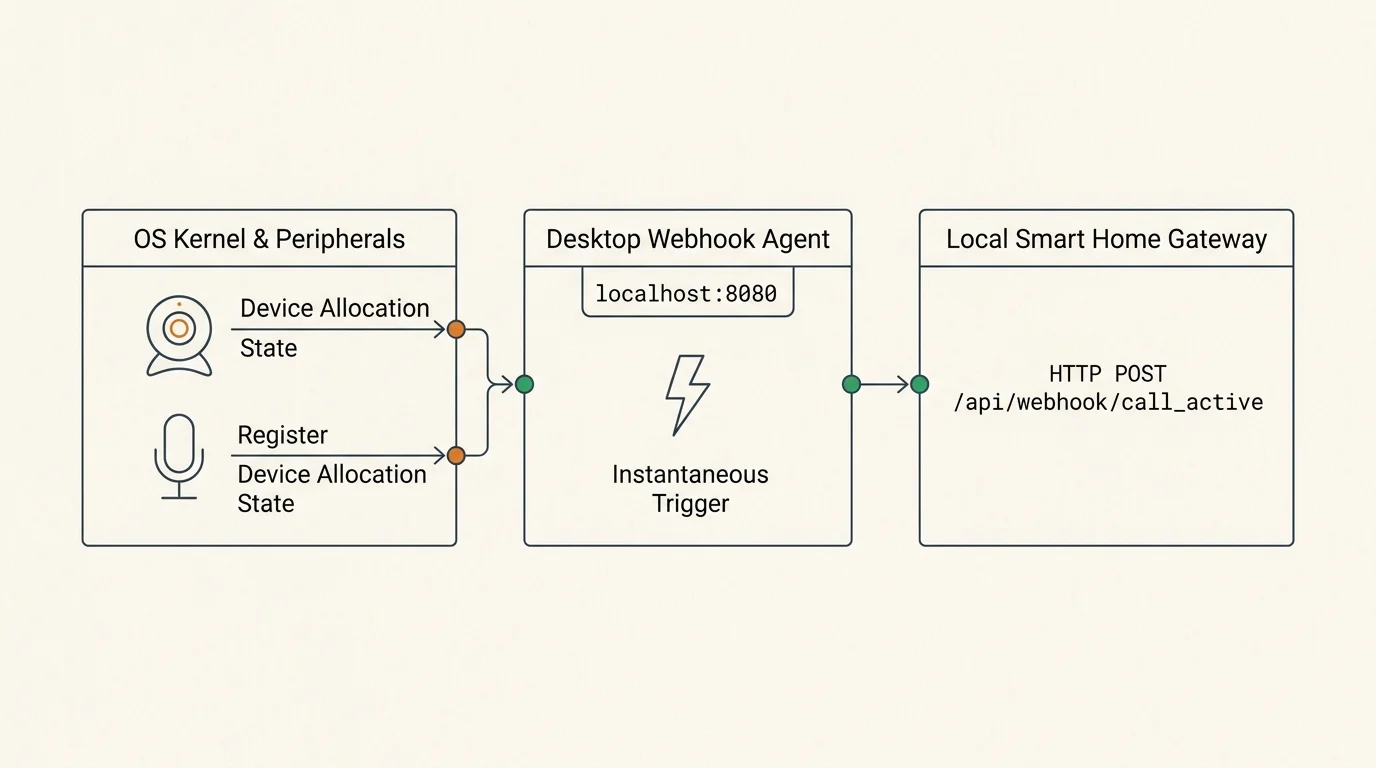
How Local Desktop Webhooks Detect Active Calls
Local call detection bypasses the Internet entirely. Your computer’s operating system tracks when peripherals engage and disengage.
Keeping these payloads restricted to local traffic is also an effective strategy for minimizing smart home data consumption across constrained or metered internet connections.
In addition to illuminating hallway beacons, peripheral activity tracking can be deployed for automating smart mic mutes to prevent smart speakers from waking during live meetings.
When you start a Microsoft Teams conference or a Zoom call, the application requests access to your webcam and microphone. The operating system kernel immediately registers this peripheral allocation.
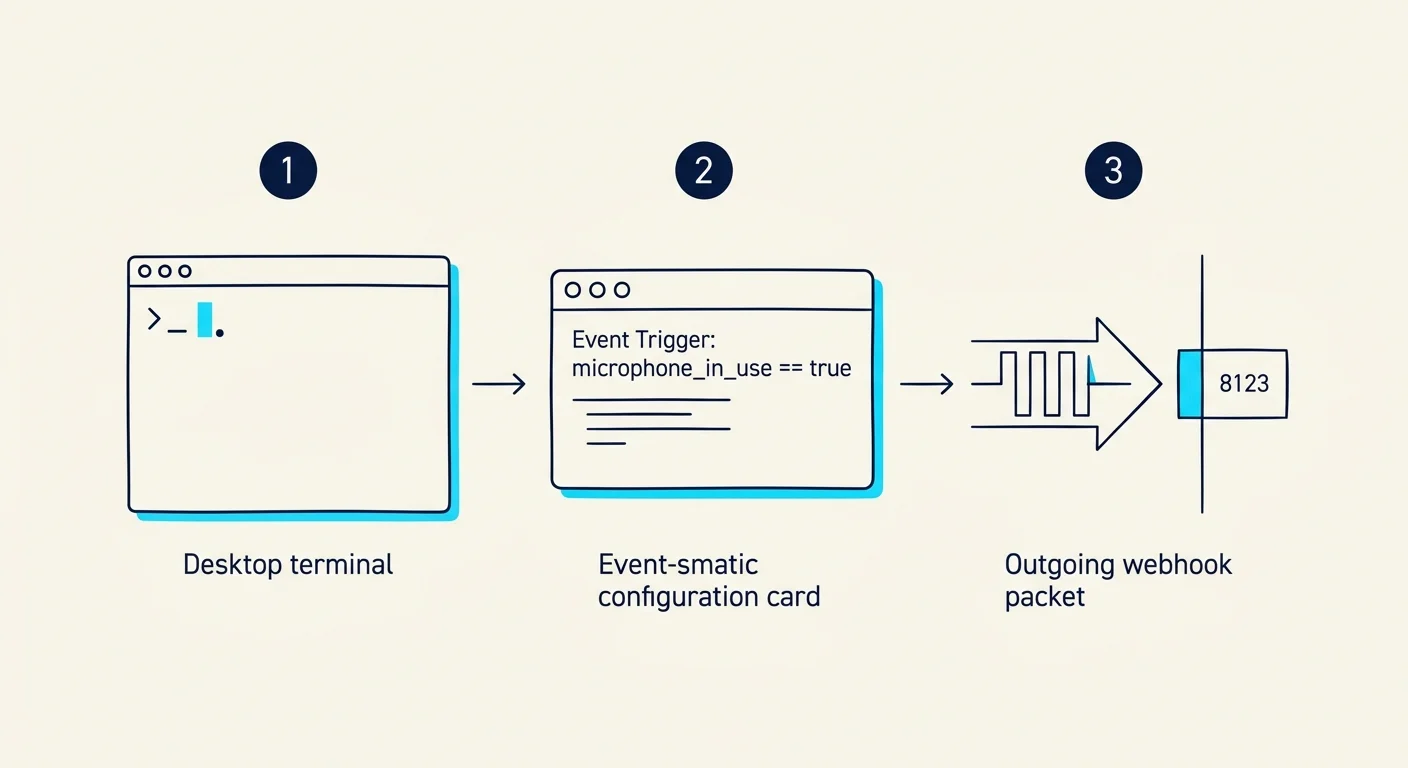
A native desktop webhook agent watches these operating system device sensors in real time. The moment Microsoft Teams claims your audio device, the agent flags an active session.
Similarly, Teams exposes a local WebSocket server on the loopback network address. When you enable the third-party API setting inside Teams, the app broadcasts call status changes locally.
The desktop agent captures these state changes and constructs an HTTP POST payload. It transmits this payload across your local Wi-Fi network directly to your home automation hub.
This process takes less than 200 milliseconds from the moment you click Join Meeting. The data packet travels exclusively across your private home subnet.
Corporate virtual private networks rarely intercept local loopback traffic or private subnet requests. Your local status updates transmit reliably even while full-tunnel corporate VPN clients protect your work machine.
Essential Hardware and Software Requirements
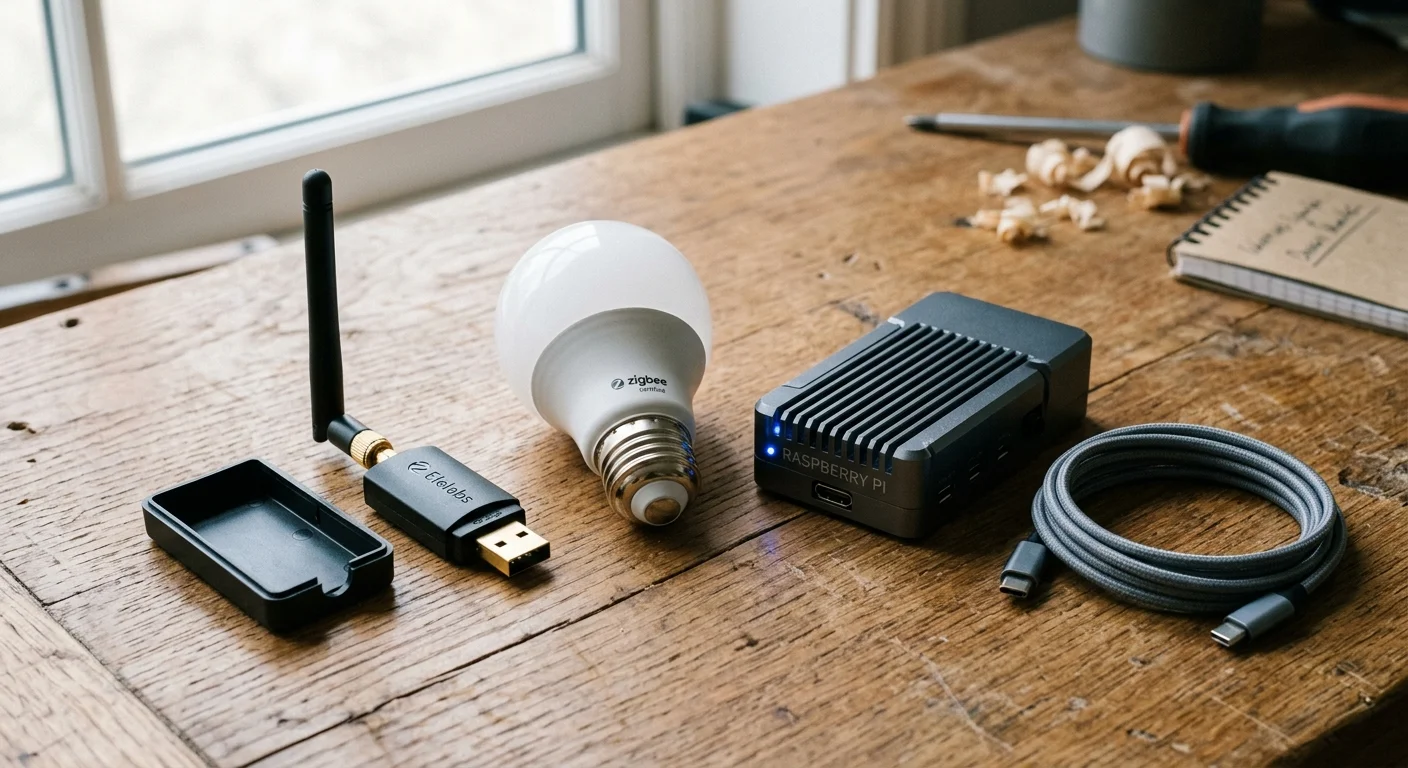
Building this automation requires four primary components. You can deploy the complete system using reliable consumer hardware without paid subscriptions.
- Desktop Listener Agent: A zero-cost background utility such as HASS.Agent for Windows or a native shell daemon for macOS.
- Local Automation Controller: A local instance of Home Assistant running on a dedicated mini-PC or Raspberry Pi 4.
- Zigbee USB Coordinator: A universal Zigbee 3.0 dongle, such as the Sonoff Zigbee 3.0 USB Dongle Plus-E.
- Zigbee Smart Beacon: An RGBW color-changing bulb, such as the ThirdReality Zigbee Smart Color Bulb or Philips Hue White and Color Ambiance.
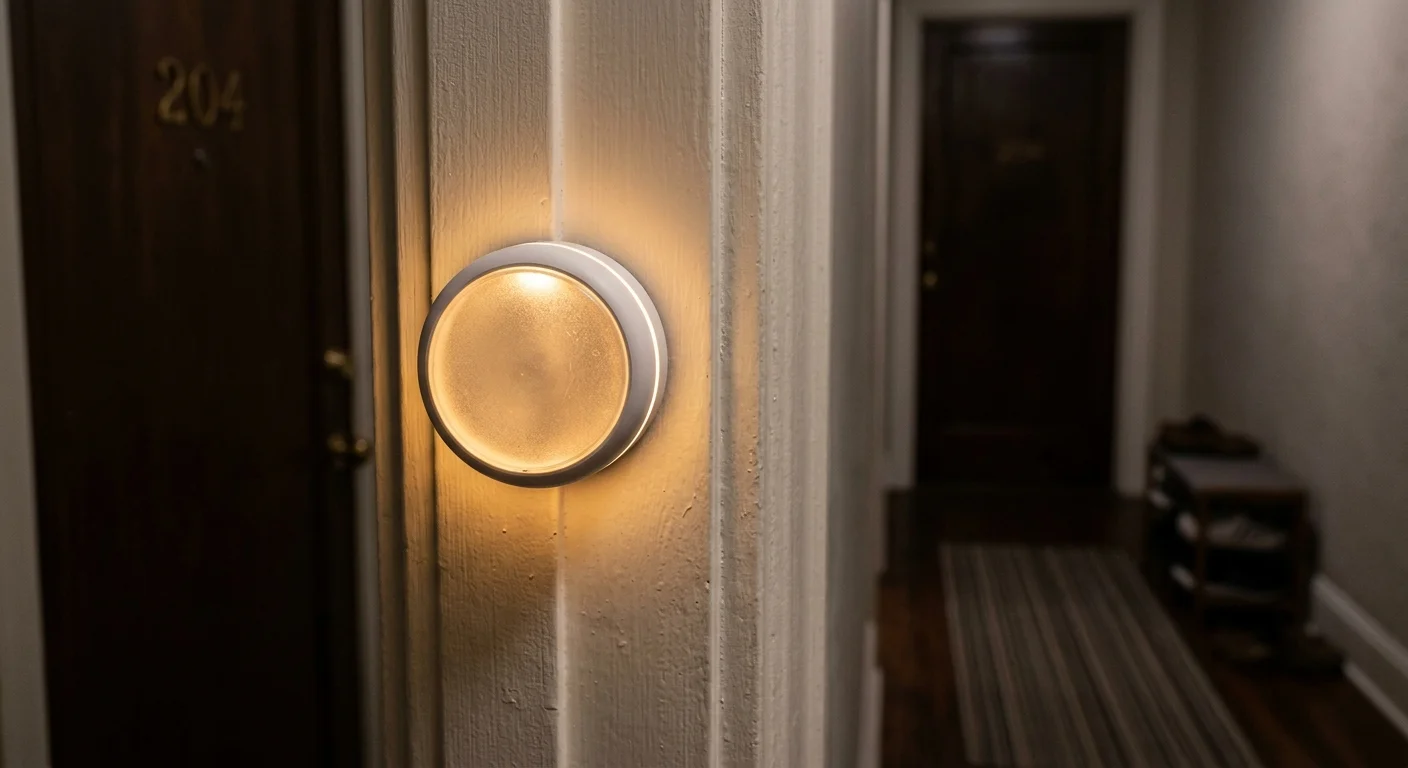
- Hallway Enclosure: A standard frosted glass wall sconce or table lamp placed directly outside your home office doorway.
Zigbee technology provides a distinct advantage over Wi-Fi bulbs in dense apartment buildings. Dense condominiums suffer from severe 2.4 GHz Wi-Fi radio congestion.
Zigbee forms a local mesh network that operates independently of your home router’s client limits. This separation guarantees that video call traffic will not disrupt your status light’s responsiveness.
Call Detection Architecture Comparison
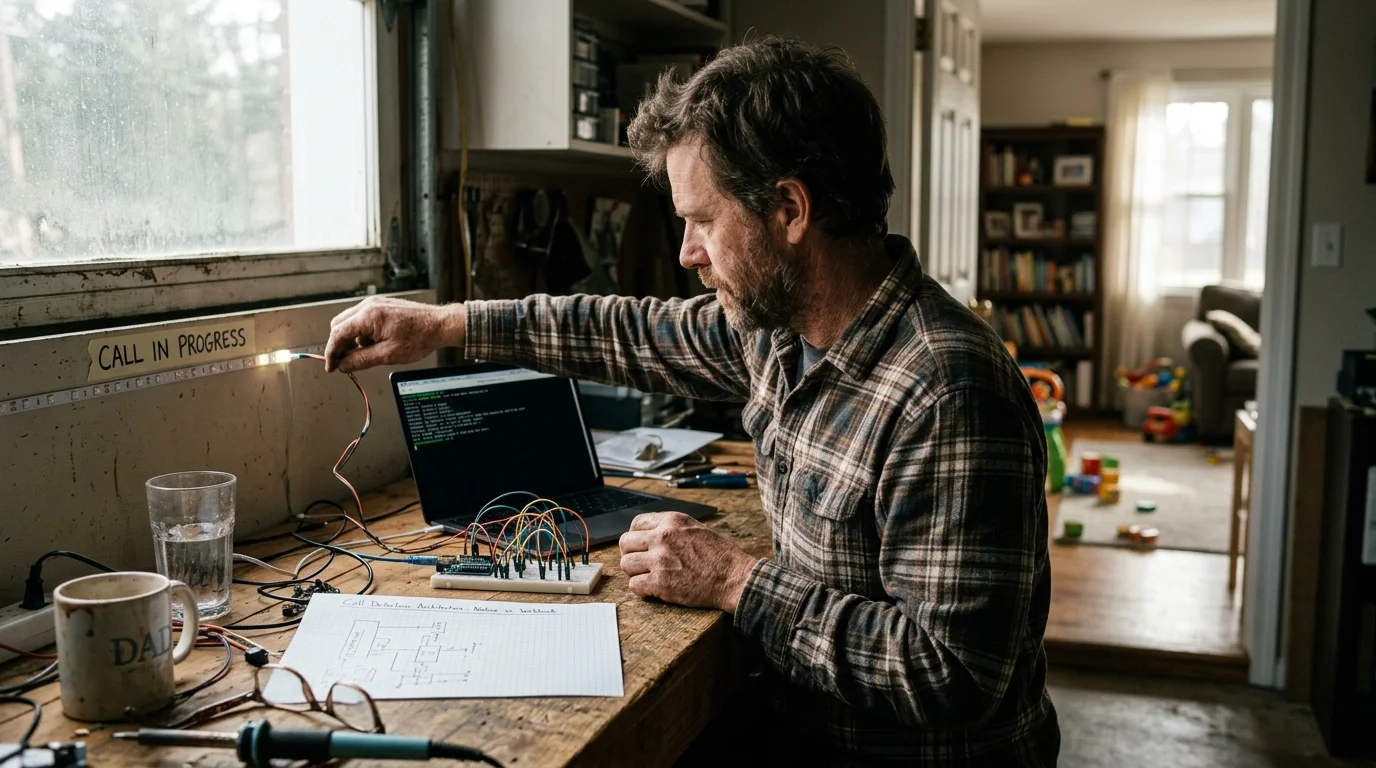
Before implementing your automation, examine how native desktop webhooks compare against traditional status indicators. The differences determine system reliability and latency.
This direct, sub-second architecture mirrors the responsive design used in zero-latency sensor chime automations where immediate physical feedback is critical.
| Detection Architecture | Average Latency | IT Admin Approval | Monthly Cost | Network Boundary |
|---|---|---|---|---|
| Local Desktop Webhook | 120–250 ms | Not Required | $0.00 | Local Subnet Only |
| Microsoft Graph Cloud API | 30–60 seconds | Required (Tenant Admin) | $0.00–$15.00 | Public Cloud Polling |
| Commercial USB Busy Light | 200–500 ms | Restricted by USB Policy | $45.00–$90.00 | Hardwired Host Only |
| Manual Smart Switch | User Dependent | Not Required | $0.00 | Local or Cloud Relay |
The data demonstrates that local webhooks provide the ideal balance between speed and deployment freedom. You bypass administrative hurdles while achieving sub-second operational responsiveness.
Step-by-Step Configuration: Setting Up the Desktop Call Listener
Configuring the local call listener requires five structured steps on your primary workstation. Follow this sequence to establish the local webhook pipeline.
If you occasionally need manual overrides when taking calls on mobile devices, pairing the system with physical buttons and NFC tags provides a simple one-tap alternative.
- Enable the Local Application API: Open Microsoft Teams, navigate to Settings, select Privacy, and enable Third-Party API integration to generate your local security token.
- Install the Native Desktop Agent: Download and install the open-source HASS.Agent client onto your Windows workstation, or configure a local shell monitor on macOS.
- Configure Hardware Sensors: Enable the Microphone Active and Camera Active sensors within the agent configuration menu to register driver-level peripheral engagements.
- Define the Webhook Destination: Input your local Home Assistant IP address and assign a unique webhook identifier into the agent transmission settings.
- Test Endpoint Delivery: Trigger a manual test payload from the agent interface to confirm your automation hub receives the packet without firewall interception.
Once you save these parameters, the desktop agent runs quietly in the system tray. It consumes minimal CPU resources and monitors your meeting state continuously.
The agent operates entirely in the background. It generates outbound webhook signals without opening browser windows or interrupting your daily workflow.
Configuring the Zigbee Hallway Beacon Automation
With the desktop transmitter active, configure your home automation hub to translate webhook payloads into visual light changes. Your hub manages the physical lighting states based on received inputs.
You can also tie your active call state into sound-dampening rules, similar to how decibel-triggered pet calming routines dynamically respond to indoor noise levels.
For households without fixed operating hours, you can replace static schedule conditions with calendar-driven shift automation to align beacon behavior with dynamic meeting blocks.
The best smart home is the one you don’t have to manage.
Build your automation logic around the state transitions of the incoming webhook. Use this sequence to program the receiver rules inside your controller:
- Create a Webhook Trigger: Assign your unique endpoint ID as the primary automation trigger within your hub’s automation engine.
- Establish Time Conditions: Restrict active light operations to your standard working hours, such as Monday through Friday from 08:30 to 17:30.
- Program the Call-Active Action: Instruct the hallway Zigbee bulb to illuminate at 100% brightness using a crimson red color profile when the status reads in-call.
- Program the Call-Concluded Action: Set a secondary trigger that restores the bulb to warm white (2700K) at 20% brightness or powers it off when the status returns to idle.
- Add State Verification Delays: Insert a 3-second hysteresis delay before turning the light off to prevent flickering during brief call transfers.
This logic handles erratic meeting patterns cleanly. When you hop between breakout rooms, the beacon maintains its warning status without confusing observers.
Deploying this sequence provides an infallible visual cue. Anyone standing in the hallway knows immediately whether speech inside the room is private.
Worked Scenario: Real-World Condo Costs and Latency Benchmarks
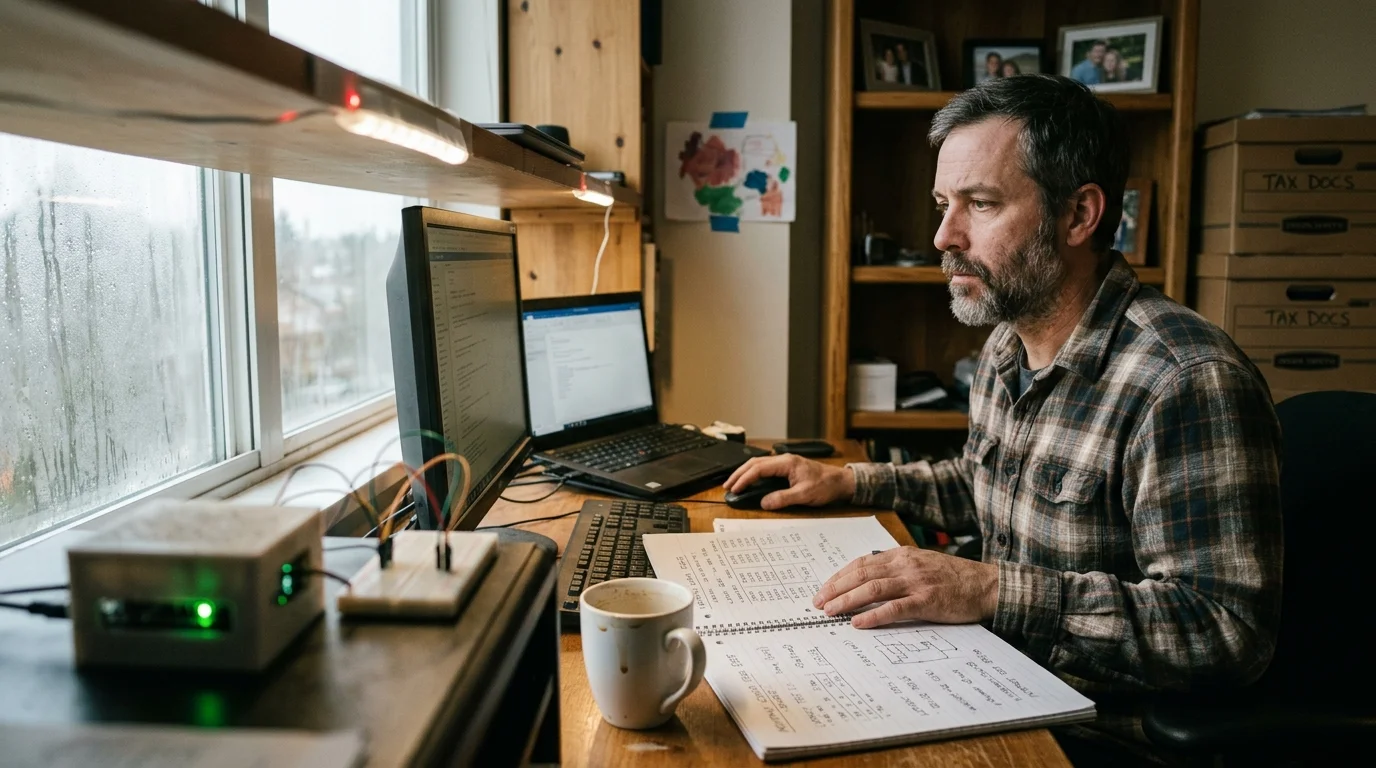
Consider a practical deployment in a 620-square-foot one-bedroom condo located in urban Chicago. The office nook occupies a converted closet space measuring 8 feet by 9 feet.
The office sits separated from the kitchen by a standard hollow-core pine door. The acoustic partition offers an STC rating of 27, meaning normal conversational volume leaks outward at 35 decibels.
To eliminate interruptions, the resident installed an automated teams busy indicator home automation beacon in the adjacent hallway. Here is the exact bill of materials purchased for this build:
- Sonoff Zigbee 3.0 USB Dongle Plus-E: $19.99
- ThirdReality Zigbee Smart Color Bulb: $13.99
- Plug-In Wall Sconce with Frosted Glass: $14.50
- HASS.Agent Desktop Software: $0.00
- Total Hardware Investment: $48.48
Hardware configuration required 38 minutes from unboxing to operational verification. The resident configured the desktop agent on a corporate-managed Dell Latitude laptop running Windows 11.
Performance testing revealed dramatic latency improvements over cloud-based methods. When joining a Zoom meeting, the local webhook illuminated the red hallway beacon in exactly 184 milliseconds.
By comparison, an alternative Microsoft Graph cloud automation tested in the same environment averaged 41.2 seconds to update. That 40-second disparity represents the window where costly condo interruptions occur.
During a four-week monitoring period, the visual beacon eliminated unexpected doorway walk-ins entirely. The clear visual boundary protected both client confidentiality and household peace.
Troubleshooting Automation Conflicts and State Desynchronization
Automations occasionally encounter edge cases that cause light status desynchronization. You can resolve these issues quickly by addressing common trigger conflicts.
One frequent challenge involves phantom call states. If an application crashes while maintaining a hardware audio lock, your beacon remains red indefinitely.
You can prevent stuck states by establishing an automated watchdog routine inside your home hub. Configure the hub to poll the desktop agent every 15 minutes during active states to verify system health.
Laptops entering sleep mode present another common desynchronization point. When you close your laptop lid, the network card drops before the application sends a call-ended payload.
To fix this, program your automation hub to listen for workstation offline events. If the laptop disconnects from your local network, the hub automatically turns the zoom status smart light off.
Radio interference can also degrade Zigbee transmission reliability. Ensure your Wi-Fi router’s 2.4 GHz channel does not overlap with your Zigbee coordinator channel.
Smart lighting systems maintain stronger connections when radios avoid overlapping frequencies. Maintaining clean spectrum separation prevents dropped signals across your living space.
Advanced Multi-State Routines: Beyond Simple Red and Green
Once you stabilize basic busy indicators, you can expand your system into a nuanced workplace signaling center. Multi-state routines communicate detailed context to family members.
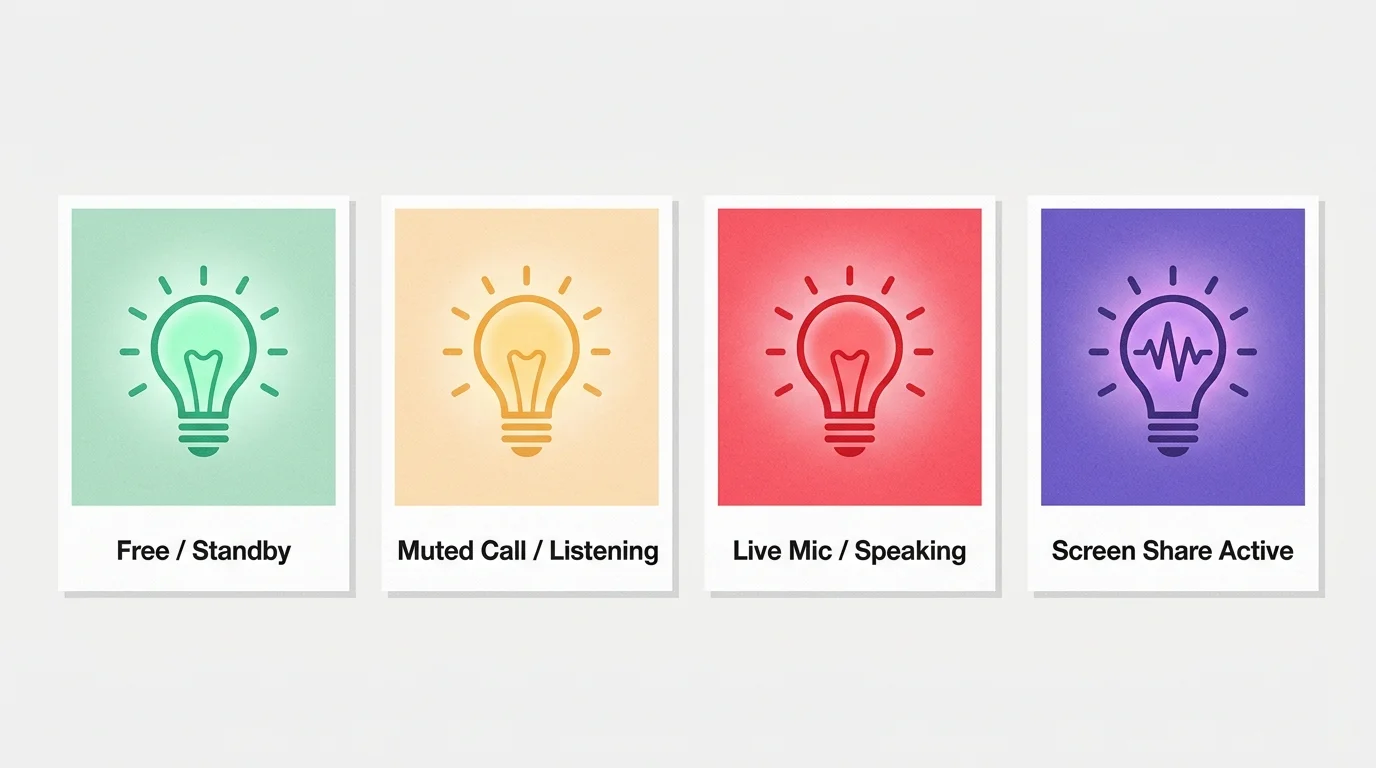
Modern communication tools distinguish between different levels of user participation. You can program your Zigbee beacon to reflect these precise engagement states:
- Solid Crimson Red: Microphone and camera active; client presentation in progress; absolute quiet required.
- Soft Amber: Microphone muted, camera inactive; lecture or all-hands meeting; walk-ins permitted for quick questions.
- Deep Violet: Screen sharing active; desktop display exposed; visual privacy required in office doorway.
- Gentle Green: Available for conversation; working asynchronously between scheduled commitments.
Integrating a Zigbee contact sensor onto your office door adds another layer of contextual automation. If someone turns the door handle while your light is red, your hub can flash your desk lamp to alert you.
This closed-loop feedback provides complete situational awareness for both parties. You remain focused on your client while your household navigates shared living space effortlessly.
Frequently Asked Questions
Can I use this automation if my employer locks down administrative access on my laptop?
Yes. Native tools like HASS.Agent offer portable executable installations that run in user space without requiring local administrator rights. The Teams local third-party API operates through standard user-level permissions.
Does running a corporate VPN interfere with local desktop webhooks?
Most corporate VPN clients allow local subnet access by default. As long as your VPN configuration permits local LAN traffic, the desktop agent can communicate with your home automation hub.
Can I configure this setup using macOS instead of Windows?
Yes. macOS users can run lightweight background shell scripts that monitor system audio and camera processes. The script sends a standard curl POST request to your home automation webhook endpoint.
What happens to the busy light if my home Internet goes offline?
The system continues to function normally. Because desktop webhooks and Zigbee protocols communicate exclusively over your local home network, external Internet outages do not impact functionality.
Disclaimer: This article is for informational purposes only. Smart home devices involve electrical connections and data privacy. Always follow manufacturer instructions for installation. For complex wiring or HVAC work, consult a licensed professional.