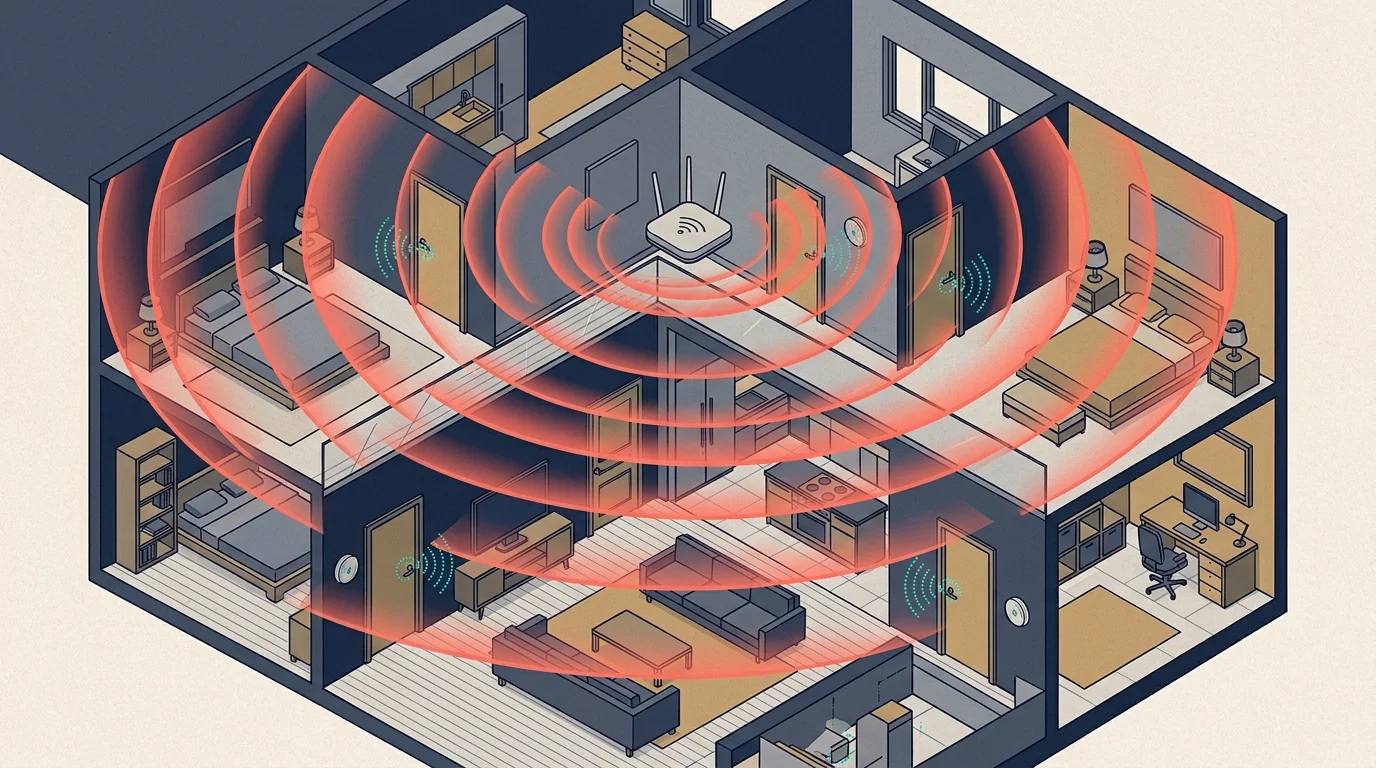
Your 60-device smart home is dropping commands, lagging on motion triggers, and showing offline bulbs because your 2.4 GHz spectrum is waging war against itself. High-power Wi-Fi routers easily overpower delicate Zigbee transmissions when their broadcast frequencies collide.
If you are exploring smart home basics for beginners, understanding radio frequency coexistence is essential to building an expandable, reliable automation setup.
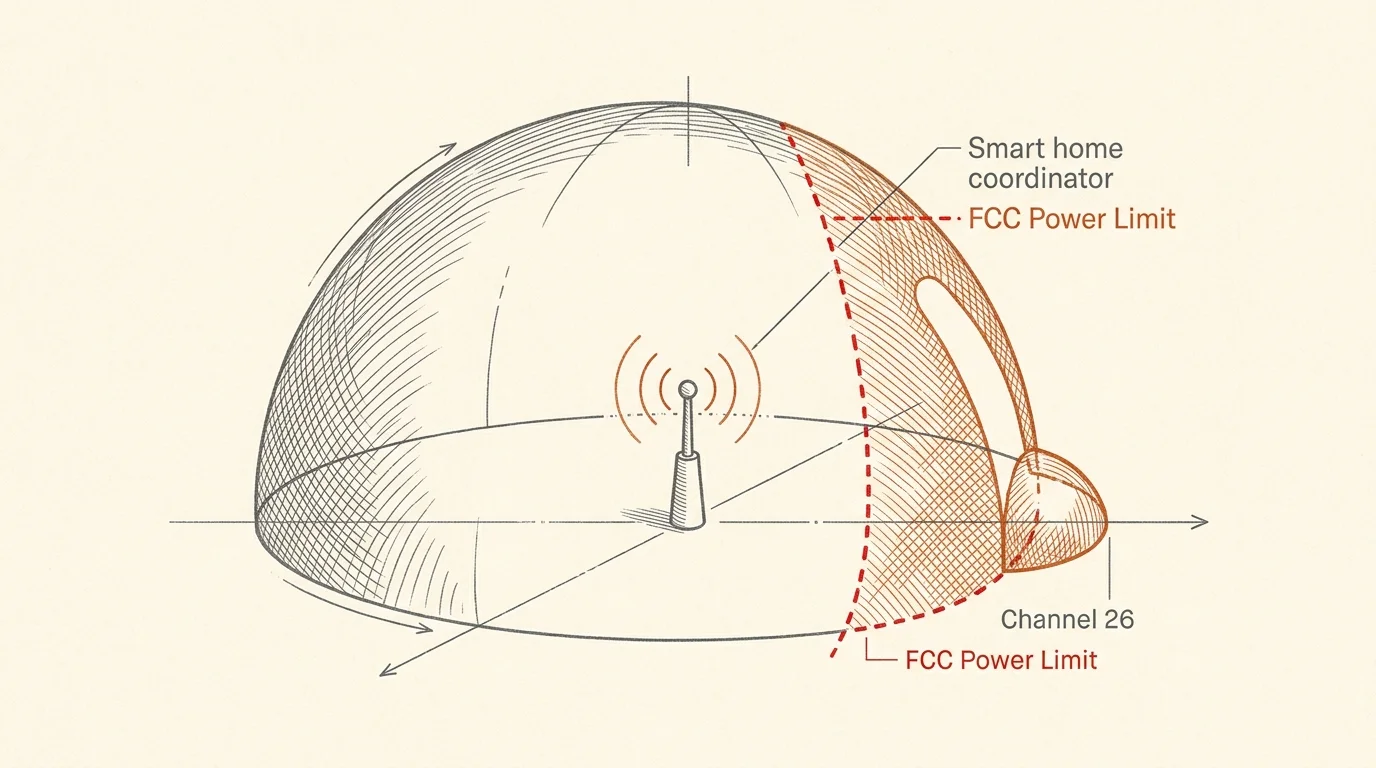
Common advice suggests moving your Zigbee network to Channel 26 to escape the noise, but federal broadcast power limits severely handicap Channel 26’s signal range.
You can permanently stabilize your setup by locking your Wi-Fi access points to 20 MHz channel widths and aligning Zigbee on clean, non-overlapping channels like 15, 20, or 25.
The Physics of 2.4 GHz Collisions: Why Your Devices Go Offline
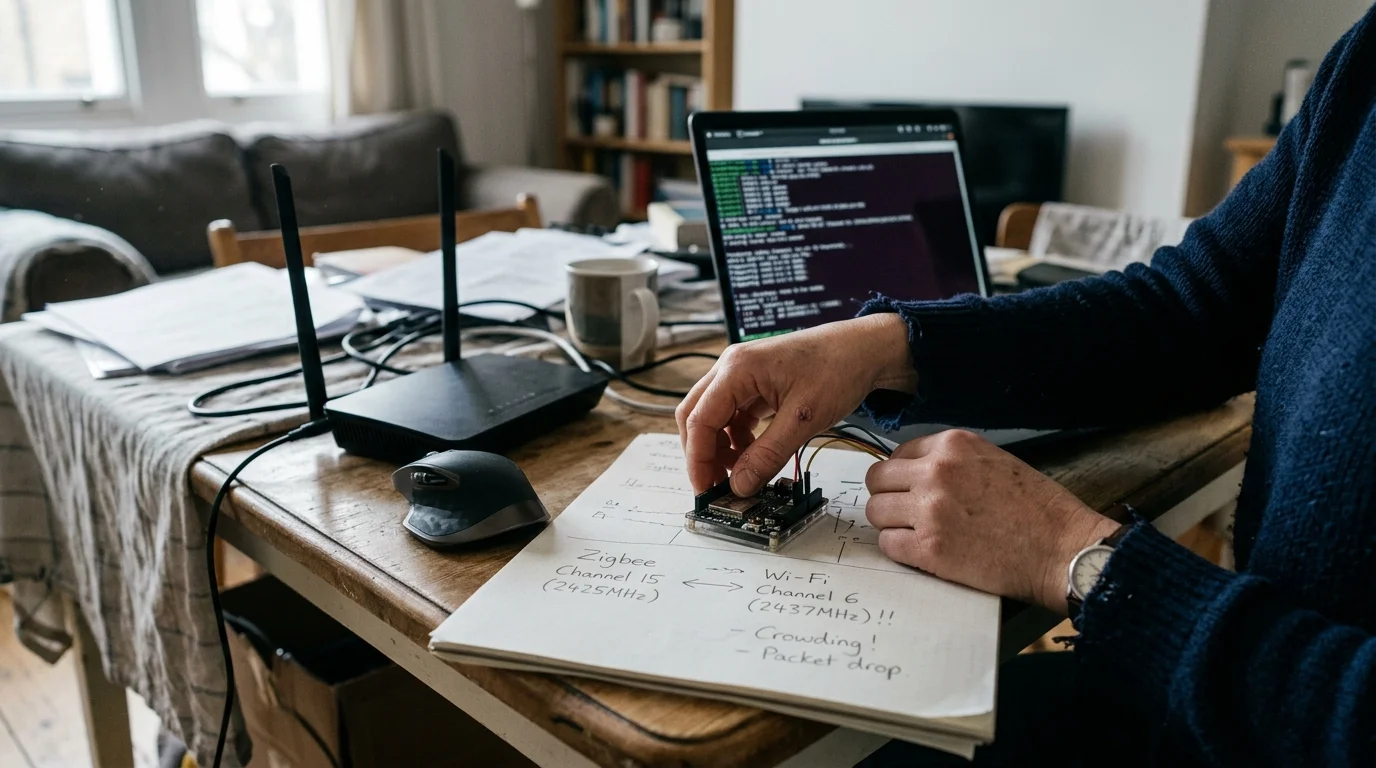
Every smart home protocol operating in the 2.4 GHz industrial, scientific, and medical (ISM) band must share 83.5 MHz of total spectrum. This narrow band stretches from 2400.0 MHz to 2483.5 MHz.
Before replacing unresponsive hardware, take time to test if your home is ready for smart devices by evaluating your base Wi-Fi coverage and wireless capacity.
If you are troubleshooting why your smart devices keep disconnecting, severe radio band congestion is often the hidden culprit.
Your Wi-Fi access point broadcasts at high power levels, typically between 20 dBm (100 mW) and 30 dBm (1000 mW). High transmission power lets Wi-Fi stream video through solid walls across your property.
By comparison, Zigbee mesh nodes are ultra-low-power radios designed to operate for years on a single CR2032 coin battery. Most Zigbee sensors transmit between 0 dBm (1 mW) and 8 dBm (6.3 mW).
When an overpowered Wi-Fi signal transmits at the same time and frequency as a battery-powered sensor, it generates severe in-band radio noise. The fragile Zigbee signal is drowned out completely.
Zigbee uses the IEEE 802.15.4 radio standard, which relies on Carrier Sense Multiple Access with Collision Avoidance (CSMA/CA). If a Zigbee radio hears a Wi-Fi transmission, it waits before broadcasting.
If your Wi-Fi network streams continuous high-bandwidth video, your Zigbee devices cannot find a quiet window to transmit. The sensor retries repeatedly until its internal buffer times out.
Once retries fail, your smart hub marks the device as offline. This failure cascade causes smart devices dropping off wifi channel overlap zones throughout busy households.
When packets collide mid-air, the Zigbee coordinator receives a scrambled message that fails its cyclic redundancy check (CRC). The hub silently discards the frame, leaving your smart automation unexecuted.
The best smart home is the one you don’t have to manage.
Automations fail to fire not because your coordinator is defective, but because invisible spectral noise destroys the transmission. Solving this problem requires systematic 2.4 ghz smart home channel planning.
Wi-Fi vs. Zigbee Channel Math: The Frequency Overlap Breakdown
Understanding RF spectrum mapping requires comparing how IEEE 802.11 (Wi-Fi) and IEEE 802.15.4 (Zigbee) divide the 2.4 GHz band. Although both protocols use channel numbers, their channel numbering schemes do not correspond.
Because Thread also operates on 2.4 GHz frequencies, mapping Thread mesh topologies requires the exact same channel coordination principles to prevent router nodes from dropping offline.
Carefully setting up your home Wi-Fi for smart devices ensures high-bandwidth network traffic does not overwhelm surrounding smart accessories.
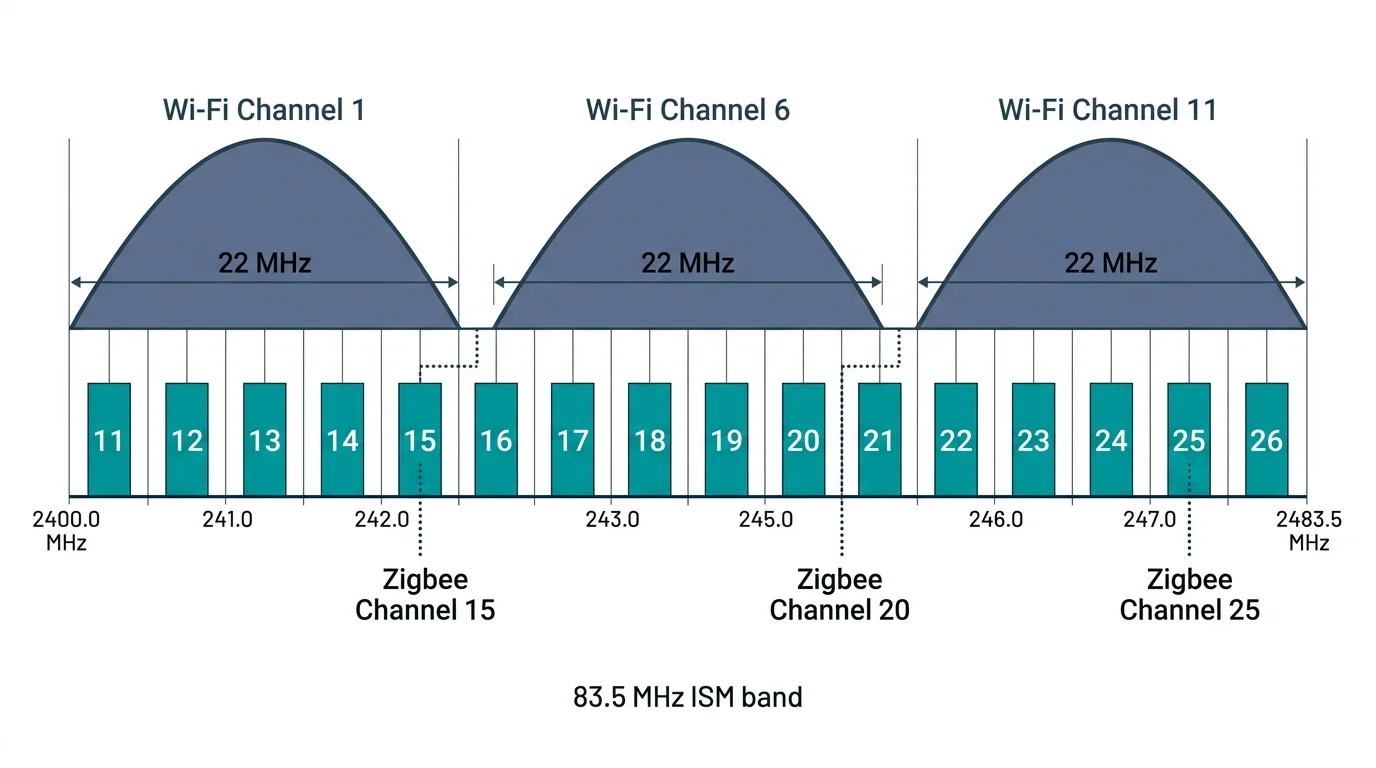
Standard 2.4 GHz Wi-Fi utilizes 11 channels in North America, spaced 5 MHz apart. However, standard 20 MHz Wi-Fi channels require a 22 MHz channel mask spread across neighboring frequencies.
Because each Wi-Fi channel is 20 MHz to 22 MHz wide, adjacent channels bleed into each other. Only channels 1, 6, and 11 do not overlap with each other.
Wi-Fi Channel 1 centers at 2412 MHz, spanning from 2401 MHz to 2423 MHz. Wi-Fi Channel 6 centers at 2437 MHz, spanning from 2426 MHz to 2448 MHz.
Wi-Fi Channel 11 centers at 2462 MHz, spanning from 2451 MHz to 2473 MHz. These three transmission bands consume almost the entire usable 2.4 GHz spectrum.
Zigbee channels are much narrower. Zigbee splits the spectrum into 16 individual channels numbered 11 through 26.
Each Zigbee channel occupies a narrow 2 MHz channel bandwidth with a 5 MHz channel spacing. Zigbee Channel 11 starts at 2405 MHz, while Channel 26 tops out at 2480 MHz.
Because Zigbee channels are so narrow, several can fit into the quiet spaces between Wi-Fi broadcasts. We can map them directly across the standard Wi-Fi spectrum:
- Zigbee Channels 11 to 14: Center frequencies sit between 2405 MHz and 2420 MHz, falling squarely inside Wi-Fi Channel 1.
- Zigbee Channel 15: Sits at 2425 MHz in the guard gap between Wi-Fi Channel 1 and Wi-Fi Channel 6.
- Zigbee Channels 16 to 19: Center frequencies sit between 2430 MHz and 2445 MHz, falling directly within Wi-Fi Channel 6.
- Zigbee Channel 20: Sits at 2450 MHz inside the narrow guard gap between Wi-Fi Channel 6 and Wi-Fi Channel 11.
- Zigbee Channels 21 to 24: Center frequencies sit between 2455 MHz and 2470 MHz, falling directly within Wi-Fi Channel 11.
- Zigbee Channel 25: Sits at 2475 MHz, safely past the upper edge of Wi-Fi Channel 11’s primary broadcast skirt.
- Zigbee Channel 26: Sits at 2480 MHz, completely outside of all standard North American 2.4 GHz Wi-Fi channels.
If your router uses dynamic channel hopping or 40 MHz channel widths, it obliterates these narrow gaps. A single 40 MHz Wi-Fi broadcast wipes out over half of the Zigbee spectrum simultaneously.
Achieving a reliable zigbee wifi interference fix begins with forcing your Wi-Fi router to strict 20 MHz channels. Never allow your router to operate in automatic 40 MHz wideband mode on 2.4 GHz.
Why Zigbee Channel 26 Is a Trap: The FCC Power Limit Problem
Looking at raw channel math, Zigbee Channel 26 appears to be the ultimate safe haven. Siting at 2480 MHz, it sits clear of Wi-Fi Channel 11’s 2473 MHz boundary.
Establishing stable communication across all fixtures also ensures you can cleanly set up smart lighting zones without experiencing erratic delays when triggering multi-bulb scenes.
When planning lighting infrastructure, comparing Zigbee vs Z-Wave vs WiFi smart bulbs helps determine whether migrating off 2.4 GHz entirely makes sense for your space.
Relying on Channel 26 for smart home stability is a serious engineering trap. Federal regulatory standards create severe physical constraints at this specific edge of the frequency band.
In the United States, the Federal Communications Commission (FCC) enforces Part 15 regulations to prevent commercial electronics from bleeding into adjacent spectrum. The band starting at 2483.5 MHz is reserved for mobile satellite services and critical radio navigation.
Because Zigbee Channel 26 centers at 2480 MHz, its side lobes come dangerously close to the protected 2483.5 MHz threshold. Radio manufacturers cannot allow their signal skirts to spill past this line.
To pass FCC certification without building expensive custom analog filters, hardware makers cut radio transmission power on Channel 26. They program microcontrollers to drop output power significantly.
A coordinator broadcasting at +20 dBm (100 mW) on Channel 15 or 25 often drops to +3 dBm (2 mW) or lower on Channel 26. Some battery-powered sensor manufacturers reduce Channel 26 output to -10 dBm.
This massive power drop destroys the transmission distance of your mesh network. Signals that easily penetrate two drywall partitions on Channel 25 cannot penetrate a single wall on Channel 26.
Furthermore, many smart home brands intentionally omit Channel 26 support to maintain reliable global manufacturing. Devices from Aqara, Sonoff, and older Philips Hue hubs occasionally refuse to bind on Channel 26.
Selecting Channel 26 trades radio interference for severe signal attenuation and hardware incompatibilities. Channel 15 and Channel 25 remain vastly superior choices for residential mesh deployments.
Worked Example: Stabilizing a 60-Device Smart Home
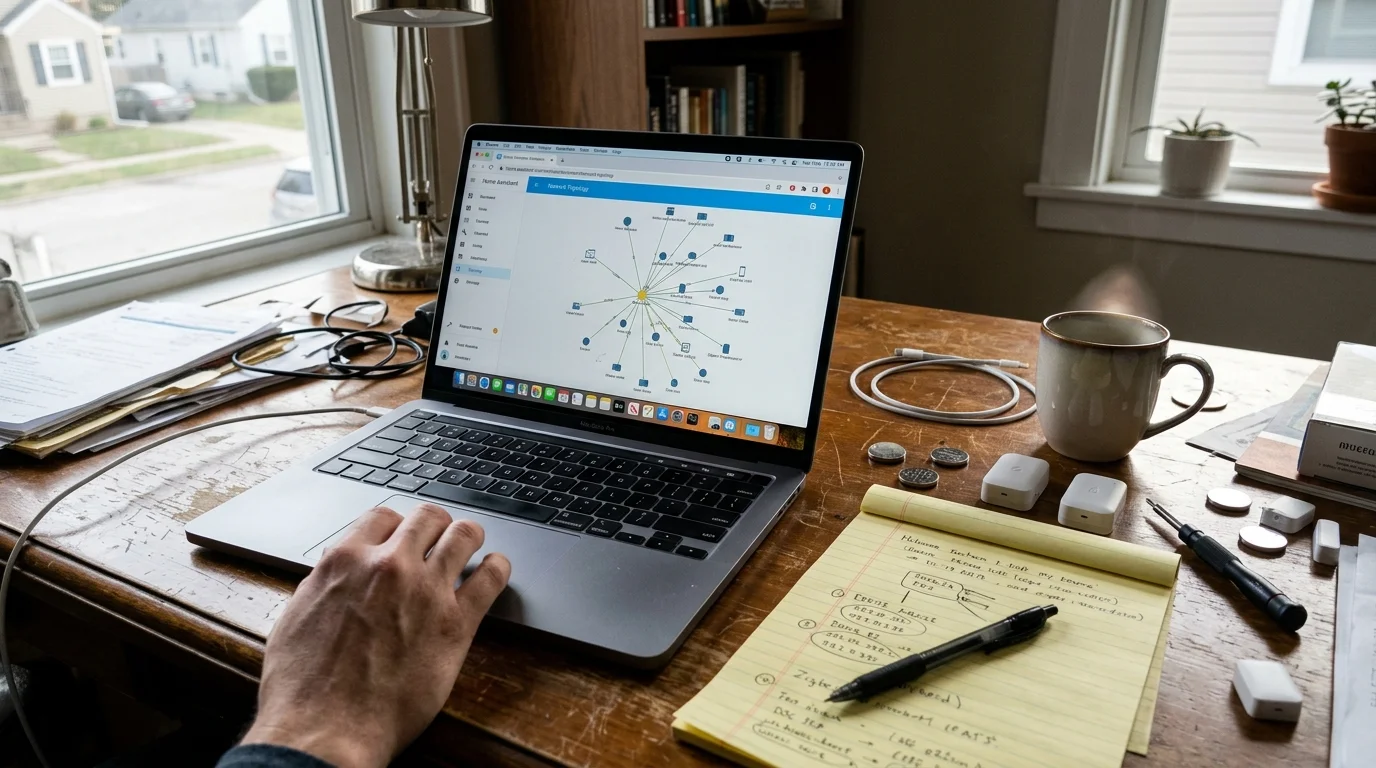
To demonstrate channel alignment in the real world, examine a smart home setup with 60 connected nodes. The setup uses an Asus RT-AX86U dual-band router alongside a Home Assistant Green hub with a Sonoff ZBDongle-P coordinator.
To prevent bandwidth-heavy Wi-Fi gear from saturating local airtime, consider creating a smart home guest network that isolates connected peripherals from primary computing devices.
The network supports 24 Wi-Fi devices, including two Nest Cam outdoor cameras, eight Kasa smart plugs, two smart TVs, and mobile devices. The remaining 36 devices are Zigbee nodes, including Sonoff temperature sensors, Aqara contact sensors, and Philips Hue white ambiance bulbs.
In its initial baseline state, the Asus router used “Auto” channel mode with a 20/40 MHz dynamic bandwidth setting. The Zigbee coordinator operated on its default factory channel, Channel 11.
Under this baseline configuration, the homeowner suffered severe daily operational failures. Network telemetry logged an average Zigbee packet retransmission rate of 28.4%.
The Aqara motion sensor in the stairwell suffered an agonizing 1,400-millisecond latency when triggering the Hue hallway bulbs. Once every four to six hours, battery-operated door sensors disconnected and required manual resets.
An RF survey revealed that the router selected Wi-Fi Channel 1 with wide 40 MHz mode active. This wideband transmission occupied spectrum from 2401 MHz through 2443 MHz, completely smothering Zigbee channels 11 through 18.
The stabilization intervention followed four deliberate technical adjustments:
- The Asus router 2.4 GHz radio bandwidth was locked strictly to 20 MHz, immediately cutting its spectral footprint in half.
- The Asus 2.4 GHz channel was assigned statically to Wi-Fi Channel 1 (2412 MHz), leaving frequencies above 2425 MHz clear.
- The Zigbee coordinator network was shifted from Channel 11 to Channel 25 (2475 MHz), positioning it outside Wi-Fi Channel 1’s broadcast field.
- The coordinator was relocated off the Home Assistant chassis using a 1.5-meter shielded USB 2.0 extension cable to eliminate USB 3.0 controller noise.
The network was monitored for 14 consecutive days following these modifications. Packet retransmission rates dropped from 28.4% down to 0.3% across all 36 Zigbee nodes.
Stairwell motion lighting latency plummeted from 1,400 milliseconds down to 82 milliseconds. Over the entire two-week testing period, zero battery devices dropped offline or missed a state change.
Frequency Coordination Matrix: Wi-Fi Channel Plans vs. Zigbee Pairing
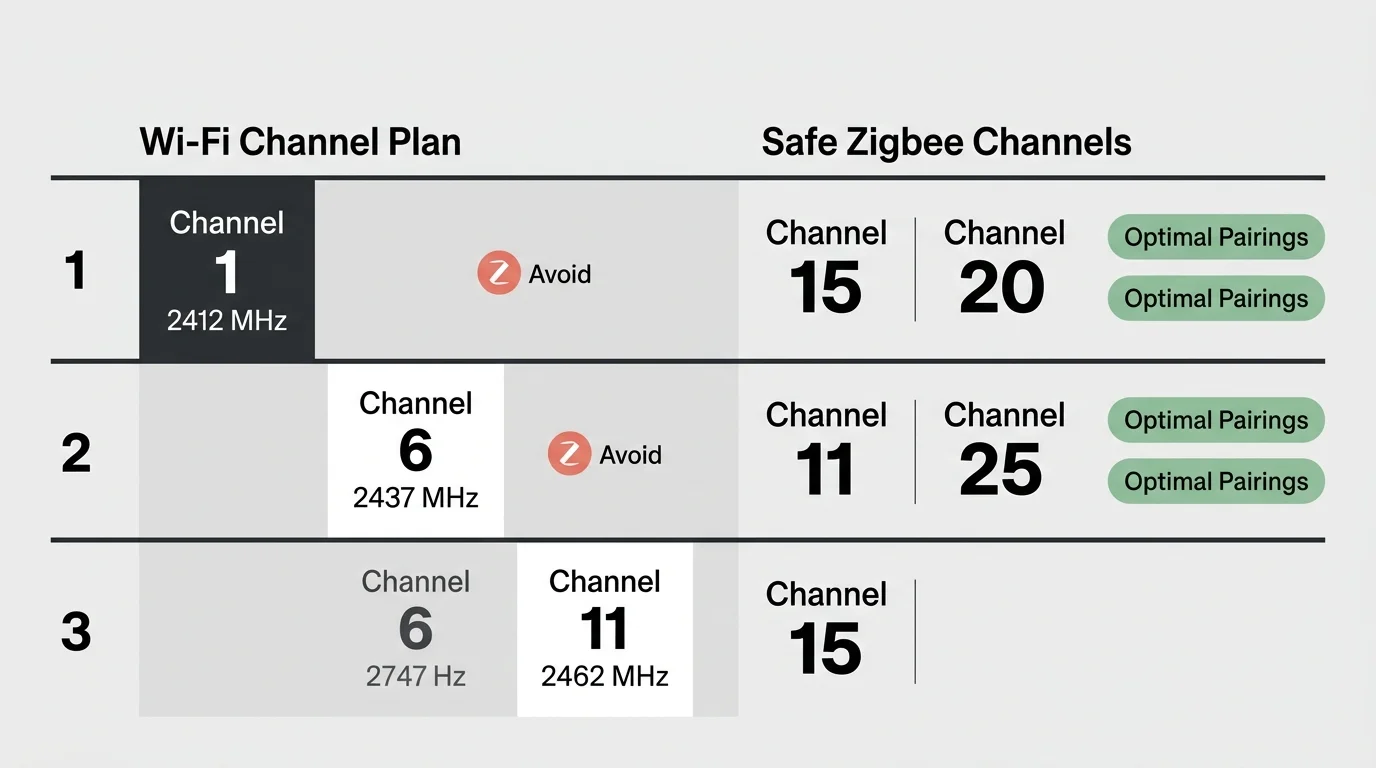
Selecting your Zigbee frequency requires coordinating with the layout of every Wi-Fi access point on your property. If your home requires multiple access points, you must coordinate both systems simultaneously.
Proper radio isolation becomes even more critical when deploying Matter-compatible accessories, where multiple controllers concurrently share the same local airwaves.
For independent technical reviews of commercial mesh access points and routers, PCMag’s smart home lab tests provide comprehensive coverage of equipment capabilities. Choosing routers that permit manual channel locking is critical.
The matrix below shows real-world performance metrics based on standard 20 MHz Wi-Fi deployments compared against conflicting wideband configurations.
| Wi-Fi Channel Plan | Optimal Zigbee Channel | Center Offset | Spectral Clearance | Avg Packet Loss | FCC Power Output |
|---|---|---|---|---|---|
| Wi-Fi 1 Only (20 MHz) | Channel 25 | 63 MHz | Excellent (>30 MHz buffer) | < 0.5% | Full (+20 dBm) |
| Wi-Fi 6 Only (20 MHz) | Channel 11 or 25 | 32 MHz / 38 MHz | Excellent (Clear guard bands) | < 0.8% | Full (+20 dBm) |
| Wi-Fi 11 Only (20 MHz) | Channel 15 | 37 MHz | Excellent (>25 MHz buffer) | < 0.5% | Full (+20 dBm) |
| Wi-Fi 1 + 6 (20 MHz Mesh) | Channel 25 | 38 MHz from Ch 6 | Excellent (Upper band clear) | < 1.0% | Full (+20 dBm) |
| Wi-Fi 1 + 6 + 11 (20 MHz) | Channel 15 or 20 | 13 MHz / 13 MHz | Moderate (Narrow guard slot) | 2.1% – 3.5% | Full (+20 dBm) |
| Wi-Fi 1 + 6 + 11 (20 MHz) | Channel 25 | 13 MHz from Ch 11 | Good (Past Channel 11 mask) | 1.2% – 1.8% | Full (+20 dBm) |
| Wi-Fi 1 + 6 + 11 (20 MHz) | Channel 26 | 18 MHz from Ch 11 | Full (Zero Wi-Fi overlap) | 8.5% (Signal drop) | Restricted (0 to +3 dBm) |
| Auto Mode (40 MHz Wide) | Any Channel | Overlapping | Unusable (Band saturated) | 18.0% – 34.0% | Varies by Channel |
When selecting your channel pairs, keep your highest-traffic Wi-Fi devices isolated from your primary automation coordinators. Physical separation provides critical protection when spectral separation is tight.
Step-by-Step Implementation: Configuring Your Network for Zero Collisions
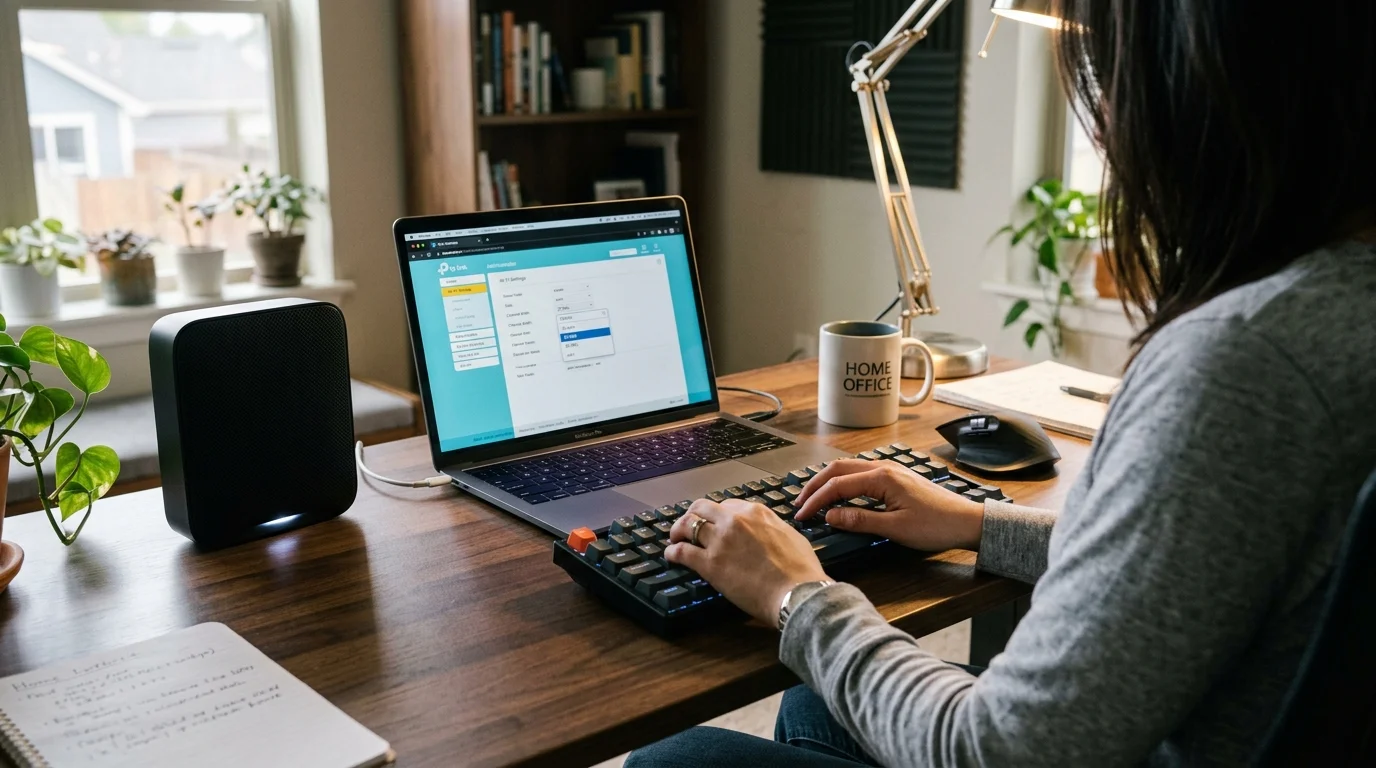
Reorganizing your network frequencies requires systematic execution to prevent stranded smart devices. Follow these steps in order to reconfigure your home without losing mesh connectivity.
- Perform a local RF survey: Download a spectrum scanning tool such as Wi-Fi Analyzer on Android or NetSpot on a laptop. Scan your home to see which Wi-Fi channels your neighbors use.
- Select your Wi-Fi channels: If living in a single-family home with one access point, set your router to Wi-Fi Channel 1. If you run a multi-node mesh system, set your nodes across Channels 1 and 6.
- Lock Wi-Fi channel width: Access your router’s administrative dashboard and locate the 2.4 GHz wireless settings. Change the bandwidth setting from “Auto” or “40 MHz” to “20 MHz Only.”
- Confirm connected smart home standards: Review device specifications to confirm compatibility. According to the Connectivity Standards Alliance, modern standards like Thread share the exact same IEEE 802.15.4 frequency map as Zigbee.
- Determine your target Zigbee channel: If your Wi-Fi runs on Channels 1 and 6, pick Zigbee Channel 25. If your Wi-Fi uses Channels 6 and 11, pick Zigbee Channel 15.
- Update coordinator configuration: In Home Assistant (ZHA or Zigbee2MQTT), navigate to your integration configuration settings. Change your radio channel to your target selection.
- Wake sleep-mode battery sensors: Mains-powered Zigbee repeaters will pick up the coordinator’s channel shift automatically within minutes. Battery-powered sensors must be manually awakened by pressing their pairing button once to fetch the new network parameters.
- Audit neighbor mesh health: Monitor your network latency and Link Quality Index (LQI) metrics for 24 hours to ensure all devices communicate cleanly.
If you use an integrated hub like the Philips Hue Bridge, changing channels is simple. Navigate to Settings, select Bridge Settings, tap Zigbee Channel, and trigger the channel change routine.
Be patient while the mesh rebuilds its routing table after a frequency shift. It takes between 12 and 24 hours for a 60-device mesh to optimize dynamic paths between repeaters.
Physical Hardware Separation and USB Shielding Tactics
Configuring channel math solves airborne radio clashes, but near-field hardware interference can still cripple your network. High-frequency electronics radiate electromagnetic interference (EMI) directly from internal circuit boards.
The single most destructive source of physical smart home interference is USB 3.0 ports. Computer ports, external hard drives, and unshielded cables emit wideband noise directly across the 2.4 GHz to 2.5 GHz range.
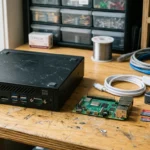
If you plug a Zigbee USB coordinator directly into a Raspberry Pi, mini PC, or Home Assistant Yellow chassis, the USB port will desensitize the coordinator’s receiver. The noise floor rises, causing severe packet loss regardless of channel selection.
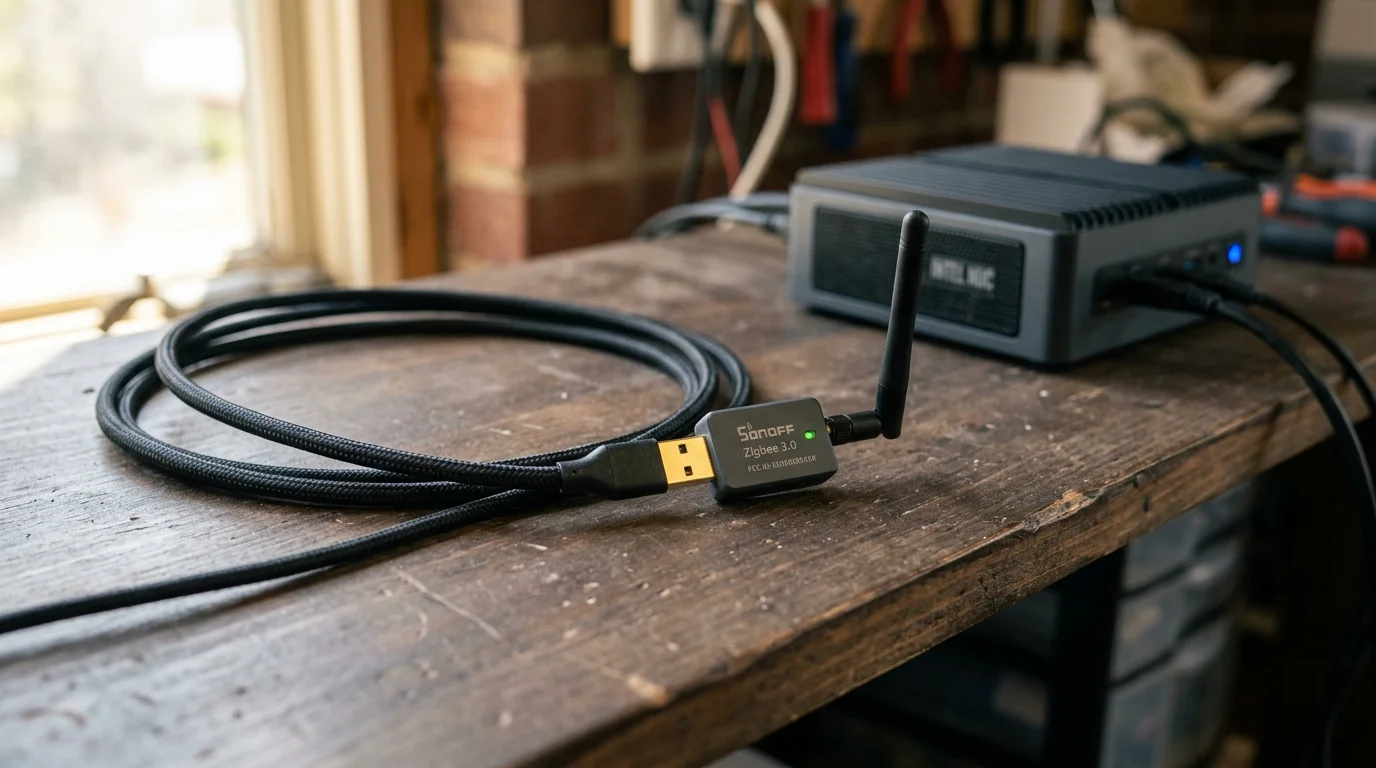
To eliminate this issue, connect your Zigbee coordinator to a 1.5-meter or 2.0-meter shielded USB 2.0 extension cable. Move the coordinator antenna away from metal enclosures, power bricks, and solid-state drives.
Ensure that the extension cable uses USB 2.0 architecture rather than USB 3.0. USB 2.0 connectors lack the high-speed data lanes that radiate disruptive 2.4 GHz electromagnetic fields.
Maintain physical distance between your Wi-Fi access points and your Zigbee coordinator. Keep at least 2 to 3 meters (6 to 10 feet) of physical space between access points and your primary automation hub.
If your Wi-Fi access point sits 12 inches away from your Zigbee coordinator, front-end receiver overload occurs. The high-power Wi-Fi amplifier blinds the sensitive Zigbee radio even when broadcasting on separate channels.
Finally, reinforce your mesh physical layer by placing mains-powered Zigbee smart plugs halfway between the hub and distant sensors. Reliable mesh routing requires both clean spectrum and physical node density.
Frequently Asked Questions
Will moving my Zigbee channel force me to re-pair every smart home device?
Modern mains-powered Zigbee routers pick up channel changes automatically via network management frames. However, sleepy battery-powered sensors may require you to press their reset button once to force network check-ins.
Can I use 40 MHz channel widths on 2.4 GHz Wi-Fi if my smart home is small?
You should never use 40 MHz channel widths on the 2.4 GHz band in any residential environment. A 40 MHz Wi-Fi footprint consumes over 80% of the usable band, crippling Zigbee, Bluetooth, and neighboring Wi-Fi networks.
Why does my smart bulb respond instantly to app clicks but slowly to motion triggers?
App clicks travel over high-power Wi-Fi or Ethernet to your hub, which transmits a single Zigbee command to the bulb. Motion triggers require the battery-powered sensor to transmit an inbound Zigbee frame through interference first, causing delays.
Does 5 GHz or 6 GHz Wi-Fi cause any interference with Zigbee networks?
No, 5 GHz and 6 GHz Wi-Fi frequencies operate entirely outside the 2.4 GHz ISM band and produce zero radio interference with Zigbee. Migrating smartphones, computers, and streaming boxes to 5 GHz and 6 GHz frees up spectrum for smart devices.
Disclaimer: This article is for informational purposes only. Smart home devices involve electrical connections and data privacy. Always follow manufacturer instructions for installation. For complex wiring or HVAC work, consult a licensed professional.