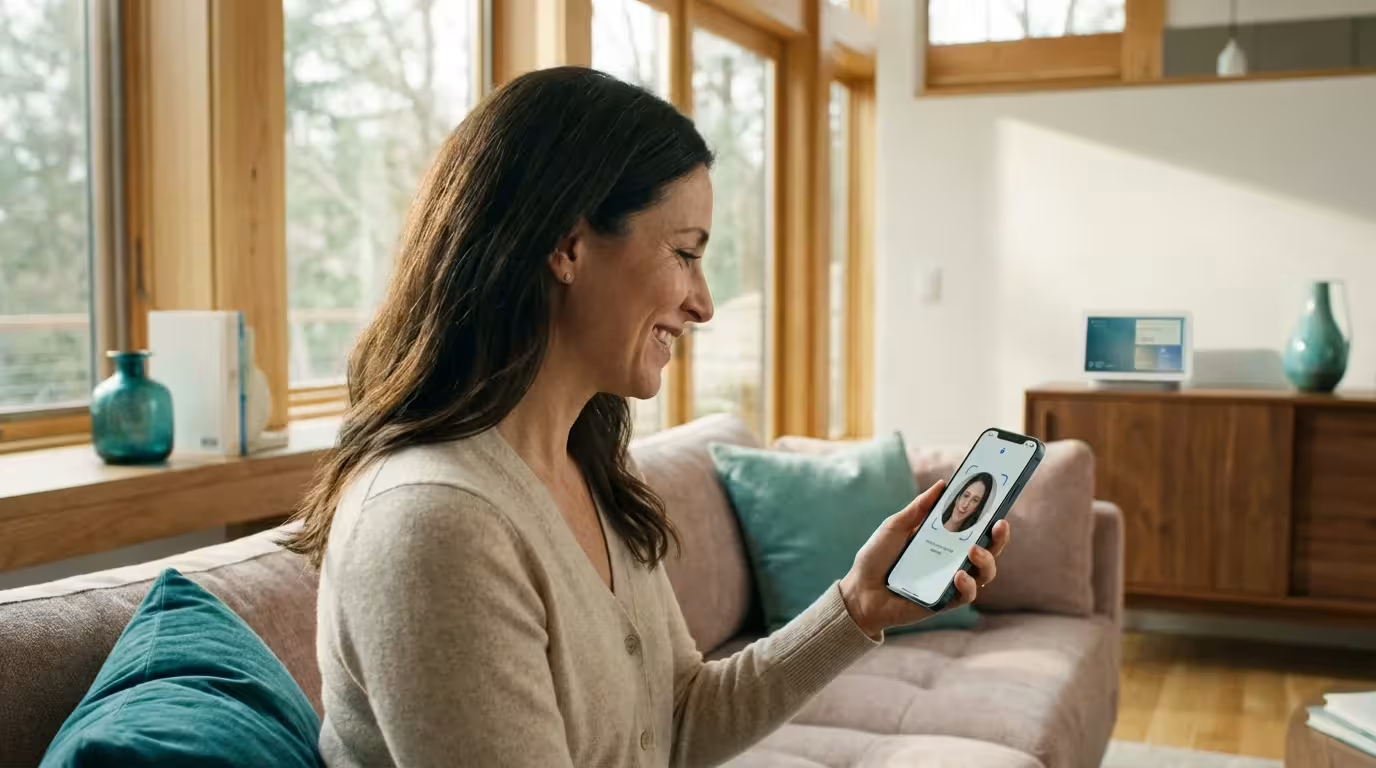
You invest in smart locks to secure your front door and cameras to watch over your property, but if you secure these devices with only a password, you leave the digital front door wide open. In recent years, stories of strangers speaking through baby monitors or accessing indoor security feeds have plagued the news. In almost every instance, the breach wasn’t caused by a sophisticated hack of the device’s firmware, but by weak or reused passwords.
In addition to authentication, creating a smart home guest network provides an extra layer of isolation for your connected devices.
This is where Multi-Factor Authentication (MFA), often called Two-Factor Authentication (2FA), becomes your most critical line of defense. By requiring a second form of verification alongside your password, you ensure that even if a hacker steals your login credentials, they cannot access your camera feeds, unlock your doors, or control your thermostat.
Setting up MFA is one of the highest-impact, lowest-effort actions you can take to harden your home security. This guide walks you through exactly how it works, why you need it, and how to enable it across your most critical smart home ecosystems.
Understanding the Risk: Why Passwords Aren’t Enough
To understand why you need MFA, you must first understand how modern attackers operate. Most people assume hackers sit at a computer trying to guess their specific password. In reality, attackers use a technique called “credential stuffing.”
Maintaining digital vigilance is just as important as automating your home for vacation security to prevent physical break-ins.
Using strong credentials is just one part of the broader strategy needed to secure your smart home from hackers and protect your data.
Here is the typical scenario:
- You use the same email and password for a low-security forum and your Ring camera account.
- The forum suffers a data breach, and your email/password combo is sold on the dark web.
- Automated bots test that email/password combo against thousands of other services, including banking sites, streaming services, and smart home apps.
- If you reused that password, the bot logs into your camera account successfully.
Data from security researchers consistently shows that password reuse is the number one cause of smart home breaches. Even a “strong” password fails if you use it in multiple places. By enabling MFA, you break this chain. Even if the attacker has your email and correct password, they hit a brick wall because they do not have your phone or authentication key.
What is Multi-Factor Authentication and How Does It Work?
Multi-Factor Authentication proves your identity by combining two or more independent credentials. Security experts generally categorize these factors into three types:
Remember that MFA is only one piece of the puzzle; setting up your home WiFi for smart devices correctly is also a fundamental step.
- Something you know: This is your password or PIN.
- Something you have: This is a physical object, such as your smartphone, a hardware security key (like YubiKey), or a smartwatch.
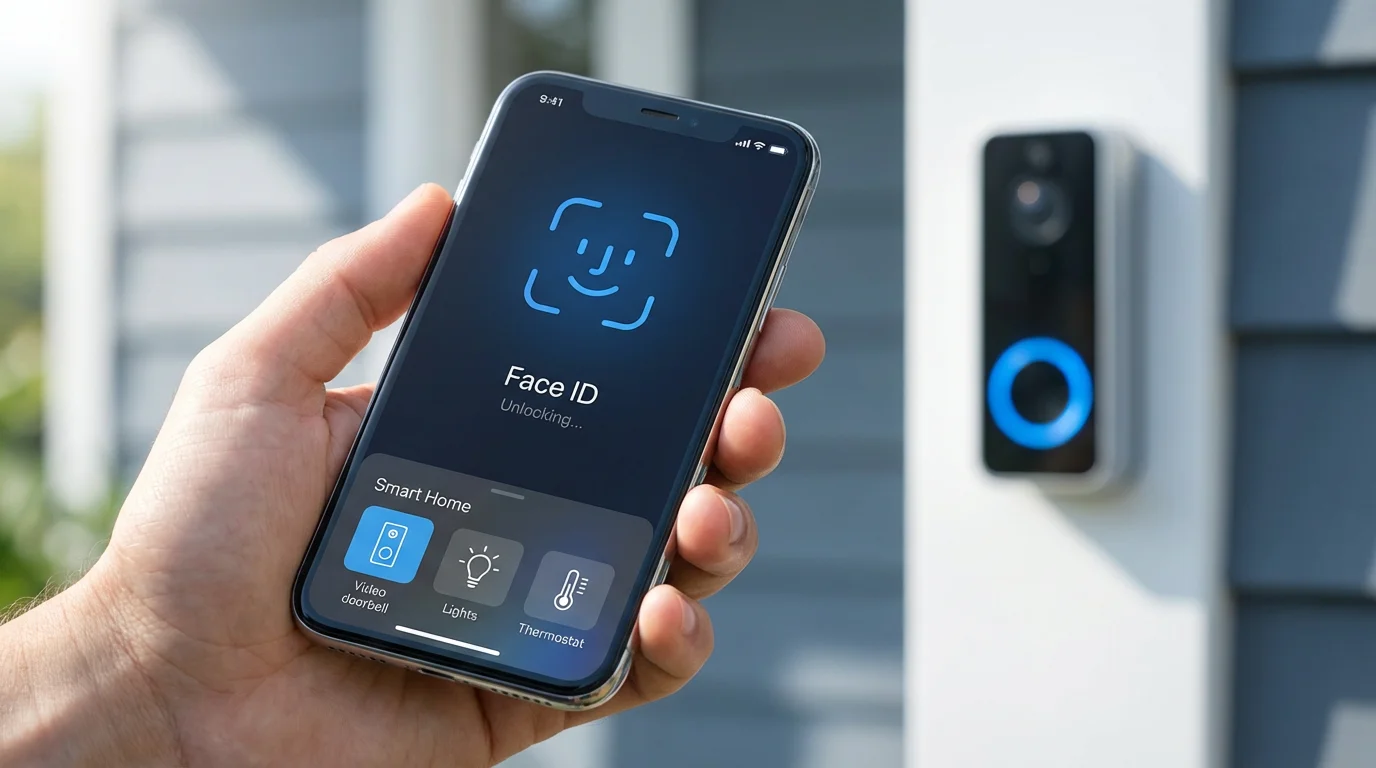
- Something you are: This refers to biometrics, such as FaceID or a fingerprint scan.
When you sign into your smart home app on a new device, the system accepts your password (factor 1) and then demands proof of factor 2. This usually takes one of three forms in consumer smart home tech:
- SMS Text Message: The service texts a 6-digit code to your phone number. You enter this code to complete the login.
- Authenticator App (TOTP): An app like Google Authenticator or Authy generates a new code every 30 seconds. You open the app and copy the code.
- Push Notification: The service sends a pop-up to a trusted device (like your phone) asking, “Is this you trying to sign in?” You simply tap “Yes.”
“The best smart home is the one you don’t have to manage, but the safest smart home is the one only you can access.”
Prioritizing Your Devices: Which Accounts Need MFA First?
While you should ideally secure every account, setting up MFA takes time. You need to triage your devices based on the potential damage a breach could cause. Security experts at CNET and other outlets emphasize starting with devices that impact physical safety and privacy.
When selecting the best first smart home devices to buy, always check for native support for robust authentication methods.
Focus your efforts in this order:
- Priority 1: Cameras and Video Doorbells. These devices capture audio and video from inside and outside your home. A breach here is a severe privacy violation. (e.g., Ring, Nest, Arlo, Wyze, Eufy).
- Priority 2: Smart Locks and Garage Door Openers. Access to these accounts allows an intruder to physically enter your home without forcing entry. (e.g., August, Yale, Chamberlain myQ).
- Priority 3: Smart Home Hubs and Voice Assistants. Access to your Alexa or Google Home account often grants control over all other linked devices.
- Priority 4: Thermostats and Lighting. While annoying if hacked, unauthorized control of lights poses a lower immediate threat than cameras or locks.
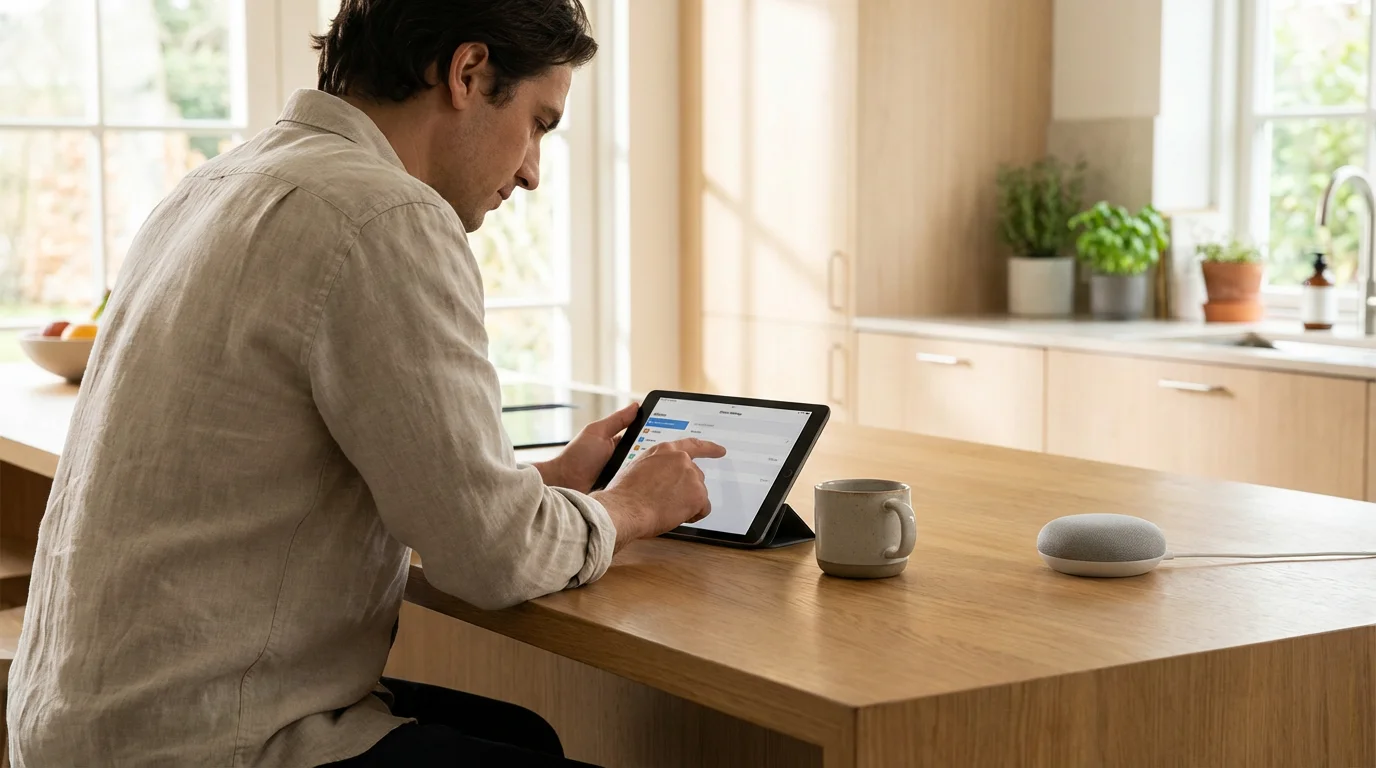
Step-by-Step Guide: Enabling 2FA on Major Smart Home Ecosystems
Most manufacturers now encourage MFA, and some force it. However, you often need to dig into settings to ensure it is configured correctly. Here is how to secure the major players.
Securing Amazon Alexa and Ring
Ring accounts are high-value targets. Amazon has tightened security significantly, but you should verify your settings.
- Amazon Account: Go to “Login & Security” in your Amazon account settings. Select “Two-Step Verification” and follow the prompts to add your phone number or an authenticator app.
- Ring App: Open the Ring app, tap the menu (three lines), and select Control Center. Tap Account Verification. Here, you can choose between text message or an authenticator app. We strongly recommend the authenticator app method for Ring.
Securing Google Home and Nest
Google has migrated most Nest accounts to standard Google Accounts, which benefit from Google’s robust security infrastructure.
- Go to myaccount.google.com.
- Select Security from the left-hand navigation panel.
- Under “How you sign in to Google,” select 2-Step Verification.
- Google prefers “Google Prompts” (a push notification sent to your signed-in Android or iOS phone). This is faster and more secure than SMS.
- Follow the on-screen steps to verify your device.
Securing Apple HomeKit
Apple integrates HomeKit security directly into your Apple ID. If you use Apple devices, you likely already have Two-Factor Authentication enabled, as it is required for many iCloud features.
- On your iPhone, go to Settings > [Your Name] > Password & Security.
- Ensure Two-Factor Authentication is toggled On.
- This protects your Home app remotely. Any attempt to access your home data on a new Apple device will require a code sent to your trusted Apple devices.
Securing Wyze, Arlo, and Eufy
Budget-friendly camera systems are popular, but their wide adoption makes them targets. Do not skip this step for standalone camera apps.
- Wyze: Open the app, go to Account > Security > Two-Step Verification. You can choose SMS or Authenticator App.
- Arlo: Go to Settings > Profile > Login Settings > Two-Step Verification. Arlo lists your trusted devices here as well.
- Eufy Security: Go to the side menu, tap your profile avatar (top), then Security > Two-Step Verification.
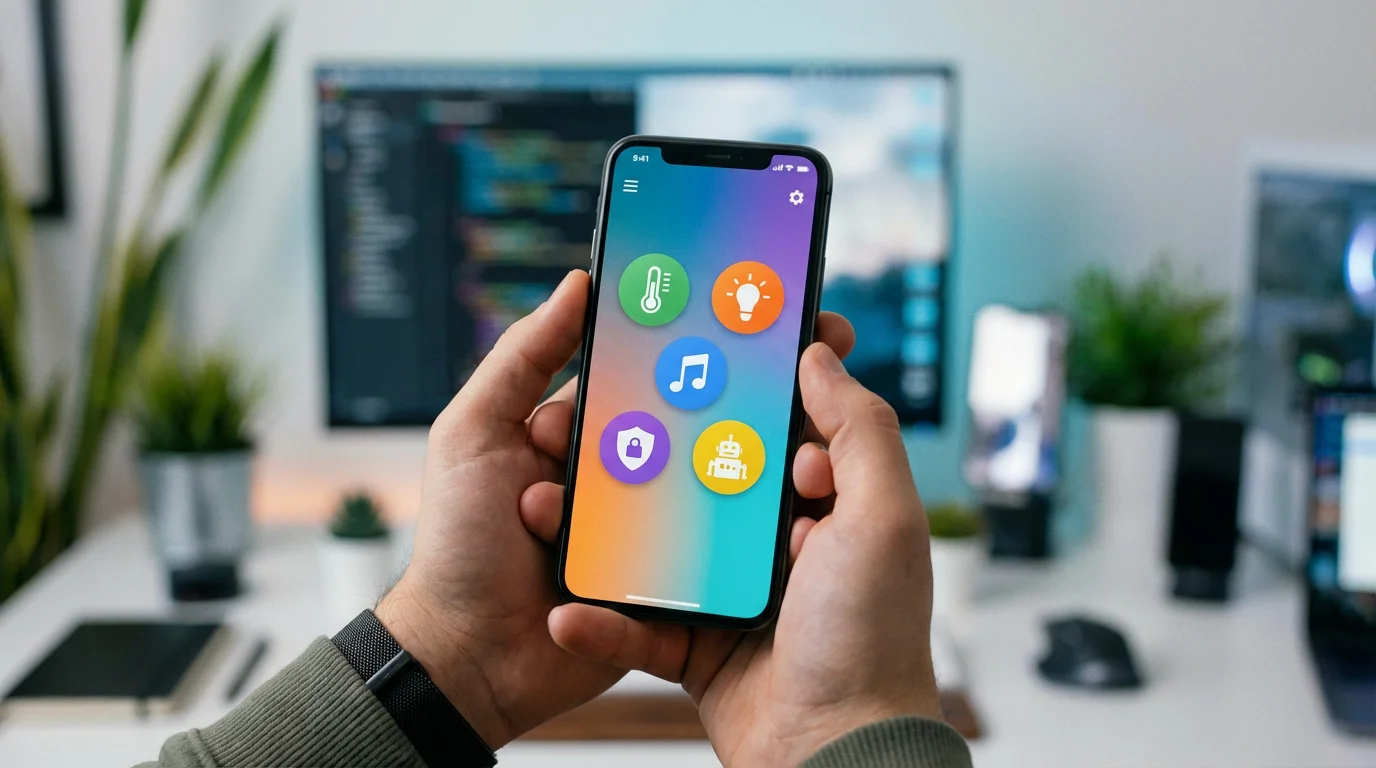
Moving Beyond SMS: Why Authenticator Apps are Better
For years, SMS (text message) codes were the gold standard. However, hackers have developed a method called “SIM Swapping.” In this attack, a hacker convinces your mobile carrier to transfer your phone number to a SIM card they control. Once they own your number, they receive your 2FA codes.
Because of this risk, technology experts prefer Authenticator Apps (Time-based One-Time Passwords, or TOTP). These apps generate codes locally on your device without relying on the cellular network.
Recommended Apps
You can use any compliant app, but these two are the most user-friendly:
- Google Authenticator: Simple and effective. Recently added cloud backup support, so you don’t lose codes if you lose your phone.
- Authy (by Twilio): Excellent for multi-device users. You can install it on your phone and desktop, making it easier to grab codes.
How to Switch to an App
When setting up 2FA in your smart home app, look for an option that says “Authenticator App” or “Totp.” The app will display a QR code. Open your authenticator app, scan that QR code, and type in the generated number to confirm the link.
The Vital Importance of Backup Codes
There is one major downside to strict security: the risk of locking yourself out. If you lose your phone and have 2FA turned on, you cannot log in to turn off your house alarm or check your cameras.
Every service that offers 2FA will provide you with Backup Codes (sometimes called Recovery Codes) during the setup process. These are usually a set of 8 to 10 distinct codes.
Do not skip this step.
- Print these codes out or save them in a secure password manager (like 1Password or Bitwarden).
- Do not save them in a note on the phone you use for authentication.
- If you ever lose your device, you can use one of these codes to bypass the 2FA requirement and regain access to your account.
Troubleshooting Common MFA Issues
Implementing high security can sometimes introduce friction. Here is how to handle common headaches associated with multi-factor authentication in a smart home environment.
If you experience hardware-specific hurdles during setup, our guide on troubleshooting common smart lock problems may provide additional help.
If authentication issues involve visitors, you might want to look into how to give temporary access to your smart lock for a simpler solution.
Problem: “My family members can’t log in.”
If you share a single login for your smart lights or cameras, enabling MFA will lock out your spouse or kids unless they are standing next to you to get the code.
Solution: Stop sharing passwords. Create individual accounts for every family member. Most ecosystems (Ring, Google Home, Amazon Household) allow you to “Invite” a member. They will create their own login and set up their own MFA. This is safer and more convenient.
Problem: “I’m not receiving SMS codes.”
This often happens when cellular networks are congested or if you have blocked “short code” numbers to avoid spam.
Solution: Switch to an Authenticator App (as detailed above) whenever possible. It works over Wi-Fi and does not require cellular signal.
Problem: “Integration with third-party hubs (like Home Assistant) broke.”
If you use a hub like Home Assistant or Hubitat, enabling 2FA on a linked service (like your Tuya or Smart Life account) might break the connection.
Solution: You may need to re-authenticate the integration using a new token, or generate a specific “App Password” within the service’s security settings. Check the documentation for your specific hub integration.
Frequently Asked Questions
Is SMS or Email better for Two-Factor Authentication?
SMS is generally better than email because email accounts are more frequently compromised. If a hacker is in your email, they can request a password reset and get the verification code. However, using an Authenticator App is significantly more secure than SMS due to the risk of SIM-swapping attacks where hackers steal your phone number.
Does enabling MFA slow down my smart home devices?
No. MFA only affects the login process when you sign into the app on a new phone or computer. It does not delay the operation of your lights, locks, or cameras during daily use. Your voice assistants and automations will continue to run instantly.
What happens if I lose my phone and can’t get my 2FA code?
If you lose your phone, you must use the backup codes you saved during setup. If you did not save backup codes, you will likely need to go through a lengthy identity verification process with the device manufacturer’s customer support to regain access to your account.
Do I need MFA if I have a really long password?
Yes. Even a complex password can be stolen through keyloggers, phishing scams, or server-side data breaches. The Verge and other tech outlets frequently report on breaches where passwords were exposed regardless of complexity. MFA ensures that a stolen password alone is useless to a hacker.
Disclaimer: This article is for informational purposes only. Smart home devices involve electrical connections and data privacy. Always follow manufacturer instructions for installation. For complex wiring or HVAC work, consult a licensed professional.