Imagine waking up on a Sunday morning. Instead of fumbling for a plastic wand or stepping onto a cold floor to let the sunlight in, you simply murmur, “Good morning,” and your room gradually floods with natural light. This isn’t science fiction; it is the practical reality of integrating smart blinds with voice control. Whether you want to manage glare on your TV, protect your furniture from harsh UV rays, or simply feel like you’re living in the future, voice automation offers a level of convenience that manual shades cannot match.
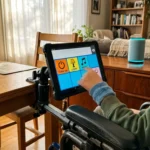
This technology is a major breakthrough for accessibility, and you can learn more about smart home voice control for the visually impaired to see how it aids daily living.
Setting up voice commands for your window treatments might seem intimidating if you have never done it before. It involves connecting hardware, configuring apps, and bridging different wireless protocols. However, the process is logical and straightforward when broken down into actionable steps. Once configured, you gain hands-free control that integrates seamlessly with your lighting, thermostat, and daily routines.
This guide walks you through the entire process, from choosing the right ecosystem to troubleshooting connectivity issues. You will learn how to connect your blinds to Alexa, Google Assistant, and Siri, ensuring you get the most out of your smart home investment.
Understanding the Basics of Voice-Controlled Blinds
Before diving into app settings, you must understand the hardware relationships that make voice control possible. Unlike a smart speaker that connects directly to your Wi-Fi, most smart blinds operate on low-power radio frequencies like Zigbee, Z-Wave, or proprietary signals (such as Lutron’s Clear Connect). This preserves battery life, allowing your shades to operate for months or years without recharging.
Once you have the hardware, you can boost efficiency by integrating your smart thermostat with your smart blinds to manage indoor temperatures automatically.
Because your smart speaker communicates via Wi-Fi and your blinds communicate via radio frequency, you usually need a “translator” in the middle. This is the role of the smart bridge or hub. The command travels from your voice to the smart speaker, then to the cloud, back to the bridge, and finally to the blind motor.
Key Components of the System
- The Motorized Blind: This is the actual shade equipped with a motor. It can be a custom-ordered unit or a retrofit device (like a chain driver) attached to existing blinds.
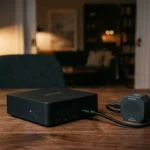
- The Bridge/Hub: A small box that plugs into your router or a wall outlet. It connects the blinds to the internet. Note: Some newer devices use the Matter smart home standard, which may eliminate the need for a proprietary bridge if you have a compatible Thread border router.
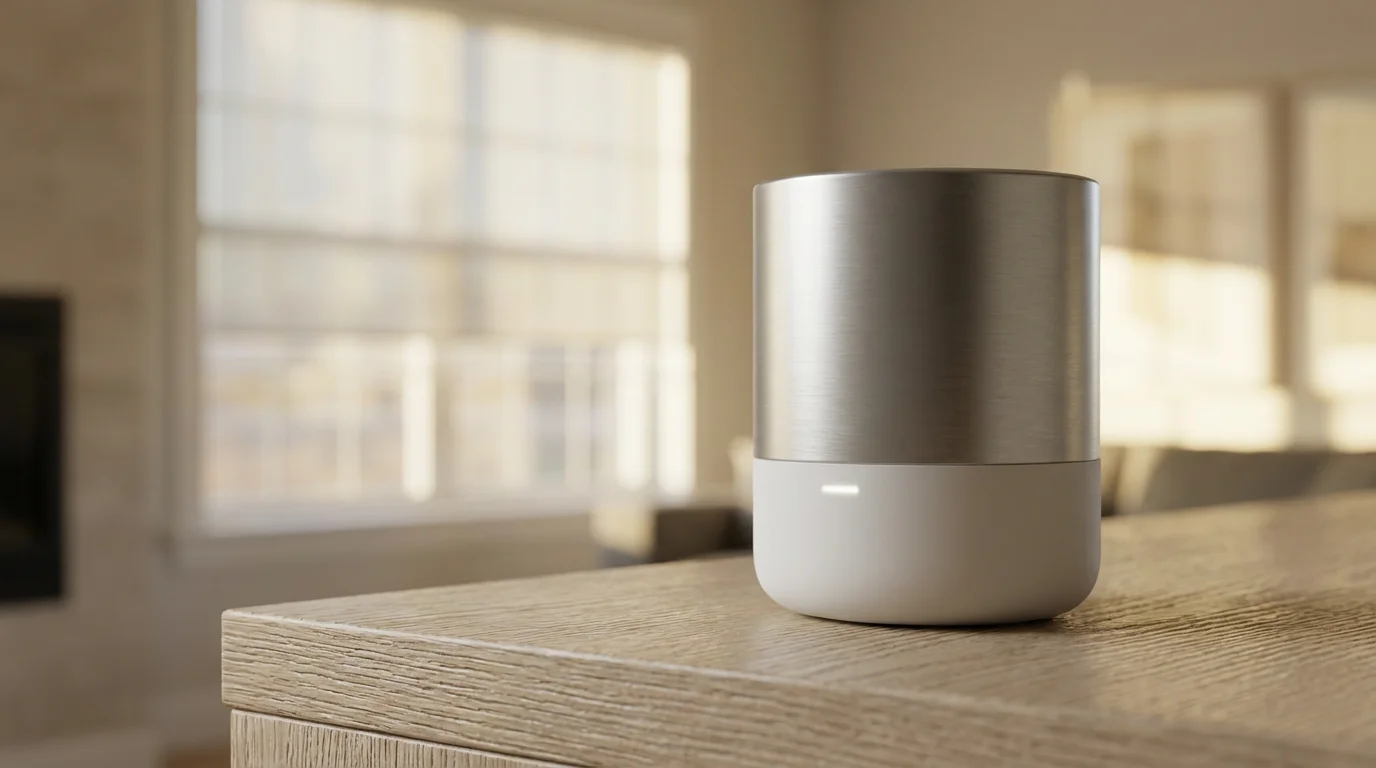
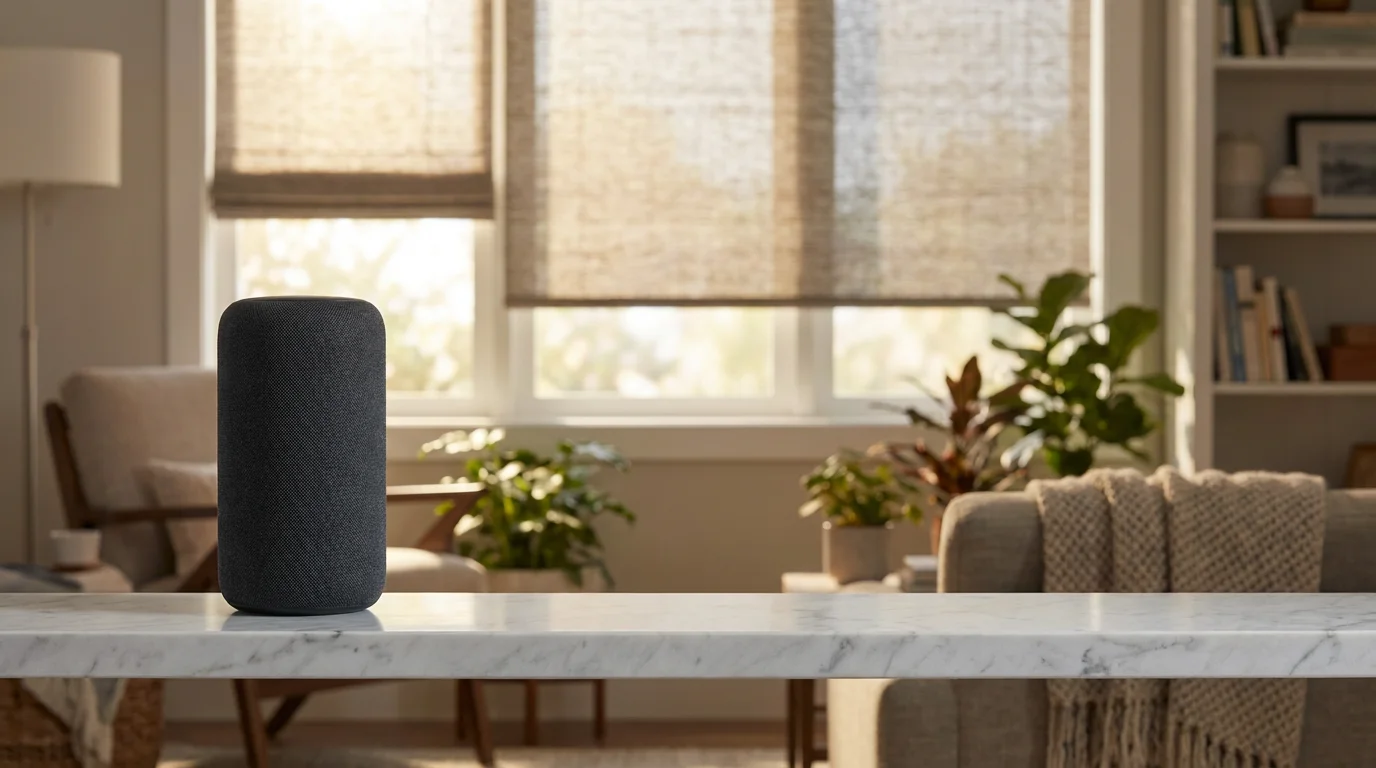
- The Voice Assistant: The interface you speak to (e.g., an Amazon Echo Dot, Google Nest Audio, or Apple HomePod).
Understanding this chain of command helps you troubleshoot. If your voice assistant says, “I can’t reach that device,” the issue is likely the connection between the bridge and the Wi-Fi, not necessarily the blind itself.
Choosing the Right Ecosystem for Your Needs
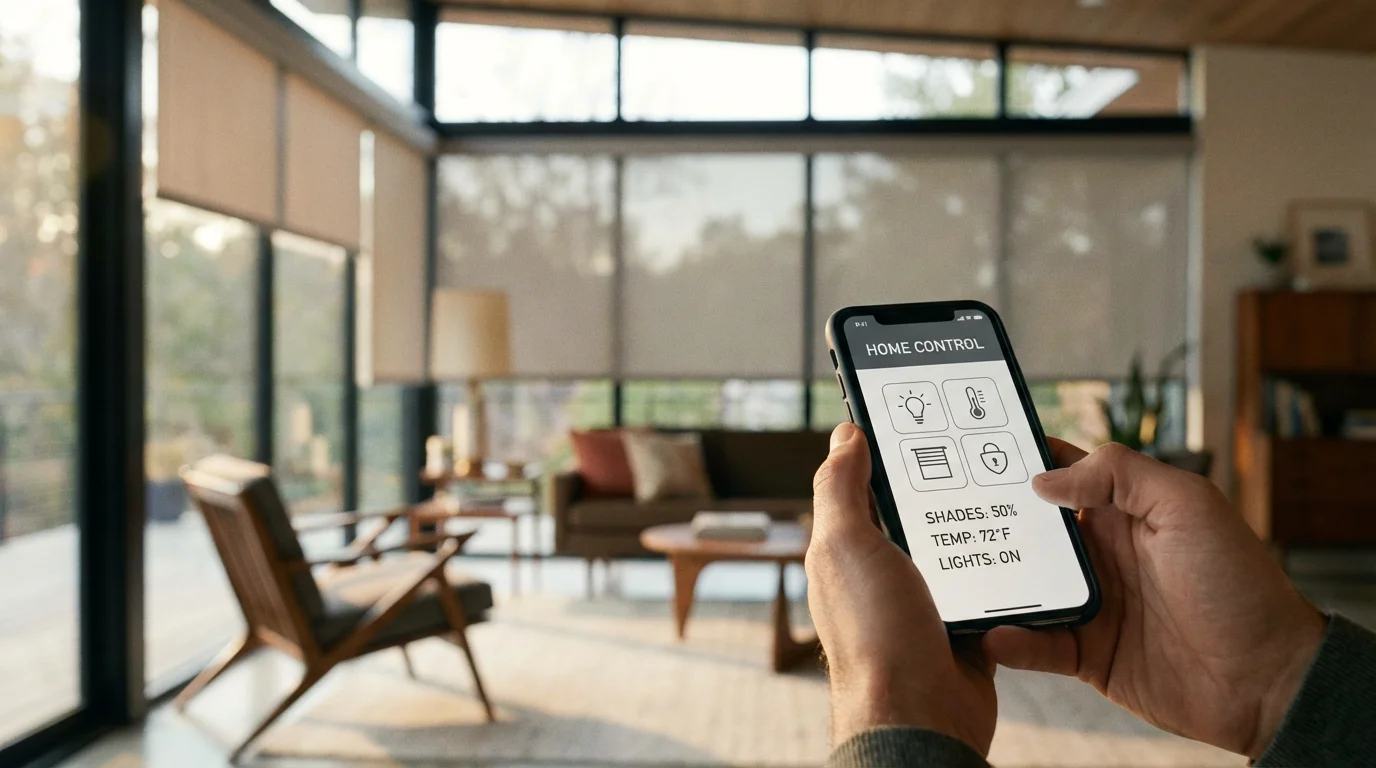
If you are building your smart home from scratch, your choice of voice assistant dictates which smart blinds you should buy. While many major brands (like Lutron Serena, Somfy, or Eve MotionBlinds) work with all three major platforms, the setup process and specific features vary.
Amazon Alexa
Alexa is the most ubiquitous voice assistant with the widest range of compatible devices. If you prioritize compatibility and complex routines (like having blinds close when you arm your security system), Alexa is a strong choice. Amazon’s Echo devices are affordable and often act as hubs for Zigbee devices, potentially simplifying your setup.
Google Assistant
Google Assistant excels at natural language processing. You can say things like, “Hey Google, close the blinds a little bit,” and it often understands the context better than competitors. If you rely heavily on Android phones and Google Calendar, this ecosystem offers the best integration for personal scheduling.
Apple HomeKit (Siri)
For iPhone users, HomeKit offers the tightest security and privacy. Apple processes many commands locally rather than in the cloud, which speeds up response times. HomeKit is stricter about which devices it supports, so you must verify that your smart blinds feature the “Works with Apple Home” badge before purchasing.
The best smart home is the one you don’t have to manage. Voice control is great, but true automation happens when the house reacts to you without a word spoken.
Step-by-Step Guide: Connecting Blinds to Amazon Alexa
Integrating your blinds with Alexa usually involves enabling a “Skill”—a small app that teaches Alexa how to talk to your specific brand of blinds. Ensure your blinds are already set up and functioning in their native manufacturer app before starting this process.
- Open the Alexa App: Launch the app on your smartphone and tap the More tab in the bottom right corner.
- Select Skills & Games: Tap on the search magnifying glass and type the brand name of your blinds (e.g., “Somfy,” “Lutron,” “Tuya,” or “Smart Life”).
- Enable the Skill: Select the correct skill and tap Enable to Use. You will be redirected to the manufacturer’s login page. Enter your credentials to link the accounts.
- Discover Devices: Once the accounts are linked, Alexa will prompt you to discover devices. If not, say, “Alexa, discover my devices.” This process takes about 45 seconds.
- Organize into Groups: This step is critical for natural voice control. Go to the Devices tab, create a Group (e.g., “Living Room”), and add both your Echo device and your new blinds to it.
Pro Tip: By grouping the device, you can simply walk into the living room and say, “Alexa, open the blinds,” without specifying which blinds. Alexa knows which room you are in based on the Echo device that heard you.
Essential Alexa Commands
- “Alexa, set the bedroom blinds to 50%.”
- “Alexa, raise the shades.”
- “Alexa, close the blinds.”
Step-by-Step Guide: Integrating Blinds with Google Assistant
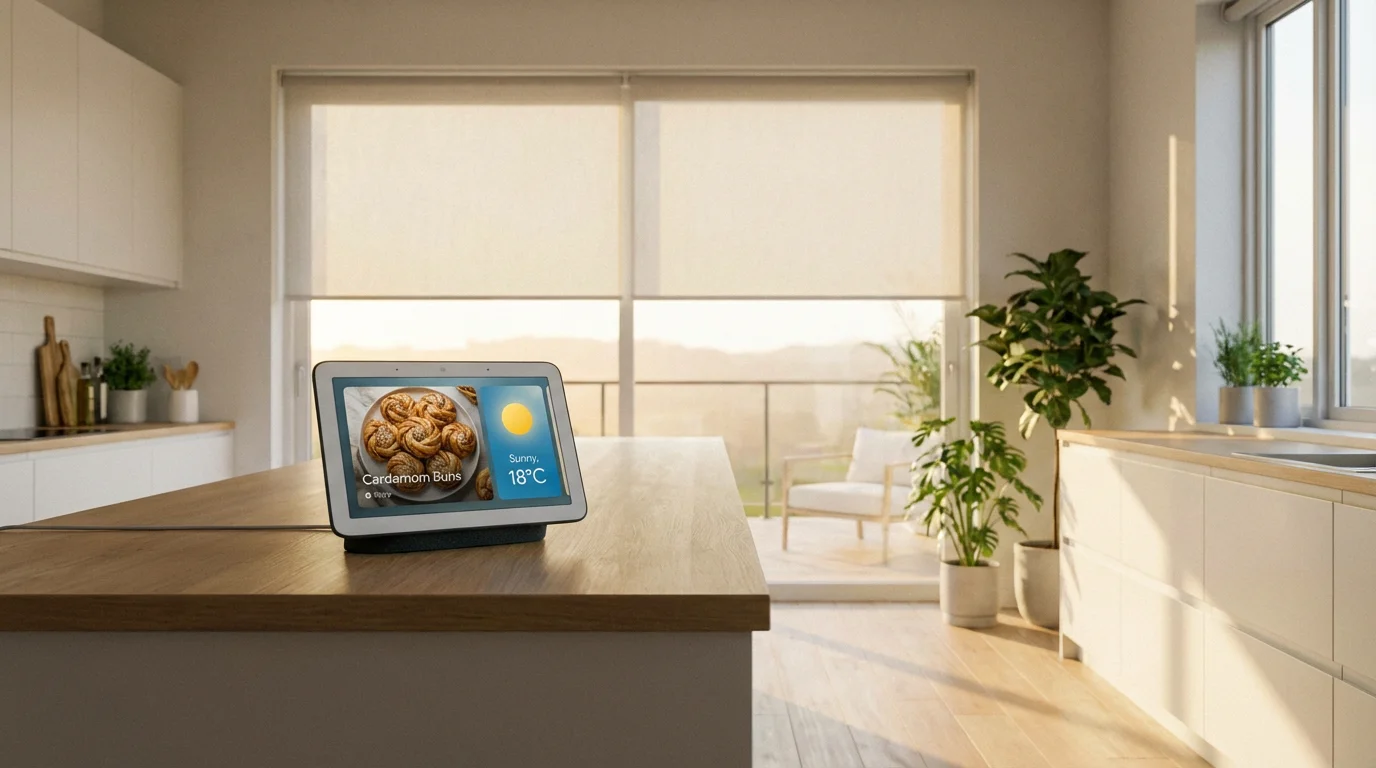
Google Home treats smart blinds as a specific device type, allowing for seamless integration into its visual dashboard and voice command structure. The setup focuses on “linking services.”
- Launch Google Home: Open the Google Home app and tap the (+) icon in the top left corner.
- Set Up Device: Select Works with Google.
- Search for Manufacturer: Scroll through the list or search for your blind manufacturer (e.g., “SwitchBot,” “IKEA Home Smart”).
- Authorize Access: Sign in to your blind manufacturer’s account to grant Google permission to control the devices.
- Assign to Rooms: Google will pull in all your blinds. Tap each one and assign it to a specific room (e.g., Master Bedroom, Kitchen). This step is mandatory for proper voice control.
Google Assistant is particularly good at handling multiple commands. You can say, “Hey Google, turn on the lights and close the blinds,” and it will execute both actions simultaneously.
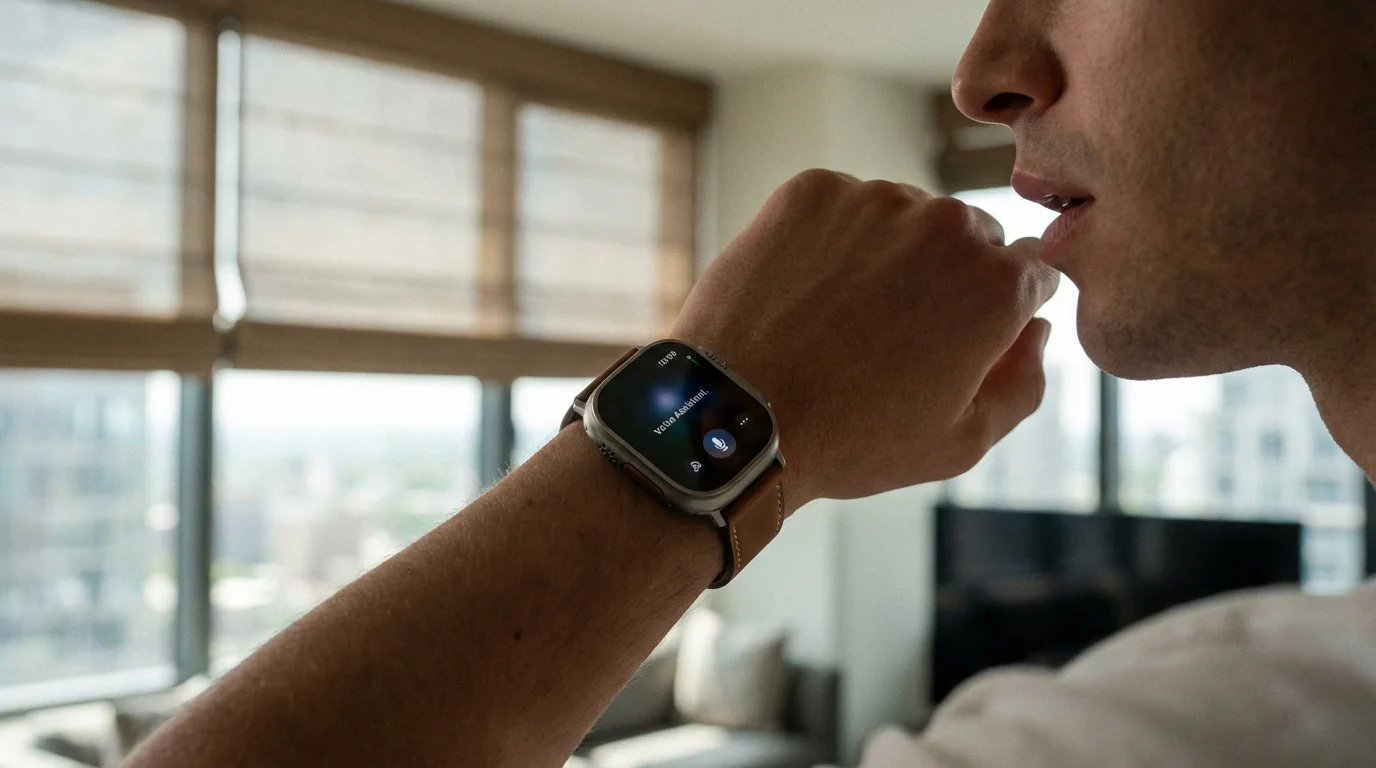
Step-by-Step Guide: Syncing Blinds with Apple HomeKit
HomeKit setup is distinct because it often skips the manufacturer’s account linking in favor of a direct pairing code. This is common with devices that support HomeKit natively.
- Locate the HomeKit Code: Look for a QR code or an 8-digit number on your smart blind’s motor, the bridge, or the instruction manual.
- Open the Apple Home App: Tap the (+) icon in the top right and select Add Accessory.
- Scan the Code: Use your iPhone camera to scan the QR code. If your blinds use a bridge (like the Lutron Caséta Smart Hub), you usually add the bridge first, and the blinds will appear automatically.
- Name and Locate: Give your blind a recognizable name (e.g., “Left Window”) and assign it to a room.
Voice Command Tip: Siri works best with “Scenes.” Instead of telling Siri to adjust three different blinds, create a Scene called “Cinema Mode” that lowers all blinds and dims the lights, then trigger it with a single phrase.
Creating Automations and Routines for Daily Life
Voice control is convenient, but combining voice triggers with routines unlocks the full potential of smart home automation. By grouping actions, you reduce the number of commands you need to issue throughout the day.
According to The Verge, the most effective smart home setups rely on routines that mimic your natural behavior rather than forcing you to memorize complex commands. Here are three practical routines you can build in Alexa, Google Home, or Apple HomeKit.
1. The “Good Morning” Routine
Stop waking up to a dark room or a blaring alarm. Configure a routine that triggers when you dismiss your alarm or say, “Good Morning.”
- Action 1: Raise blackout shades to 100%.
- Action 2: Adjust thermostat to a comfortable daytime temperature.
- Action 3: Read the weather forecast and daily calendar.
- Action 4: Turn on the kitchen lights.
2. The “Privacy” or “Sunset” Routine
You don’t want to worry about neighbors seeing into your home once the sun goes down. Use a sunset trigger or a voice command like “Secure the house.”
- Action 1: Close all blinds in street-facing rooms.
- Action 2: Lock the smart lock on the front door.
- Action 3: Turn on exterior porch lights.
3. Temperature Control Automation
This is where you save money on energy bills. While not always a direct voice command, you can use voice to enable/disable this mode. For example, “Turn on Summer Mode.”
- Trigger: If the outdoor temperature rises above 85°F.
- Action: Lower blinds on the south-facing side of the house to 50% to reduce solar heat gain.
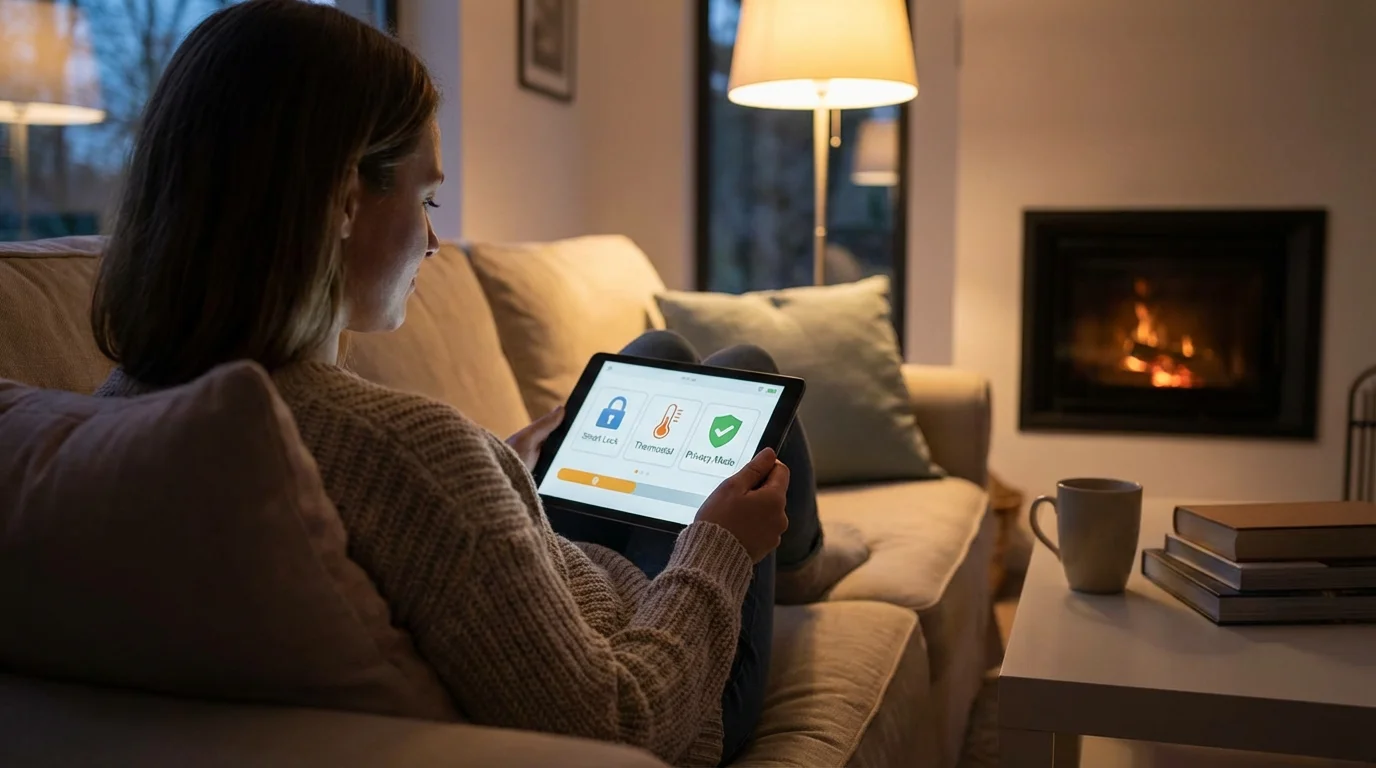
Privacy and Security Considerations
Bringing smart speakers and internet-connected devices into your home raises valid privacy concerns. While smart blinds themselves collect very little data, the voice assistants controlling them are constantly listening for a wake word.
Managing Voice Recordings
All three major platforms allow you to review and delete voice recordings. You should periodically check these settings to ensure you are comfortable with the data being stored.
- Alexa: Go to Settings > Alexa Privacy > Review Voice History. You can set this to auto-delete every 3 or 18 months.
- Google Assistant: Visit your Google Account > Data & Privacy > Web & App Activity to manage audio recordings.
- Siri: Apple’s privacy policy states that audio of your requests is not stored by default, but you can opt-in to improve Siri. You can reset this identifier in your iPhone settings.
Securing Your Network
Because your blinds connect to your home network via a bridge or Wi-Fi, they are a potential entry point for hackers, however unlikely. To mitigate this:
- Use a Guest Network: Put all your IoT devices (blinds, bulbs, fridges) on a separate “Guest” Wi-Fi network. If a device is compromised, the attacker cannot easily access your personal computer or file storage.
- Update Firmware: Manufacturers release updates to patch security holes. Enable automatic updates in your smart blind manufacturer’s app.
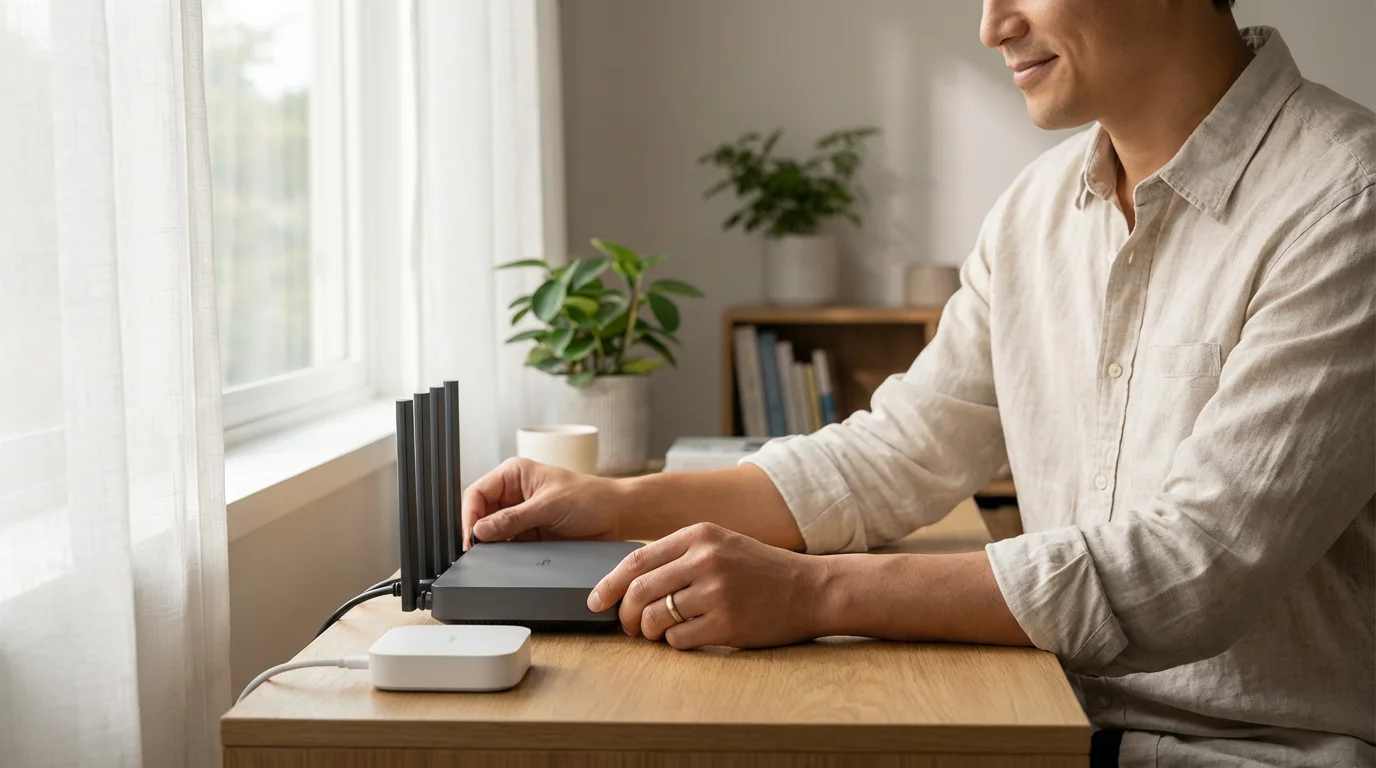
Troubleshooting Common Connectivity Issues
Even the best systems encounter glitches. If your voice assistant says, “Sorry, the device is unresponsive,” follow this diagnostic checklist before calling support.
1. Check the Bridge Connection
The bridge is the most common point of failure. Ensure it has power and is connected to the router via ethernet (if applicable). If the bridge has lost internet connection, the voice assistant cannot send the signal to the blinds.
2. Verify Naming Conventions
Voice assistants struggle with similar names. If you have a lamp named “Living Room” and blinds named “Living Room,” saying “Turn on Living Room” creates a conflict. Rename devices to be distinct: “Living Room Lamp” and “Living Room Shades.”
3. Signal Range
If one specific blind works intermittently, it may be too far from the bridge. Radio signals struggle to penetrate thick concrete walls or metal appliances. Try moving the bridge to a more central location or installing a signal repeater (range extender) compatible with your blind’s protocol.
4. Re-sync the Skill/Service
Sometimes the link between the manufacturer and the voice assistant breaks after a software update. In your voice assistant app, disable the manufacturer skill and re-enable it. This forces a fresh login and often resolves “unresponsive” errors.
Frequently Asked Questions
Can I still open my smart blinds manually if the internet goes down?
Yes, most smart blinds include a remote control or a manual pull feature. Additionally, manufacturers like Lutron offer wall switches (Pico remotes) that communicate directly with the blind motor via radio frequency, meaning they work perfectly even without Wi-Fi or internet access.
Do smart blinds require hardwired power or batteries?
You have both options. Battery-operated blinds are the easiest to install for existing homes (retrofitting) and typically use D-cell batteries or rechargeable lithium-ion packs that last 6 to 12 months. Hardwired blinds require an electrician but offer zero maintenance and are ideal for new construction.
Can I make my existing regular blinds smart?
Yes. You can purchase retrofit motors like the SwitchBot Blind Tilt or Axis Gear. These devices attach to your existing wand or beaded chain loop to rotate or pull the blinds. They are generally more affordable than buying new custom smart shades but may be slightly noisier.
Will smart blinds work with my older Echo or Google Home device?
Generally, yes. The voice processing happens in the cloud, so even a first-generation Echo Dot can control the latest smart blinds, provided you have the correct manufacturer bridge or hub set up. However, newer smart speakers with built-in Zigbee or Matter hubs can simplify the setup by removing the need for extra bridges.
Disclaimer: This article is for informational purposes only. Smart home devices involve electrical connections and data privacy. Always follow manufacturer instructions for installation. For complex wiring or HVAC work, consult a licensed professional.