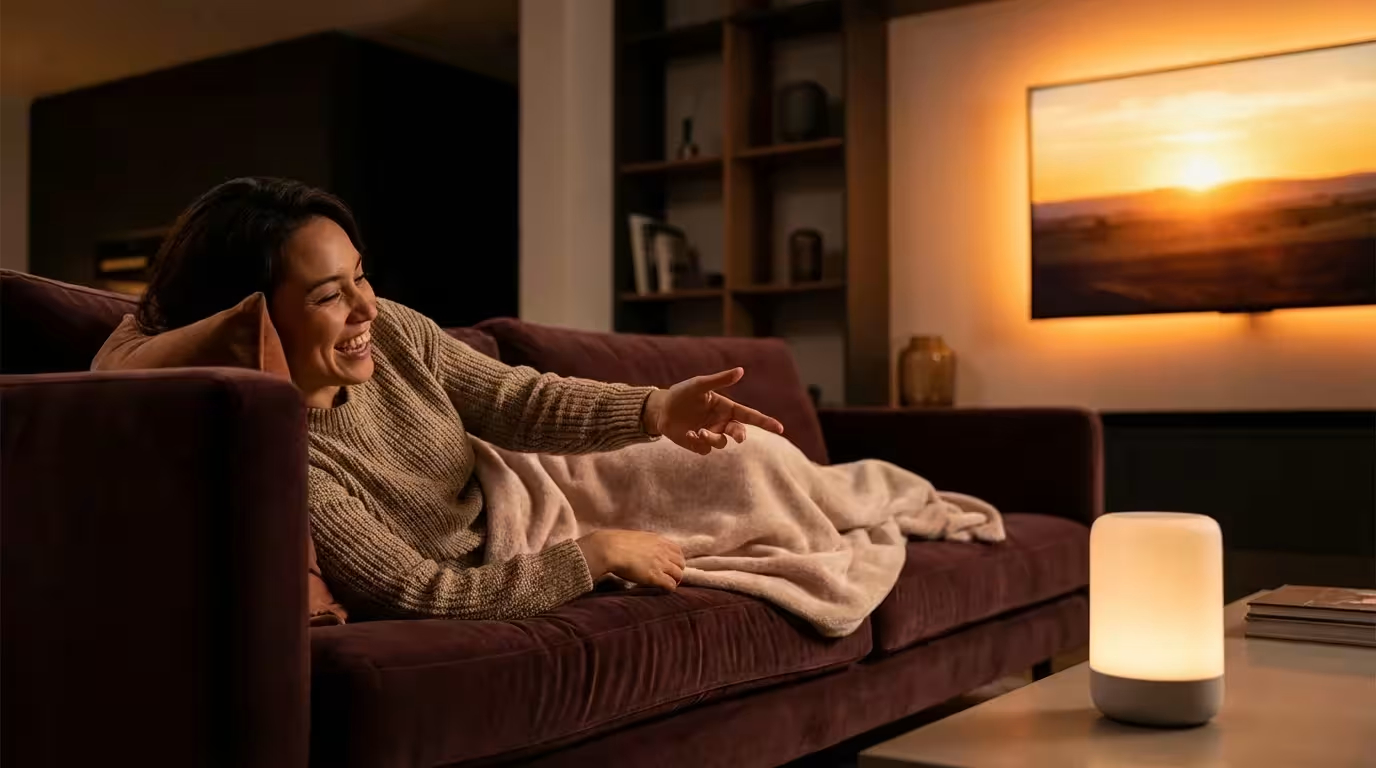
You have settled into the couch, the popcorn is ready, and the blanket is perfectly positioned. Then you realize the remote is on the other side of the room—or worse, wedged deeply between the cushions. In the past, this meant disrupting your comfort. Today, it just means speaking a simple command to the air.
Integrating your television with Amazon Alexa transforms your entertainment center from a collection of plastic remotes into a streamlined, voice-activated experience. Whether you want to launch Netflix, lower the volume, or switch inputs to your gaming console, voice commands offer a level of convenience that feels surprisingly futuristic until it becomes second nature. Beyond simple convenience, this integration is a cornerstone of a cohesive smart home ecosystem, allowing your entertainment devices to interact with lights, shades, and thermostats.
This guide walks you through the practical steps to link your TV to Alexa, regardless of whether you have the latest high-end display, a Fire TV Stick, or an older model that needs a little extra help.
Identifying Your Hardware Setup
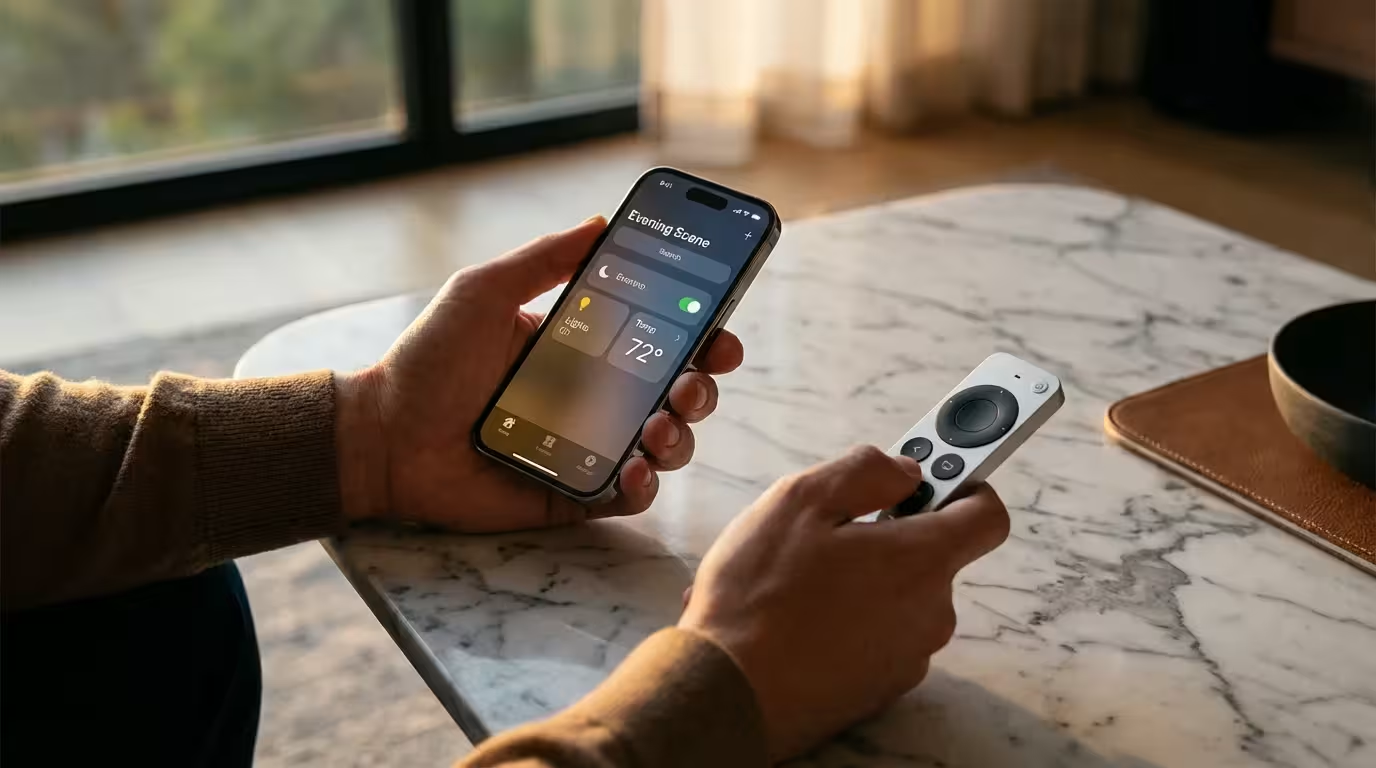
Before you start downloading apps, you must determine how your specific television communicates. Not all “smart” TVs are created equal when it comes to voice assistants. Generally, your setup will fall into one of three categories, and the method you use to connect them will differ slightly for each.
If you are still deciding on a platform, it is helpful to see how Alexa vs Google Assistant vs Siri compare when it comes to controlling home entertainment.
- Built-in Alexa: Many modern televisions from brands like Samsung, LG, Sony, and Vizio come with Alexa software pre-installed. You often speak directly into the remote, or the TV acts as an Echo device itself.
- Works with Alexa: These TVs do not have Alexa built-in, but they are compatible with the Alexa ecosystem. You need an external device (like an Echo Dot) to issue commands, which are then sent to the TV over your Wi-Fi network.
- Non-Smart / Legacy TVs: If your TV lacks internet connectivity or smart features, you are not out of luck. You can make these devices smart by using a Fire TV Stick or an external infrared (IR) blaster.
Understanding this distinction saves you from searching for menus that do not exist. Check your TV’s manual or look for the “Works with Alexa” badge on the manufacturer’s website.
Connecting TVs with Native Alexa Support
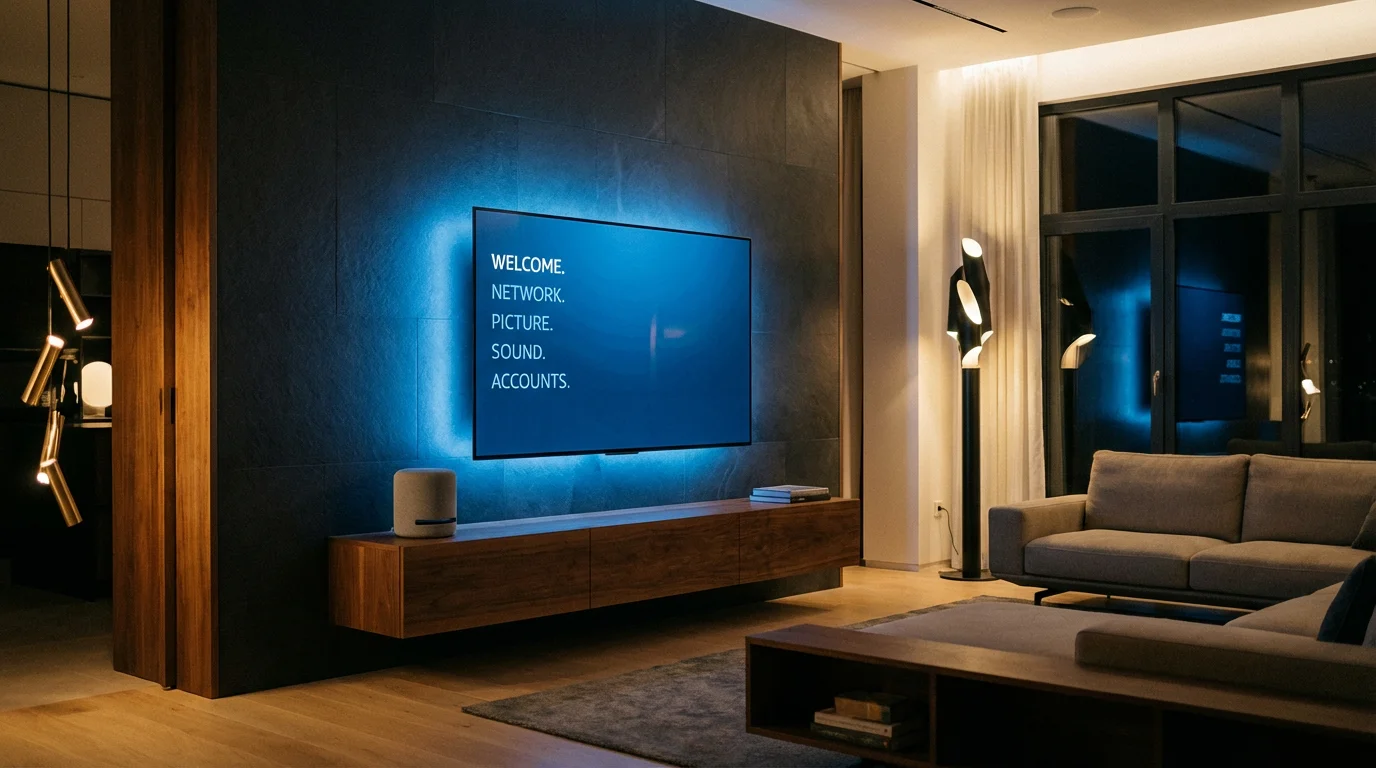
If you own a smart TV manufactured in the last few years, chances are it supports Alexa natively. Manufacturers like Samsung, LG, and Sony utilize “Skills” within the Alexa app to bridge the connection between Amazon’s servers and your TV’s operating system.
Step-by-Step Configuration
- Prepare the TV: Ensure your TV is connected to the same Wi-Fi network as your Echo device. Navigate to your TV’s settings menu and look for a section named “Voice Assistant,” “Smart Control,” or “Link to Smart Speaker.”
- Create the Manufacturer Account: Most brands require you to sign in. For Samsung, this is a Samsung Account; for LG, it is a ThinQ account. Do not skip this step, as the cloud-to-cloud communication relies on it.
- Enable the Alexa Skill: Open the Alexa app on your smartphone. Go to More > Skills & Games. Search for your TV brand (e.g., “SmartThings” for Samsung or “LG ThinQ”). Enable the skill and sign in with the account you used in the previous step.
- Discover Devices: Once the skill is linked, Alexa should automatically prompt you to discover devices. If not, say, “Alexa, discover my devices.” Your TV should appear in the list.
Once discovered, assign the TV to a specific room in the Alexa app (e.g., “Living Room”). This allows for context-aware commands. If your Echo is also assigned to the “Living Room,” you can simply say “Turn on the TV” without specifying which one.
Using Amazon Fire TV Stick or Cube
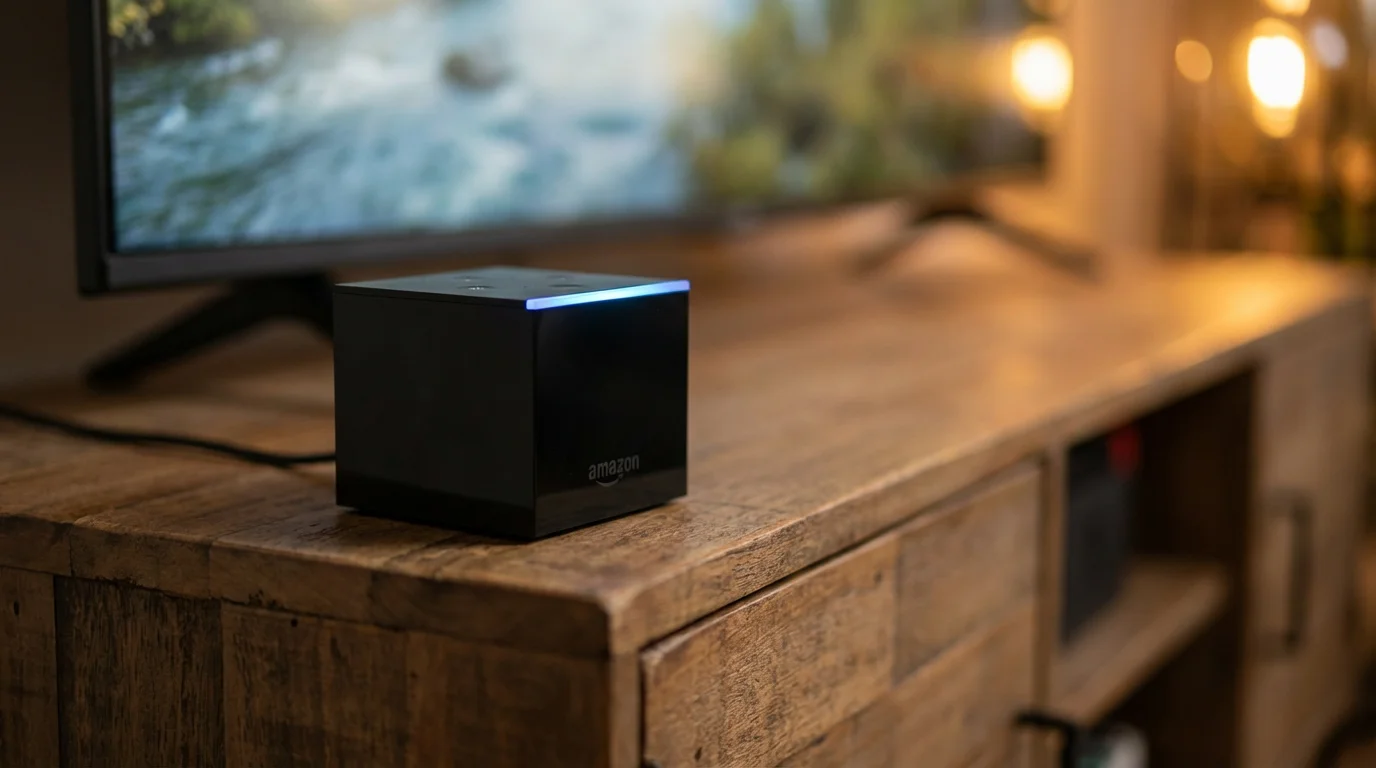
The most seamless way to add voice control to any television—even one with a terrible built-in interface—is adding an Amazon Fire TV device. Because the hardware is designed by Amazon, the integration is tighter than with third-party manufacturers. You gain the ability to navigate specific apps and search for content with high accuracy.
If you have a Fire TV Stick 4K or similar, you have a voice remote. However, for true hands-free control (where you speak to the room, not a remote), you need to pair the Fire TV with an Echo device.
Pairing Echo with Fire TV
- Open the Alexa app and navigate to More > Settings.
- Scroll down to select TV & Video and choose Fire TV.
- Select Link Your Alexa Device.
- Follow the prompts to select your Fire TV from the list and the specific Echo device you want to control it with.
“The best smart home is the one you don’t have to manage. By linking your Echo to your Fire TV, you remove the friction of finding the remote just to pause a movie.”
The Fire TV Cube deserves a special mention here. It includes a built-in IR blaster. This means it can control your TV’s power and volume, plus your soundbar and cable box, by blasting infrared signals just like a standard universal remote. It is often the best solution for complex home theater setups.
Controlling Older TVs with IR Blasters
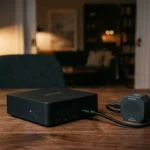
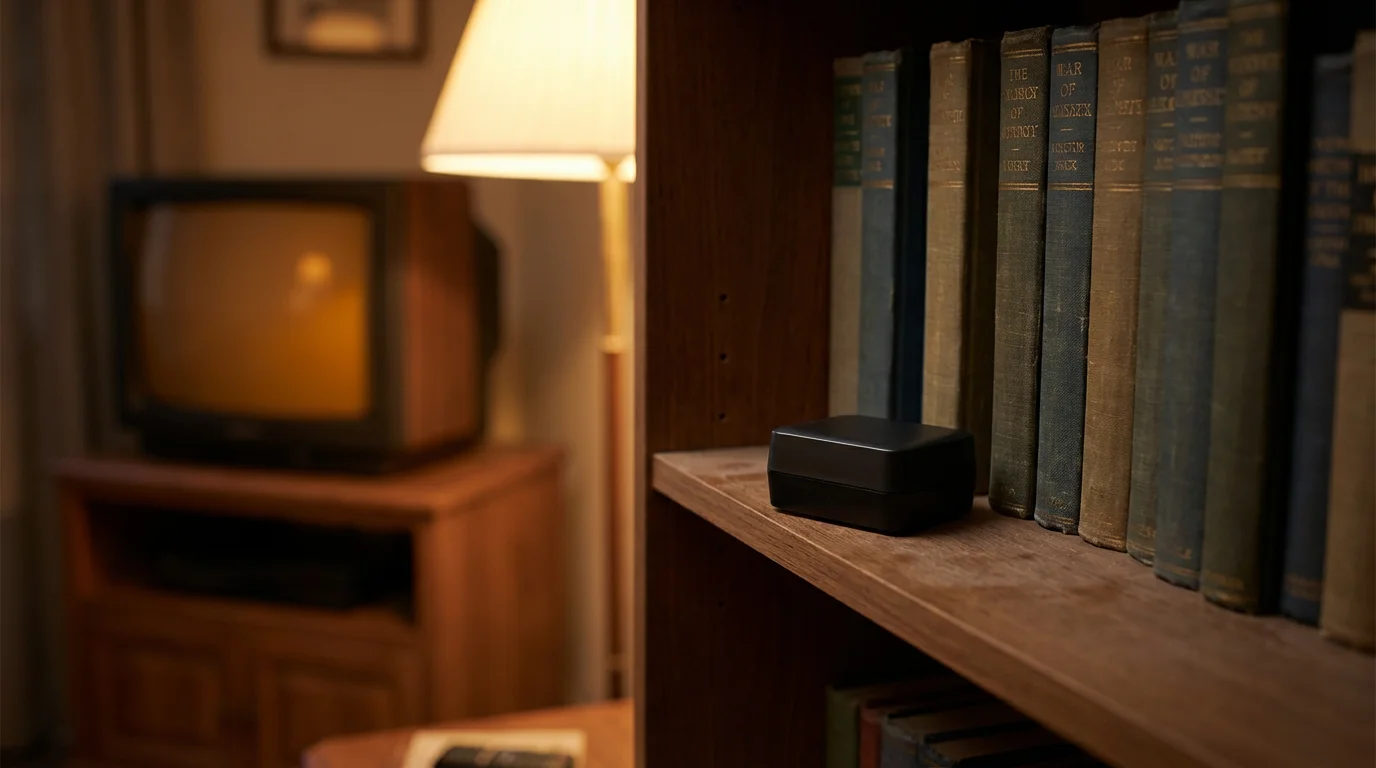
If your TV is perfectly functional but lacks smart capabilities, or if you want to control a sound system that doesn’t support HDMI-CEC, a smart IR blaster is your solution. Devices like the SwitchBot Hub or BroadLink RM4 Mini act as a bridge. They connect to your Wi-Fi and emit infrared signals that your “dumb” TV understands.
These devices are affordable and effective. You place the small hub in a line of sight with your TV. Through the hub’s app, you “teach” it your existing remote’s commands (Power, Volume Up, Volume Down, Input). Then, you link that app to Alexa.
The Setup Process
- Install the Hub: Place the IR blaster near your TV. Download the companion app (e.g., SwitchBot or BroadLink).
- Clone Your Remote: Follow the app instructions to point your old remote at the hub and press buttons so the hub learns the IR codes.
- Link to Alexa: Enable the relevant skill in the Alexa app.
- Voice Control: Alexa now sees your TV as a switch. When you say “Alexa, turn on the TV,” she tells the hub to fire the “Power” IR signal.
Note that this method has one limitation: “state tracking.” Because the communication is one-way (IR), Alexa doesn’t actually know if the TV is on or off. If you manually turn the TV off with a button, Alexa might still think it is on.

Essential Voice Commands for Daily Use
Once your hardware is configured, you need to know what to say. The syntax is generally flexible, but using specific phrases ensures the best reliability. Here are the most practical commands for daily viewing.
Exploring advanced voice assistant features you probably aren’t using can help you discover even more ways to streamline your media experience.
- Power: “Alexa, turn on the Living Room TV.” / “Alexa, turn off the TV.”
- Volume Control: “Alexa, set volume to 20 on TV.” / “Alexa, mute the TV.”
- Media Control: “Alexa, pause.” / “Alexa, resume.” / “Alexa, next episode.”
- Input Switching: “Alexa, switch input to HDMI 2.” (Crucial for gamers).
- Content Search (Fire TV/Native Apps): “Alexa, show me action movies.” / “Alexa, open YouTube.”
According to The Verge, voice assistants are evolving to handle more context-aware requests, but keeping your commands direct and simple remains the most reliable method for controlling hardware functions like inputs and volume.
Creating Entertainment Routines
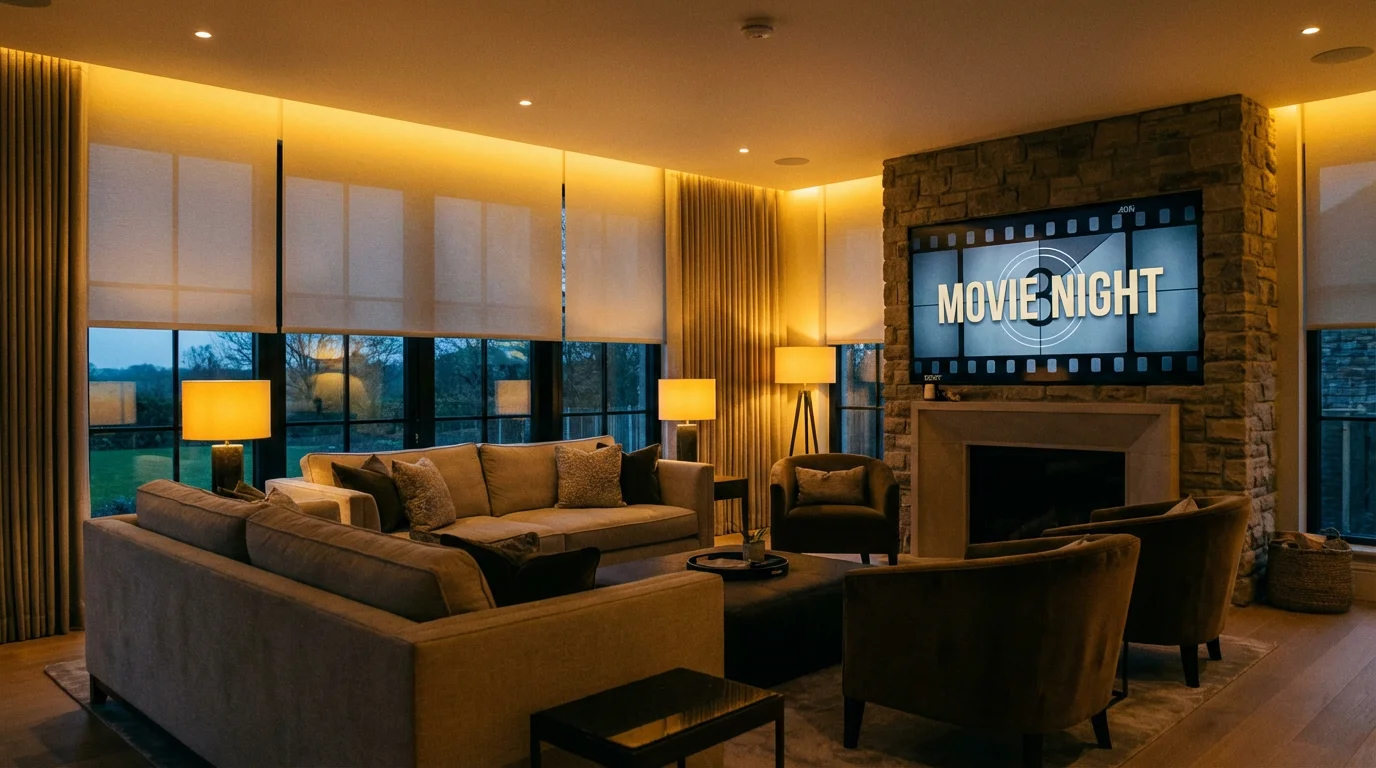
The true power of home automation lies in routines. A routine allows a single phrase to trigger multiple actions across different devices. You can synchronize your TV with your smart lighting and thermostat to create the perfect viewing environment instantly.
Example: The “Movie Night” Routine
Imagine saying, “Alexa, movie time,” and having your entire room react. Here is how to build that routine:
- Open the Alexa app and tap More > Routines.
- Tap the + icon to create a new routine.
- When this happens: Select Voice and type “Movie time.”
- Add Action 1: Select Smart Home > Lights. Set your living room lights to 10% brightness or a warm color temperature.
- Add Action 2: Select Fire TV (or your Smart TV) > Power On.
- Add Action 3: Select Smart Home > Thermostat. Set the temperature to a cozy 72 degrees.
- Save the routine.
You can also create a “Goodnight” routine that turns off the TV, shuts off all lights, and locks your smart lock, ensuring you never leave the television running all night by mistake.
Troubleshooting Connectivity Issues
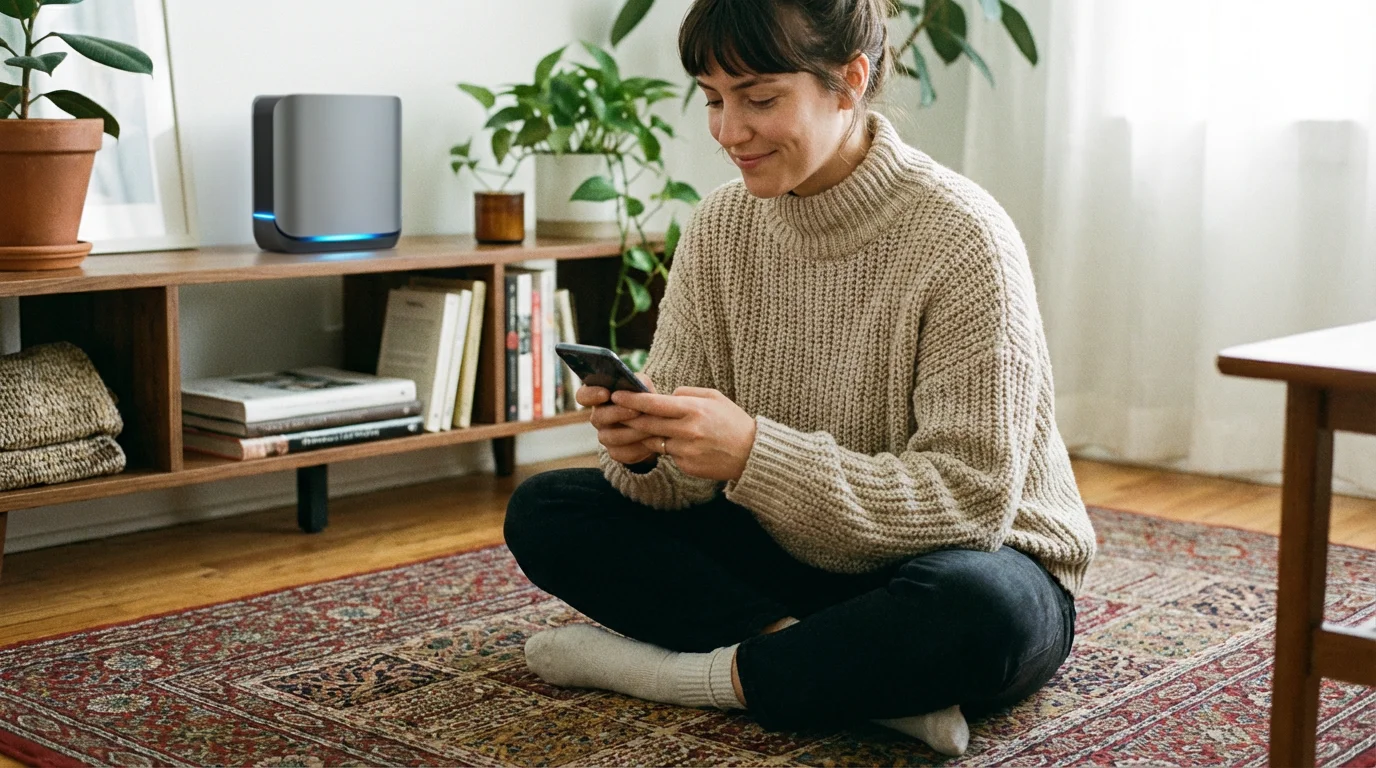
Technology is great when it works, but frustrating when it doesn’t. If Alexa responds with “TV is not responding” or simply ignores your request, check these common culprits.
While you are fine-tuning your connection, it is also a great time to check the privacy settings every smart speaker owner should enable to keep your data secure.
If your Echo struggles to hear you over the television’s volume, learning how to improve voice recognition accuracy can solve most frustration.
If your Echo is frequently failing to hear you over the volume of the television, you might need to improve voice recognition accuracy by adjusting your speaker placement.
The “Eco Mode” Problem
This is the most frequent issue. Many modern TVs have aggressive energy-saving settings that turn off the Wi-Fi radio when the TV is powered down. This means Alexa cannot send the “Turn On” signal because the TV is offline. Go into your TV settings (General or Power) and look for a setting called “Network Standby,” “Instant On,” or “Quick Start.” Ensure this is enabled.
HDMI-CEC Settings
If you are using a Fire TV Stick to control the TV’s power, you must enable HDMI-CEC. This protocol allows devices to talk to each other over the HDMI cable. Manufacturers hide this under different names:
- Samsung: Anynet+
- Sony: Bravia Sync
- LG: SimpLink
- Vizio: CEC
Ensure this is turned on in your TV’s system settings.
Network Frequency
For the fastest response times, ensure your Echo device and your smart TV are on the same Wi-Fi frequency band (2.4GHz or 5GHz), though most modern mesh routers handle this automatically. If you experience significant lag, check your router’s app to prioritize your streaming device.
Frequently Asked Questions
Can Alexa turn on my TV if it is completely powered off?
Yes, provided your TV supports “Wake on LAN” or has “Network Standby” enabled in the settings. This keeps the Wi-Fi connection active in a low-power state so it can receive the signal from Alexa. If you use a Fire TV Stick, the stick must be powered by a wall outlet, not the TV’s USB port, to wake the TV up via HDMI-CEC.
Do I need a Fire TV Stick if I already have a smart TV?
Not necessarily. If your smart TV (Samsung, LG, Vizio, etc.) has a native Alexa skill, you can control power and volume without extra hardware. However, a Fire TV Stick often provides a smoother, faster interface and deeper voice integration for searching specific content compared to many native TV operating systems.
Can Alexa change channels on my cable box?
Alexa can control cable boxes if you use an IR Blaster (like the Fire TV Cube or a BroadLink hub) setup to mimic your cable remote. Some cable providers (like Xfinity or Fios) also offer their own Alexa Skills that allow for some voice control functionality, though these are often less responsive than direct IR control.
Disclaimer: This article is for informational purposes only. Smart home devices involve electrical connections and data privacy. Always follow manufacturer instructions for installation. For complex wiring or HVAC work, consult a licensed professional.