You walk into your kitchen, hands full of groceries, and confidently command, “Alexa, turn on the lights.” Nothing happens. You repeat yourself, louder this time. Still nothing. The convenience of a voice-controlled smart home evaporates instantly when your primary interface stops responding. Whether you see a spinning blue light, a flashing red ring, or no reaction at all, a non-responsive smart speaker creates immediate frustration.
Before diving into repairs, it is helpful to understand the differences between smart displays vs smart speakers as their hardware components can fail in different ways.
Smart speakers are generally reliable, but they rely on a complex chain of hardware, internet connectivity, and cloud software to function. When one link in that chain breaks, the device seems “deaf.” While this guide focuses primarily on Amazon Alexa devices (Echo, Echo Show), the troubleshooting principles apply broadly to Google Assistant (Nest Audio) and Apple Siri (HomePod) devices as well. You do not need to be an IT professional to fix these issues; most solutions require only a few minutes and your smartphone.
Diagnosing the Silent Treatment: Hardware and Power
Before diving into router settings or firmware updates, you should rule out the simplest explanations. Physical hardware issues often mimic software failures. If your device appears completely dead or displays a solid red ring, the problem usually lies with the device itself or its power source.
If you find that your current hardware is simply beyond repair, it might be time to look for the best smart speakers for every room to upgrade your setup.
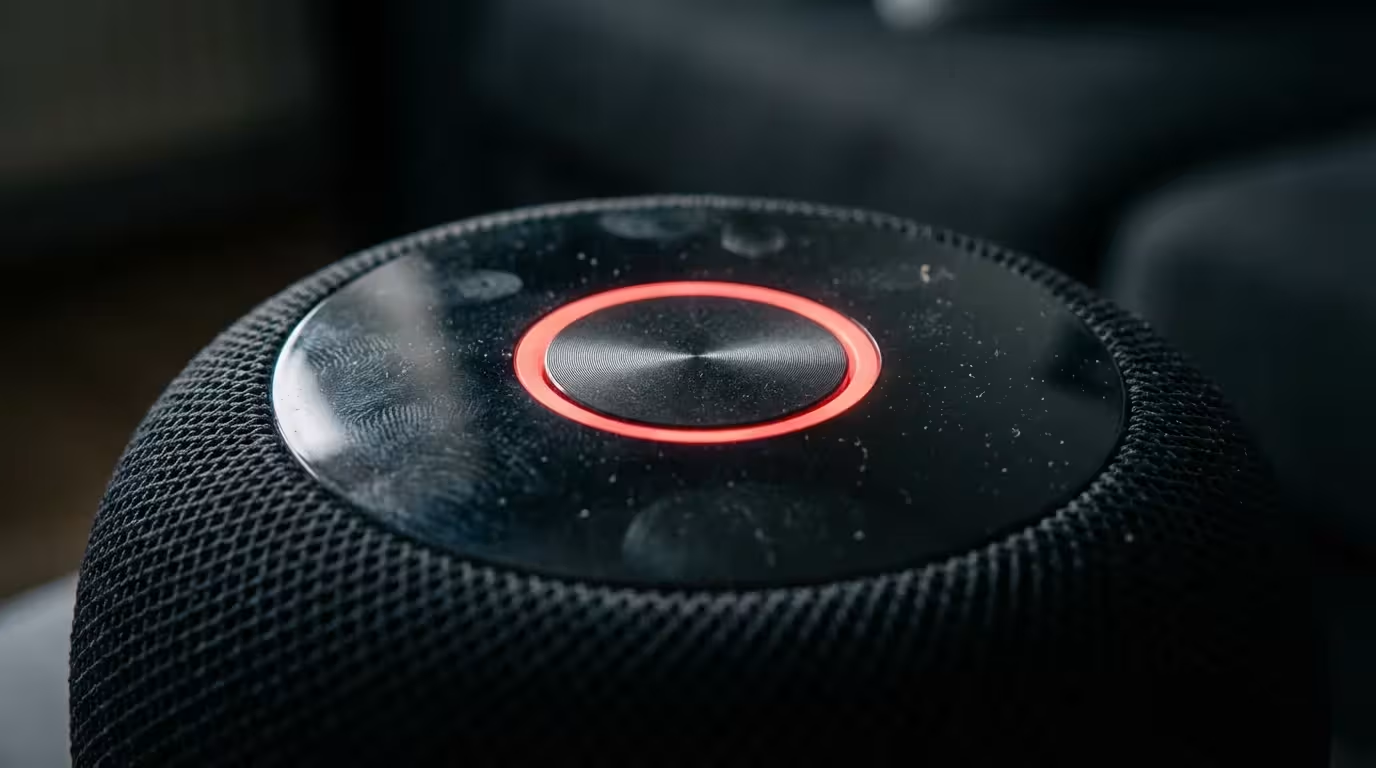
Start with the “Mute” button. Every Echo device features a microphone off button, usually marked with a circle and a line through it. If this button was accidentally pressed (often while dusting or moving the device), the light ring will glow solid red. In this state, the microphones are electrically disconnected. The device cannot hear the wake word, no matter how loudly you shout. Press the button again to re-engage the microphones; the red light should turn off.
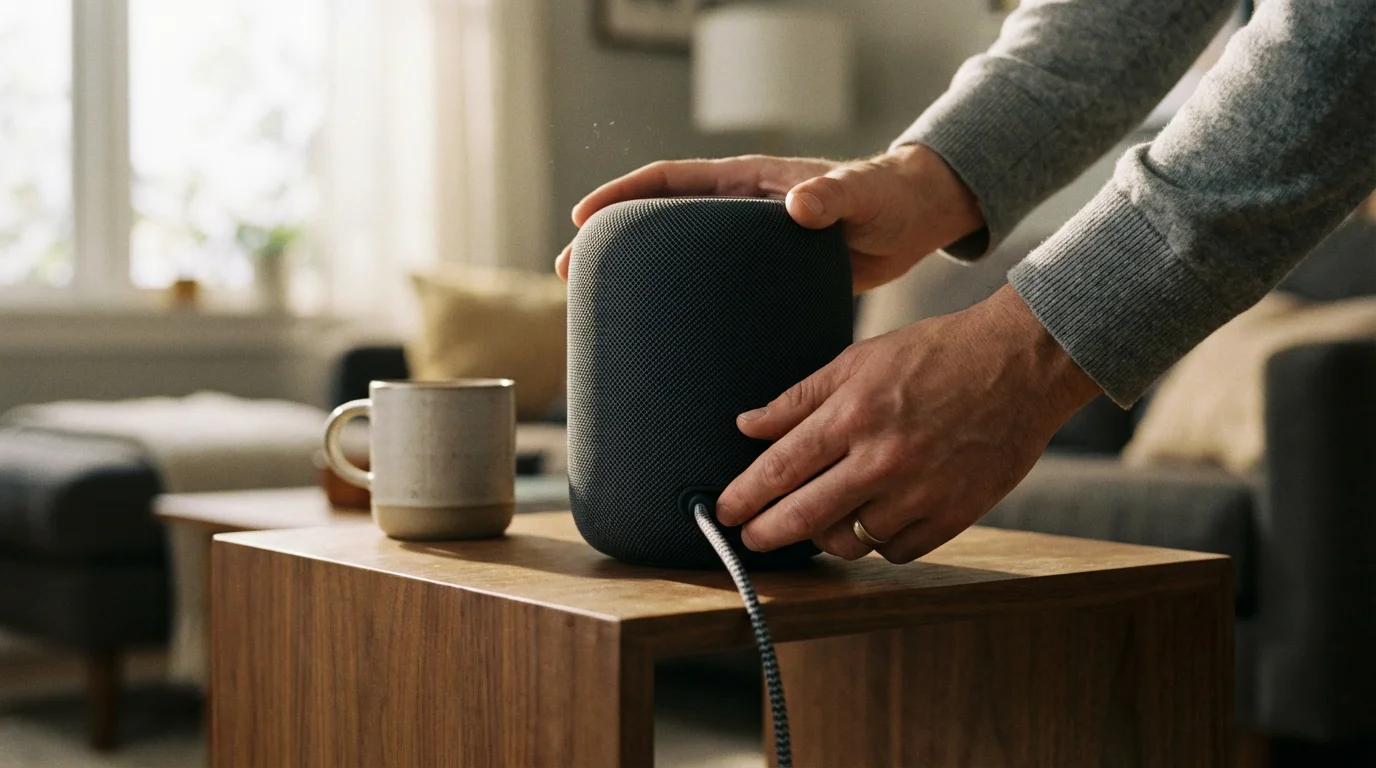
If the device shows no lights at all, verify the power connection:
- Check the outlet: Plug a lamp or phone charger into the same outlet to verify it provides power. If the outlet is controlled by a wall switch, ensure the switch is on.
- Inspect the cable: Look for fraying, chew marks from pets, or sharp kinks in the power cord.
- Reseat the adapter: Unplug the power adapter from both the wall and the device. Wait at least 10 seconds. Reconnect the cable firmly into the device first, then plug it into the wall. This “power cycle” clears temporary cache errors that might freeze the system.
Wi-Fi and Connectivity Woes
The vast majority of “Alexa won’t listen” issues stem from poor network connectivity. Your smart speaker is essentially a conduit to the cloud; without a robust internet connection, it cannot process your voice. Amazon devices use specific light colors to communicate connection status. A spinning violet or purple light usually indicates Wi-Fi setup errors, while an orange light suggests the device is in setup mode and disconnected from the internet.
These network hurdles are similar to what many face when you can’t connect a new smart device for the first time.
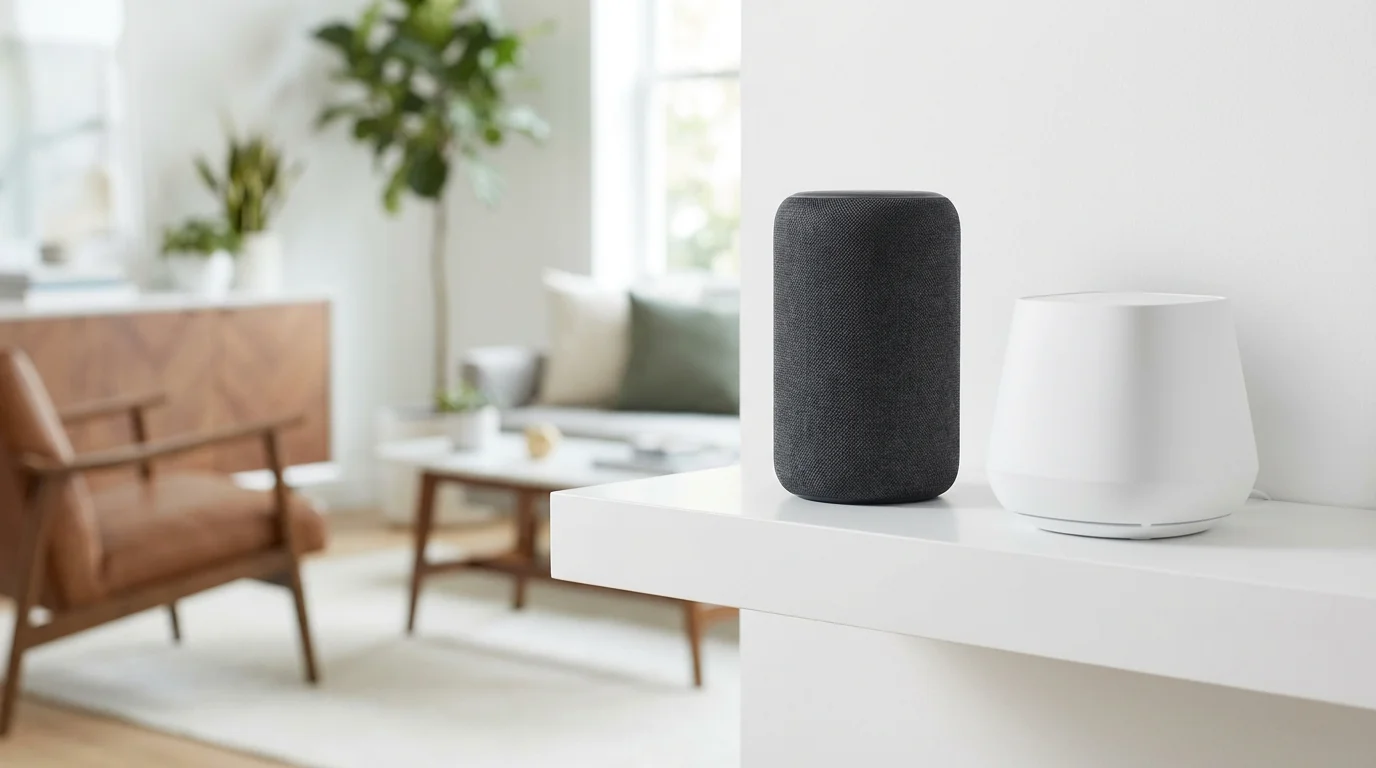
Even if your phone works fine in the same room, your smart speaker might struggle. Smart speakers often have different antenna configurations than smartphones. Furthermore, where you place the device matters significantly.
Bandwidth and Interference
Interference causes dropped commands. If your smart speaker sits next to a microwave, a baby monitor, or a cordless phone base, electromagnetic interference can disrupt the Wi-Fi signal. Metal objects, such as large appliances or filing cabinets, also block signals. Relocate the speaker to an open area, ideally elevated on a shelf or counter, rather than tucked inside a media cabinet.
Consider your frequency bands. Most modern routers offer dual-band Wi-Fi (2.4GHz and 5GHz). While 5GHz is faster, 2.4GHz travels better through walls and offers a longer range. If your speaker is far from the router, ensure it connects to the 2.4GHz band. According to CNET, optimizing your router placement and understanding these bands is critical for a responsive smart home ecosystem.
Microphone Sensitivity and Environmental Factors
Sometimes the issue isn’t that Alexa can’t connect, but that she simply cannot hear you. Acoustic barriers prevent the wake word from triggering the device.
Beyond physical obstructions, learning how to improve voice recognition accuracy through voice training can help Alexa distinguish your commands from household noise.
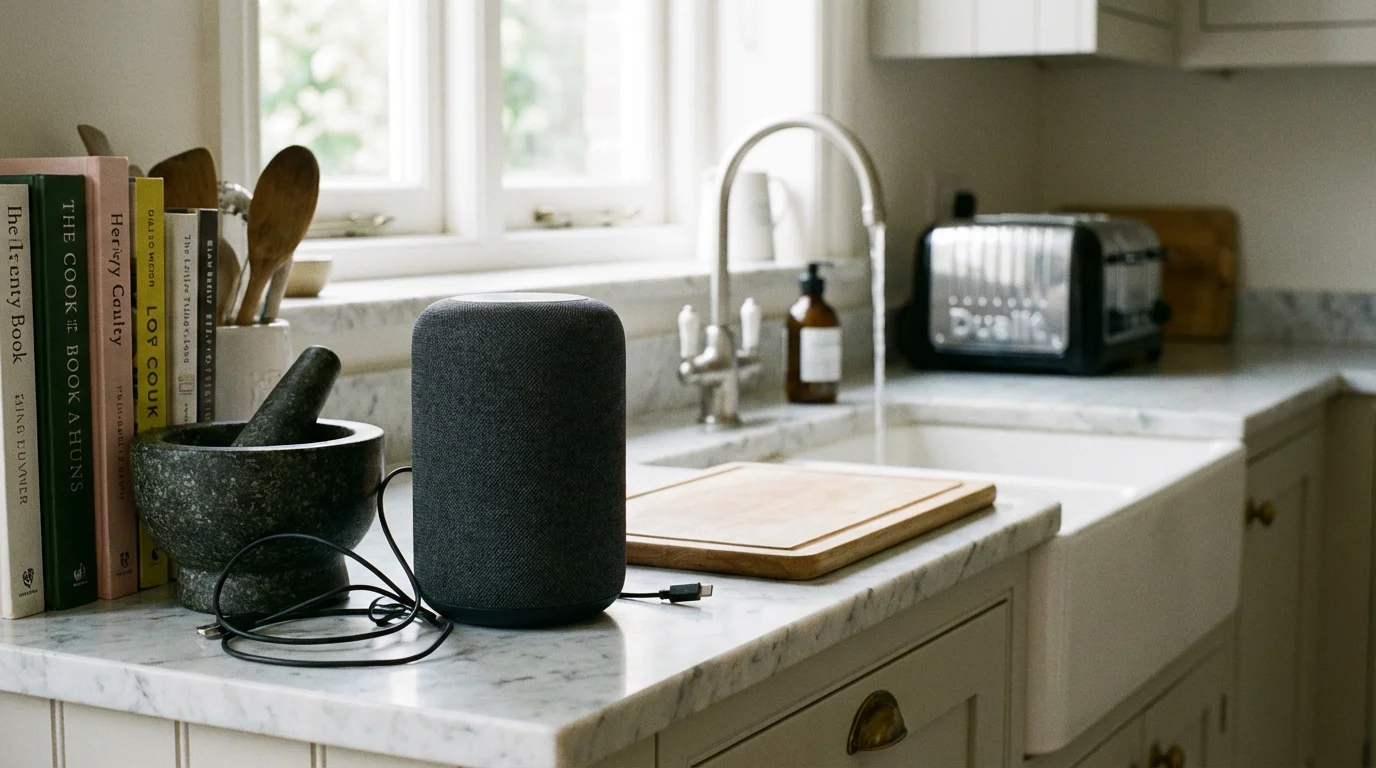
Identify sources of background noise. An air conditioner humming nearby, a television playing at moderate volume, or even a running dishwasher can mask your voice. Smart speakers use “beamforming” technology to isolate voices, but constant ambient noise degrades this ability. If you cannot move the speaker, you must speak louder or move closer.
Dust and Debris
The microphone array on top of your Echo device consists of several tiny holes. Over time, dust, kitchen grease, or pet dander can clog these ports. Use a can of compressed air or a soft, dry toothbrush to gently clean the microphone openings. Do not use liquids or sharp objects, as these can permanently damage the internal components.
Changing the Wake Word
If your household includes someone named “Alex” or “Alexis,” or if the TV frequently mentions similar names, the device may get confused or stop responding to avoid false positives. You can change the wake word in the Alexa app to “Echo,” “Computer,” “Amazon,” or “Ziggy.”
- Open the Alexa App.
- Go to Devices and select your speaker.
- Tap the Settings (gear icon).
- Scroll to Wake Word and select a new option.
This simple change often refreshes the device’s listening protocol and solves responsiveness issues.
Software Glitches, Skills, and Updates
Smart speakers run on firmware that requires occasional updates. Typically, these updates happen automatically overnight. However, if a device was unplugged for a long time or lost connection during an update, the software may become corrupt or outdated.
To force a check for updates, press the mute button (turning the ring red) and leave the device alone for at least 30 minutes. Alexa typically scans for updates when in an idle, muted state. Alternatively, you can say, “Alexa, check for software updates.” If she responds, she will tell you if an install is pending.
The “Skill” Disconnect
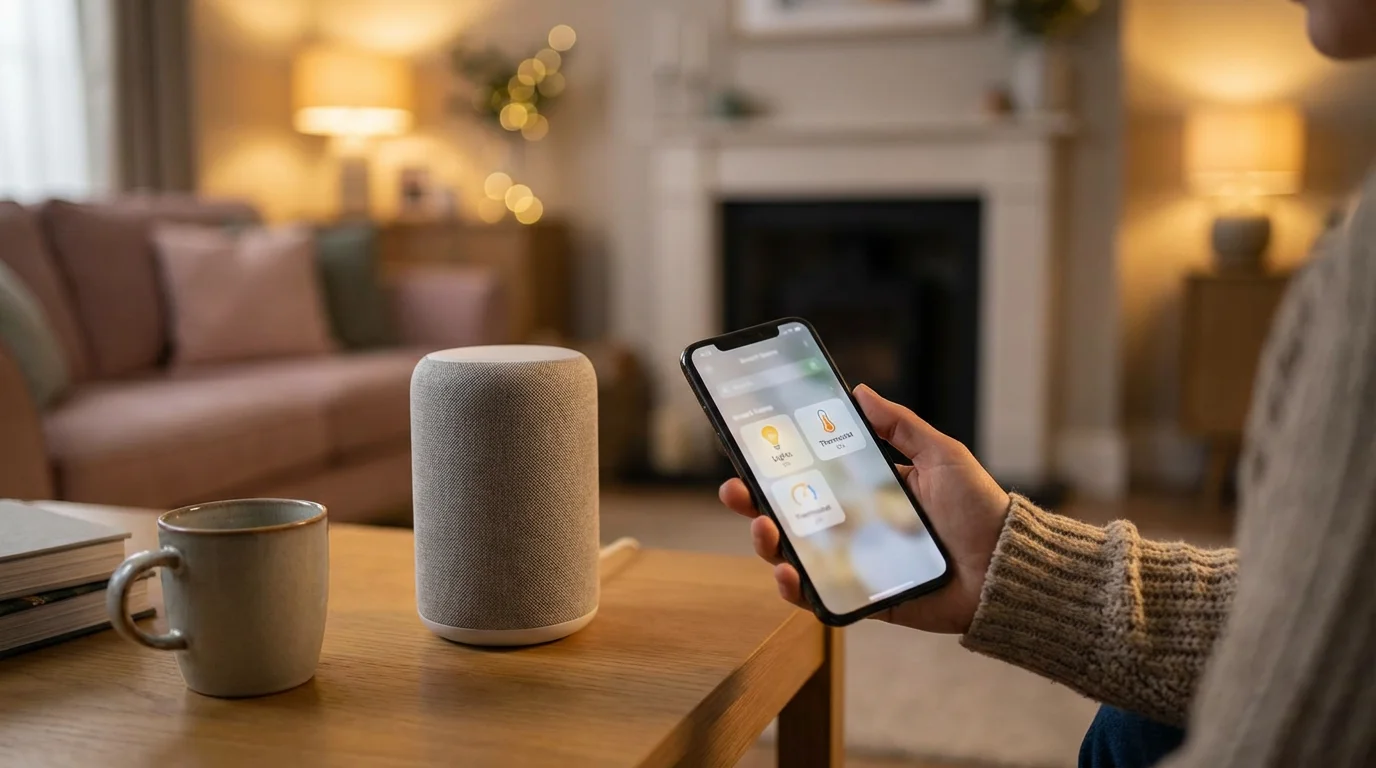
If Alexa hears you but fails to execute a specific command (e.g., “Alexa, ask Roomba to clean”), the problem is likely the “Skill” (the app linking Alexa to the third-party device). Skills can lose authentication tokens over time.
- Open the Alexa App and navigate to More > Skills & Games.
- Scroll to Your Skills.
- Locate the malfunctioning skill (e.g., Spotify, iRobot, Philips Hue).
- Tap Disable Skill.
- Wait a moment, then tap Enable to Use and re-enter your login credentials.
Re-linking the account refreshes the connection between Amazon’s servers and the device manufacturer’s servers, resolving the command failure.
Privacy Settings and Do Not Disturb
Modern smart speakers include features designed to limit interruptions. If you activated these features accidentally, the speaker will ignore you or refuse to chime.
Do Not Disturb (DND) Mode: When this is active, Alexa will not announce incoming calls, messages, or Drop Ins. While she should still respond to direct voice commands, glitches in DND mode can sometimes silence responses. You can check this by asking, “Alexa, turn off Do Not Disturb,” or by looking for a purple crescent moon icon on Echo Show screens.
Follow-Up Mode: If Alexa cuts off too quickly or listens for too long after you speak, check your Follow-Up Mode settings. This feature allows you to issue back-to-back commands without repeating the wake word. While useful, it can sometimes cause the device to hang while waiting for more input. Toggle this setting in the device menu within the Alexa app to see if responsiveness improves.
“Privacy controls are essential, but users often mistake a privacy shutter or mute button for a broken device. Always check physical switches first.”
For Echo Show devices, ensure the physical camera shutter isn’t partially obstructing a microphone or sensor, although this is rare. Reviewing your voice history in the Alexa app (Settings > Alexa Privacy > Review Voice History) can also reveal if the device recorded your command but failed to process it, or if it heard nothing at all.
The Nuclear Option: Factory Resetting
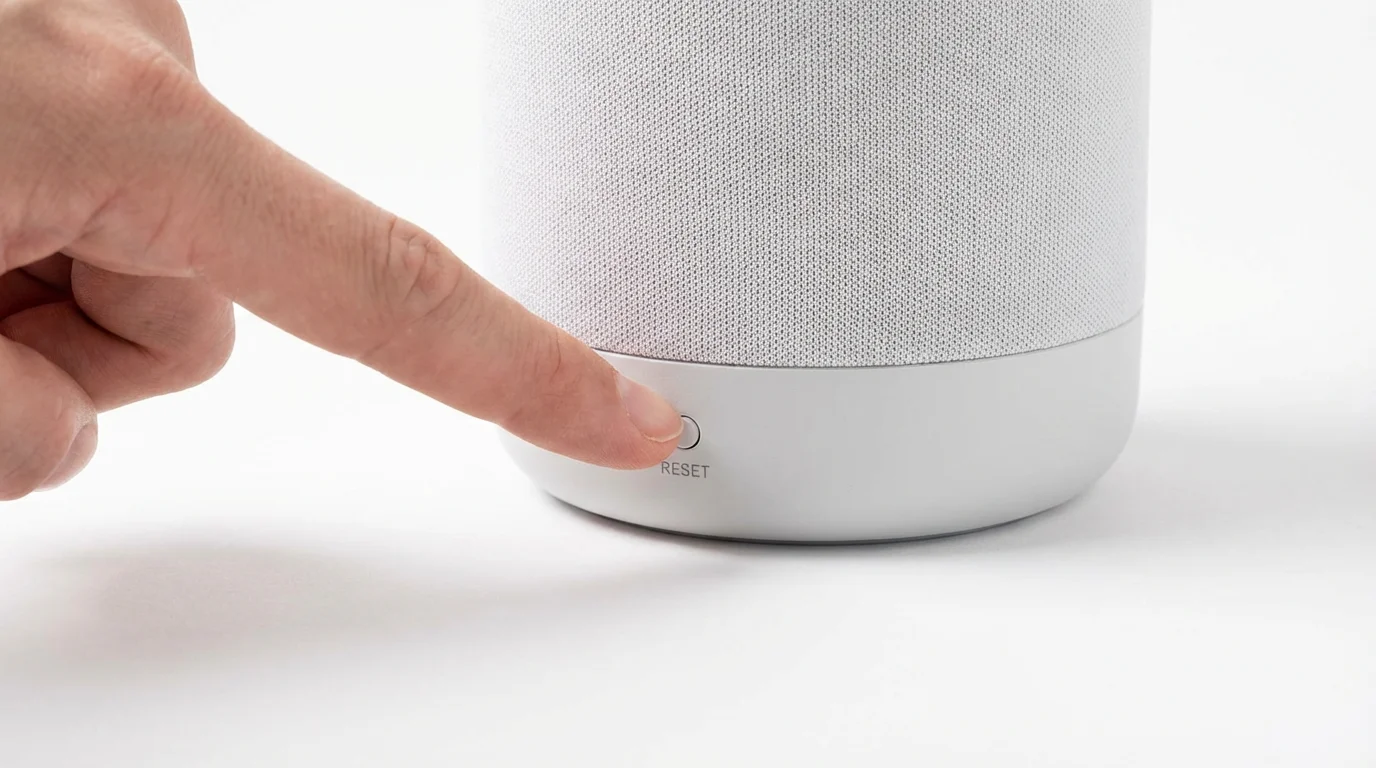
If you have power cycled the device, checked the Wi-Fi, cleaned the microphones, and updated the software without success, you must perform a factory reset. This wipes the device clean and returns it to its “out of the box” state. You will need to set it up again via the Alexa app, but your routines and smart home devices (which are saved in the cloud) will remain intact once you log back in.
For most standard Echo Dots and Towers (3rd Gen and newer):
- Press and hold the Action button (the one with the dot) for about 25 seconds.
- The light ring will pulse orange, then turn off.
- Wait for the light ring to turn back on and turn blue.
- The light ring will eventually turn orange again, indicating it is in setup mode.
- Open your Alexa app and follow the prompts to add a new device.
For Echo Show Devices:
- Press and hold the Mute and Volume Down buttons simultaneously for about 15 seconds.
- Wait until the Amazon logo appears on the screen.
- Follow the on-screen setup instructions once the device reboots.
Performing a reset eliminates deep-seated software bugs and forces a fresh negotiation with your Wi-Fi router, which fixes the vast majority of persistent issues.
Frequently Asked Questions
Why is my Alexa flashing a yellow ring?
A flashing yellow ring indicates you have a notification or a message waiting. This is usually an Amazon delivery update or a reminder. You can clear it by saying, “Alexa, play my messages” or “Alexa, play my notifications.” It does not indicate a technical error.
Why does Alexa say “I’m having trouble understanding right now”?
This specific phrase usually points to a server-side connection issue. Your device is successfully connected to your local Wi-Fi, but it cannot reach Amazon’s servers (the cloud) to process your request. This can be caused by a general internet outage in your area, a DNS issue with your ISP, or a temporary issue with Amazon Web Services (AWS).
Can I use a 5GHz Wi-Fi network for my smart speaker?
Yes, most modern smart speakers support 5GHz networks. However, 5GHz signals have shorter wavelengths and struggle to penetrate thick walls or metal obstacles. If your speaker is located far from the router or in a different room, connecting it to the 2.4GHz band is often more stable and reliable for smart home devices.
Why does my smart speaker randomly light up without me saying anything?
This is called a “false wake.” The device likely interpreted a sound from the TV, a conversation, or background noise as its wake word. You can reduce this by changing the wake word (e.g., from “Alexa” to “Echo”) or using the Voice Training feature in the app to help the algorithms better recognize your specific vocal patterns.
Disclaimer: This article is for informational purposes only. Smart home devices involve electrical connections and data privacy. Always follow manufacturer instructions for installation. For complex wiring or HVAC work, consult a licensed professional.