
You invest in smart locks to secure your front door and cameras to watch over your driveway, but there is a digital backdoor many homeowners leave wide open: the main WiFi network. When you connect a budget smart bulb, a connected refrigerator, or a smart picture frame to the same network where you do your online banking, you create a potential security gap. A vulnerability in the cheapest device on your network can theoretically jeopardize the most secure device.
To ensure your setup is as robust as possible, it is helpful to be aware of common smart home mistakes beginners should avoid during the initial installation process.
The solution is network segmentation, most easily achieved by creating a smart home guest network. This acts as a digital quarantine zone, allowing your Internet of Things (IoT) devices to access the internet without having access to your personal computers, smartphones, and sensitive data. Setting this up is one of the most effective, zero-cost upgrades you can make to your digital home security.
Why Your Smart Home Needs Segmentation
To understand why a guest network is necessary, you have to look at how different devices are manufactured. Your laptop and smartphone receive regular security patches from major companies like Apple, Google, or Microsoft. They are built with robust firewalls and antivirus capabilities. In contrast, many IoT devices—especially budget-friendly sensors, plugs, and bulbs—prioritize functionality and low cost over advanced security protocols.
Beyond technical network isolation, you might also consider creating a guest mode for your smart home to simplify how visitors interact with your connected tech.
If a hacker discovers a vulnerability in a smart plug’s firmware, they can compromise that device. On a unified network, a compromised device can serve as a pivot point. The attacker can move laterally across your network to scan for other devices, attempt to access network-attached storage (NAS) drives, or intercept unencrypted traffic from your laptop. This is known as “lateral movement.”
By placing these devices on a guest network, you utilize a feature called SSID isolation. Even if a smart bulb on the guest network is compromised, the router’s internal firewall prevents that device from initiating a connection to your personal laptop on the main network. It contains the threat, ensuring that a breach in your smart home doesn’t become a breach of your personal privacy.
Deciding Which Devices Go Where
Before you log into your router, you need a strategy. Not every device belongs on the guest network, and putting the wrong device in the wrong place can break functionality (like AirPlay or file sharing). You should audit your connected devices and sort them into three distinct tiers.
Properly setting up your home WiFi for smart devices ensures that your router can handle the increased traffic of a segmented network without lag.
- Tier 1: Trusted Devices (Main Network)
These are devices that hold sensitive data, require high-speed local transfer, or need to communicate with each other freely.
- Smartphones and tablets
- Laptops and desktop computers
- Network Attached Storage (NAS)
- Printers
- Tier 2: High-Interaction Smart Devices (Gray Area)
These devices control your home but often rely on local network discovery protocols (like mDNS) to function quickly. Depending on your router’s sophistication, these might need to be on the main network, or you might need specific settings to keep them on the guest network.
- Smart speakers (Amazon Echo, Google Nest Audio, Apple HomePod)
- Streaming sticks (Chromecast, Apple TV, Roku)
- Primary smart home hubs (SmartThings, Hubitat)
- Tier 3: Untrusted IoT Devices (Guest Network)
These devices only need internet access to talk to a cloud server. They rarely need to speak directly to your phone.
- Smart bulbs and lighting strips
- Smart plugs and outlets
- Major appliances (fridges, ovens, washers)
- Robot vacuums
- Budget WiFi cameras
Step-by-Step Configuration Guide
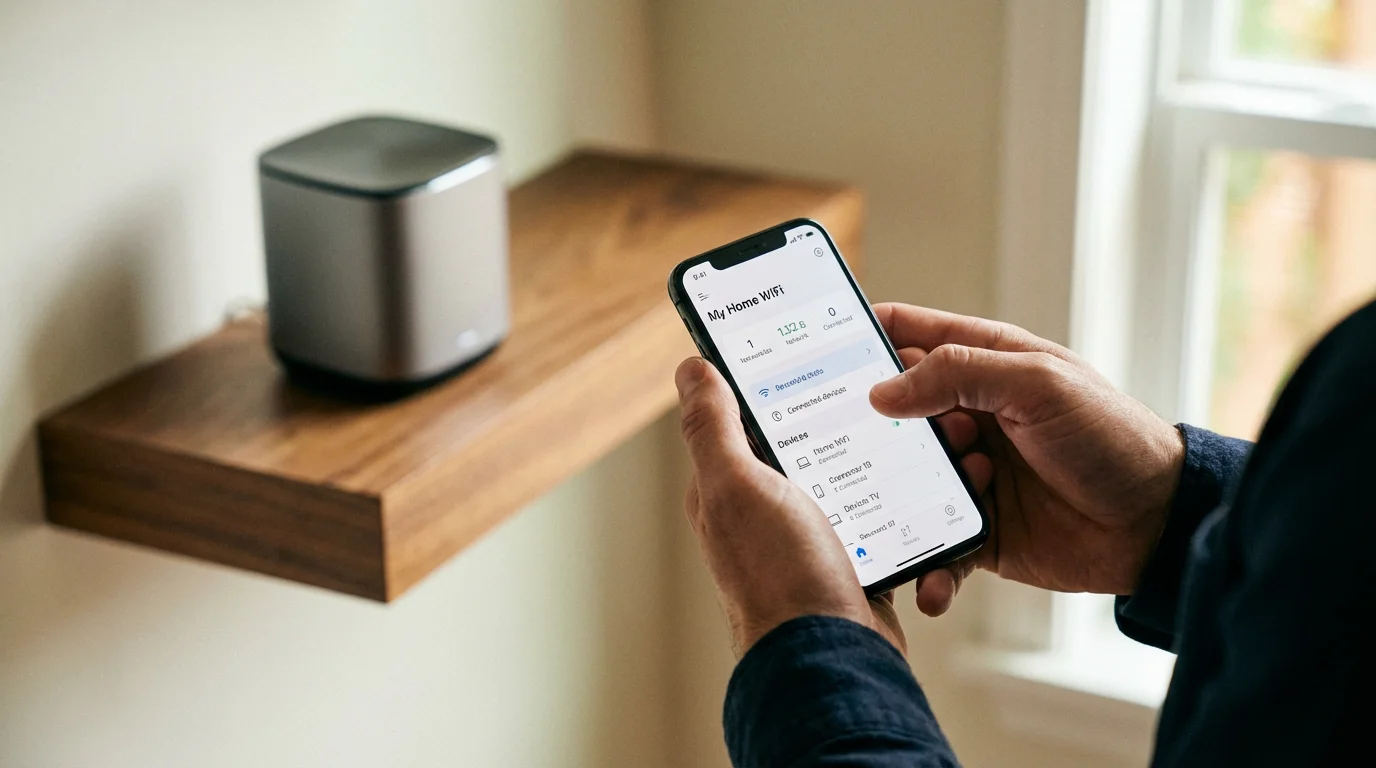
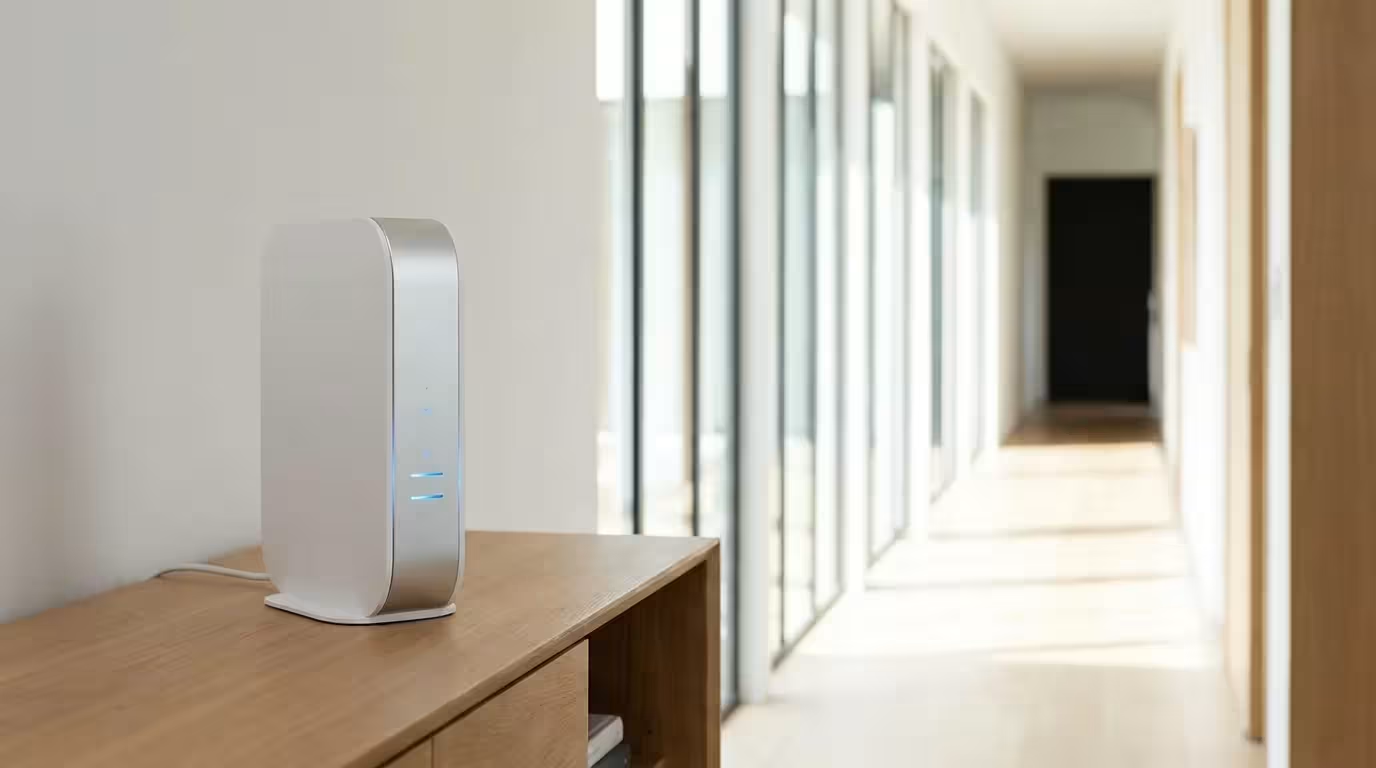
Most modern routers, whether provided by your ISP or purchased separately (like Eero, Netgear Orbi, or Asus), support guest networking. The process is generally similar across platforms, though the interface may vary.
In addition to network separation, setting up multi-factor authentication for your device accounts provides a vital second layer of digital defense.
- Access Your Router Admin Panel: Open your router’s mobile app or type its IP address (usually 192.168.1.1 or 192.168.0.1) into a web browser. You will need your administrator username and password.
- Locate Guest WiFi Settings: Look for a tab labeled “Guest Network,” “Guest WiFi,” or “Guest Access.” If you have a dual-band router, you may see options for both 2.4GHz and 5GHz guest networks.
- Enable the Network: Toggle the guest network to “On.”
- Name Your SSID (Service Set Identifier): Give the network a distinct name. Avoid using your name or address. A name like “IoT-Secure” or “SmartHome-Net” is functional.
Pro Tip: If you are setting up a smart home from scratch, use a simple SSID (network name) for your IoT devices. If you change routers in the future, you can simply reuse the same SSID and password, and your devices will reconnect automatically.
- Set Strong Encryption: Select WPA2-Personal (AES) or WPA3-Personal if your devices support it. Avoid WPA/WPA2 mixed modes if possible, as older standards have known vulnerabilities, though some very old IoT devices may require the mixed mode to connect.
- Create a Strong Password: Do not reuse your main network password. Use a long, alphanumeric string. Since you only type this once during device setup, length is more important than memorability.
“The best smart home is the one you don’t have to manage constantly. Setting up your network architecture correctly on day one saves you hours of troubleshooting later.”
Managing Client Isolation and Access
Once the network is active, you must configure how devices inside that network behave. There are two critical settings to look for: “Access to Intranet” and “AP Isolation” (sometimes called Client Isolation).
Intranet Access (Network Isolation)
This setting determines if the guest network can talk to the main network. You want this disabled or set to “Internet Only.” This is the core purpose of the project. It ensures that a camera on the guest network cannot communicate with a PC on the main network.
AP Isolation (Client Isolation)
This setting prevents devices within the guest network from talking to each other.
When to enable it: If you are running a true guest network for visitors at a coffee shop.
When to disable it: For a smart home. Many smart devices need to talk to each other. For example, a WiFi motion sensor might need to signal a WiFi light bulb directly. If Client Isolation is on, the sensor triggers, but the signal never reaches the bulb. Keep Client Isolation off for your IoT network unless you have a specific reason to lock it down further.
Special Considerations for Locks and Cameras
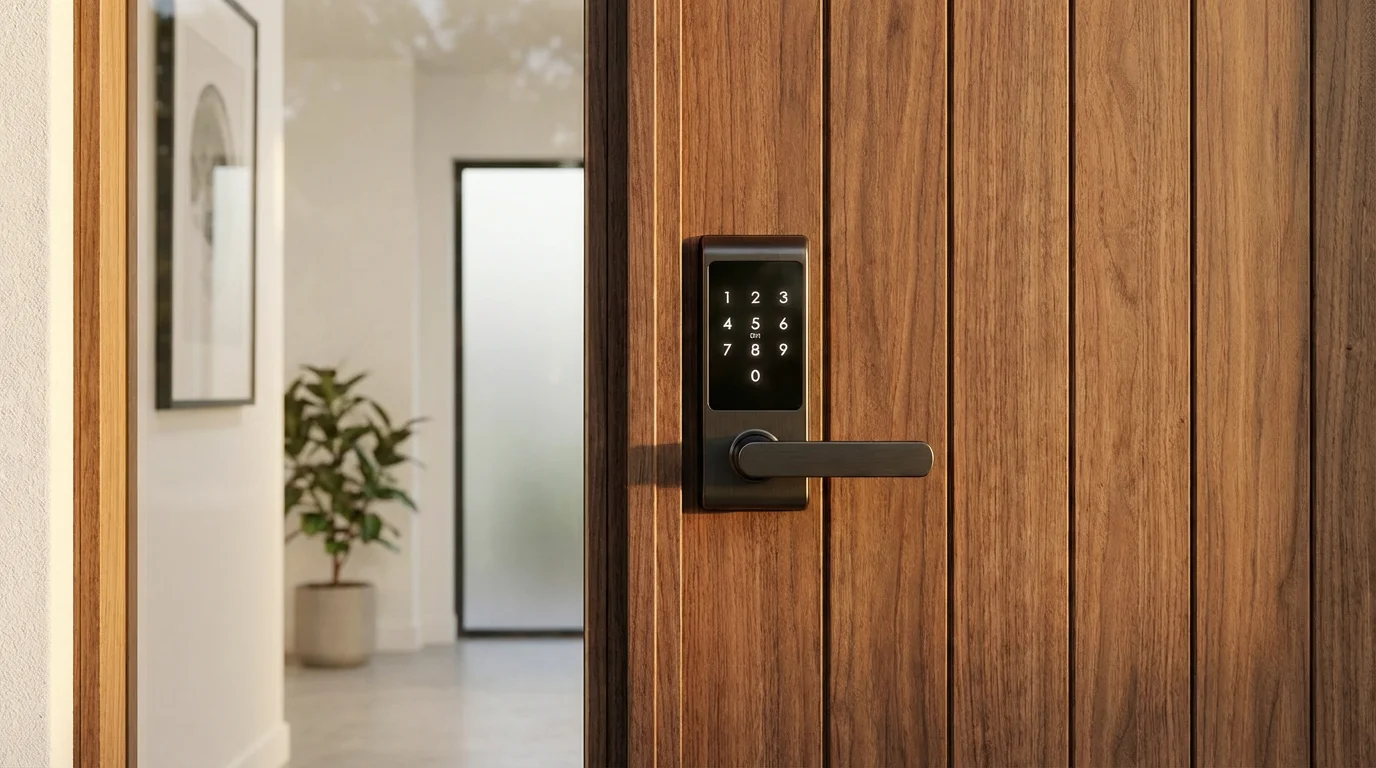
Smart security devices require special attention because they are high-stakes entry points. While smart lights are low-risk, a compromised smart lock or camera feed involves physical safety and privacy.
Isolating these specific entry points is a key step when automating your home for vacation security to prevent unauthorized remote access.
Once your lock is on the network, you can securely give temporary access to your smart lock for visitors without sharing your primary codes.
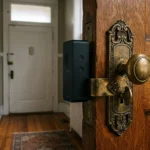
Most WiFi smart locks rely on battery power and connect intermittently to the cloud to check for status updates or unlock commands. These function perfectly on a guest network because they initiate the connection outbound to the manufacturer’s cloud. Your phone app then talks to the cloud, not directly to the lock. This cloud-relay architecture is ideal for segmented networks.
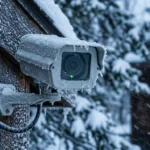
Video doorbells and security cameras are more complex. They consume significant bandwidth. If you place 4 or 5 HD cameras on a guest network, ensure your router can handle the traffic prioritization (QoS). Furthermore, be aware of storage types:
- Cloud Recording (Ring, Nest): These work seamlessly on guest networks. The footage is uploaded directly to the internet.
- Local Storage (SD Card): These also work well, as you typically access playback via the app which retrieves data through a cloud relay (P2P).
- NVR / RTSP Systems: If you record camera footage to a local hard drive or server (like Blue Iris or a Synology NAS), placing cameras on a guest network breaks the connection to the recorder on the main network. In this case, you either need advanced VLAN routing (a prosumer feature) or you must keep the cameras and NVR on the same network segment.
According to CNET, securing your smart home goes beyond just strong passwords; it requires keeping firmware updated and understanding where your data is stored. Isolating cameras ensures that if a video feed vulnerability is exploited, the intruder gets a view of your driveway, not your tax documents.
Overcoming Communication Hurdles
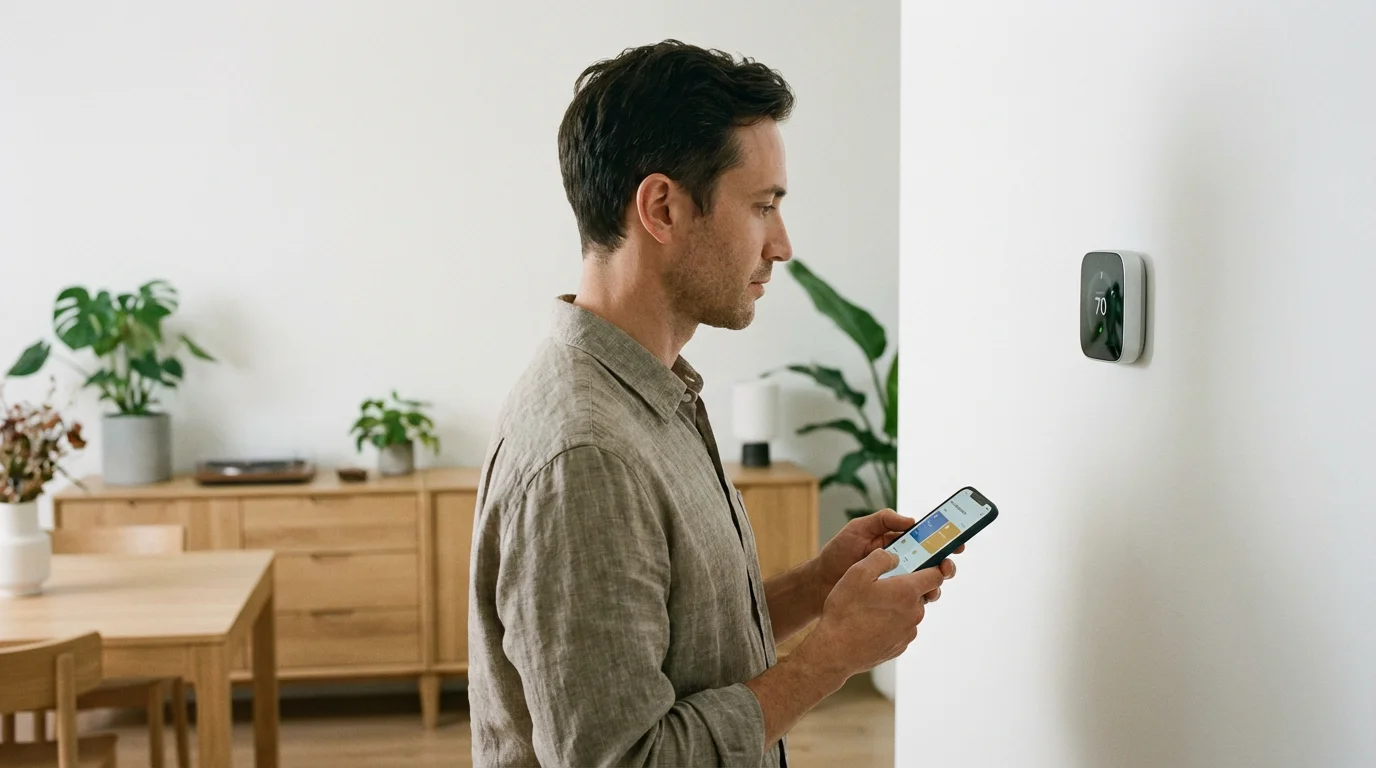
The most common complaint after setting up a guest network is, “I can’t cast to my TV” or “My phone can’t find the smart plug.” This happens because your phone (Main Network) and the device (Guest Network) are on different subnets.
If your hardware falls offline after the migration, review our guide on why your smart devices keep disconnecting to resolve signal or IP conflicts.
For most modern smart home ecosystems, this is less of a problem than it used to be. Devices compliant with modern standards or those using cloud-based control (like the Tuya or Smart Life apps) do not require local network access for control. When you tap “On” in the app, the signal goes from your phone to the cell tower (or main WiFi), to the cloud server, and back down to the smart plug on the guest WiFi.
The “Hub” Solution
To bridge the gap without breaking security, rely on voice assistants or dedicated hubs. If you use Amazon Alexa or Google Home, the smart speaker acts as the commander. You can keep your phone on the main network and the smart bulbs on the guest network. When you ask Alexa to turn on the lights, the Alexa device (which has cloud access) sends the command. You don’t need a direct line of sight from your phone to the bulb.
The Matter Standard
As the Matter smart home standard becomes more prevalent, local control is prioritized. Matter devices create a mesh network (Thread) or use WiFi. While Matter devices are designed to be secure, keeping them on a separate IoT SSID is still a valid defense-in-depth strategy, provided your border router (like a HomePod or Nest Hub) can bridge the networks effectively.
Maintenance and Security Best Practices
Creating the network is only step one. Maintaining a secure environment requires ongoing vigilance.
In addition to network segmentation, always ensure you are setting up two-factor authentication on smart devices to add a second layer of defense.
- Firmware Updates: Set a calendar reminder to check your router’s firmware once a month. Router manufacturers frequently patch security holes. A secure network architecture means nothing if the gatekeeper (the router) is compromised.
- Disable UPnP: Universal Plug and Play (UPnP) allows devices to automatically open ports on your router to the internet. While convenient for gaming, it is a massive security risk for IoT. Disable UPnP on both your main and guest networks.
- Periodically Audit Devices: Check your router’s “Attached Devices” list occasionally. If you see a device you don’t recognize, block it immediately until you can identify it.
- Physical Security: Ensure your router is physically secure. If someone can press the “Reset” button on the back of the device, they can wipe your settings and remove your passwords.
Frequently Asked Questions
Does a guest network slow down my WiFi speed?
Technically, a guest network uses the same radio radios as your main network, so they share the total available bandwidth. However, simply having the network active doesn’t slow things down. Speed issues only occur if devices on the guest network are consuming large amounts of data (like streaming 4K video) simultaneously with your main network usage. For low-bandwidth devices like smart plugs and sensors, the impact is negligible.
Can I use a guest network with a mesh WiFi system?
Yes, almost all modern mesh systems (Eero, Google Nest WiFi, Orbi, Velop) support guest networks. In a mesh setup, the guest network is broadcast from every satellite node, ensuring your smart devices have good coverage throughout the entire home. This is vital for security cameras mounted on the exterior of your home that might be far from the main router.
What if my smart device setup fails on the guest network?
Setup often fails because your phone needs to be on the same network as the device during the initial pairing process. Temporarily connect your phone to the Guest Network, perform the setup for the smart device, and then switch your phone back to your Main Network once the device is configured.
Is a guest network the same as a VLAN?
Not exactly. A guest network is a simplified form of network segmentation designed for consumers. A VLAN (Virtual Local Area Network) is a more advanced, professional method of segmentation that offers granular control over traffic rules. For 99% of homeowners, a guest network provides sufficient security isolation without the complexity of configuring VLANs.
Disclaimer: This article is for informational purposes only. Smart home devices involve electrical connections and data privacy. Always follow manufacturer instructions for installation. For complex wiring or HVAC work, consult a licensed professional.


1 Comment