For most people, smart home technology offers a layer of convenience—turning off lights without getting off the couch or asking for the weather while brushing teeth. However, for individuals who are blind or have low vision, voice control is not merely a novelty; it is a powerful tool for independence. The ability to control an environment using spoken commands removes the friction of navigating touchscreens, reading small digital displays, or locating physical switches in the dark.
Finding the right tools is easier when you explore voice assistant features you probably aren’t using to maximize your accessibility setup.
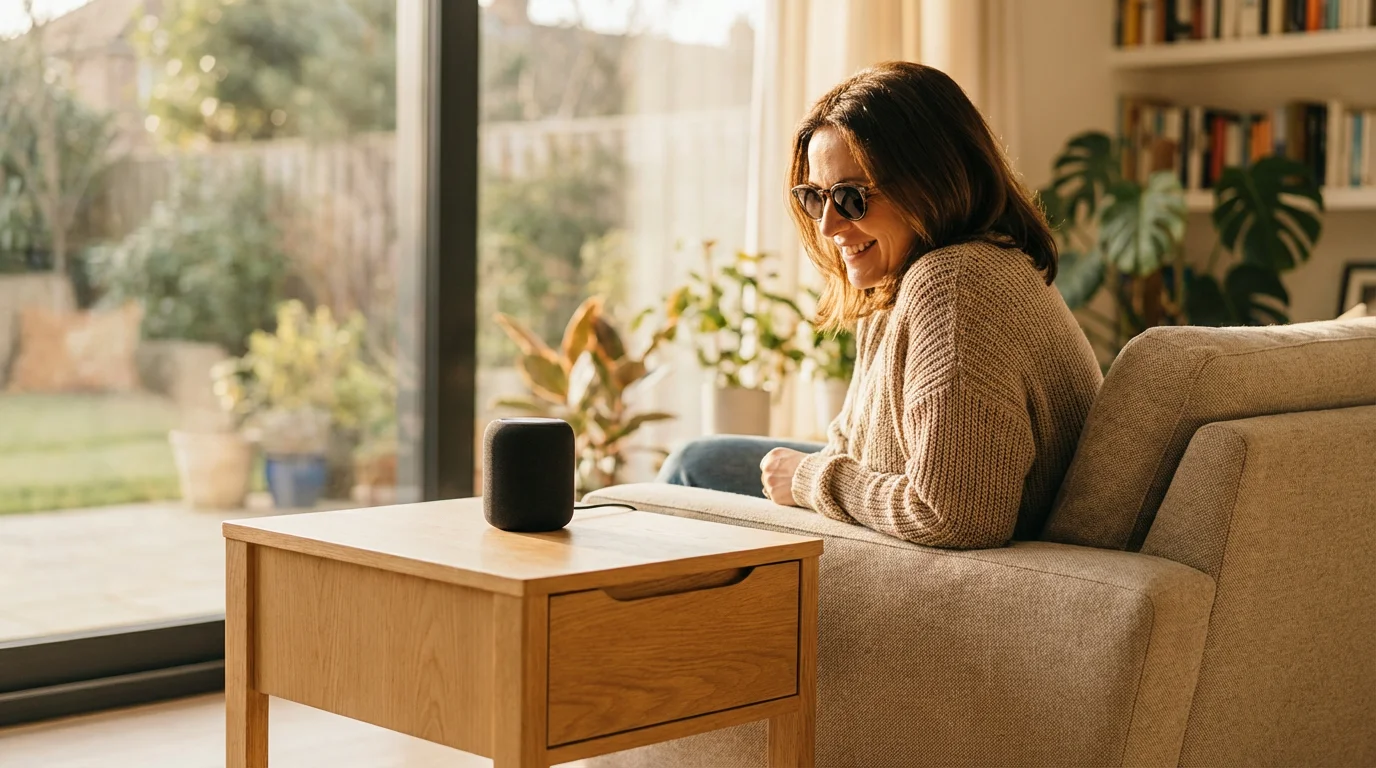
You can transform your living space into a responsive ecosystem that listens and reacts to your needs. By integrating voice assistants like Amazon Alexa, Google Assistant, or Apple Siri, you gain immediate access to information and environmental control without relying on sight. This guide explores how you can leverage voice control to build a safer, more accessible, and efficient home.
Why Voice Technology is an Accessibility Revolution
Traditional home appliances and interfaces often present significant hurdles for the visually impaired. Flat touchscreens on microwaves, washing machines, and thermostats lack tactile feedback, making them difficult to operate without sight. Even standard light switches can be hard to locate in an unfamiliar room. Voice control bridges this gap by replacing the visual interface with an auditory one.
When you adopt a voice-first approach to your home, you gain several immediate benefits:
- Hands-Free Operation: You can control devices while your hands are full or while you are navigating a room with a cane or guide dog.
- Instant Feedback: Smart speakers provide auditory confirmation that a command was executed, eliminating the guesswork of whether a button press registered.
- Centralized Control: Instead of moving room to room to check if windows are locked or lights are off, you can query your entire house from a single location.
- Information Access: Accessing news, audiobooks, and communication tools becomes a seamless verbal request rather than a navigation challenge through complex visual menus.
Choosing the Right Voice Assistant for Accessibility
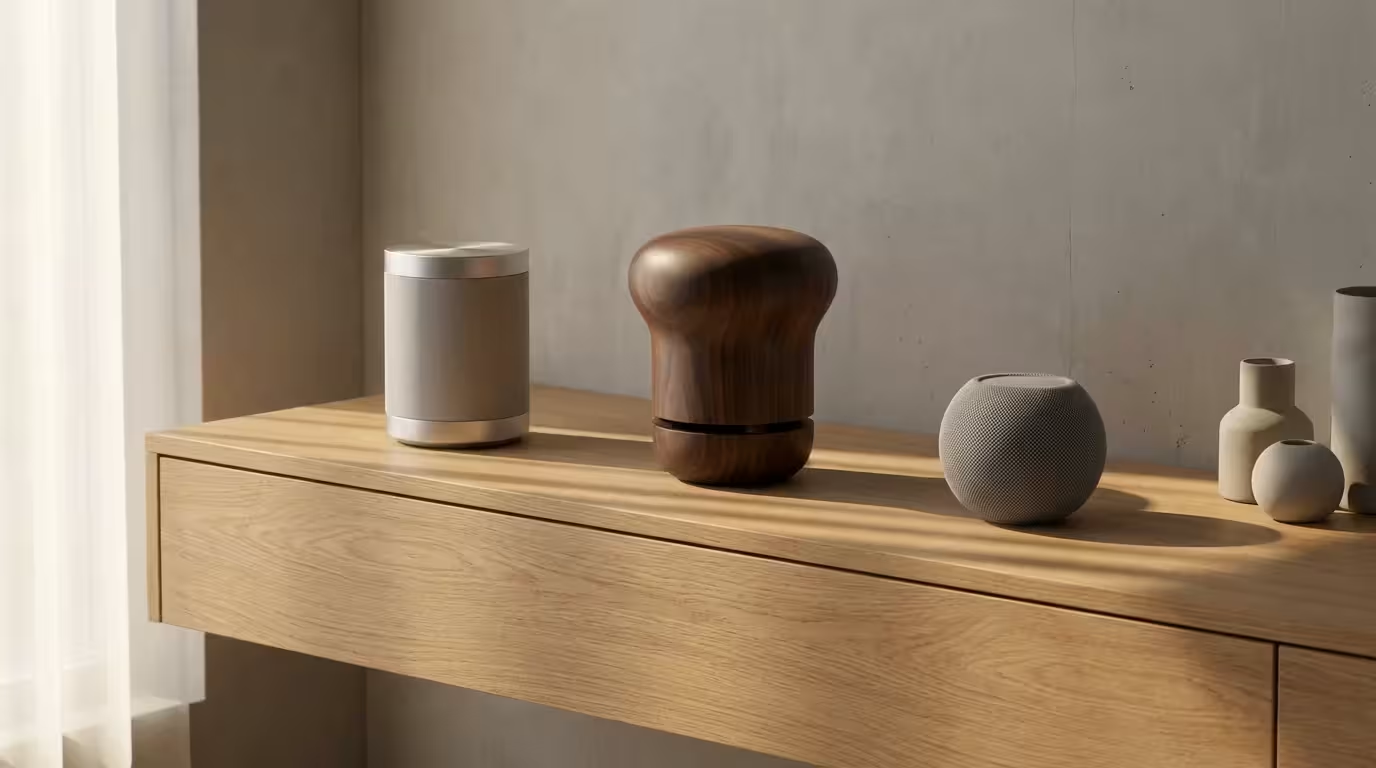
The core of your smart home is the voice assistant. The three major players—Amazon Alexa, Google Assistant, and Apple Siri—all offer robust accessibility features, but they have different strengths depending on your specific needs and existing technology ecosystem.
If you are configuring a system for an older relative with vision loss, you may find our guide on setting up voice control for elderly family members helpful.
Amazon Alexa
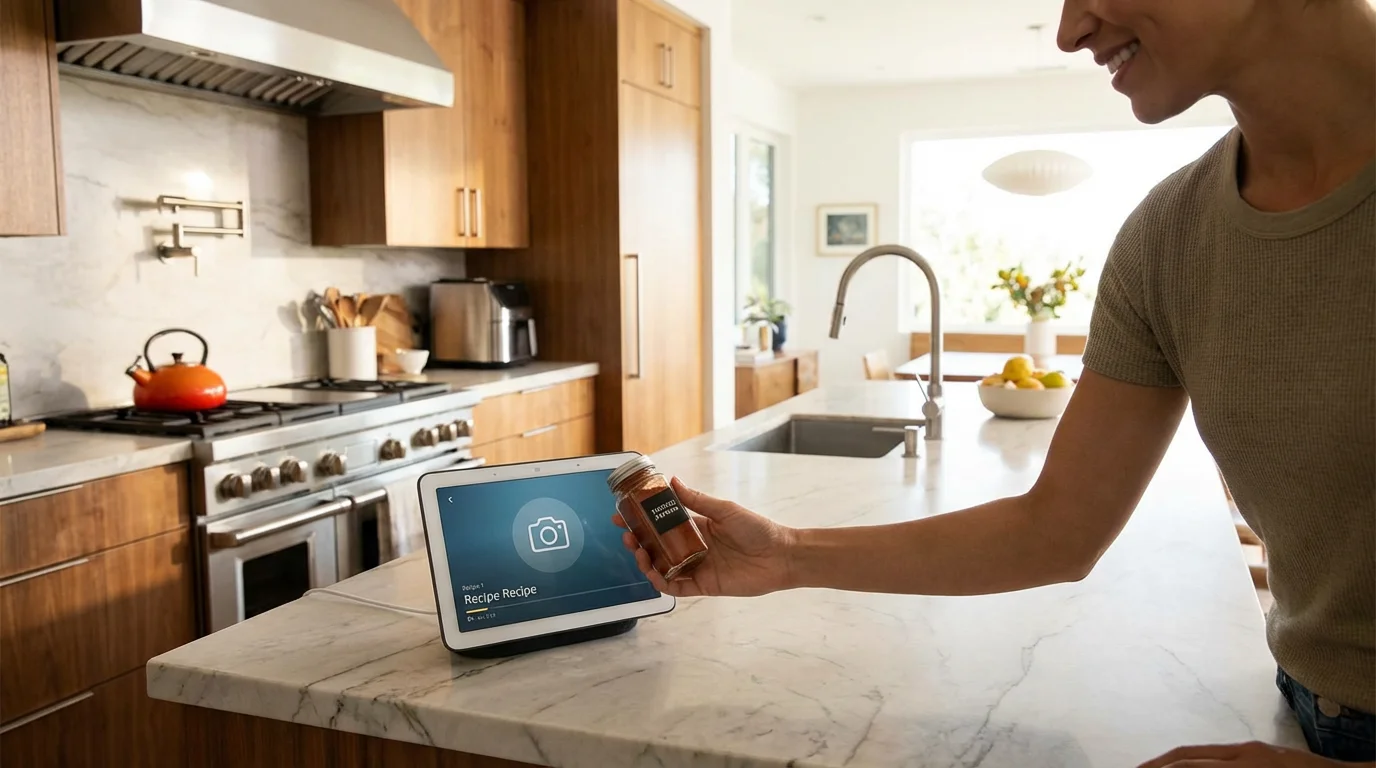
Alexa is widely compatible with thousands of third-party devices. For visually impaired users, the Amazon Echo line offers distinct advantages, particularly with the “Show and Tell” feature on Echo Show devices, which can identify pantry items held up to the camera. Alexa also allows you to adjust the speaking rate, making the assistant talk faster or slower depending on your preference.
Google Assistant
Google Assistant excels at conversational context and answering complex questions. If you rely heavily on Google services like Calendar, Gmail, or Android phones, this is a natural choice. Google’s integration with “Lookout” technology helps in identifying objects and reading text aloud, which can be extended to the smart home environment.
Apple Siri
If you already use an iPhone with VoiceOver, Siri is likely your best starting point. The HomePod and HomePod mini integrate deeply with the Apple ecosystem. HomeKit (Apple’s smart home platform) is known for strict security standards and ease of setup. While it supports fewer devices than Alexa, the integration with iOS accessibility features is seamless.
The best voice assistant is the one that fits naturally into the ecosystem you already use and understand. If you are an iPhone power user, start with Siri. If you want maximum device compatibility, look at Alexa.
Essential Smart Devices for a Voice-Controlled Home
Once you have your smart speaker, you need connected devices to control. Focus on high-impact areas where physical interaction is difficult or frequent.
Smart Lighting
Smart bulbs and switches are arguably the most practical upgrade. You can turn lights on or off, dim them, or change color temperature using only your voice. This is particularly helpful for those with some residual vision who need specific lighting conditions to see clearly. You can simply say, “Turn the kitchen lights to 100%,” to maximize visibility immediately.
Smart Plugs
Smart plugs are affordable adapters that fit between your wall outlet and a standard appliance. They are perfect for controlling “dumb” devices like fans, space heaters, or coffee makers. By naming a plug “Living Room Fan,” you eliminate the need to fumble for switches on the cord or the back of the device.
Smart Thermostats
Adjusting a traditional thermostat often involves squinting at a small, non-backlit LCD screen. Smart thermostats allow you to change the temperature by asking your assistant. According to Energy Star, certified smart thermostats also provide significant energy savings, but for the visually impaired, the primary value is the accessible interface.
Smart Locks and Doorbells
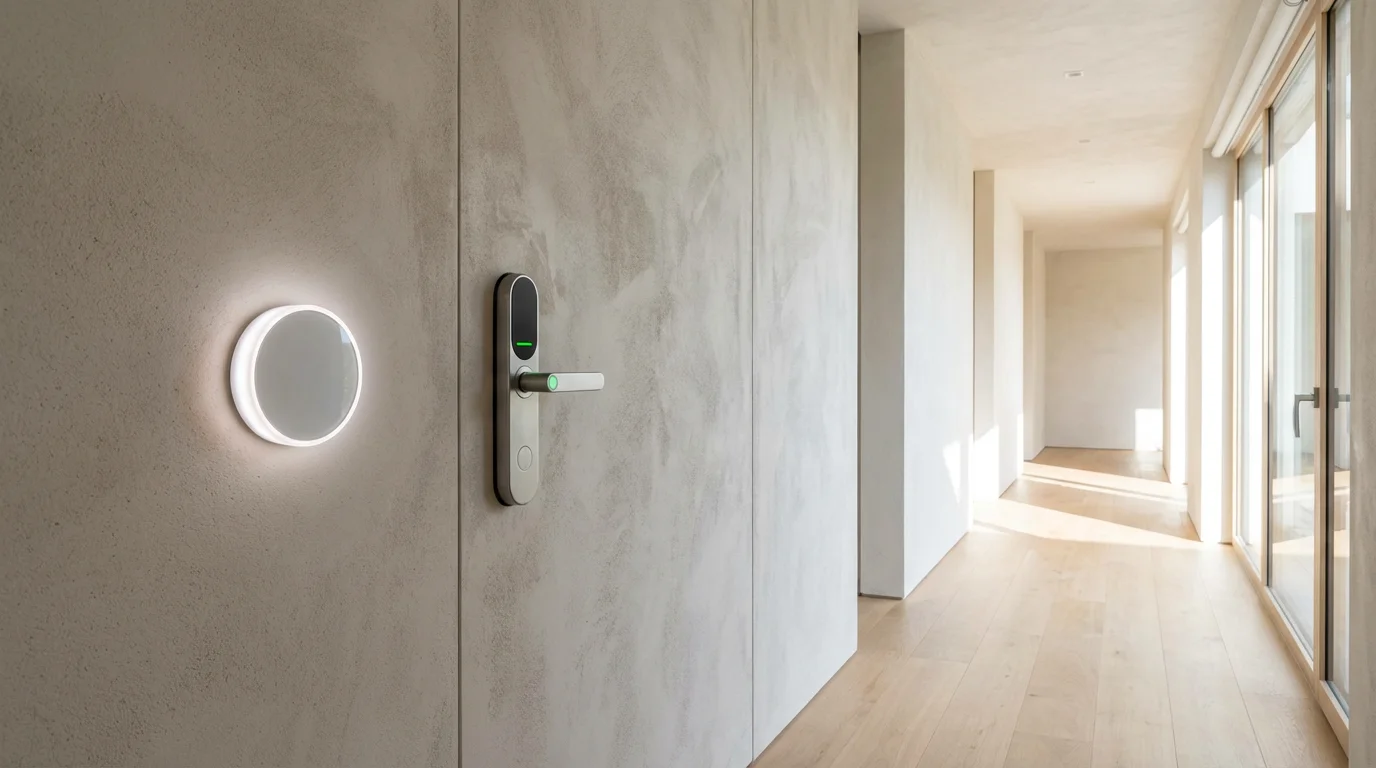
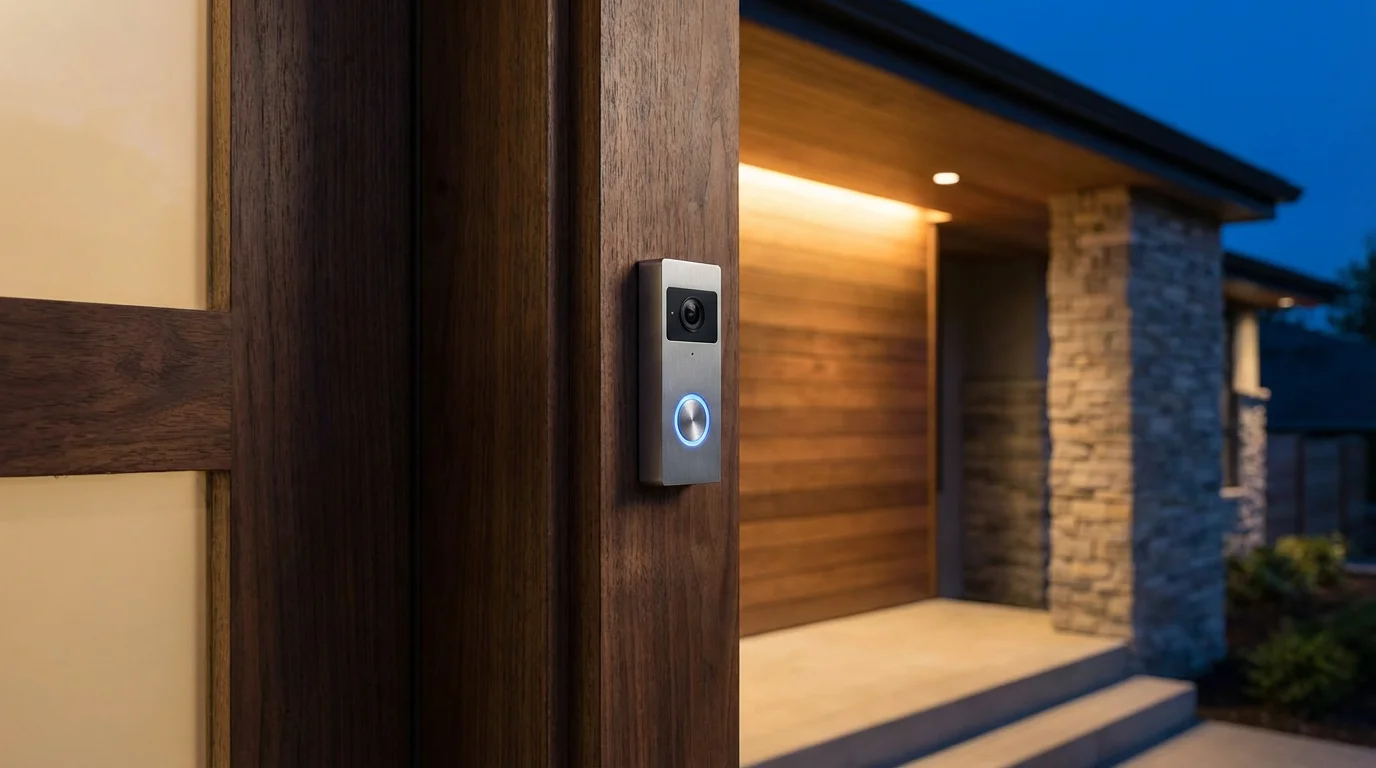
Security devices provide peace of mind. A smart lock allows you to check if the door is locked without getting up. Smart doorbells with two-way audio let you speak to visitors without opening the door. When a visitor presses the doorbell, your smart speaker can announce, “Someone is at the front door,” ensuring you never miss a caller.
Setting Up and Configuring for Vision Loss
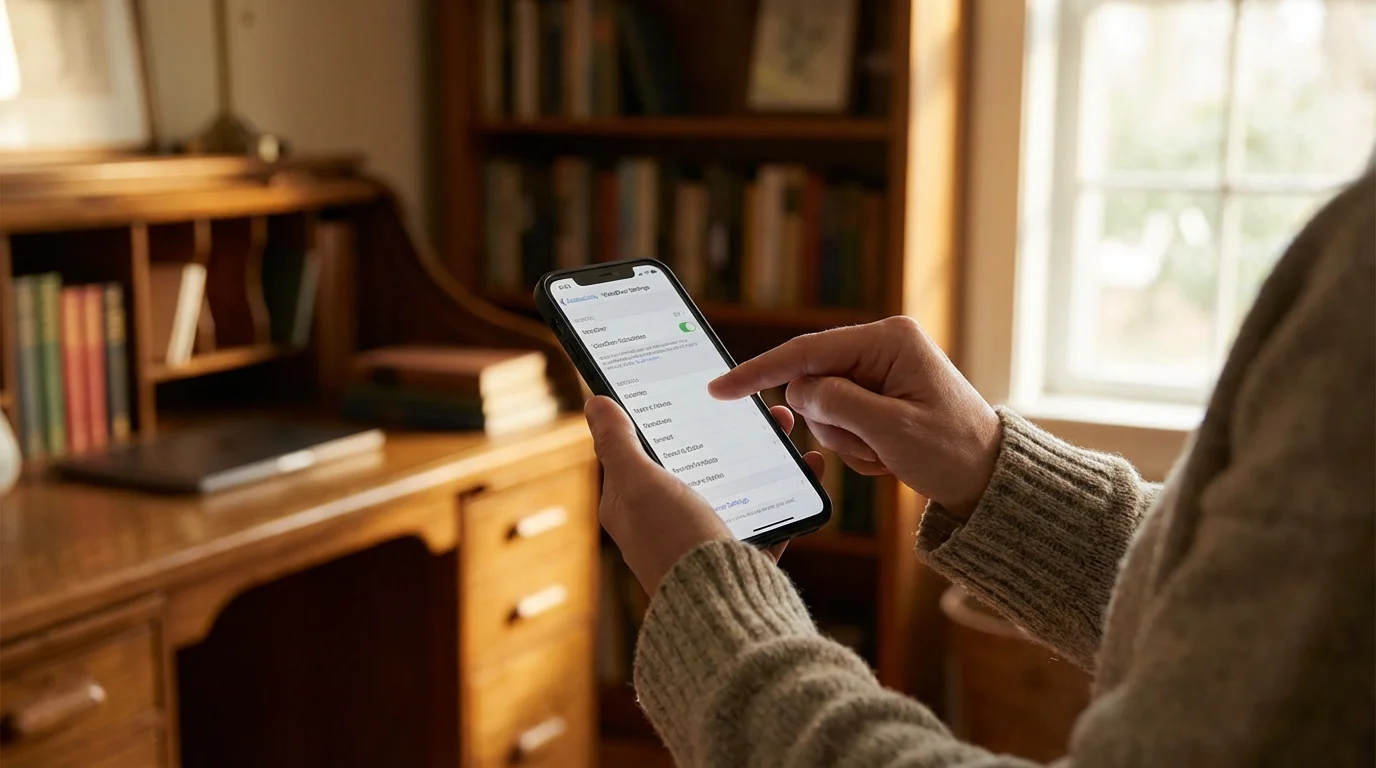
Out of the box, smart speakers are generally user-friendly, but specific configurations can make them significantly more accessible for the visually impaired. You may need sighted assistance for the initial app setup, but once configured, daily use is entirely voice-driven.
Enable Request Sounds
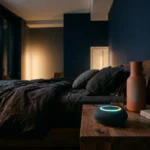
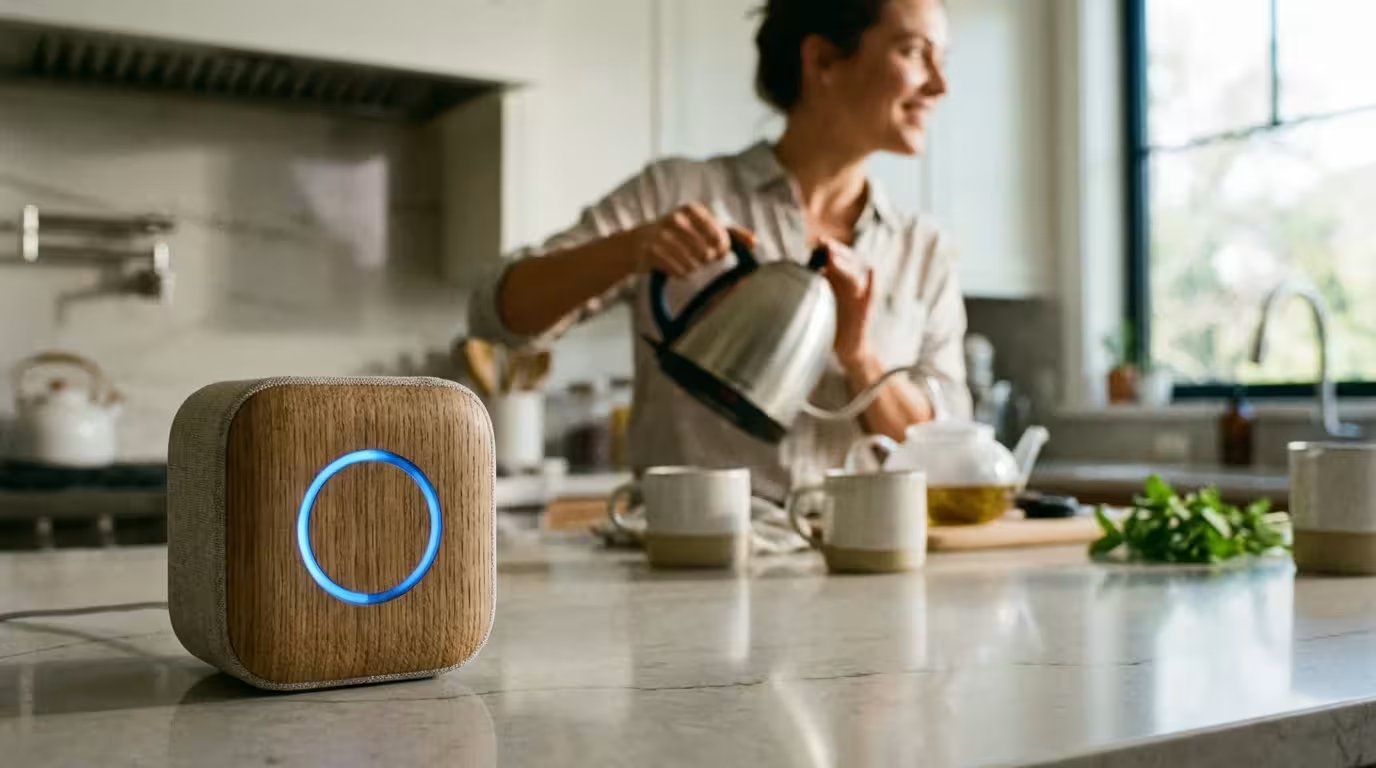
By default, many smart speakers rely on visual cues (like a light ring turning blue) to indicate they are listening. This is unhelpful if you cannot see the device. You should immediately enable “Start of Request” and “End of Request” sounds in the device settings. This creates a distinct chime when the device hears its wake word and another chime when it finishes processing your command.
Customize Speaking Rate
Many screen reader users are accustomed to listening to audio at high speeds to consume information quickly. Both Alexa and Google Assistant allow you to adjust the voice speed. You can simply say, “Speak faster,” or “Speak slower,” until the rate matches your preference.
Tactile Modifications
While voice is the primary interface, you may occasionally need to touch the device (e.g., to mute the microphone). Placing a small bump dot or tactile sticker on the mute button or volume controls can help you orient yourself with the hardware physically.

Creating Routines to Simplify Daily Tasks
One of the most powerful features of smart home automation is the “Routine” (Alexa/Google) or “Scene” (Apple). This allows you to chain multiple actions together with a single trigger phrase. This reduces the cognitive load and the number of commands you need to speak.
The “Good Morning” Routine
Imagine waking up and simply saying, “Start my day.” You can configure your assistant to:
- Turn on the bedside lamp to a soft brightness.
- Read the current time and date.
- Read the weather forecast.
- Start playing a news briefing or a favorite radio station.
- Adjust the thermostat to a comfortable daytime temperature.
The “I’m Leaving” Routine
Navigating out of the house requires focus. A departure routine ensures your home is secure without you needing to check every room. A command like “I’m leaving” could:
- Turn off all smart lights in the house.
- Lock the smart door lock.
- Lower the thermostat to save energy.
- Arm your security system.
- Announce any calendar appointments you have for the day.
Using Smart Displays as Visual Aids
Smart displays (like the Amazon Echo Show or Google Nest Hub) are smart speakers with screens. While a screen might seem counterintuitive for the visually impaired, these devices often contain cameras and software designed specifically to act as artificial eyes.
Item Identification: Features like “Show and Tell” on Alexa allow you to hold a pantry item, such as a can of soup, in front of the camera. You ask, “What am I holding?” and the device uses computer vision to identify the product and read the label aloud. This promotes independence in the kitchen.
Video Calling: These devices make hands-free video calling easy. You can call a friend or family member via voice (“Call Mom”), and they can see you and your environment to help you locate a missing item or read a piece of mail.
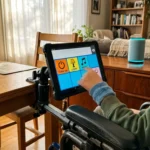
Screen Reader Integration: Just like smartphones, smart displays come with built-in screen readers (VoiceView for Amazon, TalkBack for Google). When enabled, you can navigate the touchscreen interface using gestures and auditory feedback.
Security and Privacy Considerations
Bringing microphones and cameras into your home requires a consideration of privacy. For the visually impaired, understanding the status of these devices is critical.
Before finalizing your setup, it is vital to review the privacy settings every smart speaker owner should enable to protect your personal information.
Hardware Mute Switches
Ensure you know where the physical mute switch is on your device. When the mute switch is engaged, the electrical circuit to the microphone is cut. Look for devices that provide a tactile click or a distinct position for the switch so you can confirm privacy by touch.
Camera Shutters
If you use a smart display, choose one with a physical camera shutter. This is a slider that covers the lens. Wirecutter reviews often highlight the presence of these physical privacy shields, which are more reliable than software toggles.
Data Management
You should periodically review your voice recordings. You can ask your assistant, “Delete what I just said,” or configure the app to auto-delete recordings after a set period. This ensures that your interactions remain private and are not stored indefinitely.

Troubleshooting Common Voice Control Issues
Technology is not perfect. Connection drops or misunderstandings can happen. Here is how to handle common frustrations without needing to see a status light.
If your device often fails to recognize your requests, you can follow these steps to improve voice recognition accuracy for more reliable operation.
Device Not Responding: If your speaker does not chime when you say the wake word, it may be disconnected from power or Wi-Fi. Check the power cable physically. If it is plugged in but silent, try unplugging it, waiting ten seconds, and plugging it back in to force a reboot.
“I Didn’t Understand That”: If the assistant struggles to understand you, ensure there is no background noise like a TV or vacuum. Speak clearly and slightly slower. You can also retrain the voice model in the companion app (Voice Match for Google, Voice ID for Alexa) so the device learns your specific vocal patterns.
Wrong Device Activating: If you have multiple speakers, sometimes the one in the other room answers. Adjust the sensitivity settings in the app, or ensure the devices are spaced far enough apart. Most systems use “spatial perception” to determine which mic is closest, but walls can sometimes reflect sound in tricky ways.
Frequently Asked Questions
Can I use a smart home system if I have no internet connection?
Most smart speakers require an active internet connection to process voice commands. However, some hubs like those using Zigbee or Z-Wave can perform local processing for basic tasks (like turning on lights) even if the internet is down, provided you have a local controller. But for voice assistants like Alexa or Google, the internet is generally required.
Are smart home devices difficult to install for someone with visual impairments?
Plug-in devices like smart plugs and speakers are very easy to install independently. However, devices requiring wiring, such as thermostats, light switches, or smart locks, may require sighted assistance or a professional electrician to ensure safety and correct installation.
How do I know if my smart speaker is listening?
You should enable “Request Sounds” or “Start/End of Request” chimes in the device settings. This forces the speaker to play a distinct sound when it wakes up and another sound when it finishes listening, providing auditory confirmation without relying on visual light rings.
Can smart speakers read books to me?
Yes. Alexa integrates directly with Audible and Kindle to read audiobooks and e-books aloud. Google Assistant can also read audiobooks purchased through Google Play Books. Both can also read news briefs and podcasts upon request.
Disclaimer: This article is for informational purposes only. Smart home devices involve electrical connections and data privacy. Always follow manufacturer instructions for installation. For complex wiring or HVAC work, consult a licensed professional.