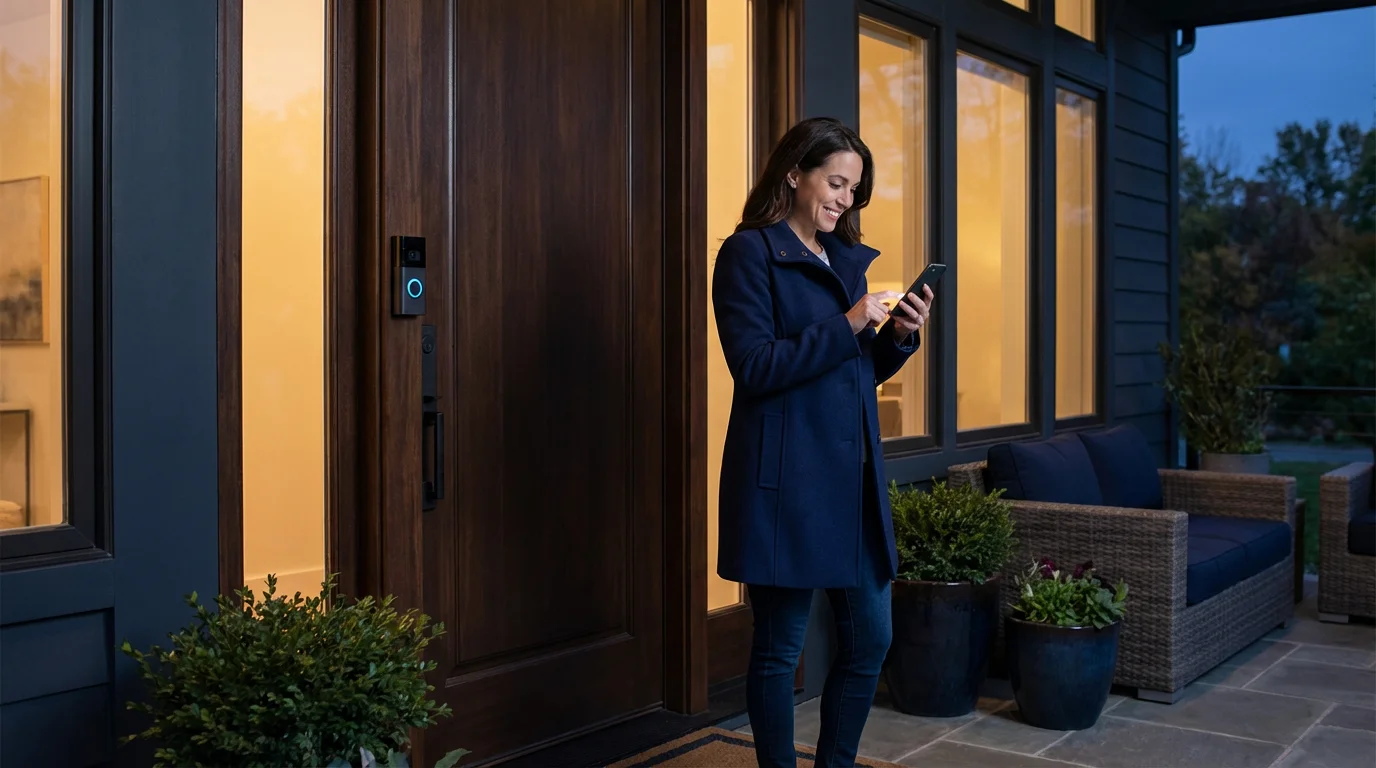
Installing a Ring security system is a significant first step toward a safer, smarter home. However, simply mounting a video doorbell or sticking a sensor on a window barely scratches the surface of what this ecosystem can do. Many homeowners treat their devices as standalone gadgets rather than components of a cohesive security network. To truly justify the investment, you need to dive into the settings that transform a passive recording device into an active, intelligent guardian.
Proper setup also allows you to monitor your home security remotely with real-time updates wherever you are.
For many homeowners, the process starts with integrating smart sensors to create a truly responsive and alert environment.
A fully optimized system reduces false alarms, integrates seamlessly with your daily routine, and provides critical information the moment you need it. Whether you are dealing with a single Video Doorbell Pro or a comprehensive 14-piece alarm kit, the difference between a good experience and a great one lies in customization. By fine-tuning motion zones, leveraging linked devices, and automating schedules, you turn a collection of cameras into a proactive security shield.
This guide walks you through practical, actionable strategies to unlock the full potential of your Ring setup. You will learn how to eliminate annoying notifications, connect your security to your lighting, and ensure your family’s privacy remains intact while keeping intruders at bay.
Mastering Ring Modes: Disarmed, Home, and Away
One of the most powerful features in the Ring app is the “Modes” function. It acts as the master switch for how your system behaves depending on your physical location. While it comes with default settings, leaving them as-is often results in missed opportunities for better security or unnecessary privacy intrusions.
Configuring these modes is essential when automating your home for vacation security to ensure comprehensive protection while traveling.
Modes allow you to control all your cameras and alarm sensors simultaneously with a single tap. Understanding exactly what each mode does is crucial for effortless daily operation.
- Disarmed: This is your standard setting when the house is full of activity. By default, cameras may still record motion, but alarm sensors are inactive. You should customize this to ensure indoor cameras stop recording completely to respect privacy when you are home.
- Home: Use this when you are inside but want perimeter security, such as at night. Typically, this arms door and window sensors and exterior cameras but leaves interior motion detectors disarmed so you don’t trigger an alarm while getting a glass of water.
- Away: This activates everything. All sensors, indoor cameras, and outdoor cameras enter their highest alert state.
To get the most out of this, you must customize the behavior of each device within these modes. For example, if you have a camera in the garage, you might want it to record even in “Home” mode, whereas a living room camera should be off. Go into Settings > Modes in the Ring app to toggle motion detection and live view capability for each specific camera based on the mode.
Optimizing Motion Zones to Stop False Alarms
Nothing leads to “alert fatigue” faster than a phone that buzzes every time a car drives past your house or a tree branch sways in the wind. If you ignore notifications because there are too many, your security system loses its value. The solution lies in aggressively tuning your Motion Zones.
Ring devices offer customizable zones that tell the camera exactly where to look for motion and where to ignore it. Instead of monitoring the entire field of view, you can draw specific shapes over your driveway or walkway.
Steps to Refine Motion Detection
- Open your device settings and select Motion Settings.
- Tap Edit Motion Zones.
- Drag the points of the colored box to exclude high-traffic areas like the street or a neighbor’s sidewalk.
- Save the zone and test it by walking through the area.
Beyond the geometric zones, utilize the “Smart Alerts” feature. This leverages computer vision to distinguish between people and other motion. If you only care about potential intruders, set your camera to record continuously but only send push notifications when a Person is detected. This single change can reduce nuisance alerts by over 50%.
“The best smart home is the one you don’t have to manage. Proper sensitivity settings mean your phone only buzzes when it matters.”
The Power of Linked Devices
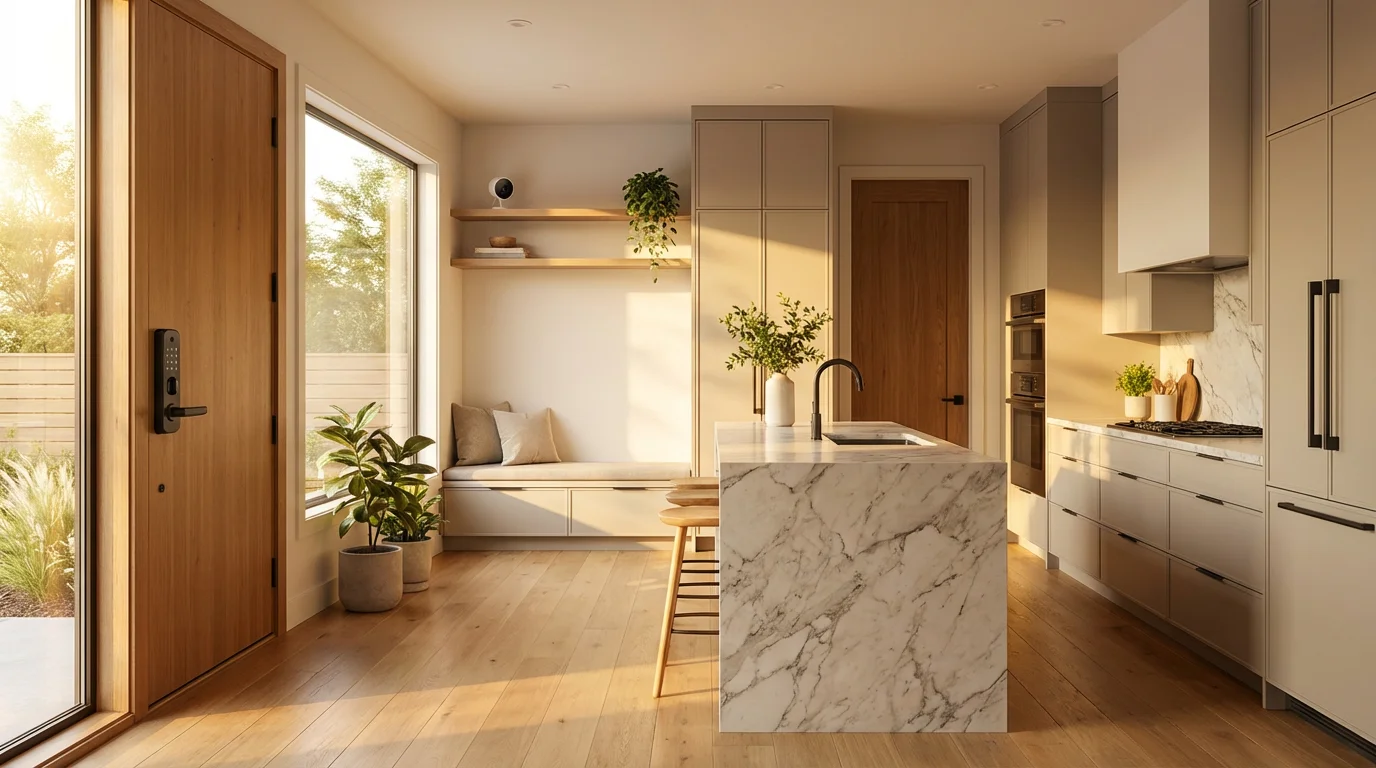
A standalone doorbell is useful, but a network of devices acting in unison is formidable. The “Linked Devices” feature allows different Ring products to talk to one another. When one device detects an event, it can trigger actions in others, creating a seamless security response.
Imagine someone attempts to open your back door at night. Your contact sensor triggers the alarm. With Linked Devices enabled, this event can instantly signal your floodlight camera to turn on and your video doorbell to start recording, even though the motion was at the back of the house. This ensures you capture the intruder’s approach and retreat from multiple angles.
Recommended Linking Scenarios
- The Perimeter Shield: Link all outdoor cameras to your Ring Alarm. If the alarm siren sounds, every camera should immediately begin recording to capture maximum evidence.
- The Welcome Home: Link your Video Doorbell to your Ring Smart Lighting or path lights. When someone approaches the front door, the walkway lights illuminate automatically, improving safety and video quality.
- Interior Awareness: If you have an indoor camera (stick-up cam), link it to your entry sensors. If the front door opens while the system is armed, the camera begins recording instantly.
Integrating with Alexa for Voice Control
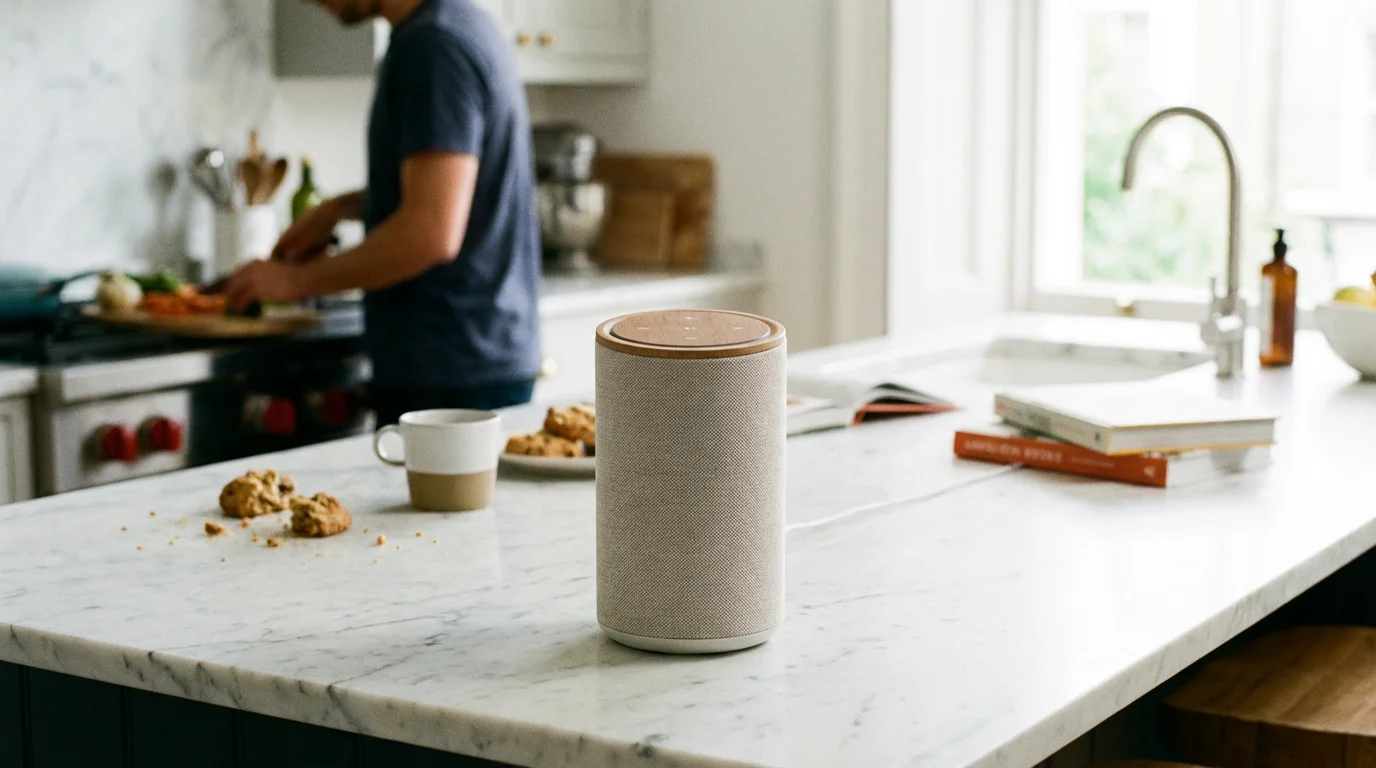
Since Amazon owns Ring, the integration with Alexa is deeper and more functional than with any other smart home ecosystem. If you have an Echo Show or Fire TV, you can view camera feeds without reaching for your phone. Simply saying, “Alexa, show me the front door,” pulls up the live feed instantly.
If you use a different assistant, you can also learn how to set up Google Home to integrate with many of these security features.
However, the real magic happens with Alexa Routines. These allow you to mix Ring triggers with other smart home devices. According to CNET, automation routines are what truly differentiate a smart home from a remote-controlled home. You can create a routine where a motion event at your front door triggers your Philips Hue living room lights to turn on, giving the impression that someone is awake and aware.
Setting Up a “Safety” Routine
- Open the Alexa App and go to More > Routines.
- Tap the + icon to create a new routine.
- For “When this happens,” select Smart Home and choose your Ring Video Doorbell (Motion).
- For “Add action,” select Alexa Says and type a custom phrase like “Motion detected at the front door.”
- Add a second action to turn on your smart porch lights or an interior lamp.
This auditory cue is often faster than a phone notification and alerts everyone in the house, not just the person holding the app.
Enhancing Privacy Zones and Encryption
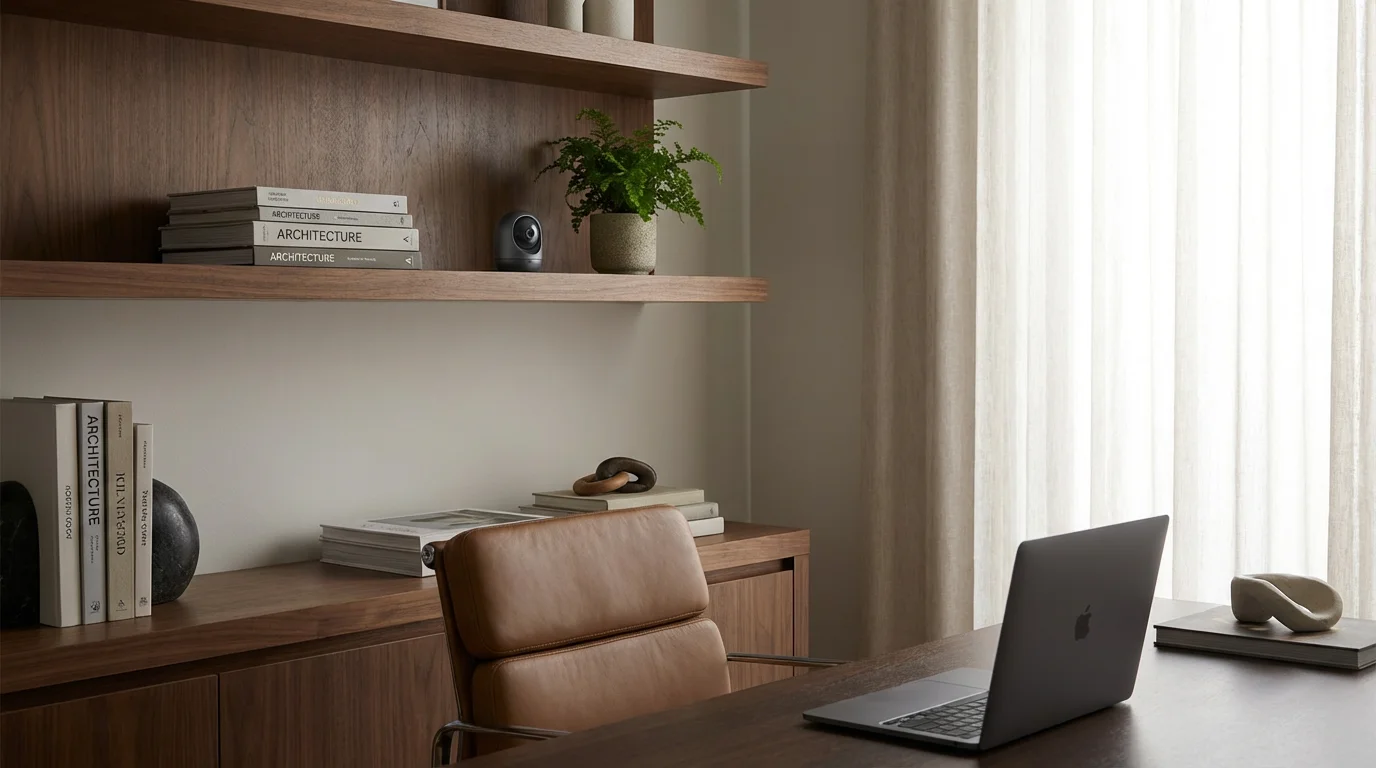
Cameras are powerful tools, but they must be used responsibly. If your camera faces a neighbor’s window or a public area where people expect privacy, you should utilize Privacy Zones. These are blacked-out sections of the video feed that are never recorded or displayed. It is a digital way of masking off areas to ensure you are being a good neighbor while maintaining your own security.
While hardware settings are important, learning how to secure your smart home from hackers is another vital step in protecting your family’s digital privacy.
Furthermore, security of your video data is paramount. By default, Ring encrypts videos when they are uploaded to the cloud and stored. However, for maximum security, you should enable End-to-End Encryption (E2EE). This advanced feature ensures that your videos can only be viewed on your enrolled mobile devices. Even Ring employees or law enforcement cannot access your footage without the physical device that holds the decryption key.
To enable E2EE, navigate to Control Center > Video Encryption > Advanced Video Encryption in the Ring app. Note that this may disable some features like sharing videos via public links or viewing them on certain third-party devices, so weigh the convenience against the heightened security.
Deciding on the Right Ring Protect Plan
Hardware is a one-time cost, but the Ring Protect subscription is an ongoing consideration. Many users wonder if the subscription is necessary. Without a plan, your Ring devices function merely as live monitors. You get motion alerts and can see Live View, but you cannot view past recordings. If you miss the notification, you miss the event entirely.
To get the most out of the hardware, a subscription is virtually mandatory for security purposes. The Ring Protect Basic plan covers one device and enables video history, which is essential for reviewing footage after a theft or incident. The Ring Protect Pro plan is designed for users with the Ring Alarm system.
Why Protect Pro is Worth It for Alarm Users
The Pro plan unlocks professional monitoring. If your alarm triggers, a signal is sent to a monitoring center that can dispatch police or fire services. It also activates 24/7 Backup Internet. If your home Wi-Fi goes down—or is cut by an intruder—the Ring Alarm Pro base station switches to a cellular connection to keep your security system online. This redundancy is critical for a robust security posture.
Maximizing Battery Life and Wi-Fi Signal
A dead battery or a weak Wi-Fi signal renders even the most advanced camera useless. If your device’s RSSI (Received Signal Strength Indicator) is poor, you will experience laggy video, missed motion events, and pixelated recordings. Check your device health in the app; an RSSI between 0 and -60 is ideal. If you are seeing numbers like -70 or -80, you need to boost your network.
Consider adding a Chime Pro, which acts as a Wi-Fi extender specifically for Ring devices. Alternatively, upgrading to a mesh Wi-Fi system can eliminate dead zones in garages or front porches where cameras are typically mounted.
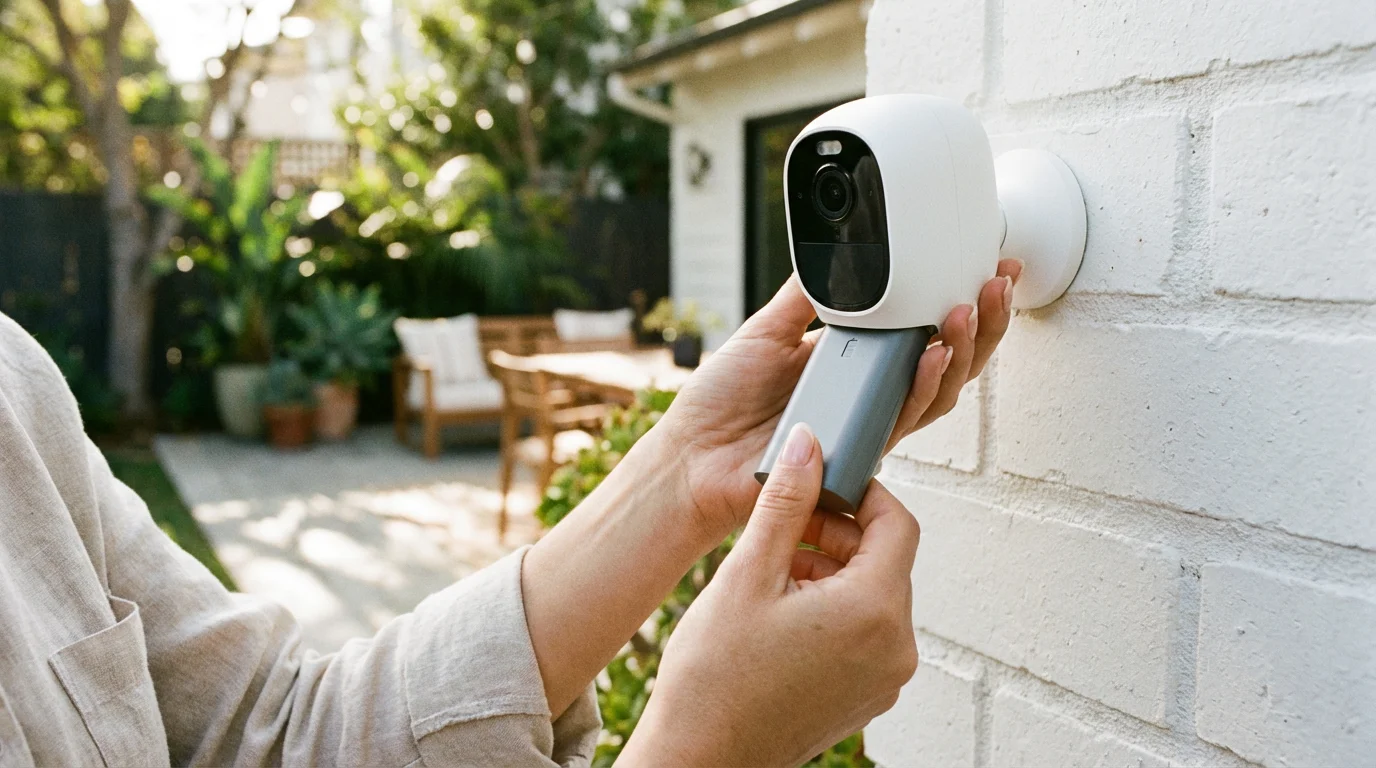
For battery-powered devices, the frequency of “wake-ups” drains power. If your battery dies every two weeks, your motion sensitivity is likely too high, or the camera is facing a high-traffic street. Use the “Motion Frequency” setting to switch to “Regularly” or “Periodically” rather than “Frequently.” For a set-it-and-forget-it solution, install a Ring Solar Panel. It provides a trickle charge that can keep a battery at 100% indefinitely in sunny climates.
Expanding with Smart Lighting
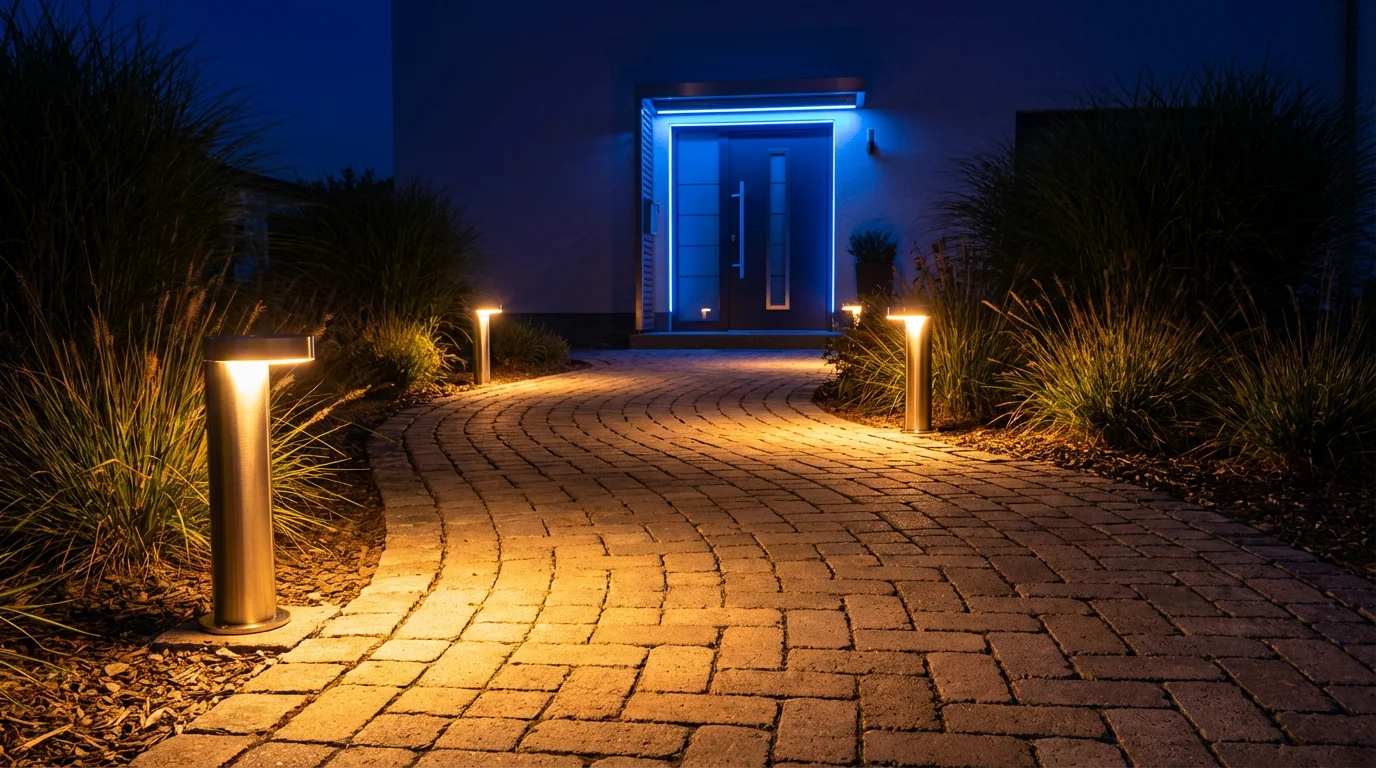
Lighting is a deterrent. Criminals prefer darkness. Integrating Ring Smart Lighting into your system creates a “zone of safety” around your home. These aren’t just motion-activated lights; they are connected devices. You can group them so that if one path light detects motion, the entire group lights up, illuminating the whole yard instantly.
This startling effect is excellent for deterrence. You can also link these lights to your cameras. If the path lights detect motion, they can tell the doorbell to start recording before the person even reaches the door. This pre-roll footage can be vital in identifying suspicious activity.
Frequently Asked Questions
Does Ring work without a subscription?
Yes, but with significant limitations. Without a subscription, you can view real-time video (Live View) and receive motion alerts. However, you cannot save, review, or share recorded videos. If you miss the live alert, there is no record of what happened.
How can I improve the video quality of my Ring doorbell?
Video quality issues are usually related to Wi-Fi strength. Check the RSSI in the “Device Health” section of the app. If the signal is weak, move your router closer or install a Wi-Fi extender. Also, ensure the lens is clean and that night vision isn’t being reflected by a nearby wall or ledge.
Can Ring call the police automatically?
Ring devices alone do not call the police. However, if you have the Ring Alarm system and subscribe to the Ring Protect Pro plan with professional monitoring, the monitoring center can dispatch emergency services if the alarm is triggered and you do not respond to their verification call.
How long do Ring batteries last?
Battery life varies heavily based on usage and weather. Under normal use (a few events per day), a battery should last 6 to 12 months. In high-traffic areas or freezing temperatures, this can drop to a few weeks. Using a solar panel or wiring the device can mitigate this.
Disclaimer: This article is for informational purposes only. Smart home devices involve electrical connections and data privacy. Always follow manufacturer instructions for installation. For complex wiring or HVAC work, consult a licensed professional.