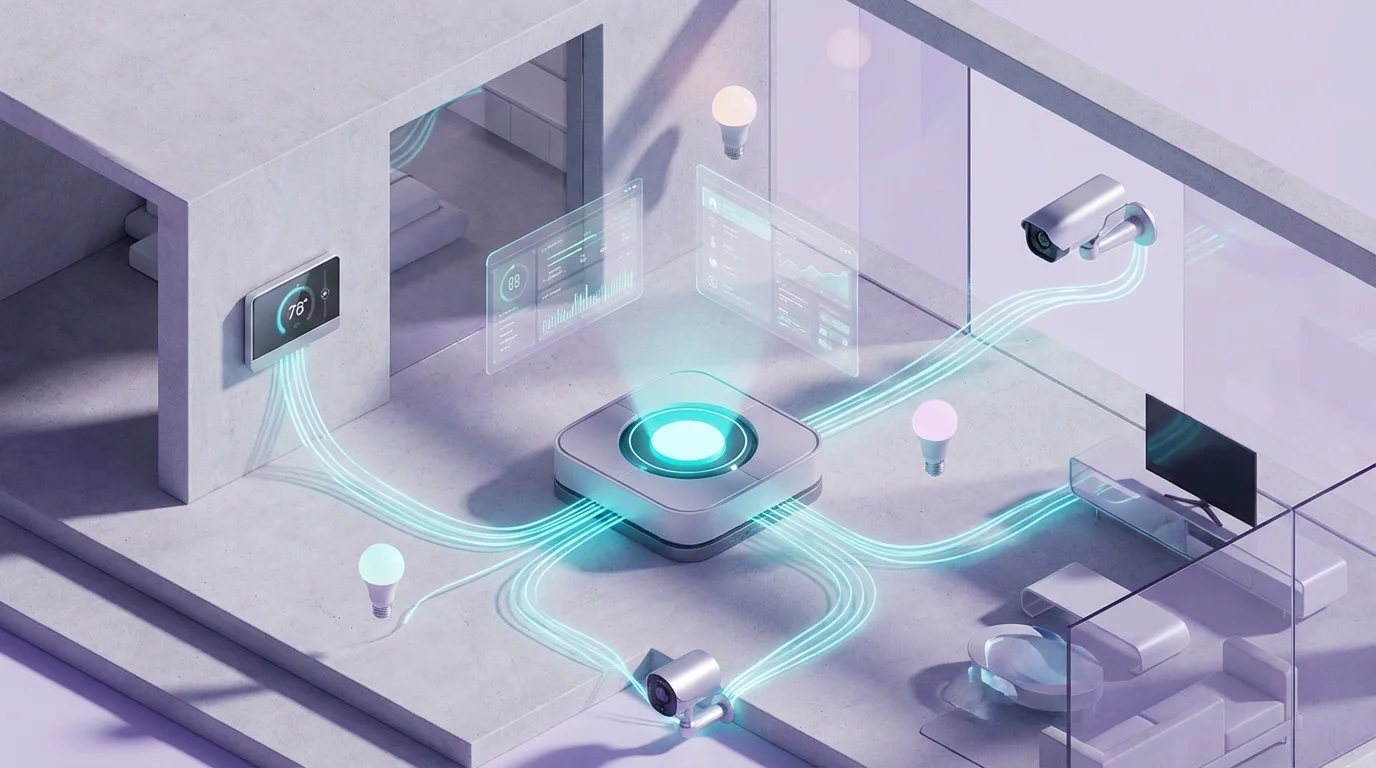
You have likely experienced the frustration of smart home fragmentation. You buy a video doorbell from one brand, smart bulbs from another, and a thermostat from a third. Each device has its own app, and none of them seem to talk to one another. Your “smart” home quickly becomes a collection of disconnected gadgets requiring manual input.
This is where IFTTT (If This Then That) transforms your setup. It acts as the universal translator for the Internet of Things, allowing you to build complex workflows that operate automatically in the background. While basic manufacturer apps handle simple schedules, IFTTT enables advanced logic, bridging ecosystems that otherwise refuse to cooperate.
By mastering triggers, queries, and webhooks, you turn a house of gadgets into a cohesive, responsive living space. This guide explores how to move beyond basic on/off switches and build a truly automated environment.

Understanding the Core Logic
To use IFTTT effectively, you must understand its architecture. The platform has evolved from simple linear commands to a system capable of handling conditional logic. Understanding the terminology is the first step toward advanced automation.
If you are just getting started, it is helpful to review the basics of how to use IFTTT with your smart home devices before exploring advanced filters.
Triggers and Actions
Every automation, called an “Applet,” begins with a Trigger (the “If This” part). A trigger is an event that tells the system to wake up. This could be a specific time of day, a change in location, or a sensor detecting motion.
Once triggered, the Applet executes an Action (the “Then That” part). This is the output, such as turning on a light, sending an SMS, or logging data to a spreadsheet.
Queries and Filter Code
Standard automation is linear: If motion is detected, turn on the light. However, real life is rarely that simple. You might want the light to turn on only if it is after sunset. This is where Queries and Filter Code come into play.
- Queries: These request additional data before running the action. For example, when your alarm goes off (Trigger), IFTTT can check your Google Calendar (Query) to see if you have a meeting within the hour.
- Filter Code: Available on Pro plans, this allows you to write JavaScript snippets to skip actions based on specific criteria. It adds the “Only If” condition that basic apps lack.
Bridging Ecosystem Gaps
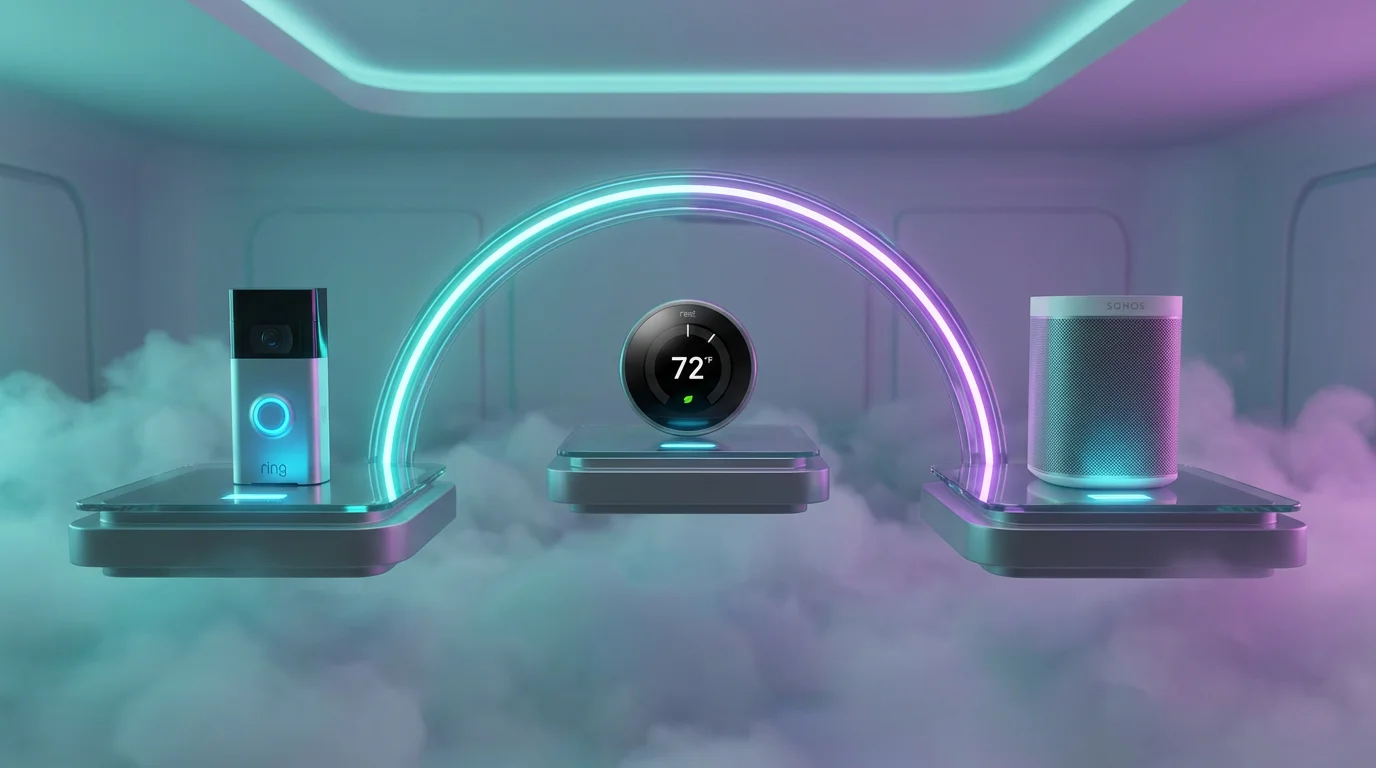
The primary reason to use IFTTT is to force cooperation between competitors. Large tech companies often build “walled gardens” to keep you within their ecosystem. IFTTT bypasses these walls using API integrations.
Learning how to choose the right smart home ecosystem is an essential step in identifying which brands allow for these open integrations.
For example, Wyze sensors are affordable and reliable, but they do not natively talk to Philips Hue bulbs. Through IFTTT, a Wyze contact sensor on your pantry door can trigger a Hue light strip to turn on immediately.
“The true value of a smart home isn’t in the hardware, but in the software that binds it together.”
This interoperability extends to legacy devices as well. Many older smart plugs or niche appliances lack HomeKit or Google Home integration but offer IFTTT support. This allows you to modernize older hardware without replacing it.
According to the Connectivity Standards Alliance, protocols like Matter are working to solve this fragmentation at the hardware level. However, until Matter adoption is universal, IFTTT remains the most reliable software bridge for diverse device collections.
Building Advanced Smart Routines
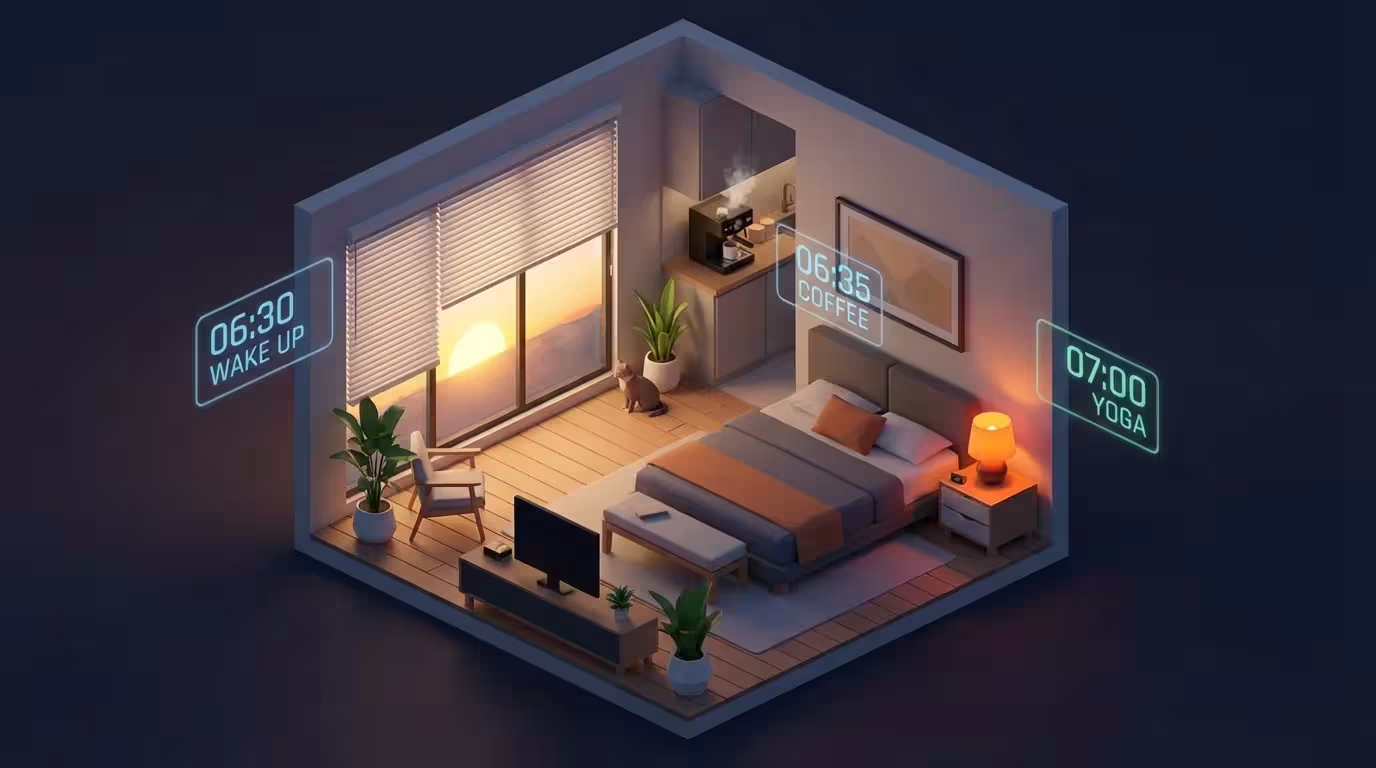
Let’s move from theory to application. The following routines go beyond simple scheduling to create a responsive home environment.
To achieve this, you can learn how to chain multiple automations together to create a truly seamless and responsive experience.
The “Safe Arrival” Geofence
Most smart home apps offer geofencing, but they are often limited to a single action. With IFTTT, you can create a multi-step arrival sequence that ensures security and comfort.
- Trigger: Location (Android or iOS) detects you entering your home zone.
- Action 1: Disarm your Blink or Ring security cameras (privacy mode).
- Action 2: Set your Ecobee thermostat to “Home” mode.
- Action 3: Turn on the entryway lights via Lutron Caséta.
- Action 4: Log your arrival time in a Google Sheet for personal tracking.
Intelligent Climate Control
Thermostats usually rely on internal schedules or occupancy sensors. You can make them smarter by using external weather data as a trigger.
Create an Applet that triggers when the outdoor temperature drops below a certain threshold. The action can set your thermostat to a warmer preset before the cold permeates your walls. Alternatively, use humidity triggers to activate a smart plug connected to a humidifier, protecting your wooden furniture and improving air quality.
Visual Notifications for Safety
Audible alarms are easily missed if you are wearing headphones. You can use your lighting to provide visual cues for critical events.
- Carbon Monoxide Alert: If your Nest Protect detects smoke or CO, instruct all Philips Hue lights to turn bright red and 100% brightness.
- Leak Detection: If a basement water sensor detects moisture, flash the living room lights blue to alert you immediately.
- Doorbell Alert: If the baby is sleeping and you have muted the chime, blink the office lights when someone presses the doorbell.

Mastering Logic with Filter Code
For power users, Filter Code is the game-changer. It allows you to add conditional logic using TypeScript (a version of JavaScript). This prevents automations from running when they aren’t needed.
Scenario: Motion Lighting Only at Night
A common annoyance is a motion sensor turning on lights during the day. Standard IFTTT Applets trigger every time. With filter code, you restrict the action.
The Logic Structure:
var currentHour = Meta.currentUserTime.hour();
if (currentHour >= 7 && currentHour <= 19) {
// Skip the action if it is between 7 AM and 7 PM
Light.turnOn.skip();
}
By implementing this code, the trigger still fires when you walk past the sensor, but the filter checks the time. If it is daytime, the request to turn on the light is cancelled. This saves energy and prevents annoying “ghost” switching during the day.
Scenario: Conditional Blinds Operation
Automated blinds are great for energy efficiency. You might have a routine to open them at sunrise. However, if it is overcast or raining, you might want them to stay closed to insulate the windows.
You can add a query for “Current Weather” to your sunrise trigger. Use filter code to check the weather condition. If the weather report returns “Rainy” or “Cloudy,” you command the Applet to skip the “Open Blinds” action.
Leveraging Webhooks for Power Users
Webhooks allow IFTTT to send and receive standard HTTP web requests. This turns IFTTT into a universal API endpoint for devices that have no official integration.
Before diving into custom API requests, the complete guide to smart home hubs provides a foundation for understanding local versus cloud control.
Connecting DIY Hardware
If you build your own sensors using Arduino or ESP8266 microcontrollers, you cannot directly link them to Alexa or Google Home easily. However, you can program your microcontroller to send a simple web request (POST or GET) to a specific IFTTT URL.
When IFTTT receives this web request, it acts as a trigger. You can then fire any supported action. This allows a $5 homemade sensor to control a $200 smart lock or a $500 thermostat.
Integrating Advanced Software
Webhooks also allow you to bridge desktop software with your home.
- PC Start-up: Run a script on your computer boot-up that sends a webhook to IFTTT, turning on your office lights and brewing coffee.
- Server Monitoring: If you run a home media server (like Plex), configure your monitoring software to send a webhook if the server goes offline. IFTTT can then send you a push notification and flash a light red.
Troubleshooting and Optimization
Even the best automation systems encounter hiccups. Because IFTTT operates in the cloud, latency and connectivity can be issues. Here is how to keep your system reliable.
Managing Latency
IFTTT is a cloud-based service. The signal goes from your device, to the manufacturer’s cloud, to IFTTT, and back down to the target device. This can introduce a delay of 2 to 5 seconds.
Strategy: Do not use IFTTT for automations requiring instant feedback, such as a light switch turning on a bulb. Use IFTTT for background tasks where a 5-second delay is acceptable, such as adjusting the thermostat or arming security systems.
Handling Rate Limits
If you create a loop—such as a light turning on which triggers a sensor that turns the light on again—you may hit rate limits. IFTTT will pause your Applet if it fires too frequently in a short period. Always ensure your triggers and actions do not feed into each other.
Audit Your Connections
If an Applet stops working, the most common cause is an expired authentication token. Periodically check your “Services” tab in IFTTT. If a service says “Offline,” you simply need to re-login to re-establish the handshake between IFTTT and that manufacturer.
Security and Privacy Considerations
Granting a third-party service access to your home controls requires trust. You are effectively giving IFTTT the keys to your digital home.
Maintaining security is vital; you might also explore automating your home for vacation security to simulate occupancy while you are away.
To maximize security:
- Use Two-Factor Authentication (2FA): Enable 2FA on your IFTTT account immediately. This prevents unauthorized access even if your password is compromised.
- Limit Access: Only connect services you actually plan to use. Do not link your banking notifications or sensitive data unless necessary.
- Review Activity Logs: Check the “Activity” feed in IFTTT regularly. If you see automations running at odd times that you did not program, investigate immediately.
For more insights on securing connected devices, The Verge Smart Home section frequently covers privacy updates and security vulnerabilities within the industry.
Frequently Asked Questions
Is IFTTT free to use for smart home automation?
IFTTT offers a “Free Forever” plan, but it is limited. The free tier typically allows for a small number of Applets and standard speed. To access multi-step Applets, filter code logic, and faster execution speeds, you generally need to upgrade to the Pro or Pro+ subscription.
Does IFTTT work with Matter devices?
IFTTT acts as a cloud bridge. If a device manufacturer supports Matter and also integrates their cloud service with IFTTT, you can control it. However, IFTTT does not currently control Matter devices locally over your LAN; it still relies on cloud-to-cloud communication.
Why is there a delay when I use IFTTT?
The delay, or latency, occurs because the signal must travel from your device to the manufacturer’s server, then to IFTTT’s server, and finally to the action device. This cloud-hopping process usually takes 2 to 5 seconds, making IFTTT better suited for background tasks rather than instant lighting control.
Can I use IFTTT to trigger Alexa routines?
Directly triggering an Alexa Routine from IFTTT is difficult due to Amazon’s API restrictions. However, you can use workarounds, such as having IFTTT trigger a virtual sensor (like a SmartThings virtual switch) which Alexa can see, and then using that switch state to trigger the Alexa Routine.
Disclaimer: This article is for informational purposes only. Smart home devices involve electrical connections and data privacy. Always follow manufacturer instructions for installation. For complex wiring or HVAC work, consult a licensed professional.