
You have invested time and money into automating your lights, securing your entryways, and optimizing your thermostat. Your home works like a well-oiled machine—until the power goes out. Suddenly, voice commands fall on deaf ears, your app loses connection, and you might wonder if your smart lock will even let you inside.
Overlooking backup power is one of the most common smart home mistakes beginners should avoid when building their first automated system.
A power outage doesn’t just mean sitting in the dark; for a smart home user, it can mean a total loss of control over the household ecosystem. However, with the right preparation and hardware, your smart home can remain functional, secure, and helpful even when the grid fails.
This guide covers everything you need to know to storm-proof your technology. From battery backups to local control protocols, you will learn how to keep your essential automations running and ensure your system recovers gracefully when the lights finally come back on.
Assessing Your Smart Home’s Vulnerability
Before buying backup batteries, you must understand how your specific devices react to power loss. Not all smart home gadgets behave the same way. Their functionality during an outage depends largely on how they communicate and where they get their instructions.
Before you begin, make sure to plan your smart home before buying anything to ensure your hardware is compatible with a battery-backed network.
To better prepare for severe conditions, you can set up weather-based smart home automations that secure your property before a storm hits.
Most smart homes rely on a chain of command that looks like this:
- The Device: The bulb, switch, or sensor (needs power).
- The Connection: Wi-Fi, Zigbee, Z-Wave, or Thread (needs a powered network).
- The Brain: A hub or a cloud server (needs power and internet).
- The Interface: Your phone or voice assistant (needs power and local network).
If any link in this chain breaks, the automation fails. For example, a Wi-Fi smart bulb connects directly to your router. If the router loses power, the bulb is uncontrollable, even if the bulb itself is on a circuit that still has power (like a generator line). Conversely, a Zigbee motion sensor runs on a battery, but if the hub it talks to is dead, the sensor is useless.
The “Cloud” Problem
Many budget-friendly smart devices rely entirely on the cloud. When you tap a button on your phone, the signal goes up to a server and comes back down to the device. If your internet cuts out during a storm, these devices become “dumb” instantly. Identifying which of your devices require an active internet connection is the first step in building a survival strategy.
The Backbone of Survival: Uninterruptible Power Supplies (UPS)
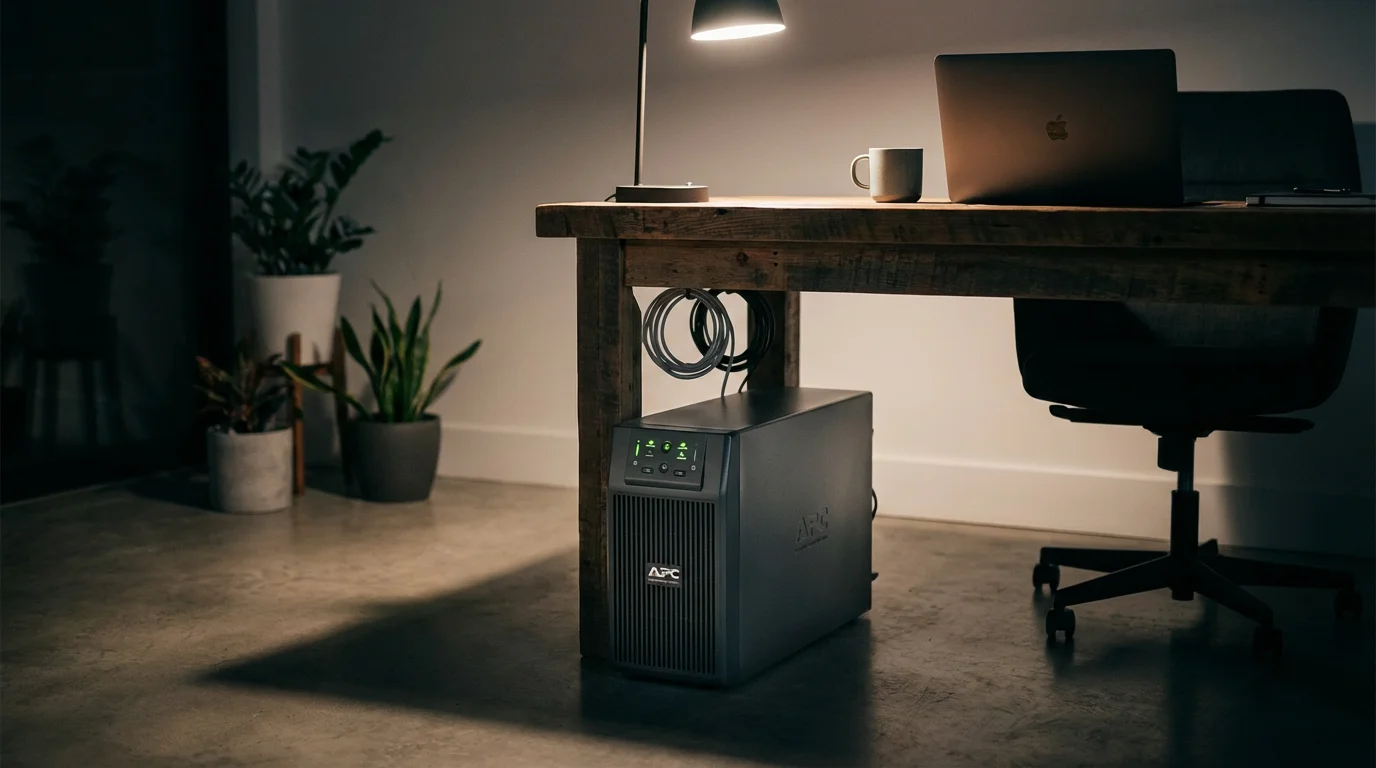
The single most effective upgrade for smart home resilience is the Uninterruptible Power Supply (UPS). A UPS is essentially a large battery that sits between your wall outlet and your electronics. When the wall power cuts, the UPS instantly switches to battery power, keeping connected devices running without interruption.
You do not need to back up your entire house. To maintain a “smart” environment, you only need to keep the “brain” and the “ears” of the house alive. Prioritize plugging the following devices into a UPS:
- Modem and Router: This keeps your internal Wi-Fi network active. Even without internet from your ISP, a live Wi-Fi network allows local devices to talk to each other.
- Smart Home Hub: Whether you use a SmartThings station, a Philips Hue Bridge, or a dedicated hub like Hubitat or Home Assistant Green, this device orchestrates your home. It uses very little power but is critical for operation.
- Bridge Devices: If you use specific bridges for Lutron Caséta or Aqara devices, keep them powered to maintain control over lights and sensors.
Sizing Your UPS
You don’t need an expensive, server-grade UPS for networking gear. A standard 450VA to 850VA unit is usually sufficient. Networking equipment consumes low wattage. A basic router and smart hub might draw only 20-30 watts combined.
- 450VA UPS: typically provides 30–60 minutes of runtime for network gear.
- 850VA UPS: can often keep a network running for 2–4 hours.
- 1500VA UPS: can sustain your network for 6+ hours, depending on the load.
Place these units strategically where your internet enters the home. If you have mesh Wi-Fi points distributed throughout the house, consider smaller UPS units for those satellite nodes to keep your network range strong during the blackout.
Local Control vs. Cloud Dependence
Hardware backup is only half the battle. Software architecture dictates whether your home works when the internet cable is severed. This is where the distinction between “Local Control” and “Cloud Control” becomes critical.
If you’re unsure about the difference between cloud and local systems, our smart home glossary explains these technical concepts in simple terms.
The Advantage of Local Processing
Local control means your smart home hub processes logic inside your house, without sending data to a remote server. If you have a UPS powering your hub and router, local automations continue to function even if the internet line outside your house is down.
For example, if you use a hub that supports local processing (like Hubitat, Home Assistant, or certain Apple HomeKit configurations), a motion sensor can still trigger a battery-operated smart light because the signal never leaves your local network. According to the Matter Smart Home Standard, the industry is shifting toward this model, ensuring devices from different manufacturers can communicate locally over IP, improving reliability during internet outages.
Wi-Fi vs. Mesh Protocols
The type of wireless connection your devices use affects their resilience:
- Wi-Fi Devices: Often cloud-dependent. If the internet fails, the app usually fails. However, some reliable Wi-Fi devices (like Kasa or Shelly) offer “local mode” if your phone and the device are on the same powered router.
- Zigbee and Z-Wave: These mesh protocols are superior for power outages. They do not require an IP address for every bulb and do not clog your Wi-Fi bandwidth. More importantly, they communicate directly with the hub. As long as your hub is on a UPS, your battery-powered Zigbee buttons and sensors will still work.
- Bluetooth: Useful for direct phone-to-device control (common in smart locks and some bulbs), but range is limited.
Smart Locks and Security During Blackouts
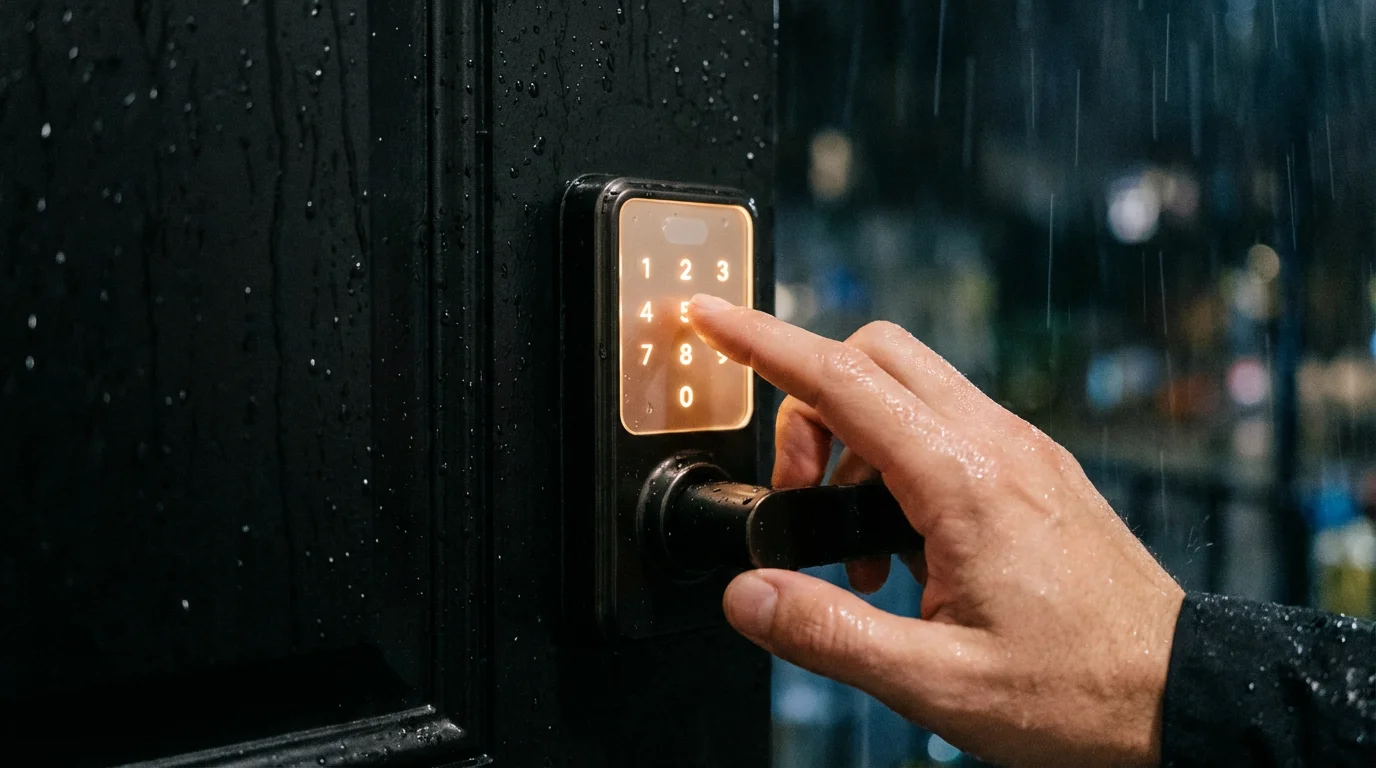
Security is a primary concern during a power outage. Homeowners often worry that smart locks will fail, leaving them locked out or, worse, leaving the door unlocked. Fortunately, smart lock manufacturers design their products with this scenario in mind.
A reliable power strategy is essential when automating your home for vacation security, as a blackout shouldn’t compromise your perimeter.
How Smart Locks Behave
Almost all smart locks run on internal batteries (AA or rechargeable packs). The locking mechanism is mechanical and powered locally. Therefore, the keypad and the physical turn latch will continue to work perfectly fine during a blackout.
What you lose: You typically lose the ability to unlock the door remotely from miles away. If you have a Wi-Fi bridge plugged into a wall outlet without a UPS, the lock loses its connection to the internet. You won’t receive notifications if someone enters, and you cannot change access codes remotely until power is restored.
Always ensure you have a physical backup key or that you know your keypad code by heart. Relying 100% on phone-based auto-unlock features is risky during power instability.
Cameras and Security Systems
Smart cameras are power-hungry. While battery-powered cameras (like those from Ring, Blink, or Arlo) will stay on, they cannot record or stream video if the Wi-Fi is down. To secure your home during an outage:
- Use cameras with local storage: Look for cameras that support SD cards. They can continue recording motion events even if they can’t upload them to the cloud immediately.
- Cellular backup for alarms: Serious security systems (like Ring Alarm or SimpliSafe) offer a base station with a built-in battery backup and a cellular chip. If power and internet fail, these systems switch to cellular data to keep monitoring your home for break-ins.
Smart Lighting: Managing “Power On” Behavior
One of the most annoying aspects of a smart home occurs precisely when the power comes back on. You might be asleep at 2:00 AM when the grid is restored. Suddenly, every smart bulb in your house blasts on at 100% brightness, waking up the entire family.
This happens because traditional LED bulbs must turn on when they receive power so they work with standard wall switches. Smart bulbs used to default to this “On” state. However, modern smart lighting platforms now allow you to customize this.
Configuring Power Loss Recovery
You should proactively configure your devices to handle power restoration gracefully. Wirecutter and other tech reviewers often highlight this feature as a key differentiator between high-quality and budget smart bulbs.
- Philips Hue: Inside the app, go to settings for each light and look for “Power On Behavior.” You can choose “Power Loss Recovery” (returns to the state it was in before power died) or “Custom” (defaults to a dim, warm light).
- Wi-Fi Bulbs (LIFX, Wyze, Kasa): Most reputable brands have added this feature in firmware updates. Check your device settings to ensure the bulb defaults to “Last State” rather than “100% On.”
- Smart Switches: If you use smart switches (like Lutron Caséta or GE Enbrighten) instead of bulbs, you generally don’t have this problem. The switch stays in the “Off” mechanical state when power returns, preventing the 2 AM wake-up call.
Cellular Backup and Internet Redundancy
If your smart home security or health monitoring depends on an active internet connection, a simple UPS for your router isn’t enough if the ISP line (cable or fiber) is damaged down the street.
For critical uptime, consider a failover solution. Some modern mesh router systems offer cellular backup accessories. Alternatively, you can use a dedicated 4G/5G LTE modem that plugs into your router’s WAN port. When the main wired internet drops, the router automatically switches to the cellular data plan.
This is vital for:
- Leak detection shutoff valves: Ensuring you get the alert even during a storm.
- Freeze sensors: Monitoring pipe temperature in a winter power outage.
- Elderly monitoring: Keeping “check-in” systems active.
Checklist: Restoring Order When Power Returns
Once the lights are back on, your smart home might feel a bit groggy. Devices may be offline, or automations might misfire. Use this checklist to get everything back in sync.
- Reboot the Router First: Even if it stayed on via UPS, a fresh reboot helps clear IP address conflicts that occur when dozens of devices try to reconnect simultaneously.
- Check Mesh Networks: Zigbee and Z-Wave networks rely on “repeater” devices (usually plug-in switches or bulbs). If power flickered, the mesh map might be broken. Some hubs have a “Heal Network” or “Rebuild Mesh” command. Run this to optimize connection paths.
- Verify Smart Clock Times: Devices that don’t sync with the internet (like oven clocks or older programmable thermostats) will drift. However, your connected smart thermostat should auto-correct once it hits Wi-Fi.
- Inspect Surge Strips: If the power outage was caused by a storm or surge, check the indicator lights on your surge protectors. If the “Protected” light is off, the strip sacrificed itself to save your gear and needs replacement.
Frequently Asked Questions
Do smart locks work when the power goes out?
Yes, nearly all smart locks are powered by internal batteries (AA or rechargeable). The keypad and physical key functionality will continue to work. However, you will likely lose remote access and features like auto-unlock until your Wi-Fi or smart hub connectivity is restored.
How long will a UPS keep my internet running?
It depends on the UPS capacity and the power draw of your equipment. A standard 600VA–850VA UPS can typically power a modem and router for 2 to 4 hours. If you add a smart hub, the time decreases slightly. For longer runtimes, look for a UPS with a higher VA rating.
Will my smart thermostat work without power?
Generally, no. Most smart thermostats (like Nest or Ecobee) require power from your HVAC system (via the C-wire) to operate. If your furnace or AC loses power, the thermostat also turns off. However, the thermostat usually saves your schedule and settings, so it will resume normal operation automatically when power returns.
What is the difference between local and cloud control?
Cloud control requires your device to send a signal to a server on the internet to process a command. Local control processes the command within your home’s network (on a hub). Local control is faster and much more reliable during internet outages.
Disclaimer: This article is for informational purposes only. Smart home devices involve electrical connections and data privacy. Always follow manufacturer instructions for installation. For complex wiring or HVAC work, consult a licensed professional.

1 Comment