
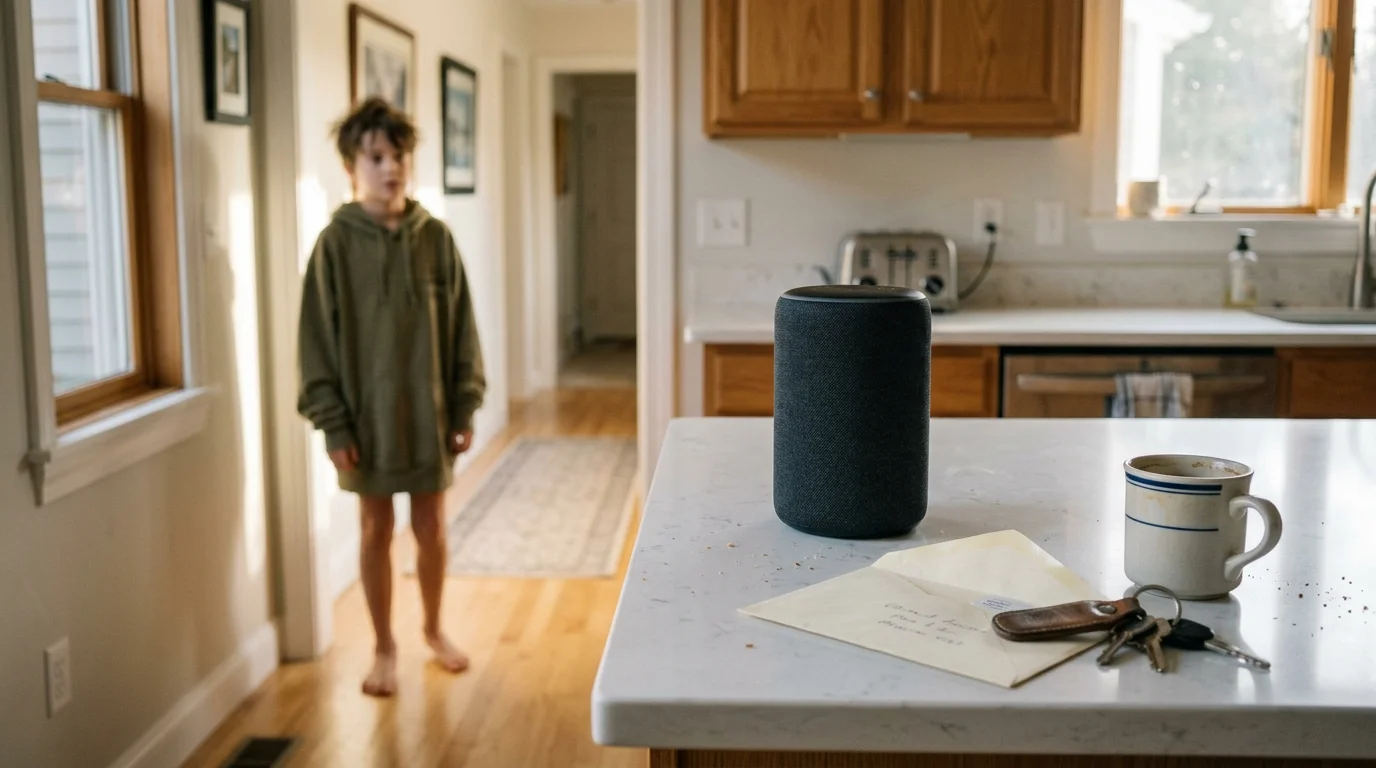
Unchecked smart speakers turn curious middle-schoolers into accidental spenders with a single casual sentence. You can stop rogue shopping sprees immediately by building an airtight voice-purchasing firewall across your home.
Most guides tell you to rely strictly on a four-digit voice code, but spoken PINs fail the moment a sibling listens from the hallway. Lasting security requires binding biometric voice recognition to hardware-level transaction blocks that isolate child profiles completely.
This guide shows you how to lock down Amazon Alexa, Google Assistant, and Apple Siri devices against unauthorized transactions and explicit media.
The Vulnerability of Shared Family Speakers
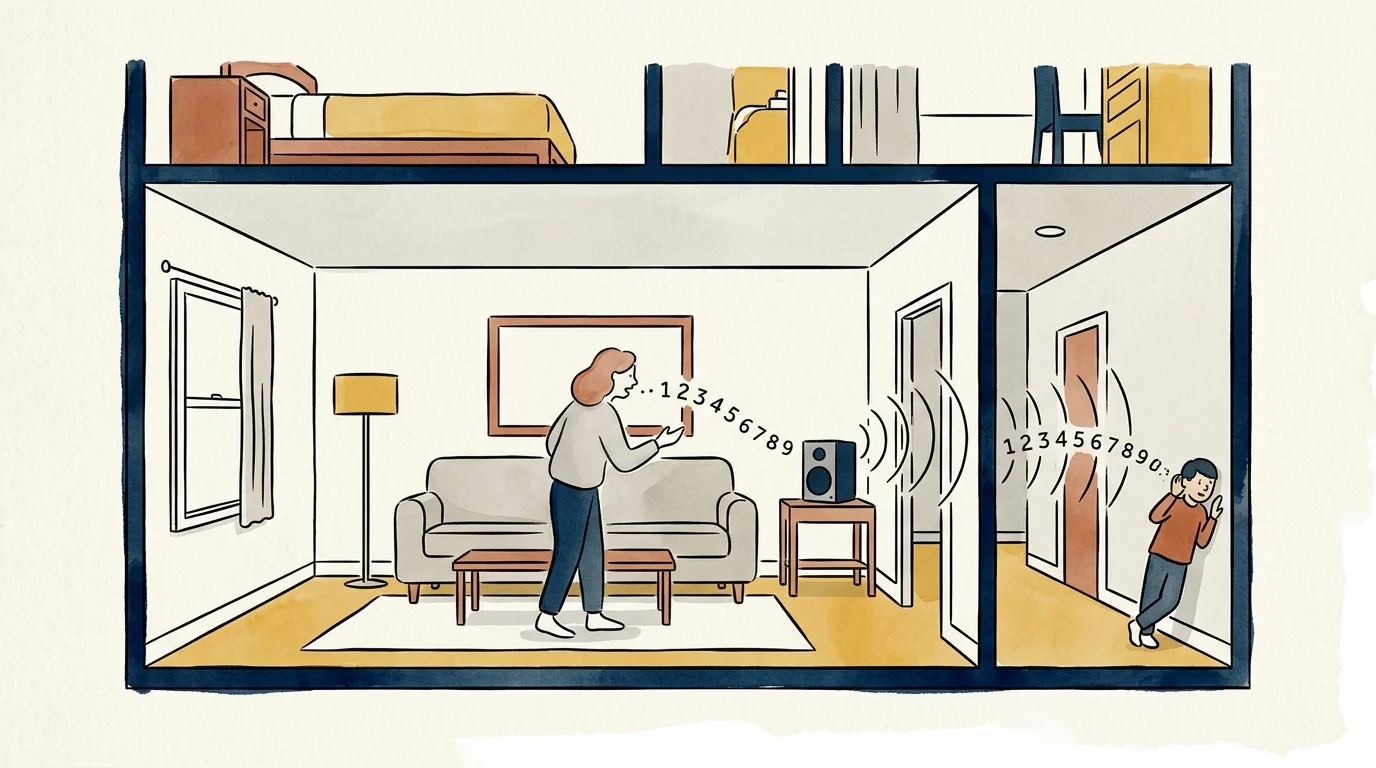
A smart speaker in a common area processes speech indiscriminately unless you establish profile boundaries. When you speak a numerical passcode aloud, anyone within earshot can memorize and repeat it later.
Middle-schoolers understand voice syntax and can easily order video games, subscription add-ons, or consumer goods. Relying solely on a basic voice profile pin smart speaker leaves your linked payment cards exposed.
According to smart home privacy research from Consumer Reports Smart Home testing, default device settings often prioritize frictionless buying over authentication rigor. Voice interfaces want transactions to succeed quickly.
To eliminate unauthorized transactions, you must enforce a multi-tiered defense. This structure combines biometric vocal prints, spoken passcodes, and hard profile-level payment restrictions.
Amazon Alexa: Enforcing Voice IDs and Transactional Firewalls
Amazon Echo speakers remain the most transaction-capable devices on the market. Consequently, they require the most deliberate security hardening to prevent unapproved charges.
If you want to lock voice purchasing alexa devices completely, open your Alexa app on iOS or Android. Navigate directly to More, select Settings, and choose Account Settings followed by Voice Purchasing.
- Tap the toggle beside Voice Purchasing to keep the feature active while applying verification rules.
- Select Purchase Controls to determine who can authorize transactions on linked household hardware.
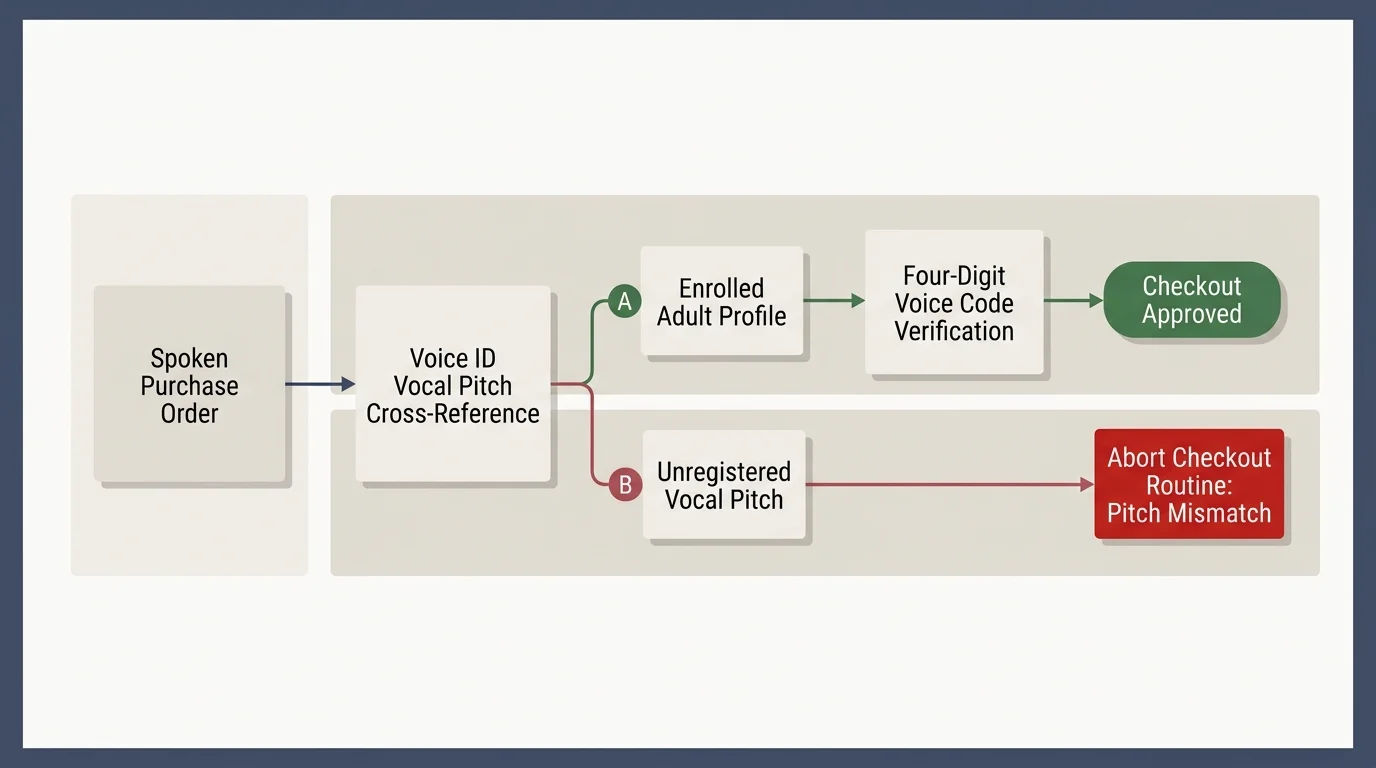
- Select Only Recognized Voices so Alexa requires an enrolled adult Voice ID before accepting orders.
- Enable Voice Code and create a four-digit numerical PIN for verbal confirmation.
- Review the toggle for Without Voice Code to ensure it remains off.
When you enable this configuration, Alexa cross-references the incoming vocal pitch against your adult Voice ID profile. If an unregistered voice speaks the four-digit PIN, Alexa aborts the checkout routine.
If you want total prevention rather than conditional authorization, change Purchase Controls to No One. This toggle prevents voice-driven physical purchases across all Echo devices on your account.
For parents of middle-schoolers, placing bedroom Echo units into Amazon Kids mode is an essential security step. In Amazon Kids mode, voice purchasing for physical goods is shut off entirely by default.
Digital purchases through interactive Alexa skills require independent oversight. In your Alexa app, open the Parent Dashboard to turn off in-skill purchasing toggles for your child’s profile.
Data privacy is another key factor when managing family voice records. On May 31, 2023, federal regulators penalized Amazon $25 million under COPPA for retaining children’s Alexa recordings indefinitely.
As documented in reporting by The Verge Smart Home coverage, parental controls now offer automated deletion tools. You can configure your Alexa Privacy settings to automatically purge child voice logs every three months.
Worked Scenario: Isolating a Bedroom Echo Dot
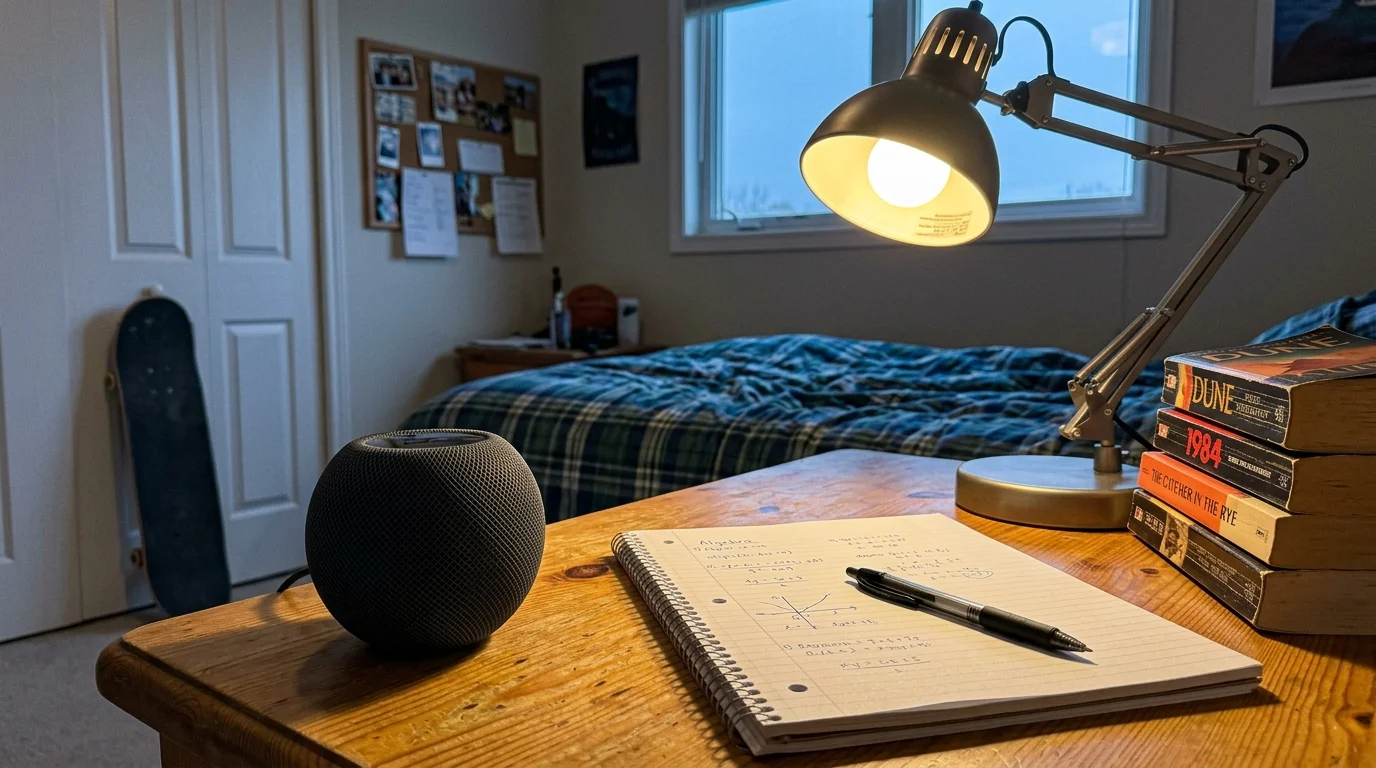
Consider a practical household scenario involving a 12-year-old child with an Echo Dot (5th Generation) placed on a bedroom desk. The parent’s Amazon Prime account has a default credit card linked for one-click ordering.
On October 14, 2024, the child attempts to order a gaming headset priced at $119.99 and three $19.99 game gift cards. In an unhardened environment, speaking order commands executes those purchases in less than 45 seconds.
The parent intervenes by executing a multi-tier profile lockdown taking exactly eight minutes to configure in the Alexa app:
- Device Registration: Assigned the bedroom Echo Dot directly to an Amazon Kids profile tied to the 12-year-old.
- Hardware Firewall: Verified that physical goods voice purchasing disabled instantly upon profile assignment.
- Digital Protection: Accessed the Amazon Parent Dashboard and toggled In-Skill Purchasing to Disabled, blocking the $59.97 in gift cards.
- Living Room Speaker Hardening: Set Purchase Controls to Only Recognized Voices with a four-digit PIN (8391).
At 4:32 PM, the child tests the living room speaker by commanding Alexa to buy the $119.99 headset. Alexa checks the acoustic profile, detects an unrecognized voice profile, and announces that purchasing is restricted.
The child then speaks the correct 8391 PIN, which they overheard the previous evening. Because the vocal profile does not match the parent’s biometric Voice ID, Alexa cancels the checkout routine immediately.
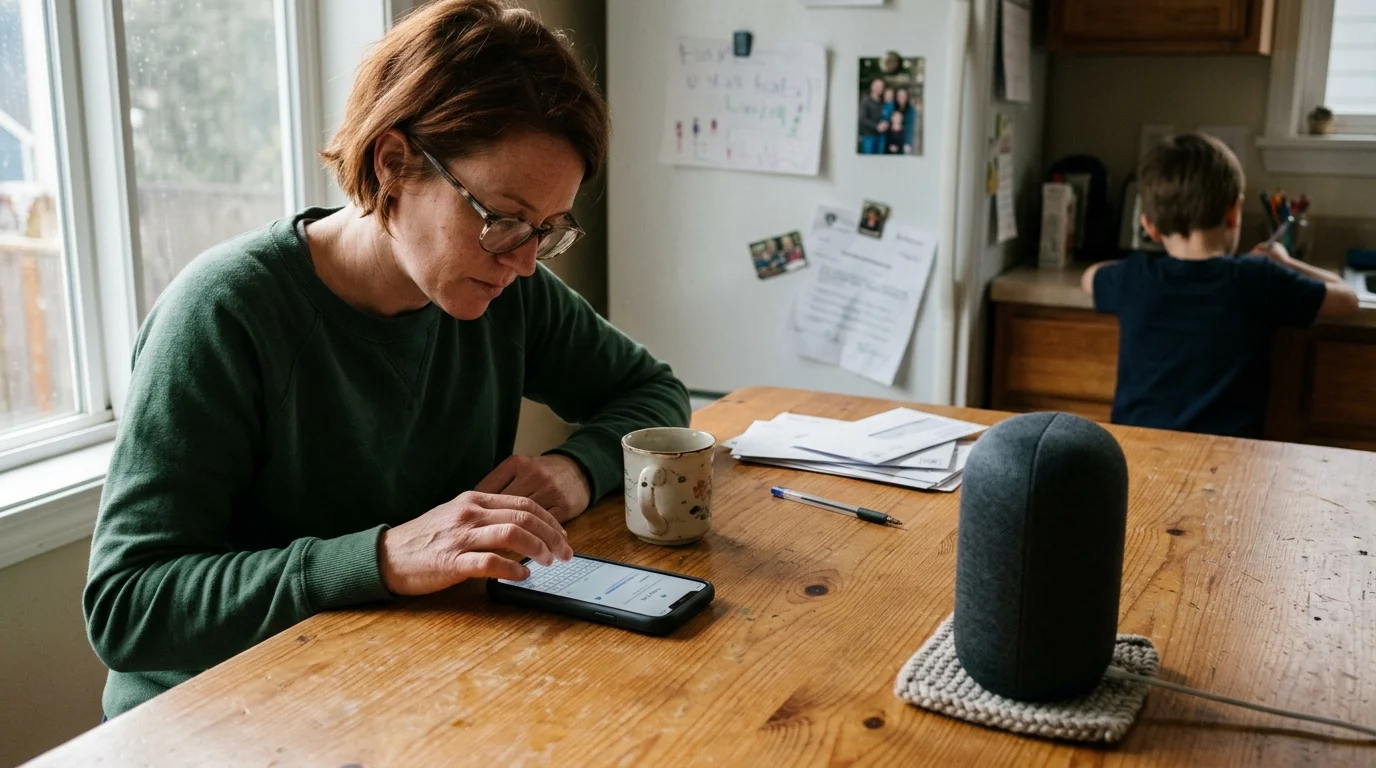
Google Assistant: Hardening Nest Audio with Family Link
Google handles voice commerce through Google Pay and linked Assistant profiles on Nest Audio and Nest Mini hardware. The platform provides strong biometric restrictions when configured alongside Google Family Link.
Under COPPA compliance rules, accounts managed under Google Family Link for children under age 13 cannot make Google Assistant purchases. Assistant payment features deactivate automatically when linked to an official child account.
To restrict google home purchases kids might attempt on shared family speakers, follow this setup sequence:
- Open the Google Home app and tap your profile icon in the upper-right corner.
- Select Assistant Settings, scroll down, and tap Payments.
- Toggle on Pay with Assistant to expose verification preferences.
- Select Verify It’s You and choose Confirm with Voice Match.
- Set the fallback authentication method to Device Confirmation via your smartphone.
Google Voice Match uses an acoustic model of your vocal tract generated during initial account setup. When anyone commands Google Assistant to initiate an order, Google processes that audio against the enrolled profile.
If Voice Match does not detect an exact adult voice print match, Google Assistant halts the transaction. The smart speaker instructs the user to complete checkout through the Google Home app on an authorized smartphone.
For middle-school children older than 13 who have standard Google accounts, apply strict Google Family Link supervision. This configuration preserves approval prompts on your phone whenever their account initiates an order.

Apple HomePod: Biometrics and Personal Request Barriers
Apple approaches smart speaker architecture with a strong focus on on-device data segregation. A HomePod or HomePod Mini cannot order physical goods directly from retail websites using open voice commands.
However, voice commands can still purchase Apple digital media, trigger App Store subscriptions, or access sensitive personal information. You can secure these avenues using Apple’s Home app on your iPhone or iPad.
- Open the Home app and tap the More button marked with three dots.
- Select Home Settings and tap your personal user profile under the People menu.
- Turn on Recognize My Voice to establish Siri’s voice biometric profile.
- Tap Personal Requests and toggle the feature on.
- Under Require Authentication, select Always instead of For Secure Requests.
Setting authentication to Always forces the HomePod to ping your personal iPhone or Apple Watch before running transactional commands. A child mimicking your voice still cannot execute requests without physical hardware authorization.
Next, secure your shared HomePod hardware directly. Tap the specific HomePod in the Home app, select Accessory Details, and tap the Settings gear icon.
Under Primary User, switch the setting from HomePod Account to the specific adult account. This ensures child requests never default to an adult payment method saved in the speaker’s memory.
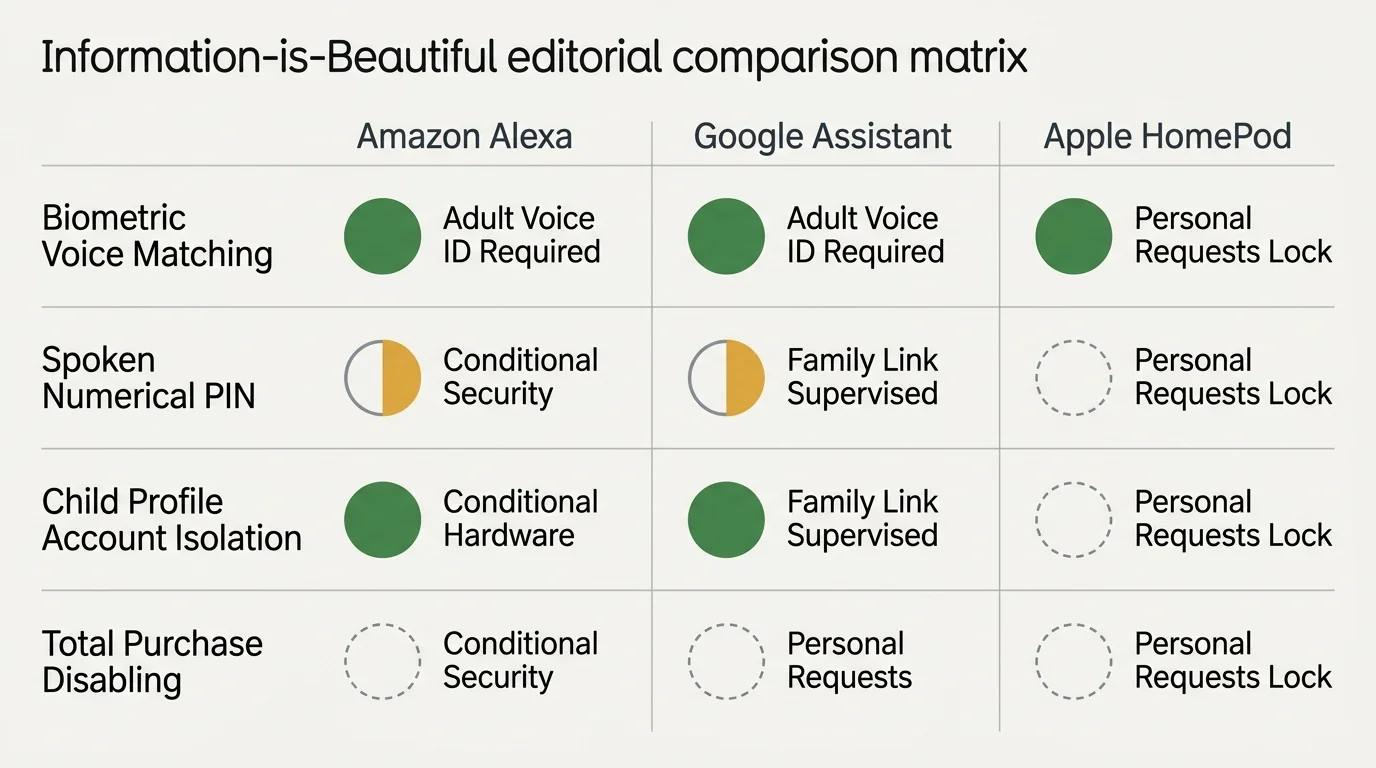
Multi-Platform Purchasing Security Comparison
Each smart speaker ecosystem uses different defensive layers to separate authorized buyers from unauthorized household members. Review the comparison below to evaluate your system’s capabilities.
| Security Feature | Amazon Alexa | Google Assistant | Apple Siri (HomePod) |
|---|---|---|---|
| Spoken 4-Digit PIN Option | Yes (Mandatory or Optional) | No (Replaced by Voice Match) | No (Hardware Auth Only) |
| Biometric Voice Enforcement | Yes (Alexa Voice ID) | Yes (Voice Match) | Yes (Recognize My Voice) |
| Automatic Sub-13 Account Block | Yes (Via Amazon Kids Mode) | Yes (Via Google Family Link) | Yes (Via Apple Family Sharing) |
| Third-Party In-Skill Purchase Gating | Yes (Parent Dashboard Toggle) | Yes (Google Play Approvals) | Yes (Ask to Buy System) |
| Mobile Device Biometric Fallback | Yes (In-App Authorization) | Yes (Phone Push Notification) | Yes (Face ID / Touch ID Prompt) |
| Complete Purchasing Kill-Switch | Yes (Purchase Controls: “No One”) | Yes (Toggle Off “Pay with Assistant”) | Native (No Physical Goods Engine) |
Amazon provides the most granular spoken-word control, but it carries the highest operational risk if configured incorrectly. Google relies on neural voice matching, which eliminates the danger of overheard PINs.
Apple maintains the narrowest transactional surface by routing critical actions to your iPhone. Pairing an Apple Watch or iPhone with HomePod provides immediate hardware-level protection against accidental purchases.
Content Filtering: Blocking Explicit Audio Across Shared Profiles
Securing your wallet is critical, but preventing explicit media playback is just as important for shared family speakers. Middle-schoolers frequently explore uncensored tracks through connected streaming music platforms.
You must configure explicit content filters inside the voice assistant app and across your connected streaming services. Applying blocks in only one place creates exploitable loopholes.
To lock down streaming playback on Amazon Echo hardware, apply these parameters within the Alexa app:
- Open Settings and select Music & Podcasts.
- Tap Explicit Language Filter and toggle the setting to On.
- Enable the Explicit Filter PIN so household members cannot disable filtering by voice command.
- Assign your child’s Echo Dot to Amazon Kids, which forces clean streaming across Amazon Music and Spotify.
For Google Nest speakers, access the Google Home app and navigate to Settings, then Digital Wellbeing. You can restrict playback filters to block explicit audio tracks across YouTube Music and linked accounts.
Google also lets you set up Downtime schedules. This feature mutes audio responses, disables media playback, and blocks incoming calls during designated homework and bedtime hours.
On Apple HomePod devices, open the Home app and access the speaker’s Accessory Details. Scroll to Music & Podcasts and toggle Allow Explicit Content to the off position.
Combine platform-level settings with provider-level profiles. If your family uses Spotify or Apple Music, create supervised teen profiles with explicit filtering enabled within the native music apps.
Frequently Asked Questions
Can a child bypass a voice PIN by whispering or mimicking a parent’s voice?
Modern smart speakers use voice-print biometrics that analyze pitch, vocal timbre, and cadence. Whispering strips away these acoustic markers, causing the voice assistant to reject the command as an unrecognized voice.
What happens if my smart speaker misunderstands a command and orders an item?
Amazon and Google allow you to cancel voice-placed orders immediately through their companion apps or by saying cancel order within thirty minutes. You can also disable voice purchasing entirely to prevent accidental requests.
Do voice-purchasing PINs protect against third-party smart home skills?
Yes, provided you disable in-skill purchasing in the respective companion app. Amazon Alexa requires you to explicitly approve digital goods access within the Alexa Parent Dashboard for child-linked hardware.
Does turning on Amazon Kids mode eliminate all voice shopping?
Yes, activating Amazon Kids mode on any Echo device completely blocks voice shopping for physical items. The device will state that shopping is disabled whenever a user attempts an order.
Disclaimer: This article is for informational purposes only. Smart home devices involve electrical connections and data privacy. Always follow manufacturer instructions for installation. For complex wiring or HVAC work, consult a licensed professional.


1 Comment