
Few things are more frustrating than standing on your own front porch, loaded down with groceries, waiting for a “smart” device to do the one job it was designed for. While smart locks offer incredible convenience—allowing you to let in guests remotely or leave your keys behind—they rely on a complex ecosystem of software, mechanics, and wireless signals to function. When one part of that chain fails, you might find yourself reaching for the backup key you hopefully kept on your ring.
The good news is that most smart lock issues are solvable without calling a locksmith or returning the device. Whether you are dealing with a Schlage Encode that keeps dropping off Wi-Fi, a Yale Assure that jams constantly, or a Kwikset Halo that drains batteries in a week, the root causes are often similar. This guide walks you through actionable steps to diagnose and fix the connectivity, power, and mechanical gremlins haunting your front door.
Mechanical Obstructions and Alignment Issues
Before blaming the Wi-Fi or the batteries, you must examine the door itself. A smart lock is simply a small motor turning a deadbolt. If that motor meets resistance, it will fail, jam, or drain your battery trying to force the lock shut. This is the single most common cause of smart lock failure.
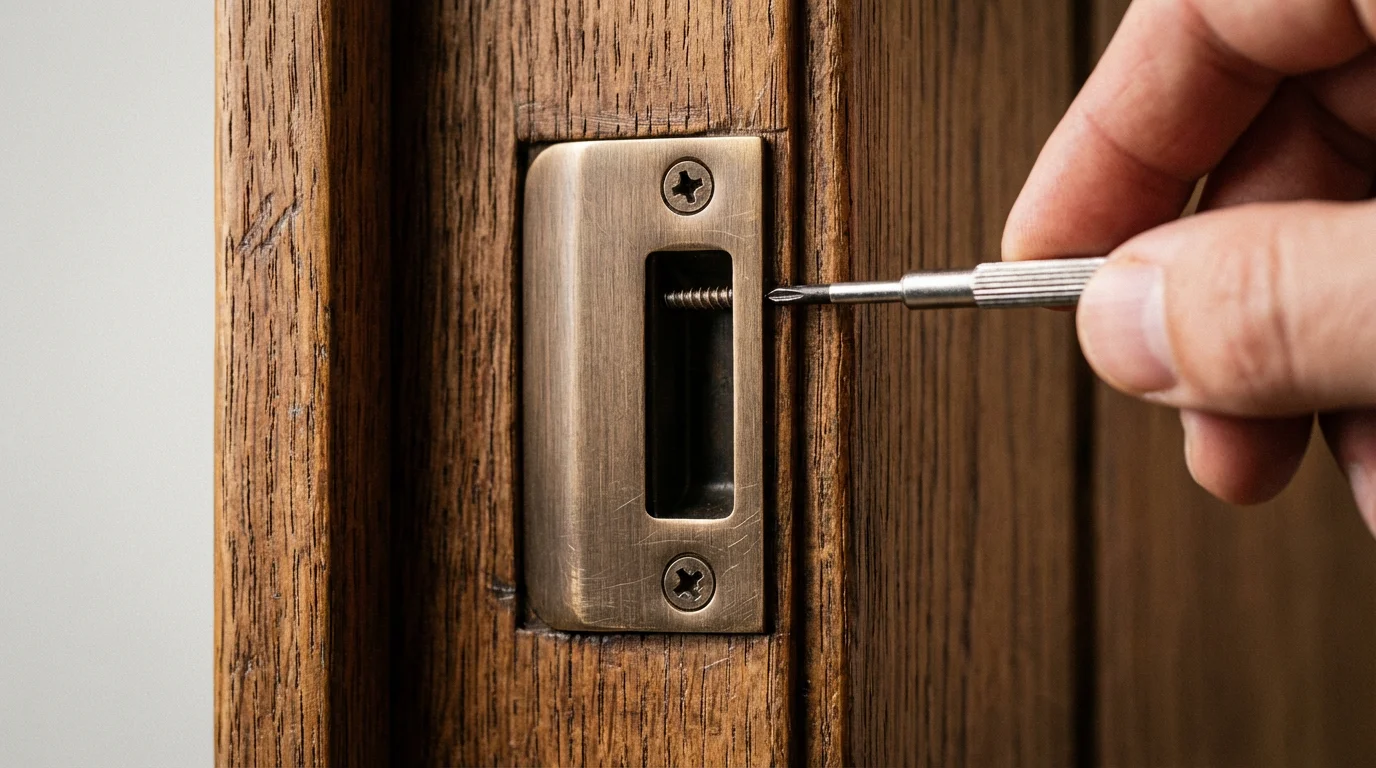
If you have to push, pull, or lift your door handle to get a traditional key to turn, your smart lock does not stand a chance. The deadbolt must glide into the strike plate hole without friction.
The “Lipstick Test” for Alignment
If you suspect the bolt is hitting the frame rather than sliding into the hole, try this simple diagnostic trick:
- Retract the deadbolt (unlock position).
- Apply a small amount of lipstick or chalk to the end of the deadbolt.
- Close the door and attempt to lock it using the app or keypad until it jams or stops.
- Unlock and open the door. Look for the mark on the strike plate (the metal plate on the frame).
If the mark is on the metal plate rather than inside the hole, your door is misaligned. You may need to deepen the hole with a chisel or move the strike plate slightly to match the bolt’s position.
Adjusting for Weather Warping
Wooden doors expand in humid summers and contract in dry winters. A lock that worked perfectly in July might jam in January. If your lock reports a “Jam Error” seasonally, consider installing an oversized strike plate or filing the opening of your existing plate slightly larger to accommodate these seasonal shifts.
“A smart lock installed on a misaligned door is just a broken lock waiting to happen.”
Fixing Connectivity and Signal Drops
When your app shows “Device Offline,” it creates a disconnect between you and your home security. The troubleshooting steps depend on how your lock communicates. Most consumer locks use Bluetooth, Wi-Fi, Z-Wave, or Zigbee.
Wi-Fi Connection Issues
Direct-to-Wi-Fi locks, like certain Schlage or August models, are power-hungry and sensitive to signal strength. If your lock frequently drops offline, the issue is rarely the lock itself—it is usually the router.
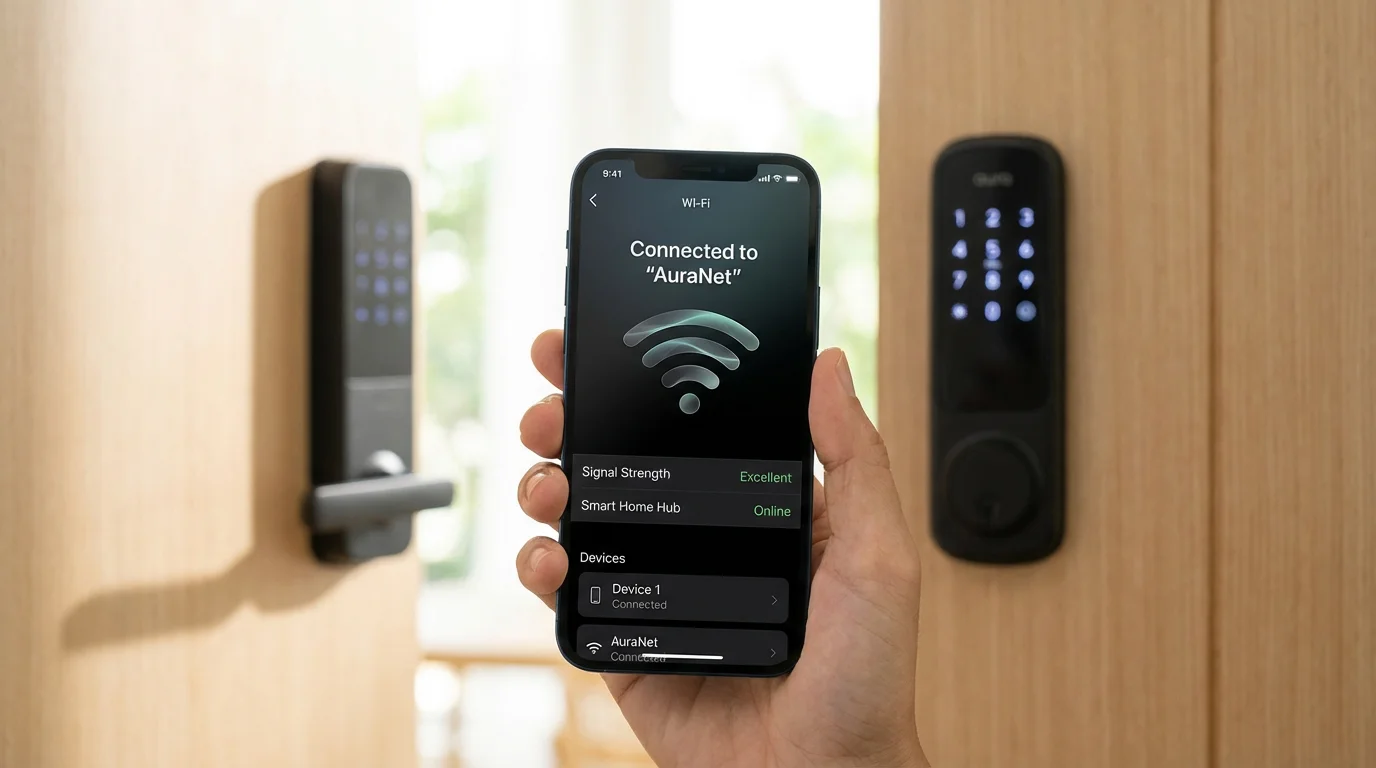
- Check the Band: Most smart home devices require a 2.4GHz network. They cannot see or connect to 5GHz networks. Ensure your phone is on the 2.4GHz band during setup.
- Analyze Signal Strength: Exterior walls are often thick, containing brick, stucco, or metal lath, which kills Wi-Fi signals. Test the speed with your phone right next to the lock. If the signal is weak, you need a Wi-Fi extender or a mesh node placed closer to the door.
- Reboot the Router: It sounds cliché, but refreshing your router’s IP table often resolves temporary visibility issues.
Z-Wave and Zigbee Range Problems
Locks that connect to a hub (like Samsung SmartThings or Ring Alarm) typically use Z-Wave or Zigbee. These rely on a “mesh” network where plugged-in devices act as repeaters.
If your Z-Wave lock is unreliable:
- Identify the nearest plugged-in Z-Wave device (like a smart plug or switch).
- If the hub is 40 feet away and there are no devices in between, the signal will not reach the lock reliably.
- The Fix: Add a Z-Wave smart plug halfway between the hub and the door to act as a signal repeater.
- Run a “Z-Wave Repair” or “Network Heal” in your hub’s app to force the lock to find the new route.
According to The Verge, building a robust mesh network is often the difference between a responsive smart home and a flaky one. Ensure you have enough repeater nodes if you have a large home.
Solving Rapid Battery Drain
Smart lock manufacturers typically advertise a battery life of 6 to 12 months. If you are changing batteries every three weeks, something is wrong. While defective hardware is possible, environmental factors and settings are usually the culprits.
The Friction Factor
Going back to mechanical issues: if your motor has to work twice as hard to push a sticky deadbolt, it uses twice the power. Friction is the number one killer of battery life. Ensure the deadbolt moves freely. Even a slight rub against the strike plate can reduce battery life by 50%.
Wrong Battery Type
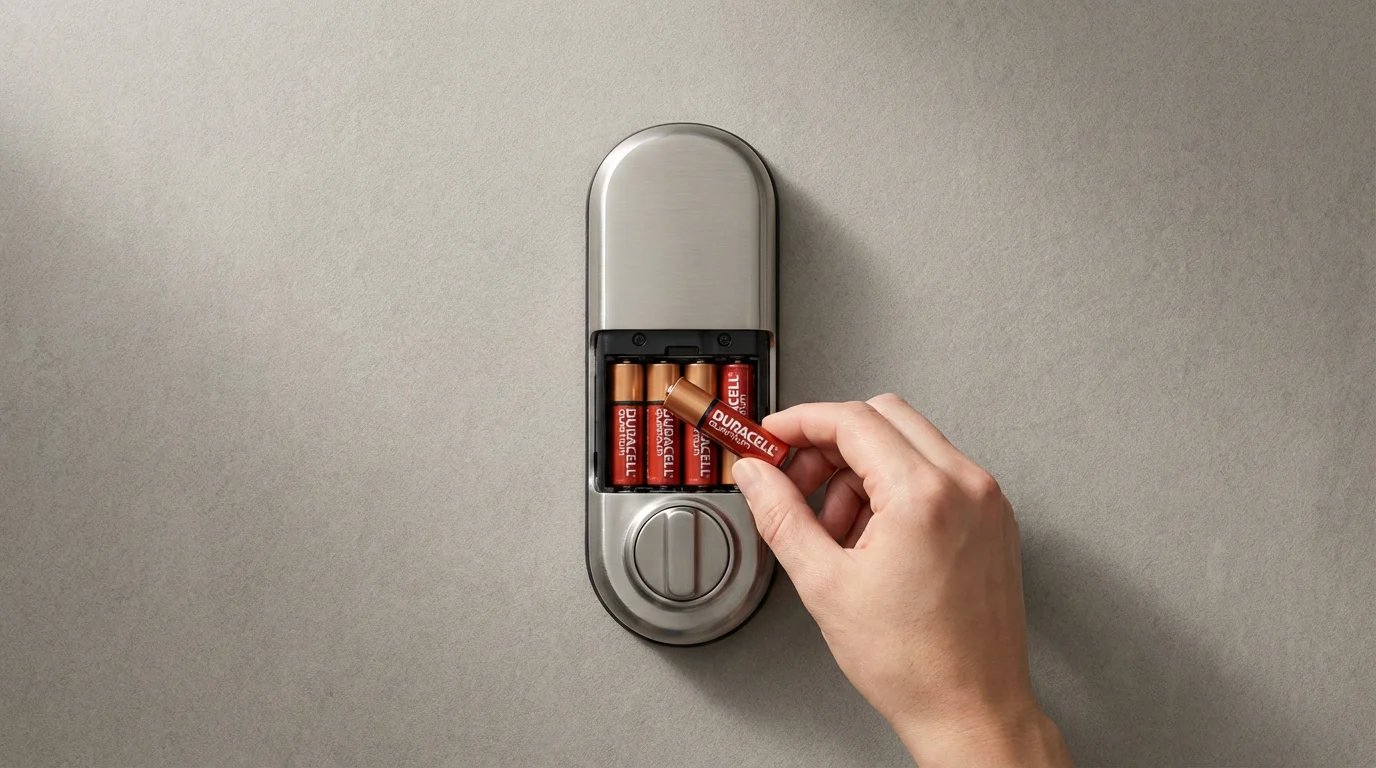
Not all AA batteries are created equal. Check your user manual specifically for battery recommendations.
- Alkaline: The standard for most locks. They provide a steady voltage drop that allows the lock to accurately report percentages (100%, 90%, 80%).
- Lithium: Great for longevity and cold weather, but they maintain high voltage until they die suddenly. Your app might show 100% battery for months, then drop to 0% instantly, locking you out. Only use these if the manufacturer explicitly recommends them.
- Rechargeable (NiMH): Generally discouraged for smart locks. They run at a lower voltage (1.2V vs 1.5V), which makes the lock think the batteries are already dying even when fully charged.
Wi-Fi Polling
If your lock is constantly searching for a weak Wi-Fi signal, it will burn through power. Improving the signal strength near the door often improves battery life. Additionally, turn off “Always On” or “Fast Connect” features in the app if you don’t need instant response times.
Auto-Unlock and Geofencing Glitches
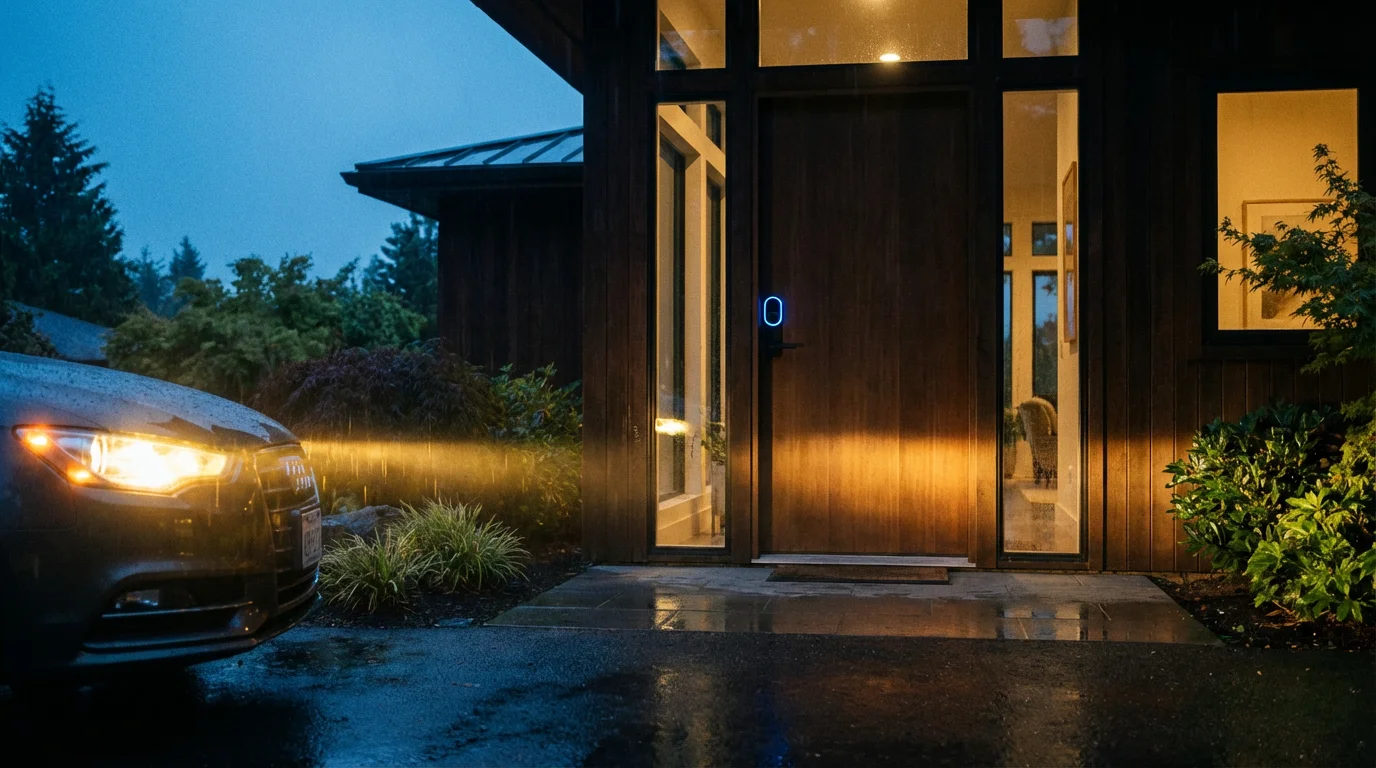
The “Auto-Unlock” feature, which unlocks your door as you approach, feels like magic when it works. When it doesn’t, it feels like broken promises. This feature relies on your phone’s GPS, Bluetooth, and background app refresh settings, not just the lock.
Why It Fails
For auto-unlock to function, your phone must realize you have left the “home zone” (usually a radius around your house) and then re-entered it. If you only walk the dog around the block, you might not cross the geofence boundary required to reset the trigger.
Troubleshooting Steps
- Keep Wi-Fi and Bluetooth On: Your phone uses Wi-Fi triangulation to save battery while tracking location. Turning these off cripples location accuracy.
- Check Permissions: Go to your phone’s settings. The smart lock app must have “Always Allow” location access. “While Using App” is insufficient because the phone needs to detect your approach while the phone is in your pocket.
- Disable Battery Optimization: Android phones are aggressive about killing background apps to save power. You must “whitelist” your smart lock app so the OS doesn’t shut it down while you are driving home.
- Toggle the Feature: Sometimes, the geofence gets stuck. Turn Auto-Unlock off in the app, restart your phone, and turn it back on to reset the virtual boundary.
Keypad and Touchscreen Responsiveness
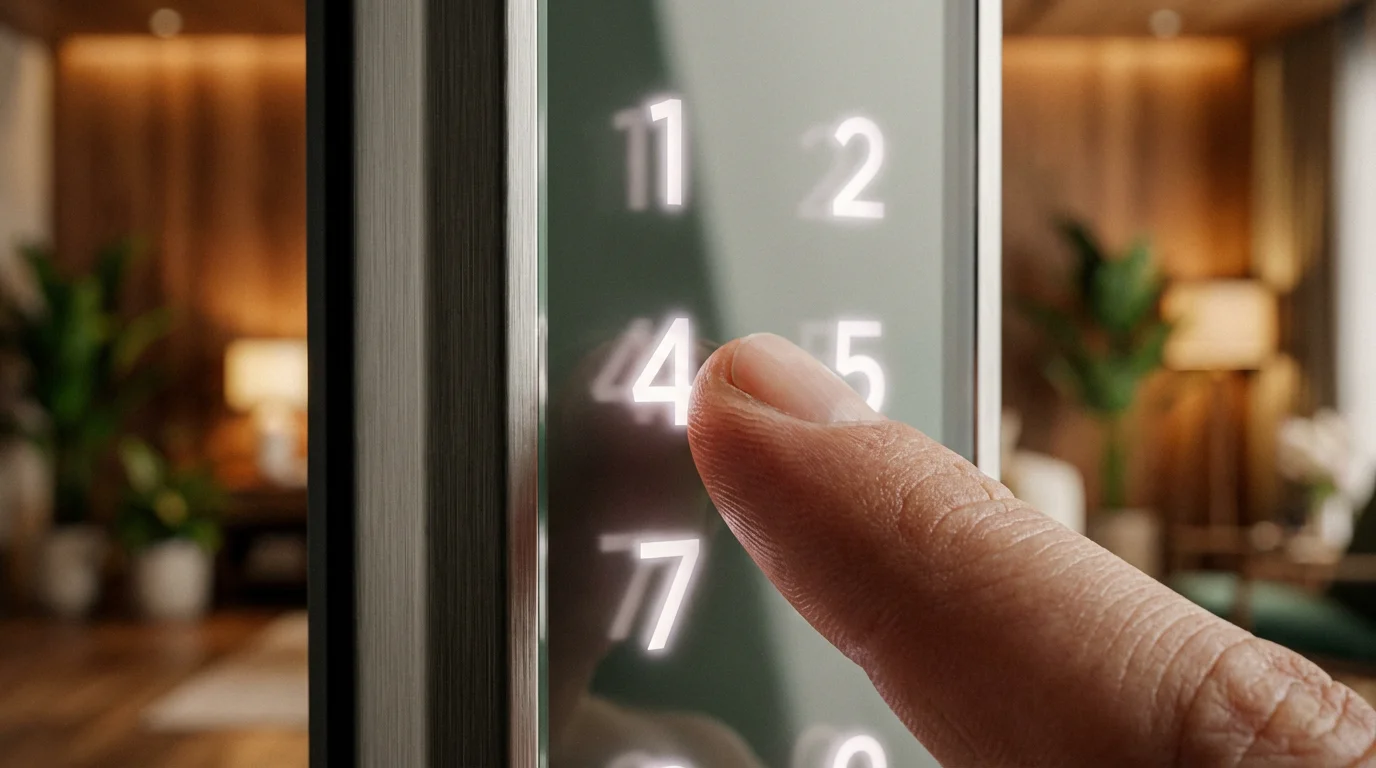
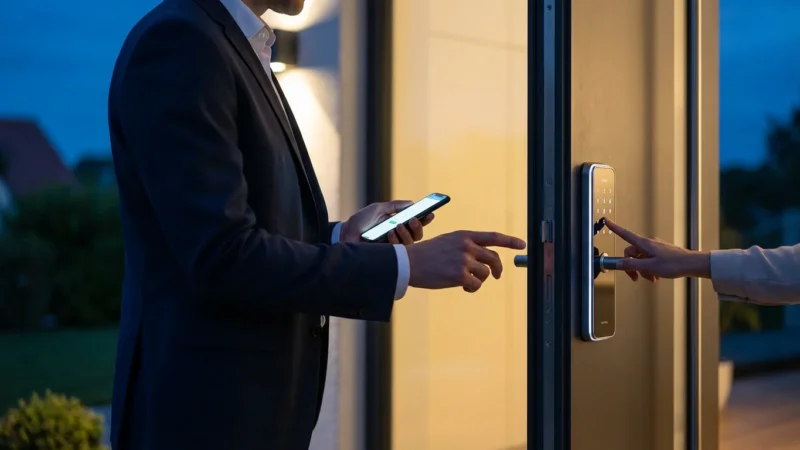
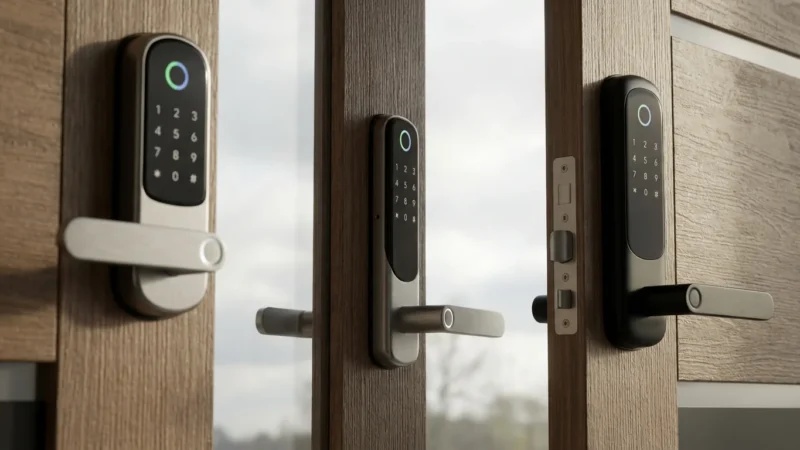
Physical keypads (like on the Kwikset Halo or Schlage Encode) are generally reliable, but capacitive touchscreens (like on the Yale Assure SL) can be temperamental.
Ghost Touching and Unresponsiveness
If the numbers aren’t registering, or the lock wakes up randomly:
- Clean the Screen: Use a microfiber cloth and mild cleaner. dirt, oil, and rain residue can register as touches or block your finger’s capacitance.
- Check the Cable Connection: If you recently installed the lock, the small data cable connecting the outside keypad to the inside motor might be pinched or loose. Remove the interior cover and ensure the cable is seated firmly and routed through the correct channel so it isn’t being crushed against the door.
- Hand Check: If the “One Touch Locking” feature (locking by covering the keypad with your palm) isn’t working, ensure you are covering the entire surface. Dry skin in winter can also reduce conductivity; try breathing on your hand first to add moisture.
Smart Home Integration Errors
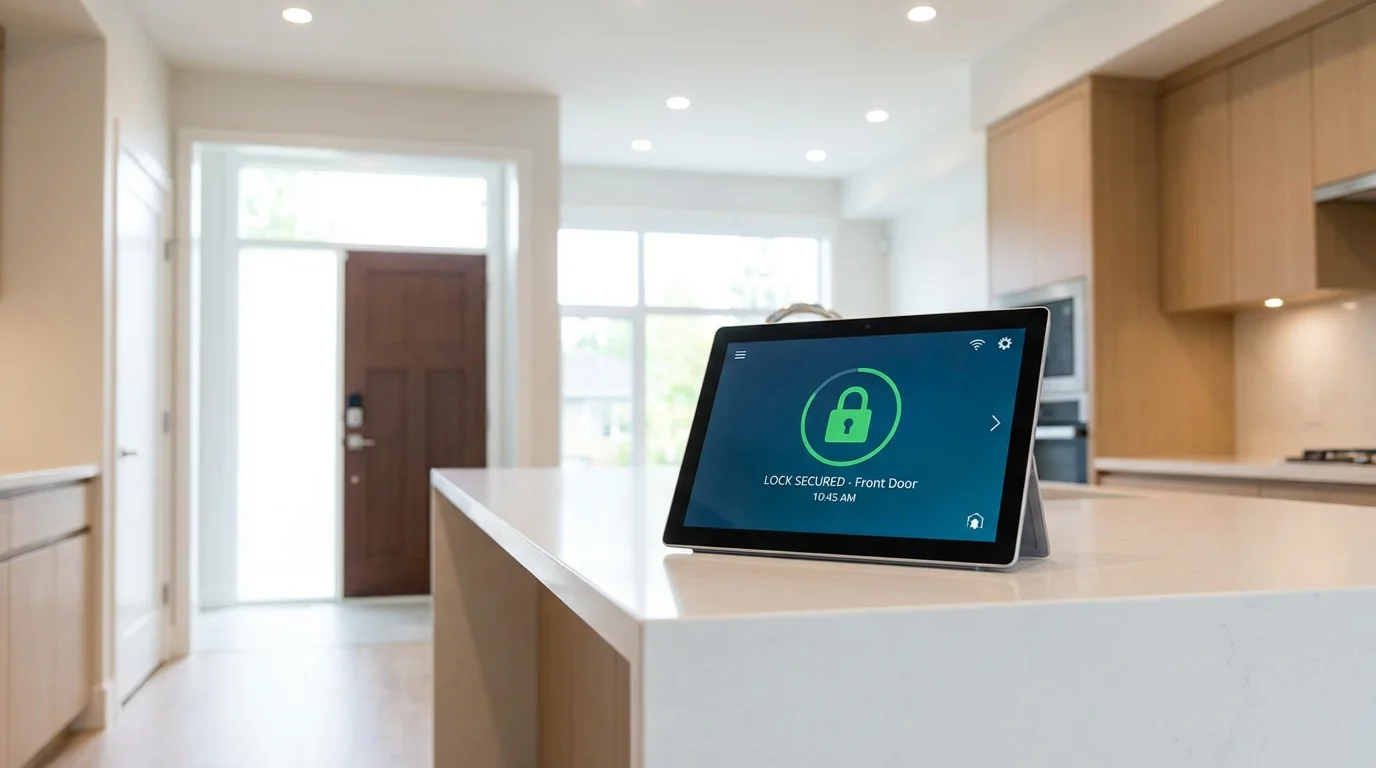
Connecting your lock to Amazon Alexa, Google Home, or Apple HomeKit adds voice control and automation capabilities. However, you may encounter the dreaded response: “Sorry, I can’t reach [Lock Name].”
Syncing Issues
If the manufacturer’s app controls the lock fine, but Alexa cannot:
- Disable and Re-enable the Skill: In the Alexa or Google Home app, unlink the lock manufacturer’s account and re-link it. This refreshes the authentication token.
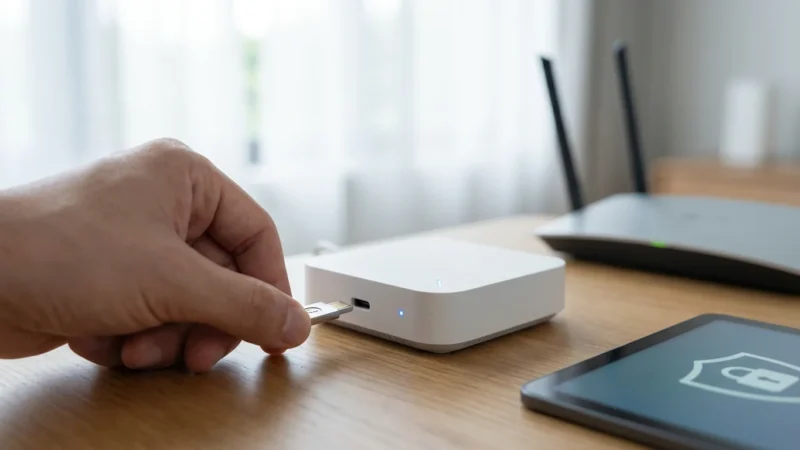
- Check Hub Status: If you are using a bridge (like the August Connect), ensure it is online. The voice assistant talks to the cloud, which talks to the bridge, which talks to the lock. If any link breaks, the command fails.
Security Restrictions
Voice assistants have built-in safety features. They will often refuse to unlock a door via voice unless you have established a 4-digit voice PIN. Check your voice assistant settings to ensure “Unlock by Voice” is enabled and a code is set.
For deeper insights into how different protocols interact, CNET Smart Home offers extensive guides on ecosystem compatibility.
When to Factory Reset
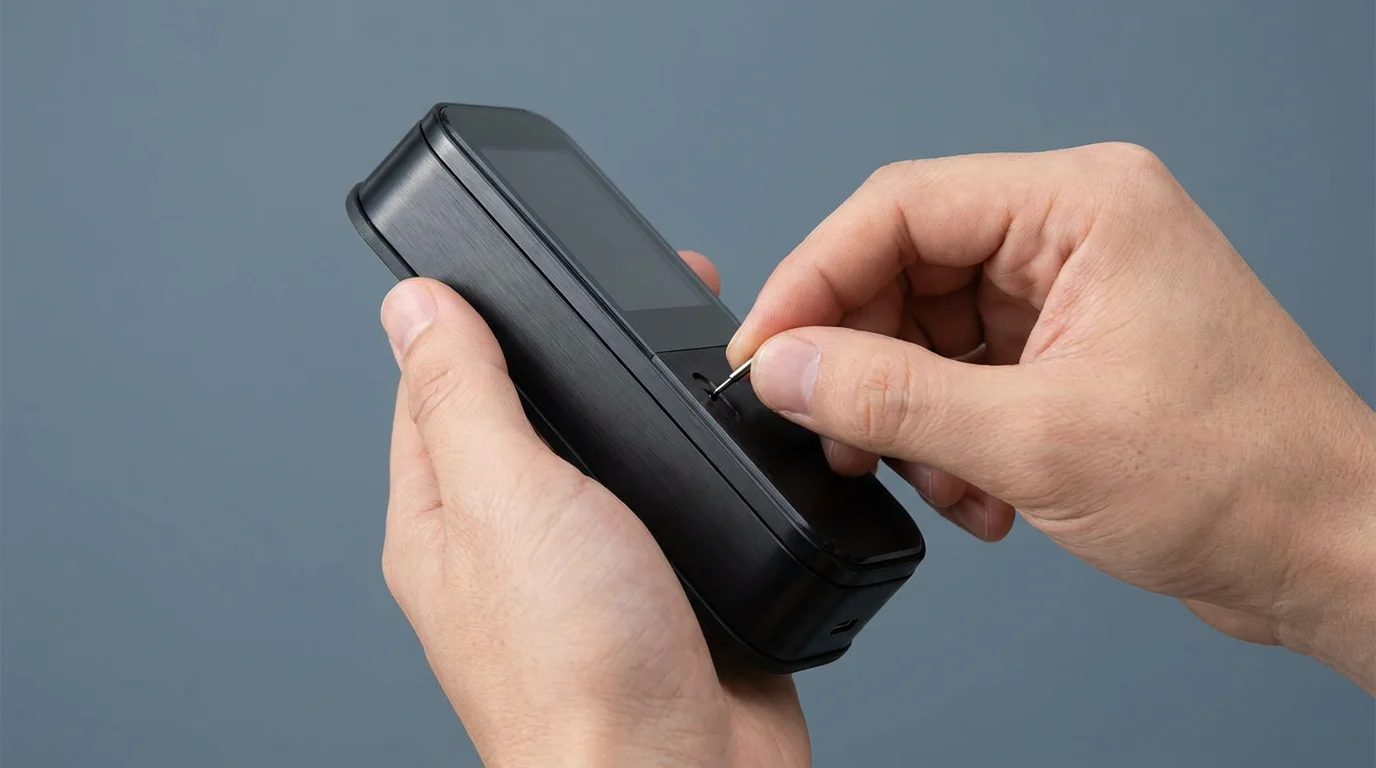
A factory reset is the nuclear option. It deletes all user codes, disconnects the lock from your Wi-Fi/hub, and erases custom settings. You should only do this if:
- You are moving and leaving the lock behind.
- You bought a used lock.
- You have exhausted all other troubleshooting steps (batteries, alignment, Wi-Fi) and the lock is still glitching.
General Reset Process
While every brand differs, the process usually involves holding a reset button on the interior assembly while removing and reinserting the batteries.
Warning: After a reset, the lock will forget “handedness” (which way is left or right). You must run the initial handing process again (usually locking and unlocking the door via the motor immediately after setup) or the lock will try to lock when you tell it to unlock.
Frequently Asked Questions
Why is my smart lock battery draining so fast?
The most common cause of rapid battery drain is physical friction. If the deadbolt rubs against the strike plate, the motor works harder and consumes more power. Other causes include weak Wi-Fi signals (forcing the lock to use high power to maintain connection) or using the wrong type of batteries.
What do I do if my smart lock is jammed?
First, check if the door is fully closed. If the door is warped or the weather stripping is pushing it open, the bolt cannot align with the hole. Try pulling the door handle toward you while locking. If this works, you need to adjust your strike plate or lubricate the deadbolt.
Why does my smart lock say “offline”?
An “offline” status usually means the lock has lost connection to your Wi-Fi or hub. This can happen if your router reboots, the Wi-Fi signal is weak at the door, or the bridge (if used) has been unplugged. Check your router distance and ensure the lock is connected to a 2.4GHz network.
Can I use rechargeable batteries in my smart lock?
Most manufacturers advise against standard NiMH rechargeable batteries because they operate at 1.2V, whereas locks are designed for 1.5V alkaline batteries. This causes the lock to report low battery levels incorrectly. However, some newer locks offer specific rechargeable battery packs designed for their hardware.
Disclaimer: This article is for informational purposes only. Smart home devices involve electrical connections and data privacy. Always follow manufacturer instructions for installation. For complex wiring or HVAC work, consult a licensed professional.

Leave a Reply