
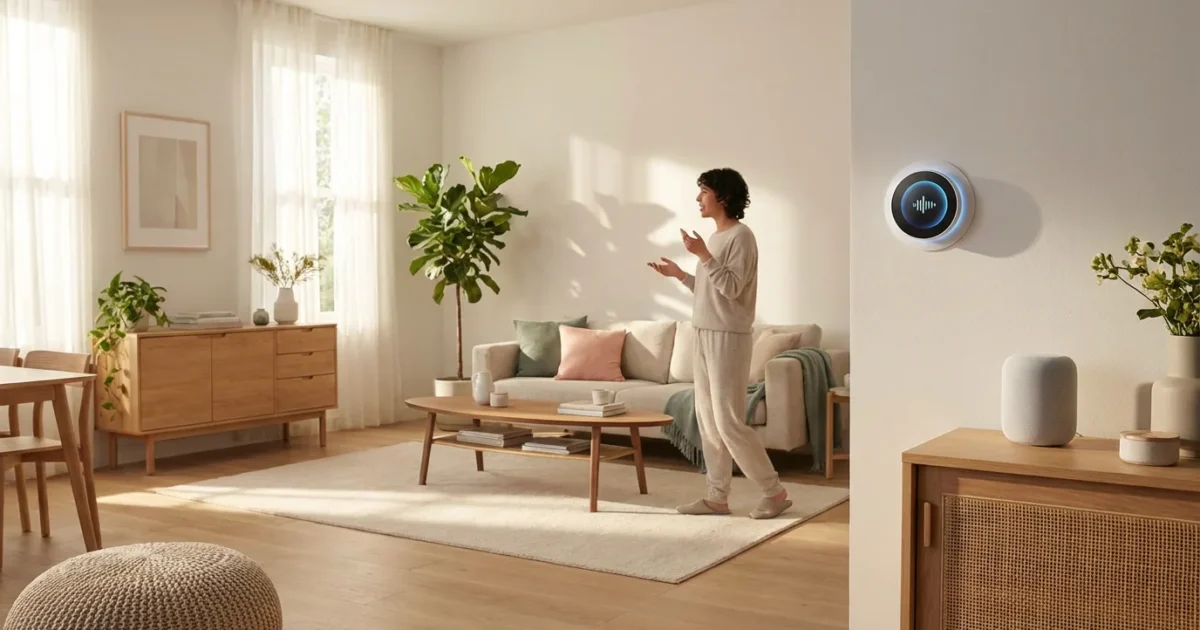
Managing your home’s climate should feel effortless, not like a chore. Smart thermostats offer incredible convenience, and adding voice control transforms that experience. You gain instant command over your home’s temperature, simply by speaking a command. This guide helps you master voice control for your smart thermostat, ensuring comfort, efficiency, and seamless integration into your daily life.
From adjusting the temperature from your couch to optimizing energy usage with a spoken phrase, voice control liberates you from manual adjustments and smartphone apps. We show you how to leverage this powerful feature with devices like Alexa and Google Nest, providing practical tips and actionable insights to enhance your smart home.
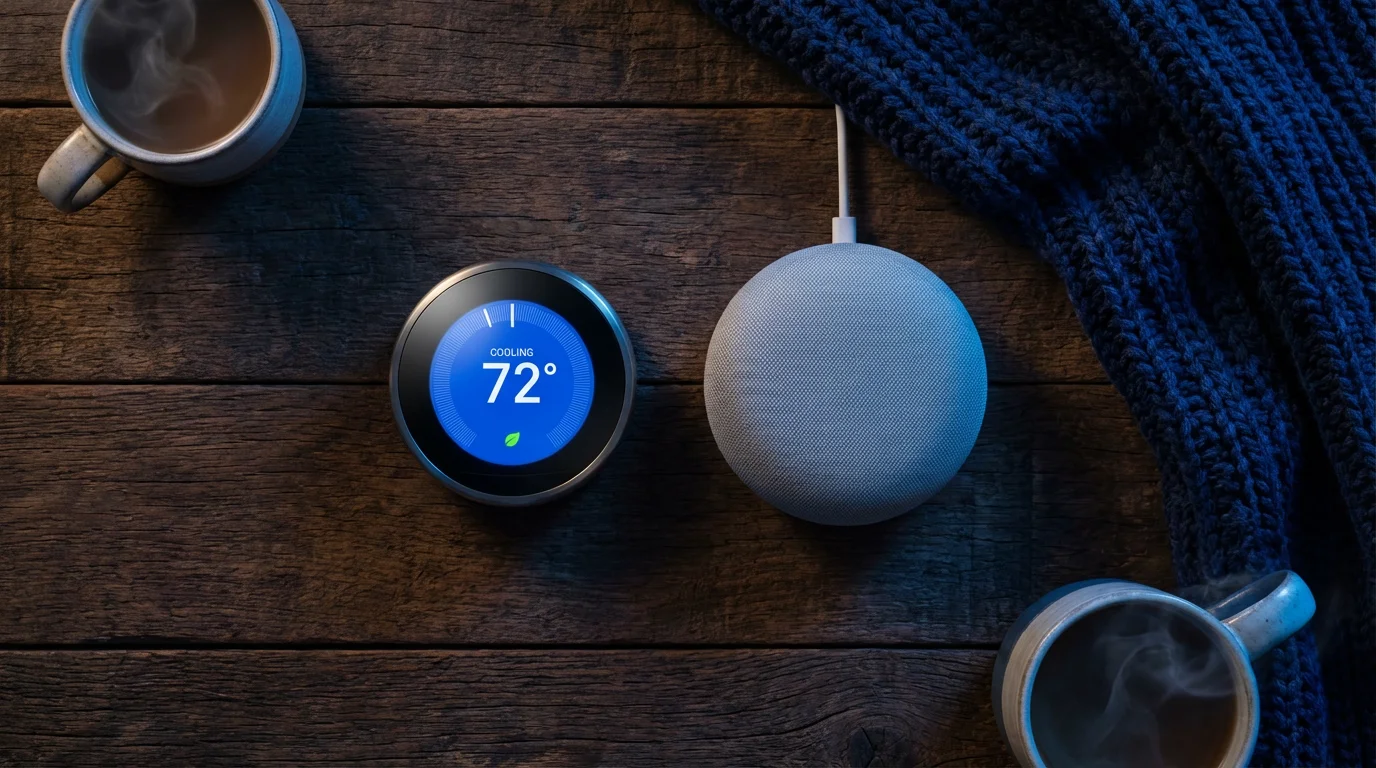
Unlock Comfort and Efficiency with Voice Control
Voice control transforms how you interact with your home’s heating and cooling system. You no longer need to find your phone, open an app, or walk to the thermostat itself. A simple spoken command can adjust the temperature, check the current setting, or even switch modes.
This hands-free convenience provides immediate comfort and helps you manage energy consumption more effectively. Imagine adjusting the temperature from bed on a cold morning or cooling down the house while you cook, all without lifting a finger.

Essential Voice Commands for Your Smart Thermostat
Mastering basic commands is the first step to truly benefiting from voice control. The phrasing can vary slightly between voice assistants like Alexa and Google Assistant, but the core functionality remains consistent. You will find that simple, direct commands yield the best results.
Here are some of the best voice commands for smart thermostat control, categorized for clarity:
- Setting the Temperature:
- “Alexa, set the thermostat to 72 degrees.”
- “Hey Google, make the temperature 68 degrees.”
- “Alexa, turn the heat up to 70.”
- “Hey Google, lower the temperature by two degrees.”
- Checking the Temperature:
- “Alexa, what’s the temperature in here?”
- “Hey Google, what is the thermostat set to?”
- “Alexa, what is the current temperature?”
- Changing Modes:
- “Alexa, switch the thermostat to heat.”
- “Hey Google, turn on the AC.”
- “Alexa, set the thermostat to auto.”
- “Hey Google, switch the thermostat to off.”
- Fan Control:
- “Alexa, turn on the fan.”
- “Hey Google, turn the fan off.”
- “Alexa, set the fan to auto.”
These commands offer a direct way to manage your home’s climate. Practice using them, and you will quickly integrate voice control into your daily routine. Many smart thermostats, such as the Google Nest Thermostat and Ecobee models, respond efficiently to these phrases, allowing for seamless Alexa temperature and Google Nest temperature adjustments.
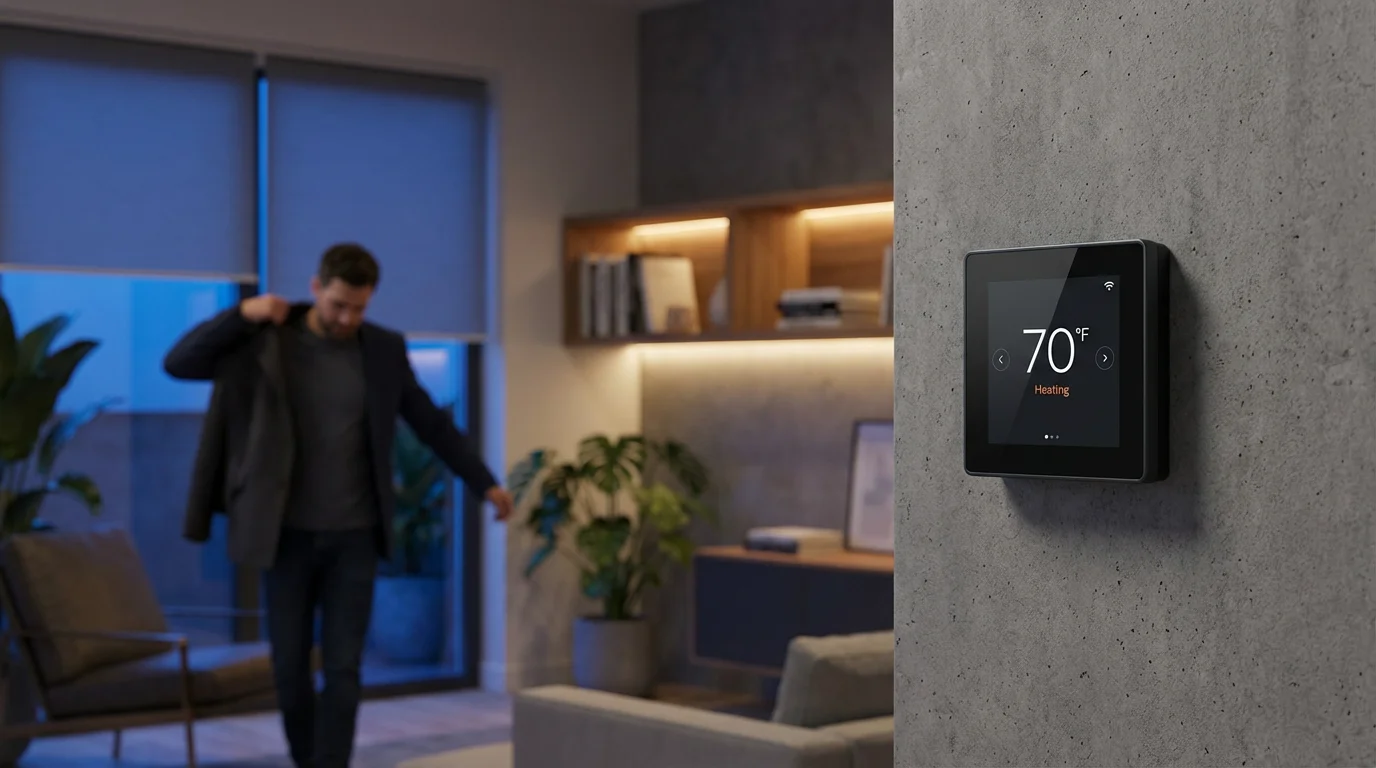
Advanced Voice Automations for Smarter Climate Control
Beyond simple commands, you can leverage routines and scenes to automate complex actions with a single voice prompt. These advanced automations integrate your smart thermostat with other devices, creating a truly responsive smart home experience. You design custom sequences that activate based on your spoken phrase.
Consider these practical automation ideas:
- “Good Morning” Routine: When you say, “Alexa, good morning,” your smart thermostat adjusts to your preferred daytime temperature, your smart lights slowly brighten, and your smart coffee maker starts brewing. This sets a comfortable tone for your day without manual intervention.
- “Leaving Home” Routine: A simple “Hey Google, I’m leaving” command can instruct your smart thermostat to switch to an eco-friendly ‘away’ mode, ensuring you save energy while out. Simultaneously, your smart locks engage, and all lights turn off.
- “Movie Night” Scene: Say “Alexa, movie night,” and your thermostat lowers the temperature slightly for a cozy viewing experience, your smart lights dim to a cinematic glow, and your smart blinds close. This creates the perfect ambiance instantly.
- “Bedtime” Automation: Command “Hey Google, good night,” and your thermostat sets to a comfortable sleeping temperature, lights throughout your home turn off, and doors lock for security.
These examples demonstrate how to control thermostat with voice in ways that go beyond basic adjustments, providing significant convenience and energy savings. Platforms like Amazon Alexa and Google Home allow you to customize these routines through their respective apps, making it simple to build an automated home tailored to your lifestyle.

Selecting Your Voice Assistant and Smart Thermostat
The choice between voice assistants often comes down to personal preference and existing smart home devices. Both Amazon Alexa and Google Assistant offer robust smart thermostat integration, but their ecosystems have subtle differences.
If you are still deciding on a device, our comparison of Nest vs Ecobee vs Honeywell can help you choose the best hardware for your voice-controlled setup.
- Amazon Alexa: Known for its vast skill library and compatibility with a wide range of devices. Many smart thermostats, including Ecobee and Honeywell Home models, integrate seamlessly with Alexa for voice thermostat control.
- Google Assistant: Often praised for its natural language processing and deep integration with Google services. It works exceptionally well with Google Nest thermostats, creating a cohesive experience.
When selecting a smart thermostat, consider its compatibility with your chosen voice assistant, as well as specific features:
- Google Nest Thermostats: Renowned for their learning capabilities, which automatically adjust temperatures based on your habits. They integrate natively with Google Assistant, offering excellent voice control. Nest thermostats also feature geofencing, automatically adjusting when you leave or return home.
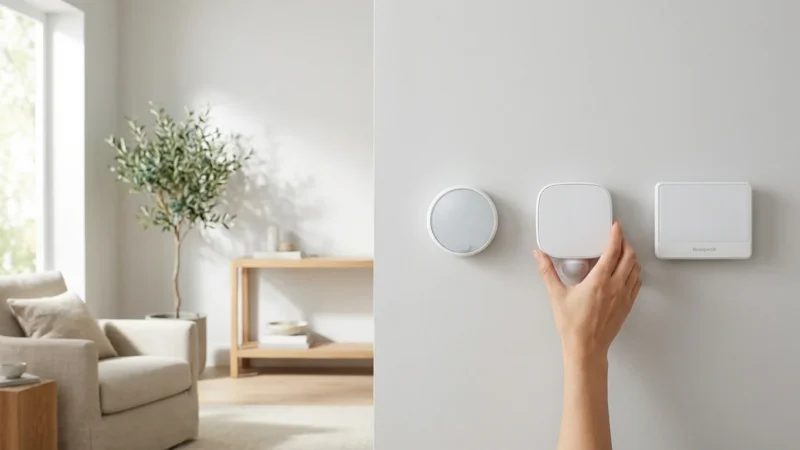
- Ecobee Smart Thermostats: Often include remote sensors to ensure comfortable temperatures in specific rooms, addressing common cold spot issues. They offer strong integration with both Alexa and Google Assistant, giving you flexibility in your voice control setup. Ecobee models are also known for detailed energy reports and HomeKit compatibility.
- Honeywell Home Thermostats: Provide a range of options from basic smart control to advanced zone systems. Many models offer reliable voice control through both major assistants and focus on straightforward, dependable operation.
Before purchasing, always check the product specifications for explicit voice assistant compatibility. This ensures you can fully utilize how to control thermostat with voice features effectively from day one.
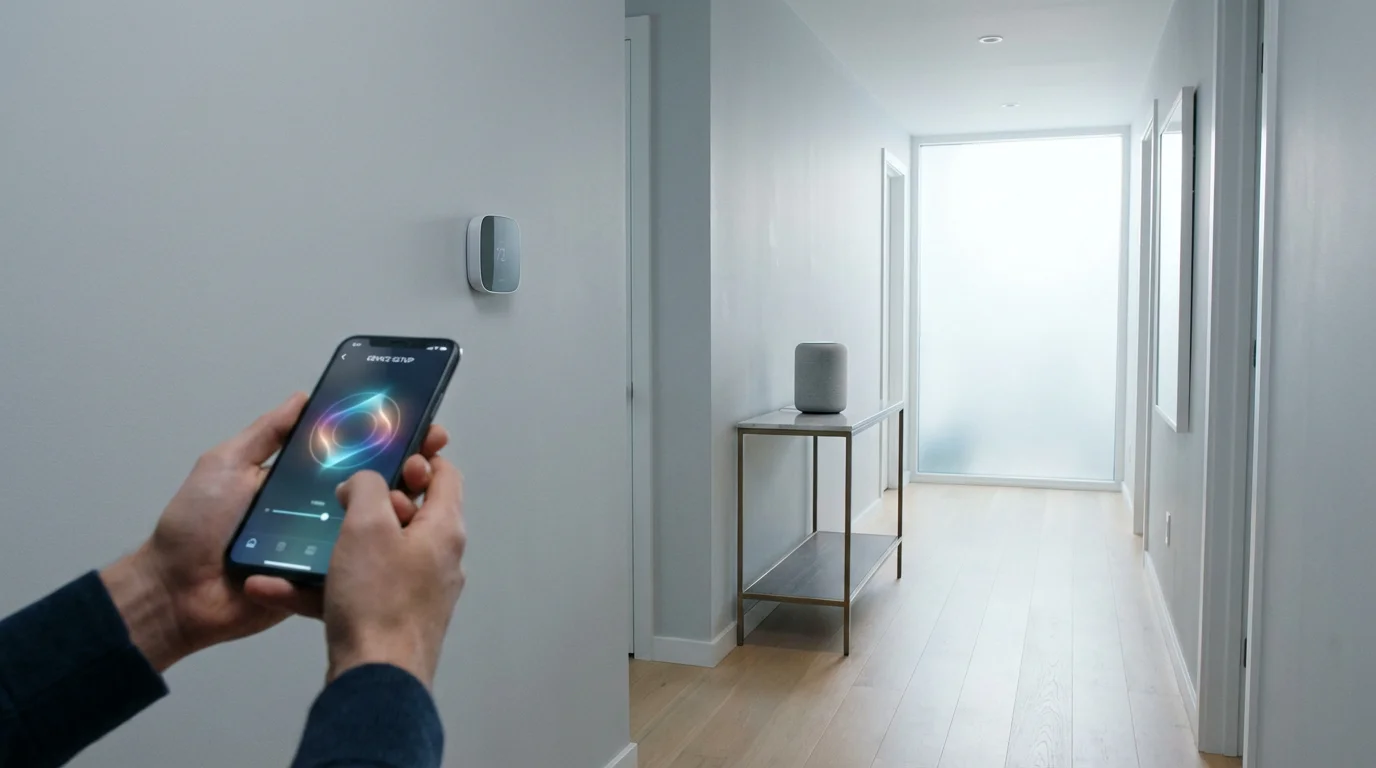
Setting Up Voice Control: A Step-by-Step Guide
Connecting your smart thermostat to your voice assistant is usually a straightforward process. The exact steps may vary slightly depending on your specific thermostat model and voice assistant, but the general procedure remains consistent. You will typically use the companion app for your voice assistant.
- Install Your Smart Thermostat: Ensure your smart thermostat is properly installed, connected to your home’s Wi-Fi network, and operational through its dedicated app. For installation, always follow the manufacturer’s instructions carefully. If you encounter complex wiring, especially involving a C-wire, or are unsure about any steps, consult a licensed HVAC professional. Improper installation can damage your system or pose safety risks.
- Open Your Voice Assistant App: Launch the Amazon Alexa app or the Google Home app on your smartphone or tablet.
- Navigate to Device or Skill Integration:
- For Alexa: Go to the “Devices” tab, select “Your Smart Home Skills,” and then “Enable Smart Home Skills.” Search for your thermostat brand (e.g., “Ecobee,” “Nest,” “Honeywell Home”).
- For Google Home: Go to “Devices,” then “Add a device,” and select “New devices” or “Works with Google Home.” Search for your thermostat brand.
- Enable the Skill/Link Account: Once you find your thermostat brand, enable the corresponding skill or link your account. This usually involves signing into your thermostat’s manufacturer account through the voice assistant app.
- Discover Devices: After linking, the voice assistant will discover your thermostat. You might need to say “Alexa, discover my devices” or “Hey Google, sync my devices.”
- Assign to a Room (Optional but Recommended): Assign your thermostat to a specific room in your voice assistant app (e.g., “Living Room” or “Bedroom”). This helps the assistant understand context if you have multiple smart devices or zones.
Once connected, you can immediately begin using voice commands. Test a simple command like “Alexa, what is the living room temperature?” to confirm successful setup and how to control thermostat with voice effectively.
“The best smart home is the one you don’t have to manage. Voice control makes your thermostat disappear into the background of your life, providing comfort on demand.”

Optimizing Your Smart Thermostat for Voice Efficiency
Maximizing the benefits of voice control for your smart thermostat involves more than just issuing commands. By leveraging additional features and settings, you make your climate control system even smarter and more responsive. These optimizations enhance both convenience and energy savings.
Consider these strategies for optimal performance:
- Consistent Naming Conventions: Give your thermostat a clear, unique name in your voice assistant app. Instead of just “thermostat,” use “downstairs thermostat” or “living room temperature.” This helps the assistant understand your commands precisely, especially if you have multiple zones.
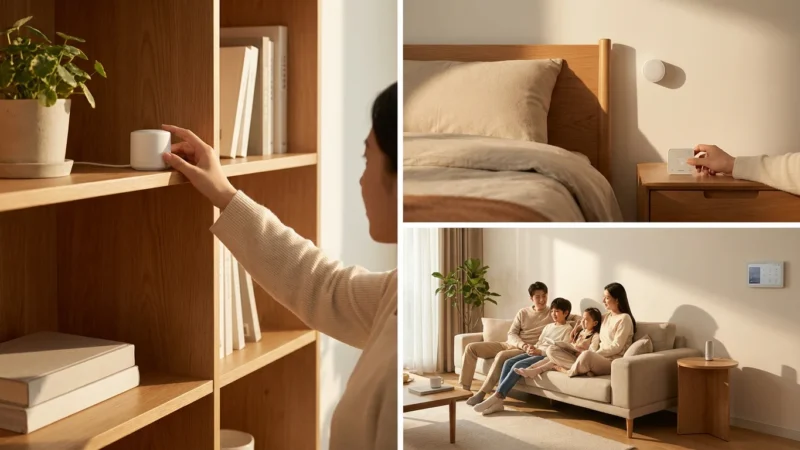
- Utilize Room Sensors: Many smart thermostats, like Ecobee models, come with or support external room sensors. Place these sensors in important rooms to ensure the temperature reading is accurate where it matters most to you. You can then specify commands like “Alexa, what’s the temperature in the master bedroom?”
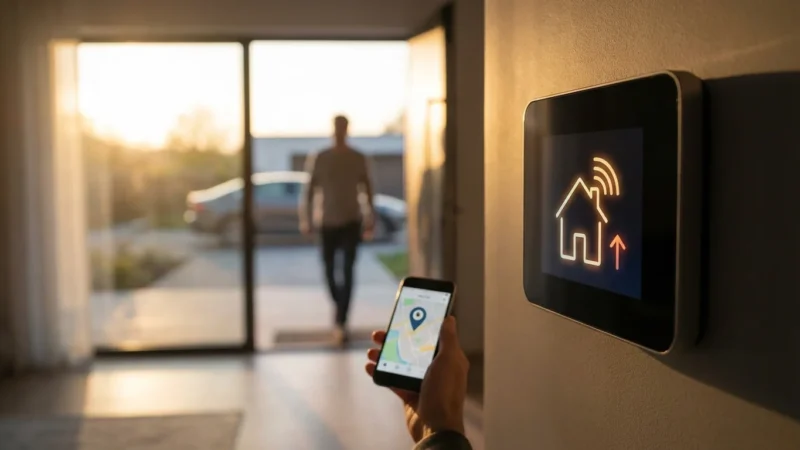
- Integrate Geofencing: Geofencing uses your smartphone’s location to detect when you leave or return home. Pair this with your smart thermostat’s “Home” and “Away” modes. Your thermostat can automatically switch to an energy-saving setting when you depart and return to a comfortable temperature before you arrive. This works seamlessly with voice commands such as “Hey Google, disable geofencing for today.”
- Smart Scheduling and Learning Features: While voice control offers instant adjustments, a well-configured schedule provides baseline comfort. Smart thermostats like the Google Nest learn your preferences over time, automatically building a schedule. You then use voice control for minor tweaks or overrides to this established schedule.
- Energy Reporting and Insights: Many smart thermostat apps provide detailed energy usage reports. Reviewing these reports helps you understand how your voice commands and automations impact energy consumption. You can identify patterns and make adjustments to save even more. For example, Energy Star certified smart thermostats can save you money and help the environment, often showing clear data on your savings.
By implementing these optimizations, you move beyond basic voice thermostat control to a truly intelligent climate management system. Your home becomes more comfortable, and you gain greater control over your energy usage with minimal effort.
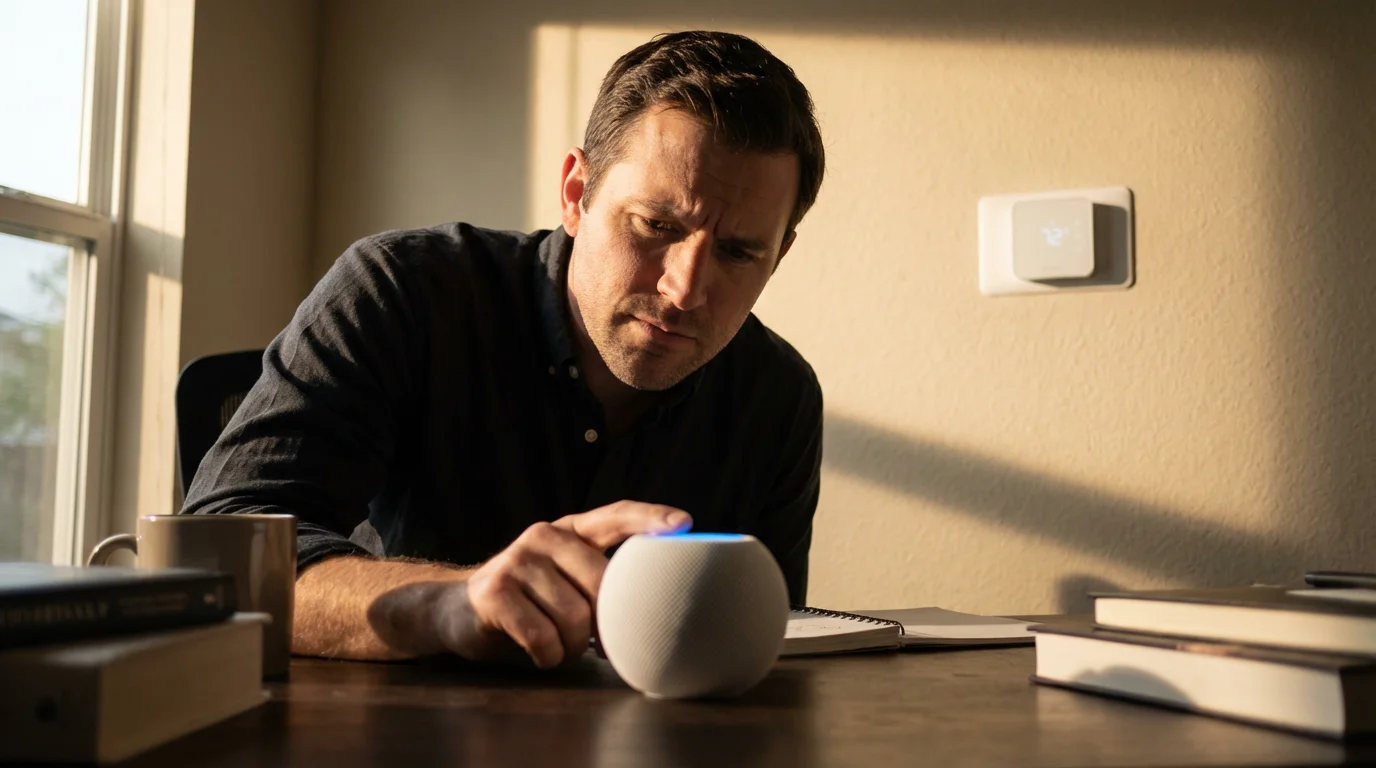
Troubleshooting Common Voice Command Issues
While voice control is designed for convenience, you might occasionally encounter issues. Understanding common problems and their solutions ensures your smart thermostat remains responsive to your commands. You can often resolve these issues with a few simple checks.
Here are some troubleshooting steps:
- “Device Not Responding” or “Thermostat is Offline”:
- Check Wi-Fi: Ensure your smart thermostat is connected to your home’s Wi-Fi network. Check your router and internet connection.
- Reboot Devices: Try restarting your smart thermostat, your voice assistant device (e.g., Echo speaker, Google Nest Hub), and your Wi-Fi router.
- Check App Status: Open your thermostat’s dedicated app to confirm it is online and responsive. If not, troubleshoot its internet connection first.
- Voice Assistant Does Not Understand:
- Clarity and Proximity: Speak clearly and ensure you are within range of your voice assistant device.
- Exact Phrasing: Refer back to the essential voice commands. Sometimes, slight variations in phrasing can confuse the assistant.
- Device Naming: Confirm the name you assigned your thermostat in the voice assistant app matches what you are saying. Avoid overly complex or similar names for different devices.
- Incorrect Temperature Adjustment:
- Thermostat Settings: Verify the temperature scale (Fahrenheit vs. Celsius) setting on your thermostat and in your voice assistant app. Mismatches can cause confusion.
- Minimum/Maximum Limits: Some thermostats have set temperature limits. Ensure your requested temperature falls within these bounds.
- Skill or Account Link Issues:
- Relink Account: If commands are consistently failing, try disabling and re-enabling the smart home skill (for Alexa) or unlinking and relinking your thermostat account (for Google Home) in the respective voice assistant app.
- App Updates: Ensure both your voice assistant app and your thermostat’s app are updated to their latest versions.
Most issues are connectivity-related or stem from a minor setting discrepancy. Addressing these points systematically helps restore full voice thermostat control.
Expanding Your Smart Home with Voice Integration
Voice control for your smart thermostat is often just the beginning of a more extensive smart home journey. The power of your voice assistant extends to a wide array of connected devices, creating a truly integrated and responsive living space. You unlock greater convenience and efficiency by connecting more devices.
Consider integrating these smart devices with your voice assistant:
- Smart Lighting: Control individual lights, adjust brightness, or change colors with commands like “Alexa, turn on the living room lights” or “Hey Google, dim the bedroom light to 50%.” Combine this with your thermostat routines for perfect ambiance.
- Smart Plugs: Turn ordinary appliances like lamps, fans, or coffee makers into smart devices. Say “Alexa, turn on the fan” to cool down a room while your thermostat adjusts the central air.
- Smart Blinds or Shades: Automate your window coverings to open or close based on time of day, sunlight, or even in conjunction with your thermostat to help with insulation. “Hey Google, close the blinds” can prevent heat gain in summer.
- Smart Security Systems: Arm or disarm your security system, check camera feeds, or lock doors with voice commands. This adds an extra layer of peace of mind to your home automation efforts.
The development of universal standards like Matter also promises even greater interoperability. Matter is a unified IP-based connectivity protocol that ensures smart home devices from different manufacturers work together seamlessly. As devices adopt Matter, your ability to integrate and control your entire smart home ecosystem with voice will only grow, making your existing investments in Alexa temperature and Google Nest control even more valuable. Learn more about the future of connected devices by visiting the Matter Smart Home Standard website.
By connecting these various elements, your voice assistant becomes the central command center for your entire home. You gain unparalleled control, transforming everyday tasks into effortless interactions and building a more comfortable, secure, and energy-efficient environment.
Frequently Asked Questions
Can I control my smart thermostat with voice if I don’t have a specific smart speaker?
Yes, many smart thermostats and voice assistants offer control through smartphone apps. For instance, you can use the Google Assistant app on your phone to give commands to your Google Nest thermostat, even without a dedicated Google Nest speaker. Similarly, the Alexa app allows for voice control directly from your phone. You simply open the app and use the microphone icon.
Do all smart thermostats support voice control?
Most modern smart thermostats from major brands like Google Nest, Ecobee, and Honeywell Home support voice control through either Amazon Alexa or Google Assistant. However, always check the product specifications for compatibility before purchasing. Older or simpler smart thermostat models might have limited or no voice control features.
What if my smart thermostat doesn’t have a C-wire? Can I still use voice control?
A C-wire (common wire) typically provides continuous power to smart thermostats. While voice control itself doesn’t directly depend on a C-wire, the smart thermostat’s ability to stay powered and connected to Wi-Fi does. If your thermostat lacks a C-wire, it might rely on battery power or a power stealing mechanism, which can sometimes lead to connectivity issues. Many manufacturers offer a power extender kit as a solution if your HVAC system does not have a C-wire, allowing for reliable power and consistent Wi-Fi connection, crucial for seamless voice control.
Can I set specific temperatures for different rooms using voice commands?
This depends on your smart thermostat’s capabilities. If your thermostat supports zone control or uses remote room sensors (like many Ecobee models), you can often specify rooms in your voice commands. For example, you might say, “Alexa, set the master bedroom to 70 degrees.” Ensure your sensors are properly configured and named within your thermostat’s app and your voice assistant’s app for this functionality.
Is my voice data private when using a smart thermostat?
Smart home companies, including those behind voice assistants and smart thermostats, have privacy policies outlining how they collect and use your voice data. Typically, your voice commands are processed in the cloud to interpret your request. While companies state they anonymize data and delete recordings after processing, it is always wise to review the privacy policies of your specific devices and voice assistant platforms. You also have options to manage or delete your voice history in the respective app settings.
Disclaimer: This article is for informational purposes only. Smart home devices involve electrical connections and data privacy. Always follow manufacturer instructions for installation. For complex wiring or HVAC work, consult a licensed professional.



Leave a Reply