
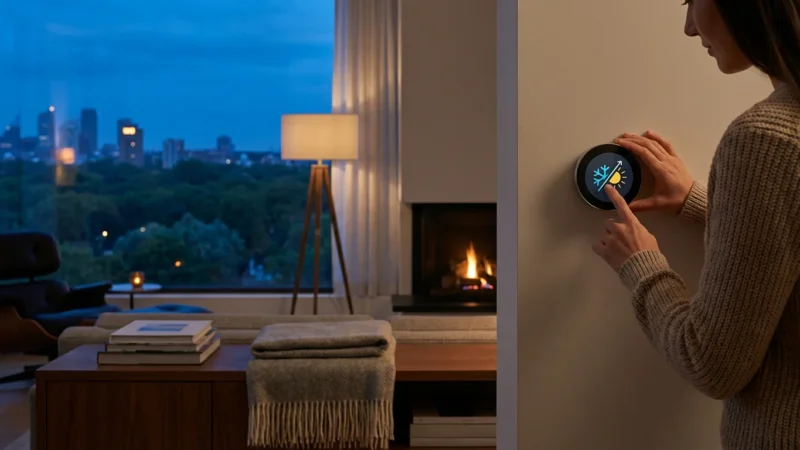
Your smart thermostat offers convenience, energy savings, and enhanced control over your home’s climate. However, like any sophisticated device, it can occasionally encounter `thermostat problems`. Understanding how to diagnose and resolve these issues yourself saves you time and ensures your home stays comfortable. This guide provides practical steps to troubleshoot common smart thermostat malfunctions, helping you restore optimal performance.
Understanding Your Smart Thermostat’s Foundation
Before diving into specific troubleshooting steps, grasp the core components essential for your smart thermostat’s operation. These include consistent power, correct wiring, and a stable internet connection. Many `thermostat problems` stem from one of these foundational elements.
Your smart thermostat needs a reliable power source to function. Most modern smart thermostats require a C-wire, or common wire, to draw continuous power without relying solely on battery power or “power stealing” from your HVAC system. Without a C-wire, devices like some Nest or Ecobee models might struggle with Wi-Fi connectivity or screen brightness, especially if the HVAC system does not run frequently enough to recharge internal batteries.
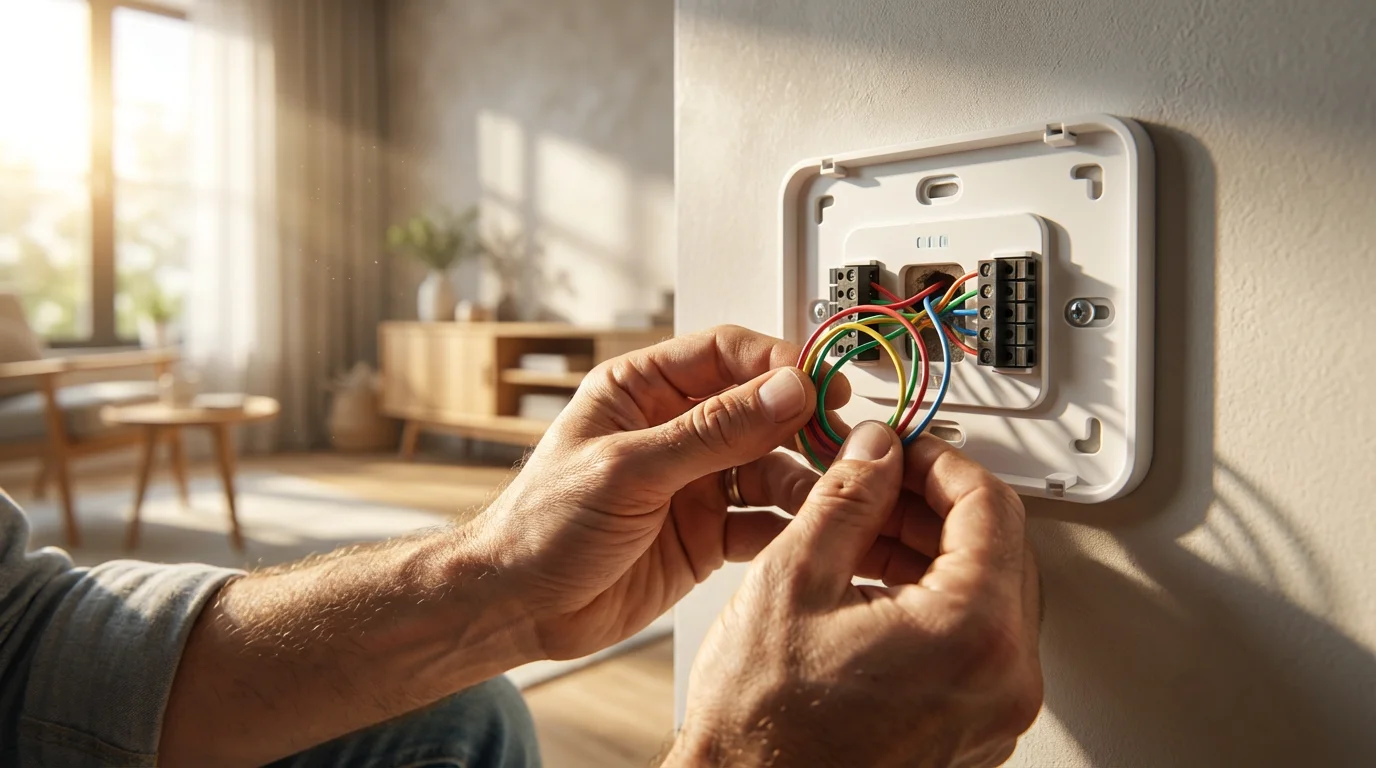
Proper wiring connects your thermostat to your heating, ventilation, and air conditioning, HVAC, system. Each wire controls a specific function, such as heating, cooling, or fan operation. Incorrect or loose connections prevent your thermostat from sending the right commands to your HVAC unit, leading to common issues like your home `not heating` or cooling properly. A strong Wi-Fi connection enables remote control, software updates, and integration with other smart home devices.
When Your Smart Thermostat Has No Power or a Blank Screen
A blank screen or a complete lack of power indicates a fundamental issue. This often points to a problem with the thermostat’s power supply rather than a complex software glitch. Addressing these basic power concerns is your first step.
Here are the actions you should take:
-
Check Your Circuit Breaker: Your HVAC system operates on a dedicated circuit. A tripped breaker can cut power to the entire unit, including your thermostat. Locate your electrical panel and reset any tripped breakers. Ensure you identify the correct breaker for your HVAC system.
-
Verify the C-Wire Connection: Many smart thermostats, including models from Honeywell and Ecobee, require a C-wire for consistent power. If your system lacks a C-wire, or if the connection is loose, your thermostat may lose power or experience intermittent operation. Visually inspect the C-wire terminal at both your thermostat and your HVAC control board. A loose connection at either end can cause power loss. If you do not have a C-wire, consider installing an adapter kit or contacting an HVAC professional for installation.
-
Replace Batteries (If Applicable): Some smart thermostats, particularly older models or those without a C-wire, use backup batteries. Check your device’s battery compartment and replace dead batteries with fresh ones. This simple step resolves many unexpected power outages.
-
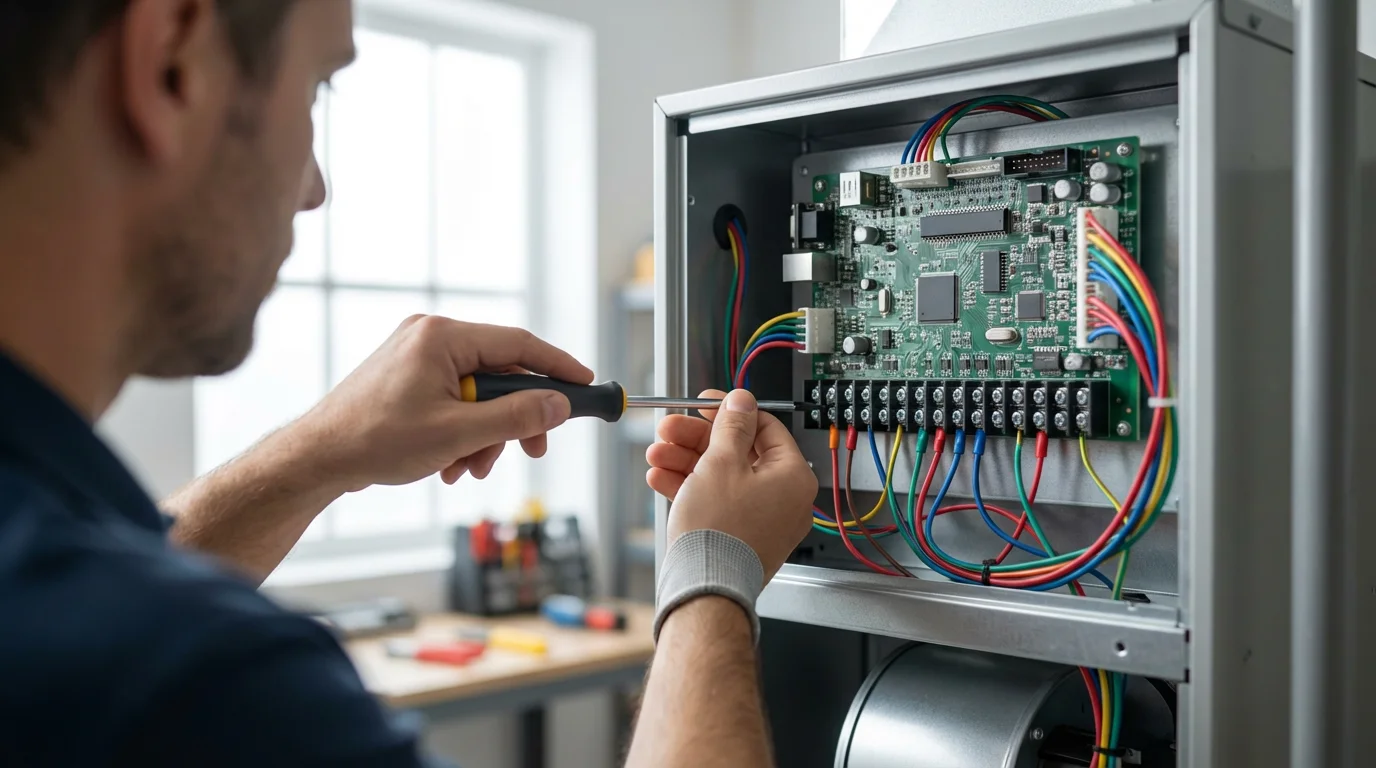
Examine Thermostat Wiring: Carefully remove your thermostat from its baseplate. Inspect the wiring for any loose connections or frayed wires. Push each wire firmly into its terminal to ensure a secure connection. Loose wires are a frequent cause of `smart thermostat not working how to fix` power problems.
-
Restart Your HVAC System: Sometimes, the HVAC system itself needs a reset. Turn off the power to your HVAC system at the breaker for about 30 seconds, then turn it back on. This hard reset can resolve communication issues between the thermostat and the HVAC unit.
Resolving “Not Heating” or “Not Cooling” Issues
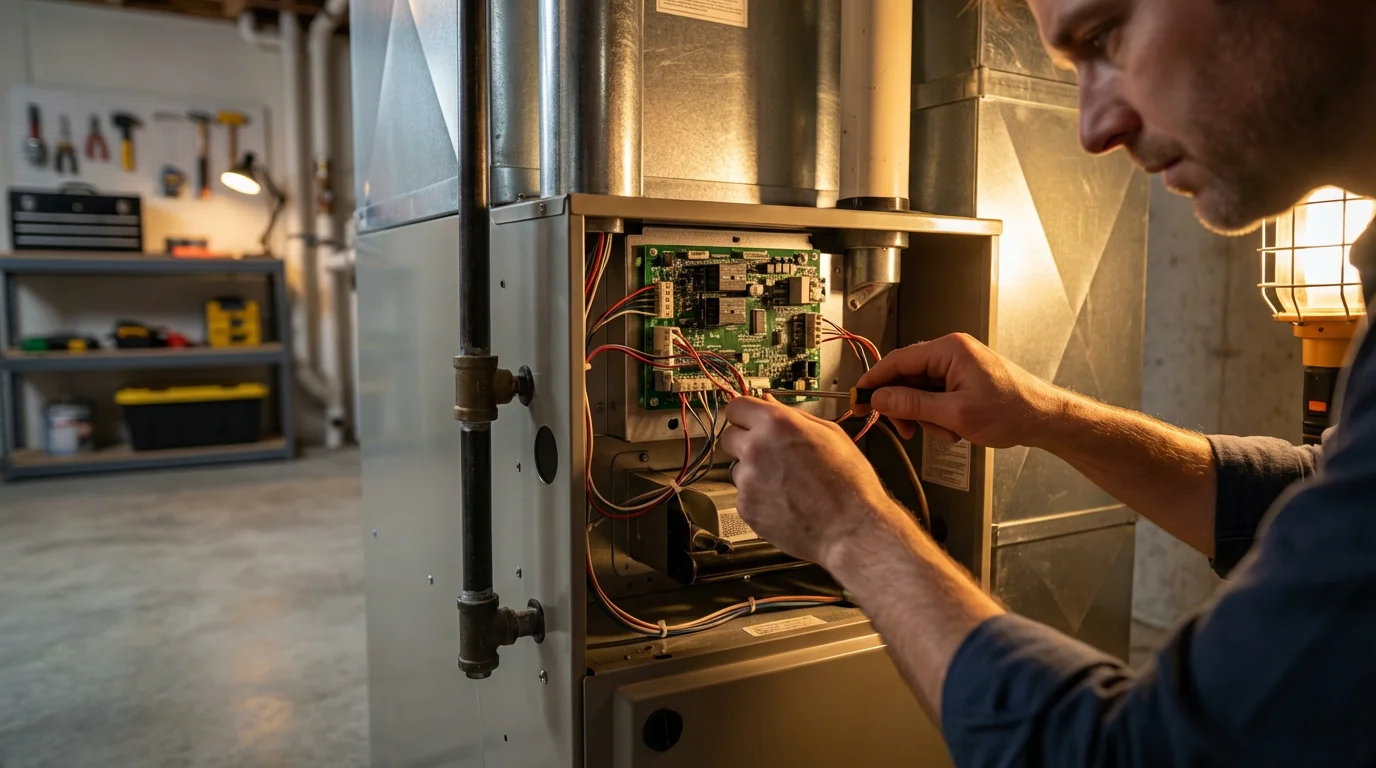
Your smart thermostat’s primary function is to control your home’s temperature. When your system is `not heating` or `not cooling` as expected, it signals a breakdown in communication or a problem with the HVAC unit itself. These `common thermostat troubleshooting tips` help pinpoint the cause.
Follow these troubleshooting steps:
-
Check Thermostat Mode and Settings: Confirm your thermostat is set to the correct mode (Heat, Cool, or Auto). Ensure the target temperature is appropriately set above the current room temperature for heating, or below for cooling. Many issues arise from simple mode discrepancies.
-
Verify Fan Settings: If the fan runs but no air conditioning or heat comes out, your fan setting may be “On” instead of “Auto.” Setting it to “Auto” allows the fan to cycle only when the heating or cooling system actively operates. If your smart thermostat allows, manually turn the fan on for a short period to confirm it works.
-
Inspect HVAC Filters: A clogged air filter restricts airflow, forcing your HVAC system to work harder and potentially leading to system shutdown. A dirty filter can cause your furnace or air conditioner to overheat or freeze up. Regularly replace or clean your air filter, typically every 1-3 months, for optimal performance. You can often find information on filter replacement in your HVAC system’s manual.
-
Examine Outdoor Unit (for Cooling): If your AC is `not cooling`, check the outdoor condenser unit. Ensure no debris obstructs the unit, and the fan spins freely. A frozen coil on the outdoor unit or evaporator coils inside the home indicates a more serious issue like low refrigerant or a blocked drain, which requires professional attention.
-
Review Wiring Connections to the HVAC Control Board: Just as with power issues, loose wires at the thermostat or HVAC control board can prevent the system from responding. Turn off power at the breaker before inspecting connections. Ensure wires are firmly seated in their terminals, matching the labels from your thermostat installation guide.
-
Check for Error Codes or System Malfunctions: Your smart thermostat or HVAC unit might display an error code indicating a specific problem. Consult your thermostat’s manual or your HVAC system’s documentation to interpret these codes. Many manufacturers offer online databases for quick reference.
A functional smart home system relies on a harmonious relationship between devices. When your smart thermostat struggles, consider the entire chain: power, wiring, network, and the HVAC unit itself. Isolate the weakest link to find your solution.
Troubleshooting Smart Thermostat Connection Issues
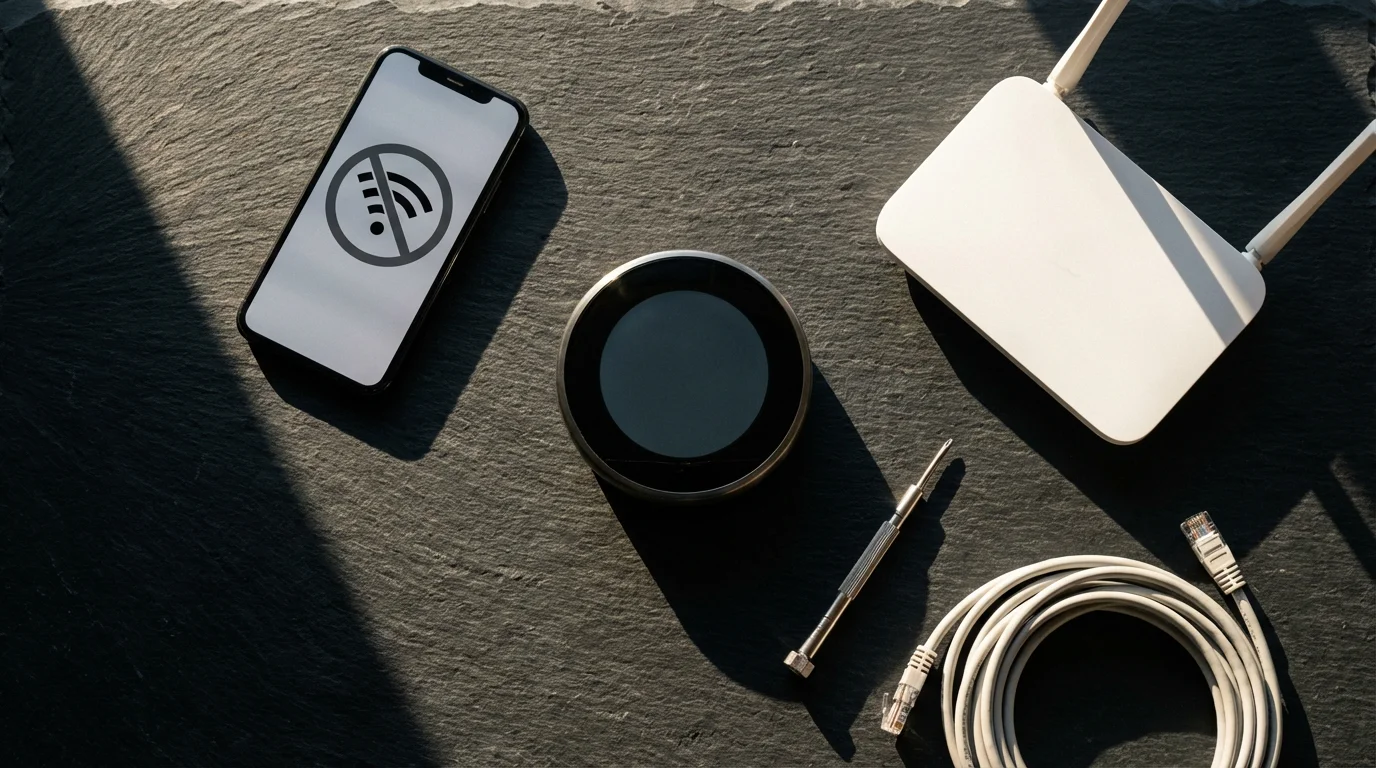
A smart thermostat thrives on connectivity. `Connection issues` prevent remote control, geofencing features, and integration with other smart home platforms. If your thermostat shows offline in its app or cannot connect to Wi-Fi, you need to troubleshoot its network link.
Implement these steps to restore connectivity:
-
Restart Your Smart Thermostat: Many software glitches resolve with a simple restart. Most smart thermostats have a reset button or an option in the device settings for a soft reboot. For a hard reset, temporarily remove it from its baseplate or turn off power at the breaker for 30 seconds.
-
Reboot Your Wi-Fi Router: Your Wi-Fi router is the gateway to your home network and the internet. Unplug your router and modem from power for about one minute, then plug them back in. Allow them a few minutes to fully restart and re-establish network connections before testing your thermostat.
-
Check Wi-Fi Signal Strength: Your smart thermostat needs a strong Wi-Fi signal. If it is too far from your router or if thick walls obstruct the signal, it can experience `connection issues`. Try moving your router closer, or consider a Wi-Fi extender to improve coverage. Some thermostat apps, such as the Ecobee app, show signal strength directly.
-
Verify Wi-Fi Network Name and Password: Ensure your thermostat connects to the correct Wi-Fi network using the right password. Even a small typo can prevent connection. Many smart thermostats work best on a 2.4GHz Wi-Fi network, which offers better range than 5GHz. If you have a dual-band router, ensure your thermostat is configured for the 2.4GHz band if recommended by the manufacturer.
-
Update Thermostat Firmware and App: Outdated software often causes connectivity problems. Check your thermostat manufacturer’s app for any available firmware updates and ensure your smart home app is the latest version. These updates often include bug fixes and performance improvements.
-
Reset Network Settings on Thermostat: If other steps fail, perform a network reset on your thermostat. This wipes saved Wi-Fi credentials, allowing you to set up the connection fresh. Refer to your specific thermostat’s manual, for example, a Nest Thermostat or a Honeywell Home model, for instructions on how to reset network settings without a full factory reset.
Addressing Inaccurate Temperature Readings and Sensor Problems
An inaccurate temperature reading means your thermostat might heat or cool your home inefficiently, wasting energy. Smart thermostats use internal sensors and often external remote sensors. Both can contribute to incorrect readings. Correcting these issues helps you maintain precise climate control.
Consider these actions to fix temperature discrepancies:
-
Calibrate Your Thermostat: Some smart thermostats allow manual temperature calibration within their settings. If your thermostat consistently reads a few degrees off compared to a separate, reliable thermometer, adjust its calibration offset. Refer to your device’s app or manual for instructions.
-
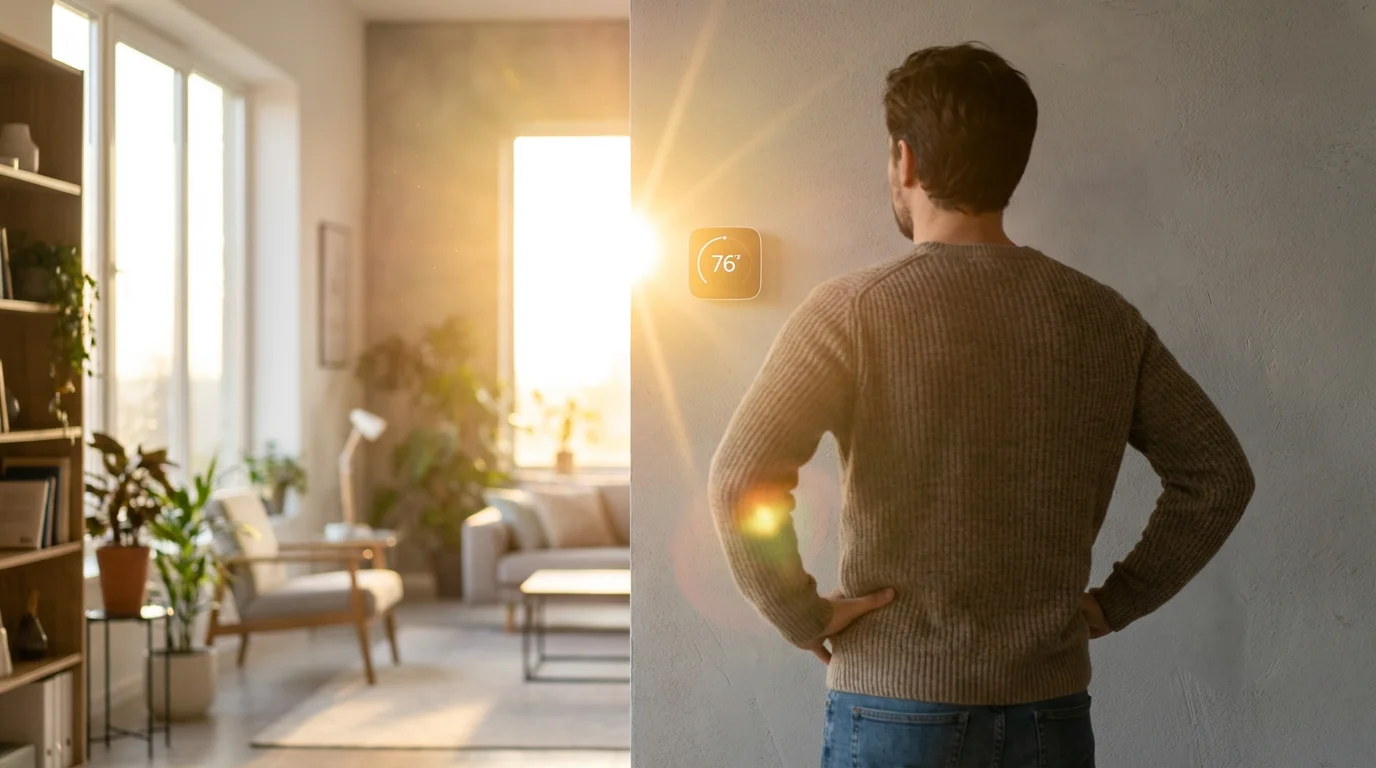
Check Thermostat Placement: The location of your thermostat significantly impacts its readings. Avoid placing it near direct sunlight, heat sources like lamps or appliances, or drafts from windows and doors. These external influences can skew readings, causing your system to overcompensate. For instance, a Nest Thermostat placed near a south-facing window can show higher temperatures than actual room temperature.
-
Inspect Remote Sensors: Many smart thermostats, such as Ecobee models, utilize remote sensors for more accurate whole-home temperature averages. Ensure these sensors are placed appropriately, away from direct sunlight or drafts. Check their battery levels and connectivity to the main thermostat. A faulty sensor can provide misleading data.
-
Clear Dust and Debris: Dust can accumulate inside the thermostat’s vents, affecting the accuracy of internal temperature sensors. Gently remove the thermostat from its baseplate and carefully clean any visible dust from the vents or sensor components using a soft brush or compressed air. Always turn off power to the HVAC system first.
-
Allow for Heat Soak Time: After significant temperature changes, particularly when first activating heating or cooling, allow your system some time for the air to circulate and stabilize. Your thermostat’s reading will reflect the average room temperature more accurately after this period.
Solving Scheduling and Automation Glitches
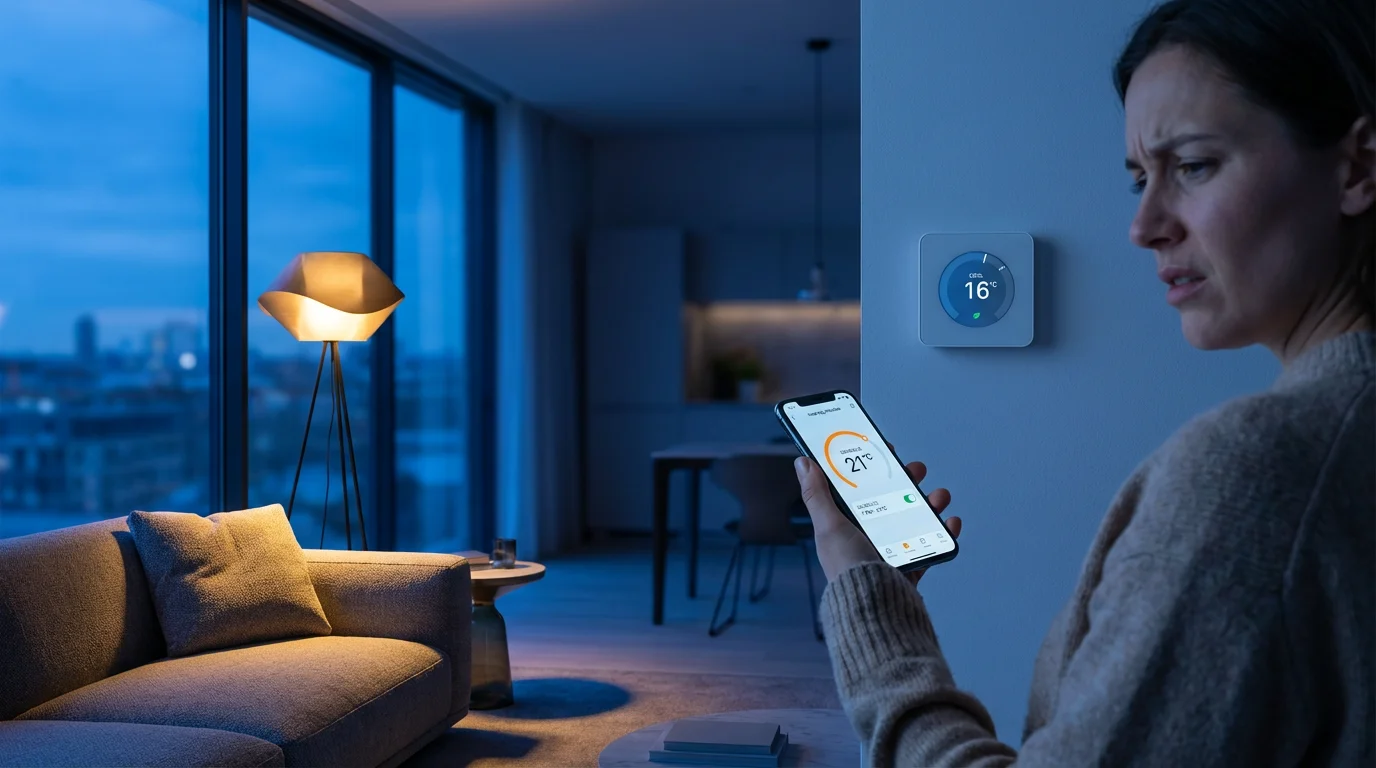
The intelligence of a smart thermostat lies in its ability to learn your habits and automate temperature adjustments through schedules and geofencing. When these features malfunction, your system loses its “smart” edge. Resolving these glitches restores convenience and energy efficiency.
Take these steps to troubleshoot automation:
-
Review Your Schedule Settings: Accidental overlaps or conflicting schedules often cause automation issues. Open your thermostat’s app and carefully review all programmed schedules. Ensure no conflicting entries exist, particularly for different days or modes. For example, a “weekday away” schedule might conflict with an “early morning” setting.
-
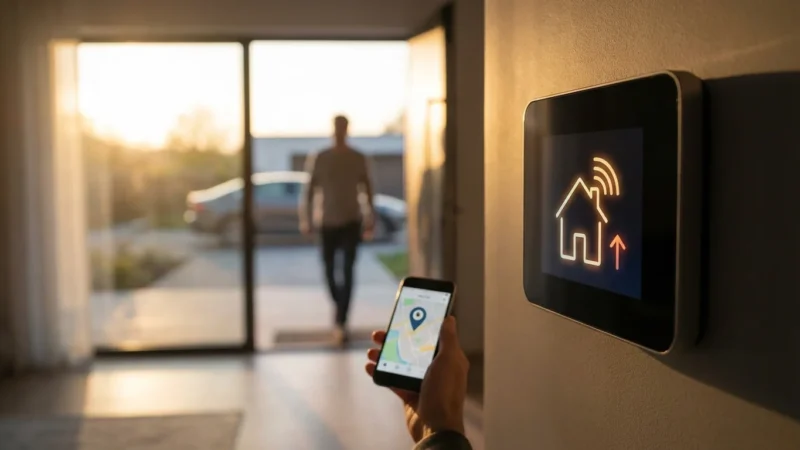
Verify Geofencing Activation and Location Services: Geofencing relies on your smartphone’s location services. Confirm that location services are enabled for your thermostat app on your phone. Ensure the geofencing feature is active in the thermostat settings. Test it by physically leaving and entering your defined home zone to see if it triggers the desired temperature change.
-
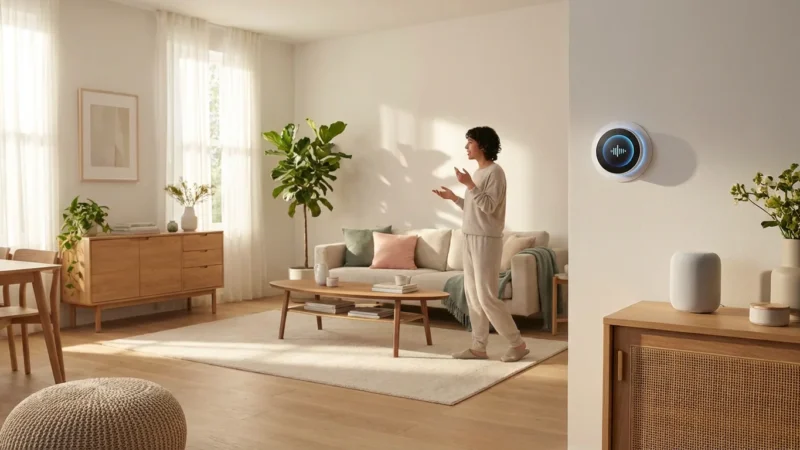
Check Integration with Other Smart Home Systems: If your smart thermostat integrates with a broader smart home ecosystem like Apple HomeKit, Google Home, or Amazon Alexa, ensure the integration is active and correctly configured. A disconnect in the smart home hub can prevent automations from executing. For example, if a “Goodnight” routine in your smart home app typically adjusts your thermostat, check that the routine itself is functioning.
-
Disable Conflicting Features: Some smart thermostats, like certain Nest models, have “learning” capabilities that might override manual schedules. If you prefer explicit scheduling, disable the learning function or adapt your schedule to work with it. Similarly, energy-saving features, such as “Eco Mode” on an Ecobee, might adjust temperatures beyond your programmed settings.
-
Update Firmware and App: As with connectivity, outdated firmware or app versions can introduce bugs affecting scheduling and automation. Regularly check for and install updates to ensure your system runs on the most stable software. These updates often address known issues and improve system responsiveness. According to Energy Star, keeping your smart devices updated ensures they perform optimally and maintain energy efficiency.
To avoid manual programming errors, learn how to create the perfect temperature schedule that aligns with your daily routine.
Preventative Maintenance and Best Practices
Proactive measures help you avoid many `common thermostat troubleshooting tips` entirely. Regular maintenance and adherence to best practices extend your smart thermostat’s lifespan and ensure consistent performance. Adopting these habits provides long-term reliability.
Implement these preventative actions:
-
Regularly Clean Your Thermostat: Dust and debris can impair sensors and buttons. Gently wipe the exterior of your thermostat with a soft, dry cloth. For internal cleaning, if comfortable, remove the faceplate and use compressed air to clear vents and circuit boards, always after turning off the power.
-
Monitor Wi-Fi Connectivity: Periodically check your thermostat’s connection status in its app. A fluctuating signal or frequent disconnections indicate underlying network issues you should address. A consistent connection ensures reliable remote control and updates.
-
Keep Firmware and App Updated: Enable automatic updates for your thermostat’s firmware and its companion app whenever possible. Developers release updates to fix bugs, improve features, and enhance security. Staying current prevents many software-related glitches.
-
Change HVAC Filters Routinely: A clean HVAC filter promotes efficient airflow and reduces strain on your heating and cooling system. This directly impacts how effectively your thermostat can control your home’s climate. Aim to replace filters every 1 to 3 months, depending on usage and household conditions.
-
Backup Your Settings: Before making significant changes or performing a factory reset, note your preferred schedules and settings. Some apps offer cloud backup for settings, making restoration simpler after a reset or replacement. This proactive step saves effort if you need to reconfigure your device.
You can also gain insights into your HVAC system’s health by learning how to read and understand your thermostat’s energy reports on a monthly basis.
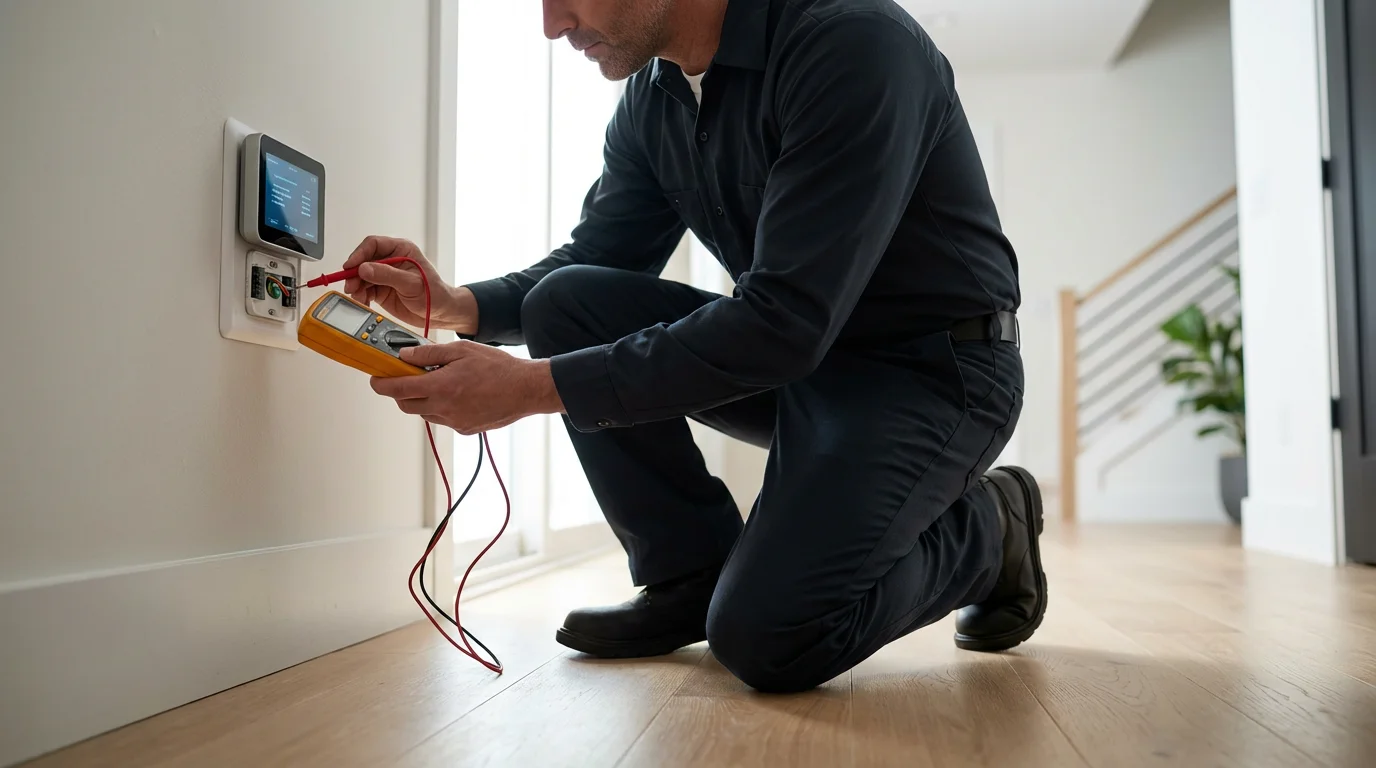
When to Call a Professional for Smart Thermostat Problems
While many `smart thermostat not working how to fix` problems are solvable with DIY troubleshooting, some situations warrant expert intervention. Recognizing when to call a licensed HVAC technician or electrician protects your home and ensures safe, effective repairs. Always prioritize safety over attempting complex electrical work yourself.
You should contact a professional if you encounter any of these scenarios:
-
Complex Wiring Issues: If you suspect a wiring problem beyond simply reseating a loose connection, such as damaged wires or incorrect installation, contact an electrician or HVAC technician. Incorrect wiring can damage your thermostat or HVAC system, or even pose a fire hazard. Handling electrical components requires specialized knowledge.
-
HVAC System Malfunction: If your troubleshooting points to an issue with your furnace, air conditioner, or heat pump, such as a perpetually running fan, unusual noises, or complete system failure, call an HVAC professional. Your smart thermostat only sends commands; it cannot fix a broken HVAC unit. Professional diagnosis and repair are crucial for system longevity.
-
Persistent No Power Issues: After checking breakers, C-wire, and batteries, if your thermostat still has no power, an underlying electrical problem or a fault in the HVAC control board may exist. An electrician can safely diagnose and repair these intricate electrical faults. This situation often indicates a deeper issue than typical `common thermostat troubleshooting tips` can address.
-
Safety Concerns: Any situation involving sparks, burning smells, or excessive heat from your thermostat or HVAC unit requires immediate professional attention. Turn off power to the system at the circuit breaker immediately and contact an emergency service. Safety should always be your top priority.
-
Installation of a C-Wire: If your home lacks a C-wire and you decide to install one, consider hiring an HVAC technician. While some DIY kits exist, working with your HVAC control board involves electrical components and specific knowledge to ensure proper and safe installation. A professional ensures compatibility and correct wiring.
Frequently Asked Questions
Why is my smart thermostat not responding to temperature changes?
Your smart thermostat might not respond to temperature changes due to several reasons. Check if it is set to the correct mode (Heat, Cool, Auto) and ensure the target temperature is sufficiently different from the current room temperature. Verify the wiring connections at both the thermostat and your HVAC unit. A weak Wi-Fi signal or an outdated firmware can also disrupt communication, preventing the thermostat from sending commands effectively. Sometimes, a simple restart of the thermostat or your HVAC system resolves this non-responsiveness.
How do I know if my smart thermostat needs a C-wire?
Most modern smart thermostats, particularly those with illuminated screens and Wi-Fi connectivity like Nest, Ecobee, and some Honeywell models, require a C-wire for consistent power. Without it, they might struggle with power stability, resulting in flickering screens, intermittent Wi-Fi, or battery drain. Check your thermostat’s manual or its online specifications; manufacturers clearly state C-wire requirements. If your existing wiring does not include a C-wire, you may see frequent battery replacement notifications or experience unreliable performance.
What does it mean if my smart thermostat keeps going offline?
If your smart thermostat frequently disconnects from Wi-Fi and goes offline, it usually indicates a `connection issue`. Common causes include poor Wi-Fi signal strength due to distance from your router or obstructions. Other factors are incorrect Wi-Fi network credentials, an outdated router, or interference from other wireless devices. Restarting your Wi-Fi router and the thermostat often resolves temporary glitches. Ensure your router’s firmware is up to date and your thermostat is connecting to the recommended Wi-Fi frequency, usually 2.4GHz. CNET often provides comprehensive guides on improving smart home connectivity.
Can a smart thermostat cause problems with my HVAC system?
A smart thermostat itself typically does not cause direct damage to a properly functioning HVAC system. However, incorrect installation or incompatible wiring can lead to issues. For example, improper C-wire connection can cause your HVAC fan to run continuously or your system to short cycle. If you experience new or unusual HVAC behavior immediately after installing a smart thermostat, recheck your wiring. Consulting a licensed HVAC professional ensures correct installation and compatibility, preventing potential system strain.
My smart thermostat is displaying an error code. What should I do?
An error code on your smart thermostat provides valuable diagnostic information. Your first step should be to consult your thermostat’s user manual or the manufacturer’s online support documentation. Many brands, including Ecobee and Nest, have comprehensive lists of error codes and their corresponding troubleshooting steps. The code often points to a specific issue, such as a sensor malfunction, a wiring problem, or a communication error with the HVAC system. Following the manufacturer’s guidance can help you resolve the issue or determine if professional help is necessary.
Disclaimer: This article is for informational purposes only. Smart home devices involve electrical connections and data privacy. Always follow manufacturer instructions for installation. For complex wiring or HVAC work, consult a licensed professional.
If you are unsure about your current setup, our guide on how to install a smart thermostat yourself provides step-by-step instructions for ensuring a secure connection.
Leave a Reply