
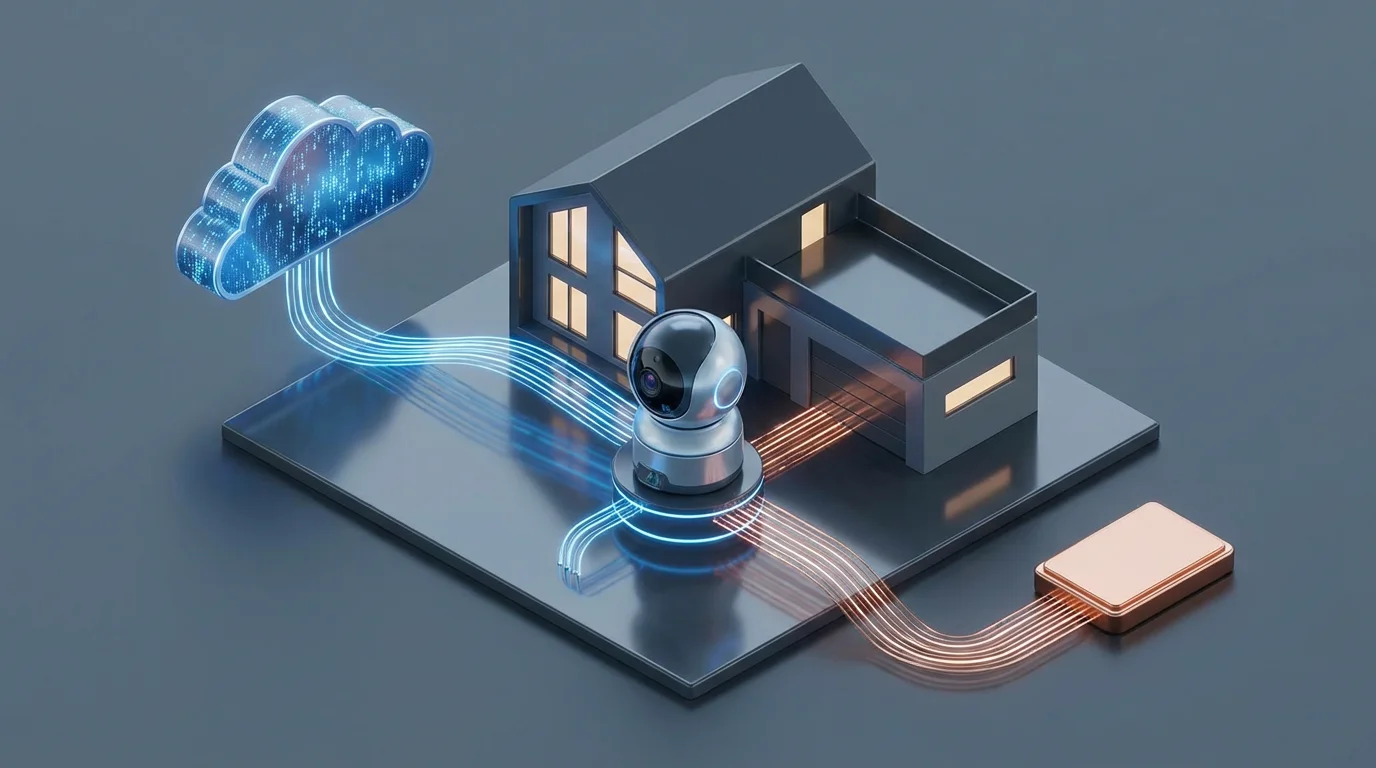
You’ve decided to upgrade your home security with smart cameras. You have picked out the locations for your video doorbell and backyard floodlights, but now you face a critical decision that affects your wallet, your internet speed, and your privacy: how will you store the footage?
Many first-time buyers focus strictly on resolution or night vision, overlooking the storage method. Yet, the storage type determines whether you pay a monthly fee forever or buy hardware upfront. It dictates whether your footage survives an internet outage or vanishes when the Wi-Fi drops. It also controls who actually owns the video of your front porch.
This guide breaks down the debate between local storage and cloud storage. You will learn the hidden costs of subscriptions, the privacy benefits of keeping data at home, and how to decide which method fits your lifestyle.

Understanding the Basics: How Storage Works
Before diving into the pros and cons, it is helpful to define exactly what happens when your camera detects motion. In a modern smart security system, the camera wakes up, records a clip, and processes that data. Where that data goes next defines your system.
Cloud Storage means the camera encrypts the video file and uploads it immediately to a remote server managed by the manufacturer (like Ring, Google Nest, or Arlo). You access this footage through an app, which retrieves the file from the internet.
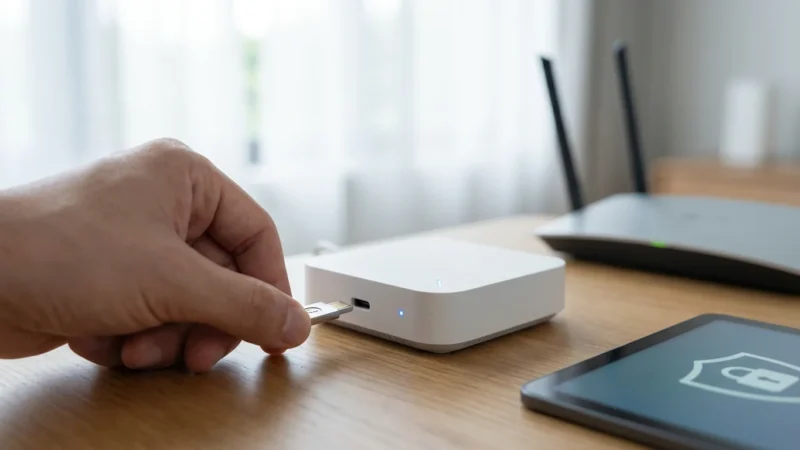
Local Storage means the video file stays within your home. It writes data to a physical medium you own. This typically takes one of three forms:
- SD Cards: A small memory card inserted directly into the camera.
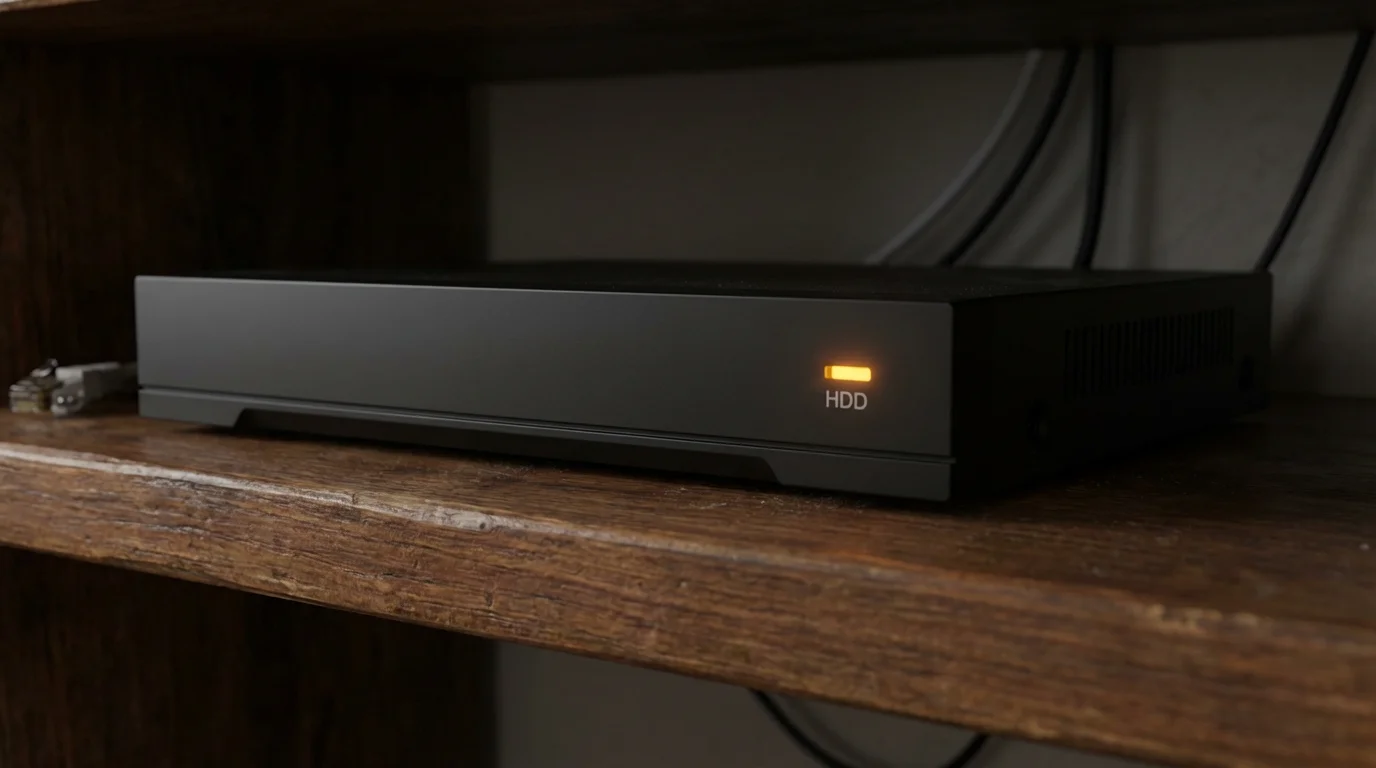
- Network Video Recorder (NVR): A dedicated box with a hard drive that acts as a central hub for all your cameras.
- Network Attached Storage (NAS): A general-purpose home server that can run surveillance software along with other file storage tasks.

The Case for Cloud Storage: Convenience and AI
Cloud storage is the default for most mainstream consumer cameras. Manufacturers push this model because it generates recurring revenue, but it also offers genuine benefits for the average homeowner who wants a “set it and forget it” experience.
The primary advantage is off-site security. If a burglar breaks into your home and steals the camera itself, the footage of the crime is safe on a remote server. You can still open your phone, download the clip, and hand it to the police. With purely local storage, if the thief steals the camera containing the SD card, the evidence is gone.
Advanced Features and AI
Cloud processing often powers the smartest features of modern cameras. Because the video is analyzed by powerful remote servers, cloud-based cameras can often distinguish between a person, a package, a vehicle, and a stray cat more accurately than standalone devices.
Benefits of Cloud Storage:
- Ease of Use: No technical setup required; just connect to Wi-Fi and subscribe.
- Theft Protection: Evidence survives even if the camera or recorder is destroyed or stolen.
- Accessibility: You can view footage from anywhere in the world without configuring complex port forwarding or VPNs on your router.
- Rich Notifications: Many cloud services send a snapshot preview to your phone immediately.
Drawbacks of Cloud Storage:
- Monthly Fees: Subscription costs range from $3 to $10+ per month, adding up to hundreds of dollars over the device’s life.
- Internet Dependency: If your Wi-Fi goes down or your internet service is cut, the camera usually stops recording.
- Bandwidth Usage: Constant uploading can slow down your home network (more on this later).
The Case for Local Storage: Privacy and Control
Local storage appeals to users who value privacy, reliability, and long-term savings. When you choose local storage, you own the hardware. There is no middleman between you and your video feeds.
Reliability is a massive factor here. A camera recording to a local MicroSD card or an NVR will continue to function even if your internet service provider has an outage. As long as you have power (or a battery backup), you have security.
Continuous Recording
Cloud cameras typically record only “events”—short clips triggered by motion. If the motion sensor misses the start of an event, you miss the footage. Local storage systems, especially those using NVRs, often record 24/7. This allows you to scrub through the entire timeline of a day to see exactly what happened before and after an incident.
Benefits of Local Storage:
- No Monthly Fees: You pay for the hardware once, and that’s it.
- Privacy: Your footage stays inside your house. No tech company employee can theoretically access your video feeds.
- Video Quality: Local recording often supports higher bitrates (clearer video) because it doesn’t have to compress the file to save internet bandwidth.
- 24/7 Recording: Easier to achieve with hard drives than with cloud plans.
Drawbacks of Local Storage:
- Hardware Risk: If someone steals the NVR or the camera with the SD card, you lose the footage.
- Initial Cost: Buying an NVR and hard drives requires a higher upfront investment than a cheap cloud camera.
- Remote Access Complexity: Viewing footage while away from home can be slower or require specific app configurations, though modern brands like Reolink and Ubiquiti have improved this significantly.

Analyzing the True Cost Over Time
Smart home technology often carries hidden costs. When comparing cameras, you must look at the “Total Cost of Ownership” over three to five years, not just the sticker price on the box.
Let’s compare a typical cloud ecosystem (like Ring or Nest) against a local storage ecosystem (like Eufy or a Unifi Protect setup) for a home with four cameras.
| Cost Factor | Cloud Ecosystem (4 Cameras) | Local Ecosystem (4 Cameras + NVR) |
|---|---|---|
| Upfront Hardware | $400 – $800 | $600 – $1,000 |
| Storage Media | $0 (Included in sub) | $100 – $200 (Hard drive/SD cards) |
| Monthly Subscription | $10/mo ($120/yr) | $0 |
| 3-Year Total Cost | $760 – $1,160 | $700 – $1,200 |
| 5-Year Total Cost | $1,000 – $1,400 | $700 – $1,200 |
While the local system costs more on day one, the lines cross after about three years. Beyond that point, the local system becomes significantly cheaper. If you expand to more cameras, cloud costs often jump to a higher tier, whereas a local NVR can usually handle 8 to 16 cameras with no extra monthly fee.
“The most expensive smart home device is the one you have to pay for every single month.”

Privacy, Hacking, and Data Security
Security isn’t just about catching bad guys; it’s about keeping your private life private. The storage method you choose dictates your digital vulnerability.
Cloud Privacy Concerns
When you use cloud storage, you trust a third party with intimate views of your home. While major companies use strong encryption, data breaches happen. Furthermore, check the terms of service: some companies reserve the right to share footage with law enforcement without a warrant in “emergency situations.”
You should secure cloud accounts with strong, unique passwords and Two-Factor Authentication (2FA). According to CNET, enabling 2FA is the single most effective step you can take to prevent unauthorized access to your camera feeds.
Local Security Risks
Local storage eliminates the risk of a massive server-side data breach exposing your data. However, it introduces physical risks. If a burglar realizes you have a security system, they may hunt for the recorder. You should hide your NVR in a locked closet, attic, or a false cabinet to ensure the footage survives the break-in.

Impact on Internet Speed and Bandwidth
One often overlooked aspect of cloud cameras is their hunger for upload speed. Most home internet plans have fast download speeds but slow upload speeds.
A single 2K or 4K security camera uploading to the cloud can use 2 to 4 Mbps of upload bandwidth constantly. If you install four cameras, they could saturate your upload connection. This results in:
- Laggy Zoom calls or gaming sessions.
- Slow file backups (like iCloud or Dropbox syncs).
- Poor video quality on the cameras themselves as they fight for bandwidth.
Local storage cameras do not use internet bandwidth for recording. They send data over your internal Local Area Network (LAN) to the recorder. They only use your internet connection when you actively open the app on your phone to view the live feed remotely.

Hybrid Solutions: The Best of Both Worlds
You do not always have to choose one extreme. Many manufacturers now offer hybrid solutions that provide the reliability of local storage with the convenience of the cloud.
- SD Card + Cloud Backup: Brands like Wyze and Eufy allow you to record continuously to a local SD card while also uploading short 12-second clips of motion events to the cloud. This gives you a backup if the camera is stolen, but lets you review the full day’s history locally.
- NVR with Remote Access: High-end systems like Ubiquiti UniFi Protect store video locally on a secure hard drive but offer a cloud-brokered connection app. This lets you view your local footage from anywhere as easily as a Ring camera, without the monthly fees or privacy trade-offs.
- NAS Surveillance Station: If you are tech-savvy and own a Synology or QNAP NAS, you can use their surveillance software. You can configure it to back up critical event clips to a cloud service (like Google Drive or Backblaze) for off-site redundancy.
According to The Verge, hybrid approaches are becoming increasingly popular as users seek to avoid subscription fatigue while maintaining easy access to their smart home data.

Choosing the Right Option for Your Home
Still unsure? Here is a quick breakdown based on your specific situation.
Choose Cloud Storage if:
- You are a renter: You need wire-free cameras that are easy to install and remove.
- You want simplicity: You want a plug-and-play experience and don’t want to manage hard drives.
- You have high-speed internet: specifically, a fiber connection with high upload speeds.
- Budget is short-term: You prefer a low upfront cost ($50/camera) over a high initial investment.
Choose Local Storage if:
- You value privacy above all: You want zero chance of your footage leaking in a server breach.
- You want 24/7 recording: You want to see everything, not just what the motion sensor triggered.
- You have slow internet: You have DSL or satellite internet with data caps.
- You own your home: You can run Ethernet cables for a reliable Power over Ethernet (PoE) NVR system.
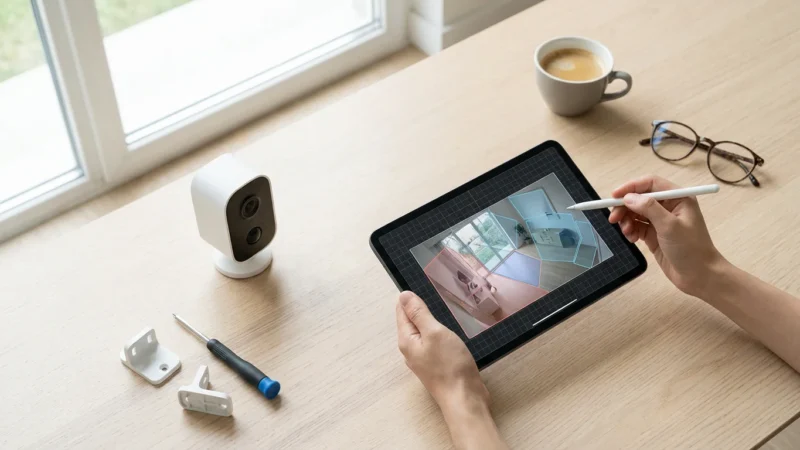
Ultimately, the best security camera is the one you actually use. Whether you choose the convenience of the cloud or the control of local storage, ensure you configure the motion zones correctly and check the lenses regularly to keep your home secure.
Frequently Asked Questions
Can I use a smart camera without a subscription?
Yes. If you choose cameras with local storage options (like an SD card slot or NVR compatibility), you can record and view footage without paying a monthly fee. Brands like Eufy, Reolink, and Wyze offer these features.
What happens to local storage footage if the camera is stolen?
If your footage is stored on an SD card inside the camera, the footage is stolen along with the device. To prevent this, use an NVR (Network Video Recorder) that is locked away inside your home, or choose a hybrid camera that uploads event clips to the cloud as a backup.
Does local storage work when the internet is down?
Yes. Local storage cameras recording to an SD card or a local NVR will continue to record even if your internet connection fails, provided they still have power. You typically won’t be able to view the live feed remotely until the internet is restored.
How much data does a security camera use per month?
Cloud cameras can consume between 60GB and 400GB of data per month depending on resolution and activity levels. If your internet plan has a data cap (e.g., 1TB), adding multiple cloud cameras can cause you to exceed your limit. Local storage cameras do not consume internet data for recording.
Disclaimer: This article is for informational purposes only. Smart home devices involve electrical connections and data privacy. Always follow manufacturer instructions for installation. For complex wiring or HVAC work, consult a licensed professional.



Leave a Reply