
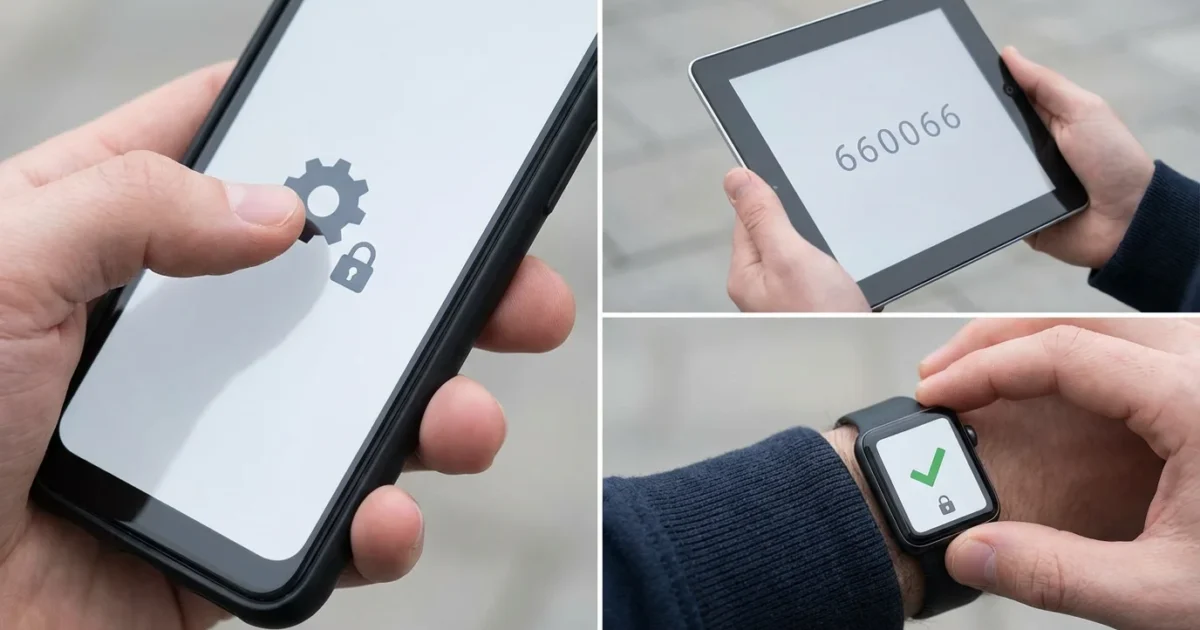
Your smart home offers unparalleled convenience and control, bringing security, efficiency, and comfort right to your fingertips. However, with connectivity comes responsibility. Protecting your digital life extends beyond your computer or phone, encompassing every smart device connected to your network. A crucial layer of defense for your smart home is two-factor authentication, often known as 2FA.
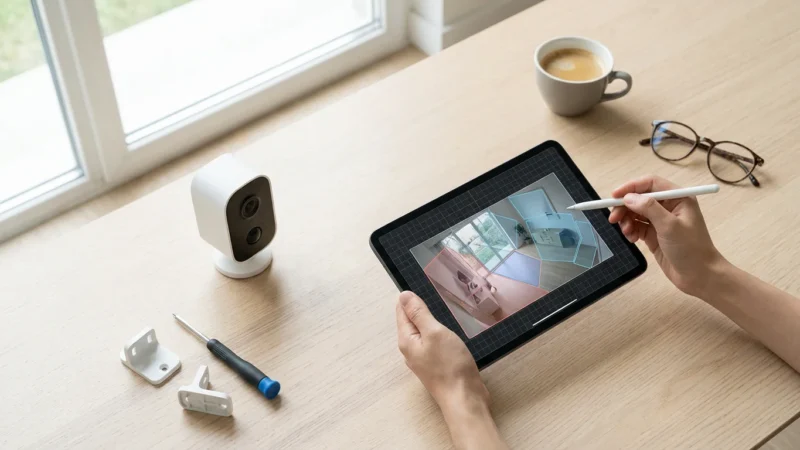
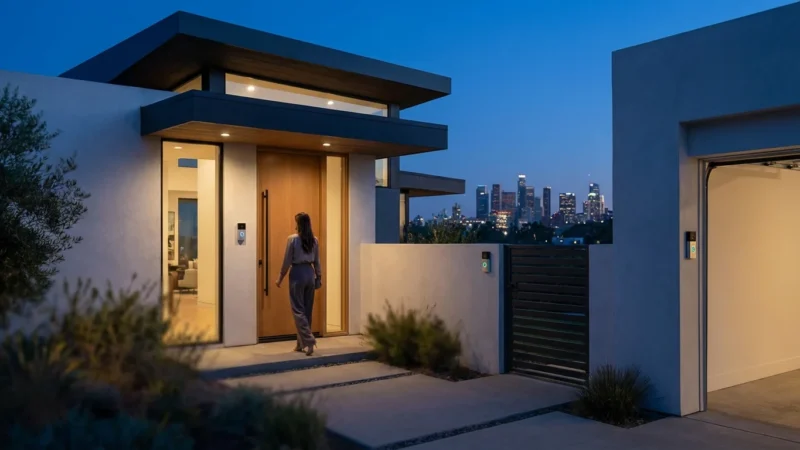
Once you have your credentials locked down, you can safely monitor your home security remotely with full peace of mind.
Setting up two-factor authentication on your smart devices provides a vital barrier against unauthorized access, safeguarding your privacy and the physical security of your home. This comprehensive guide walks you through understanding, enabling, and managing 2FA across your smart home ecosystem, ensuring your connected living space remains secure.
The Urgent Need for 2FA Security in Your Smart Home
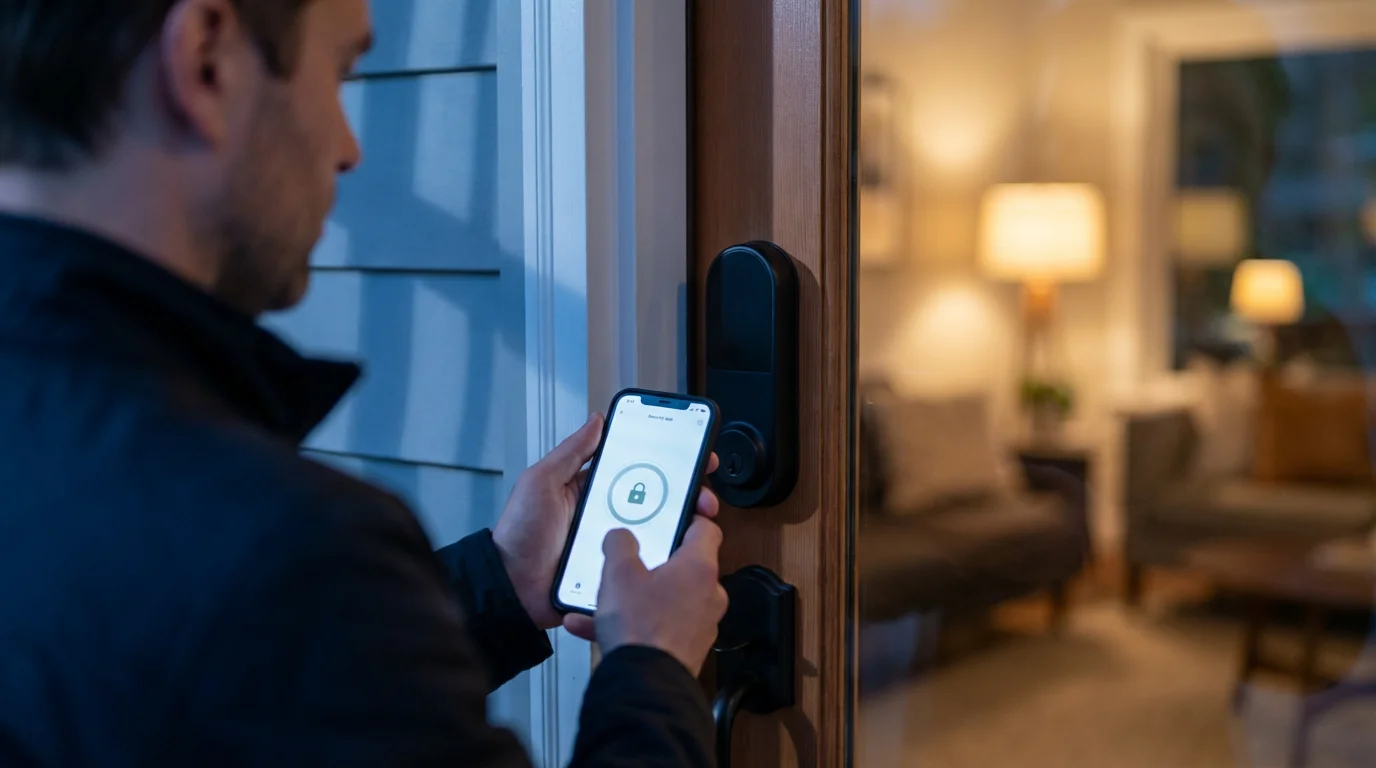
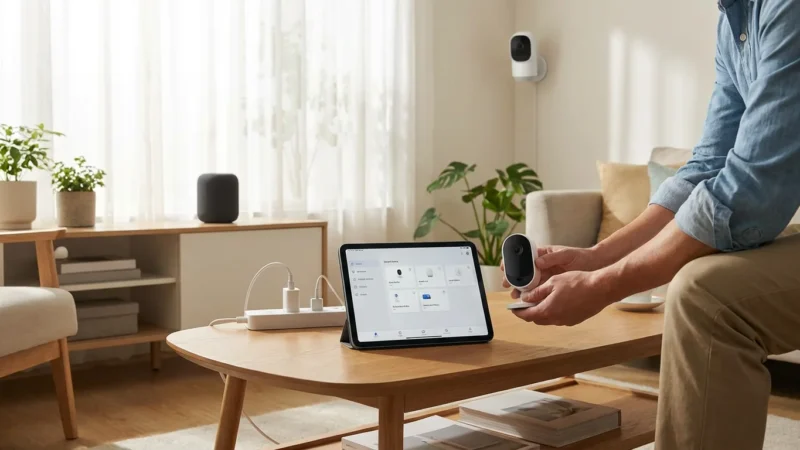
Your smart home devices, from thermostats to security cameras, connect to the internet, creating digital entry points. Without strong security measures, these connections can become vulnerabilities. A compromised smart home account poses significant risks, impacting your privacy and even your physical safety.
Understanding how to secure your smart home from hackers is an essential first step in protecting your digital perimeter.
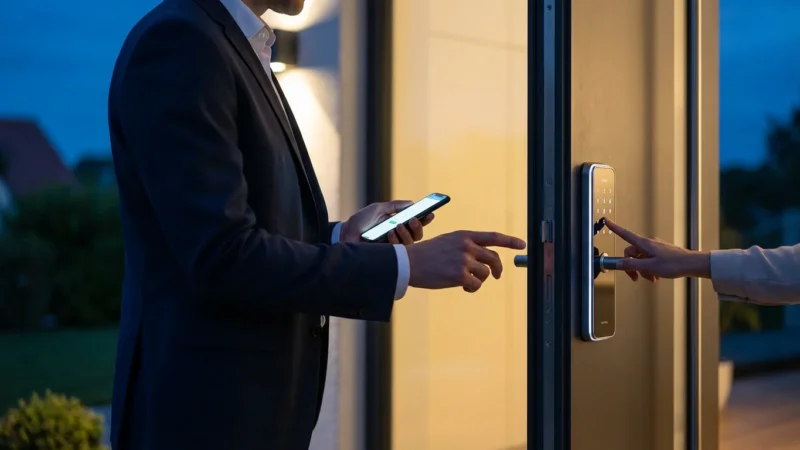
Imagine a scenario where an unauthorized individual gains access to your smart lock system, or views your home through your security cameras. This is not science fiction, it represents a real threat. Weak passwords or forgotten login credentials make these accounts prime targets for cybercriminals. Implementing robust 2FA security directly addresses these risks.
Research consistently shows that 2FA significantly reduces the likelihood of account takeover. By adding a second verification step, you transform a simple password hack into a complex, multi-layered challenge for any potential intruder. This proactive approach to securing smart home accounts is indispensable in today’s connected world.
What is Two-Factor Authentication and How Does it Protect You?
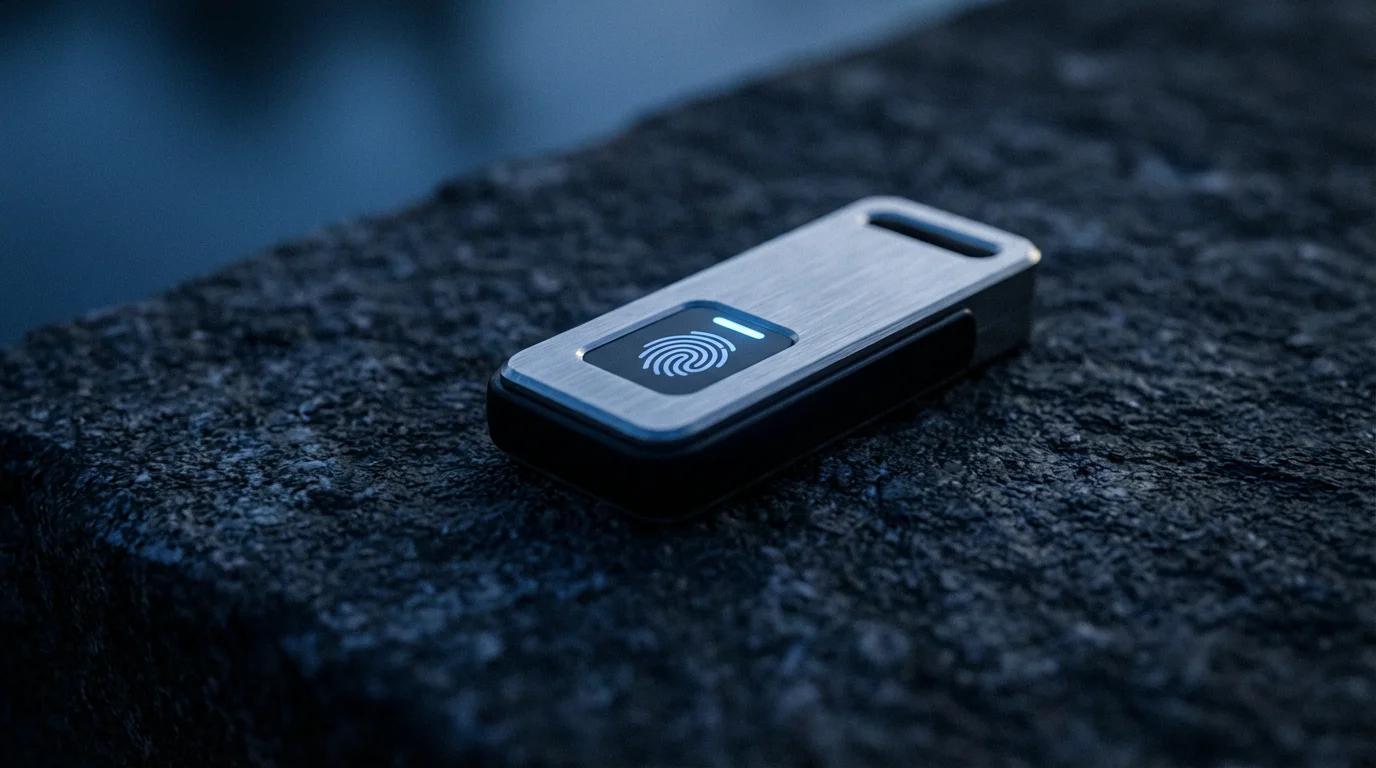
Two-factor authentication (2FA) adds a second layer of verification beyond your password. It demands two distinct pieces of evidence before granting access to an account. Think of it as needing both a key and a fingerprint to open a door, rather than just the key alone.
Typically, 2FA involves something you know (your password) and something you have (like your phone or a physical token). Even if a malicious actor discovers your password, they cannot access your account without that second factor. This makes account protection significantly more resilient against phishing attacks and credential theft.
For your smart home, this translates directly to enhanced security. When you enable 2FA, unauthorized individuals attempting to control your lights, unlock your doors, or access your camera feeds face a much greater hurdle. You secure your digital perimeter effectively, preserving your peace of mind.
Exploring Common 2FA Methods for Smart Devices
Different smart home platforms and devices offer various methods for their 2FA security. Understanding these options helps you choose the most practical and secure solution for your setup.
- SMS Text Message Codes: After entering your password, the system sends a unique, time-sensitive code to your registered mobile phone number. You then enter this code to complete the login process. While convenient, SIM-swapping attacks make this method less secure than authenticator apps.
- Authenticator Apps (e.g., Google Authenticator, Authy): These apps generate unique, rotating six-digit codes directly on your smartphone. The codes refresh every 30-60 seconds and do not rely on cellular networks. Many security experts consider authenticator apps a more secure option than SMS codes.
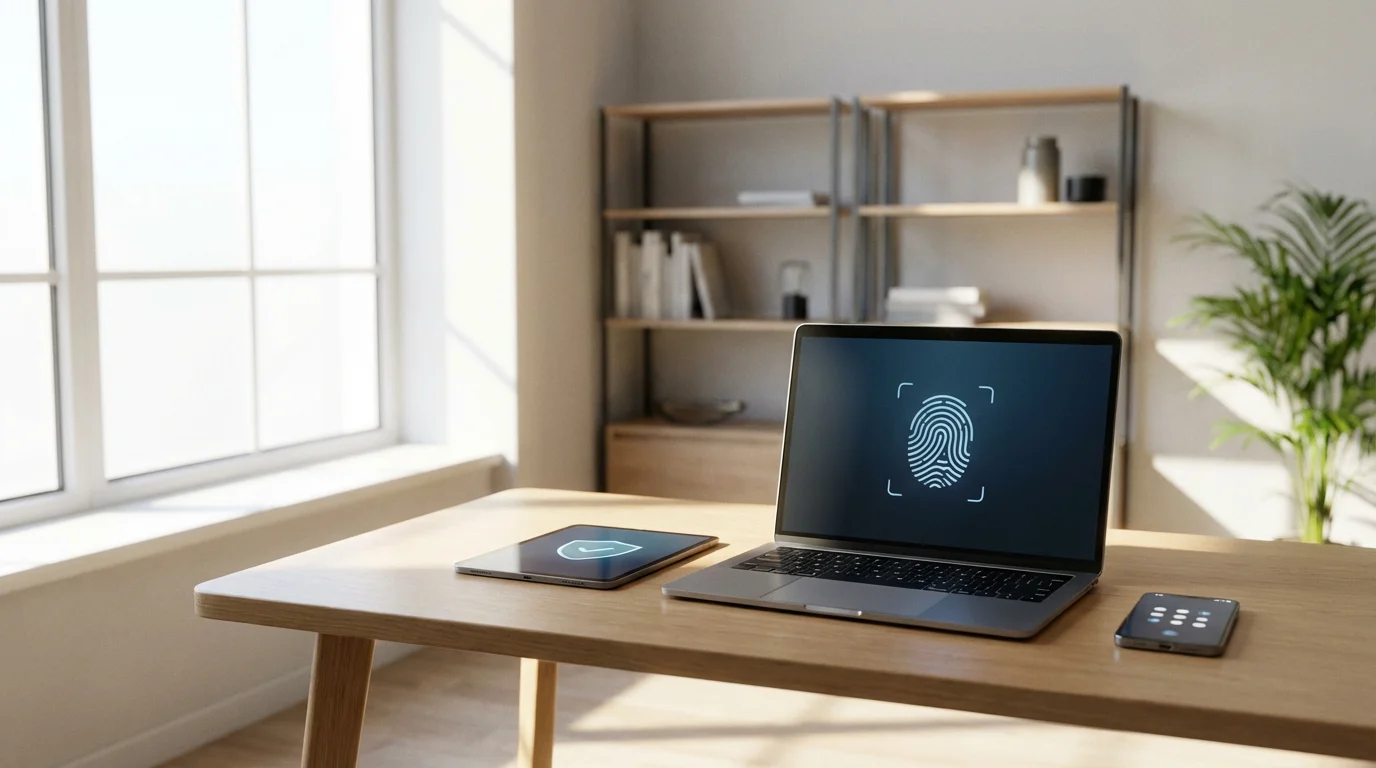
- Biometrics: Some smart devices and apps integrate with your phone’s biometric capabilities, such as fingerprint scanning or facial recognition (Face ID). This provides a fast and highly secure second factor, leveraging something you are.
- Hardware Security Keys: Physical USB devices like YubiKeys offer the strongest form of 2FA. You plug the key into your computer or tap it against your phone to verify your identity. While highly secure, they are less commonly supported by consumer smart home apps compared to SMS or authenticator apps.
Choose the 2FA method that balances convenience with the level of security you need for each specific smart home account. For critical devices like smart locks and security cameras, prioritizing stronger methods like authenticator apps or biometrics is a wise choice.
General Steps to Enable 2FA on Smart Home Accounts
Enabling two-factor authentication follows a similar pattern across most smart device platforms and apps. These general steps provide a roadmap for how to enable 2FA on smart home devices you own.
- Access Account Settings: Open the primary app associated with your smart device or ecosystem (e.g., Google Home, Alexa, Ring, SmartThings). Look for an icon or menu option typically labeled “Settings,” “Account,” “Profile,” or “Security.”
- Locate Security or Privacy Options: Within your account settings, navigate to a section dedicated to “Security,” “Privacy,” “Login & Security,” or “Two-Factor Authentication.”
- Initiate 2FA Setup: You will likely find an option such as “Enable 2FA,” “Two-Step Verification,” or “Multi-Factor Authentication.” Select this option to begin the setup wizard.
- Choose Your Verification Method: The system will prompt you to select your preferred 2FA method. Common choices include receiving codes via SMS text message, using an authenticator app, or setting up a biometric scan. Follow the on-screen instructions specific to your chosen method.
- Verify the Method: If you select SMS, the system sends a test code to your phone. Enter this code into the app to confirm your phone number. For authenticator apps, you typically scan a QR code with the authenticator app, which then starts generating codes. You then input one of these codes back into the smart home app to verify the connection.
- Generate and Secure Backup Codes: Most platforms provide a set of one-time backup codes. These codes are critical for regaining access to your account if you lose your phone or cannot receive your 2FA codes. Download, print, or write down these codes and store them in a secure, offline location, such as a physical safe or a password manager. Do not store them on your phone or computer.
- Confirm Activation: The app typically confirms that 2FA is now active on your account. Moving forward, any login attempt from a new device or browser will require both your password and your second factor.
Regularly review your account security settings to ensure 2FA remains active and your recovery options are up to date. This simple habit fortifies your digital defenses.
Activating 2FA on Popular Smart Home Platforms (Examples)
While the general steps remain consistent, specific platforms have their unique navigation. Here is a look at how to enable 2FA on some widely used smart home ecosystems:
Google Home / Google Nest
Google accounts power many Nest and Google Home devices. Google calls its 2FA “2-Step Verification.”
- Open your Google account settings. You can do this through the Google Home app (tap your profile picture, then “Manage your Google Account”) or directly by visiting account.google.com.
- Navigate to the “Security” tab on the left-hand menu.
- Find “How you sign in to Google” and select “2-Step Verification.”
- Click “Get started” and follow the prompts to add your phone number for SMS codes, or set up Google Authenticator.
- Ensure you generate and save your backup codes.
Amazon Alexa / Ring
Amazon accounts secure your Alexa-enabled devices and Ring security products.
- Log in to your Amazon account on a web browser (amazon.com/a/settings/security).
- Click “Two-Step Verification,” then “Get Started.”
- Choose your primary method: Authenticator App or Phone Number (SMS).
- Follow the instructions to link your authenticator app or verify your phone number.
- You will also have the option to add a backup method, which is highly recommended.
- Save your provided backup codes in a safe place.
Apple HomeKit
Apple HomeKit devices rely on your Apple ID for security, which includes robust 2FA, or “Two-Factor Authentication” as Apple names it.
- On your iPhone or iPad, go to “Settings,” then tap your name at the top.
- Tap “Password & Security.”
- Confirm “Two-Factor Authentication” is turned “On.” If it’s off, follow the steps to enable it, which typically involves verifying a trusted phone number.
- Apple’s 2FA uses trusted devices (like other Apple devices you own) to receive verification codes. You can also generate verification codes manually from a trusted device if you are offline.
- Unlike other services, Apple does not provide static backup codes, relying instead on your trusted devices and recovery key system.
Samsung SmartThings
SmartThings accounts secure your Samsung smart appliances and hubs.
- Open the SmartThings app and tap the menu icon (three lines) in the top left.
- Tap the gear icon or “Settings.”
- Go to “Account details” or “Samsung Account.”
- Look for “Security and privacy” or “Password and security.”
- Enable “Two-step verification” and follow the prompts, usually involving SMS verification or an authenticator app.
These examples illustrate the common approach. Always check the specific app or manufacturer’s website for the most up-to-date instructions for your particular devices and ecosystems. This helps ensure you enable 2FA on smart home devices correctly.
“The strongest digital locks combine something you know with something you have. Two-factor authentication is the simplest and most effective way to achieve this for your online accounts.” – PCMag Smart Home
Best Practices for Robust Smart Home Account Protection
Enabling 2FA is a crucial step, but integrating it into broader security habits enhances your overall account protection. Consider these best practices to fortify your smart home:
- Use Strong, Unique Passwords: 2FA supplements, but does not replace, strong passwords. Create complex, unique passwords for every smart home account. Use a password manager to securely generate and store these credentials.
- Enable 2FA on All Supported Devices: Make 2FA a default for every smart device, app, and platform that offers it. Do not leave any digital entry points unsecured. This includes your router, email, and other critical online accounts.
- Secure Your Recovery Codes: Store your backup codes in a safe, offline location separate from your primary device. Consider a fireproof safe, a secure cloud vault, or a printed copy in a locked drawer. These codes are your lifeline if you lose access to your phone or authenticator app.
- Keep Software Updated: Regularly update your smart devices, apps, and smartphone operating system. Updates often include critical security patches that protect against newly discovered vulnerabilities.
- Review Connected Apps and Services: Periodically audit which third-party apps and services have access to your smart home data. Remove any that you no longer use or trust.
- Beware of Phishing: Be vigilant against emails, texts, or calls that ask for your login credentials or 2FA codes. Legitimate companies rarely ask for this information directly. Always verify the source.
- Consider a Dedicated Authenticator App: For enhanced security, prefer a dedicated authenticator app over SMS for your 2FA codes. SMS codes can be vulnerable to SIM-swapping attacks.
By consistently applying these practices, you establish a resilient defense for your entire smart home ecosystem. Securing smart home accounts becomes an ongoing process, not a one-time setup.
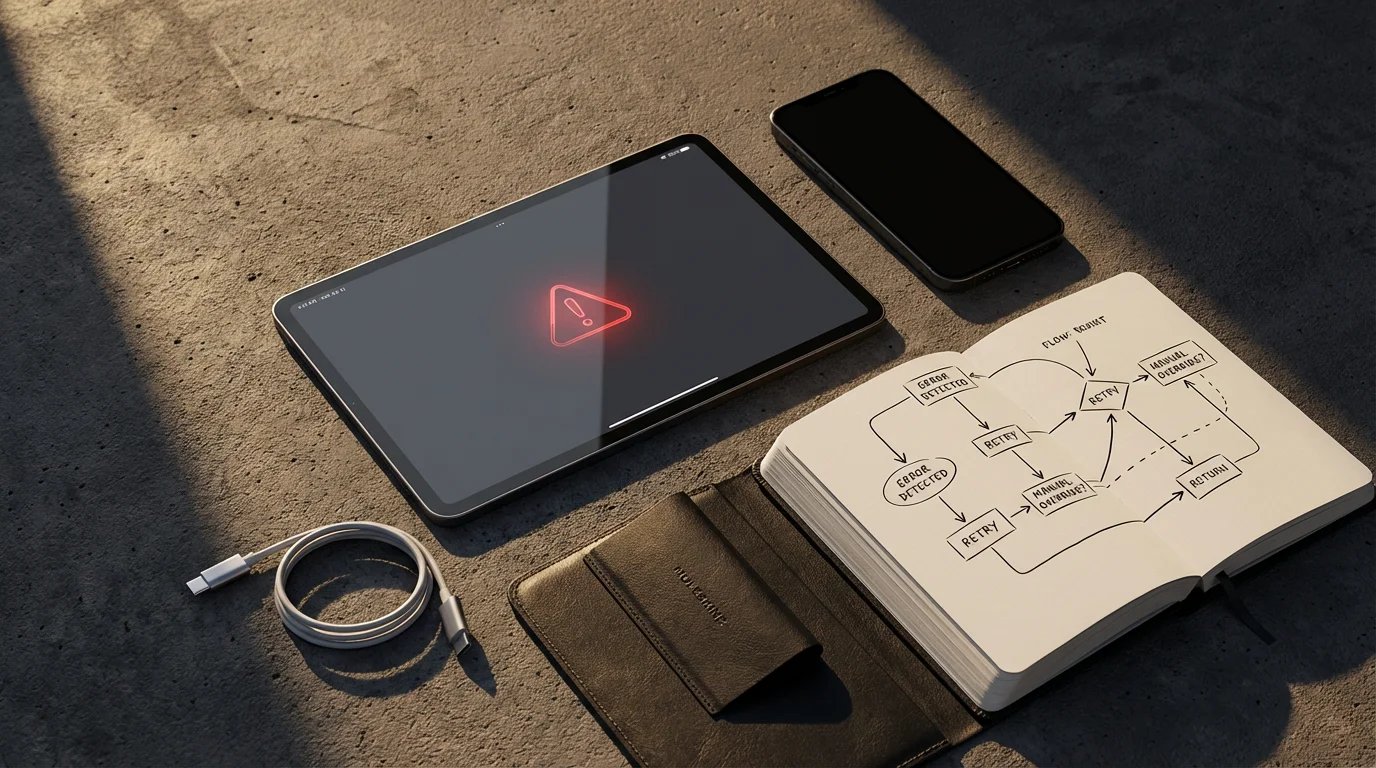
Troubleshooting and Recovering Your 2FA Access
Even with careful setup, you might encounter issues or need to recover access to your account. Knowing how to handle these situations prevents frustration and ensures you retain control over your smart home.
- Lost or Stolen Phone: If you lose your primary 2FA device, immediately use your backup codes to log in and disable the old device’s 2FA access. Then, set up 2FA on your new device. Change your password as a precautionary measure.
- Not Receiving SMS Codes: Check your phone’s signal, ensure airplane mode is off, and verify your registered phone number in the account settings. Sometimes, simply restarting your phone can resolve temporary network issues. Contact your mobile carrier if the problem persists.
- Authenticator App Sync Issues: Ensure your phone’s clock is set to automatic time synchronization. Incorrect time can cause authenticator apps to generate invalid codes. You can usually find this setting under your phone’s Date & Time options.
- Incorrect Backup Codes: Double-check the codes you are entering. They are often case-sensitive. If you suspect you have incorrect codes, and you can still log in using another method, generate a new set of backup codes immediately.
- Locked Out Entirely: If you are completely locked out and have no backup codes, your last resort is the account recovery process provided by the service provider. This can be a lengthy and often frustrating process, requiring significant identity verification. This emphasizes the importance of securing those backup codes.
Proactive management of your 2FA settings, including regularly updating your trusted devices and reviewing recovery options, helps you avoid these common pitfalls.
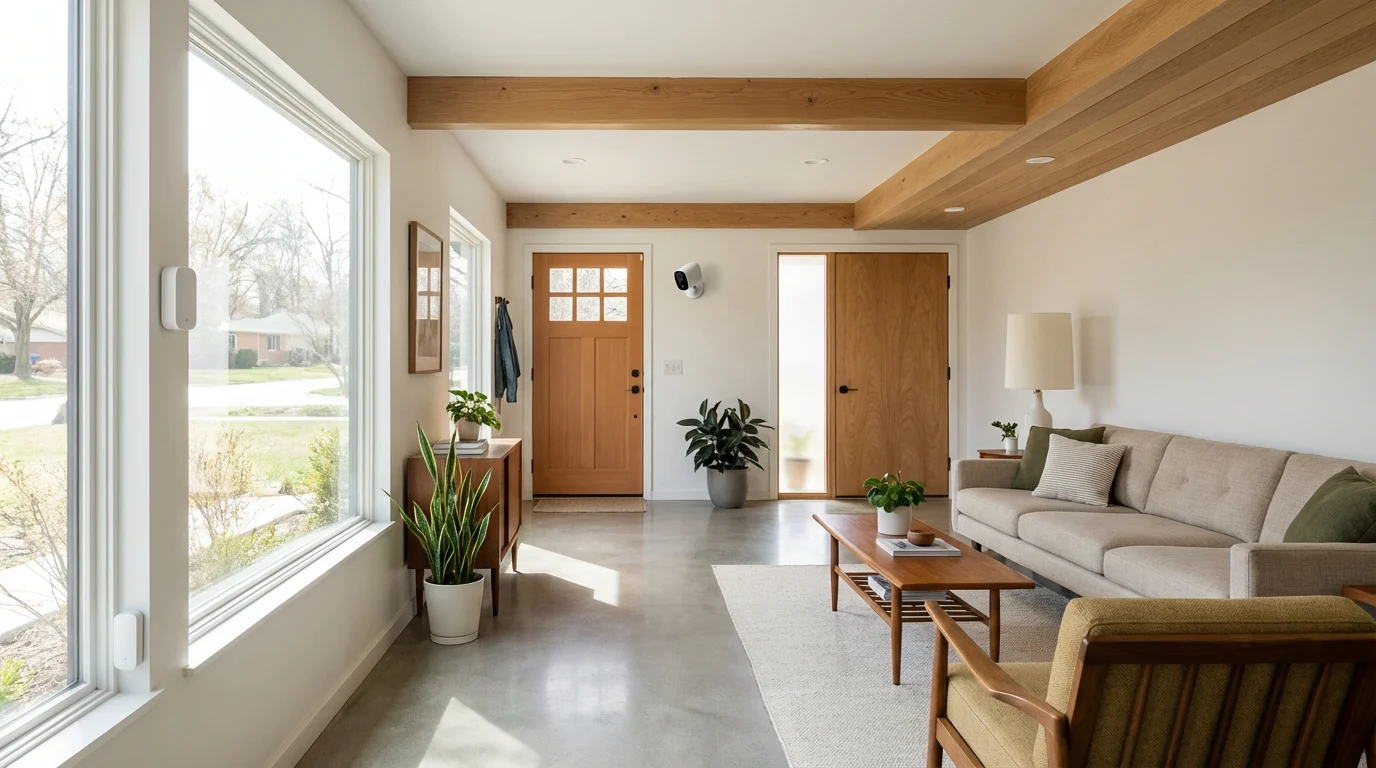
Beyond 2FA: Comprehensive Smart Home Security
While two-factor authentication is critical for account protection, a truly secure smart home integrates multiple layers of defense. Consider these additional measures for a comprehensive security strategy.
For a holistic approach to safety, explore our guide on how to set up a complete smart security system.
- Secure Your Wi-Fi Network: Use a strong, unique password for your router. Enable WPA3 or WPA2 encryption. Consider creating a separate guest network for smart devices that do not handle sensitive information, isolating them from your primary network.
- Firewall Protection: Ensure your router’s firewall is active. This helps prevent unauthorized access to your network from the internet.
- Physical Device Security: Position security cameras and video doorbells securely, out of easy reach. Ensure smart locks have tamper alerts enabled.
- Data Privacy Settings: Review the privacy settings for all your smart devices and apps. Limit data collection and sharing where possible. Understand what data your devices collect and how manufacturers use it.
- Regular Audits: Periodically review all your smart devices and their associated accounts. Remove old devices you no longer use, and update passwords and 2FA settings for active ones.
- Understanding Cloud vs. Local Storage: For security cameras, understand the difference between cloud storage and local storage. Cloud storage offers convenience but relies on external servers. Local storage (e.g., SD card, NVR) keeps footage within your home, which some users prefer for privacy.
By combining strong `two-factor authentication` with these additional security practices, you build a resilient and trustworthy smart home environment. You gain confidence in your smart home’s ability to protect your family and your data.
Frequently Asked Questions
Is two-factor authentication absolutely necessary for my smart home devices?
Yes, two-factor authentication is essential for securing smart home accounts. It adds a critical layer of defense beyond your password, significantly reducing the risk of unauthorized access to your devices, personal data, and home security systems. This protection safeguards your privacy and physical security.
What if I lose my phone and cannot receive 2FA codes?
If you lose your phone, you can regain access using the backup codes generated during your 2FA setup. Store these codes in a secure, offline location. Alternatively, some services offer account recovery processes, though these can be more time-consuming.
Do all smart home devices support 2FA?
Most major smart home platforms and devices from reputable manufacturers now support 2FA, especially those with associated user accounts for remote access or cloud services. However, some older or very basic devices might not. Always check the security settings within each device’s app or manufacturer’s website.
Should I use SMS or an authenticator app for 2FA?
An authenticator app (like Google Authenticator or Authy) generally provides stronger 2FA security than SMS text messages. Authenticator apps generate codes directly on your device, making them less vulnerable to SIM-swapping attacks. Use an authenticator app whenever possible for critical smart home accounts.
How often should I review my 2FA settings and backup codes?
You should review your 2FA settings and ensure your backup codes are securely stored at least once a year, or whenever you get a new phone or make significant changes to your smart home setup. This practice ensures your recovery options remain current and accessible.
Disclaimer: This article is for informational purposes only. Smart home devices involve electrical connections and data privacy. Always follow manufacturer instructions for installation. For complex wiring or HVAC work, consult a licensed professional.
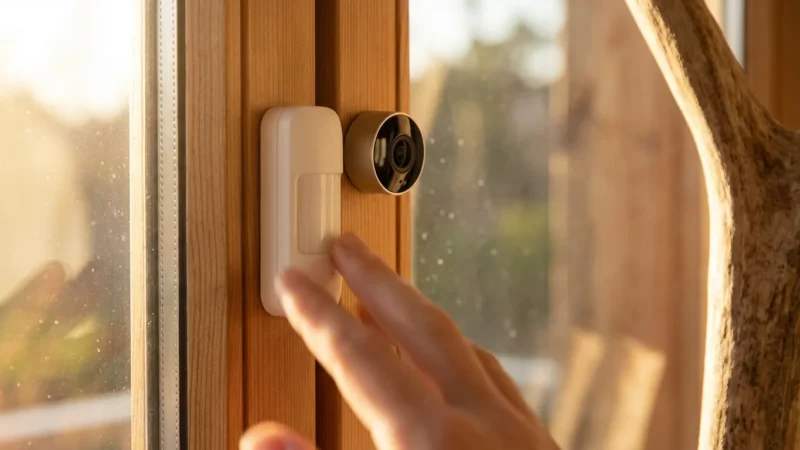
Beyond digital logins, don’t forget the importance of window and door sensors to monitor physical entry points.
Leave a Reply