
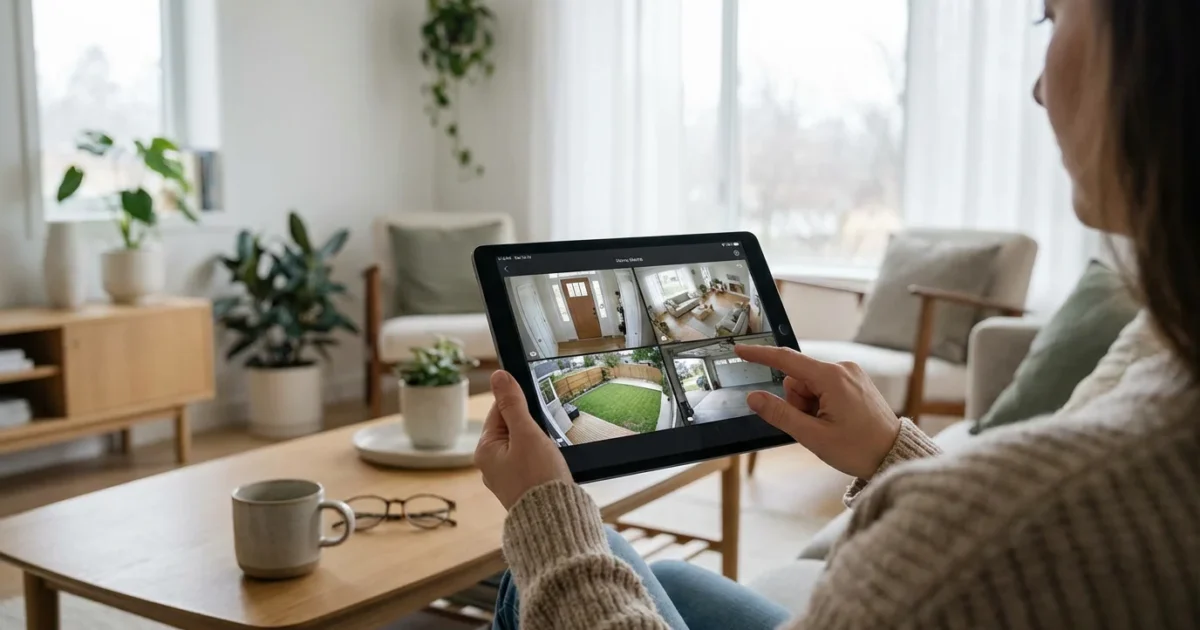
Securing your home provides immense peace of mind. Modern technology offers robust solutions for monitoring your property even when you are away. Remote monitoring capabilities empower you to check on your home, receive instant alerts, and even interact with visitors or intruders from anywhere in the world.
This guide helps you understand the components of a remote home security system. You will learn how to set it up, manage it effectively, and maintain your privacy. Discover how to transform your smartphone into a powerful security hub, ensuring your home remains safe and sound.
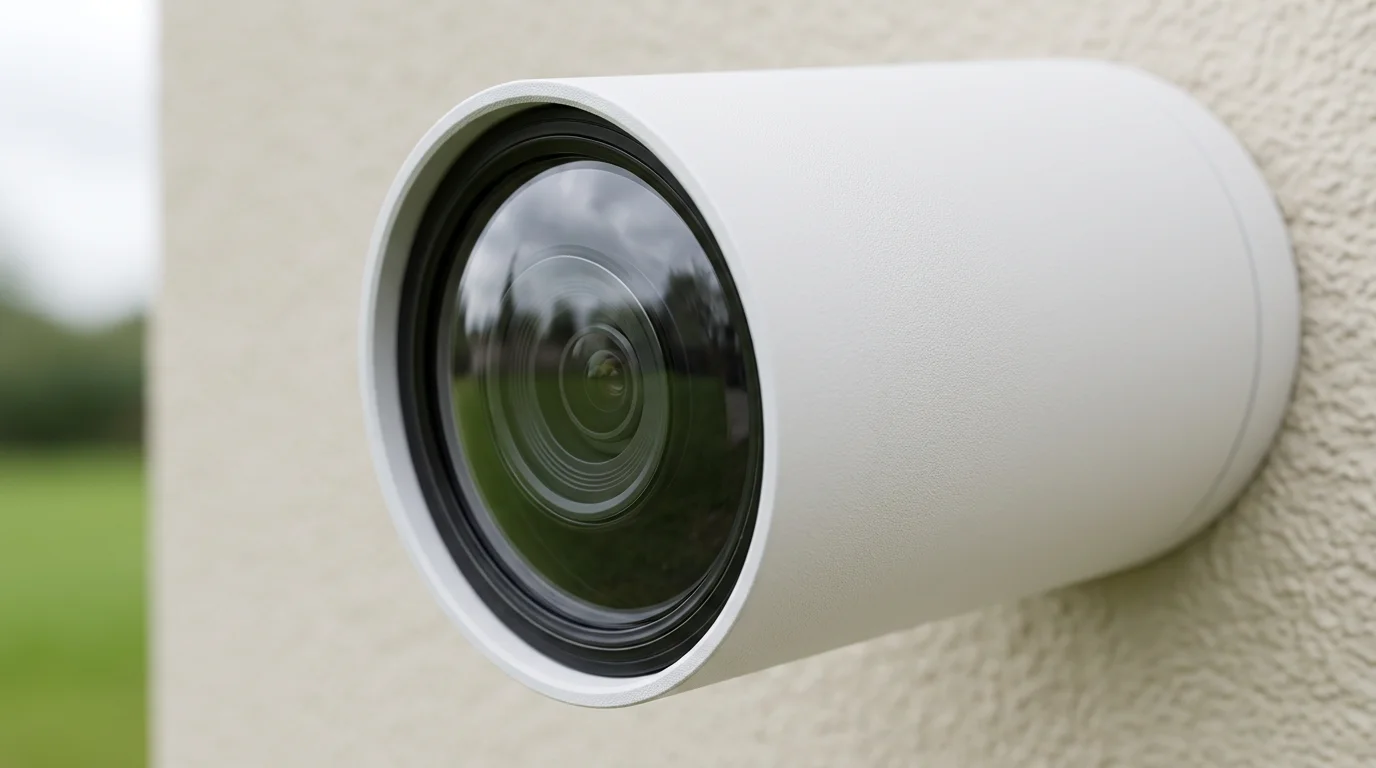
Understanding Remote Home Security Monitoring
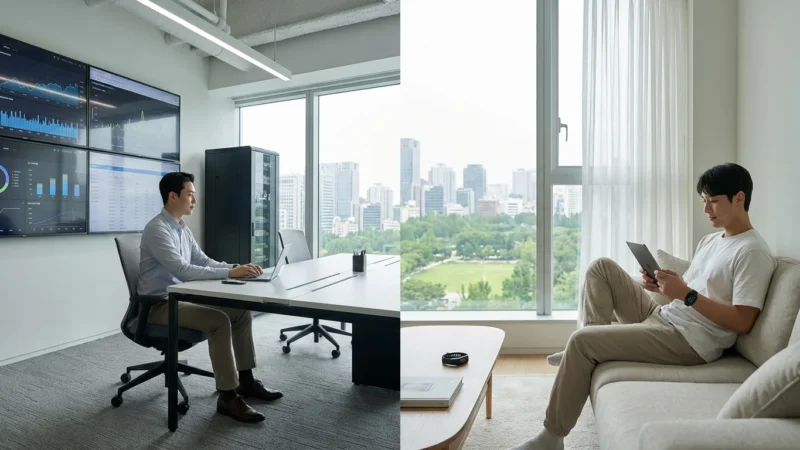
Remote home security monitoring uses smart devices and internet connectivity to provide real-time updates on your property. This system allows you to observe, manage, and react to events at your home from any location. You access your security feed and controls through a dedicated security app on your smartphone, tablet, or computer.
The core benefit of remote monitoring is its ability to extend your awareness beyond your physical presence. You gain immediate insight into activities around your home. This capability ensures you remain connected to your property’s safety, whether you are at work, on vacation, or simply away for a few hours.
Key Features of Remote Monitoring
Modern remote monitoring systems offer a range of powerful features. These capabilities provide comprehensive control and visibility over your home’s security status. Understanding these features helps you select a system that meets your specific needs.
- Live Viewing: Stream video from your security cameras directly to your device. You can check in on your pets, watch for deliveries, or monitor activity around your property in real time. This is a fundamental aspect of how to monitor home security cameras from phone.
- Instant Alerts: Receive push notifications for detected motion, opened doors, or unusual sounds. These alerts prompt immediate action, helping you address potential threats quickly. Your security apps become your first line of defense.
- Two-Way Audio: Communicate with visitors or potential intruders through your video doorbell or camera. This feature allows you to deter unwelcome guests or give instructions to delivery personnel remotely.
- Event Recording: Store video clips of triggered events, either in the cloud or locally. This provides valuable evidence if an incident occurs and allows you to review past activity.
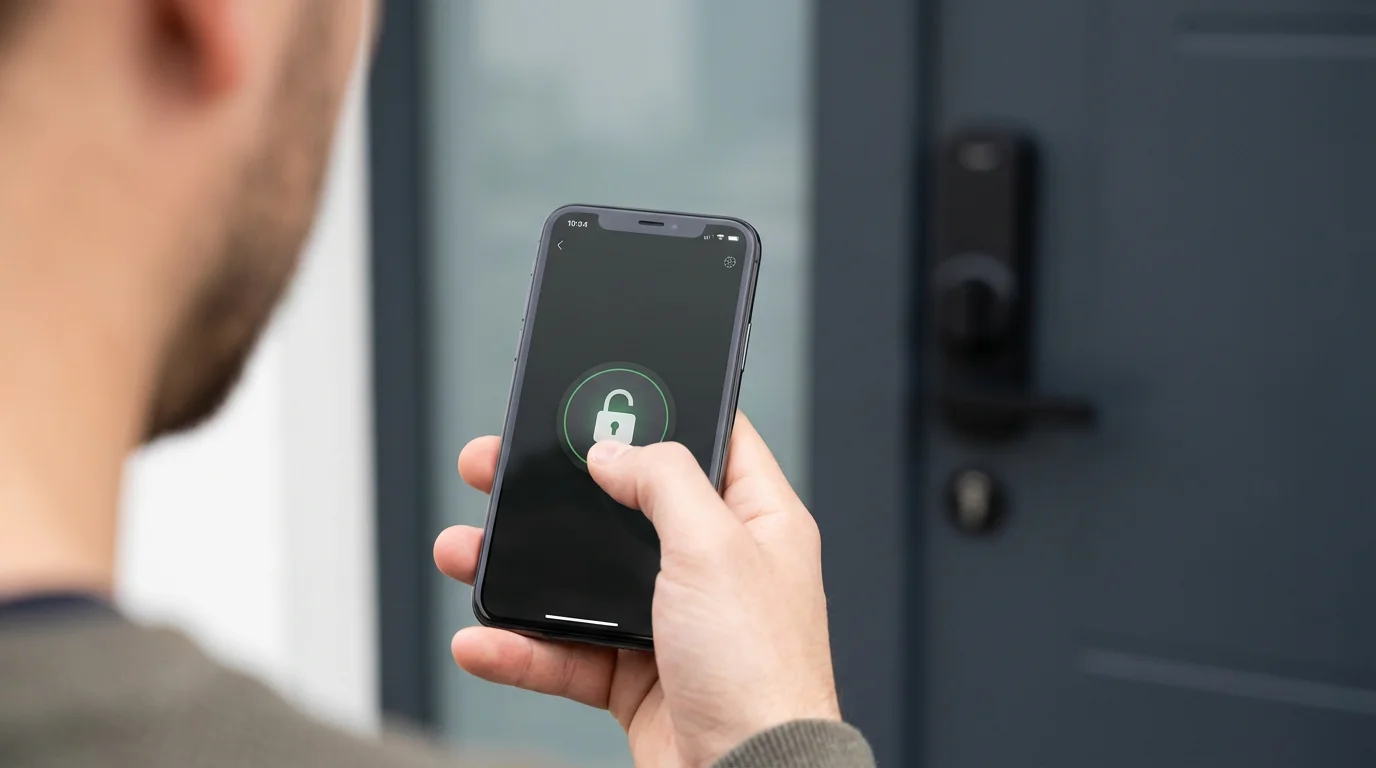
- Remote Control: Arm or disarm your security system, lock or unlock smart locks, and control other connected devices from your security app. This offers unparalleled flexibility and management.
A well-implemented remote monitoring system keeps you informed and in control. It provides robust protection for your home and peace of mind for you.
Essential Devices for Remote Security Monitoring
Building a robust remote security system begins with selecting the right hardware. Each device plays a crucial role in providing comprehensive coverage and actionable insights. Combining these elements creates a layered defense for your property.
Smart Locks and Keyless Entry Systems
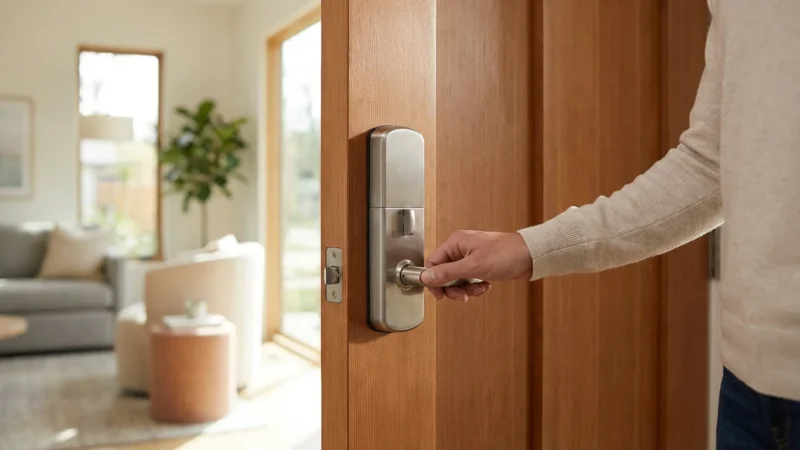
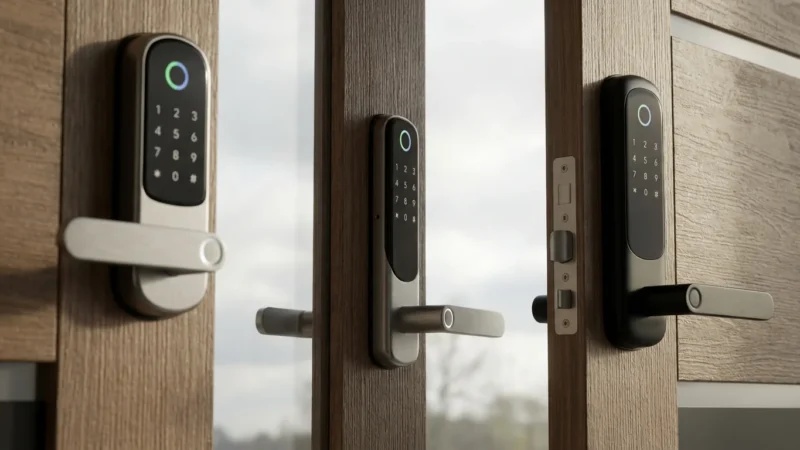
Smart locks replace traditional deadbolts, offering enhanced convenience and control. You can lock or unlock your doors remotely using your security app. They eliminate the need for physical keys, allowing you to grant temporary access to guests or service providers with unique codes.
These systems often integrate with other smart devices, enabling automated actions. For instance, your doors can automatically lock when your security system arms. They also provide activity logs, showing who entered and exited your home, and when.
Video Doorbells and Security Cameras
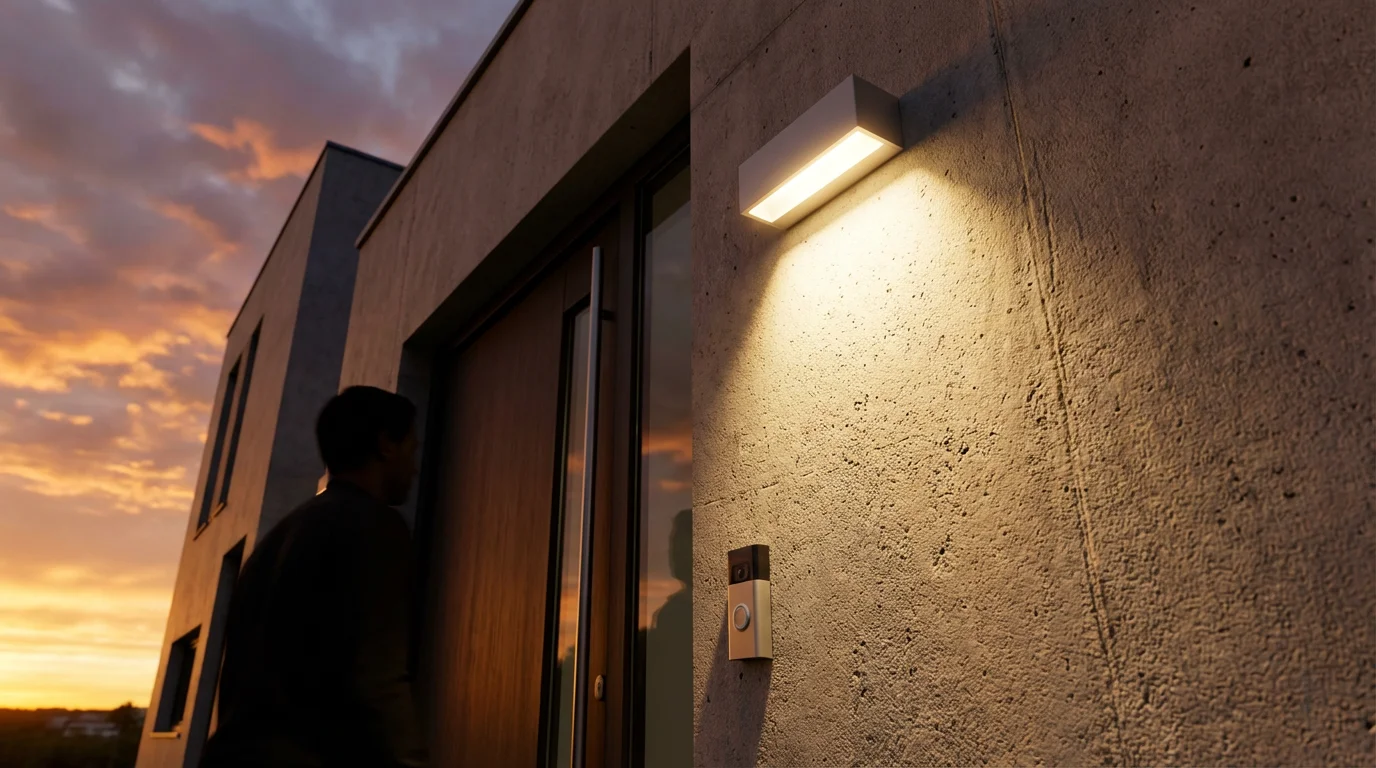
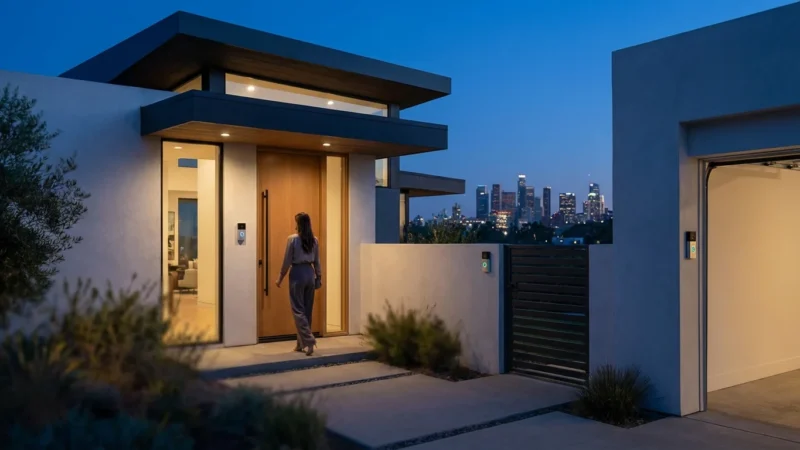
Video doorbells are front-line security devices, combining a doorbell with a camera and motion sensor. They alert you when someone approaches your door, allowing you to see and speak to visitors from your phone. This enhances your home’s perimeter security significantly.
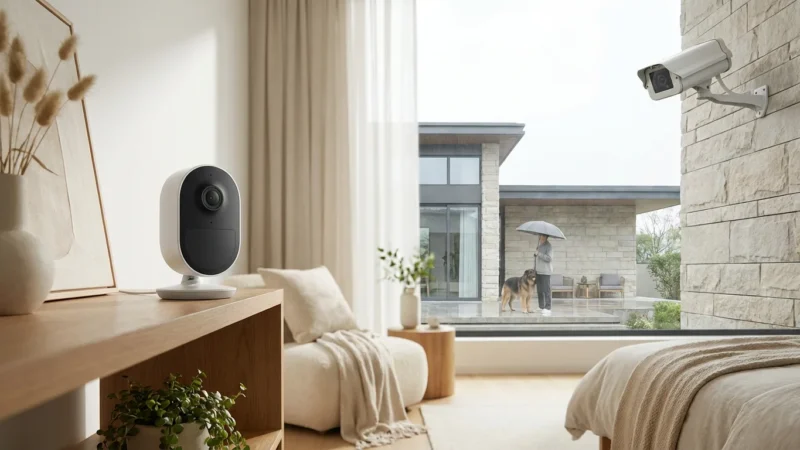
Security cameras extend your visual monitoring capabilities to indoor and outdoor spaces. Modern cameras offer high-definition video, night vision, and motion detection. You choose between wired cameras for continuous power or wireless cameras for flexible placement.
Cloud vs. Local Storage for Cameras
Understanding storage options is vital for your security footage. You typically choose between cloud storage or local storage.
- Cloud Storage: This option saves your video recordings to secure remote servers. It offers easy access from anywhere via your security app. Cloud storage typically involves a monthly subscription fee but protects your footage even if your camera is stolen or damaged.
- Local Storage: This method saves footage directly to a microSD card in the camera or a local network video recorder (NVR). It offers cost savings by avoiding subscription fees and keeps your data within your home network. However, local storage is vulnerable if intruders steal the device containing the storage.
Many systems offer a hybrid approach, combining a small amount of free local storage with optional cloud backup plans. Evaluate your budget, internet reliability, and privacy concerns when making your choice.
Motion Sensors and Window/Door Sensors
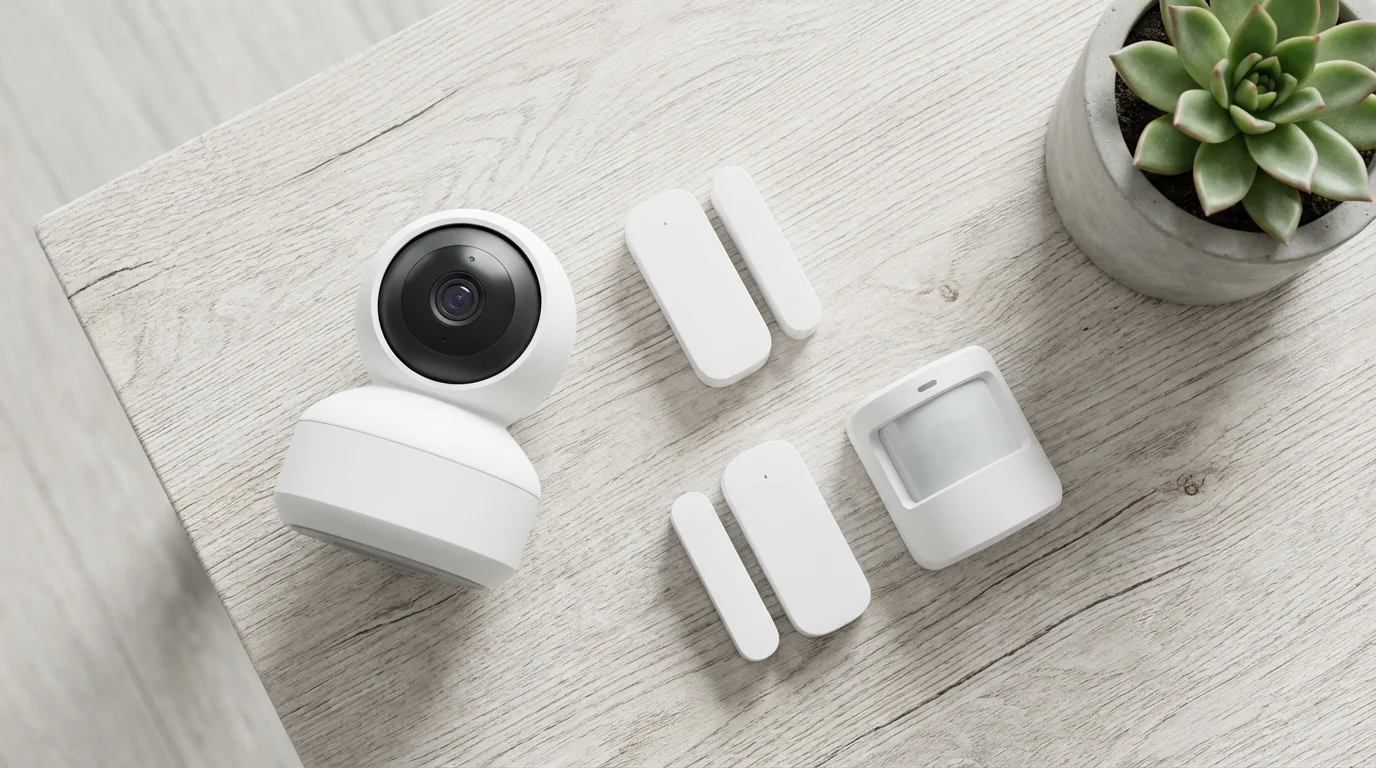
These smaller, discreet devices act as the nervous system of your security setup. Motion sensors detect movement within a designated area, triggering alerts or recordings. Place them in high-traffic zones or near valuable items.
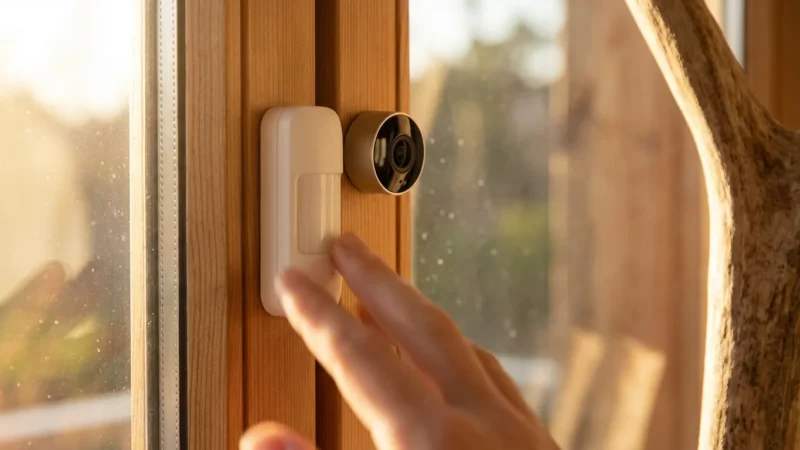
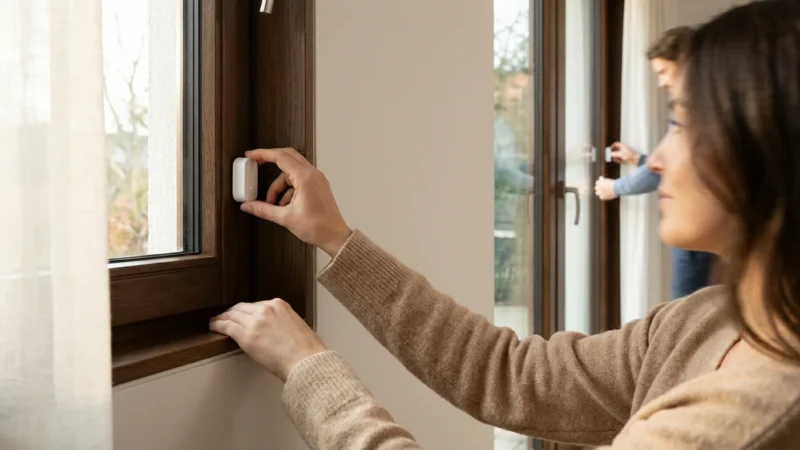
Window and door sensors detect when an entry point opens or closes. Install them on all ground-floor windows and exterior doors. They provide immediate notification of unauthorized access. Both sensor types are critical for comprehensive remote monitoring, providing essential context for any camera alerts you receive.
Smart Security Systems and Professional Monitoring
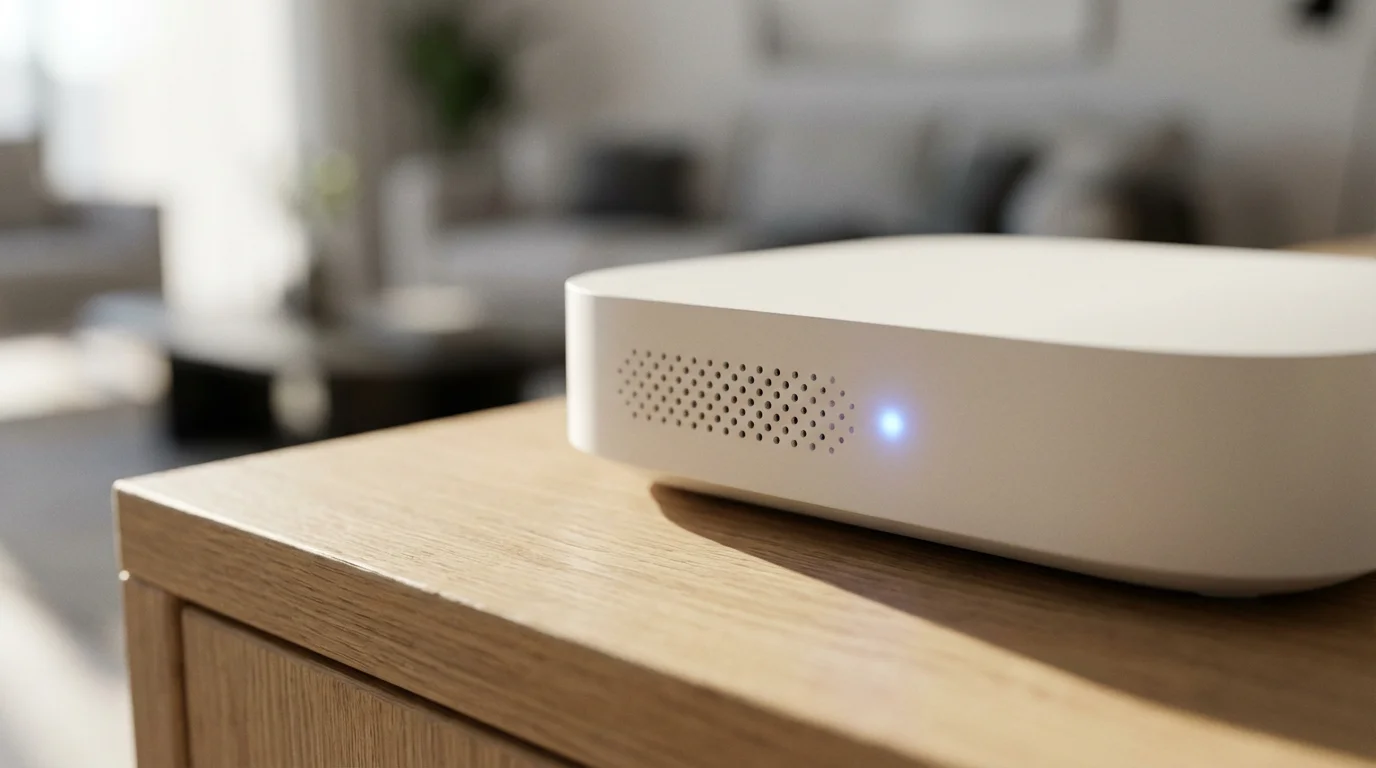
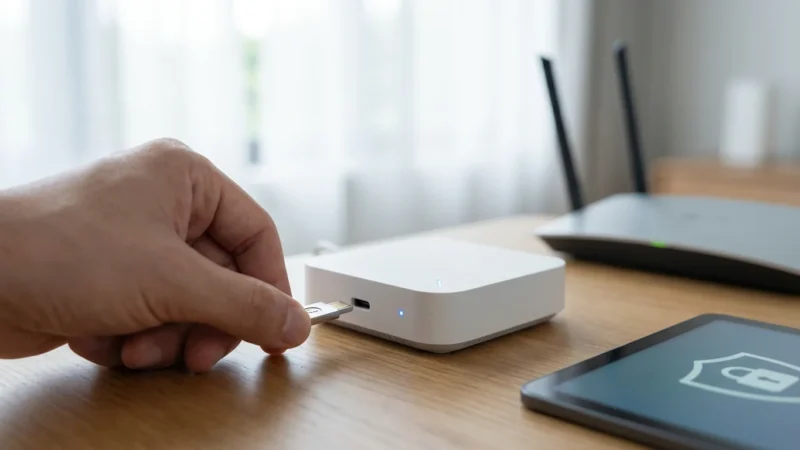
A complete smart security system integrates all these devices into a cohesive network. These systems typically include a central hub that communicates with all sensors and cameras. You control the entire system from one comprehensive best app for home security monitoring.
Many systems offer optional professional monitoring services. With professional monitoring, a third-party company monitors your alerts 24/7. They contact you and dispatch emergency services, like police or fire departments, in response to confirmed threats. This adds an extra layer of protection, particularly when you are unreachable or unable to act on an alert yourself. According to industry analysis, professional monitoring provides rapid response, which can be critical during emergencies.
The integration of multiple smart security devices into a unified system provides layered defense, offering comprehensive protection that individual devices cannot achieve alone.
Setting Up Your Remote Monitoring System
Setting up your remote monitoring system does not require advanced technical skills. Most modern smart home devices design for user-friendly installation. Follow these steps to establish your home’s digital watchful eye.
Step 1: Plan Your Coverage
Before purchasing or installing, assess your home’s vulnerabilities. Identify key entry points, high-value areas, and blind spots. Consider where you need cameras, door sensors, and motion detectors. This planning ensures comprehensive coverage and avoids unnecessary purchases.
- Entry Points: All exterior doors and ground-floor windows.
- High-Value Areas: Living rooms, master bedrooms, home offices.
- Exterior Visibility: Front porch, back patio, garage, side entrances.
Drawing a simple floor plan helps visualize optimal device placement.
Step 2: Choose Your Devices and Ecosystem
Select devices that work well together. Many brands offer a complete ecosystem, like Ring, Arlo, SimpliSafe, or Google Nest. Choosing devices from the same ecosystem often simplifies setup and ensures seamless integration with your security apps.
Alternatively, you can opt for devices that support open standards like Matter or Zigbee. These protocols allow devices from different manufacturers to communicate, offering greater flexibility. Research device compatibility to avoid frustrating integration issues later.
Step 3: Install Your Hardware
Follow the manufacturer’s instructions carefully for each device. Most smart devices include detailed guides and often integrate with their respective security apps for step-by-step installation.
- Power Cameras: Plug in wired cameras or ensure wireless cameras have charged batteries.
- Mount Devices: Secure cameras, video doorbells, and sensors in their planned locations. Use the provided mounting hardware. For video doorbells, you might handle low-voltage wiring; always turn off power at the breaker first. For complex electrical work, consult a licensed professional.
- Connect to Wi-Fi: Pair each device with your home’s Wi-Fi network. This usually involves using the device’s app to scan a QR code or follow on-screen prompts. Ensure your Wi-Fi signal is strong where you install cameras for reliable live viewing.
Step 4: Configure Your Settings
Once devices are installed and connected, customize their settings within the security app. This includes:
- Motion Zones: Define specific areas within a camera’s view that trigger alerts. This prevents notifications from pets or passing cars.
- Sensitivity Levels: Adjust how sensitive motion sensors are to prevent false alarms.
- Notification Preferences: Choose which alerts you receive and how. You can opt for push notifications, emails, or even SMS messages.
- Recording Schedules: Set specific times for cameras to record, or enable continuous recording for critical areas.
Proper configuration ensures your system operates efficiently and provides relevant information without overwhelming you with alerts.
Choosing the Right Security Apps for Your System
The security app acts as your command center for remote monitoring. Selecting the best app for home security monitoring depends on your chosen hardware ecosystem, desired features, and ease of use. A well-designed app makes managing your security intuitive and effective.
Beyond choosing the right software, ensure you know how to secure your smart home from hackers to protect your data and privacy.
Ecosystem-Specific Apps
Most major smart security brands provide their own dedicated apps. These apps offer the deepest integration with their proprietary hardware. Examples include the Ring app, Arlo app, Google Home app (for Nest devices), and SimpliSafe app.
Benefits of ecosystem apps:
- Seamless Integration: Designed specifically for your devices, ensuring full functionality.
- Unified Control: Manage all devices from one interface, including cameras, locks, and sensors.
- Regular Updates: Manufacturers frequently update these apps, improving features and security.
The primary drawback is vendor lock-in; you might find it difficult to integrate devices from other brands if you commit to one ecosystem.
Third-Party Aggregator Apps
Some apps aim to bring devices from different manufacturers under one roof. These aggregator apps are useful if you own a variety of smart home devices that do not share a common ecosystem.
Consider apps that support open standards like Matter or HomeKit. These platforms allow for broader device compatibility. However, support for specific camera features or advanced settings may be limited compared to native apps. For advice on integrating devices across different platforms, you can find valuable insights from sources like Wirecutter, which frequently tests smart home ecosystems.
Key Features to Look for in a Security App
When evaluating security apps, prioritize features that enhance your remote monitoring experience and overall home protection.
- Intuitive Interface: The app should be easy to navigate, with clear controls for live viewing, arming/disarming, and settings.
- Real-Time Notifications: Prompt and reliable alerts for motion detection, door/window openings, and system status changes.
- Cloud Storage Access: Easy access to recorded event footage with options for downloading or sharing.
- Two-Way Audio Support: Functionality to speak through your video doorbell or camera from the app.
- Customizable Settings: The ability to adjust motion zones, notification schedules, and device sensitivities.
- Geofencing: Automatic arming/disarming of your system based on your phone’s location. This adds convenience and reduces false alarms.
- Guest Access Management: Easily grant and revoke temporary access to smart locks or camera feeds for trusted individuals.
- Privacy Controls: Options to turn off cameras, disable microphones, or manage data retention policies.
Always download apps from official app stores to ensure authenticity and protect against malware. Regularly check for app updates to benefit from new features and security patches.
Mastering Live Viewing and Instant Notifications
Your ability to effectively monitor your home remotely hinges on understanding live viewing and managing notifications. These tools keep you informed and empowered, allowing you to react promptly to any situation.
Accessing Live Viewing
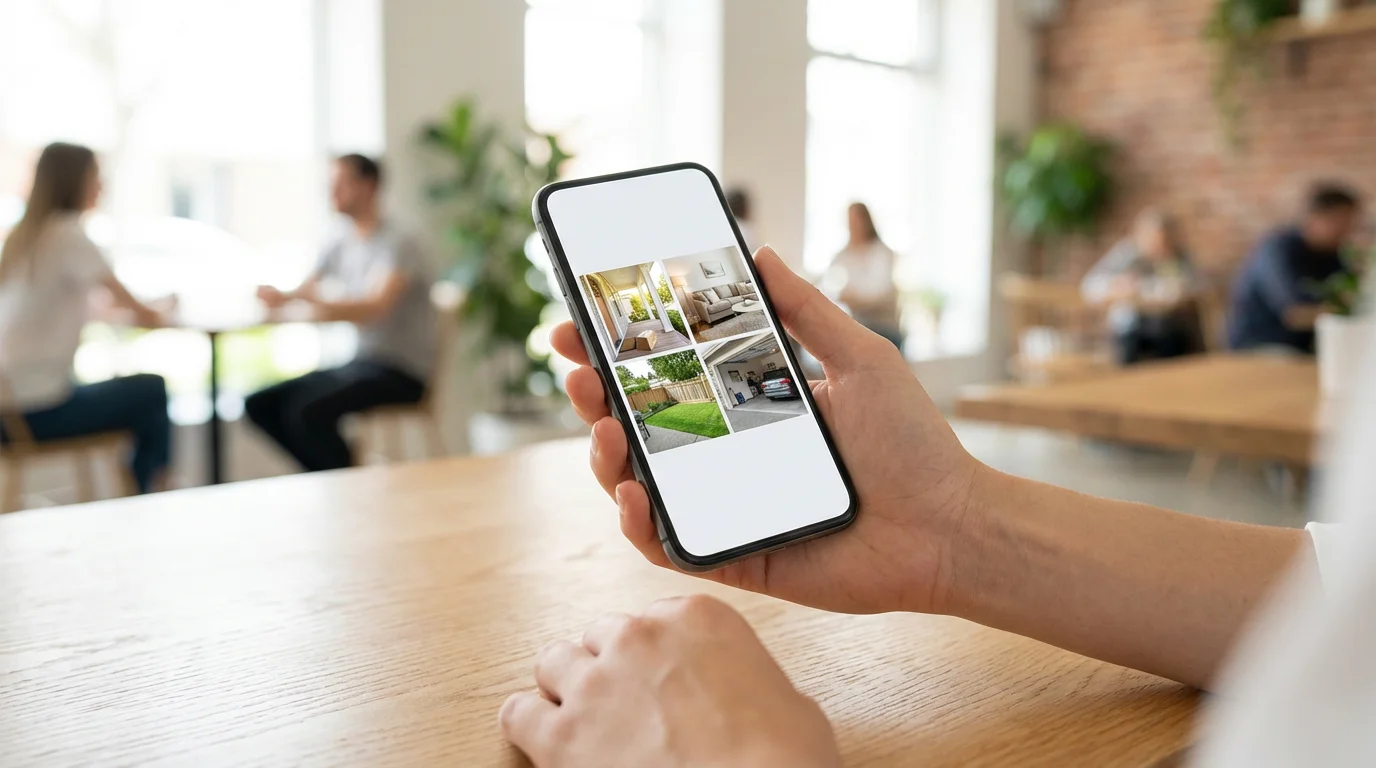
Live viewing provides immediate visual access to your cameras. Open your security app and select the camera you wish to view. Most apps offer a grid view to see multiple camera feeds simultaneously. You can usually pinch to zoom or pan the view for closer inspection.
Ensure your home has a stable and fast internet connection for reliable live viewing. A weak Wi-Fi signal or slow upload speed can cause choppy video or delays. Test your connection quality, especially in areas where you plan to install outdoor cameras. For optimal performance, a dedicated Wi-Fi extender might be necessary in larger homes or properties with thick walls.
Consider the data usage of live viewing, particularly if you have a limited mobile data plan. Continuous streaming can consume a significant amount of data, so use it judiciously when away from Wi-Fi.
Configuring Instant Notifications
Notifications are your system’s way of telling you something is happening. Properly configuring them prevents information overload and ensures you receive critical alerts.
- Identify Critical Alerts: Decide which events warrant immediate notification. Typically, these include motion detection, door/window openings, and alarm system triggers.
- Set Up Motion Zones: Within your camera’s settings, draw specific areas where motion should trigger an alert. Exclude areas like busy streets or neighbor’s property to reduce false alarms.
- Adjust Sensitivity: Experiment with motion detection sensitivity levels. Too high, and you get alerts from blowing leaves; too low, and you might miss important events.
- Schedule Notifications: Many apps allow you to set schedules for notifications. You might only want motion alerts when your system is armed or during specific hours of the day.
- “Quiet Hours” or “Do Not Disturb”: Use these features in your phone settings or within the security app to temporarily silence non-critical alerts during meetings or sleep.
- Review Notification History: Regularly check your app’s event log or notification history. This helps you understand patterns and refine your settings.
Effective notification management balances vigilance with practicality. You want to be aware without being constantly interrupted by non-threatening events.
Enhancing Security with Smart Home Automation
Beyond simple alerts, smart home automation elevates your security system by creating proactive responses to events. You can program devices to work together, making your home more secure and deterring potential threats automatically. These automated routines turn your smart home into an active participant in its own defense.
Automating Lights for Deterrence
Smart lighting systems integrate seamlessly with security devices. You can configure lights to turn on when motion sensors detect activity, even if a camera does not directly cover the area. This sudden illumination can startle intruders and make them think someone is home.
- Motion-Triggered Lights: When a motion sensor near your back door detects movement at night, automatically turn on exterior floodlights or interior lights in the entryway.
- “Away” Mode Lighting: Program smart lights to randomly turn on and off throughout the day and evening when you are away. This simulates occupancy and deters potential burglars.
- Emergency Flashing: In the event of an alarm trigger, have all interior and exterior smart lights flash brightly. This attracts attention from neighbors and emergency services.
These automations create a dynamic environment that makes your home appear occupied and less appealing to intruders.
Integrating Smart Locks with Security Modes
Smart locks offer powerful automation opportunities that enhance security and convenience. Your locks can respond to the status of your security system, adding an extra layer of protection.
Examples of smart lock automations:
- Auto-Lock When Armed: When you arm your security system, automatically check and lock all smart doors. This ensures you never forget to secure your entry points.
- Unlock for Emergency Services: In professional monitoring scenarios, if an alarm triggers and emergency services confirm a need to enter, some systems allow remote unlocking for faster access. This can be crucial in fire or medical emergencies.
- Geofencing for Convenience: Program your doors to unlock automatically when your phone approaches your home. This offers convenient keyless entry. Similarly, locks can secure themselves when you leave a defined geofence perimeter.
Always set up robust PIN codes and strong passwords for your smart locks to prevent unauthorized access.
Using Sirens and Alarms
An audible alarm remains one of the most effective deterrents. Integrate smart sirens or your security system’s built-in siren with motion detectors and door/window sensors. When a sensor triggers, the siren blares loudly, drawing attention and often scaring off intruders.
You can also automate specific actions based on alarm triggers. For example, if a glass break sensor detects a window shattering, the siren activates, lights flash, and your security camera begins recording at maximum resolution. This comprehensive response maximizes your defense strategy.

Privacy and Security Best Practices for Your System
While remote monitoring offers significant advantages, you must prioritize privacy and security. Protecting your data and preventing unauthorized access to your system is paramount. Implementing best practices ensures your smart home remains a sanctuary, not a vulnerability.
Strong Passwords and Two-Factor Authentication (2FA)
The first line of defense for your digital security is strong, unique passwords for all smart home accounts. Avoid simple words or easily guessable sequences. Use a password manager to generate and store complex passwords.
Enable Two-Factor Authentication (2FA) on every possible smart home app and service. 2FA requires a second form of verification, like a code sent to your phone, in addition to your password. This significantly reduces the risk of unauthorized access, even if someone obtains your password. As CNET points out, enabling 2FA is a simple yet powerful step to bolster smart home security.
Secure Your Wi-Fi Network
Your home’s Wi-Fi network serves as the backbone for your entire smart home system. Secure it rigorously:
- Use WPA2 or WPA3 Encryption: These are the strongest encryption protocols for Wi-Fi. Check your router settings to ensure you are using one of these.
- Change Default Router Credentials: Manufacturers often ship routers with default usernames and passwords. Change these immediately to unique, strong combinations.
- Guest Network: Set up a separate guest Wi-Fi network for visitors. This isolates your smart devices from outside access, preventing guests from inadvertently exposing your network.
- Keep Router Firmware Updated: Regularly check for and install firmware updates for your router. These updates often include critical security patches.
Camera Placement and Privacy Zones
Strategic camera placement protects your privacy and the privacy of others. Avoid pointing cameras directly into neighbor’s windows or public areas where you have no expectation of privacy. Be mindful of local regulations regarding surveillance.
Most modern security cameras offer privacy zones or masking features. These allow you to black out specific areas within the camera’s field of view. Utilize these features to exclude private spaces like bathrooms or neighbors’ yards from your recordings. For indoor cameras, consider placing them in common areas and inform family members and guests about their presence.
Data Encryption and Cloud Storage Security
When choosing devices and services, inquire about their data encryption practices. Ensure your video feeds and recordings transmit and store using strong encryption protocols. Reputable companies use end-to-end encryption for live streams and encrypt data at rest in the cloud.
Understand the data retention policies of your cloud storage provider. Some services delete recordings after a specific period, while others keep them indefinitely. You control how long your data remains stored. Review these policies to align with your personal privacy preferences.
Regular Software Updates
Just like your computer or smartphone, your smart home devices require regular software and firmware updates. These updates address vulnerabilities, improve performance, and add new features. Enable automatic updates whenever possible, or make it a habit to check for them manually.
Ignoring updates leaves your system exposed to known security flaws. A proactive approach to updates is a cornerstone of maintaining a secure remote monitoring system.
Troubleshooting Common Remote Monitoring Issues
Even the most robust remote monitoring systems can encounter occasional glitches. Knowing how to diagnose and resolve common issues helps you maintain continuous surveillance and minimizes downtime. Most problems relate to connectivity, power, or software configuration.
“No Connection” or “Offline” Errors
If your camera or sensor shows as offline in your security app, begin by checking its power and network connection.
- Check Power: Ensure the device is plugged in and receiving power. For battery-powered devices, check the battery level or replace batteries if needed.
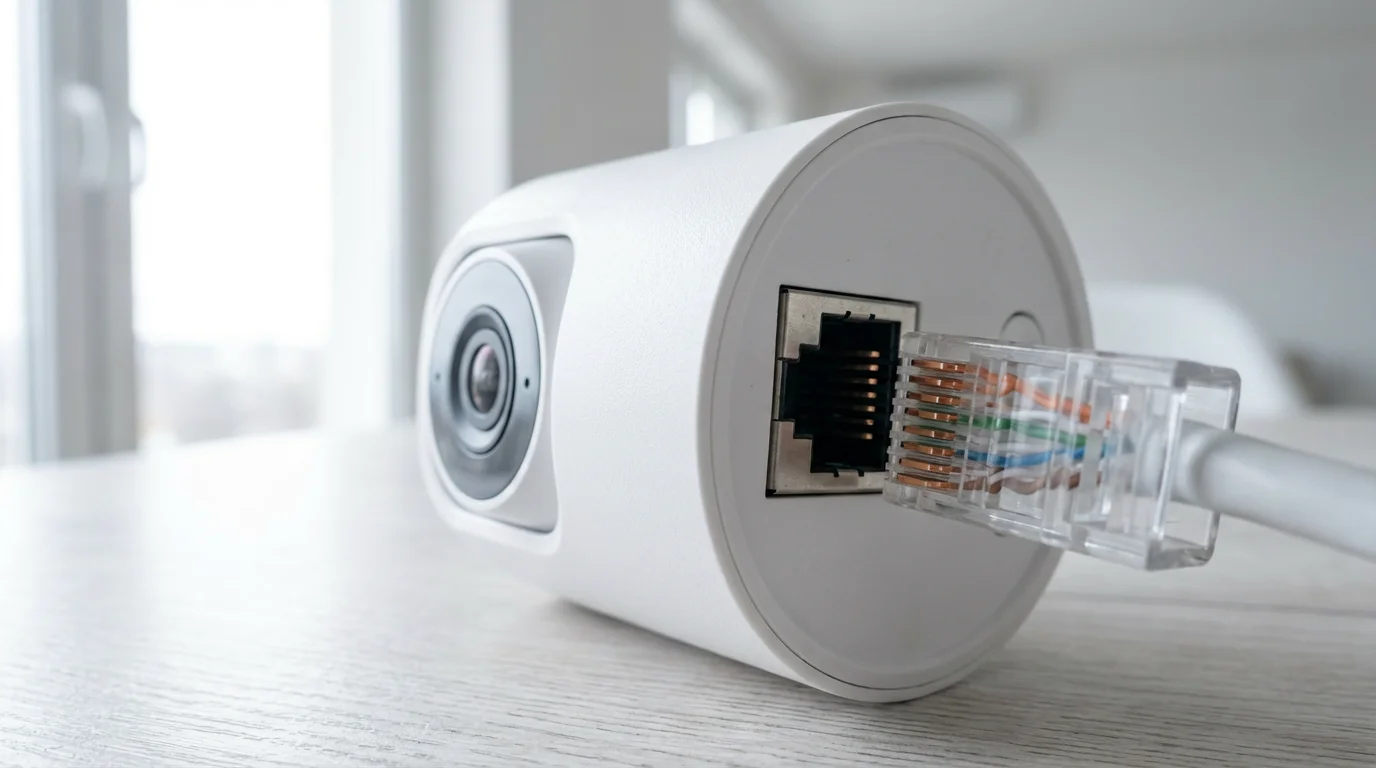
- Router and Wi-Fi: Verify your home Wi-Fi network is active and functioning. Reboot your router and modem. Sometimes, a simple restart re-establishes the connection.
- Signal Strength: If the device is far from your router, the Wi-Fi signal might be too weak. Consider moving the device closer, using a Wi-Fi extender, or upgrading your router.
- Device Reboot: Try power cycling the device itself. Unplug it for 30 seconds, then plug it back in.
- Re-Pairing: If all else fails, you may need to factory reset the device and re-pair it with your Wi-Fi network and security app. Consult the device’s manual for specific instructions.
Frequent False Alarms or Notifications
Excessive false alarms reduce the effectiveness of your system by desensitizing you to real alerts. Address these issues promptly to restore trust in your system.
- Adjust Motion Zones: Redraw motion detection zones in your camera settings to exclude busy streets, tree branches, or areas frequented by pets.
- Lower Sensitivity: Reduce the motion detection sensitivity level. Experiment with different settings to find the sweet spot that captures legitimate activity without triggering for minor disturbances.
- Object Detection: Many advanced cameras offer “person detection” or “vehicle detection” features. Enable these to filter out non-human or non-vehicle movements.
- Environmental Factors: Consider how sunlight, shadows, or even insects near the lens can trigger motion. Clean your camera lens regularly.
- Sensor Placement: For door/window sensors, ensure they are securely mounted and properly aligned. A loose sensor can trigger false open/close events.
Poor Video Quality or Laggy Live Viewing
Subpar video performance compromises your ability to effectively monitor your home. This typically stems from network bandwidth issues or camera settings.
- Internet Speed: Confirm your internet service provider delivers adequate upload and download speeds. High-definition streaming requires substantial bandwidth.
- Wi-Fi Congestion: Too many devices on your Wi-Fi network can slow things down. Consider dedicating a 5GHz band for your cameras if your router supports it.
- Camera Resolution: Lower the camera’s streaming resolution in its settings. While you sacrifice some detail, it reduces bandwidth usage and improves fluidity.
- Proximity to Router: Move the camera closer to your Wi-Fi router or install a mesh Wi-Fi system for better coverage.
- Interference: Other electronics, thick walls, or even dense foliage can interfere with Wi-Fi signals. Try relocating your camera or router to minimize interference.
App Not Responding or Crashing
If your security app is buggy, unresponsive, or crashes frequently, try these general troubleshooting steps.
- Update App: Ensure you use the latest version of the security app. Check your phone’s app store for updates.
- Update Phone OS: Make sure your smartphone’s operating system is up to date.
- Clear Cache: In your phone’s app settings, try clearing the app’s cache. This can resolve performance issues.
- Reinstall App: If problems persist, delete the app and reinstall it. You will need to log back in.
- Contact Support: If the issue continues, contact the device manufacturer’s customer support. They can provide specific guidance for their hardware and software.
Systematic troubleshooting helps you quickly identify and resolve most remote monitoring issues. This keeps your home security vigilant and reliable.
Frequently Asked Questions
Can I monitor my home security without a subscription?
Yes, many smart security cameras and systems offer basic remote monitoring features without a monthly subscription. You typically get live viewing, motion alerts, and often some local storage for recordings. However, premium features like extended cloud storage, advanced AI detection (person vs. package), and professional monitoring usually require a subscription. Always check the product specifications to understand what is included for free versus what costs extra.
What is the difference between cloud and local storage for cameras?
Cloud storage saves your video recordings to remote servers accessible via the internet, often requiring a subscription fee. It offers convenience, remote access, and protection against footage loss if your camera is stolen. Local storage saves recordings directly to a physical device, like a microSD card in the camera or a local hard drive (NVR). It avoids subscription costs and keeps data on-site, but footage can be lost if the storage device is compromised or stolen.
How much internet bandwidth does remote camera viewing use?
The bandwidth usage for remote camera viewing varies significantly based on video resolution, frame rate, and compression. A single 1080p camera streaming continuously can use 1-3 Mbps upload speed. If you have multiple cameras or frequently view live streams, you need a robust internet connection with ample upload bandwidth. Most security cameras only stream high-quality video when an event occurs or you access live viewing, conserving bandwidth during idle times.
Are smart locks truly secure for remote monitoring?
Modern smart locks are highly secure when properly installed and configured. They use advanced encryption protocols for communication and integrate strong authentication methods like 2FA. However, like any connected device, their security depends on strong password practices, updated firmware, and a secure home Wi-Fi network. You should prioritize reputable brands with a strong security track record. Physical security remains important; ensure your door and doorframe are robust.
What should I do if my security app sends a false alert?
If your security app sends a false alert, first, do not panic. Access the live view from your camera to visually confirm the situation. If it is a false alarm, review your camera’s settings within the app. Adjust motion sensitivity, refine your motion detection zones, or enable person-only detection if available. Regularly refining these settings helps minimize false positives and ensures you only receive alerts for genuine concerns.
Disclaimer: This article is for informational purposes only. Smart home devices involve electrical connections and data privacy. Always follow manufacturer instructions for installation. For complex wiring or HVAC work, consult a licensed professional.

Leave a Reply