
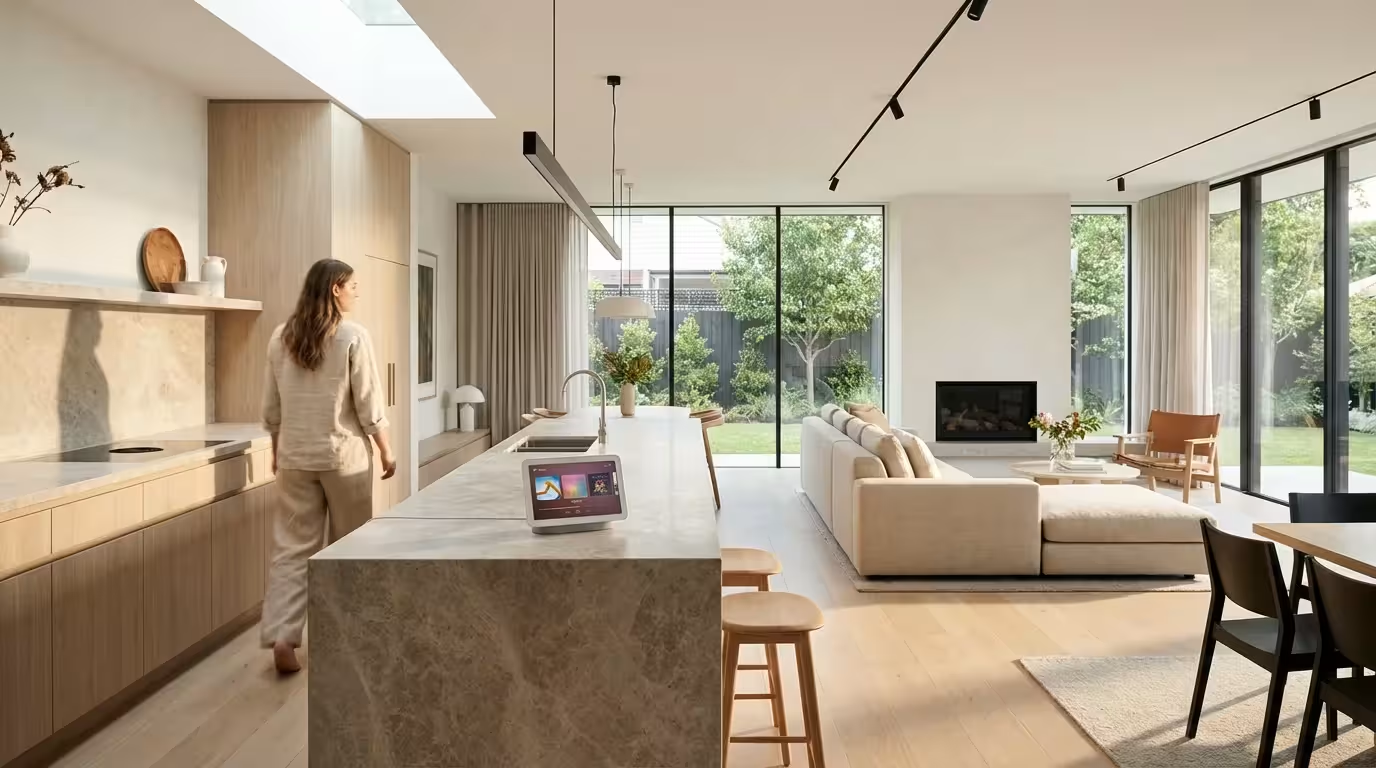
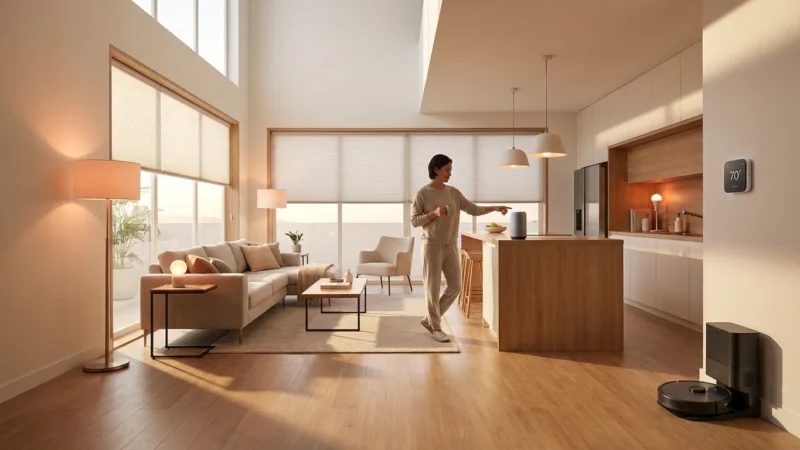
Imagine walking from your kitchen to your living room while your favorite playlist follows you seamlessly, perfectly synced and filling every corner of your house. This isn’t a futuristic luxury anymore; it is a standard capability of modern smart homes powered by Google Assistant. By leveraging smart speakers and displays, you can transform your living space into a connected audio ecosystem without running a single wire through your walls.
Setting up a whole-home audio system used to require expensive receivers, complex wiring, and professional installation. Today, you only need a Wi-Fi connection and a few compatible devices. Whether you want to blast high-energy tracks for a house party or play gentle jazz in the study while keeping the rest of the house quiet, Google Assistant offers granular control over your listening experience.
This guide will walk you through everything you need to know, from selecting the right hardware to mastering the voice commands that make managing your music effortless.
Essential Hardware for Whole-Home Audio
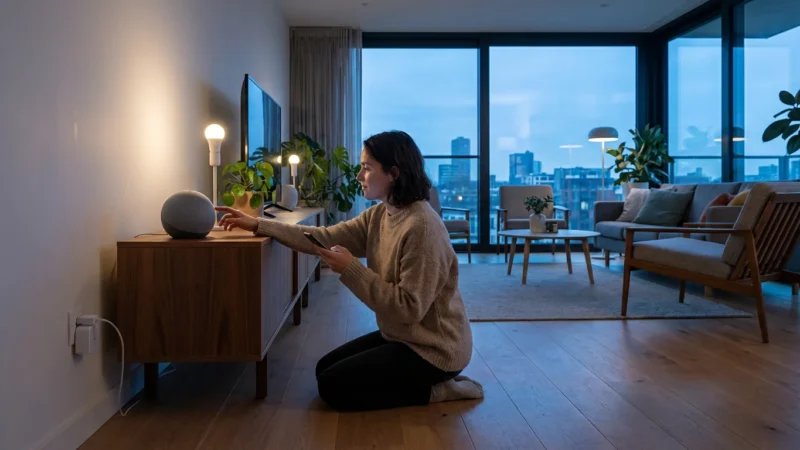
Before you can issue voice commands, you need the right equipment. The Google Home ecosystem is flexible, allowing you to mix and match different types of speakers based on the size of your room and your audio quality requirements.
First-Party Google Nest Devices
The most seamless experience usually comes from Google’s own hardware line. These devices are designed specifically for Assistant integration and receive updates first.
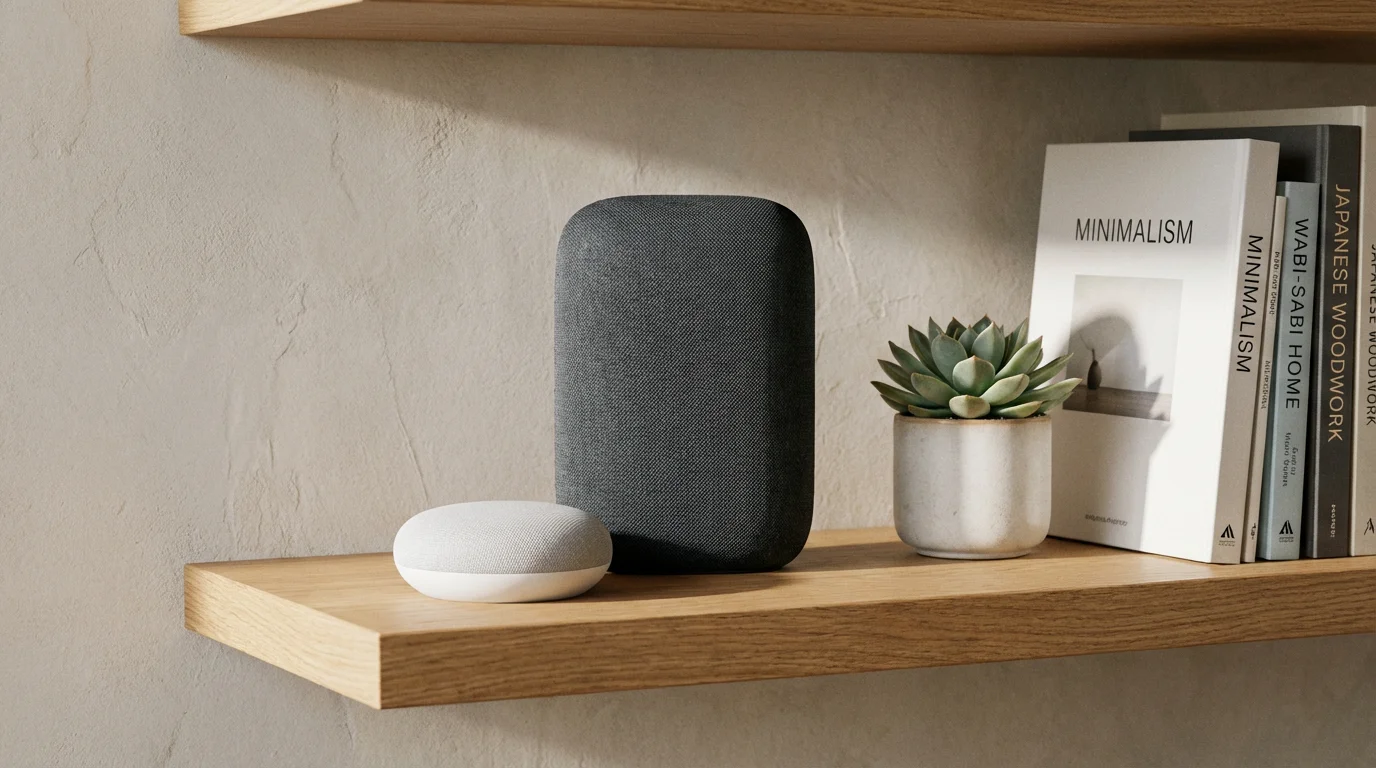
- Nest Audio: The standard for music lovers. It offers robust sound, distinct bass, and pairs easily in stereo mode for a traditional left-right audio setup in a living room.
- Nest Mini: Ideal for smaller spaces like hallways, bathrooms, or bedside tables. While it lacks the bass of the Audio, it ensures your voice commands are heard everywhere.
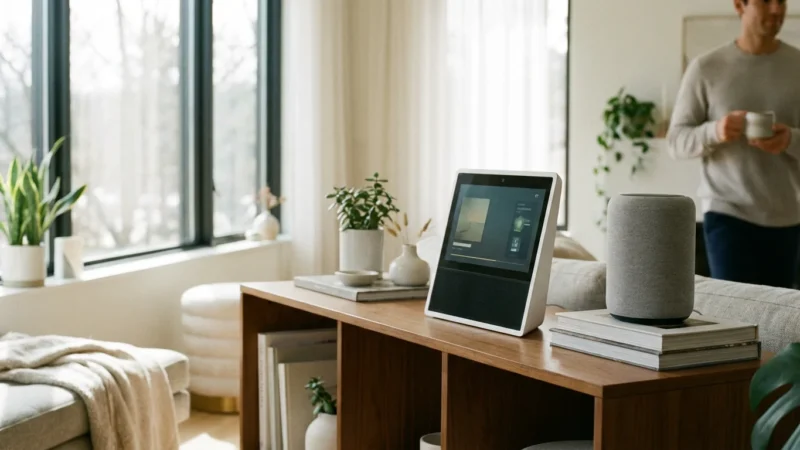
- Nest Hub (and Hub Max): These smart displays show album art and playback controls on a screen. They are perfect for kitchens where you might want to tap a screen to skip a song when your hands are messy.
Third-Party Speakers and Soundbars
You are not limited to Google’s brand. Many audiophile-grade brands integrate Google Assistant or “Chromecast built-in.” According to Wirecutter’s smart home research, investing in third-party soundbars or portable speakers from brands like Bose, Sonos, or JBL can significantly upgrade your audio fidelity while maintaining the same voice control features.
Connecting Your Favorite Music Services
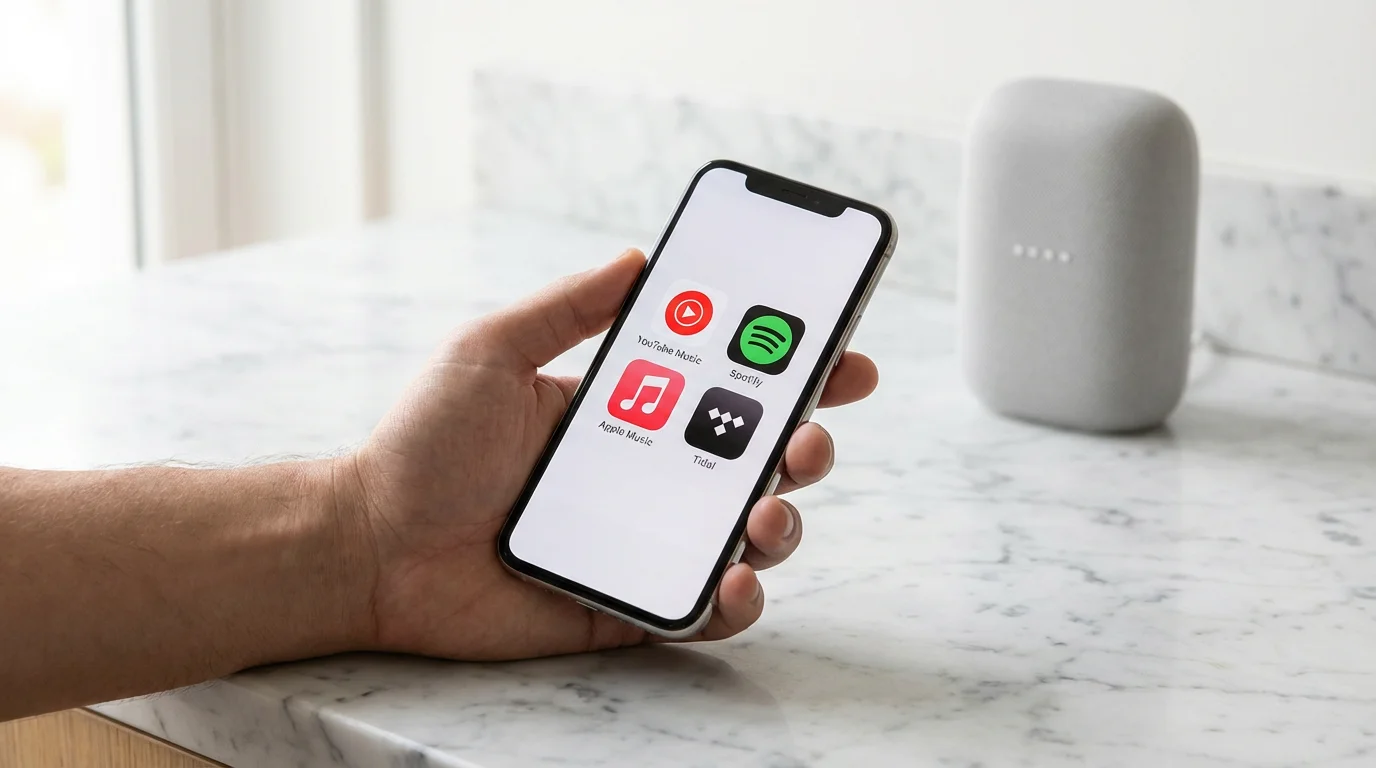
Google Assistant acts as a DJ, but it needs a library of music to draw from. You must link your preferred streaming services within the Google Home app to get the best results. If you don’t link a specific account, Google will default to YouTube Music, which may not have your curated playlists.
Supported Services
Google supports most major platforms, though specific availability can vary by region. The primary supported services include:
- YouTube Music: Deeply integrated, allowing for specific song requests and music video playback on smart displays.
- Spotify: Excellent for handing off music between your phone and speakers (Spotify Connect).
- Apple Music: Fully supported on Google Nest devices, giving Apple subscribers a viable alternative to HomePod.
- Pandora / Deezer: Great for radio-style listening.
How to Set Your Default Provider
To avoid saying “on Spotify” at the end of every command, you should set a default provider.
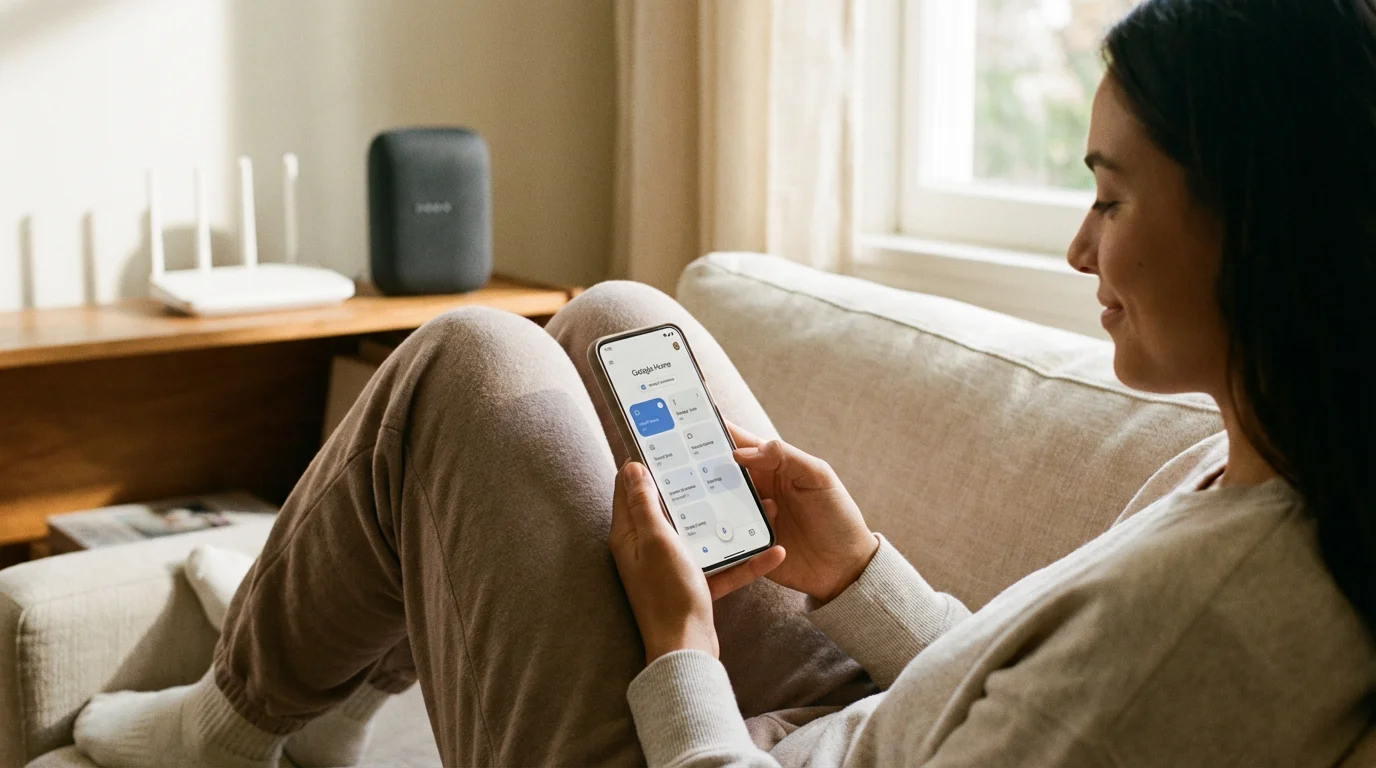
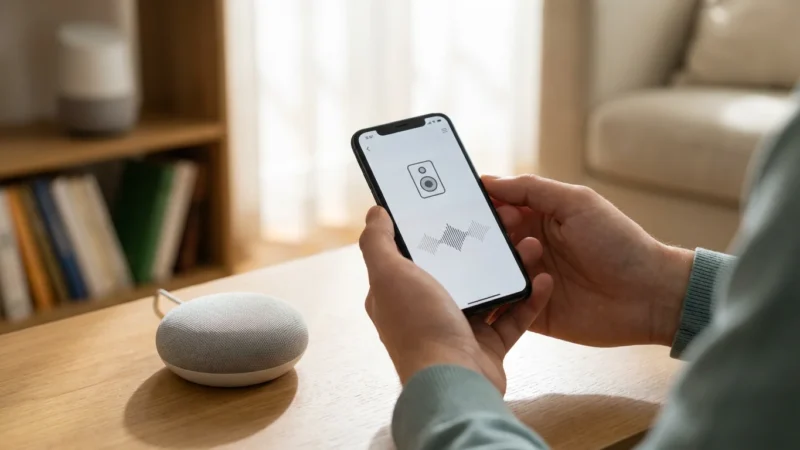
- Open the Google Home app on your smartphone.
- Tap the Settings gear icon.
- Scroll down to Music.
- Select your preferred service (e.g., Spotify) and link your account by logging in.
Once set, a command like “Hey Google, play The Beatles” will automatically pull from your default service.
“The best smart home is the one you don’t have to manage. Setting defaults reduces friction and makes technology feel like magic.”
Setting Up Speaker Groups
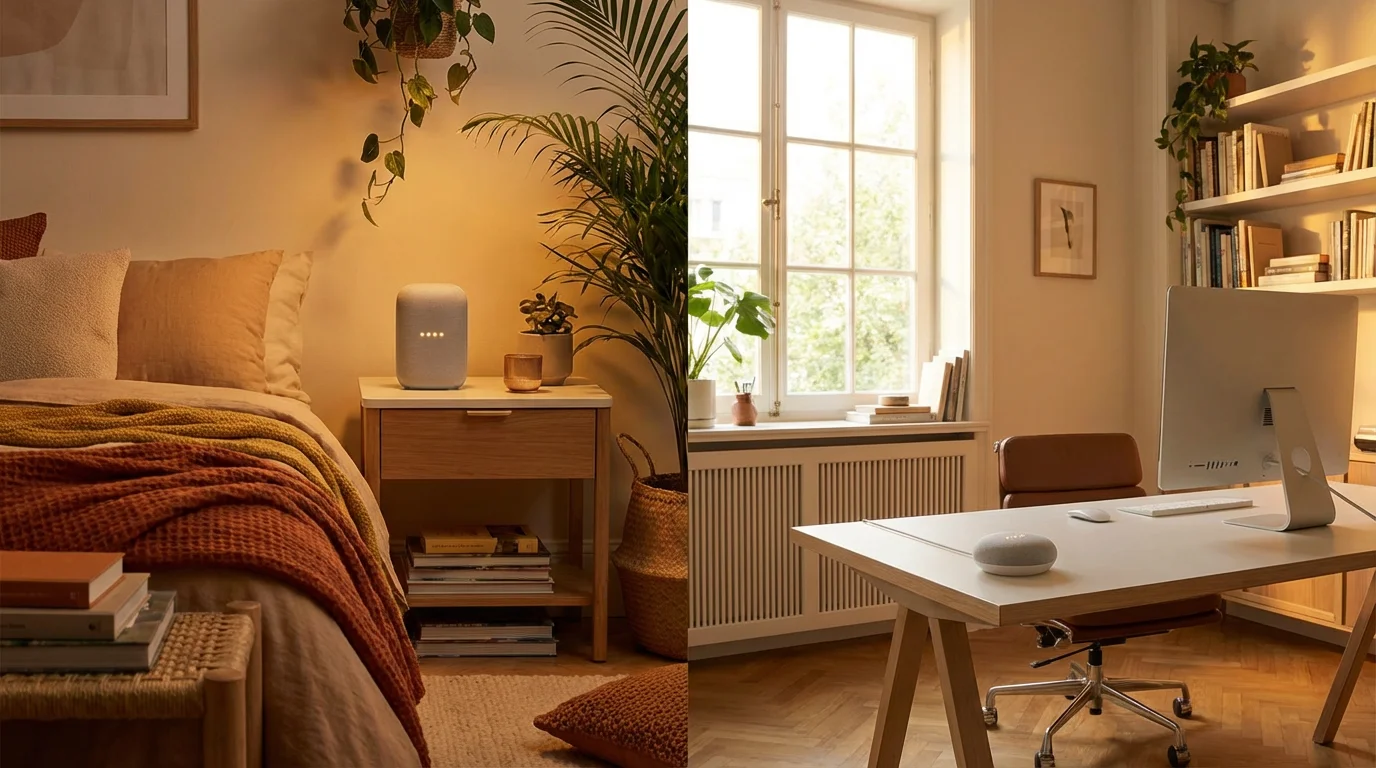
This is the secret sauce of whole-home audio. Speaker Groups allow you to combine multiple devices into a single synced audio destination. You can create groups for specific zones, like “Downstairs,” “Bedrooms,” or “Party Mode” (every speaker in the house).
Creating a Group
- Open the Google Home app.
- Tap the (+) icon in the top left corner.
- Select Create speaker group.
- Tap each device you want to include in this group. You will see a checkmark next to the selected devices.
- Name the group something simple and easy to say, such as “Whole House” or “Kitchen and Living Room.”
- Tap Save.
Now, instead of music playing on just one device, you can say, “Hey Google, play jazz on the Whole House group.” The audio will synchronize perfectly across all selected speakers, creating an immersive experience without echo or delay.
Mastering Voice Commands for Music
Talking to your house can feel awkward at first, but mastering a few key phrases will make the experience fluid. The syntax is generally forgiving, but being specific helps Google Assistant understand exactly what you want.
Basic Playback Controls
You don’t need to reach for your phone to adjust the vibe. Use these commands to control the flow:
- Pause/Resume: “Hey Google, pause.” / “Hey Google, resume.”
- Volume: “Hey Google, set volume to 50%,” or “Hey Google, volume down.”
- Skip Tracks: “Hey Google, next song.”
- Identify Music: “Hey Google, what song is this?”
Context-Aware and Mood Commands
Google Assistant excels at understanding context. If you don’t know exactly what artist you want to hear, you can request music based on activity or mood:
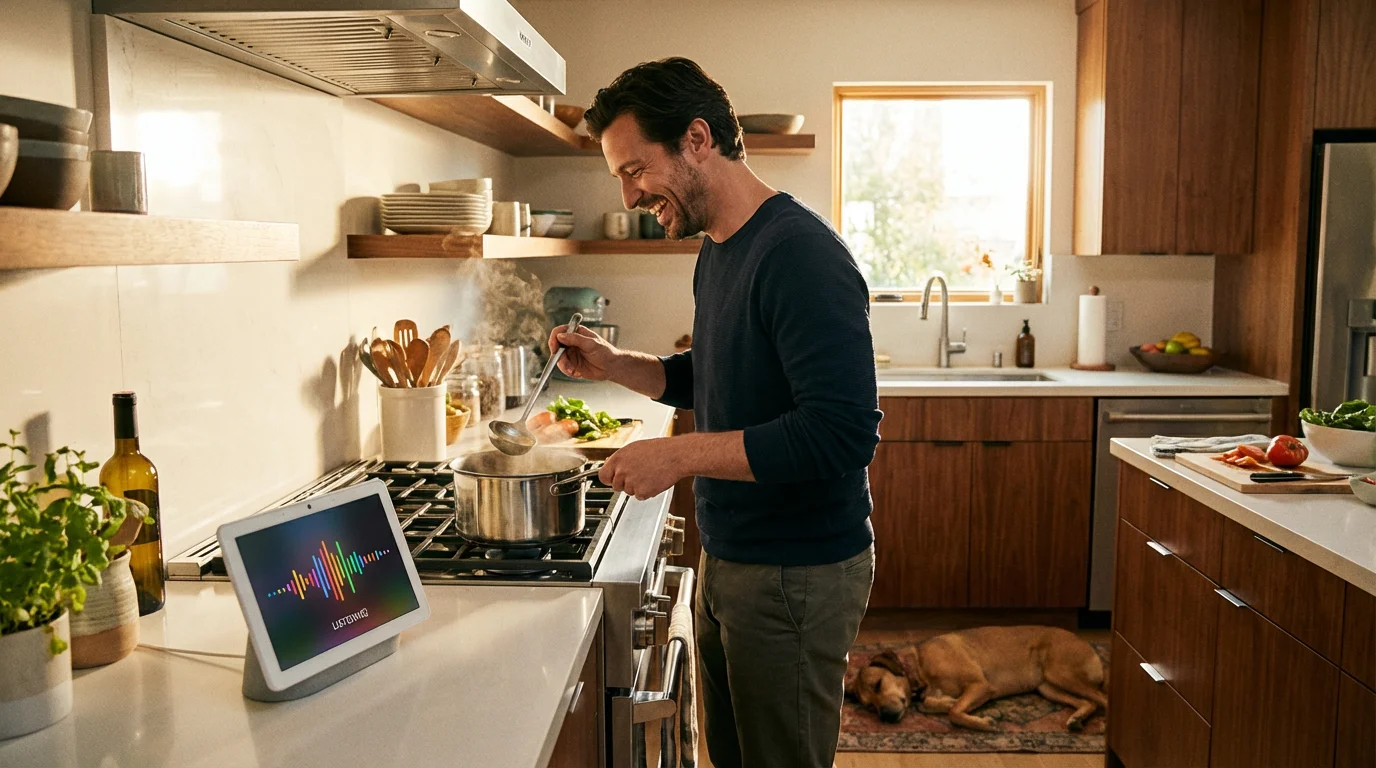
- “Hey Google, play music for cooking.”
- “Hey Google, play some focus music.”
- “Hey Google, play 90s rock.”
Moving Music Between Rooms
One of the most practical features is stream transfer. If you are listening to a podcast in the kitchen but need to move to the living room to fold laundry, you don’t have to stop and restart.
Simply say: “Hey Google, move the music to the living room.”
The audio will stop in the kitchen and immediately resume in the living room exactly where it left off. You can also say, “Hey Google, play this in the living room too” to expand the audio to a second room without stopping the first.

Automating Your Audio with Routines
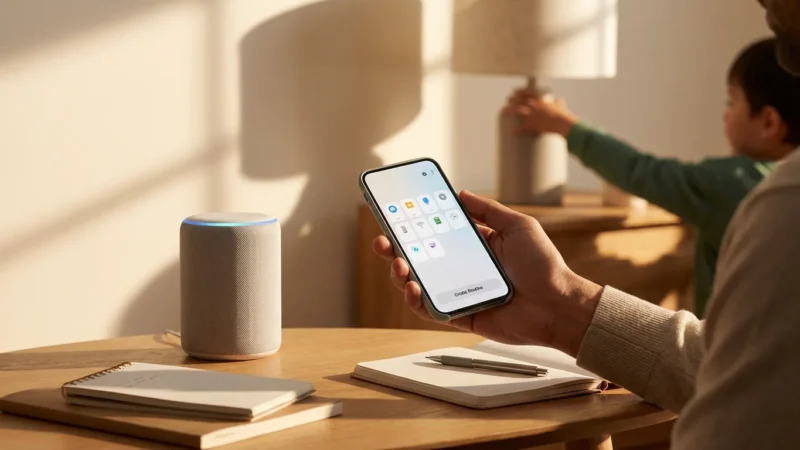
While voice commands are great, true automation means the music happens without you asking every time. Google Home Routines allow you to chain actions together based on a trigger, such as a time of day or a specific phrase.
The “Good Morning” Routine
You can configure your assistant to wake you up gently. Go to Routines in the Google Home app and edit the “Good Morning” routine. You can set it to:
- Take your phone off silent.
- Read you the weather and calendar events.
- Start playing your “Morning Coffee” playlist on Spotify.
- Gradually increase the volume on your bedroom speaker.
Scheduled Music for Security
You can also use music as a security feature. By setting a routine that plays talk radio or a playlist at a moderate volume while you are on vacation, you simulate presence in the home. CNET Smart Home experts often recommend presence simulation as a primary deterrent against break-ins.
Privacy and Security Considerations
Bringing microphones into your home raises valid privacy concerns. Google provides several tools to help you manage how your data is used and when the microphone is active.
Hardware Mute Switches
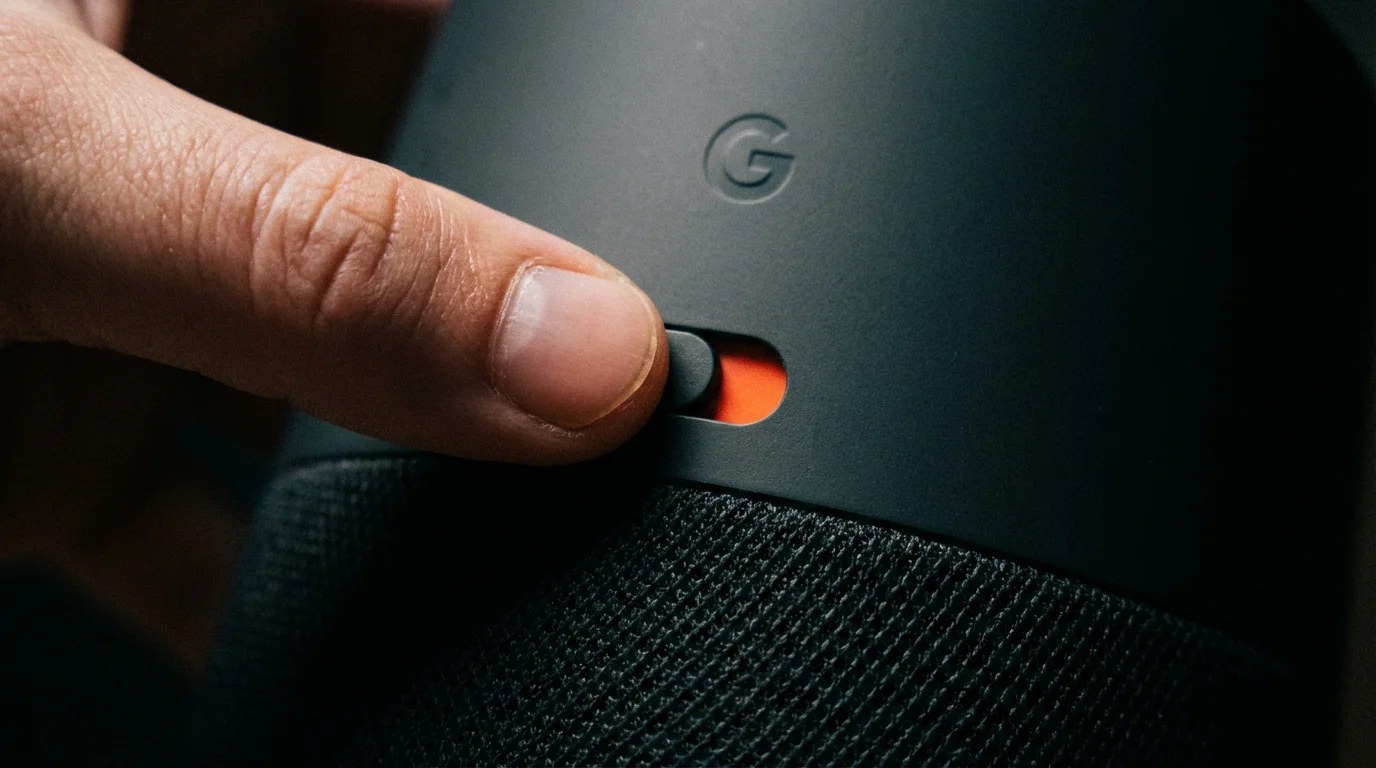
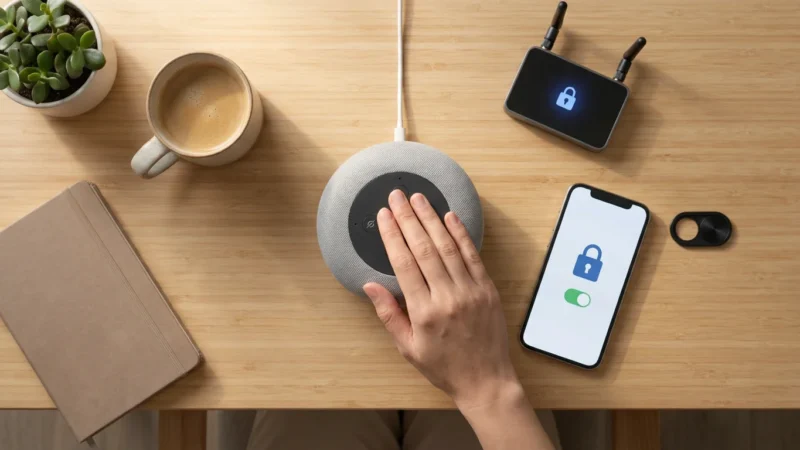
Every Google Nest speaker comes with a physical mute switch. On the Nest Mini and Nest Audio, this is a slider on the back of the device. On the Nest Hub, it is a switch on the back of the display. When you toggle this switch, the device physically disconnects the microphone. You will see orange LEDs light up to confirm the device is not listening. This is ideal for sensitive conversations or when you simply want to ensure privacy.
Managing Voice Recordings
You have control over your voice history. You can delete recordings immediately by saying:
- “Hey Google, delete what I just said.”
- “Hey Google, delete everything I said today.”
For long-term management, verify your settings in your Google Account under “Data & Privacy.” You can configure your account to auto-delete audio recordings after a set period, such as 3 months or 18 months, ensuring your interaction history doesn’t exist forever.
Troubleshooting Common Audio Issues
Even the best technology hiccups occasionally. If your multi-room audio isn’t working smoothly, check these common culprits.
Wi-Fi Strength and Bandwidth
Streaming high-quality audio to multiple speakers requires a robust network. If your music cuts out or buffers, your router might be struggling. Ensure your speakers are connected to the 5GHz band if they are close to the router (for speed) or the 2.4GHz band if they are far away (for range). A mesh Wi-Fi system is often necessary for larger homes to ensure every speaker has a strong signal.
Group Delay Correction
Sometimes, physics gets in the way. Different speakers process audio at different speeds, leading to an echo effect where one speaker is slightly behind another. Google has a built-in fix for this:
- Open the Google Home app.
- Tap the speaker that sounds out of sync.
- Go to Settings (gear icon) > Audio > Group delay correction.
- Play music on the group and adjust the slider until the echo disappears.
Frequently Asked Questions
Can I play different music in different rooms at the same time using Google Assistant?
Yes. If you have a subscription to a music service that supports multiple streams (like a family plan), you can ask specific speakers to play different content simultaneously. However, single-user accounts often limit playback to one stream at a time, meaning playing music in one room might stop it in another unless you use speaker groups to play the same audio everywhere.
Do I need Nest-branded speakers to use Google Assistant for music?
No. While Nest Audio and Nest Mini are the standard, many third-party manufacturers like JBL, Sonos, Bose, and Harman Kardon produce smart speakers with Google Assistant built-in. As long as the device supports Google Cast (Chromecast built-in) or has Assistant integrated, you can include it in your home audio system.
How do I fix audio syncing issues between speakers in a group?
If your speakers are playing out of sync, open the Google Home app, select the device that is lagging or rushing, tap Settings, and look for “Group Delay Correction.” You can adjust the milliseconds slider while listening to the audio to perfectly align the playback across all devices.
Can I use Bluetooth and Wi-Fi streaming simultaneously?
Generally, you stream via Wi-Fi for multi-room audio because it offers higher fidelity and range. However, you can pair a mobile device to a Google speaker via Bluetooth. To play that Bluetooth audio across a group, you must pair your phone to the specific speaker serving as the “group leader,” but Wi-Fi casting is the preferred method for stability and multi-room synchronization.
Disclaimer: This article is for informational purposes only. Smart home devices involve electrical connections and data privacy. Always follow manufacturer instructions for installation. For complex wiring or HVAC work, consult a licensed professional.

Leave a Reply