
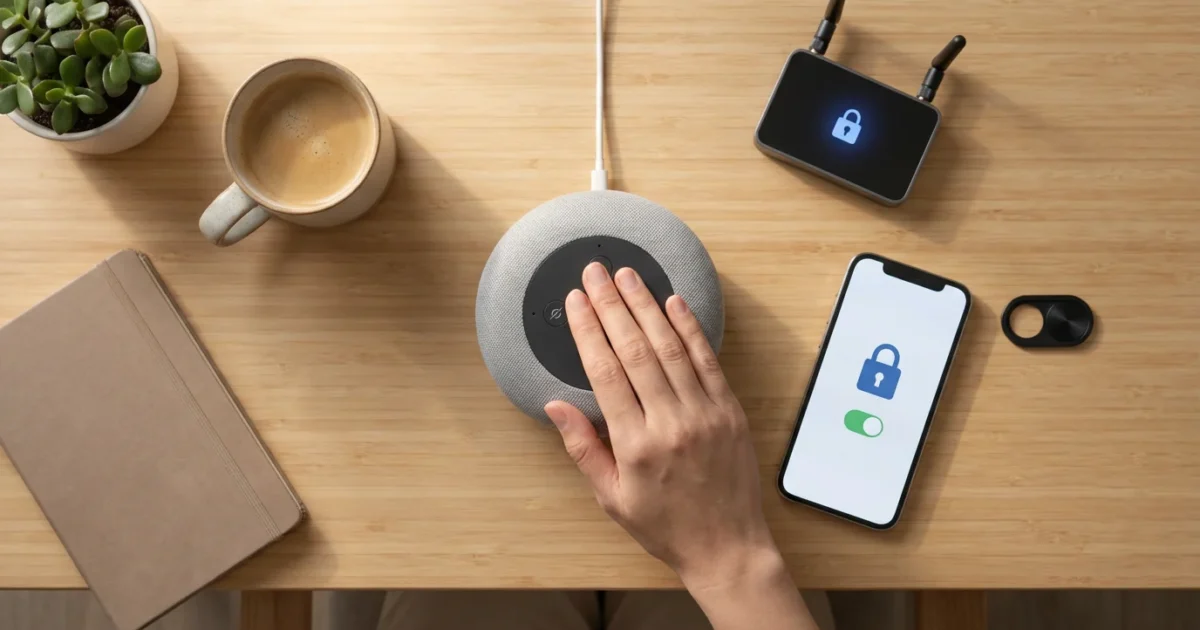
Smart speakers like Amazon Echo, Google Nest, and Apple HomePod bring incredible convenience into your home. They manage your smart lights, play music, set timers, and answer questions. However, these always-listening devices also raise legitimate concerns about your privacy. Taking control of your smart speaker privacy settings ensures you enjoy the benefits without sacrificing your peace of mind.
You possess the power to configure these devices to better protect your personal information. This guide provides practical, actionable steps to enhance the security and privacy of your voice assistants, putting you in charge of your data.

Understanding Smart Speaker Privacy Risks
Your smart speaker operates by constantly listening for its wake word. Once it hears that word, it records your subsequent command and sends it to cloud servers for processing. This interaction forms the basis of its functionality, but it also creates data collection points you should understand.
Companies collect this data to improve voice recognition, personalize your experience, and develop new features. You grant access to your voice commands, and potentially snippets of background conversation, when you accept their terms of service. This data, while often anonymized or reviewed by human transcribers, represents a facet of your digital footprint you can manage.
Protecting your smart home privacy begins with understanding what data devices collect and how you control it. You hold the key to managing your digital footprint.

Foundational Steps for All Smart Speakers
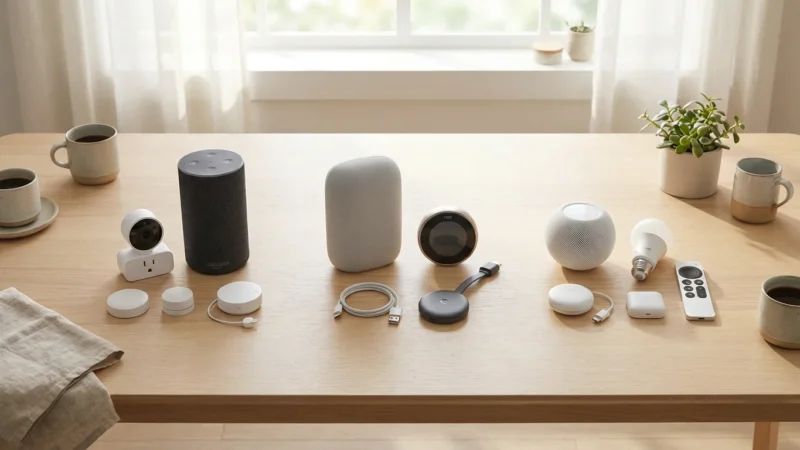
Regardless of your smart speaker brand, implement these universal privacy settings to establish a strong security baseline. These actions apply to Amazon Echo, Google Nest, Apple HomePod, and any other voice assistant device.
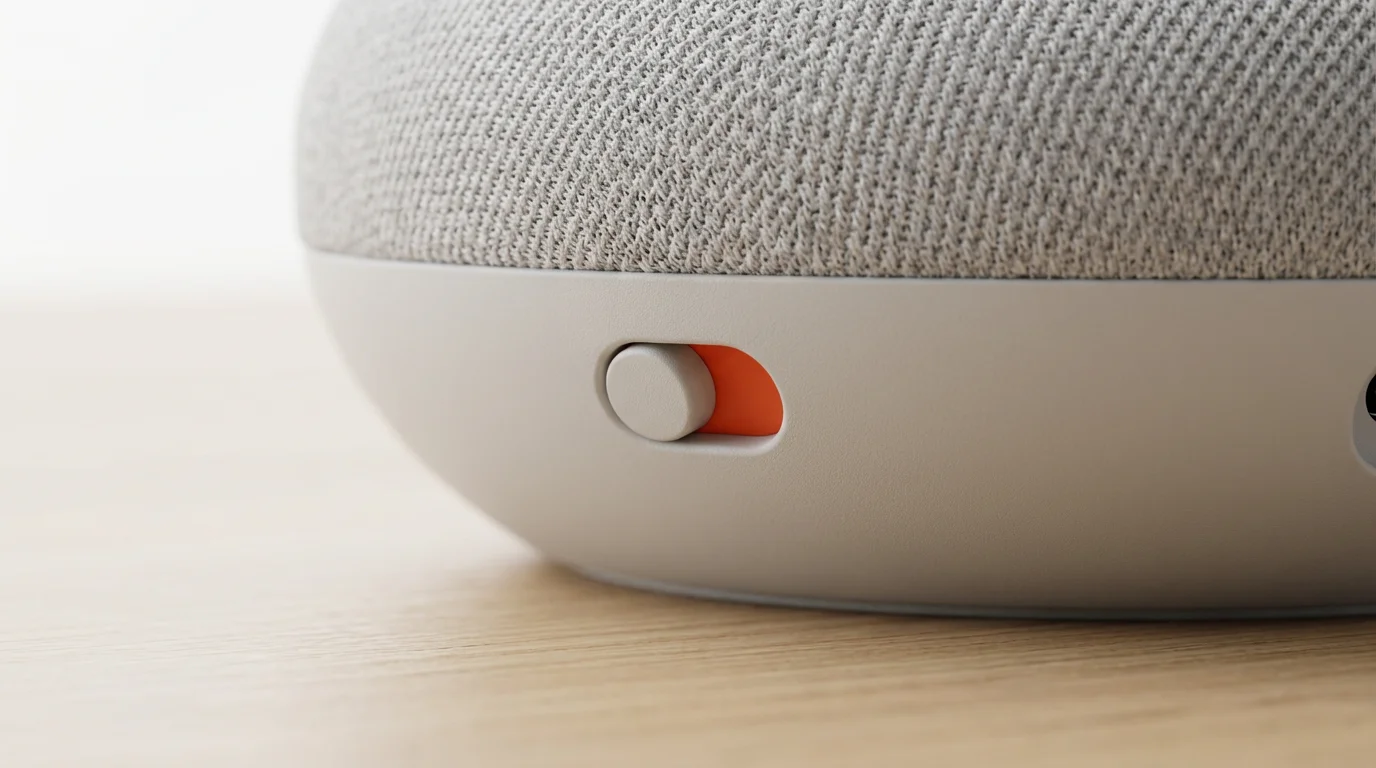
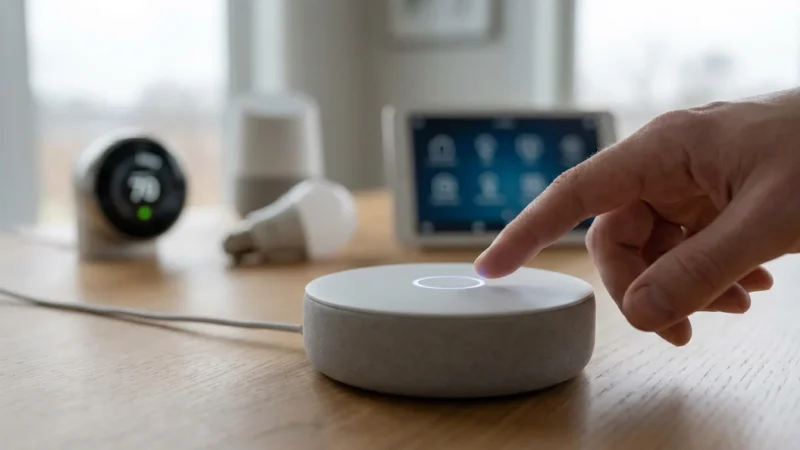
- Use the Physical Mute Button: Every smart speaker includes a hardware button to electronically disconnect its microphone. Press this button when you do not actively use your device, for example, during sensitive conversations or when entertaining guests. A visual indicator, usually a red light, confirms the microphone is off.
- Secure Your Wi-Fi Network: Your smart speaker connects to your home Wi-Fi. Ensure you use a strong, unique password for your network. Enable WPA3 or WPA2 encryption on your router. A compromised Wi-Fi network exposes all connected devices, including your smart speaker, to potential threats.
- Review Privacy Policies: Take time to read the privacy policies of Amazon, Google, or Apple. These documents detail exactly what data they collect, how they use it, and your rights regarding that data. This knowledge empowers you to make informed decisions about your settings.
- Limit Location Services: Smart speakers often request access to your location for local weather, traffic, or service suggestions. You can adjust these settings within the companion app to limit how precisely or frequently the device tracks your whereabouts. Restricting location data minimizes the information shared about your physical home.

Alexa Privacy: Taking Control of Your Amazon Echo
Amazon provides several robust controls within the Alexa app and on the Amazon website to manage your voice recordings and device permissions. Taking advantage of these settings helps you stop Alexa from recording conversations you prefer to keep private.
Once you have secured your device, you can confidently explore these essential Alexa commands to enhance your smart home experience.
Follow these steps to improve your Alexa privacy:
- Delete Voice Recordings:
- Open the Alexa app.
- Go to “More” > “Settings” > “Alexa Privacy” > “Review Voice History.”
- You can filter by date or device. Select recordings to delete them individually or choose “Delete all my recordings” to clear your entire history.
- Disable Voice Recording for Future Improvements:
- In the Alexa app, navigate to “More” > “Settings” > “Alexa Privacy.”
- Select “Manage Your Alexa Data.”
- Under “Voice Recordings,” toggle off “Enable Voice Recordings” (or similar wording like “Help Improve Alexa”). This prevents Amazon from using your future voice recordings to improve its services.
- Manage “Drop In” and Communications:
- “Drop In” allows authorized contacts to instantly connect to your Echo device like an intercom. While convenient, it poses a privacy risk if misused.
- In the Alexa app, go to “Communicate” > “Contacts” > “My Profile.”
- Turn off “Drop In” entirely or restrict it to only “Household” or “Only My Contacts.”
- Review your communication permissions for specific contacts.
- Review Smart Home Device Permissions:
- Alexa integrates with countless smart home devices. Each integration requests specific permissions.
- In the Alexa app, go to “More” > “Settings” > “Alexa Privacy” > “Manage Skill Permissions.”
- Review permissions for each skill you have enabled, such as access to your location or smart home device data. Disable any permissions you deem unnecessary.
- Understand “Guest Connect”:
- Guest Connect allows visitors to temporarily access your Echo devices to play music or make calls without logging into your account.
- While convenient, ensure you understand its limitations and whom you trust to use it. You can disable this feature in the Alexa app under “Settings” > “Device Settings” for individual devices, then look for “Guest Connect” options.
Regularly checking these settings ensures your Alexa privacy remains aligned with your comfort level. You proactively manage how your voice data contributes to Amazon’s services.
Google Assistant Privacy: Optimizing Google Nest Devices
Google offers comprehensive tools to manage your activity data, including voice recordings from your Google Nest speakers. How to improve smart speaker privacy settings for Google Assistant involves navigating the Google Home app and your broader Google Account settings.
Here are the steps to secure your Google Assistant privacy:
- Manage Web & App Activity (Voice & Audio Activity):
- This crucial setting controls whether Google saves your voice commands and other activity.
- Open the Google Home app, then tap on your profile picture > “Assistant settings” > “Your data in the Assistant.”
- Under “Web & App Activity,” ensure “Include Voice & Audio Activity” is toggled off if you do not want your voice commands saved.
- Alternatively, visit myactivity.google.com, go to “Web & App Activity,” and manage this setting directly.
- Delete Past Voice Recordings:
- On myactivity.google.com, select “Voice & Audio Activity.”
- You can filter by date or product (e.g., Assistant). Choose individual recordings for deletion or set an auto-delete option for data older than 3, 18, or 36 months.
- Regularly clearing this history prevents accumulation of your voice data.
- Disable “Continued Conversation”:
- Continued Conversation allows your Google Assistant to listen for follow-up questions for a few seconds after a command without requiring the wake word again.
- To manage this, open the Google Home app > tap your profile picture > “Assistant settings” > “Continued Conversation.”
- Toggle this feature off if you prefer your Assistant only responds after hearing “Hey Google.”
- Enable Guest Mode:
- Guest Mode on Google Nest speakers allows visitors to use the device without accessing your personal information or casting to your connected services.
- Say “Hey Google, turn on Guest Mode.” The speaker confirms it is in Guest Mode. Guests can play music or ask questions but cannot access your calendar, contacts, or other personal data.
- Remember to say “Hey Google, turn off Guest Mode” when guests leave.
- Review Location History:
- Google Assistant uses your device’s location for personalized results.
- In the Google Home app, tap your profile picture > “Assistant settings” > “Your data in the Assistant” > “Location History.”
- You can pause Location History or set an auto-delete option for older data.
These adjustments provide significant control over your Google Assistant privacy, limiting the data collected and stored by Google.
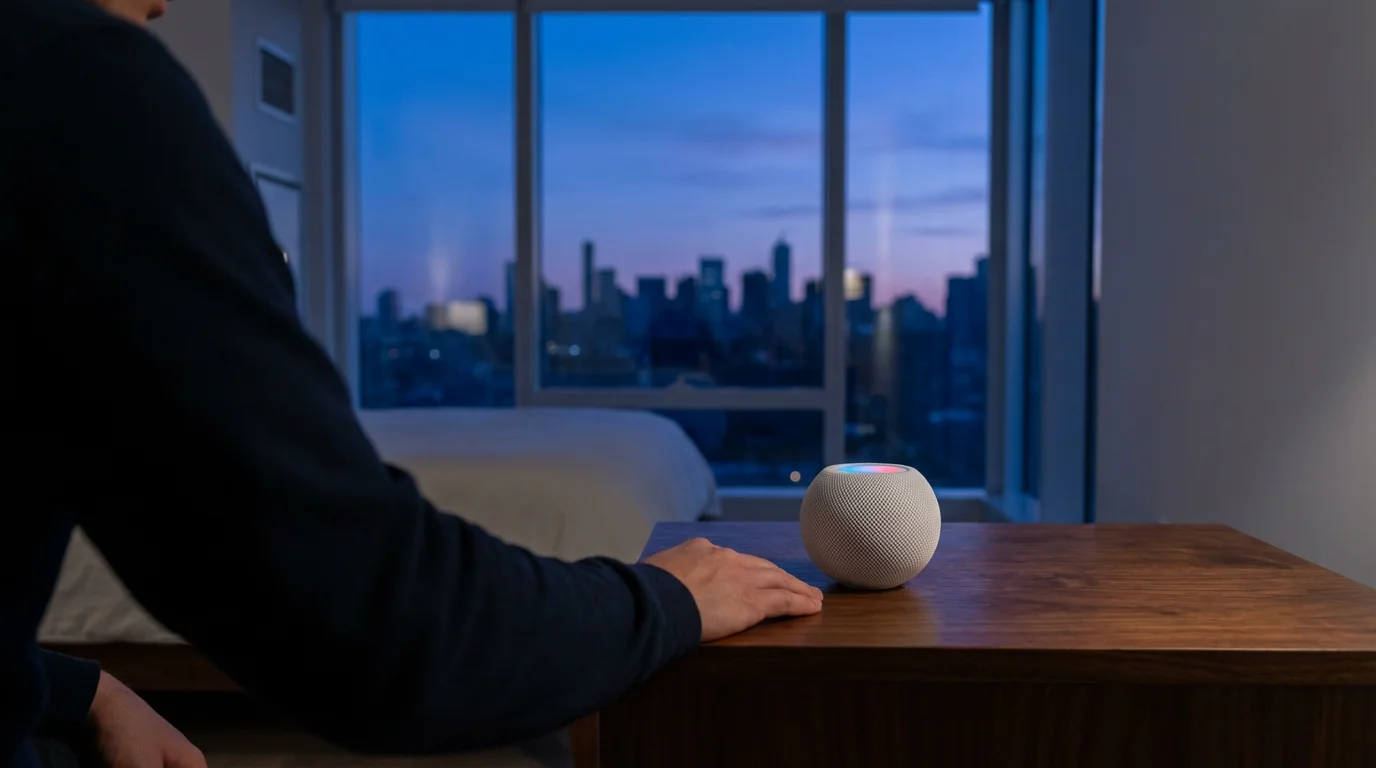
Siri Privacy: Enhancing Apple HomePod Security
Apple positions itself strongly on user privacy, processing many Siri requests locally on your device. However, you still have settings to review for your Apple HomePod and other Siri-enabled devices to ensure maximum security.
To stop Siri from recording conversations unnecessarily, consider these adjustments:
- Manage “Improve Siri & Dictation”:
- Apple collects audio from Siri and Dictation interactions to improve its services. You can opt out.
- On your iPhone or iPad connected to your HomePod, go to “Settings” > “Siri & Search” > “Siri & Dictation History.”
- Tap “Delete Siri & Dictation History” to remove past recordings.
- Then, go to “Settings” > “Privacy & Security” > “Analytics & Improvements.” Toggle off “Improve Siri & Dictation.”
- Disable “Hey Siri” on Specific Devices:
- If you prefer Siri only activates manually, you can disable the “Hey Siri” wake word.
- On your iPhone or iPad, go to “Settings” > “Siri & Search.” Toggle off “Listen for ‘Hey Siri’.”
- For HomePod, you cannot disable “Hey Siri” completely without disabling Siri entirely, but you can control other aspects of its behavior.
- Control Personal Requests:
- Personal Requests allow Siri on HomePod to access your calendar, messages, and other personal data directly.
- In the Home app, tap the Home icon > “Home Settings” > “People” > “Your Name.”
- Under “Siri,” choose “Personal Requests” and select “Never,” “Only When Connected to Same Wi-Fi,” or “Any Time.” Restricting this to “Never” or “Only When Connected to Same Wi-Fi” enhances privacy.
- Understand HomeKit Security:
- Apple’s HomeKit framework, which HomePod uses, emphasizes local processing for many smart home commands. This means your data often stays on your devices rather than traveling to the cloud for every action.
- Ensure your HomeKit accessories use secure connections and that you only add trusted devices to your home.
These settings empower you to configure your Apple devices to align with your personal privacy preferences, maintaining robust security for your voice interactions.
Beyond Basic Settings: Advanced Privacy Strategies
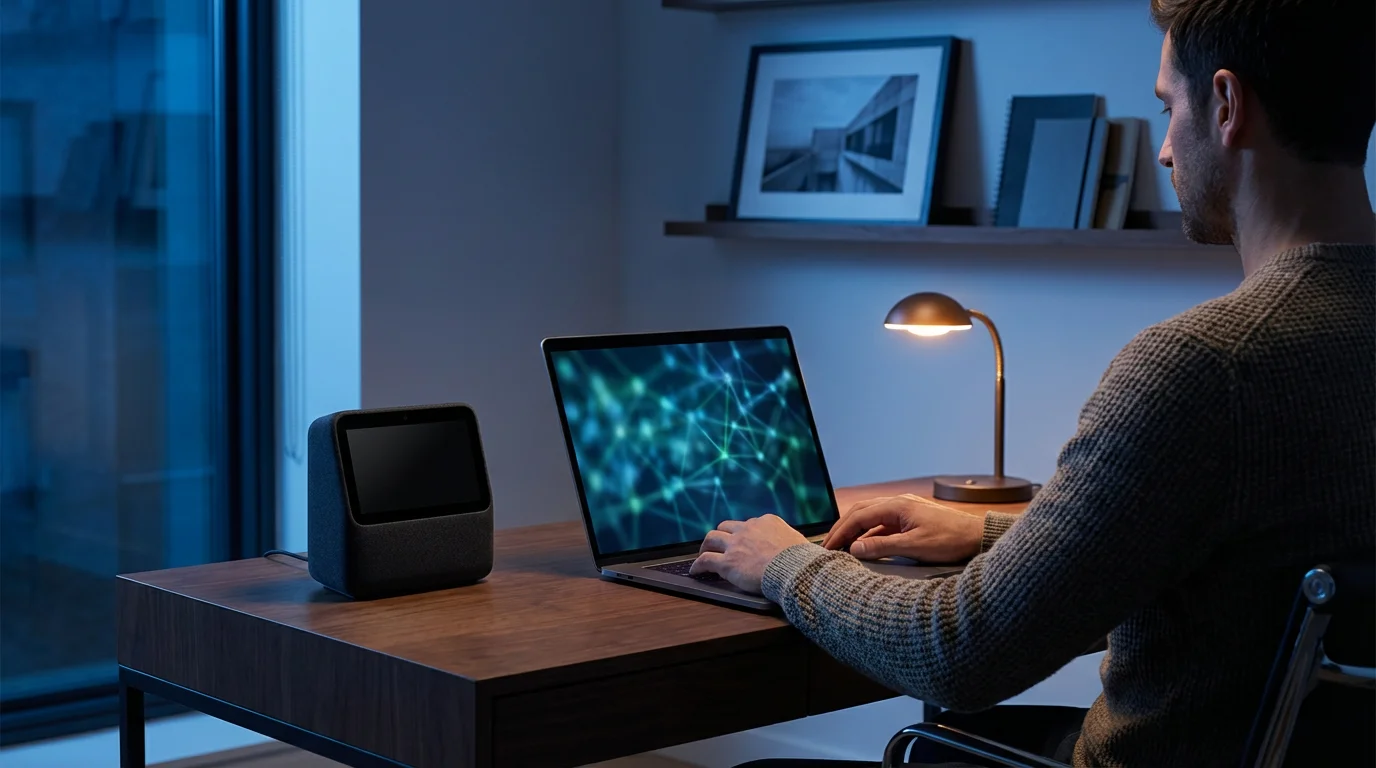
For those seeking even greater control over smart speaker privacy, consider these advanced strategies. These methods provide additional layers of protection, particularly for tech-savvy users.
- Isolate Smart Devices on a Separate Network (IoT VLAN):
Create a separate Wi-Fi network or VLAN (Virtual Local Area Network) specifically for your smart home devices, including smart speakers. This segregates them from your primary network where you store sensitive data like laptops and phones. If an IoT device is ever compromised, it limits the attacker’s access to the rest of your home network.
- Strategic Device Placement:
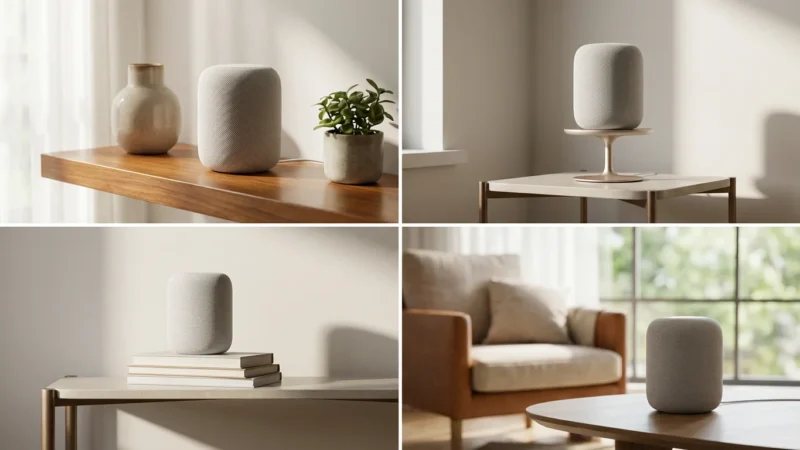
Consider where you place your smart speakers. Avoid putting them in highly private areas such as bedrooms or bathrooms. Placing them in common areas like the living room or kitchen minimizes the chance of capturing private conversations. Remember to use the physical mute button during sensitive moments.
- Regular Privacy Audits:
Technology and privacy policies evolve. Make it a habit to revisit your smart speaker privacy settings quarterly or biannually. New features or updates might introduce default settings that could impact your privacy. Checking your settings ensures you maintain continuous control.
- Stay Informed on Updates and Features:
Smart speaker manufacturers frequently release software updates. These updates can introduce new privacy controls or change existing ones. Stay informed by reading product announcements and security blogs from reputable sources. For example, CNET Smart Home and Wirecutter Smart Home frequently cover these topics, offering valuable insights into emerging privacy considerations. Staying aware helps you adjust your settings promptly.
The Balance: Convenience Versus Privacy
Implementing strong smart speaker privacy settings does not mean you sacrifice the convenience these devices offer. Instead, it means you make informed choices about your data. You decide the level of personalization and data sharing you feel comfortable with.
When expanding your setup, consider the differences between smart displays vs smart speakers to see which offers the right privacy features for your needs.
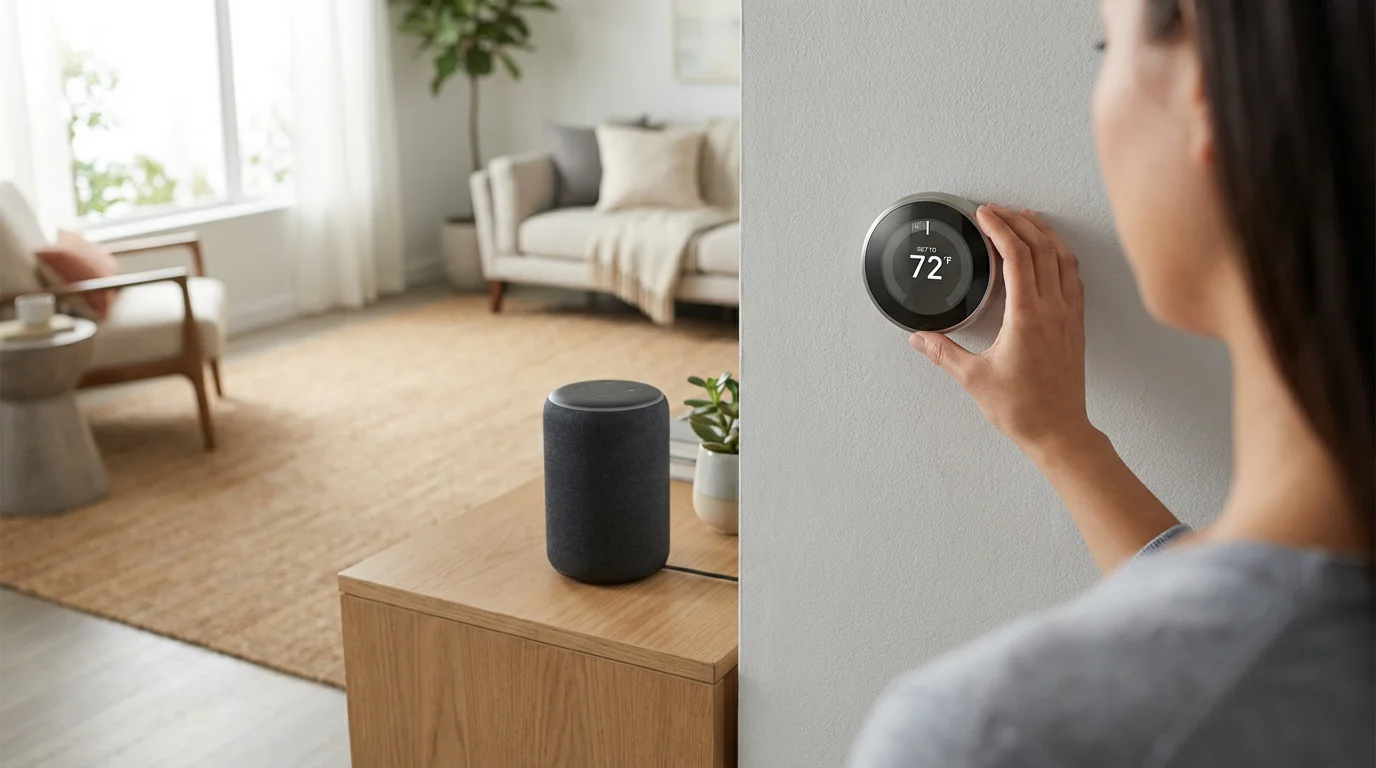
Smart speakers provide significant benefits, from energy savings through smart thermostat integration to enhanced security with connected doorbells. By actively managing your voice recording settings and other permissions, you ensure these devices serve you on your terms. You create a smarter home that respects your personal boundaries and improves your daily life securely.
Frequently Asked Questions
Do smart speakers record everything I say?
No, smart speakers do not record everything you say. They continuously listen for their specific wake word, like “Alexa,” “Hey Google,” or “Hey Siri.” Once they detect the wake word, they begin recording your subsequent command and send it to cloud servers for processing. They do not typically record or store conversations prior to the wake word being spoken.
Can I completely prevent my smart speaker from collecting data?
You cannot completely prevent all data collection if you want to use the smart speaker’s voice functionalities. The devices require sending voice commands to the cloud for processing. However, you can significantly limit what data gets saved, used for improvement, or linked to your account by adjusting your privacy settings, deleting voice histories, and using physical mute buttons.
How often should I review my privacy settings?
Review your smart speaker privacy settings at least every three to six months. You should also check them after any major software updates to your device or its companion app, as new features or changes to existing ones might affect your privacy preferences. Regular audits ensure your settings remain aligned with your comfort level.
Is one brand of smart speaker more private than others?
All major smart speaker brands, including Amazon, Google, and Apple, offer robust privacy controls. Apple generally emphasizes local processing more for Siri commands, but each company provides tools for you to manage your data. The most private smart speaker is the one whose privacy settings you actively configure and maintain. Your actions determine your level of privacy.
What is the “physical mute button” for?
The physical mute button on a smart speaker is a hardware control that electronically disconnects the device’s microphone. When activated, the speaker cannot hear or record any audio, even if it hears its wake word. This provides the highest level of assurance that your device is not listening, and it typically comes with a clear visual indicator, such as a red light, to confirm it is engaged.
Disclaimer: This article is for informational purposes only. Smart home devices involve electrical connections and data privacy. Always follow manufacturer instructions for installation. For complex wiring or HVAC work, consult a licensed professional.

Leave a Reply