
Your smart home offers incredible convenience, but sometimes interacting with multiple devices or remembering specific commands feels cumbersome. This is where Google Assistant shortcuts transform your experience. By creating custom phrases, you streamline daily tasks and personalize how you control your environment. You gain efficiency, allowing you to manage your smart home with simple, memorable voice commands.
This guide explains how to leverage Google Assistant’s powerful customization features. You will learn to set up quick commands that simplify routines, enhance security, and even help you save energy. Discover how to move beyond basic commands and truly automate your living space.
Mastering Google Assistant with Custom Phrases
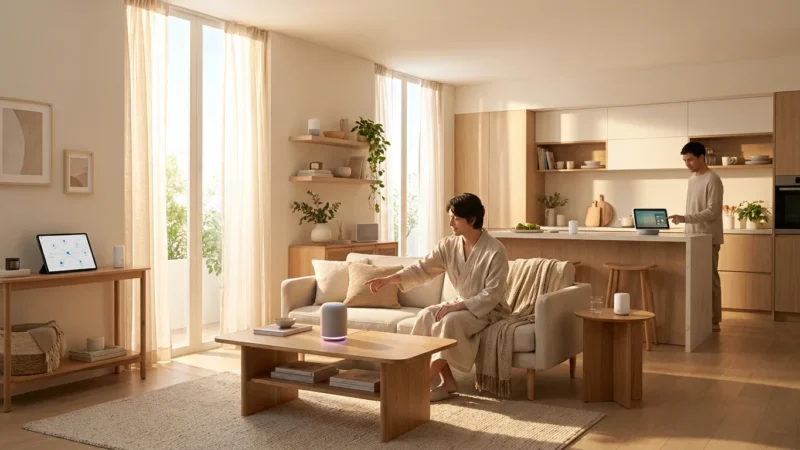
Google Assistant shortcuts allow you to define personal quick commands for actions you frequently perform. Instead of saying a lengthy or specific command, you create a short, natural phrase that triggers the desired outcome. This personalization means your smart home responds exactly how you prefer, making interactions intuitive and effortless.
Think of it as creating your own vocabulary for your smart home. You set up a unique trigger phrase, and Google Assistant understands exactly what you mean. This capability significantly enhances the usability of your smart devices, providing a seamless experience for every member of your household.
Why Implement Google Assistant Shortcuts?
Implementing Google Assistant shortcuts offers a range of tangible benefits that elevate your smart home experience. You gain more control, save time, and enjoy a truly personalized environment. Consider these key advantages:
These simplified phrases are also ideal when setting up voice control for elderly family members who may find complex default commands difficult to remember.
- Enhanced Convenience: Trigger complex sequences of actions with a single, simple voice command. For example, say “Good morning” to turn on bedroom lights, start your coffee maker, and play the daily news briefing.
- Increased Efficiency: Automate routine tasks you perform every day. This reduces the number of individual commands you need to issue, saving you valuable time and effort. You streamline your interactions with smart devices.
- Personalized Experience: Tailor commands to your unique lifestyle and preferences. You select phrases that resonate with you and your family, making the technology feel more natural and integrated into your home.
- Improved Accessibility: Simplify complex device interactions for everyone. If a device has a difficult-to-remember command, a shortcut makes it accessible with an easy-to-say phrase. This benefits children, guests, or anyone new to smart home technology.
- Energy Savings: Combine energy-saving actions into a single command. Use a “Leaving Home” shortcut to turn off all lights, adjust your smart thermostat to an away setting, and ensure unnecessary devices power down, helping you reduce utility bills. According to Energy Star, smart thermostats alone can save you significant money on heating and cooling costs. You can learn more about smart thermostat benefits on the Energy Star website.
These benefits collectively make your smart home more responsive, intuitive, and perfectly suited to your needs. You move from basic control to sophisticated automation with minimal effort.

Understanding Google Assistant Routines Versus Shortcuts
People often use the terms “Routines” and “Shortcuts” interchangeably, but Google Assistant distinguishes between them. Understanding this difference helps you configure your automations effectively. You utilize both features to create a comprehensive and user-friendly smart home.
If you use multiple ecosystems, you might find similar success by creating custom Alexa routines for your family to keep your smart home experience consistent.
Google Assistant Routines are multi-step automations that you configure within the Google Home app. They can trigger based on various inputs:
- A specific voice command (e.g., “Hey Google, good morning”).
- A set time or day.
- Your arrival or departure from a location.
- Alarm dismissal on your phone.
- A sunrise or sunset event.
Routines execute a sequence of actions, such as turning on multiple lights, playing music, adjusting a thermostat, or sending a broadcast message. They represent the core automation engine of Google Assistant, allowing you to build complex scenarios.
Shortcuts, on the other hand, are essentially custom voice phrases that you define to trigger an existing action or, more commonly, an existing Routine. You do not create a new set of actions within a shortcut; instead, you provide an alternative, often simpler or more personalized, phrase to activate something already configured. For instance, if you have a Routine called “Hey Google, get ready for bed,” you might create a shortcut “Night night” to trigger that same routine. This provides flexibility and makes your commands more natural to say.
You use routines to build the automation logic and shortcuts to provide more convenient, personalized trigger phrases for those routines. Together, they offer a powerful framework for hands-free control.

Step-by-Step: Creating Your First Google Assistant Shortcut
Creating Google Assistant shortcuts involves a straightforward process within the Google Home app. Follow these steps to set up your first custom command and experience the immediate benefits of personalization:
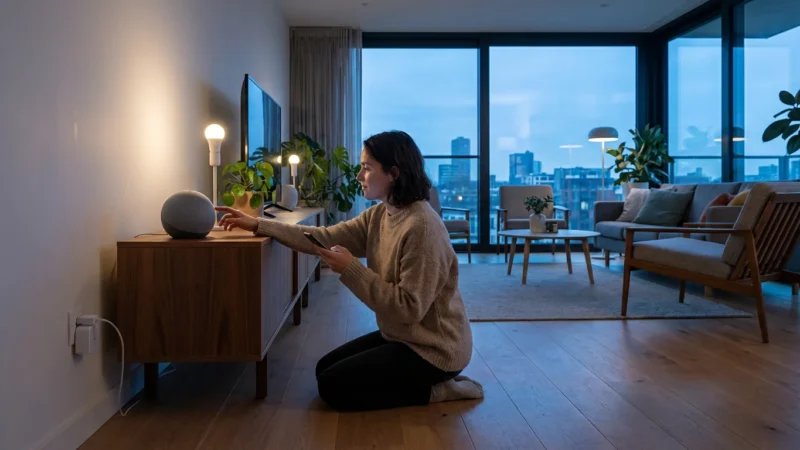
To ensure your new shortcuts always trigger reliably, follow these smart speaker placement tips to maximize your device’s listening range.
- Open the Google Home App: Launch the Google Home app on your smartphone or tablet. Ensure you are signed into the Google account linked to your smart home devices.
- Navigate to Assistant Settings: Tap your profile icon in the top right corner. Then, select “Assistant settings.” This opens a menu where you manage various Google Assistant features.
- Access Routines: Scroll down and select “Routines.” This section lists all your existing routines and allows you to create new ones or modify current ones.
- Choose or Create a Routine: You have two primary options here:
- Modify an Existing Routine: Select one of the pre-made “Ready-made” routines (e.g., “Good morning,” “Good night”) or a custom routine you already created. You can then add or change its trigger phrase.
- Create a New Custom Routine: Tap the “+” icon to start a new routine from scratch. You will define the trigger command and the subsequent actions.
- Define Your Custom Phrase (Shortcut): Under “How to start” or “Add starter,” you define the voice command Google Assistant will listen for. This is your shortcut phrase.
- Tap “Add starter” and select “Voice command.”
- Type the exact phrase you want to use. For example, if you want to dim lights and play soft music, you might type “Relax time” or “Chill out.”
- You can add multiple voice commands for the same routine, providing several custom phrases to trigger the same set of actions.
- Add Actions: Next, you specify what happens when you say your custom phrase. If you are creating a new routine, tap “Add action” and choose from categories like “Adjust smart home devices,” “Get info and more,” or “Communicate and announce.” For instance, you can:
- Turn specific lights to 50% brightness.
- Play a particular Spotify playlist on your living room speaker.
- Adjust your thermostat to 72 degrees Fahrenheit.
If you are modifying an existing routine, ensure the actions align with your desired outcome.
- Review and Save: Carefully review your chosen phrase and the associated actions. Ensure everything functions as intended. Tap “Save” in the top right corner to finalize your new shortcut.
- Test Your Shortcut: Now, stand near your Google Assistant device and say your new custom phrase. For example, “Hey Google, relax time!” Verify that all the specified actions occur correctly. If they do not, return to the routine settings and check for typos or incorrect device assignments.
By following these steps, you quickly empower your Google Assistant with your own personalized commands. This immediate improvement enhances your daily interaction with your smart home.
Advanced Google Home Custom Commands for Your Smart Home
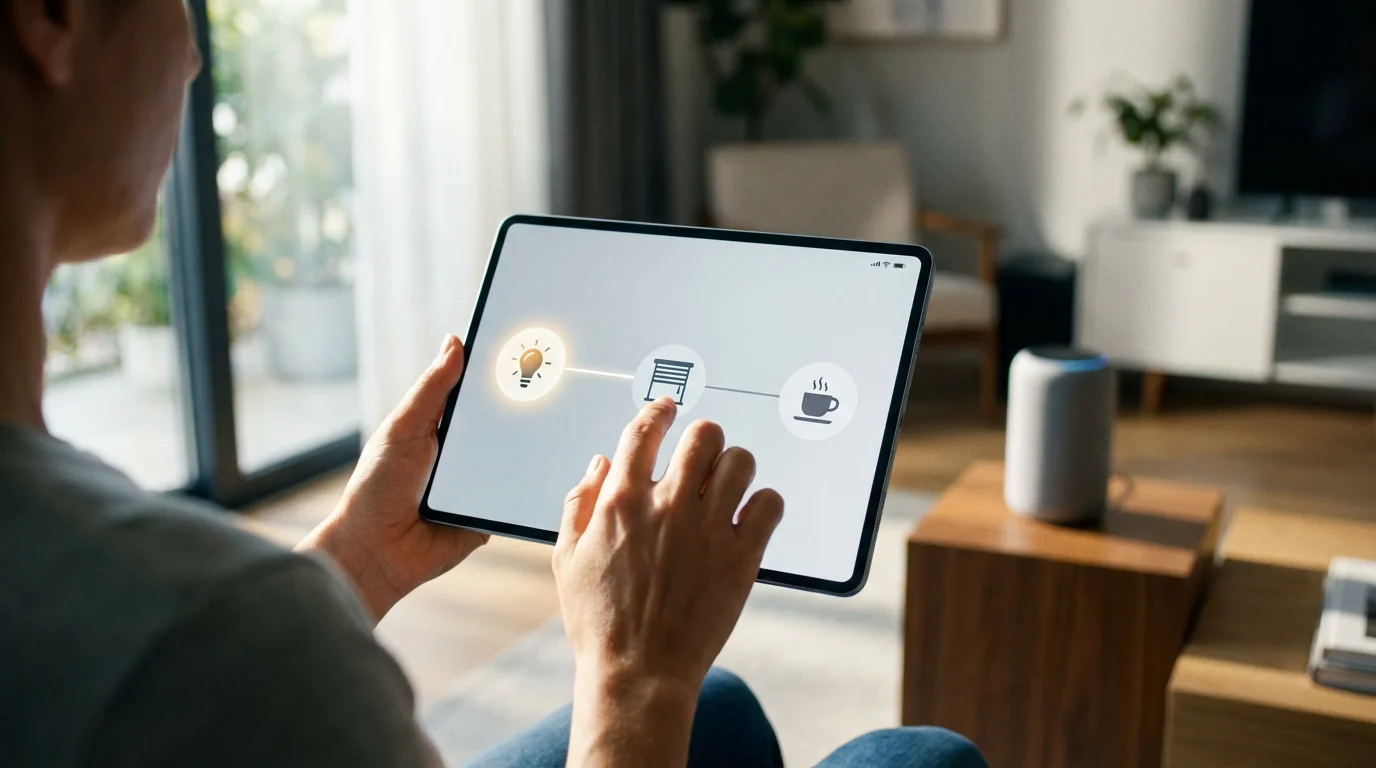
Once you master basic shortcuts, you can explore more complex and integrated custom commands that truly automate your home. These advanced Google Home custom commands link multiple devices and services, creating sophisticated scenarios tailored to your lifestyle. You move beyond simple on/off controls to truly intelligent living spaces.
- The “Good Morning” Sequence:
- Command: “Hey Google, good morning.”
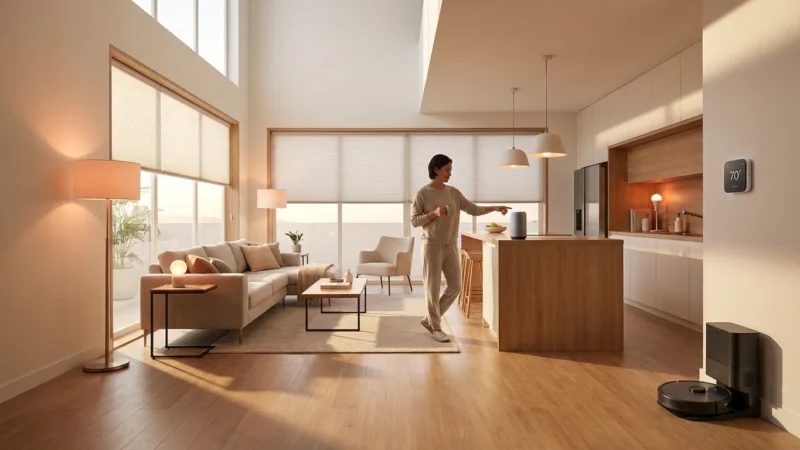
- Actions: Gradually brighten bedroom lights to 75%, open smart blinds, play a news briefing, announce your daily calendar, and start the smart coffee maker in the kitchen. This sets a positive tone for your day.
- The “Movie Night” Ambiance:
- Command: “Hey Google, movie time.”
- Actions: Dim living room lights to a warm 20%, turn on your smart TV, switch to a specific input, and ensure your soundbar is active. You create the perfect cinematic atmosphere instantly.
- The “Leaving Home” Security & Energy Saver:
- Command: “Hey Google, I’m out.”
- Actions: Lock all smart door locks, arm your security system, turn off all lights, set your smart thermostat to an energy-saving “away” mode, and confirm all actions with a voice announcement. This provides peace of mind and reduces energy consumption.
- The “Welcome Home” Comfort:
- Command: “Hey Google, I’m home.” (Can also be triggered by geofencing).
- Actions: Turn on entry lights, adjust the thermostat to your preferred temperature, unlock the front door (if safely configured), and play your favorite welcome home playlist. Your home becomes instantly inviting.
- The “Kids’ Bedtime” Routine:
- Command: “Hey Google, bedtime for kids.”
- Actions: Dim lights in kids’ rooms, activate a smart night light, play soothing white noise or a lullaby, and set their smart plugs to turn off after 30 minutes. You establish a consistent nightly routine.
- The “Exercise Mode” Motivation:
- Command: “Hey Google, workout time.”
- Actions: Turn on bright lights in your home gym, play an energetic workout playlist, and even display a fitness tracker on your smart display. You create an energizing environment for your fitness goals.
These examples illustrate the potential of linking various smart devices – including smart lighting, thermostats, door locks, security cameras, and media players – through quick commands. You simplify complex interactions, making your home truly responsive to your needs. For general smart home advice and product reviews that can help you integrate more devices, you might consult expert sources like Wirecutter’s smart home guides.

Optimizing Your Quick Commands for Efficiency
Creating quick commands is just the beginning. To truly maximize their effectiveness, you need to optimize them for seamless interaction and reliability. These strategies ensure your best Google Home custom commands work flawlessly every time, enhancing your overall smart home experience.
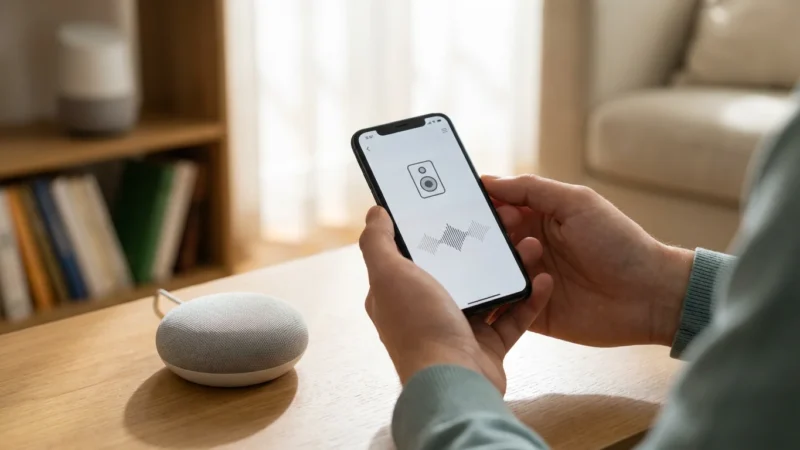
If the Assistant still struggles with your custom phrases, you can learn how to improve voice recognition accuracy to minimize errors.
- Keep Phrases Natural and Memorable: Choose commands that feel intuitive to say and are easy to remember. Avoid overly technical or stiff language. Phrases like “Movie night” or “Good morning” work better than “Initiate entertainment protocol” or “Begin diurnal activation.”
- Avoid Similar-Sounding Commands: If you have “Turn on kitchen light” and “Turn off kitchen light,” these are distinct. However, if you create “Bedroom bright” and “Bedroom light,” the Assistant might struggle to differentiate. Ensure your custom phrases are distinct to prevent misinterpretations.
- Test Thoroughly in Different Environments: Test your new shortcuts not just once, but multiple times, and from various locations within the room. This helps ensure Google Assistant consistently recognizes your voice and command. Verify that all actions trigger correctly.
- Involve Family Members in Setup and Review: Discuss custom commands with everyone in your household. This ensures everyone knows the new phrases and uses them consistently. It also helps you identify commands that might be confusing or difficult for others to remember.
- Review and Refine Existing Shortcuts Regularly: Your smart home evolves, and so should your shortcuts. Periodically review your routines and quick commands. Delete those you no longer use, adjust actions for existing ones, and create new ones as your needs change. This keeps your system lean and efficient.
- Consider Context and Device Placement: Think about where you will typically use a command. A “Coffee time” shortcut makes more sense near your kitchen smart speaker. Tailor commands to their most frequent use case and device location.
- Leverage Multiple Triggers: Remember that routines can have multiple voice command triggers. You might set up “Good night” and “Time for bed” to activate the same “Good Night” routine, giving you flexibility in your speech.
By applying these optimization techniques, you transform your Google Assistant shortcuts from mere commands into an integral, efficient part of your daily life. You reduce friction and enhance the overall intelligence of your home.

Privacy and Security Considerations for Voice Assistants
While Google Assistant shortcuts offer unparalleled convenience, you must remain mindful of privacy and security aspects associated with voice assistants. Understanding these considerations helps you manage your data and protect your smart home effectively. You maintain control over your personal information and device access.
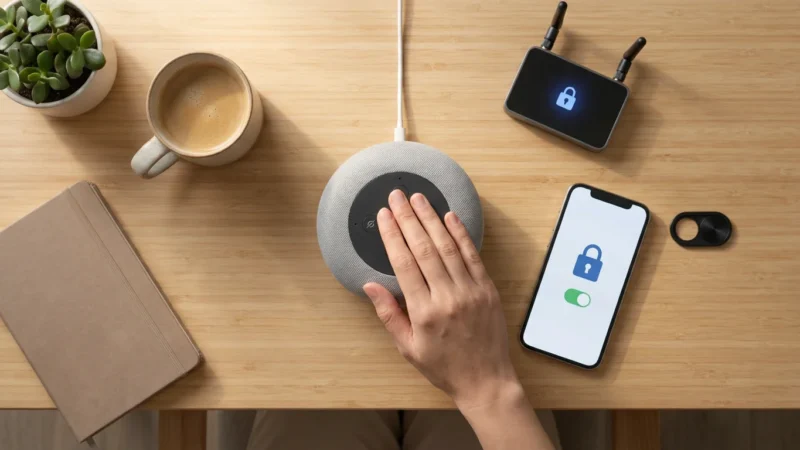
Beyond shortcuts, there are several essential privacy settings every smart speaker owner should enable to protect your household’s data.
- Voice Data Collection: Google Assistant processes your voice commands in the cloud. You can review your voice activity and delete specific recordings or set up automatic deletion preferences within your Google Account settings. Regularly checking your activity helps you stay informed.
- Managing Guest Access: Be aware of who can issue commands to your Google Assistant devices. If you have guests, they might be able to control your smart home. You can use Guest Mode on some devices or manage Voice Match settings to restrict access to recognized voices.
- Device Security: Ensure your smart home devices are from reputable manufacturers and receive regular firmware updates. Weak security in one device can compromise your entire system. For example, a vulnerable smart camera could inadvertently expose your home.
- Account Security: Secure your Google account with a strong, unique password and enable two-factor authentication (2FA). Your Google account is the central hub for your smart home, and its compromise puts everything at risk.
- Location Data: Many routines use location-based triggers (geofencing). While convenient, be aware that this shares your location data with Google. You can review and manage location permissions in your Google Account.
- Permissions for Third-Party Services: When you connect third-party smart home devices or services to Google Assistant, you grant them certain permissions. Always review these permissions carefully and only connect services you trust.
- Physical Security of Devices: Place smart speakers and displays in secure locations. For devices like smart door locks and security cameras, ensure their physical installation is robust and that only authorized individuals can access them.
You play an active role in maintaining your privacy and security. By proactively managing your settings and understanding how your data is used, you can enjoy the benefits of Google Assistant with confidence. Resources like CNET’s smart home privacy tips offer further guidance on protecting your connected devices.
Troubleshooting Common Google Assistant Shortcut Issues
Even with careful setup, you might encounter situations where your Google Assistant shortcuts do not work as expected. Addressing these common issues helps you restore full functionality and maintain a smoothly running smart home. You can often resolve problems with a few simple checks.
- Command Not Recognized:
- Issue: Google Assistant replies with “I don’t understand” or does nothing.
- Solution:
- Rephrase Your Command: Try saying the shortcut phrase differently. Sometimes, minor variations in pronunciation or phrasing confuse the Assistant.
- Check for Typos: Revisit your routine in the Google Home app and verify the exact wording of your voice command. A small typo prevents recognition.
- Review Assistant Activity: Check your Google Assistant activity in your Google Account. This shows what the Assistant heard, helping you identify if it misinterpreted your speech.
- Speak Clearly: Ensure you are speaking clearly and at a normal volume, especially if there is background noise.
- Action Not Triggering:
- Issue: Google Assistant understands your command, but the intended smart home action does not occur.
- Solution:
- Verify Device Connectivity: Check if the smart devices involved (lights, thermostat, etc.) are online and responsive within the Google Home app. Ensure they have power and a stable Wi-Fi connection.
- Ensure Devices are Linked: Confirm that all devices intended for the routine are properly linked to your Google Home account and appear in the “Devices” section of the app.
- Review Routine Actions: Open the routine in the Google Home app and meticulously check each action. Ensure you selected the correct device and the desired state (e.g., “turn on” vs. “turn off,” specific brightness levels).
- Test Device Individually: Try controlling the device directly through the Google Home app or with its native app. If it does not respond there, the issue lies with the device itself, not the shortcut.
- Conflicting Commands:
- Issue: Saying a shortcut triggers an unintended or different action.
- Solution:
- Simplify or Rename Commands: If you have two routines with very similar trigger phrases, Google Assistant might struggle to differentiate. Rename one of the shortcut phrases to be more unique.
- Check “Other ways to start” in Routines: Sometimes, different routines might inadvertently share trigger phrases. Verify the starters for all relevant routines.
- Network or Internet Issues:
- Issue: Smart home devices or Google Assistant respond slowly or not at all.
- Solution:
- Check Wi-Fi: Ensure your home Wi-Fi network is stable and all smart devices are connected. Restarting your router can often resolve temporary network glitches.
- Verify Internet Connection: Google Assistant requires an active internet connection to process commands. Ensure your internet service is operational.
- App or Device Not Updating:
- Issue: Routines or shortcuts do not save or appear correctly.
- Solution:
- Restart Google Home App: Close the app completely and reopen it.
- Clear App Cache: On your phone’s settings, clear the cache for the Google Home app.
- Check for App Updates: Ensure your Google Home app is updated to the latest version from your device’s app store.
- Restart Google Assistant Device: Unplug and re-plug your Google Home or Nest device.
Most shortcut issues stem from simple configuration errors or connectivity problems. By systematically checking these areas, you quickly resolve most problems and get your smart home back to optimal performance.
Frequently Asked Questions
What is the difference between a Google Assistant Routine and a Shortcut?
Routines represent multi-step automations within the Google Home app, triggered by various inputs like time, location, or voice commands. They execute a sequence of actions. Shortcuts, by contrast, are custom voice phrases you define to trigger a specific action or, more commonly, an existing routine. You use shortcuts to provide a simpler, more personal trigger phrase for an already configured automation.
Can I create Google shortcuts for non-smart home devices?
You can create Google shortcuts for non-smart home devices if those devices integrate with Google Assistant through a smart plug or a compatible hub. For instance, plugging a regular coffee maker into a smart plug allows you to include it in a “Good morning” shortcut. Otherwise, shortcuts primarily control devices directly recognized and integrated with Google Assistant.
How do I share my Google Assistant shortcuts with family members?
If family members are part of your Google Home household, they can typically access and use the routines you create. Google Assistant uses Voice Match to recognize individual voices and can tailor responses, but the core routines and the custom phrases you define become available to anyone linked to that home. Simply communicate your new quick commands to them.
What are the best Google Home custom commands for beginners?
Start with simple, high-impact commands. Excellent beginner quick commands include “Good morning” to turn on lights and play news, “Good night” to turn off all lights, lock doors, and arm your security system, or “Movie time” to dim lights and start your smart TV. Begin with actions you perform daily to immediately appreciate the convenience.
Disclaimer: This article is for informational purposes only. Smart home devices involve electrical connections and data privacy. Always follow manufacturer instructions for installation. For complex wiring or HVAC work, consult a licensed professional.


Leave a Reply