
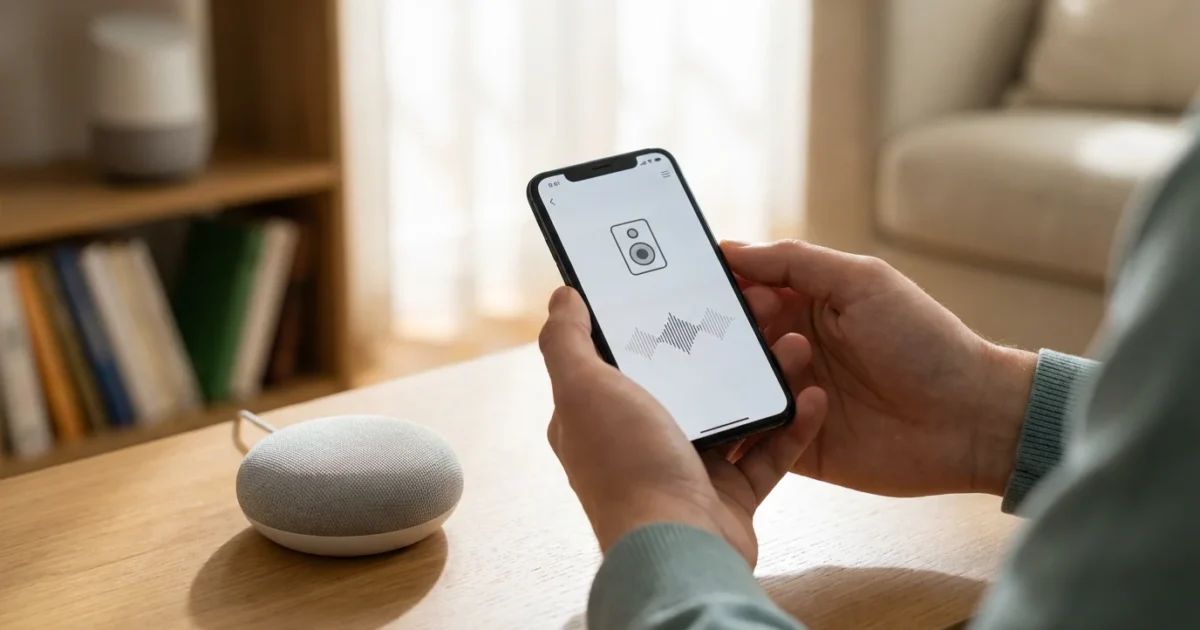
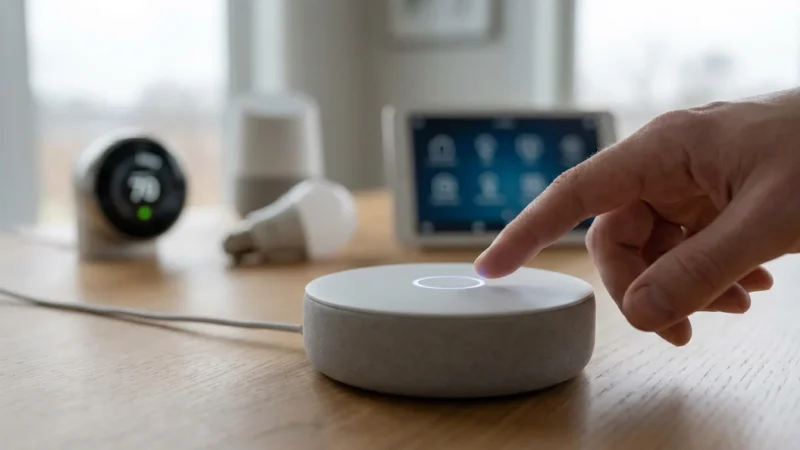
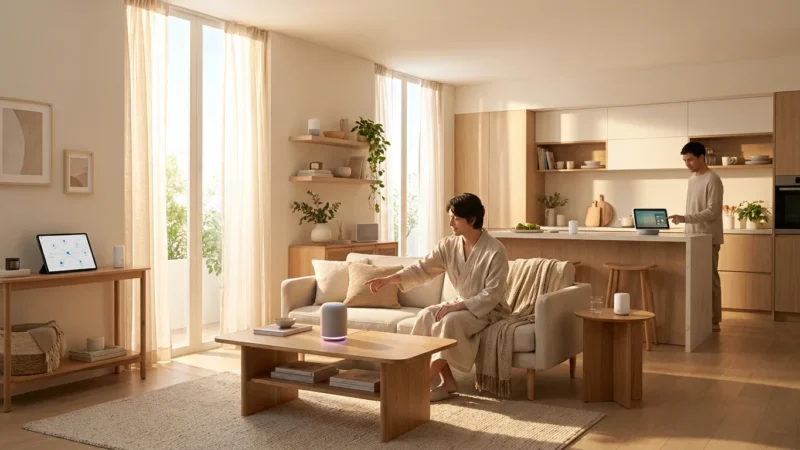
Voice announcements transform your smart home from a collection of connected gadgets into a truly communicative space. Imagine telling everyone dinner is ready without yelling. Picture instantly alerting your family if a sensor detects unusual activity. Setting up a whole home announcement system provides convenience, enhances security, and improves daily communication. You can achieve this using your existing smart speakers, turning them into a powerful intercom system. This guide walks you through the practical steps to enable voice announcements across Amazon Alexa, Google Assistant, and Apple HomeKit ecosystems. You will learn how to send broadcast messages, use Alexa as intercom between rooms, and even automate these voice alerts.
Why Voice Announcements Matter in Your Smart Home
Implementing voice announcements throughout your home offers significant benefits beyond simple voice commands. It creates a centralized communication hub, streamlining interactions within your household. You gain unparalleled convenience and peace of mind.
Consider these practical applications for a whole home announcement system:
- Instant Communication: Notify everyone simultaneously about important events. Announce dinner, bedtime, or that someone is at the door without raising your voice.
- Enhanced Security: Integrate announcements with security sensors. Your smart speakers can verbally alert you if a door opens unexpectedly or motion is detected in a specific area.
- Daily Reminders: Set up automated reminders for chores, appointments, or medication times. A gentle voice can prompt family members at the right moment.
- Emergency Alerts: In critical situations, quickly broadcast a warning to every room. This ensures everyone receives vital information immediately.
- Hands-Free Convenience: Send messages from anywhere in the house without needing your phone. Just speak your command, and your message reaches its intended audience.
This functionality transforms your smart speakers from mere music players into essential communication devices. You unlock a new level of interaction with your living space.

Understanding Your Smart Assistant Ecosystem
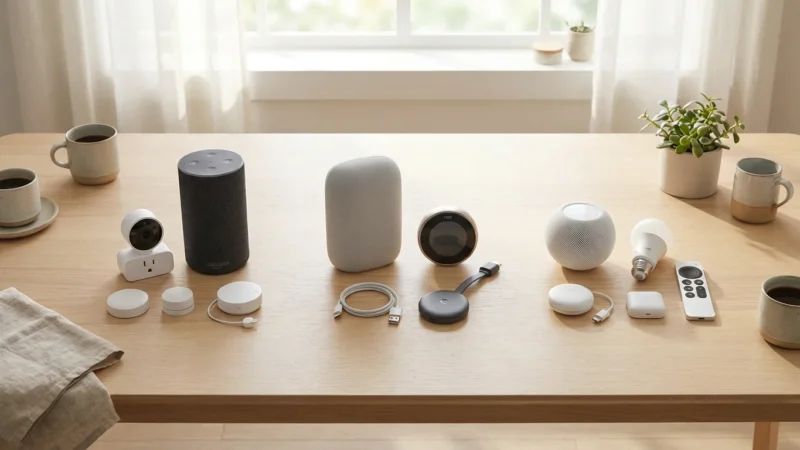
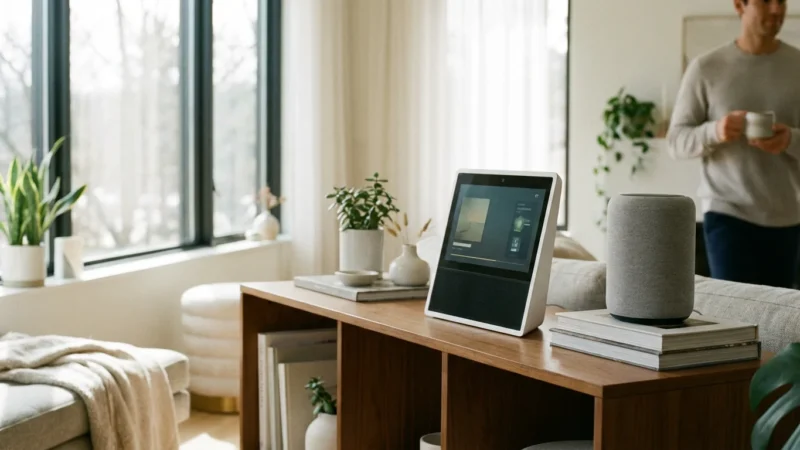
The foundation of your voice announcement system rests on your chosen smart assistant ecosystem. Amazon Alexa, Google Assistant, and Apple Siri dominate the smart home landscape. Each offers unique strengths and a range of compatible devices. Understanding their differences helps you leverage their full announcement capabilities.
Here is a brief overview of each platform:
- Amazon Alexa: Operates primarily through Amazon Echo devices. Alexa offers robust “Announcements” for one-way broadcasting and “Drop In” for two-way intercom functionality. Its vast device compatibility and extensive routine options make it highly versatile.
- Google Assistant: Powers Google Home and Nest devices. Google Assistant features “Broadcast” for one-way messages to all devices. It integrates deeply with Google services and focuses on conversational AI.
- Apple Siri: Available on HomePod and HomePod mini speakers. Siri’s “Intercom” feature provides two-way communication within your Apple Home environment. It emphasizes privacy and seamless integration with Apple devices.
Your choice of ecosystem often depends on your existing smart devices and personal preferences. You can certainly mix platforms, but for seamless voice announcements, sticking primarily to one family of smart speakers simplifies the setup. Compatibility is key for a unified intercom system.

Setting Up Voice Announcements with Amazon Alexa
Amazon Alexa offers two primary methods for whole home communication: “Announcements” and “Drop In.” Announcements send a one-way message to all or selected Echo devices. Drop In allows for a two-way conversation between devices, functioning as a true intercom system.
To begin, ensure you have multiple Amazon Echo devices set up in various rooms and connected to your Wi-Fi network. All devices must be registered to the same Amazon account.
Using Alexa Announcements for Broadcast Messages
This feature sends your message to all compatible Echo devices in your home. It works well for general alerts or information for the entire household.
- Open the Alexa App: Launch the Amazon Alexa app on your smartphone or tablet.
- Speak the Command: Say “Alexa, announce [your message]” to any Echo device. For example, “Alexa, announce dinner is ready.”
- Receive the Announcement: All other Echo devices will play a chime, followed by your message. The message plays from your voice, providing a personal touch.
You can also initiate announcements through the Alexa app:
- Navigate to Communicate: In the Alexa app, tap the “Communicate” icon at the bottom.
- Select Announce: Tap the “Announce” button.
- Type or Speak: Type your message or tap the microphone icon to speak it. Then, tap “Send.”
Setting Up Alexa Drop In for Intercom Between Rooms
Drop In creates a two-way audio connection between two or more Echo devices, like a traditional intercom. You can talk directly to someone in another room.
- Enable Drop In: Open the Alexa app. Tap “Devices” at the bottom. Select “Echo & Alexa,” then tap on each individual Echo device. Scroll down and ensure “Drop In” is enabled under “Communications.” You can choose to allow “My Household” or “Only My Household” for privacy.
- Initiate Drop In: To start a conversation, say “Alexa, drop in on [device name]” (e.g., “Alexa, drop in on the Kitchen Echo”).
- End the Call: To end the Drop In, say “Alexa, hang up” or tap the hang-up button in the Alexa app if you initiated it there.
You can also use Drop In from the Alexa app:
- Navigate to Communicate: Tap the “Communicate” icon in the Alexa app.
- Select Drop In: Tap the “Drop In” button.
- Choose Device: Select the Echo device you want to drop in on from the list.
Creating Automated Announcements with Alexa Routines
Routines allow you to automate announcements based on specific triggers. This takes your whole home announcement system to the next level.
- Open Alexa App: Go to the “More” tab, then select “Routines.”
- Create New Routine: Tap the “+” icon to create a new routine.
- Set a Trigger:
- Choose “When this happens” (e.g., “Schedule” for a specific time, “Smart Home” for a sensor trigger, “Voice” for a custom phrase).
- For example, select “Schedule” and set 6:00 PM on weekdays.
- Add an Action:
- Tap “Add action.”
- Scroll down and select “Messages.”
- Choose “Announce” and type your message (e.g., “It’s 6 PM, time for dinner!”).
- Select which device should make the announcement, or leave it to “All eligible devices.”
- Save Routine: Review your routine and tap “Save.”
Now, your chosen Alexa devices will automatically make the announcement at the scheduled time. You can adapt this for security alerts, reminders, and more, significantly boosting your smart home’s proactive capabilities.
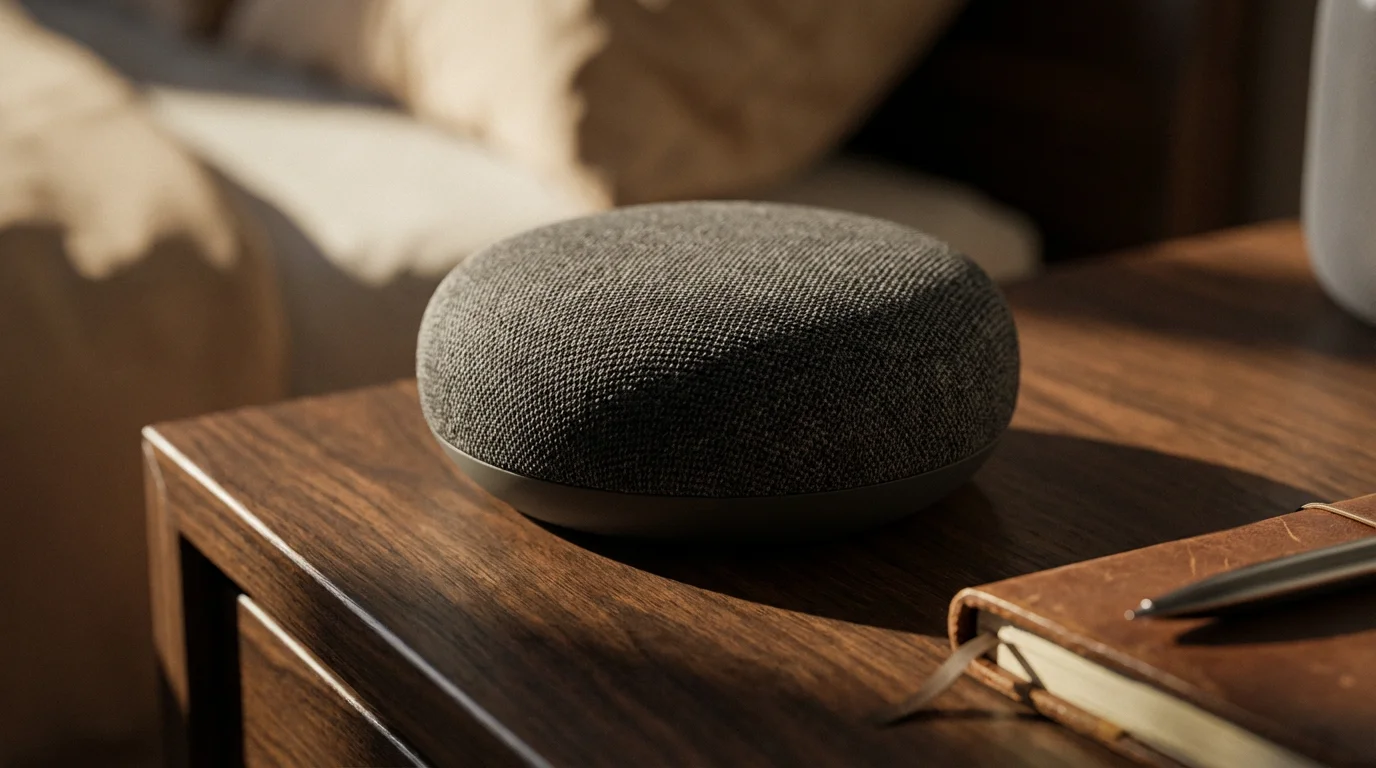
Configuring Broadcast Messages with Google Assistant
Google Assistant offers a “Broadcast” feature that sends a one-way voice message to all Google Home or Nest devices linked to your Google account. This functions similarly to Alexa’s Announcements, ideal for general household messages.
To start, ensure you have multiple Google Home or Nest speakers set up in different rooms and connected to the same Google account.
Sending Broadcast Messages Throughout Your Home
The process for sending a broadcast message is straightforward and relies on simple voice commands.
- Speak the Command: Say “Hey Google, broadcast [your message]” to any Google Home or Nest device. For example, “Hey Google, broadcast we are leaving in ten minutes.”
- Receive the Broadcast: All other Google Assistant-enabled speakers in your home will chime, then play your message.
Google Assistant also allows for a limited form of reply to broadcasts. If someone in another room hears your broadcast, they can say “Hey Google, reply [their message]” and their response will be sent back to the device that initiated the original broadcast. This offers a semi-intercom experience.
Automating Broadcasts with Google Assistant Routines
Like Alexa, Google Assistant’s Routines enable you to schedule or trigger broadcast messages based on events. This extends the utility of your whole home announcement system.
- Open Google Home App: Launch the Google Home app on your smartphone or tablet.
- Navigate to Routines: Tap the “Routines” icon (often a play button or sunrise icon).
- Create New Routine: Tap the “+” button to create a new routine.
- Set a Starter:
- Choose “Add starter.”
- Select a trigger (e.g., “Time” for a schedule, “When a device does something” for sensor triggers).
- For instance, set a daily time, like “8:00 AM every weekday.”
- Add an Action:
- Tap “Add action.”
- Choose “Communicate and Announce.”
- Select “Broadcast message.”
- Type your message (e.g., “Good morning, time to wake up!”).
- Save Routine: Review your routine settings and tap “Save.”
Your Google Assistant devices will now automatically broadcast your message at the designated time or when the chosen trigger occurs. This provides a hands-free way to manage reminders and notifications for your household.
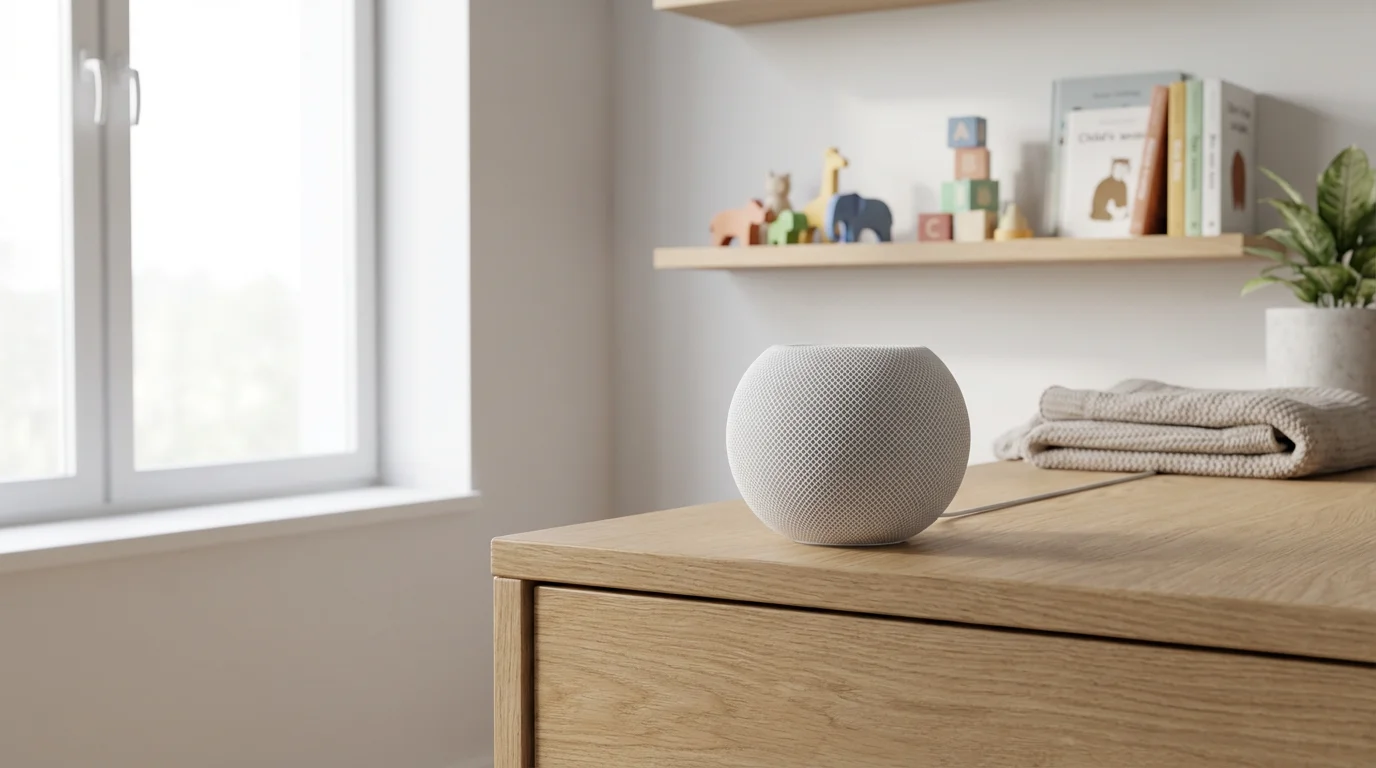
Utilizing Intercom Features with Apple HomePod and Siri
Apple HomePod and HomePod mini speakers offer a dedicated “Intercom” feature for communication within your Apple Home environment. This allows you to send and receive voice messages to individual HomePods or all HomePods simultaneously. The Intercom functionality also extends to your iPhone, iPad, Apple Watch, and CarPlay.
To set up Intercom, ensure you have multiple HomePod or HomePod mini devices within your home. They must all be assigned to rooms within the Apple Home app and connected to the same HomeKit home.
Sending Intercom Messages
You can initiate Intercom messages directly from a HomePod or other Apple devices.
- From HomePod: Say “Hey Siri, Intercom [your message]” to any HomePod. For example, “Hey Siri, Intercom, I’ll be home in 10 minutes.”
- From a Specific Room: You can target a specific room by saying “Hey Siri, Intercom to the Living Room, [your message].”
- From iPhone/iPad:
- Open the Home app.
- Tap the “Intercom” button (looks like a waveform icon) in the top right corner.
- Speak your message. It will be sent to all HomePods.
- From Apple Watch:
- Raise your wrist and say “Hey Siri, Intercom [your message].”
- Alternatively, open the Home app on your watch and tap the Intercom icon.
When an Intercom message is received, HomePod devices will play a brief chime followed by the sender’s recorded message. If you receive an Intercom message on your iPhone, iPad, or Apple Watch, it will appear as a notification and play automatically.
Replying to Intercom Messages
Replying to an Intercom message is simple, allowing for two-way conversations.
- Speak Your Reply: After hearing an Intercom message on a HomePod, say “Hey Siri, reply [your message].” Your reply goes back to the person who sent the original Intercom message.
Apple’s focus on user privacy means Intercom messages are processed on-device and are not stored indefinitely. This provides a secure and private way to use your HomePods as a whole home announcement system.
Advanced Automation: Linking Announcements to Smart Home Events
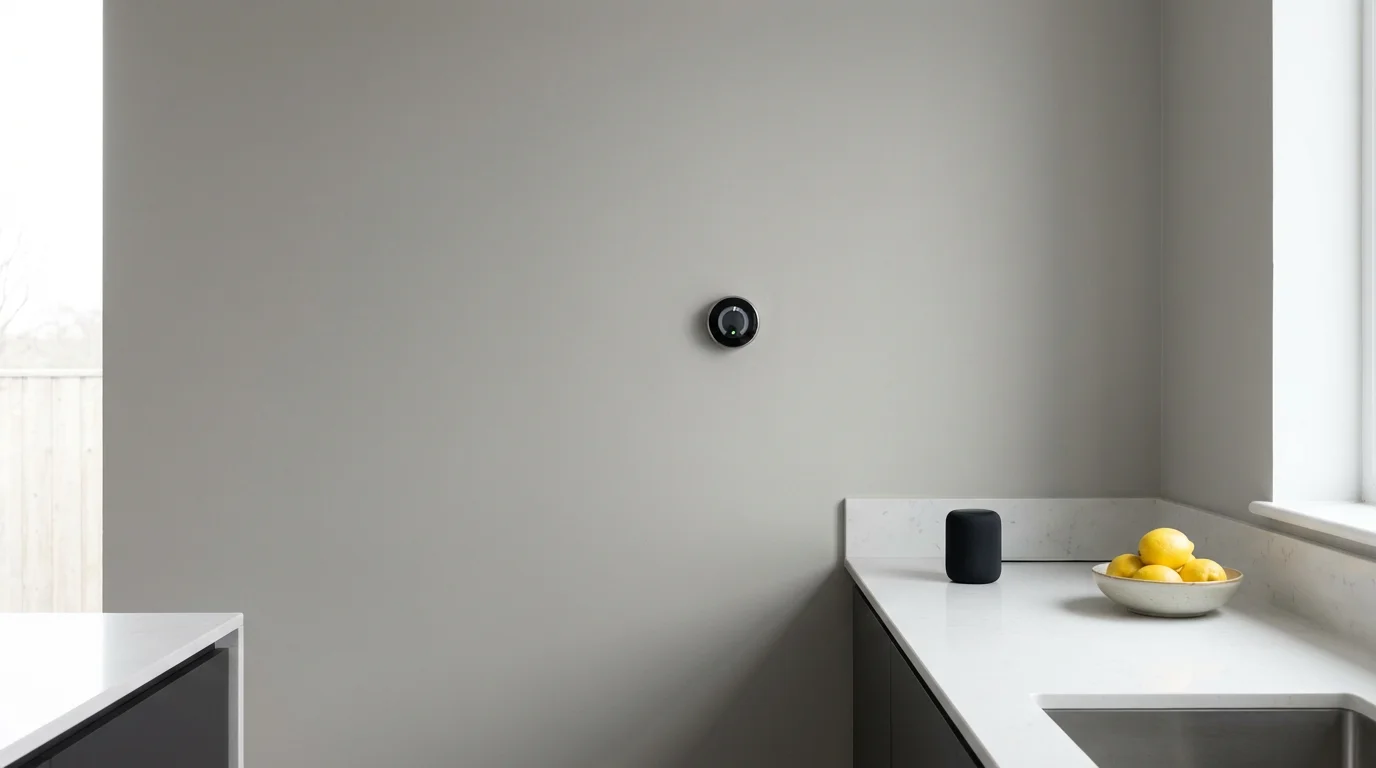
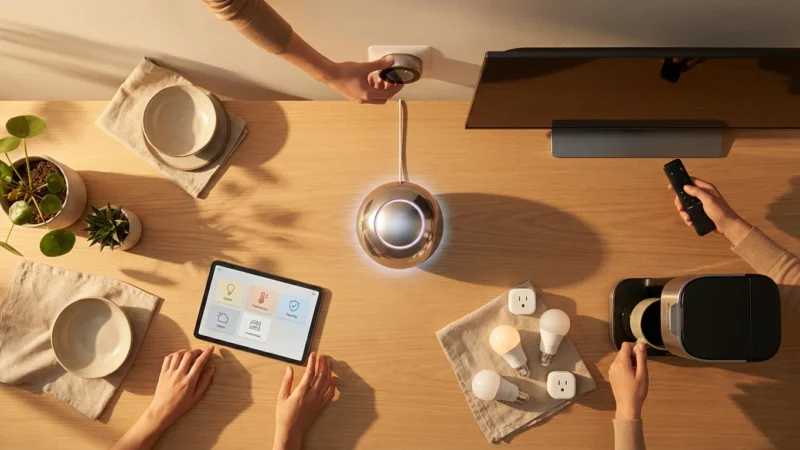
Beyond simple voice commands, integrating voice announcements into your smart home routines unlocks truly powerful and proactive capabilities. Your smart speakers can become the voice of your home, informing you about events as they happen. This requires smart home sensors and a platform that supports complex routines.
Consider these impactful automation examples:
- Door/Window Sensor Integration:
- When a child’s bedroom window opens at night, your Echo or Nest speaker in your room announces: “The window in the child’s room is open.”
- When the front door opens after 10 PM, an announcement states: “Front door opened, welcome home.”
- Motion Sensor Alerts:
- If a motion sensor detects movement in a restricted area (e.g., basement, garage) while you are away, your smart speaker could announce: “Motion detected in the garage.” This can also trigger notifications to your phone.
- A motion sensor in the hallway could trigger a “Welcome home” announcement when you enter, perhaps followed by playing your favorite music.
- Smart Lock Integration:
- When your smart lock is unlocked by a specific user code, your smart speaker announces: “John has arrived home.” This is useful for knowing when family members return.
- Laundry Cycle Completion:
- A smart plug monitoring your washing machine or dryer can detect when a cycle finishes. It then triggers an announcement like: “Laundry cycle complete in the utility room.”
- Temperature/Leak Detection:
- If a smart thermometer detects an unusually low temperature in the basement, your speaker could announce: “Temperature alert: basement is 40 degrees.”
- A water leak sensor can trigger an urgent “Water leak detected in the kitchen!” announcement.
These automations often leverage the “Smart Home” trigger option within Alexa and Google Assistant routines. For Apple HomeKit, you create “Automations” within the Home app, choosing sensor triggers and then selecting your HomePod as the announcement device.
The Matter smart home standard, championed by the Connectivity Standards Alliance (CSA), further enhances this interoperability. Matter aims to simplify device compatibility across different ecosystems. In the future, you can expect even more seamless integration and easier cross-platform automation for your voice announcement system. For detailed information on the Matter standard and its goals, visit the Matter Smart Home Standard website. This development promises to make building and expanding a comprehensive smart home, including advanced announcement capabilities, more accessible to everyone.
Privacy and Security for Whole-Home Voice Systems
While voice announcements offer immense convenience, you must consider the privacy and security implications of having always-listening microphones in your home. Understanding how these devices handle your data is crucial for maintaining peace of mind. According to experts at CNET Smart Home
Beyond securing your network, it is also wise to learn how to delete your voice history from smart speakers to keep your internal communications private.
, smart home privacy settings are an increasingly important area for consumer awareness.
Here are key considerations and best practices:
- Microphone Muting: All smart speakers come with a physical microphone mute button. Use it when you want complete privacy. This physically disconnects the microphone, ensuring no audio can be captured or transmitted.
- Voice Recording Management: Major smart assistant providers (Amazon, Google, Apple) record snippets of your interactions to improve their services. You can typically review and delete these recordings through their respective apps or web portals. Regularly audit your voice history.
- Privacy Settings: Dive into the privacy settings within the Alexa, Google Home, and Apple Home apps. You can often configure how your data is used, opt out of certain data collection, and manage specific permissions.
- Strong Passwords and Two-Factor Authentication: Secure your Amazon, Google, and Apple accounts with strong, unique passwords. Enable two-factor authentication (2FA) wherever possible. This adds an extra layer of security against unauthorized access to your smart home system.
- Guest Access: Be cautious about who you grant access to your smart home. If you share access, ensure you understand the permissions you are giving. Some platforms allow limited guest access without full control.
- Device Placement: Strategically place your smart speakers. Avoid putting them in highly sensitive areas if you are concerned about accidental recordings.
- Software Updates: Keep your smart speaker firmware and companion apps updated. Manufacturers regularly release security patches and privacy enhancements.
By proactively managing these aspects, you can enjoy the benefits of a whole home announcement system without compromising your privacy. You maintain control over your data and your digital footprint within your living space.
Troubleshooting Common Voice Announcement Issues
Even with the most robust whole home announcement system, you might encounter occasional glitches. Most issues are minor and easily resolved. Addressing common problems helps ensure your intercom system remains reliable and responsive.
Here are some typical issues and their solutions:
- Announcement Not Playing on All Devices:
- Check Wi-Fi Connection: Ensure all smart speakers are connected to your home Wi-Fi network and have a strong signal. A weak connection can prevent messages from broadcasting.
- Verify Device Status: Confirm that all devices are online and not in an error state within their respective apps (Alexa app, Google Home app, Apple Home app).
- Same Account: For Alexa and Google Assistant, ensure all devices are registered to the same primary account. For Apple, verify they are in the same HomeKit home.
- Volume Settings: Check the volume on individual speakers. If a device is muted or has extremely low volume, you might miss the announcement.
- Voice Assistant Not Responding:
- Microphone Muted: Check if the microphone mute button on the smart speaker is engaged. Most devices have a visual indicator (e.g., a red light).
- Device Placement: The speaker might be too far away, or there might be too much background noise for it to hear your command.
- Reboot Device: Unplug the smart speaker from power for 10-15 seconds, then plug it back in. This often resolves minor software glitches.
- Routines/Automations Not Triggering:
- Review Routine Settings: Double-check the trigger conditions and actions in your Alexa, Google Home, or Apple Home app. Ensure everything is configured correctly.
- Sensor Battery/Connectivity: If your routine relies on a smart home sensor, verify its battery level and network connection. A dead battery or disconnected sensor prevents triggers.
- Time Zones: Confirm that your smart home hub and devices are set to the correct time zone for scheduled routines.
- Poor Audio Quality:
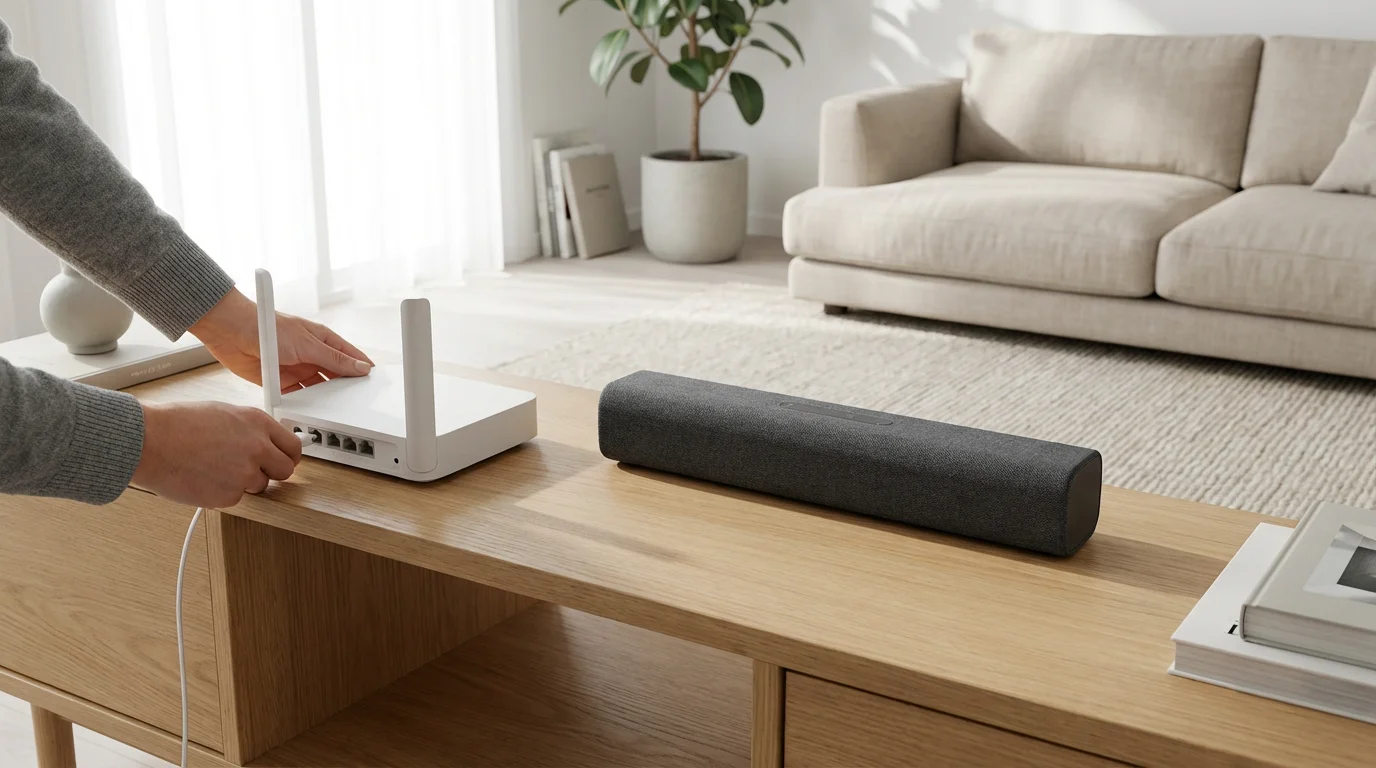
- Wi-Fi Interference: Other devices on your network might be causing interference. Try restarting your router.
- Speaker Placement: Avoid placing speakers in enclosed spaces or near walls that might cause echoes.
- Network Bandwidth: If you have many devices streaming or active, your network might be congested.
- Intercom/Drop In Not Working:
- Permissions: For Alexa Drop In, ensure you have explicitly enabled it for “My Household” or “Only My Household” in the device settings within the Alexa app.
- Speaker Specificity: When initiating Drop In or Intercom to a specific speaker, ensure you use the exact name of the device as it appears in the app.
Addressing these issues systematically often leads to a quick resolution. Your smart home announcement system will then reliably serve your communication needs.
Frequently Asked Questions
Can I use Alexa and Google Assistant devices together for a single voice announcement system?
No, you cannot directly combine Alexa and Google Assistant devices for a unified voice announcement system. Each platform’s announcement features, like Alexa’s Announce/Drop In and Google’s Broadcast, only work within their respective ecosystems. You would need to initiate messages separately on each platform.
Do I need a strong Wi-Fi connection for voice announcements to work reliably?
Yes, a strong and stable Wi-Fi connection is crucial for reliable voice announcements. Smart speakers depend on Wi-Fi for communication, receiving commands, and broadcasting messages across your network. A weak signal or intermittent connection can cause delays, failed announcements, or poor audio quality.
What are the cost implications of setting up a whole home announcement system?
The primary cost involves purchasing smart speakers compatible with your chosen ecosystem, such as Amazon Echo, Google Nest, or Apple HomePod. You may also incur costs for additional smart sensors if you wish to integrate advanced automation. There are generally no recurring subscription fees specifically for basic voice announcement functionality.
Can guests use the voice announcement or intercom features on my smart speakers?
Generally, guests cannot directly initiate voice announcements or intercom calls without access to your main smart home account or specific permissions. Some platforms, like Alexa, allow you to enable “Drop In” for “My Household,” which means anyone with an Echo device registered to your household can use it. For more controlled guest access, consider setting up separate voice profiles or temporary access as available by the platform.
Disclaimer: This article is for informational purposes only. Smart home devices involve electrical connections and data privacy. Always follow manufacturer instructions for installation. For complex wiring or HVAC work, consult a licensed professional.



Leave a Reply