
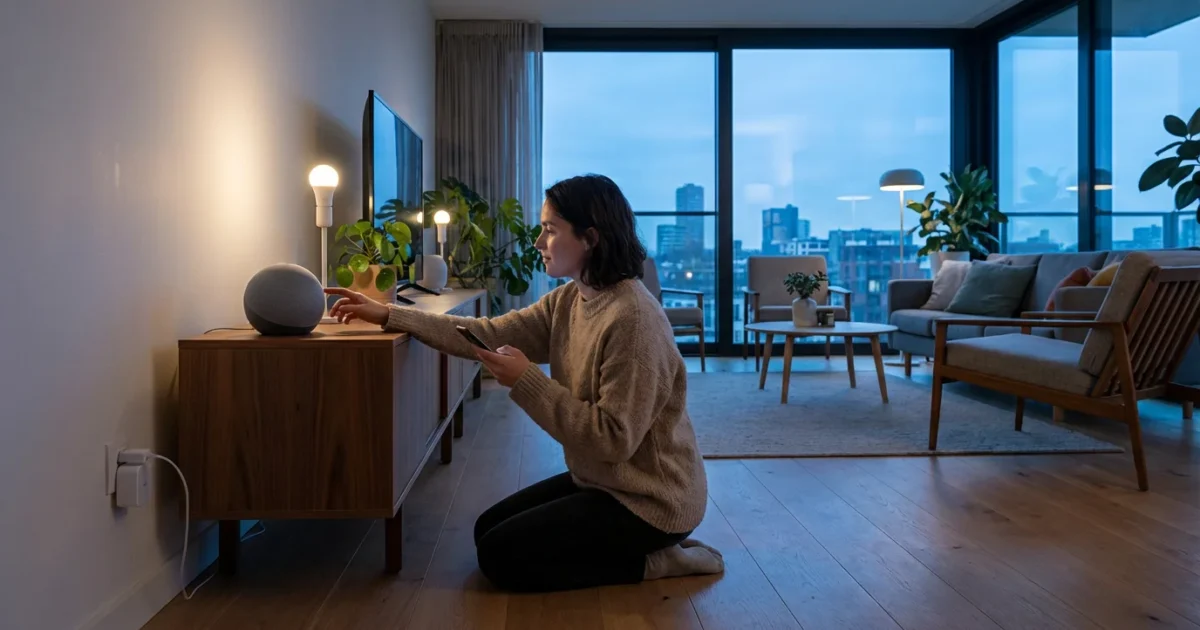
Transform your living space into a smarter, more responsive environment with Google Home. This comprehensive guide helps you navigate the Google Home setup process, integrate your devices, and unlock the full potential of Google Assistant. You will learn practical steps to automate your home, enhance security, and enjoy unparalleled convenience, whether you are a complete beginner or looking to optimize your existing smart home configuration.
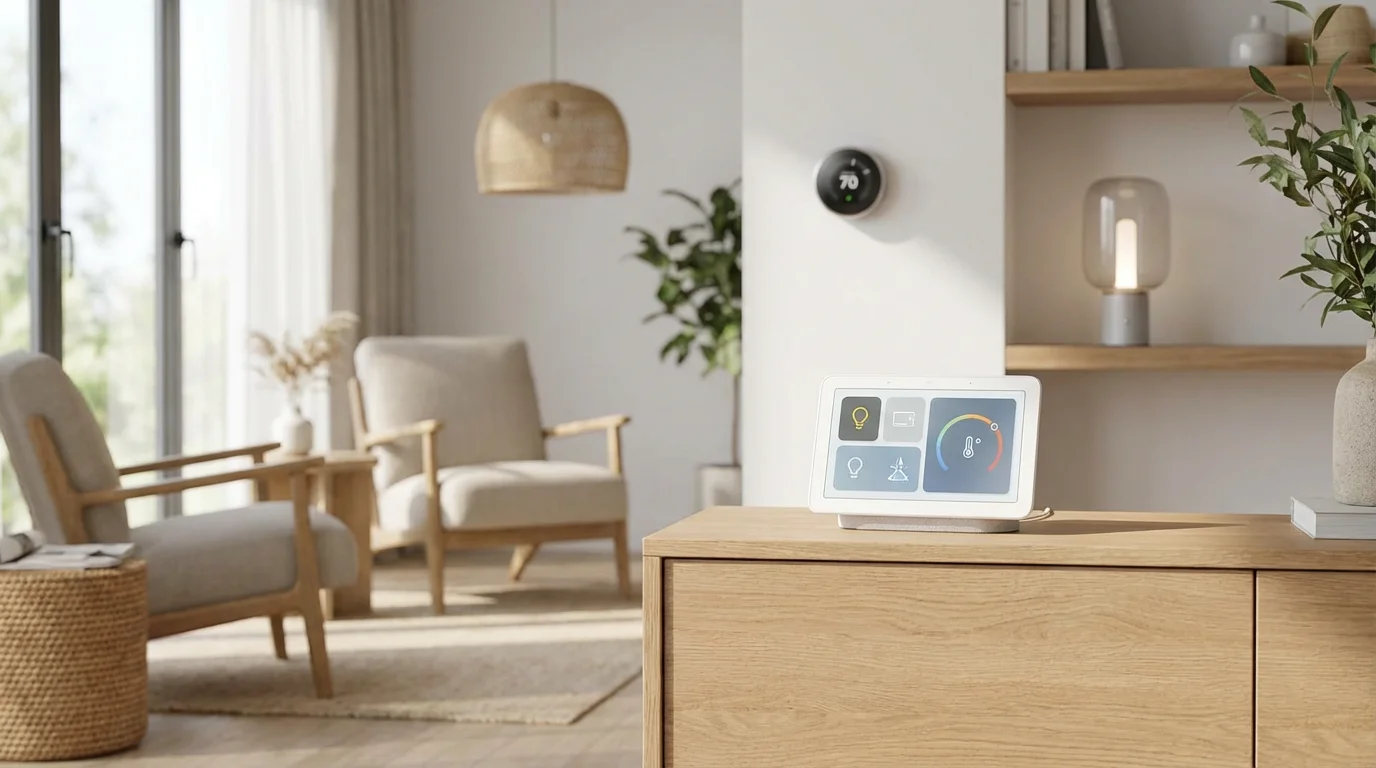
Welcome to Google Home: Your Smart Home Command Center
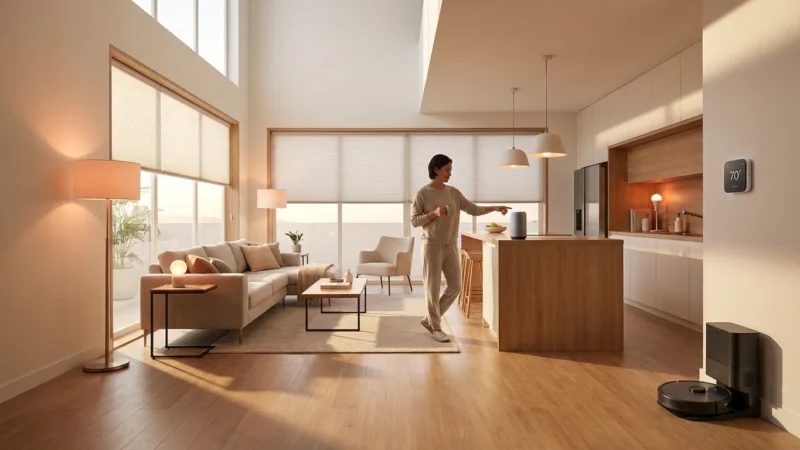
Google Home serves as the central brain for your smart home, providing voice control and automation through Google Assistant. It integrates hundreds of smart devices, offering a unified platform for managing everything from lighting to security cameras. Setting up Google Home efficiently unlocks a world of convenience, allowing you to control your environment with simple voice commands or automated routines.
Imagine adjusting your thermostat from bed, dimming lights with a word, or checking who is at the door from your couch. This level of control becomes effortless with a properly configured Google Home system. We guide you through each step, ensuring you build a smart home that truly enhances your daily life.
Understanding the Google Home Ecosystem
The Google Home ecosystem comprises various devices and technologies designed to work together seamlessly. Understanding these components helps you make informed decisions about your smart home journey.
If you use devices from different manufacturers, you might want to learn how to connect multiple voice assistants in one home for better cross-platform compatibility.
Key Components of the Google Home Ecosystem
- Google Assistant: This AI-powered voice assistant is the core intelligence behind Google Home. It processes your commands, answers questions, and triggers automations across your connected devices.
- Google Nest Devices: This brand includes smart speakers (Nest Mini, Nest Audio), smart displays (Nest Hub, Nest Hub Max), thermostats (Nest Thermostat), cameras (Nest Cam), and doorbells (Nest Doorbell). These devices provide direct interaction points with your Google Home system.
- Third-Party Compatible Devices: A vast array of smart products from other manufacturers integrate with Google Home. These include smart lights, smart plugs, robotic vacuums, and more. Look for “Works with Google Assistant” labels.
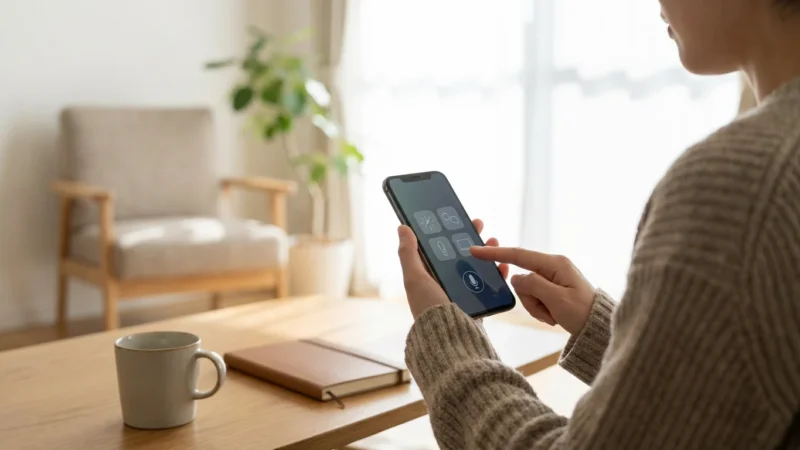
- Google Home App: This mobile application is your primary interface for setting up devices, managing settings, creating routines, and monitoring your smart home from anywhere.
Voice Assistant Comparisons
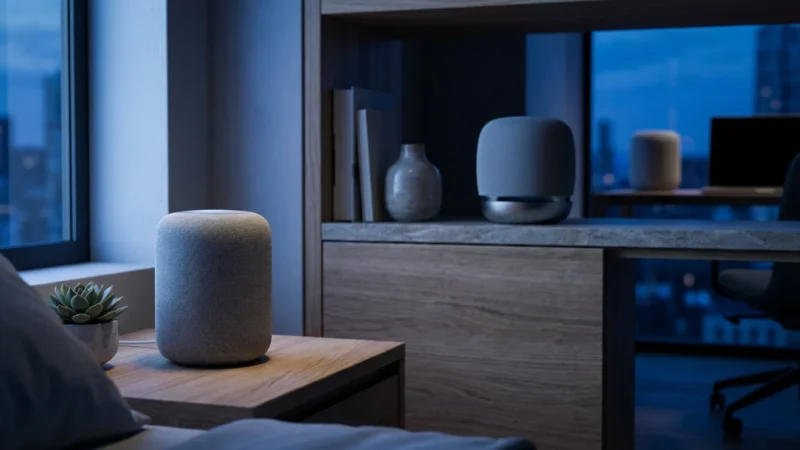
Google Assistant stands out for its deep integration with Google services and its natural language understanding. While Amazon Alexa and Apple Siri offer similar voice control capabilities, Google Assistant often excels in contextual understanding and information retrieval due to Google’s search prowess. Each platform has its strengths, but Google Home provides a robust and widely supported framework for comprehensive home automation.
For example, Google Assistant often performs better for complex queries combining multiple pieces of information, like “What’s the weather like in Paris next Tuesday and when does the sun set there?” Its ability to leverage Google Search makes it a powerful knowledge base. According to CNET, Google Assistant often leads in search query performance compared to its rivals.
Initial Google Home Setup: A Step-by-Step Guide
Your Google Home setup begins with your primary Google Assistant device, typically a Nest speaker or display. Follow these steps to get your first device online.
Step 1: Download the Google Home App
The Google Home app is essential for managing your smart home. Download it to your smartphone or tablet from the App Store for iOS or Google Play Store for Android. Ensure your device runs the latest operating system for optimal compatibility.
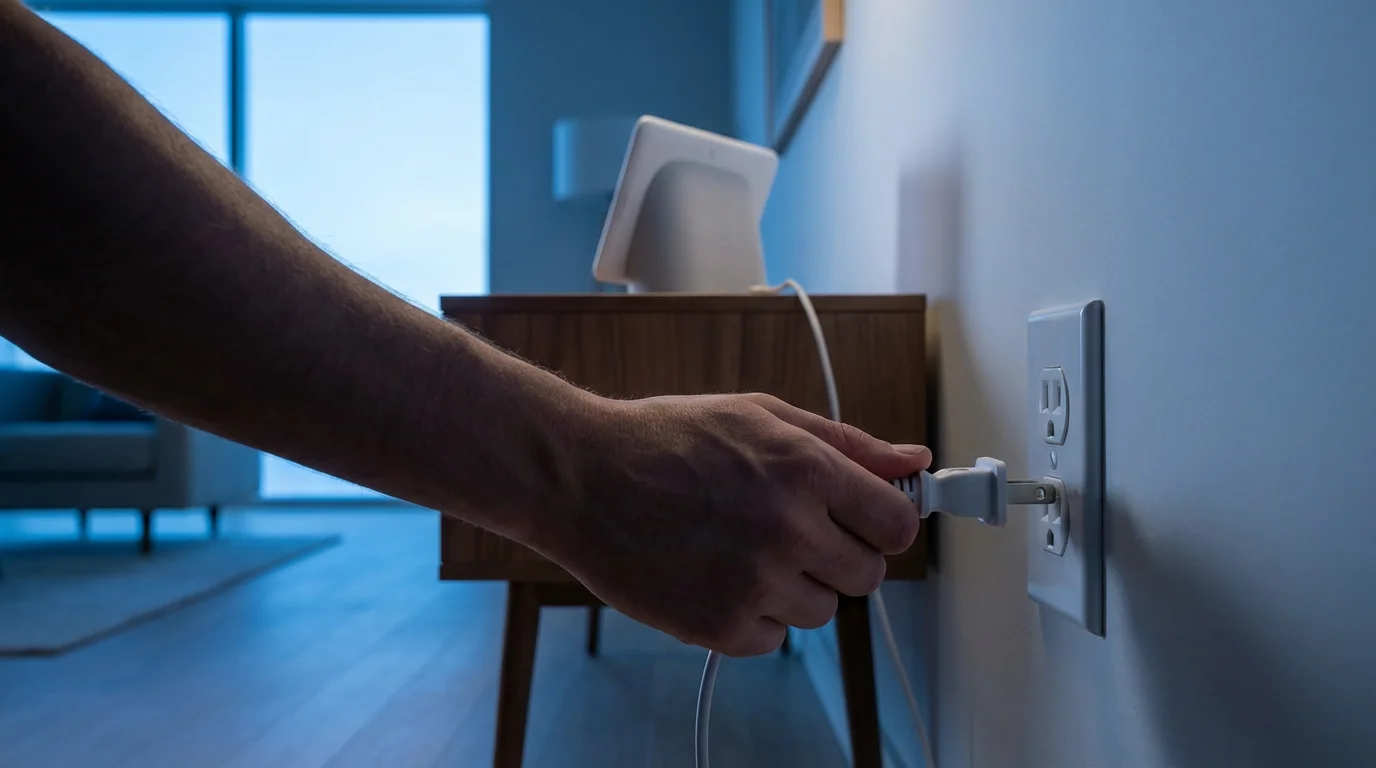
Step 2: Plug In Your Google Home Device
Find a suitable location for your Google Home or Nest device. Plug it into a power outlet. The device powers on and indicates its readiness for setup, usually with a light or a chime. For Nest Hubs, the screen will prompt you to begin.
Step 3: Open the Google Home App and Sign In
Launch the Google Home app on your mobile device. Sign in with your Google account. If you have multiple Google accounts, choose the one you want to associate with your smart home. This account manages all your smart home settings and devices.
Step 4: Add Your Device
The app should automatically detect your new Google Home device nearby. If it does not, tap the plus (+) icon in the top left corner, then select “Set up device” and “New device.” The app guides you through recognizing and connecting to your specific Google Home speaker or display.
Step 5: Connect to Wi-Fi
Your Google Home device needs an internet connection. Select your home’s Wi-Fi network from the list in the app. Enter your Wi-Fi password. A strong and stable Wi-Fi signal is crucial for consistent performance, so place your device within good range of your router.
Step 6: Choose a Room and Personalize Settings
Assign your device to a specific room, like “Living Room” or “Kitchen.” This organization becomes vital as you add more devices. You also configure personal settings, including:
- Voice Match: Teach Google Assistant to recognize your voice. This enables personalized responses, calendar access, and music preferences.
- Default Music Services: Select your preferred music streaming service, such as Spotify or YouTube Music.
- Video Services: Link your Netflix or Disney+ accounts if you have a Nest Hub.
- Google Photos Integration: For Nest Hub devices, select photo albums to display as a digital picture frame.
Complete these steps, and your Google Home device is ready to respond to your commands. You have successfully completed the initial Google Home setup.
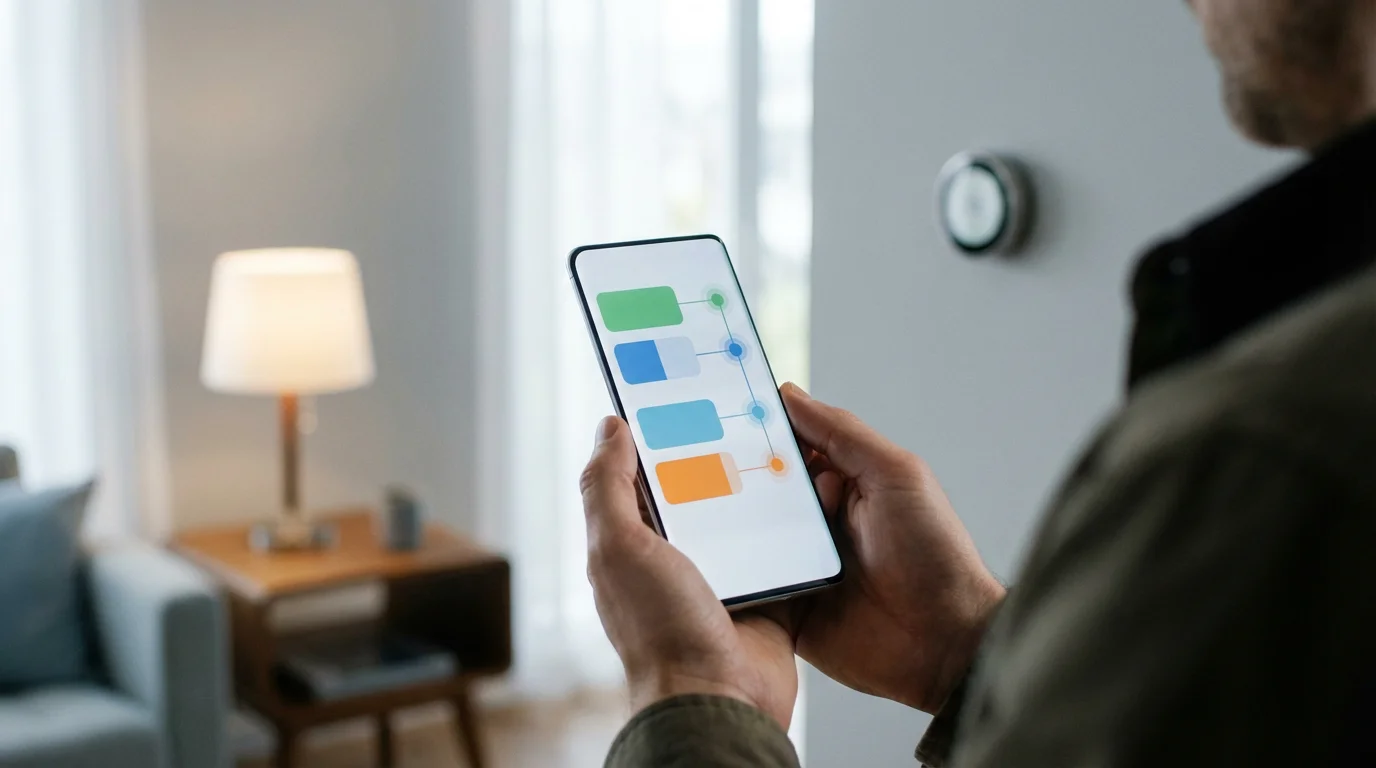
Connecting Your Smart Devices to Google Home
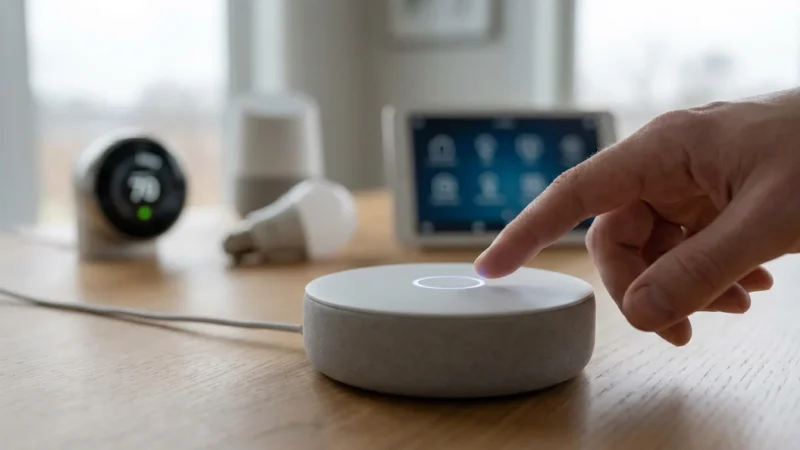
With your Google Home hub active, you can now begin integrating other smart devices. This is where your smart home truly comes to life, allowing you to control lights, thermostats, locks, and more with Google Assistant.
General Steps for Adding Smart Devices
- Install the Device: Physically install your smart device according to its manufacturer’s instructions. This might involve screwing in a smart bulb, installing a smart plug, or wiring a smart thermostat. For any electrical work, always prioritize safety. If you are uncomfortable with wiring, consult a licensed electrician.
- Set Up the Device with its Native App: Most smart devices require setup with their own dedicated app first. For example, a Philips Hue light bulb needs configuration in the Philips Hue app before connecting to Google Home.
- Open the Google Home App: Return to the Google Home app on your phone.
- Add Device: Tap the plus (+) icon, then select “Set up device.” Choose “Works with Google” or “New device” depending on whether you are adding a new Google-branded device or linking a third-party service.
- Link the Manufacturer’s Account: For third-party devices, select the manufacturer from the list (e.g., “Philips Hue,” “TP-Link Kasa,” “Ring”). The app prompts you to sign into your account for that manufacturer. This creates the link between their service and Google Home.
- Assign to a Room: Once linked, Google Home discovers your new devices. Assign each device to an appropriate room for easy management and voice control. For example, “turn on the living room lights.”
Understanding Smart Home Communication Protocols
Different smart devices use various communication protocols to connect and interact. Understanding these helps you build a more robust and compatible system:
- Wi-Fi: Many devices connect directly to your home Wi-Fi network. This is common for smart plugs, cameras, and some lights.
- Bluetooth: Used for close-range connections, often during initial setup or for localized control.
- Zigbee: A mesh networking protocol designed for low-power smart home devices, like sensors and some smart lights. It requires a Zigbee hub (often built into devices like the Amazon Echo Show or specific smart hubs).
- Z-Wave: Similar to Zigbee, another mesh network optimized for smart home devices, known for its strong signal and security features. It also requires a dedicated hub.
- Matter: This emerging standard aims to unify smart home devices across different ecosystems, making setup and compatibility much easier. Matter devices work with Google Home, Alexa, and Apple HomeKit, simplifying your choices. The Connectivity Standards Alliance (CSA) champions the Matter standard, promising greater interoperability across smart home platforms. You can learn more about Matter on the CSA-IoT website.
You do not need to be an expert in every protocol. Google Home often abstracts these complexities, allowing you to link services without worrying about the underlying tech. However, knowing which protocols your devices use can help troubleshoot connection issues.
“The best smart home is the one you don’t have to manage. It adapts to your needs and responds intuitively, fading into the background of your daily life.”

Mastering Google Assistant Commands and Routines
Voice commands are the most intuitive way to interact with your Google Home. Routines take this a step further, automating sequences of actions based on a single trigger.
Essential Google Assistant Commands
Start with these basic commands to control your smart home:
- “Hey Google, turn on the living room lights.”
- “Hey Google, set the thermostat to 72 degrees.”
- “Hey Google, lock the front door.”
- “Hey Google, show me the front door camera.” (Requires a Nest Hub or Chromecast-enabled TV)
- “Hey Google, dim the bedroom lights to 50%.”
- “Hey Google, play jazz music on Spotify.”
- “Hey Google, broadcast ‘Dinner is ready!'”
Creating Custom Routines
Routines automate multiple actions with a single phrase, schedule, or event. They save you time and streamline your daily activities.
- Open the Google Home App: Tap the “Routines” icon on the main screen.
- Create a New Routine: Tap the plus (+) icon to start a new routine or choose from pre-set options like “Good morning” or “Bedtime.”
- Set a Starter: This is what triggers the routine. Options include:
- Voice command: “Hey Google, good morning.”
- Time of day: Schedule it for 7:00 AM on weekdays.
- Sunrise/Sunset: Adjust lights with natural light.
- When an alarm is dismissed: Perfect for morning routines.
- When a device does something: For example, when a smart sensor detects motion.
- Add Actions: Define what Google Assistant does when the routine starts. You can string together multiple actions:
- Adjust smart lights (turn on, change color, dim).
- Set thermostat temperature.
- Play specific music or a news briefing.
- Announce information (weather, calendar).
- Lock doors or arm security systems.
- Turn on smart plugs for coffee makers or lamps.
- Save Your Routine: Give your routine a descriptive name and save it.
Practical Routine Examples
- “Good Morning” Routine: At 7 AM on weekdays, turn on bedroom lights to 30%, play a news briefing, and start the coffee maker via a smart plug. You trigger it by saying, “Hey Google, good morning.”
- “Leaving Home” Routine: When you say, “Hey Google, I’m leaving,” turn off all lights, lock the doors, set the thermostat to an energy-saving temperature, and arm your security system. Tom’s Guide provides extensive ideas for smart home routines to save energy and enhance security.
- “Movie Night” Routine: With the command “Hey Google, movie night,” dim the living room lights, turn on the TV, and adjust smart blinds.
- “Bedtime” Routine: At 10 PM, turn off all lights downstairs, lock the front door, and play relaxing sounds in the bedroom.
Experiment with different triggers and actions to find routines that best suit your lifestyle. Routines are a cornerstone of an efficient Google Home smart home configuration guide.
Organizing Your Smart Home with Rooms and Groups
Proper organization within the Google Home app streamlines control and improves the accuracy of your voice commands. Rooms help Google Assistant understand which devices you want to control, while groups enable multi-device actions.
Proper device selection is also crucial for audio coverage; consider reviewing the best smart speakers for every room to maximize your setup.
Assigning Devices to Rooms
When you initially set up a device, the Google Home app prompts you to assign it to a room. You can also adjust this later:
- Open the Google Home App: Go to the main screen.
- Select a Device: Tap on the device you want to move.
- Access Settings: Tap the gear icon (⚙️) to open device settings.
- Choose Room: Under “Device settings,” find the “Room” option. Select an existing room or create a new one.
Using room assignments simplifies commands. Instead of saying, “Hey Google, turn on the Philips Hue Color Bulb 1,” you can say, “Hey Google, turn on the living room lights.” This is especially useful for managing multiple devices of the same type in one area.
Creating Speaker Groups for Multi-Room Audio
Speaker groups allow you to play music or other audio across multiple Google Home devices simultaneously. This creates a cohesive audio experience throughout your home.
- Open the Google Home App: On the home screen, tap the plus (+) icon.
- Create Speaker Group: Select “Create speaker group.”
- Choose Devices: Select the Google Home and Nest devices you want to include in the group.
- Name the Group: Give your group a descriptive name, such as “Whole House Audio” or “Downstairs Speakers.”
- Save: Tap “Save.”
Now, you can say, “Hey Google, play pop music on Whole House Audio,” and music will stream from all speakers in that group. This feature greatly enhances entertainment in your Google Home smart home configuration.
Privacy and Security Considerations for Your Smart Home
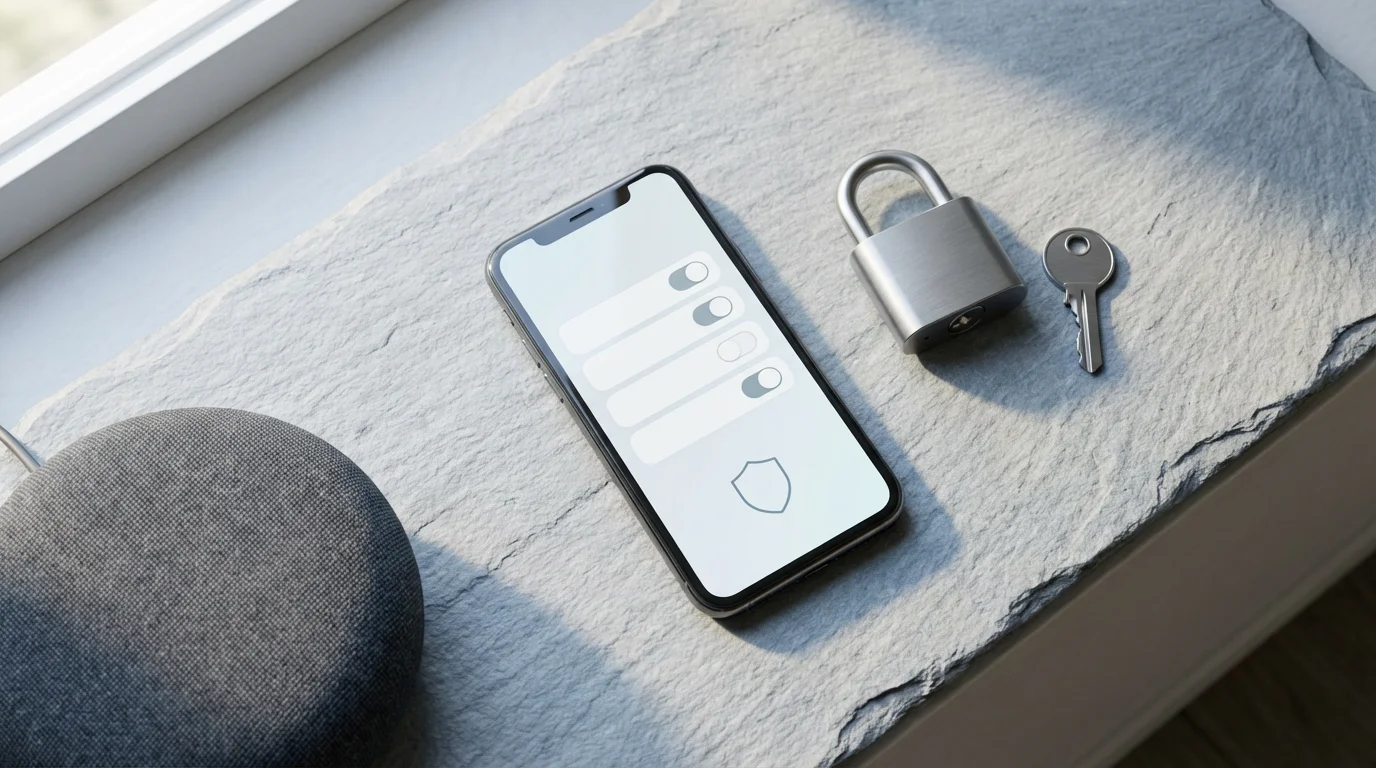
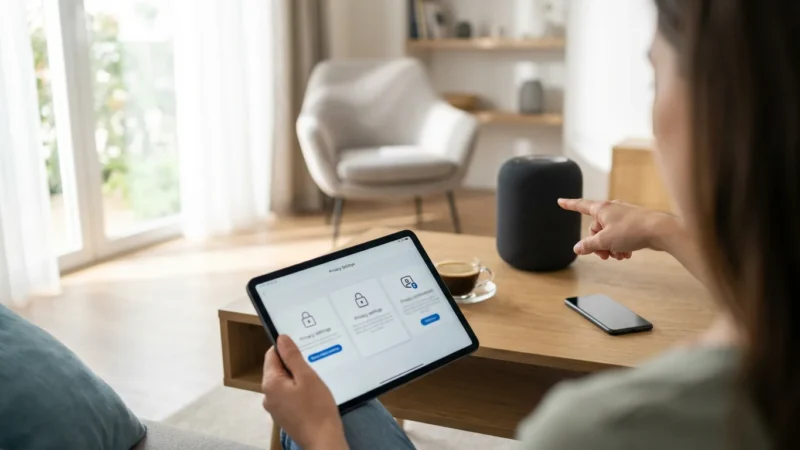
As you build your Google Home ecosystem, consider the privacy and security implications of connected devices. Protecting your data and securing your home are paramount.
To further protect your data, make sure to review the standard privacy settings every smart speaker owner should enable.
Managing Your Google Activity
Google Assistant records your voice commands to improve its understanding and provide personalized responses. You have control over this data:
- Review and Delete Activity: Visit myactivity.google.com to review your Google Assistant interactions. You can delete individual commands, delete activity by date, or set auto-delete options.
- Pause Activity Controls: You can pause “Web & App Activity” and “Voice & Audio Activity” in your Google account settings. This prevents Google from saving new interactions. However, pausing these may reduce Google Assistant’s personalization and accuracy over time.
Enhancing Device Security
Beyond Google’s settings, you play an active role in securing your smart home:
- Strong Wi-Fi Password: Your Wi-Fi network is the gateway to your smart home. Use a strong, unique password for your router.
- Two-Factor Authentication (2FA): Enable 2FA on your Google account and any third-party smart device accounts (e.g., smart lock or camera apps). This adds an extra layer of security against unauthorized access.
- Keep Software Updated: Regularly update your Google Home devices, the Google Home app, and any third-party smart device firmware. Updates often include critical security patches.
- Guest Mode and Mic Mute:
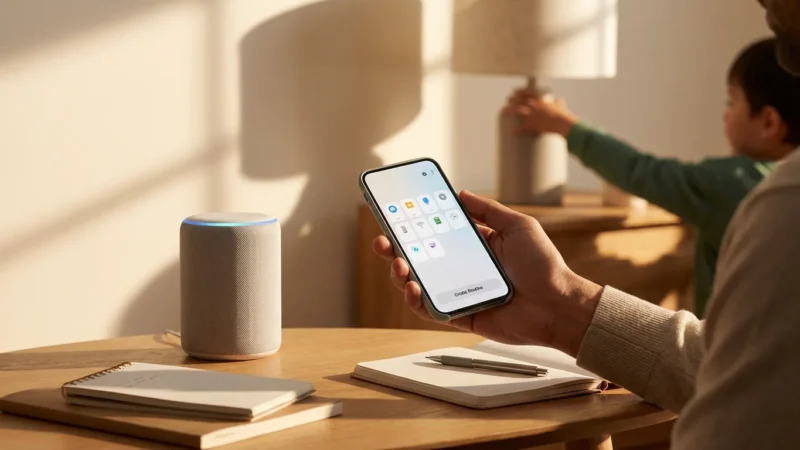
- Guest Mode: On Google Home speakers, you can enable Guest Mode so visitors can use basic Assistant features without accessing your personal information or connected services.
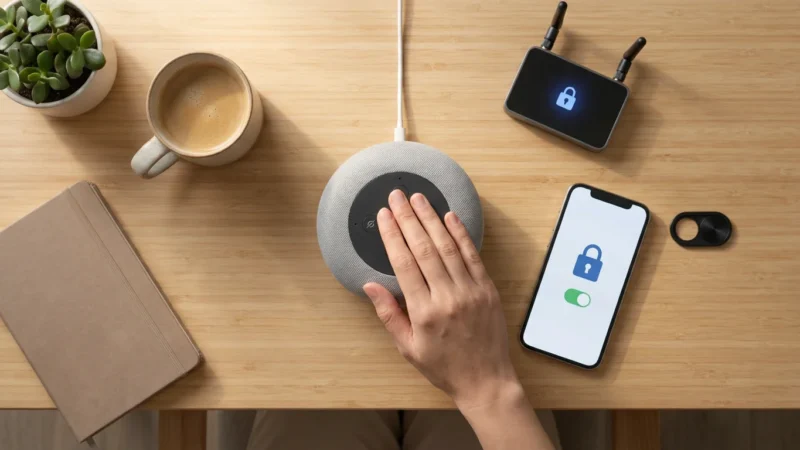
- Microphone Mute: All Google Home and Nest speakers/displays have a physical microphone mute switch. Use it when you want complete privacy and do not want the device listening for commands.
- Smart Lock Security: If you use smart locks, ensure they use robust encryption and strong PINs. Avoid simple, guessable codes.
- Smart Camera Placement: Position smart cameras strategically to monitor important areas without infringing on privacy. Regularly review access logs if your cameras offer them. For comprehensive security advice, PCMag offers excellent smart home security recommendations.
Advanced Tips and Troubleshooting for Google Home
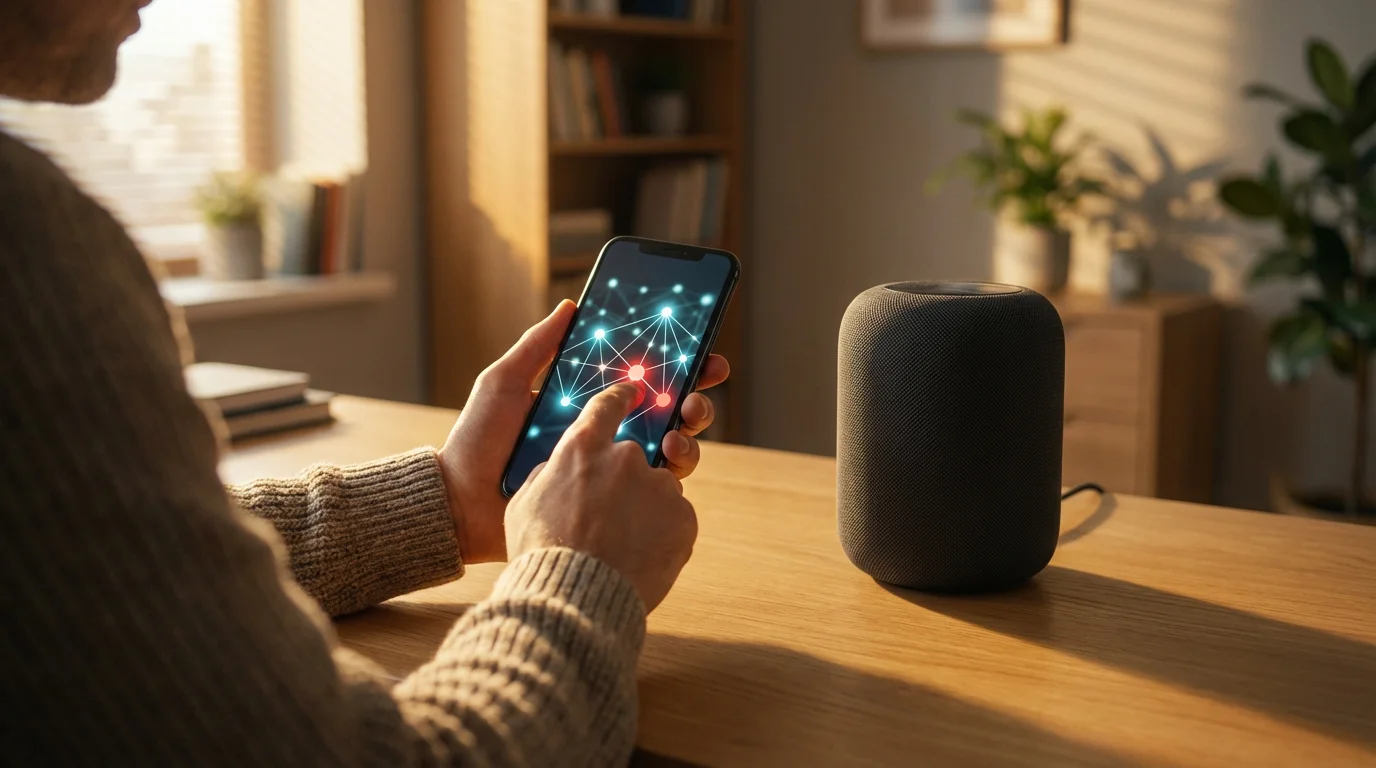
Once you master the basics, explore advanced features to truly personalize your smart home. Also, knowing how to troubleshoot common issues keeps your system running smoothly.
Advanced Google Home Features
- Intercom Functionality: Use Google Home devices to broadcast messages to all speakers, or initiate a conversation between specific devices, like “Hey Google, broadcast ‘Time for dinner!'” or “Hey Google, call the Kitchen display.”
- Guest Access: Share control of your home with family members by inviting them to your “Home” in the Google Home app. They gain access to all connected devices and routines.
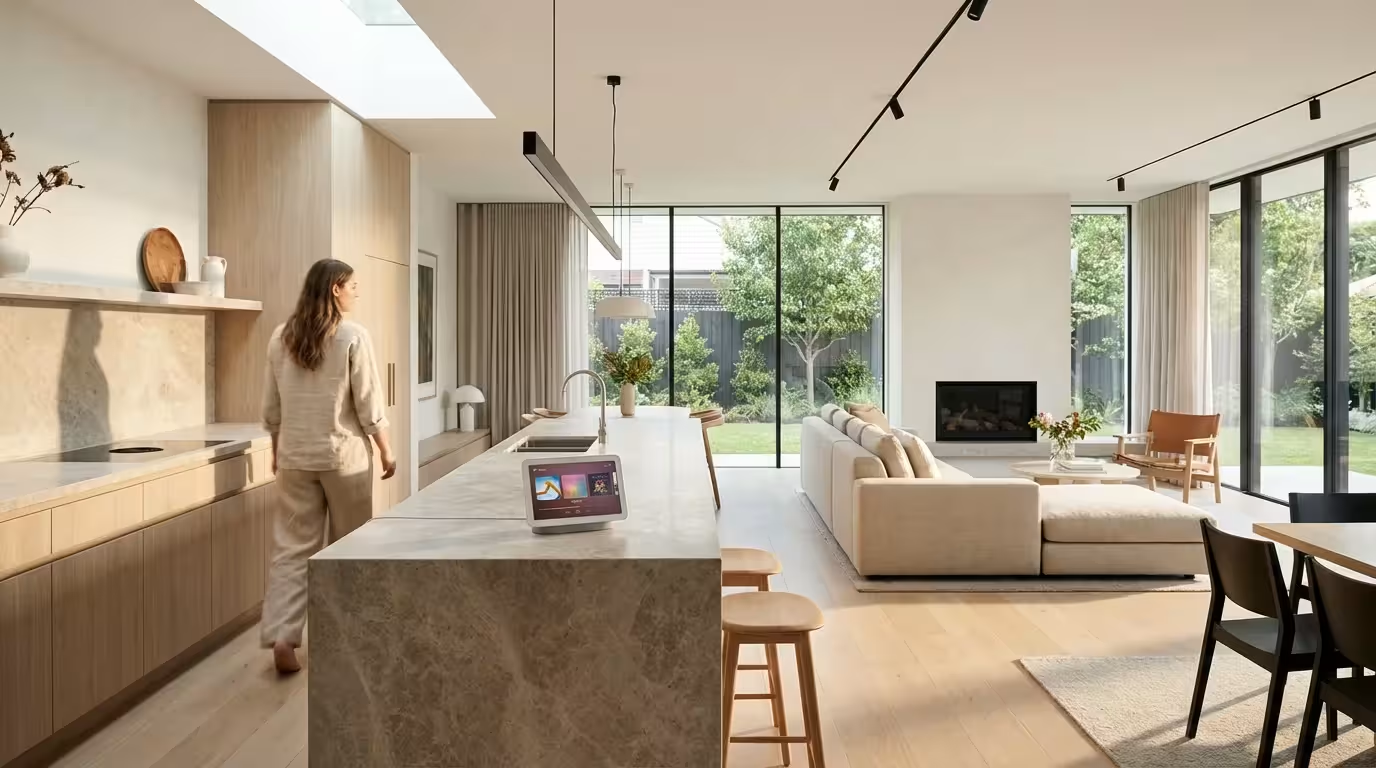
- Visual Control with Nest Hubs: Nest Hubs provide a touchscreen interface for your smart home. Swipe down from the top to access a quick control panel for lights, cameras, and thermostats. View recipes, watch YouTube, or make video calls.
- “Where’s My Phone?” Feature: Say, “Hey Google, find my phone,” and Google Assistant will ring your linked phone, even if it’s on silent.
- Voice Assistant Comparison for Specific Use Cases:
- Apple Siri: Best if you are deeply invested in the Apple ecosystem (iPhone, HomePod, Apple TV) and prioritize privacy. Offers excellent integration with Apple services.
- Amazon Alexa: Superior for shopping on Amazon and integrating with a wider range of older smart home devices. Has a vast skill library for diverse functionalities.
- Google Assistant: Excels with information retrieval, deep integration with Google services (Calendar, Maps, YouTube), and multi-room audio capabilities. Its natural language processing is often perceived as very strong.
Troubleshooting Common Google Home Issues
Even the most robust smart homes encounter occasional glitches. Here are solutions for common problems:
- Device Not Responding to Commands:
- Check if the device’s microphone is muted (look for an orange light or a physical switch).
- Ensure the device is plugged in and has power.
- Verify your Wi-Fi connection.
- Say “Hey Google, sync my devices” to refresh the connection to all linked smart devices.
- Reboot the Google Home device by unplugging it for 10 seconds and plugging it back in.
- Smart Device Not Appearing in the Google Home App:
- Make sure the smart device is installed, powered on, and set up in its native app first.
- Confirm both your phone and the smart device are on the same Wi-Fi network (2.4 GHz often works best for many smart devices).
- Retry the linking process in the Google Home app.
- Check the manufacturer’s compatibility list to ensure the device supports Google Assistant.
- Poor Voice Recognition:
- Speak clearly and articulate your words.
- Ensure there is minimal background noise.
- Retrain Voice Match in the Google Home app settings under your device’s profile.
- Relocate the device if it’s in a noisy area or too far from where you typically speak.
- Wi-Fi Connectivity Issues:
- Reboot your Wi-Fi router.
- Check for Wi-Fi interference from other devices.
- Ensure your Wi-Fi signal is strong where your Google Home device is located. You may need a Wi-Fi extender or mesh system for larger homes.
Most issues resolve with a simple restart of the device or the app. Persistent problems may require resetting the device to factory settings and going through the initial Google Home setup again.
Frequently Asked Questions
How many devices can I connect to Google Home?
Google Home supports a large number of devices. While there is no strict official limit, Google recommends keeping the number of devices in a single “Home” in the app manageable, typically under 200, to ensure optimal performance. The real limitation often comes from your Wi-Fi network’s capacity to handle many connected devices.
Do I need a Nest Hub for Google Home to work?
No, you do not need a Nest Hub for Google Home to work. Basic Google Home functionality, including voice control and routines, works perfectly with just a Google Home or Nest Mini/Audio smart speaker. A Nest Hub adds a visual interface, allowing you to control devices with touch, watch videos, and view camera feeds, but it is not a requirement for the core system.
Can Google Home control non-smart appliances?
Yes, Google Home can control non-smart appliances, but you need a smart plug. Plug your traditional lamp, fan, or coffee maker into a smart plug that is compatible with Google Home. Once configured, you can use Google Assistant to turn the smart plug, and thus the appliance, on or off.
What is the difference between Google Home and Google Assistant?
Google Assistant is the AI-powered voice assistant, the intelligence that understands your commands and executes them. Google Home is the ecosystem of devices, services, and the mobile app that houses and manages Google Assistant and your connected smart home devices. Essentially, Google Assistant is the brain, and Google Home is the body of your smart home system.
Is Google Home compatible with Matter devices?
Yes, Google Home is compatible with Matter devices. Google actively supports the Matter standard, which aims to improve interoperability across different smart home brands and ecosystems. Matter-enabled Google Home and Nest devices can act as Matter controllers, allowing you to easily set up and control Matter-certified smart home products from various manufacturers.
Disclaimer: This article is for informational purposes only. Smart home devices involve electrical connections and data privacy. Always follow manufacturer instructions for installation. For complex wiring or HVAC work, consult a licensed professional.

Leave a Reply