

Voice assistants like Amazon Alexa, Google Assistant, and Apple Siri offer incredible convenience, allowing you to control your smart home, get information, and manage your day with simple commands. However, persistent misunderstandings or commands going unheard can quickly turn convenience into frustration. If you find yourself repeatedly asking your smart speaker to “understand me better,” you are not alone. This guide provides practical, actionable insights to significantly improve voice recognition accuracy across your devices, transforming your interactions from frustrating to fluid.
Understanding Voice Recognition Challenges
Voice recognition technology relies on complex algorithms to convert spoken words into digital text and then interpret those words into commands. Several factors can hinder this process, leading to errors. Identifying these common issues is the first step toward improving your voice assistant’s responsiveness.
Your environment plays a significant role in how well your smart speaker picks up your voice. Background noise, distance, and even your speaking style can all contribute to misinterpretations. Understanding these variables helps you adjust your habits and surroundings for optimal performance.

Optimizing Your Environment for Better Understanding
A clear listening environment is crucial for accurate voice recognition. You can take several steps to minimize interference and ensure your voice assistant hears you correctly every time.
Selecting a high-quality device is the first step, so you may want to research the best smart speakers for every room that offer superior microphone technology.
Reducing Background Noise
One of the most common reasons for poor voice recognition is competing sounds. Smart speakers, such as the Amazon Echo or Google Nest Audio, use multiple microphones to isolate your voice, but excessive noise still poses a challenge. Consider the acoustic properties of your room.
- Turn down media: Lower the volume of your television, radio, or music playing through other speakers before issuing a command.
- Minimize ambient sound: If possible, reduce noise from appliances like dishwashers, washing machines, or loud fans when you want to use your voice assistant.
- Soft furnishings help: Carpets, curtains, and upholstered furniture absorb sound, reducing echoes and improving clarity for your microphone.
Even a slight reduction in background noise can dramatically improve how well your assistant processes your commands. Your clear voice becomes easier to distinguish from surrounding sounds.
Strategic Device Placement
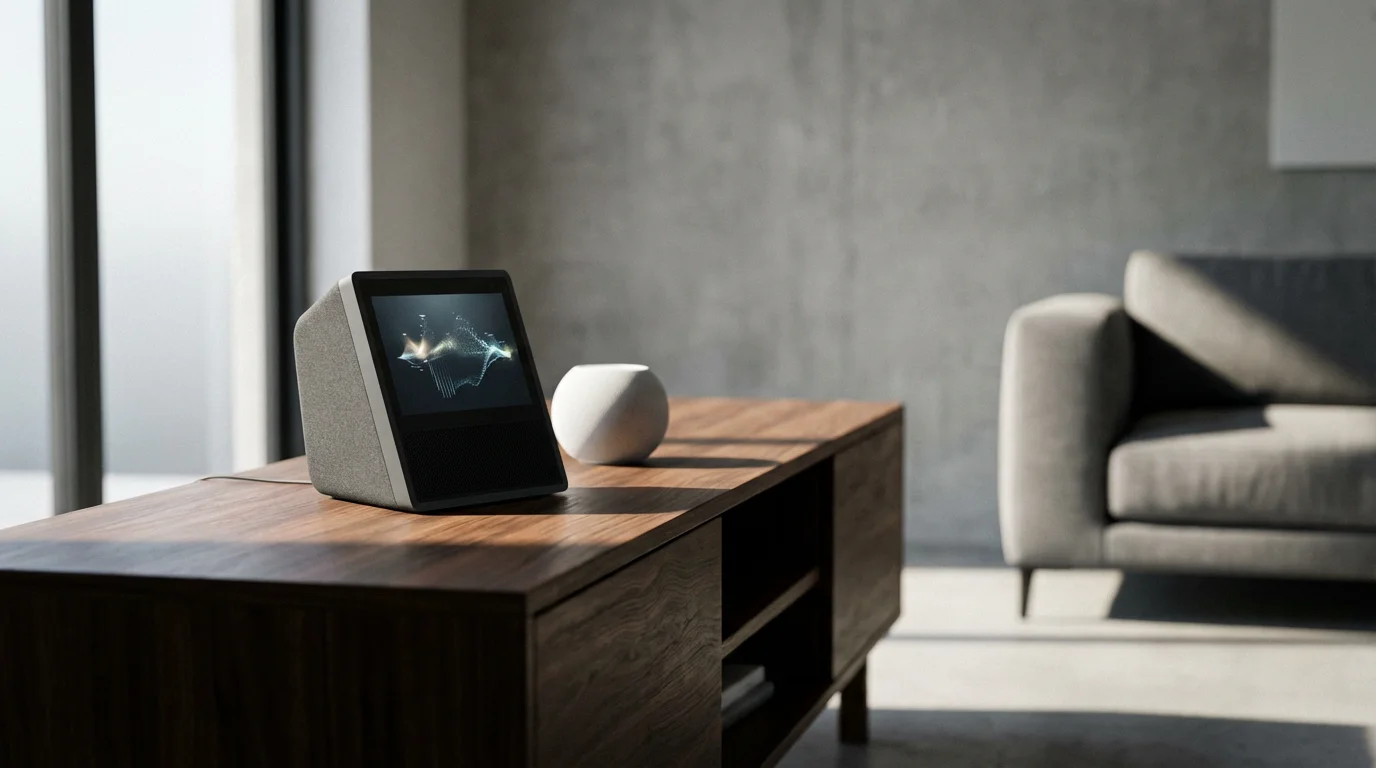
The physical location of your smart speaker significantly impacts its ability to hear you. Optimal placement minimizes obstacles and maximizes direct line of sight to your common speaking areas.
- Central location: Place your smart speaker in a central area of the room where you most frequently use it.
- Avoid corners and walls: These locations can create acoustic dead zones or unwanted echoes, distorting your voice.
- Clear line of sight: Ensure no objects block the microphones. Keep the top of your smart speaker clear of clutter.
- Away from other speakers: Do not place your smart speaker directly next to a television or another speaker that might broadcast sound.
- At ear level: For most interactions, positioning your device at approximately ear level when you are standing or sitting helps.
For instance, if you usually command your lights from the couch, ensure your Google Home Mini or HomePod mini sits on a coffee table or end table nearby, not hidden behind a large plant.
Speaking Clearly and Naturally
The way you speak also affects voice recognition accuracy. Your assistants are designed to understand natural speech, but some adjustments can help them better interpret your commands.
- Speak at a normal volume: Do not shout, but also do not whisper. A clear, moderate voice works best.
- Enunciate clearly: Be precise with your words without over-pronouncing them.
- Maintain a consistent pace: Avoid rushing your commands or speaking too slowly.
- Use natural phrasing: Formulate sentences as you would in a conversation, for example, “Turn on the living room lights” rather than disjointed words.
Voice assistants learn from your patterns. Consistent, clear speech provides better data for their algorithms to process, leading to improved understanding over time. According to Consumer Reports, consistency in how you interact with your smart assistant is a key factor in improving its performance.

Assistant Training and Personalization
Most voice assistants offer features designed to help them recognize your specific voice and understand your preferences. Leveraging these tools provides a personalized experience with much higher accuracy.
Voice Profiles and Personalization
Creating a voice profile trains your assistant to distinguish your voice from others in your household. This allows for personalized responses and improved recognition, especially if multiple people use the same device.
- Alexa Voice ID: In the Alexa app, navigate to Settings > Your Profile & Family > Voice ID. Follow the prompts to teach Alexa your voice. Once set up, Alexa can differentiate between family members for personalized responses to requests like “What’s on my calendar?”
- Google Assistant Voice Match: Open the Google Home app, tap your profile picture, then Assistant settings > Voice Match. You can train Google Assistant to recognize your voice, enabling personalized results and calendar entries.
- Apple Siri: Siri is generally tied to your Apple ID on a device, and your iPhone’s “Hey Siri” training helps it learn your voice over time. On HomePod, it can recognize up to six different voices for personal requests, although it does not require a specific “Voice Match” setup like the others.
This personalization allows your assistant to understand accents and speaking patterns unique to you. The more you use it after setup, the better it becomes at differentiating your voice.
Correcting Mistakes and Giving Feedback
Your voice assistant learns from every interaction, even when it makes a mistake. You can often provide direct feedback to help it improve.
- “Alexa, that wasn’t for me” or “Alexa, you misunderstood”: These phrases can sometimes prompt Alexa to discard the interaction or learn from the error.
- Reviewing voice history: Both Alexa and Google Assistant allow you to review your voice command history. You can often mark specific commands as misunderstood or delete them, which indirectly helps the system learn.
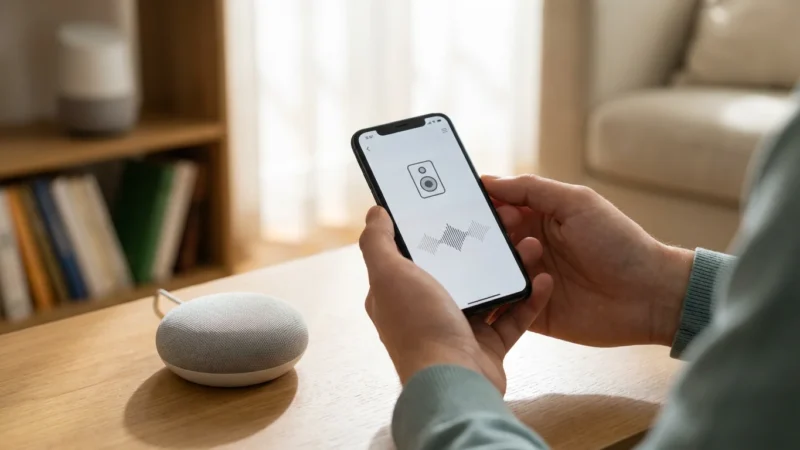
- Use the companion app: In the Alexa or Google Home app, you can often find a section for voice history. Here, you can play back recordings and confirm if the assistant heard you correctly. Correcting misinterpretations directly within the app provides valuable data for system improvements.
Actively engaging with these correction mechanisms provides valuable data to the assistant’s AI, refining its understanding of your specific commands and speech patterns.
Teaching Custom Phrases and Routines
For frequently used or complex commands, creating custom routines or shortcuts ensures consistency and improves recognition. Instead of a long, convoluted phrase, you can trigger a sequence of actions with a simple, memorable command.
- Alexa Routines: In the Alexa app, go to More > Routines. You can set a custom phrase, like “Good morning,” to trigger multiple actions such as turning on kitchen lights, starting the coffee maker, and playing the news. This reduces the chance of misinterpretation for each individual action.
- Google Assistant Routines: Similar to Alexa, the Google Home app allows you to create routines under Assistant settings > Routines. A phrase like “I’m home” could unlock your smart lock, adjust the thermostat, and turn on entryway lights.
- Siri Shortcuts: On Apple devices, use the Shortcuts app to create custom phrases that trigger complex actions involving multiple HomeKit devices. For example, “Movie night” could dim the lights, close the blinds, and turn on the TV.
These custom phrases are often easier for the assistant to recognize because they are specific and tied to a predefined sequence. This minimizes the cognitive load on the assistant, enhancing reliability.
Reviewing Voice History and Privacy Settings
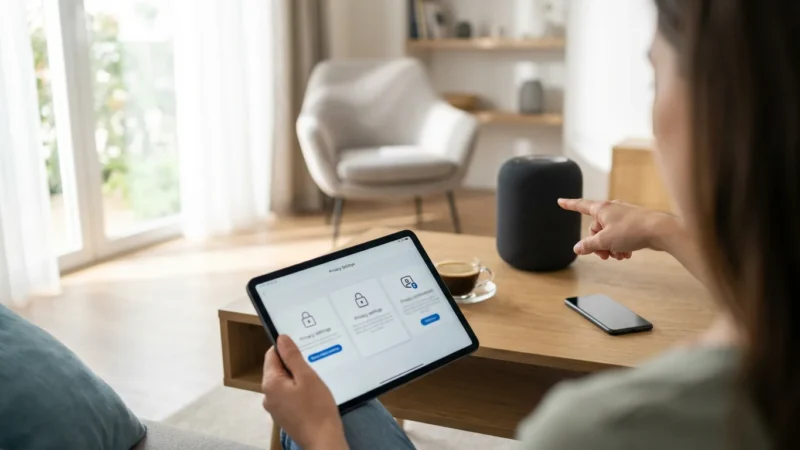
Voice assistants record and store your interactions to improve their accuracy. You have control over this data, and reviewing it can offer insights into why your assistant might be struggling. This also touches on important privacy and security considerations for smart speakers.
For a more thorough cleanup of your data, follow our guide on how to delete your voice history from smart speakers across different platforms.
- Accessing voice history:
- Alexa: In the Alexa app, go to More > Settings > Alexa Privacy > Review Voice History.
- Google Assistant: Visit myactivity.google.com or go to your Google Home app, tap your profile, then Assistant settings > Your data in the Assistant > My Activity.
- Siri: Apple’s approach is more privacy-focused; Siri recordings are tied to a random identifier, not your Apple ID, and are processed on-device or on servers for a limited time. You can delete Siri & Dictation History in Settings > Siri & Search > Siri & Dictation History.
- Reviewing recordings: Listen to your past commands. Do they sound clear? Did the assistant transcribe them correctly? If you consistently see incorrect transcriptions for clear audio, it indicates a learning opportunity for the system.
- Deleting recordings: You have the option to delete individual recordings or your entire voice history. This ensures your data usage aligns with your privacy preferences. Deleting occasional misunderstandings helps prevent the system from “learning” incorrect interpretations.
- Managing data retention: Both Amazon and Google allow you to set policies for how long your voice recordings are kept. You can choose to automatically delete recordings after a certain period or opt out of having recordings saved for future improvement.
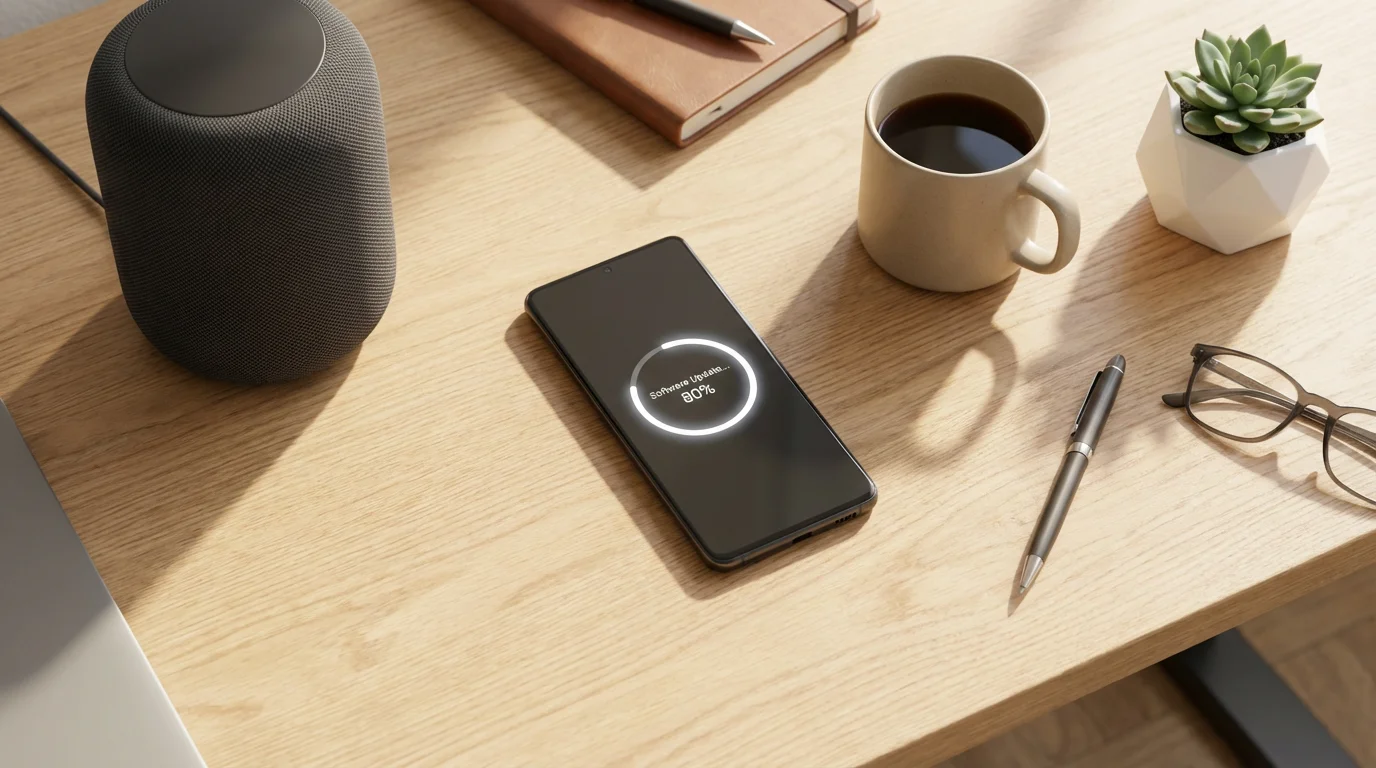
- Automatic updates: Most smart speakers, like the Echo Dot or Google Nest Hub, are designed to update automatically in the background when connected to Wi-Fi and not in use. You might not even notice it happening.
- Check for updates manually:
- Alexa: You generally cannot manually trigger a firmware update directly through the Alexa app for Echo devices. You can, however, check the device’s current software version in the app (Devices > Echo & Alexa > [Your Device] > About) and then compare it to the latest version listed on Amazon’s support pages. If your device is behind, ensure it is powered on and connected to Wi-Fi.
- Google Assistant: For Google Nest devices, updates are also automatic. You can check the firmware version in the Google Home app (Devices > [Your Device] > Settings > Device Information > Cast Firmware Version).
- Apple HomePod: HomePod updates are managed through the Home app on an iOS device. Go to Home Settings > Software Update to check for and install available updates.
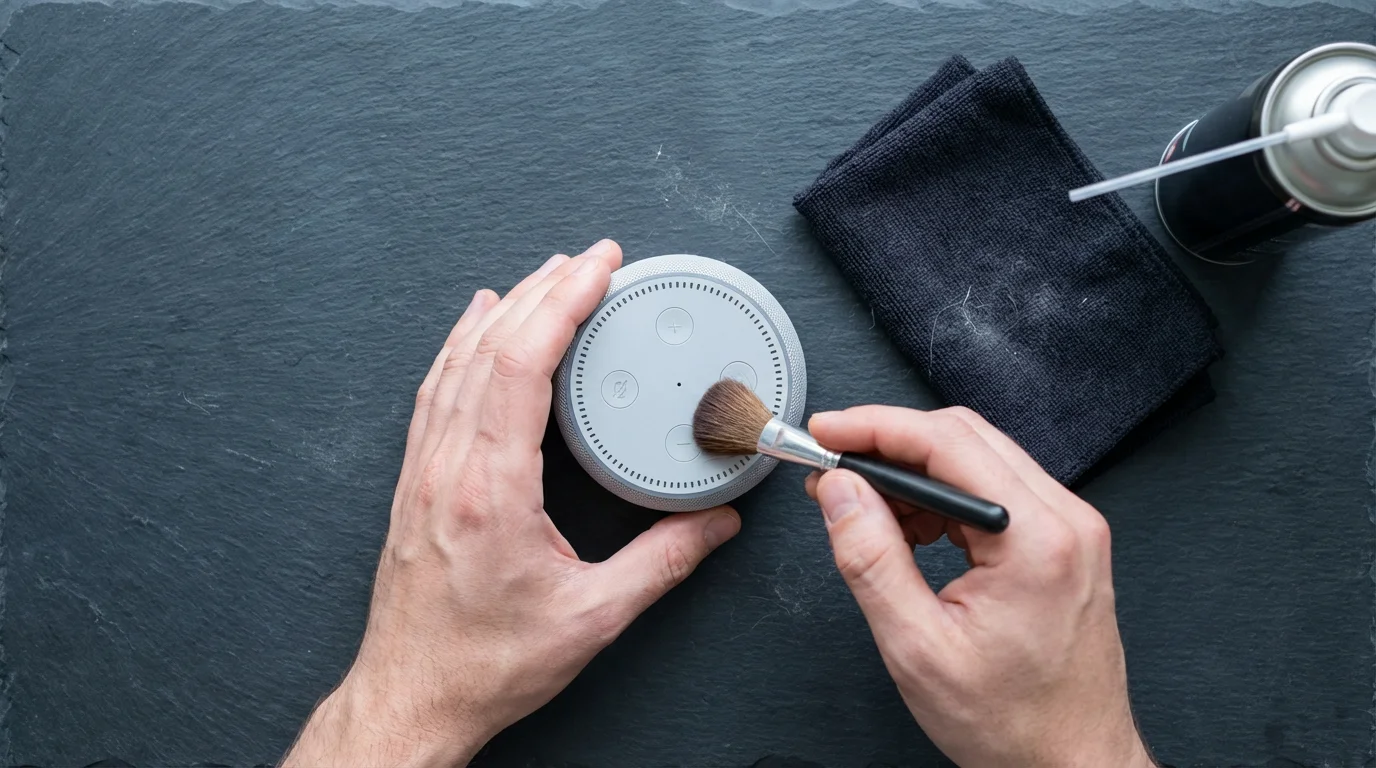
- Visual inspection: Check the microphone holes for any dust or debris. Gently clean them with a soft, dry brush or a can of compressed air if necessary.
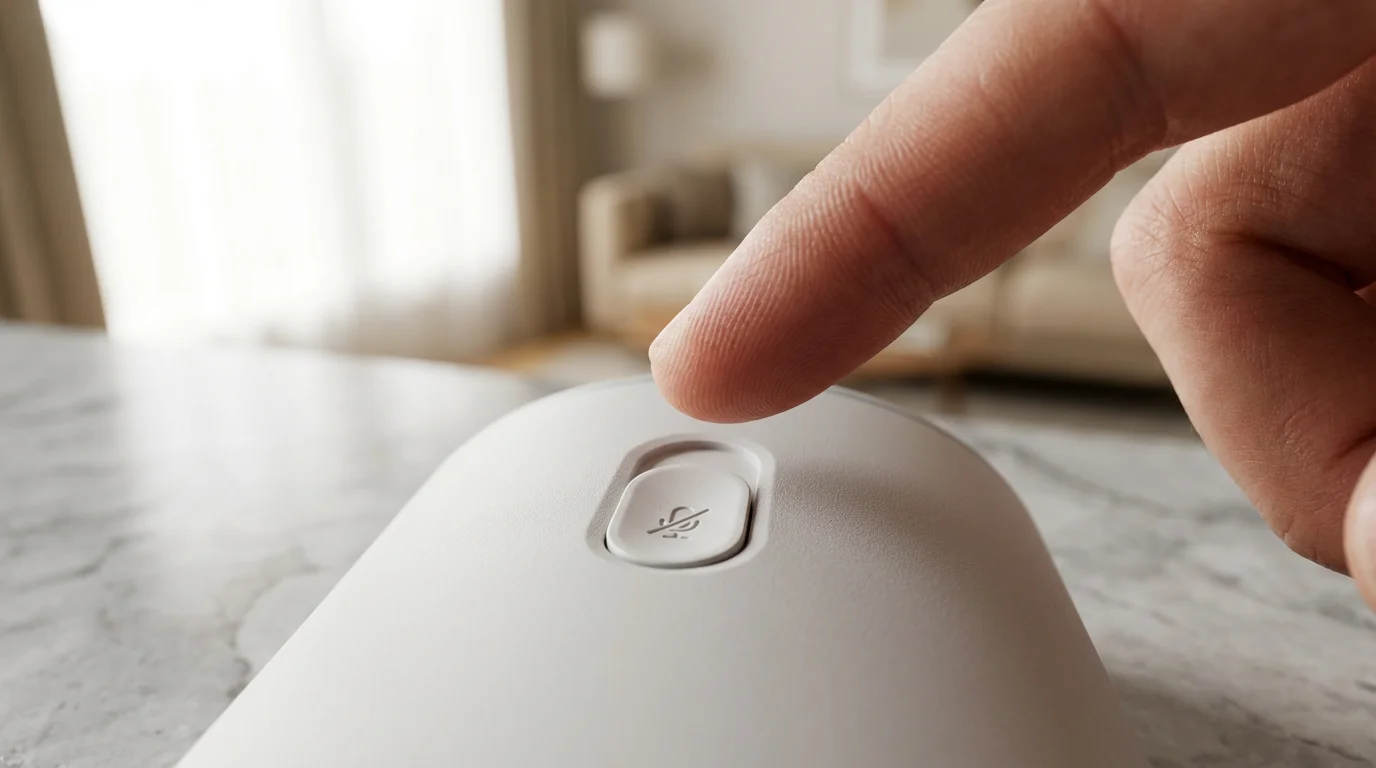
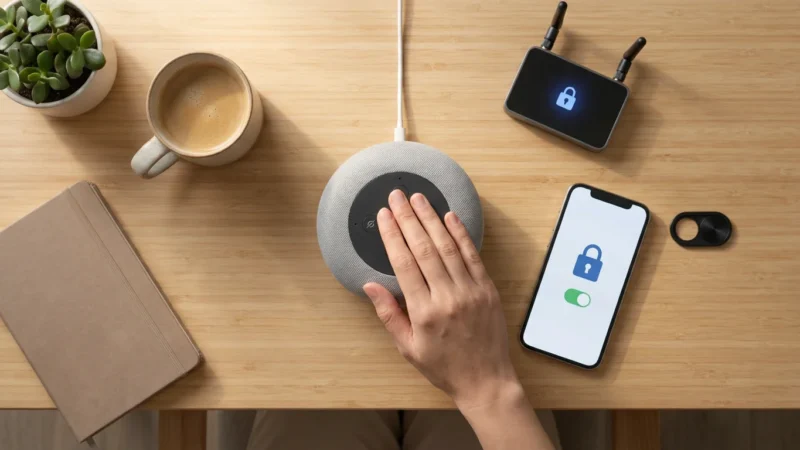
- Microphone button: Most smart speakers have a microphone mute button. Ensure it is not accidentally engaged. If it is, your device will not respond to any voice commands.
- Test with simple commands: Try very basic commands in a quiet room, like “What time is it?” If the device struggles with even these, it might indicate a microphone issue.
- Unplug the power: Disconnect your smart speaker from its power source.
- Wait 30 seconds: Give the device a moment to fully power down and clear its temporary memory.
- Plug it back in: Reconnect the power.
- Allow to reboot: Wait for the device to fully boot up and reconnect to your Wi-Fi network. This usually takes a minute or two.
- Alexa Echo devices: The exact method varies by model. Many require pressing and holding a combination of buttons for several seconds until a light ring animation indicates the reset is starting. Consult Amazon’s support page for your specific Echo model.
- Google Nest devices: For most Google Nest speakers and displays, you press and hold the microphone mute button (or the volume up and down buttons simultaneously on some models) for about 15 seconds until you hear a sound indicating the reset. Refer to Google’s support documentation.
- Apple HomePod: Unplug the HomePod, plug it back in, then immediately press and hold your finger on the top center of HomePod. The white spinning light will turn red. Continue holding until Siri says “Your HomePod is about to reset” and you hear three beeps.
- Check Wi-Fi signal strength: Use your phone to check the Wi-Fi signal strength near your smart speaker. Weak signals can cause intermittent connectivity.
- Optimize router placement: Place your Wi-Fi router in a central location, away from obstructions and other electronics that might cause interference.
- Upgrade your router: An older router might struggle to handle the demands of multiple smart home devices. Upgrading to a modern router, especially one supporting Wi-Fi 6, can significantly improve network performance and stability.
- Reduce network congestion: If you have many devices on your network, consider using Quality of Service (QoS) settings on your router to prioritize your smart speaker’s traffic or move less critical devices to a separate guest network.
- Be specific: Instead of “light,” use “kitchen light” or “bedroom lamp.” This prevents confusion if you have multiple lights.
- Avoid similar names: Do not name devices “Front Door” and “Back Door” if you frequently confuse them. Consider “Main Door” and “Garden Door.”
- Use easily pronounceable names: Avoid complex or unusual words that your assistant might struggle to transcribe accurately.
- Consistency across platforms: If you use multiple apps (e.g., Philips Hue app, SmartThings app, and Alexa app), try to keep device names consistent to avoid confusion.
- Create rooms or groups: In the Alexa app (Devices > Groups), Google Home app (add to a room), or Apple Home app (Rooms), assign devices to specific rooms or create custom groups.
- Use group commands: Once grouped, a command like “Hey Google, turn off the bedroom lights” controls all lights assigned to that room.
- Combine device types: You can group different device types. For instance, a “Movie Night” group could include smart lights, smart blinds, and your smart TV, all controllable with one phrase.
Understanding these settings empowers you to balance privacy concerns with the benefit of improved voice recognition. Many users choose to allow some data retention for accuracy improvements, then periodically review and delete what they prefer.
Updating Firmware and Software
Voice assistant technology constantly evolves. Manufacturers frequently release software and firmware updates that include improvements to voice recognition algorithms, bug fixes, and new features. Keeping your devices updated is a simple yet crucial step to ensure optimal performance.
These updates often contain patches that address specific issues, including those related to microphone sensitivity or speech processing. Running outdated software can leave your device vulnerable to known recognition flaws.
Troubleshooting Device-Specific Issues
Sometimes, the problem lies with the device itself, rather than your environment or speaking habits. Basic troubleshooting steps can often resolve these hardware or software glitches.
Microphone Checks
The microphones on your smart speaker are essential for voice input. Ensure they are functioning correctly.
A physically obstructed or muted microphone renders any other accuracy tips ineffective. Always ensure your device has a clear “ear.”
Restarting Devices
A simple restart can resolve many temporary software glitches that affect voice recognition.
This process is similar to restarting a computer or smartphone. It often fixes minor software bugs that might be preventing accurate voice processing.
Factory Resets as a Last Resort
If all other troubleshooting steps fail, a factory reset might be necessary. This restores the device to its original settings, often resolving persistent software problems. Be aware that a factory reset will erase all personalized settings, Wi-Fi credentials, and linked accounts. You will need to set up the device again from scratch.
Only consider a factory reset if you have exhausted all other options. This is a comprehensive solution for deep-seated software issues impacting voice recognition.
Advanced Tips for Power Users
Beyond the basics, several advanced strategies can further refine your voice assistant experience, especially when dealing with complex smart home setups or demanding tasks.
Using Multiple Assistants Strategically
While you might prefer one primary assistant, there are benefits to having multiple ecosystems. For instance, you might find Alexa excels at shopping lists, while Google Assistant provides more nuanced search results. Apple HomeKit offers robust privacy and local control for many devices.
Consider placing different assistant brands in different rooms based on their strengths or the devices they control. A Google Nest Hub in the kitchen might be ideal for recipes, while an Echo in the living room handles entertainment requests and smart lighting. This approach leverages the best features of each platform.
Leveraging Routines and Shortcuts for Complex Commands
We touched on routines earlier, but for power users, these become the backbone of an efficient smart home. Instead of saying “Alexa, turn on the ceiling fan, then set the thermostat to 72 degrees, then dim the living room lights to 30 percent,” you can create a routine called “Relax” that does all three with a single command.
This not only saves time but also significantly reduces the chances of misinterpretation. The assistant only needs to recognize one specific trigger phrase. You can link multiple smart home devices across various platforms using routines, creating complex automations with simple voice prompts.
Network Stability and Wi-Fi
Your smart speaker’s ability to process commands relies heavily on a stable and fast Wi-Fi connection. If your network is weak or congested, the assistant might struggle to send your voice data to the cloud for processing or to receive instructions back. This can lead to delays or outright failures in voice recognition.
A robust network ensures your voice commands reach the cloud processors quickly, and your smart speaker responds without lag.
Integrating Voice with Your Smart Home Ecosystem
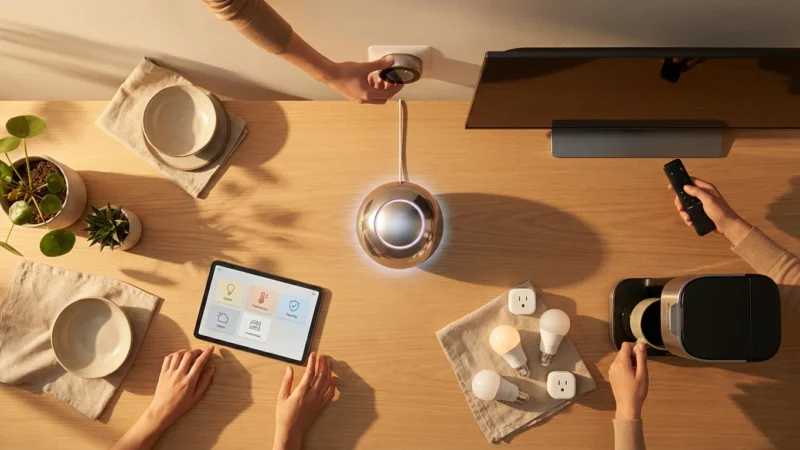
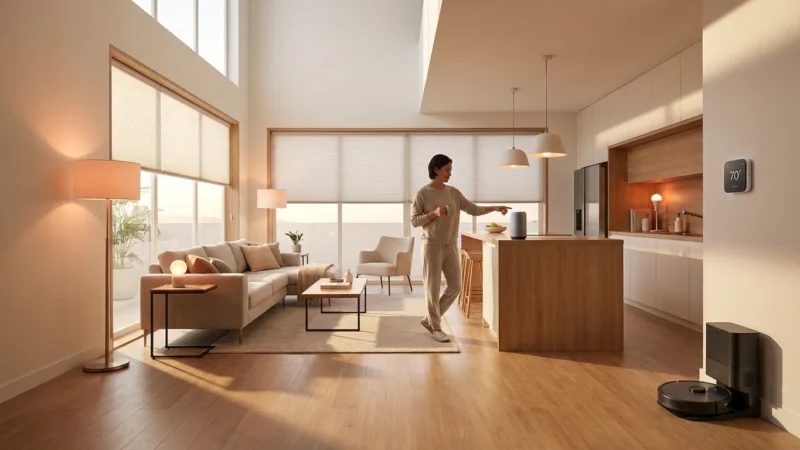
Voice recognition extends beyond simple questions. It acts as the command center for your entire smart home. Proper setup of your connected devices within your assistant’s ecosystem is critical for seamless operation.
Ensuring Compatible Device Names
The names you assign to your smart devices directly impact how easily your assistant recognizes commands. Use simple, distinct, and consistent names.
When you say, “Alexa, turn on the living room lights,” Alexa needs to match “living room lights” to an actual device or group within your registered smart home devices. Inconsistent or ambiguous naming causes frustration.
Grouping Devices for Simplicity
Grouping related devices simplifies commands and improves recognition. Instead of controlling each light individually, you can control an entire room.
Grouping devices reduces the complexity of your commands, making it easier for your assistant to understand your intent. It transforms multiple individual actions into a single, reliable voice command, improving your overall experience with voice control.
Frequently Asked Questions
How do I make Alexa understand me better?
You can improve Alexa’s understanding by optimizing your environment (reducing background noise, placing your Echo device centrally), speaking clearly, setting up Voice ID for personalization, and reviewing your voice history in the Alexa app to correct any misunderstandings. Regularly updating your device’s firmware also helps.
Why is Google Assistant not recognizing my voice?
Google Assistant might struggle to recognize your voice due to background noise, poor device placement, or outdated software. Ensure your Google Nest device has a clear line of sight, you have set up Voice Match, and your device’s firmware is up to date. Check your Wi-Fi connection, as a weak signal can also hinder its ability to process commands.
Can I train my voice assistant to understand my accent?
Yes, major voice assistants like Alexa, Google Assistant, and Siri are designed to learn and adapt to various accents over time. By consistently using your voice profile (Voice ID or Voice Match) and speaking clearly, you provide the system with more data to better understand your unique speech patterns and accent. Providing feedback on misunderstood commands can also accelerate this learning process.
How does reviewing my voice history help improve accuracy?
Reviewing your voice history allows you to see what your assistant heard and how it interpreted your commands. If you notice frequent misinterpretations, you can adjust your phrasing or environment. For some assistants, marking a command as misunderstood directly within the app provides valuable data to the developers, which can lead to system-wide improvements in recognition accuracy in future updates.
What is the most effective way to improve voice recognition immediately?
The most immediate improvements come from optimizing your environment and speaking clearly. Reduce any background noise, ensure your smart speaker is placed optimally with no obstructions, and speak in a clear, natural tone. These foundational steps often resolve the majority of voice recognition issues without needing advanced troubleshooting.
Disclaimer: This article is for informational purposes only. Smart home devices involve electrical connections and data privacy. Always follow manufacturer instructions for installation. For complex wiring or HVAC work, consult a licensed professional.




Leave a Reply