
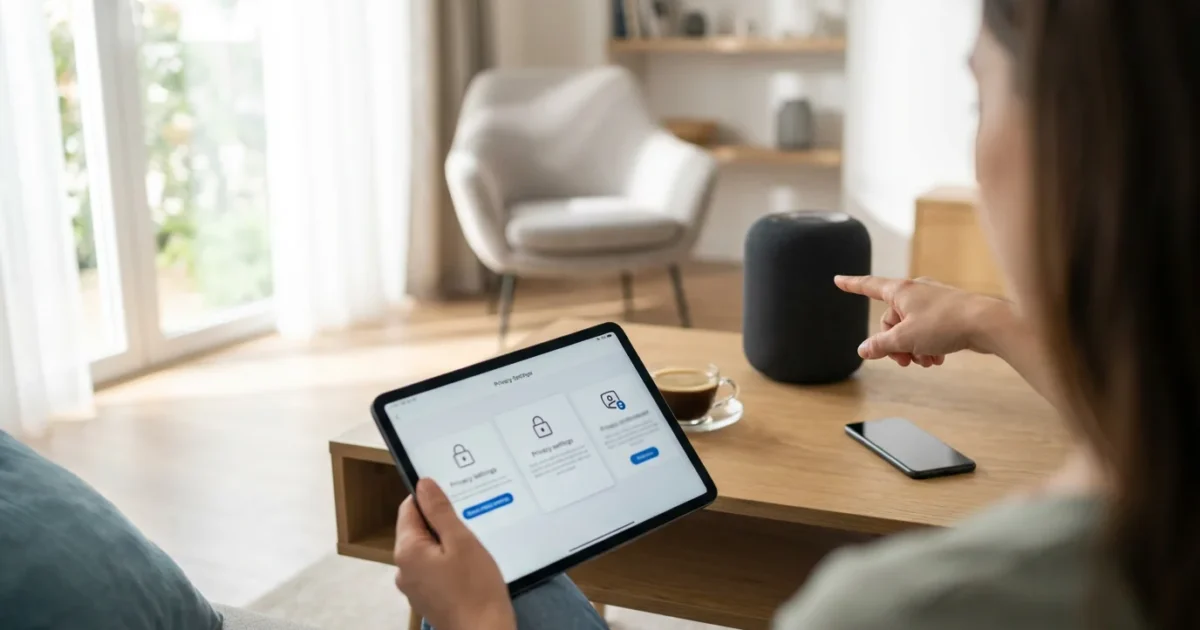
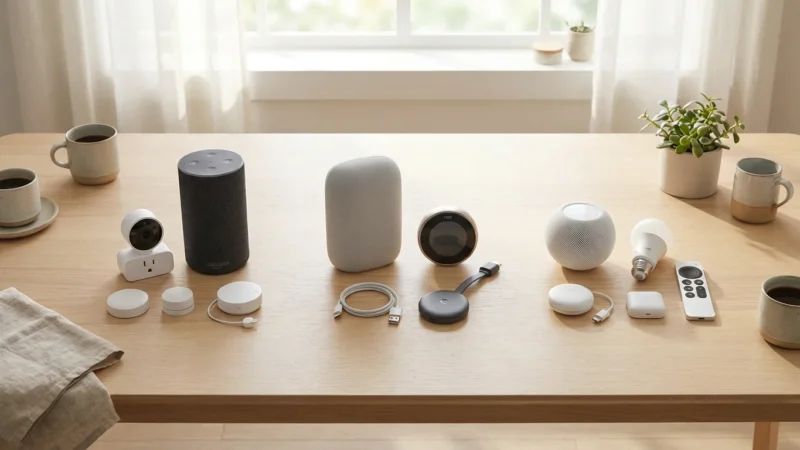
Smart speakers like Amazon Alexa, Google Assistant, and Apple Siri offer incredible convenience, transforming your home with simple voice commands. You can play music, check the weather, control smart lights, and even lock your doors. This functionality relies on sophisticated voice recognition technology. A key component of this technology involves recording and analyzing your voice commands.
While these recordings help improve performance and personalize your experience, they also raise valid privacy concerns. Understanding how to manage and delete your voice history gives you greater control over your personal data. You enhance your digital security by actively managing this information.

Understanding Smart Speaker Voice Data and Its Purpose
When you interact with a smart speaker, it processes your command in several stages. First, the device listens for a specific “wake word,” such as “Alexa,” “Hey Google,” or “Siri.” It then sends the subsequent audio clip to the company’s servers for interpretation. This process allows the smart assistant to understand your request and respond appropriately.
Companies collect and store this voice data for several reasons. They use it to refine their voice recognition algorithms, ensuring the device better understands diverse accents and speech patterns. This data also helps personalize your experience, allowing the assistant to learn your preferences and provide more relevant responses. For example, your smart speaker might learn your favorite music genres or the specific way you ask for the weather forecast.
However, this collection also creates a digital footprint of your interactions. You share personal commands, requests, and potentially incidental conversations with a third party. This reality drives many homeowners to seek greater control over their privacy.
Why You Should Regularly Delete Your Voice History
Regularly deleting your smart speaker voice history offers significant privacy and security benefits. You minimize the amount of personal data stored on cloud servers. This proactive measure reduces your digital exposure.
Managing your history is just one part of a secure setup; you should also review the privacy settings every smart speaker owner should enable to keep your data safe.
Consider the potential risks. While companies employ robust security measures, data breaches remain a concern. Deleting your history mitigates the impact of such an event, as fewer of your personal voice recordings exist for potential compromise. You also reduce the chance of unauthorized access if someone gains access to your account.
Moreover, active data management gives you peace of mind. You retain direct control over your information. This practice aligns with a broader approach to digital security, where you regularly audit and manage your online presence. You protect your personal information by taking these steps.
The best smart home prioritizes your security and privacy. Understanding and managing your data footprint is fundamental to achieving this balance.
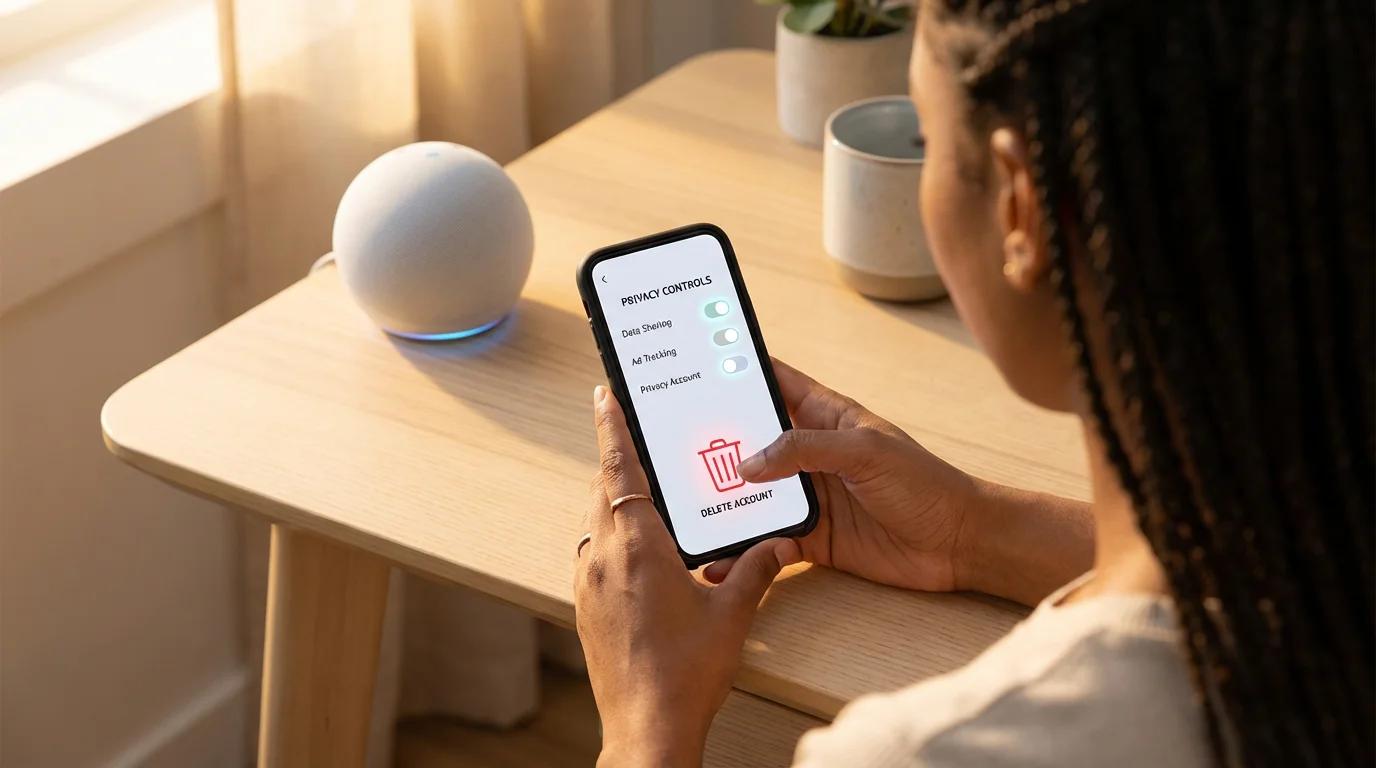
How to Delete Alexa Voice Recordings
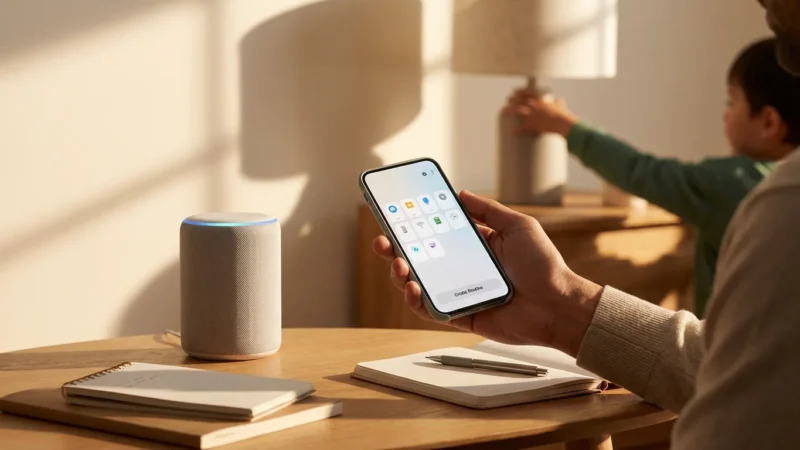
Amazon provides straightforward tools for managing your Alexa voice history. You can delete individual recordings, specific date ranges, or your entire history. Setting up automatic deletion simplifies this process significantly.
Deleting Alexa Voice History via the Alexa App:
- Open the Alexa app on your smartphone or tablet.
- Tap the More icon in the bottom right corner (looks like three horizontal lines).
- Select Settings from the menu.
- Scroll down and tap Alexa Privacy.
- Choose Review Voice History.
- You can now filter recordings by date or by device. To delete:
- To delete individual recordings: Tap a specific recording, then tap Delete Recording.
- To delete by date range: Tap Filter, select a date range (e.g., “Today,” “Yesterday,” “All History”), then tap Delete All Recordings for Filtered Range.
Setting Up Automatic Deletion for Alexa:
- Follow steps 1-4 above to navigate to Alexa Privacy.
- Select Manage Your Alexa Data.
- Under “Voice Recordings,” look for the option to Choose how long to save recordings.
- Select your preferred retention period: “3 months,” “18 months,” or “No voice recordings.” Choosing “No voice recordings” means Amazon deletes your audio immediately after processing.
- Confirm your selection. Alexa will now automatically delete your voice history according to your chosen schedule.

Clearing Your Google Assistant History
Google Assistant also provides comprehensive controls over your voice history. You manage your data through your Google Account’s My Activity page or directly via the Google Home app.
Deleting Google Assistant History via the Google Home App:
- Open the Google Home app.
- Tap your profile picture in the top right corner.
- Select Assistant settings.
- Tap Your data in the Assistant.
- Under “Assistant activity,” tap Manage Assistant activity. This opens your Google Account’s Activity controls.
- Here, you can:
- Delete individual items by tapping the three dots next to an entry and selecting Delete.
- Delete by date: Tap Delete at the top, then choose a time range (e.g., “Last hour,” “Last 24 hours,” “All time,” or a “Custom range”).
Setting Up Automatic Deletion for Google Assistant:
- Follow steps 1-5 above to navigate to Manage Assistant activity.
- Locate the “Activity controls” section. Ensure “Web & App Activity” is turned on, as this includes Assistant data.
- Tap Auto-delete (Off) or Auto-delete (On) to change your settings.
- Choose how long you want to keep your data: “3 months,” “18 months,” or “36 months.”
- Tap Next and then Confirm. Google will now automatically delete your voice history older than your selected period.
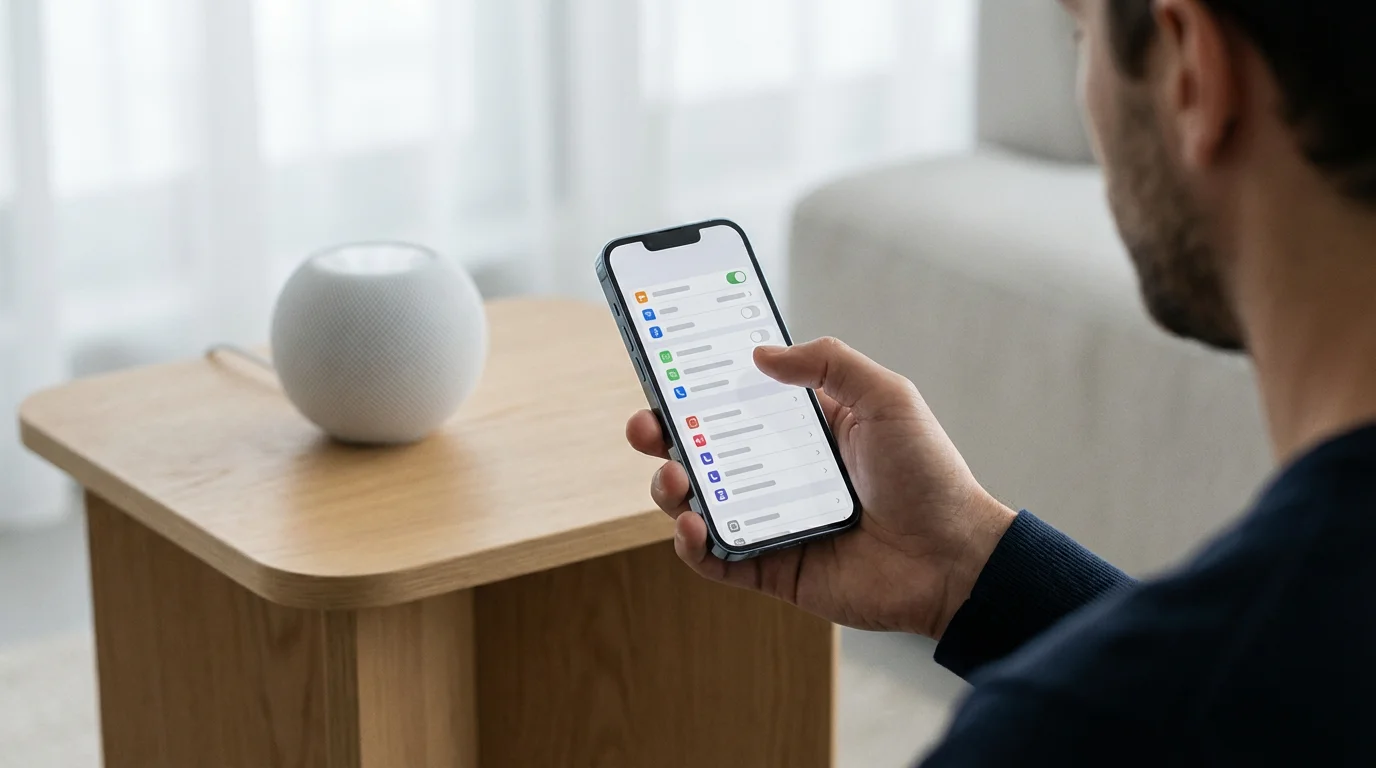
Managing Siri Recording Deletion on Apple Devices
Apple approaches voice data privacy differently from Amazon and Google. Apple focuses on anonymizing data and aims to store less personal voice history directly tied to your Apple ID. However, you still have control over how Siri handles your requests.
Reviewing Siri & Dictation History:
- On your iPhone or iPad, open Settings.
- Scroll down and tap Siri & Search.
- Tap Siri & Dictation History.
- Here, you see an option for Delete Siri & Dictation History. Tapping this deletes any audio you shared with Siri and Dictation that is less than six months old and not associated with your Apple ID. This action is irreversible.
Preventing Siri from Storing Future History:
- On your iPhone or iPad, open Settings.
- Scroll down and tap Siri & Search.
- Tap Siri & Dictation History.
- Toggle off Improve Siri & Dictation. This prevents Apple from storing and reviewing your audio interactions to improve Siri’s performance.
- You can also disable Siri entirely by going back to Siri & Search and toggling off “Listen for ‘Hey Siri'” and “Press Side Button for Siri.”
Apple emphasizes privacy by design. They generally process Siri requests on device when possible and aim to keep recordings short and anonymized. Disabling ‘Improve Siri & Dictation’ effectively stops the storage of your audio recordings for review.

Beyond Deletion: Proactive Privacy Settings for Smart Speakers
Deleting your voice history is an excellent start, but you can take further steps to enhance your smart speaker privacy. Implementing these proactive measures helps secure your smart home environment.
When setting up your devices, consider smart speaker placement tips for best performance to ensure the microphone only picks up intended commands.
Essential Proactive Privacy Settings:
- Use the Mute Button: Most smart speakers include a physical microphone mute button. Use it when you do not actively use your device, for example, during private conversations or overnight. This ensures the device stops listening for its wake word altogether.
- Review App Permissions: Check the permissions granted to your smart speaker’s companion app on your phone. Limit access to contacts, location, or other sensitive data if it is not necessary for functionality.
- Disable Voice Purchases: If you do not intend to use your smart speaker for shopping, disable voice purchasing in the app settings. This prevents accidental purchases and adds an extra layer of security.
- Implement Voice Match or Voice ID: While these features primarily personalize experiences, they can add a slight security layer. Your speaker may recognize your voice and differentiate it from others, although it will still process non-recognized voices after a wake word.
- Regularly Update Firmware: Keep your smart speaker’s firmware updated. Manufacturers often release updates that include security patches and privacy enhancements. You typically manage updates through the companion app.
- Review Guest Access: Be mindful of guests using your smart speaker. Their commands will also be recorded and stored. Consider muting the microphone during gatherings if you prefer to keep all interactions private.
According to Wirecutter, regularly reviewing your smart home device privacy settings is a crucial step in maintaining digital security. These ongoing checks ensure your devices align with your comfort level for data collection.

The Impact of Deleting Voice History on Speaker Performance
Many users worry that deleting their voice history might negatively affect their smart speaker’s performance. You might fear your device will become less responsive or accurate. In most cases, these concerns are largely unfounded for core functionalities.
Deleting past recordings primarily affects the personalization aspects of your smart speaker. The device might take slightly longer to learn your specific accent, vocabulary, or preferred ways of phrasing commands if you delete all historical data frequently. For instance, if you consistently ask for “the news from NPR,” and then delete all history, the speaker might momentarily revert to a default news source or need a few interactions to relearn your preference.
However, the underlying voice recognition technology, which is constantly improving through global user data, remains largely unaffected. Your smart speaker will still understand standard commands and function as expected. The privacy benefits of managing your data typically outweigh any minor, temporary impact on personalization. You maintain your privacy without sacrificing essential smart home convenience.
Frequently Asked Questions
Does deleting voice history make my smart speaker less accurate?
Deleting your voice history primarily impacts the personalization aspects of your smart speaker. Your device might take slightly longer to adapt to your specific accent or common phrases initially. However, core functionality and accuracy for general commands remain largely unaffected. You gain significant privacy benefits by managing your data, a trade-off many users find worthwhile.
Can I prevent my smart speaker from recording altogether?
Yes, you can take steps to prevent continuous recording. Most smart speakers include a physical microphone mute button. Activating this button ensures your device stops listening for its wake word. Additionally, you can adjust privacy settings within the companion apps to disable the storage of voice recordings or set up automatic deletion schedules. These measures significantly enhance your privacy.
Is my smart speaker always listening?
Smart speakers are always “listening” for their wake word, such as “Alexa” or “Hey Google.” They process short audio snippets locally to detect this command. Only after recognizing the wake word does the device begin recording and send audio to the cloud for processing. You can confirm this listening state by observing the indicator lights on your device, which change when the microphone activates for cloud processing.
What about guest voices on my smart speaker?
Smart speakers generally record and process any voice detected after the wake word, including those of guests. This means your guests’ commands or incidental conversations could become part of your account’s voice history. You can address this by reminding guests to use the wake word only for direct commands or by muting the microphone when you have company and do not want the device listening. Some devices offer voice profiles, but these primarily personalize experiences, not necessarily exclude non-recognized voices from being processed.
How often should I delete my voice history?
The frequency for deleting your voice history depends on your personal privacy preferences. For maximum security, you might choose to delete it weekly or monthly. Setting up automatic deletion in your device’s app provides a hands-off approach to maintaining privacy. Even a quarterly review of your stored data and privacy settings significantly boosts your data protection.
Disclaimer: This article is for informational purposes only. Smart home devices involve electrical connections and data privacy. Always follow manufacturer instructions for installation. For complex wiring or HVAC work, consult a licensed professional.






Leave a Reply