
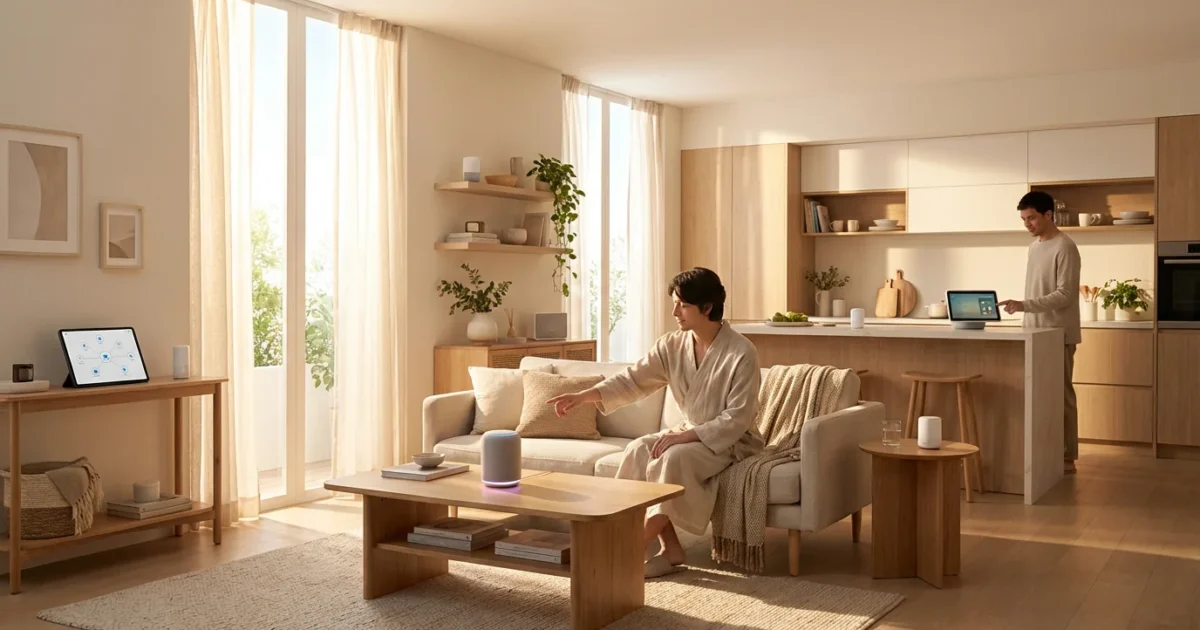
Building a smart home offers unparalleled convenience, security, and efficiency. Many homeowners begin their journey with a single voice assistant, like Amazon Alexa or Google Assistant. However, you quickly discover that each platform excels in different areas, leading you to wonder: can you use Alexa and Google Home together, or even integrate Apple Siri? The answer is a resounding yes.
You can create a powerful mixed ecosystem that leverages the unique strengths of multiple assistants. This guide provides practical steps and insights to connect multiple assistants seamlessly in your living space. You will learn how to build a smarter, more responsive home that adapts to your needs, whether you are a beginner or a tech-savvy enthusiast.

Why a Mixed Voice Assistant Ecosystem Makes Sense
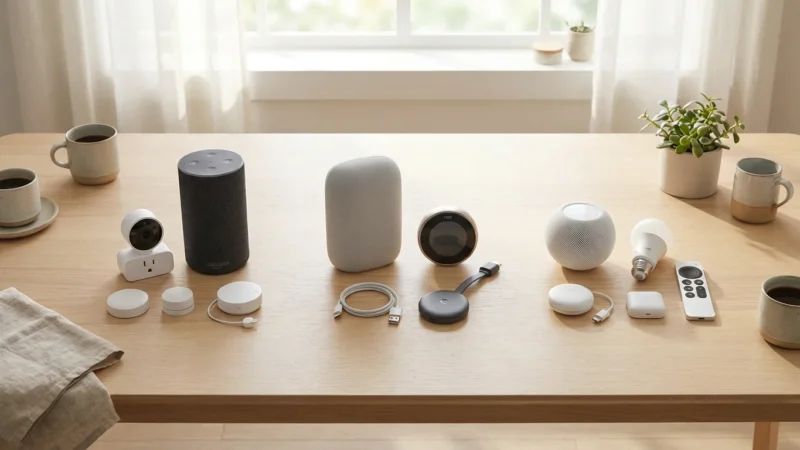
Choosing one voice assistant often feels like a commitment, but a mixed ecosystem unlocks greater flexibility. Each major platform, Amazon Alexa, Google Assistant, and Apple Siri, brings distinct advantages to your smart home. Utilizing their combined power enhances your daily routines. You gain access to a broader range of device compatibility and specialized features.
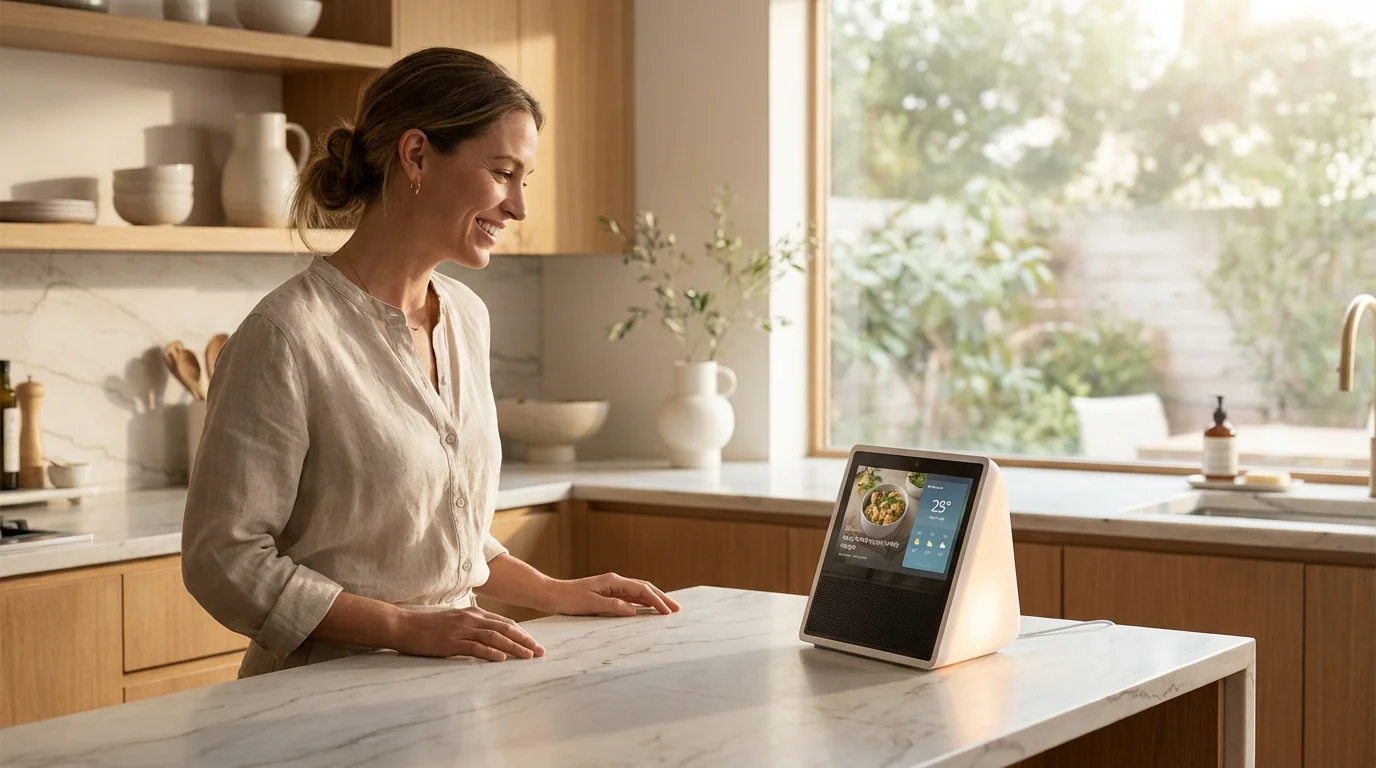
When choosing hardware for your ecosystem, it helps to weigh the pros and cons of smart displays vs smart speakers to see which fits your specific rooms better.
For example, Alexa often boasts the widest selection of directly compatible smart home devices. Google Assistant excels with its deep integration with Google Search, providing quick and accurate information. Siri offers seamless control for those heavily invested in the Apple ecosystem, ensuring privacy and ease of use. By combining these, you do not compromise on features or device choices. You instead build a robust system tailored precisely to your preferences.
“The best smart home is the one you don’t have to manage; it simply works for you.”
Understanding Voice Assistant Compatibility
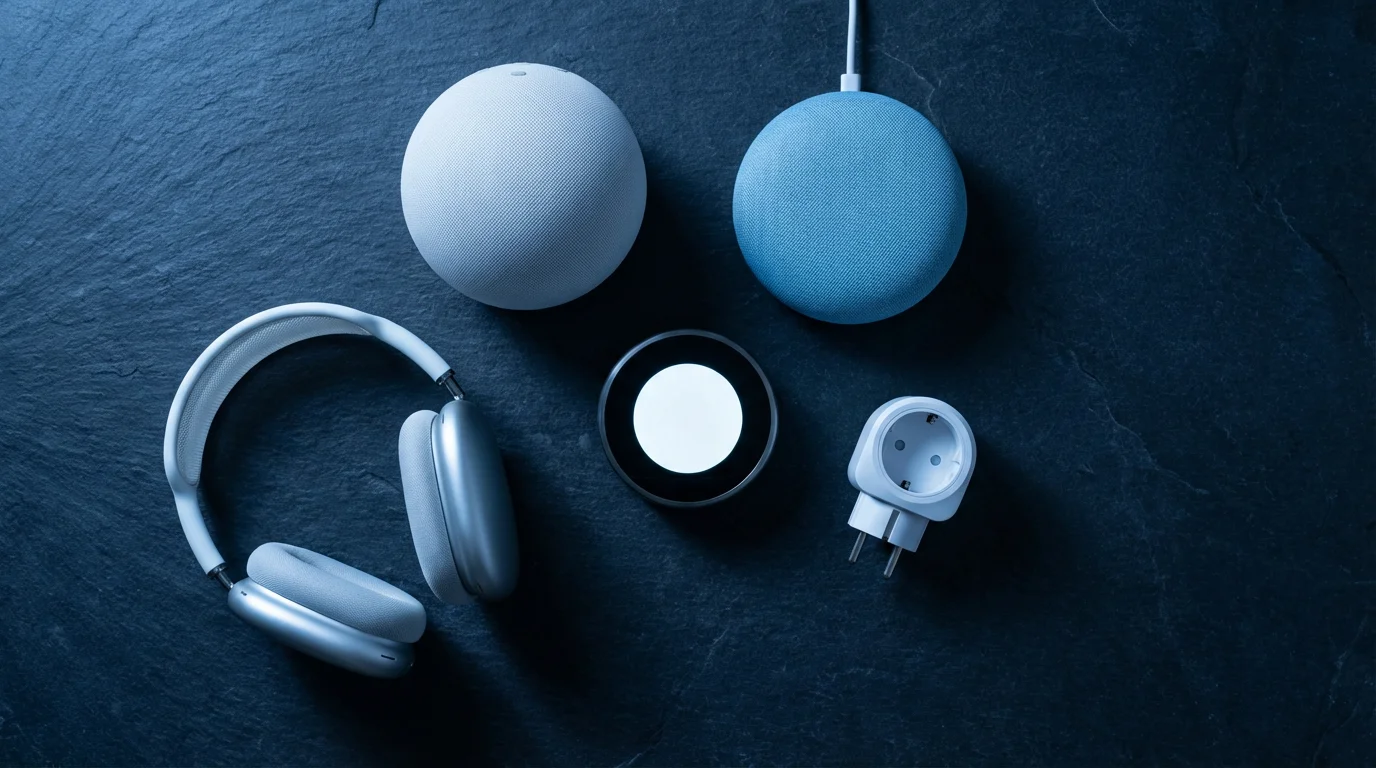
The foundation of connecting multiple assistants lies in understanding how they interact with your smart devices. Smart home devices communicate using various protocols, including Wi-Fi, Bluetooth, Zigbee, Z-Wave, and the emerging Matter standard. Your voice assistants bridge these communication methods. They translate your commands into actions for your devices.
Direct compatibility means a device integrates directly with an assistant’s app, like an Alexa-enabled light bulb. Cloud-to-cloud integration involves linking your device manufacturer’s account (e.g., Philips Hue) to both your Alexa and Google Assistant apps. The Matter smart home standard simplifies this process significantly. Matter acts as a universal language, allowing devices to work with any Matter-certified assistant or hub. This reduces the complexity of managing different ecosystems, providing a more unified experience. Learn more about the Matter standard on the CSA-IoT website.
Strategies for Integrating Alexa and Google Home Together
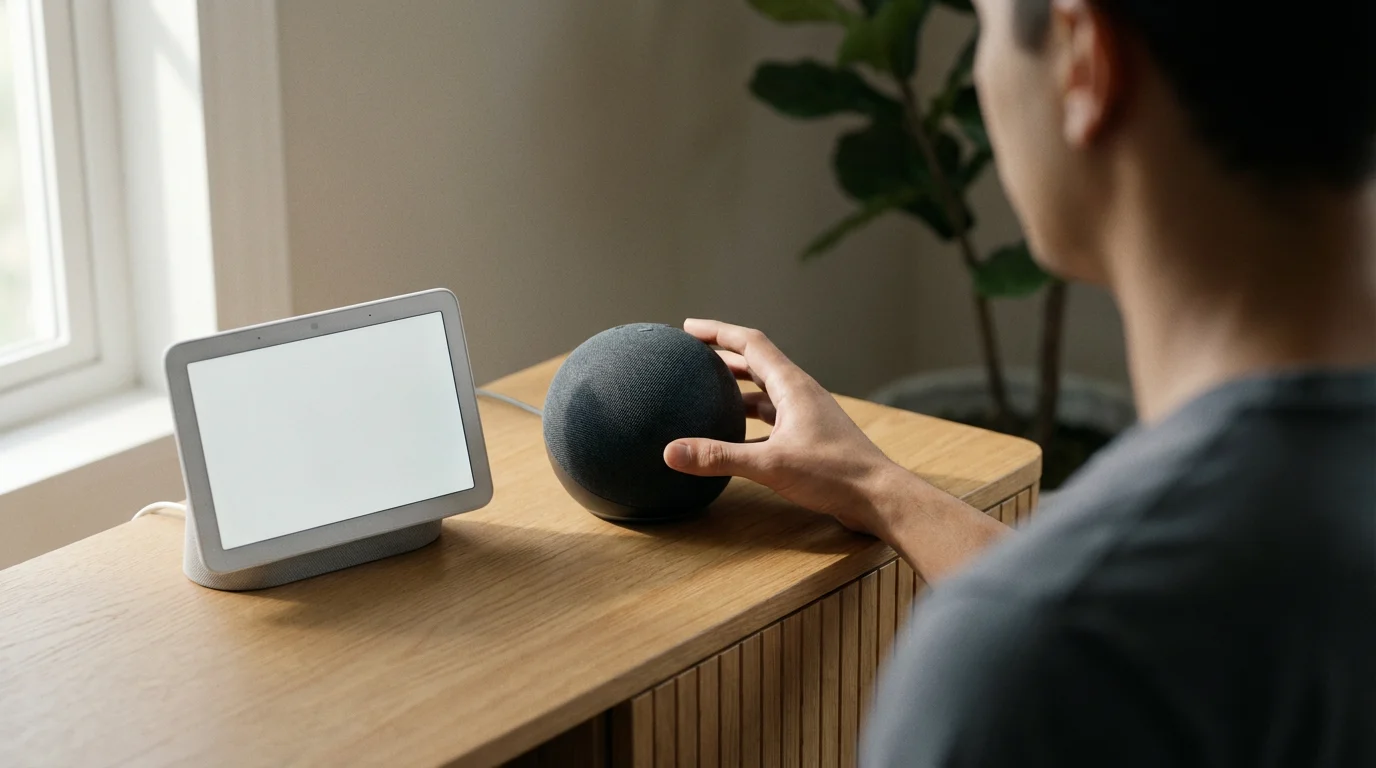
Running multiple voice assistants efficiently requires strategic planning. You can implement several effective methods to ensure Alexa and Google Home coexist peacefully in your home. These strategies maximize convenience and prevent conflicts. Each approach offers unique benefits, depending on your existing devices and preferences.
To get the most out of your Amazon integration, familiarize yourself with these essential Alexa commands designed for smart home control.
Here are key strategies you can employ:
- Device-Level Separation: Assign specific devices to a primary assistant. For instance, dedicate all your smart lighting to Alexa and your smart thermostat to Google Assistant. This method simplifies management and command recall. You know exactly which assistant to use for which task.
- Cloud-to-Cloud Linking: This is the most common and versatile method. Many device manufacturers offer cloud services that link to both Alexa and Google Assistant simultaneously. For example, if you own smart lights from a popular brand, link their app to both your Amazon Alexa and Google Home apps. This allows both assistants to control the same lights.
- Utilizing Both for Different Tasks: Leverage each assistant’s strengths. Use Google Assistant for general knowledge questions, calendar updates, and navigation. Reserve Alexa for controlling specific smart home devices, playing music, or making calls. This approach optimizes the user experience.
- Smart Home Hubs and Matter: Integrate devices that speak different languages through a central hub or Matter-compatible controller. A hub can translate commands between various protocols, making devices accessible to all connected assistants. As Matter adoption grows, this becomes an even more streamlined solution.
Step-by-Step Guide to Setting Up Your Mixed Ecosystem
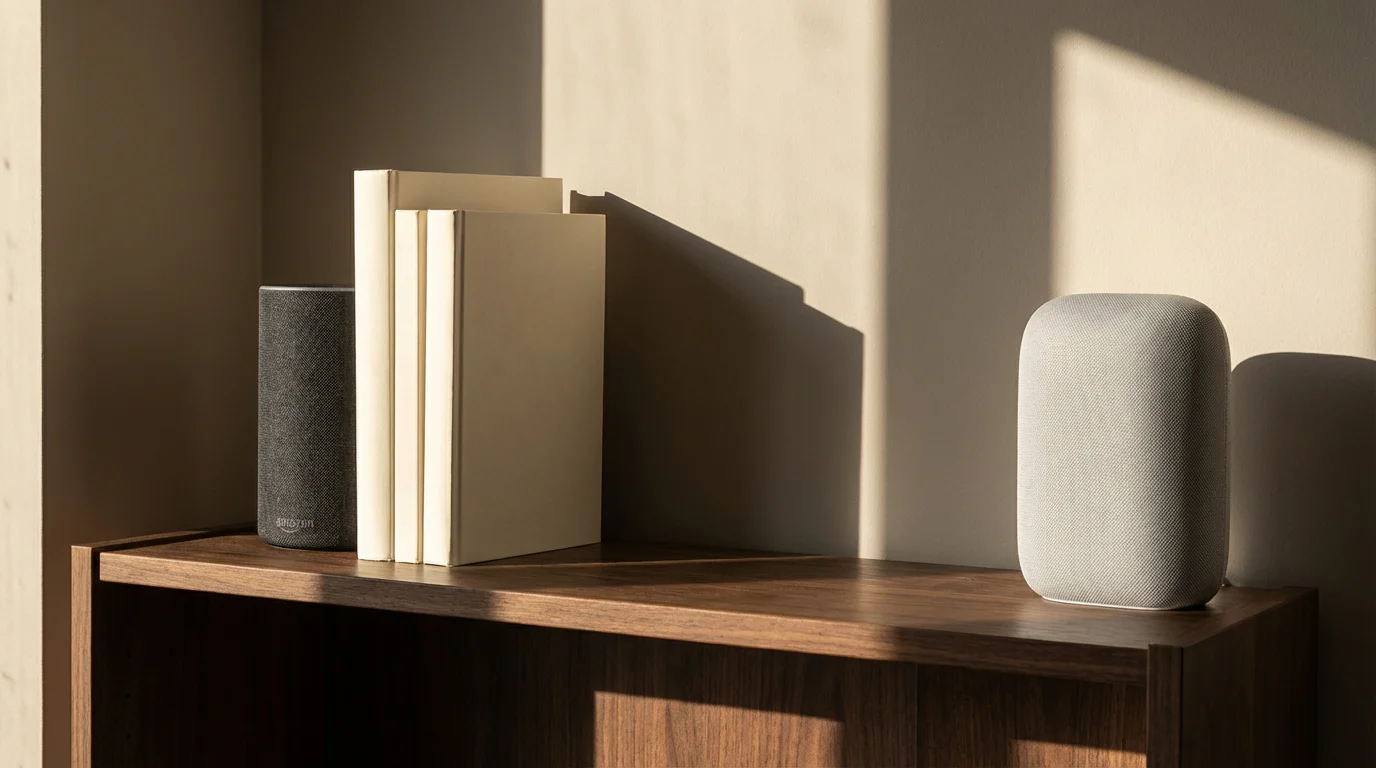
Setting up a mixed voice assistant environment is a straightforward process when you follow these steps. This tutorial will help you connect your devices and assistants effectively. You will create a cohesive smart home system.
- Inventory Your Devices: List every smart device you own. Note its brand, model, and which voice assistants it currently supports. This helps identify compatibility overlaps and gaps. For example, a Philips Hue bulb works with Alexa, Google Assistant, and Apple HomeKit.
- Choose Your Primary Assistant Roles: Decide which assistant will handle specific tasks or rooms. You might designate Alexa for the living room and Google Assistant for the kitchen. This clarifies command routes.
-
Link Manufacturer Accounts to Both Assistants:
Open the Alexa app. Navigate to “Devices,” then “All Devices,” and tap the plus icon to add a new device or service. Follow the prompts to link your smart home brand accounts (e.g., Ring, SmartThings, Hue).
Open the Google Home app. Tap the plus icon, then “Set up device,” and select “Works with Google.” Search for your smart home brand and link your accounts there.
Repeat this process for all compatible accounts. Ensure both assistants have access to the same shared devices where desired.
-
Configure Routines and Automations: This is where your mixed ecosystem truly shines.
In the Alexa app, create routines that trigger actions across devices, even those also linked to Google. For instance, an “Evening” routine might dim Alexa-linked lights and lock a door.
In the Google Home app, set up similar routines. You can have a “Good Morning” routine that turns on Google-linked coffee makers and then delivers a traffic update.
Consider using a service like IFTTT (If This Then That) for more complex cross-platform automations, though direct linking is often sufficient.
- Test and Refine: Issue commands to both assistants for the same device if linked. Observe their responses. Adjust device names in each app to be unique or easily distinguishable. For example, “Living Room Light” for Alexa and “Main Light” for Google. This prevents confusion.

Integrating Apple HomeKit and Siri into the Mix
Integrating Apple HomeKit and Siri into a mixed ecosystem presents unique opportunities and challenges. Apple’s ecosystem emphasizes privacy and local control, often requiring HomeKit-specific devices or a HomeKit-compatible hub like an Apple HomePod, Apple TV, or iPad. While Siri directly controls fewer third-party devices than Alexa or Google Assistant, its integration with the Apple ecosystem is powerful.
You can bridge HomeKit devices to other platforms using Matter-compatible devices or certain smart home hubs. Many newer smart home devices support all three platforms natively. For instance, a smart thermostat might be “Works with Alexa,” “Works with Google Home,” and “Works with Apple HomeKit.” This allows you to control it with Siri, even if your primary assistant for other tasks is Alexa. You can trigger HomeKit scenes with Siri commands, such as “Hey Siri, activate Movie Night.” This scene might dim HomeKit lights and lower HomeKit-compatible blinds, while your Google Assistant plays the movie on a Chromecast-enabled TV. This creates a versatile and secure home environment.
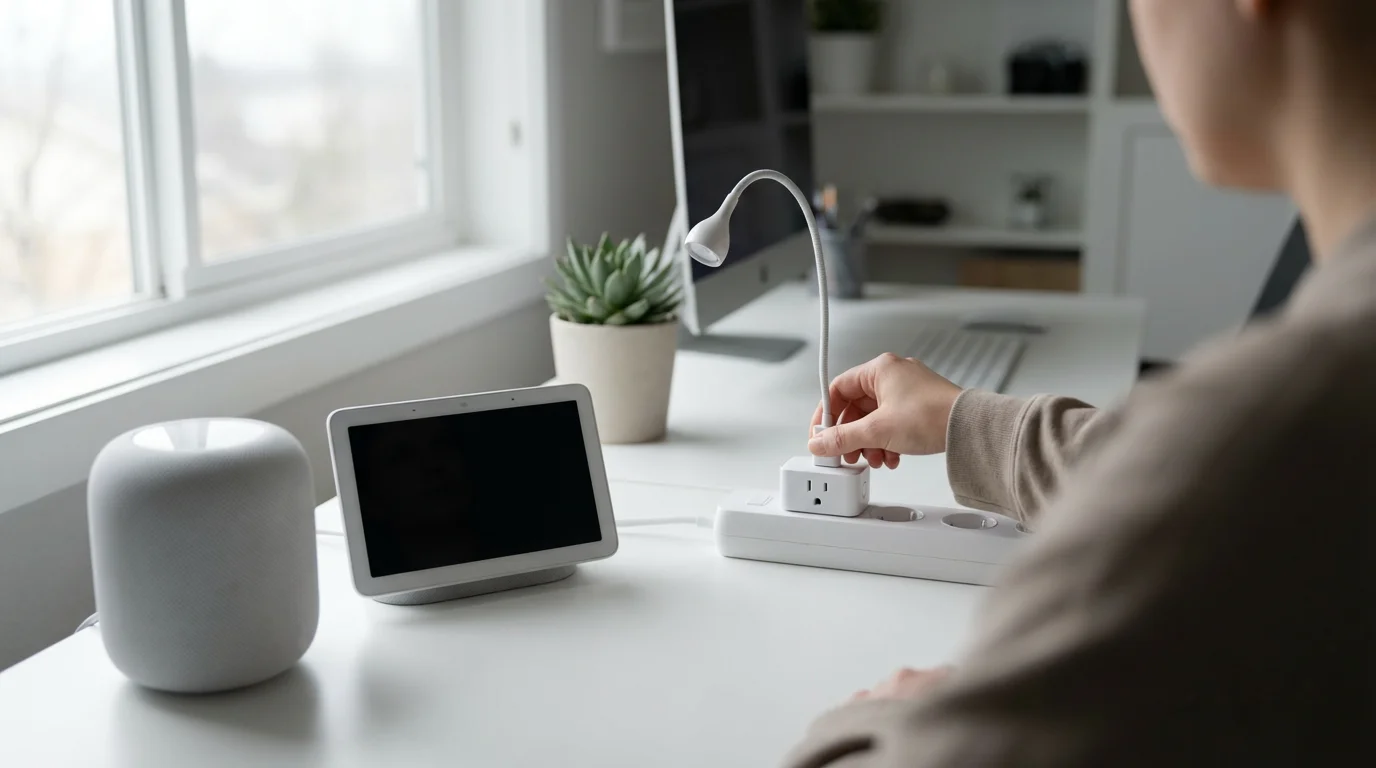
Optimizing Your Mixed Ecosystem for Performance and Convenience
A well-optimized mixed ecosystem operates smoothly and responsively. Several factors influence performance, from your home network to the specific commands you use. Focusing on these areas ensures your smart home is both efficient and user-friendly.
Consider these optimization tips:
- Robust Wi-Fi Network: A strong, reliable Wi-Fi signal is paramount. Smart speakers and devices depend heavily on network stability. Consider a mesh Wi-Fi system for larger homes to eliminate dead zones. A consistently strong signal reduces delays and command failures.
- Avoid Command Conflicts: If both Alexa and Google Assistant control the same device, ensure their commands are clear. Avoid using identical device names if you have both assistants in the same room. For example, name an Alexa-controlled light “Table Lamp” and a Google-controlled one “Desk Lamp.” This prevents both devices from responding.
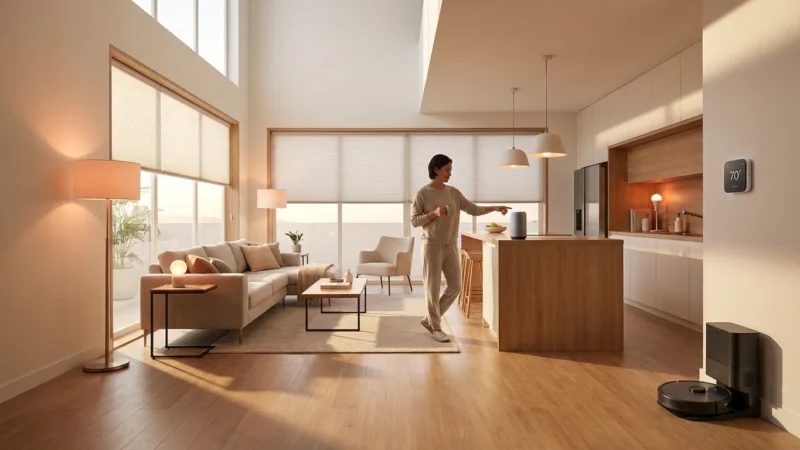
- Strategic Speaker Placement: Place smart speakers so they do not overlap their listening areas excessively. This minimizes instances where multiple assistants respond simultaneously. A good rule of thumb is to place them at least 15-20 feet apart in open-plan areas.
- Leverage Advanced Routines: Utilize the advanced routine capabilities within both Alexa and Google Home apps. Create sequences of actions that cater to your daily life. An “Away” routine might turn off all lights via Alexa, then set your Google-linked thermostat to an energy-saving temperature.
- Regular Updates: Keep your smart devices and assistant apps updated. Manufacturers frequently release software updates that improve performance, add features, and enhance security. Updating your devices ensures optimal functionality and compatibility.
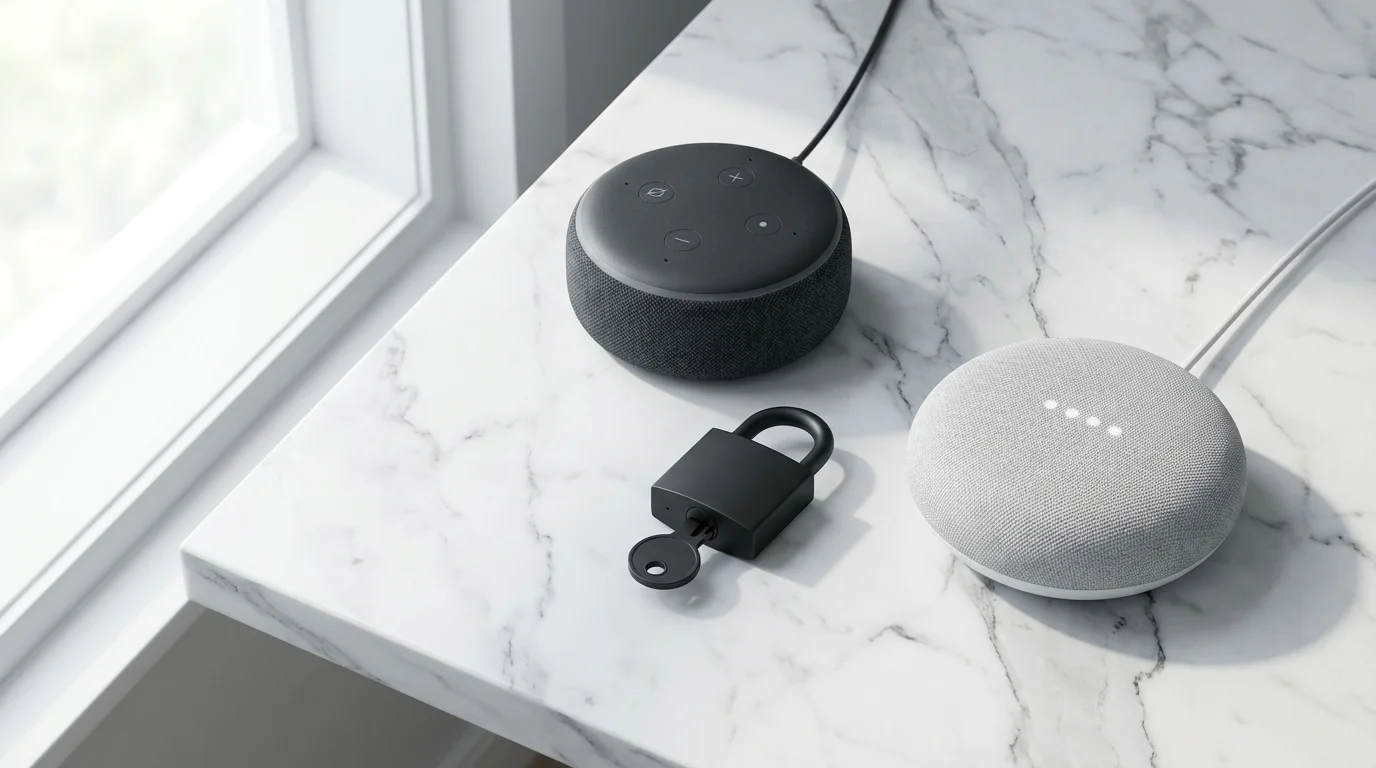
Privacy and Security Considerations for Multiple Voice Assistants
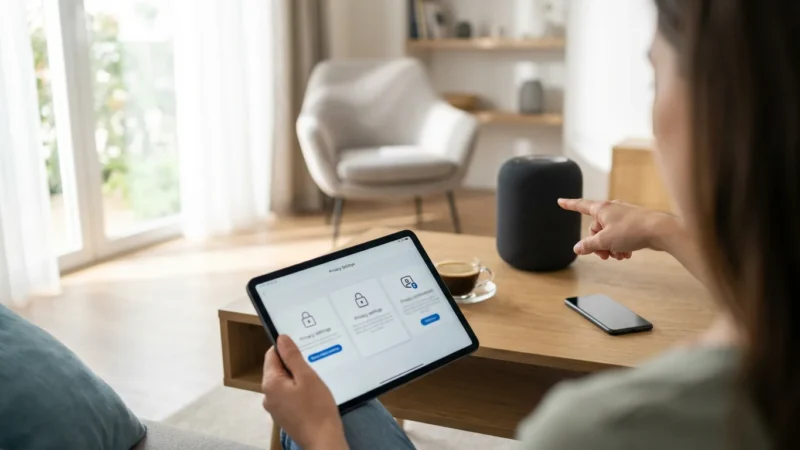
Operating a smart home with multiple voice assistants introduces additional privacy and security considerations. Each platform has its own policies regarding data collection and usage. Understanding these policies empowers you to make informed decisions about your digital privacy. Protecting your personal information is crucial. According to Consumer Reports, understanding device settings and data practices is essential for smart home privacy.
Here are key aspects to consider:
- Data Collection Policies: Amazon, Google, and Apple all collect data to improve their services. Review the privacy policies for each assistant you use. Understand what data they collect, how they store it, and who has access.
- Microphone Privacy Controls: All smart speakers include physical microphone mute buttons. Use these when you do not want your assistant actively listening. Additionally, most apps allow you to review and delete past voice recordings. Regularly delete recordings to enhance your privacy.
- Device Updates and Security Patches: Ensure all your smart home devices and voice assistant apps are up to date. Software updates often include critical security patches that protect against vulnerabilities. Enable automatic updates where possible.
- Account Security: Use strong, unique passwords for all your smart home accounts. Enable two-factor authentication (2FA) wherever available. This adds an extra layer of security, protecting your accounts even if a password becomes compromised.
- Shared Data Access: When you link third-party smart home devices to multiple assistants, you grant each assistant access to that device’s data. Be mindful of which permissions you grant during the linking process. Only grant necessary access.
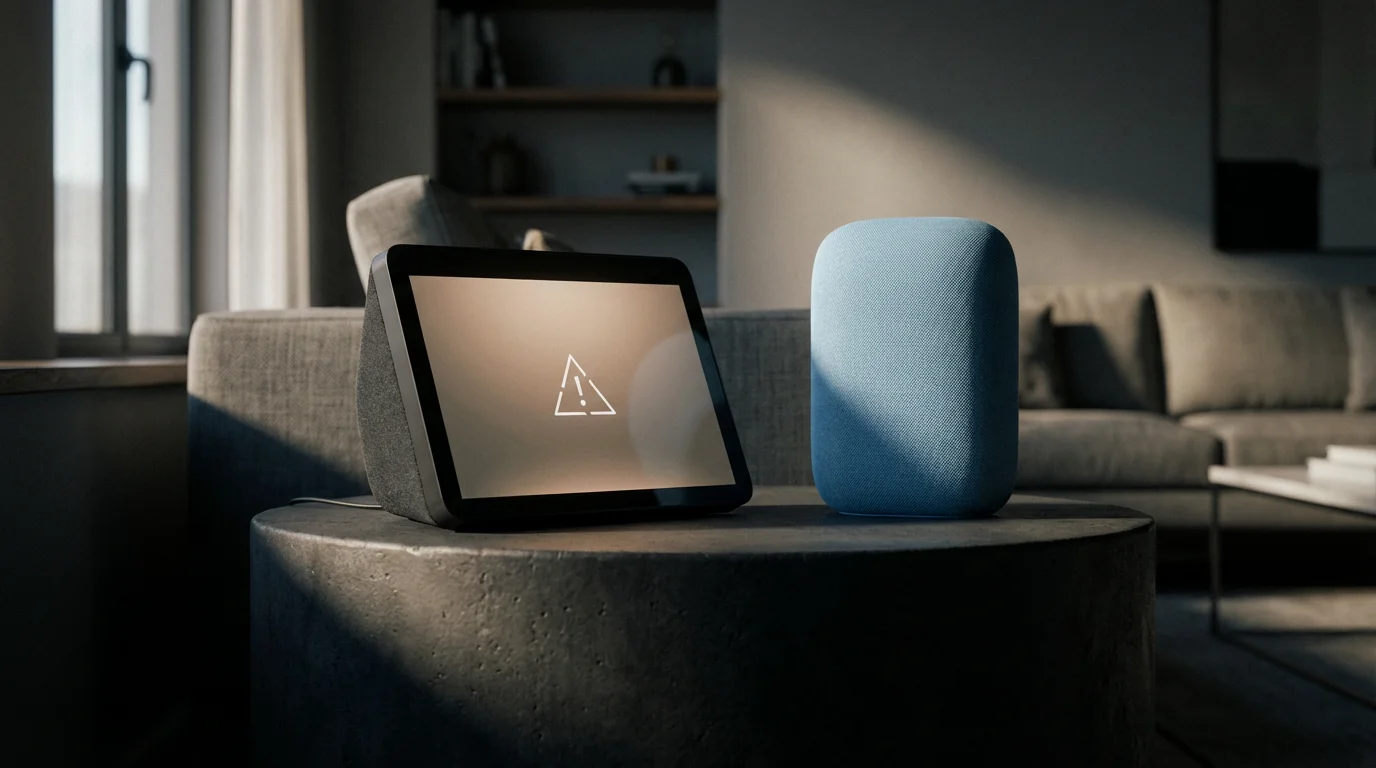
Troubleshooting Common Issues in a Mixed Setup
Even with careful planning, you might encounter issues in a mixed voice assistant setup. Understanding how to troubleshoot these common problems helps maintain a smoothly running smart home. Many problems have simple solutions.
Here are typical challenges and their fixes:
-
“Device Not Responding”:
- Check the device’s physical power connection.
- Verify the device is connected to your Wi-Fi network.
- Ensure the smart home skill or service is linked correctly in the respective assistant’s app.
- Restart the smart speaker and the device itself.
-
“Assistant Doesn’t Recognize the Command”:
- Check if the device name is correctly pronounced and recognized by the assistant.
- Review the device’s name in the assistant’s app; sometimes renaming it helps.
- Confirm the device is indeed linked to the assistant you are speaking to.
- Try rephrasing your command or using more specific language.
-
Connectivity Problems:
- Restart your home router and modem.
- Ensure your smart speaker is within range of your Wi-Fi signal.
- Check for Wi-Fi interference from other electronics.
- Verify your internet service is operational.
-
Account Linking Failures:
- Double-check your login credentials for the manufacturer’s app.
- Ensure your smart home brand’s account is active and not experiencing outages.
- Try unlinking and relinking the account in the assistant’s app.
- Some services have limits on concurrent links; verify this with the manufacturer.
Frequently Asked Questions
Can I have both an Amazon Echo and Google Nest device in the same room?
Yes, you absolutely can. Many people place an Amazon Echo and a Google Nest device in the same room to leverage the unique strengths of each. To avoid both responding simultaneously, ensure your wake words are distinct (“Alexa” for Echo, “Hey Google” for Nest). You can also separate their functions, using one for media playback and the other for smart home control.
Do I need a smart home hub to use multiple voice assistants?
Not always. Many smart devices connect directly to Alexa, Google Assistant, or both via cloud-to-cloud integrations. However, a smart home hub (especially a Matter-compatible one) can significantly simplify managing a complex mixed ecosystem. Hubs provide local control and enable communication between devices using different protocols like Zigbee or Z-Wave, which may not directly integrate with every voice assistant.
Will using multiple assistants slow down my Wi-Fi network?
Having multiple voice assistants and smart devices adds to your network traffic, but it is unlikely to significantly slow down a modern home Wi-Fi network unless you have dozens of devices or very limited bandwidth. Ensure you have a robust Wi-Fi router, especially a mesh system for larger homes, to handle the connected devices efficiently. Most voice commands use minimal bandwidth.
How do I switch which assistant controls a specific device?
You do not typically “switch” control; rather, you link the device’s manufacturer account to all desired voice assistants. For example, if your smart lights are linked to both Alexa and Google Home, you can say “Alexa, turn on the lights” or “Hey Google, turn on the lights,” and either assistant will control them. If you want one assistant to be primary, you might only link it to that assistant.
Is it possible to make Alexa and Google Assistant communicate with each other?
Direct communication or handover between Alexa and Google Assistant is not natively supported by Amazon or Google. They operate as independent platforms. However, you can achieve a degree of “interoperation” through third-party services like IFTTT or by using a common smart home hub that both assistants can access. This allows actions triggered by one assistant to indirectly influence devices controlled by the other.
Disclaimer: This article is for informational purposes only. Smart home devices involve electrical connections and data privacy. Always follow manufacturer instructions for installation. For complex wiring or HVAC work, consult a licensed professional.


Leave a Reply