
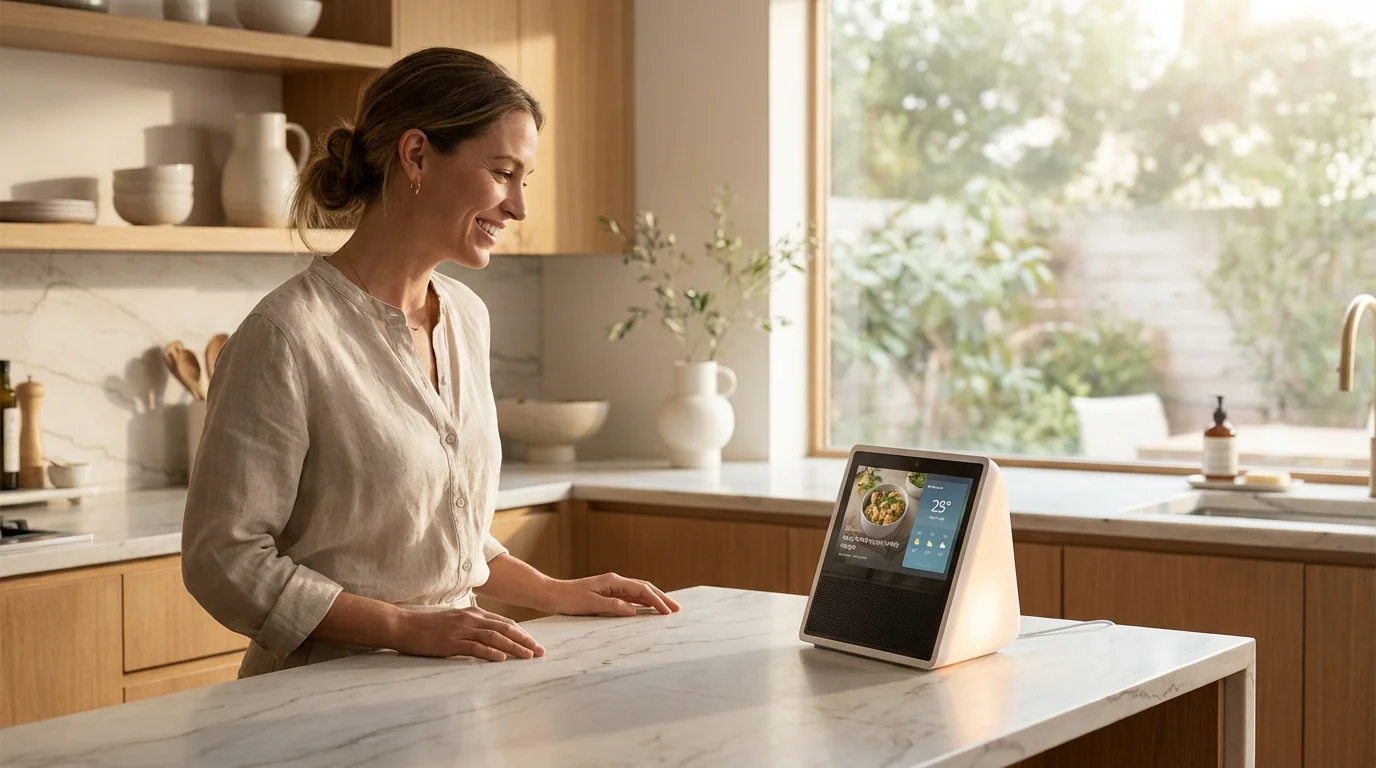
Your smart home should sound like your home, not a generic electronics store. While Google Assistant devices come pre-loaded with standard beeps, chimes, and the ubiquitous voice of the Assistant itself, relying solely on default settings limits the potential of your ecosystem. By customizing sounds and alerts, you transform your smart speakers from passive listeners into active, personalized communicators that fit your lifestyle.
Imagine a specific chime playing when the laundry finishes, a favorite song waking you up gently, or a custom voice announcement telling the kids it is time for dinner. These customizations improve accessibility, reduce screen time by providing audio cues, and add a layer of fun to your daily routines. Whether you are using a Nest Audio, a Nest Hub, or a third-party speaker, you have several powerful tools at your disposal to change how Google Assistant communicates with you.
Understanding the Google Assistant Audio Ecosystem
Before diving into the setup, it is helpful to understand how Google Assistant handles audio. Unlike a computer where you might drag and drop an MP3 file into a system folder to change a sound, smart speakers operate entirely through the cloud. This means “installing” a custom sound file directly onto the device isn’t possible in the traditional sense.
Instead, we use a combination of Text-to-Speech (TTS), streaming media services, and automation logic to trick the system into playing what we want. The three main methods for customization are:
- Voice Announcements: You type a phrase, and Google Assistant speaks it. This is the most reliable method for clear communication.
- Media Playback: You command the Assistant to play a specific track, playlist, or sound effect from a linked service like Spotify or YouTube Music.
- System Tones: These are built-in alerts for timers and alarms, which have limited but available customization options.
By mixing and matching these three elements, you can create a rich auditory environment. For instance, according to CNET Smart Home guides, layering audio cues with lighting changes creates a more immersive and effective notification system than audio alone.

Mastering Routines for Custom Phrases and Sounds
Google Home Routines are the powerhouse behind custom alerts. A Routine allows you to pair a trigger (voice command, time of day, or device event) with a specific action. This is where you can program the Assistant to say specific phrases or play sound effects.
Creating a “Say Something” Routine
If you want Google to announce specific information—like “The garage door is open” or “It’s time to take your medication”—you use the “Say something” action.
- Open the Google Home app on your smartphone.
- Tap on Automations (sometimes labeled as Routines).
- Select + Add to create a new routine.
- Choose your Starter (trigger). This could be a specific time, a voice phrase like “It’s party time,” or a device trigger.
- Under Actions, select Communicate and announce.
- Tap Say something.
- Type the exact phrase you want the Assistant to speak. You can add punctuation to influence the cadence of the voice.
- Save the Routine.
Using Sound Effects in Routines
You aren’t limited to voice. You can make your Google Home sound like a siren, a gentle gong, or a applause track. The trick here is utilizing your music service’s library. Most streaming platforms host albums of sound effects.
To implement this:
- Create a new Routine as described above.
- Instead of “Say something,” choose Try adding your own (sometimes listed as “Custom Command”).
- Type the command exactly as you would say it to the speaker: “Play the sound of a gong on Spotify.”
- Test the action to ensure it pulls the correct track.
Pro Tip: Create a private playlist on your music service named “Alerts” containing only the short sound effects you want to use. This prevents the Assistant from accidentally playing a 4-minute song when you only wanted a 3-second chime.

Using Family Bell for Scheduled Announcements
If your goal is to keep a household on track, Routines can sometimes be overkill. Google’s “Family Bell” feature is designed specifically for recurring broadcast alerts. It mimics the concept of a school bell, chiming on specific speakers to signal transitions throughout the day.
Family Bell is superior to standard alarms because it combines a distinct chime with a verbal announcement. It is particularly effective for:
- Remote Learning: Signaling the start of class or break times.
- Chore Management: Reminding the household that trash needs to go out on Tuesdays at 7:00 PM.
- Meal Times: Broadcasting “Dinner is ready” to the kids’ rooms without shouting up the stairs.
To set up a Family Bell:
- Navigate to your profile icon in the Google Home app.
- Select Assistant settings.
- Scroll down and tap Family Bell.
- You can choose a pre-made bell or tap + Add a bell.
- Input the announcement message, the time, the days of the week repeated, and crucially, which speakers should play the bell.
Setting Up Media Alarms and Sleep Sounds
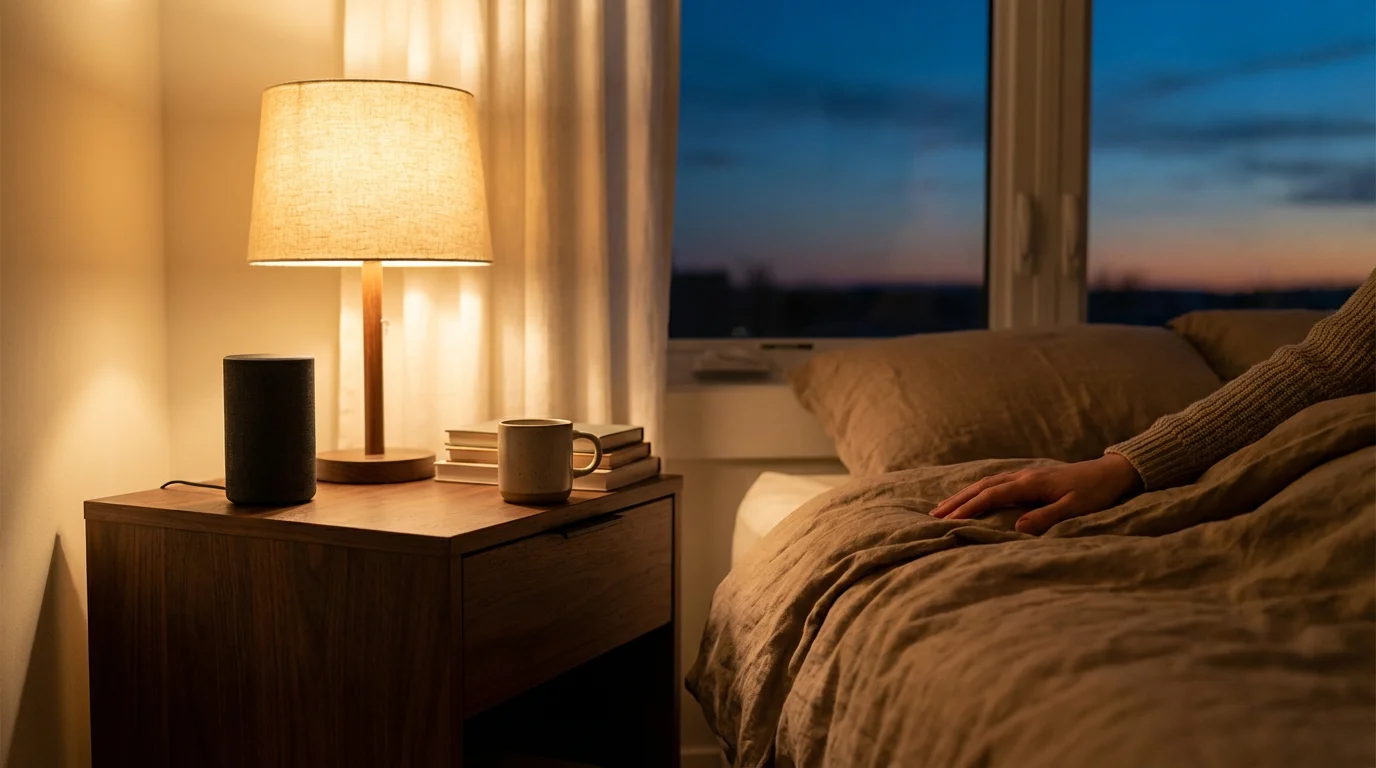
The standard “beep-beep” alarm is effective but jarring. Google Assistant allows you to replace standard alarms with “Media Alarms,” creating a more pleasant wake-up experience.
How to Set a Media Alarm
You can set these up entirely by voice without touching your phone. Use commands such as:
- “Hey Google, set a jazz alarm for 7 AM.”
- “Hey Google, wake me up to The Beatles at 6:30 AM.”
- “Hey Google, set a radio alarm for 8 AM playing NPR.”
If the internet connection drops during the night, the device caches a generic backup tone to ensure you still wake up on time. This redundancy makes media alarms reliable enough for daily use.
Sleep Sounds
Conversely, you can use custom sounds to fall asleep. Rather than using a third-party white noise machine, simply say, “Hey Google, play ambient noise,” or request specific sounds like rain, thunderstorms, or a crackling fireplace. The device will loop these sounds for 12 hours unless you set a sleep timer (e.g., “Hey Google, stop in one hour”).
Customizing Doorbell Announcements
For homeowners with a Nest Doorbell (battery or wired), the “Visitor Announcement” feature extends the doorbell chime to all your Google Assistant speakers. This ensures you hear the door even if you are in the basement or backyard.
Google frequently releases seasonal themes. During holidays like Halloween, Christmas, or Lunar New Year, you can change the doorbell tone to spooky sounds or festive tunes.
To change your doorbell theme:
- Open the Google Home app.
- Select your doorbell camera.
- Tap the Settings (gear icon).
- Select Doorbell.
- Tap Doorbell theme to browse available custom sounds.
Note that while you can choose from Google’s library of themes, uploading a completely custom MP3 (like your own voice saying “Go Away”) directly to the doorbell is not natively supported for security and usability reasons.
Advanced Workarounds: Playing Specific Audio Files
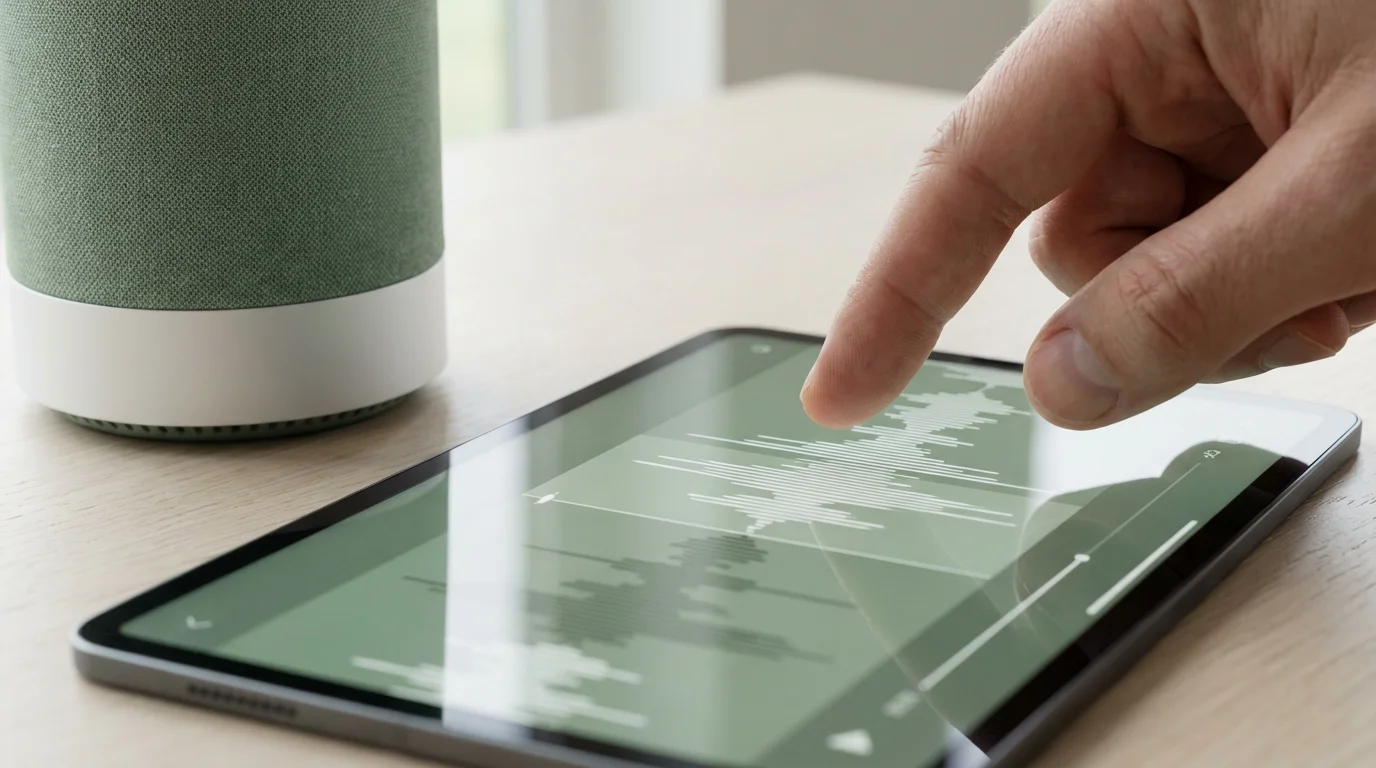
The most common frustration for advanced users is the inability to upload a personal MP3 file—like a Star Trek whistle or a Mario coin sound—and use it as a notification. Since Google Play Music shutdown, the “upload and play” functionality has become more difficult, but it is not impossible.
Method 1: The Playlist Hack
The most accessible workaround involves using Spotify, YouTube Music, or Apple Music.
- Find the sound: Search your streaming service for the sound effect you want. There are thousands of “Sound Effects” albums available.
- Create a Playlist: Create a playlist with a unique name (e.g., “Mario Coin Alert”) and add only that one track to it.
- Create the Routine: In the Google Home Routine, set the action to “Play [Playlist Name] on [Service].”
This method introduces a delay of 2-3 seconds while the stream buffers, so it is better for non-urgent alerts (like “Laundry is done”) rather than urgent ones (like “Leak detected”).
Method 2: Cast from Phone (Manual)
For one-off events, you can simply use your phone as the soundboard. Connect your phone to the Google Home speaker via Bluetooth or Google Cast. Whatever sound you play on your phone—from a soundboard app or a voice memo—will project through the speaker. This is great for hosting trivia nights or parties but less useful for automation.
Triggering Alerts from Smart Sensors
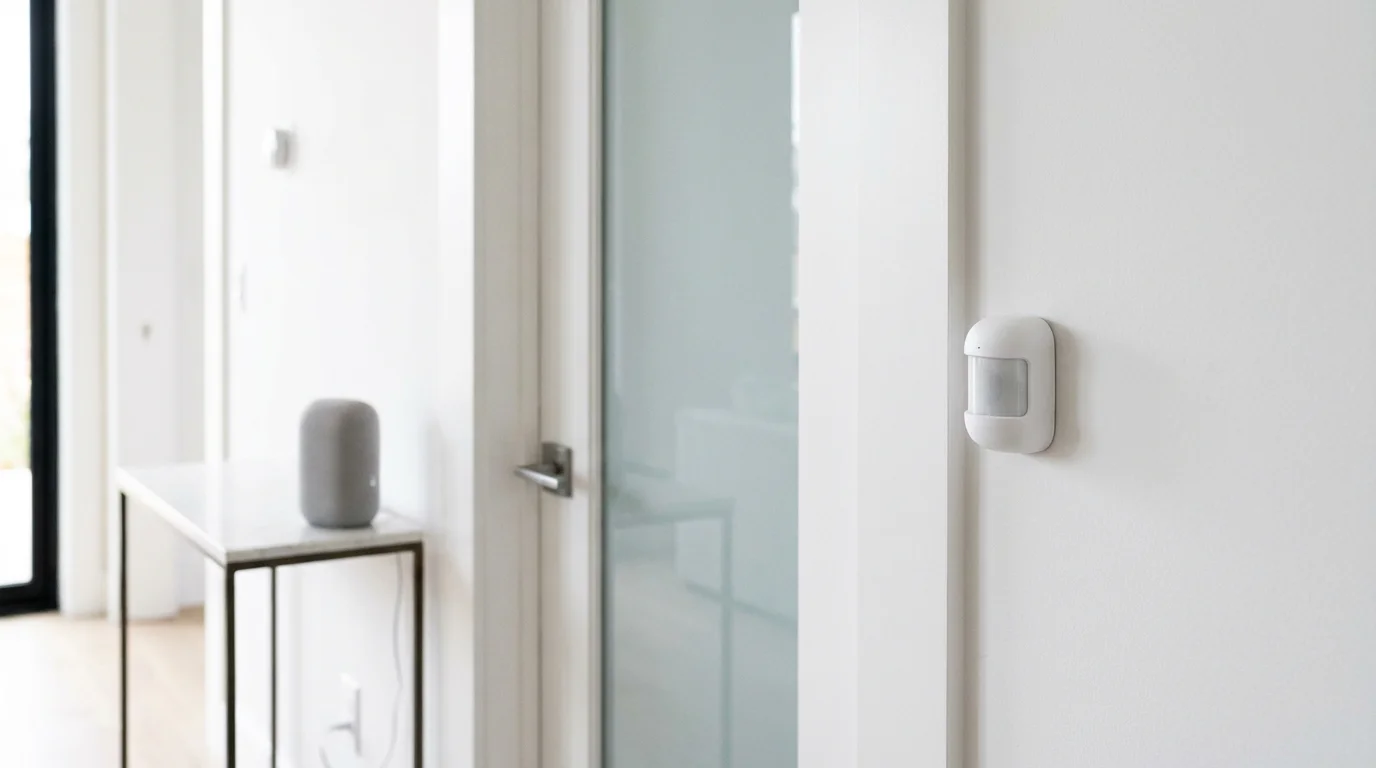
The true magic of a smart home happens when devices talk to each other. By using smart sensors, you can trigger your custom sounds based on physical events in your home.
Contact Sensors:
Place a contact sensor on your liquor cabinet, safe, or back door. Set up a Routine where the “Starter” is the sensor opening. The “Action” can be a stern voice message from the Assistant saying, “Access detected at the cabinet,” or a loud alarm sound via the playlist hack.
Motion Sensors:
If you have a motion sensor in the hallway, you can trigger a “Night Light” routine. When motion is detected between 10 PM and 6 AM, the Assistant could play a very soft, low-volume tone to confirm the system is active, or turn on connected lights. As The Verge notes, the interoperability of sensors via standards like Matter is making these cross-brand automations faster and more reliable.
Smart Appliances:
Many modern appliances (washers, dryers, ovens) integrate directly with Google Home. If your appliance supports it, you can toggle “Voice Notifications” in the device settings. This allows the Assistant to announce ” The dryer has finished its cycle” on the living room speaker, saving you from checking the laundry room unnecessarily.
Troubleshooting Common Audio Issues
Even the best automations can fail. If your custom sounds aren’t playing, check these common culprits.
“Do Not Disturb” Mode
If a speaker is in “Do Not Disturb” mode, it will suppress broadcasts and routine announcements. Check the device settings in the Google Home app to ensure this is toggled off for devices you want to act as alerting speakers.
Volume Mismatches
A common issue is that the Assistant volume is set to 10% from late-night listening, making the morning alert inaudible. To fix this, add a “Set Volume” action to the beginning of your Routine.
Step 1: Action -> Adjust Volume -> Set to 50%.
Step 2: Action -> Say something/Play media.
Digital Wellbeing Filters
Google’s Digital Wellbeing tools allow you to restrict which devices can play media or speak at certain times. If your “Teenager Wake Up” routine isn’t firing, ensure that filters aren’t blocking YouTube Music or general Assistant responses during those hours.
Frequently Asked Questions
Can I use my own voice recording as a Google Home alert?
There is no native feature to record your voice and upload it directly. However, you can type a phrase into the “Say something” action in Routines, and Google Assistant will read it. For actual recordings, you would need to upload the audio file to a music playlist (like YouTube Music) and automate the playback, which is a complex workaround.
How do I change the default alarm sound on Google Home?
You cannot permanently change the default “beep” tone in the global settings. However, you can set “Media Alarms” by voice (e.g., “Hey Google, set a LEGO alarm for 7 AM”) or use Routines to trigger music or radio instead of the standard alarm tone.
Why does my routine play the sound on the wrong speaker?
When creating a Routine, check the “Device for audio” setting at the bottom of the Routine editor. If it is set to “The device you speak to,” it will only play where you trigger it. To force a specific speaker (like the kitchen), you must select that specific device in the Routine settings.
Can I make Google Assistant announce when a specific door opens?
Yes, if you have a compatible smart contact sensor. Create a Routine where the “Starter” is the device state (Door Sensor = Open) and the “Action” is “Communicate and announce” -> “Say something”. You can then type “The front door has been opened”.
Disclaimer: This article is for informational purposes only. Smart home devices involve electrical connections and data privacy. Always follow manufacturer instructions for installation. For complex wiring or HVAC work, consult a licensed professional.


Leave a Reply