
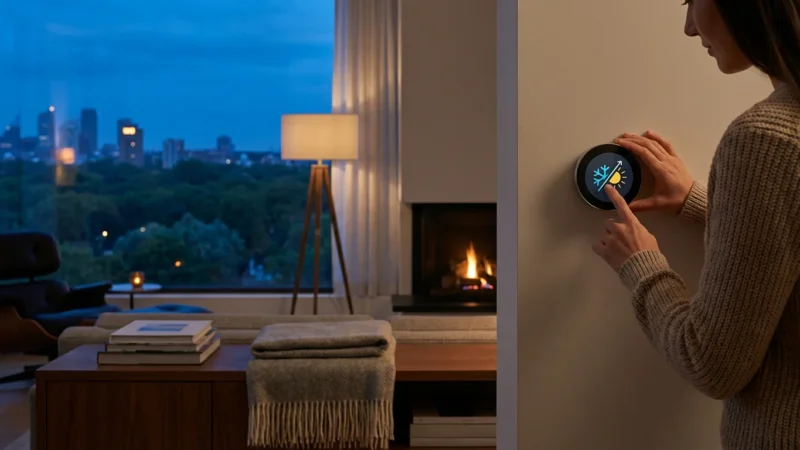
You probably bought a smart thermostat for the promise of convenience and lower energy bills. Yet, many homeowners treat these advanced devices exactly like the old, beige rectangular units they replaced: they walk up to the wall, press a button to change the temperature, and walk away. If this sounds familiar, you are missing out on the core value of home automation.
The true power of a smart thermostat lies in its scheduling capabilities. Whether you use a Nest, Ecobee, or Honeywell Home device, the software inside is designed to predict your needs, adapt to the weather, and ensure your HVAC system runs only when necessary. By moving beyond manual adjustments and mastering scheduling, you transform your heating and cooling system from a utility into a responsive background service.
This guide will walk you through the logic behind smart scheduling, how to program your device for maximum efficiency, and how to use advanced features like geofencing to handle an unpredictable lifestyle.
Why Scheduling Matters: Comfort Meets Efficiency
The concept of “setbacks” is central to energy efficiency. A setback is simply a period during the day—usually when you are asleep or at work—when you adjust the temperature to require less energy. For every degree you lower your thermostat (in winter) or raise it (in summer) for eight hours, you can save roughly 1% on your energy bill.
According to Energy Star, properly using a smart thermostat can save you significant amounts on heating and cooling costs annually. However, these savings only materialize if the schedule matches your actual life. If your schedule is too aggressive, you will end up manually overriding it constantly, which defeats the purpose of the automation.
Beyond money, scheduling provides consistent comfort. A well-programmed schedule ensures you never wake up freezing or walk into a stiflingly hot house after work. It automates your comfort so you stop thinking about the temperature altogether.
Different Types of Scheduling Logic
Not all smart thermostats approach scheduling the same way. Before you dive into the settings, you need to identify which logic your device uses and which one fits your personality.
1. The Fixed 7-Day Schedule
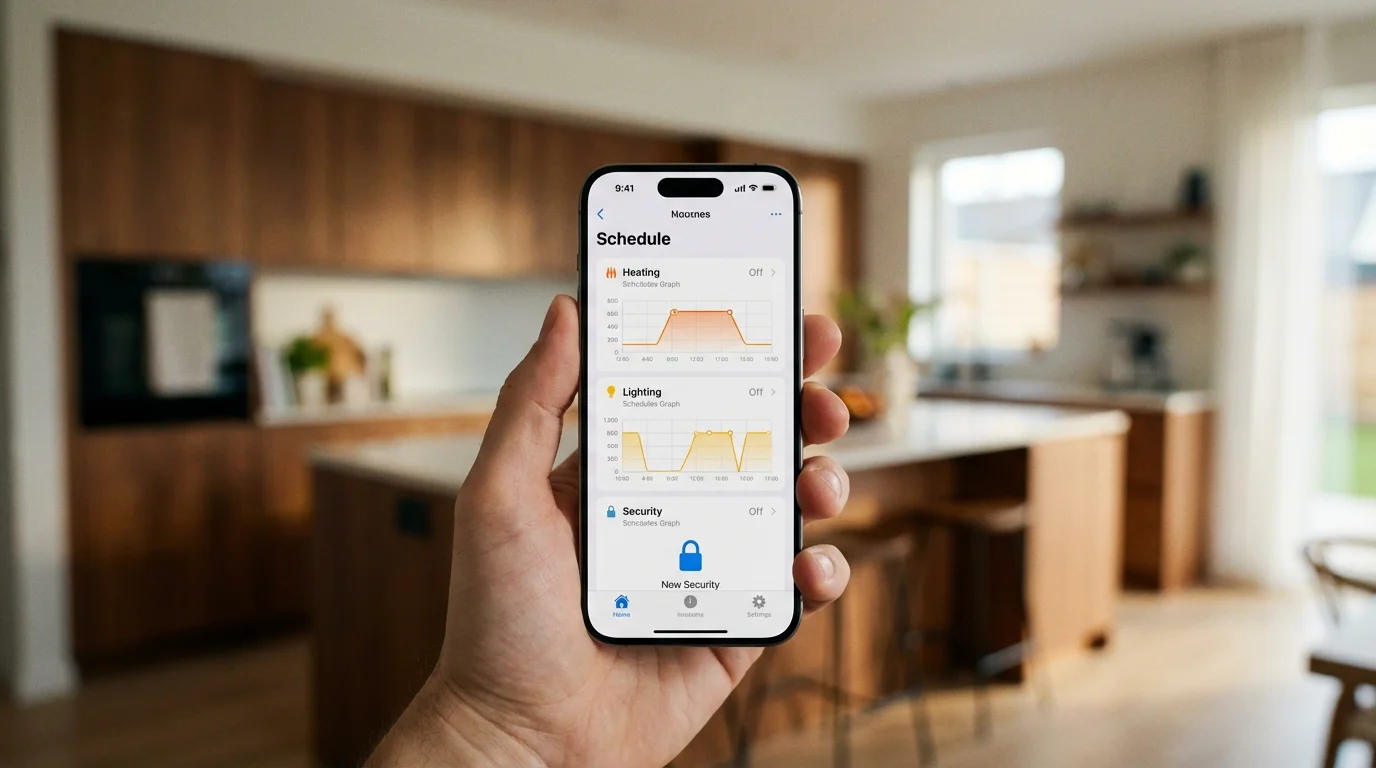
This is the digital evolution of the traditional programmable thermostat. You manually define blocks of time for every day of the week. This is best for people with very rigid routines—for example, if you leave the house at 8:00 AM and return at 5:30 PM every single weekday.
2. Algorithmic or “Learning” Schedules
Popularized by the Google Nest Learning Thermostat, this method requires no initial programming. You simply use the thermostat manually for the first week. The device records your adjustments, notes the time and temperature, and builds a schedule for you automatically. It continues to learn over time; if you start waking up earlier, the thermostat eventually notices the pattern and adjusts the heating cycle accordingly.
3. Geofencing and Presence Detection
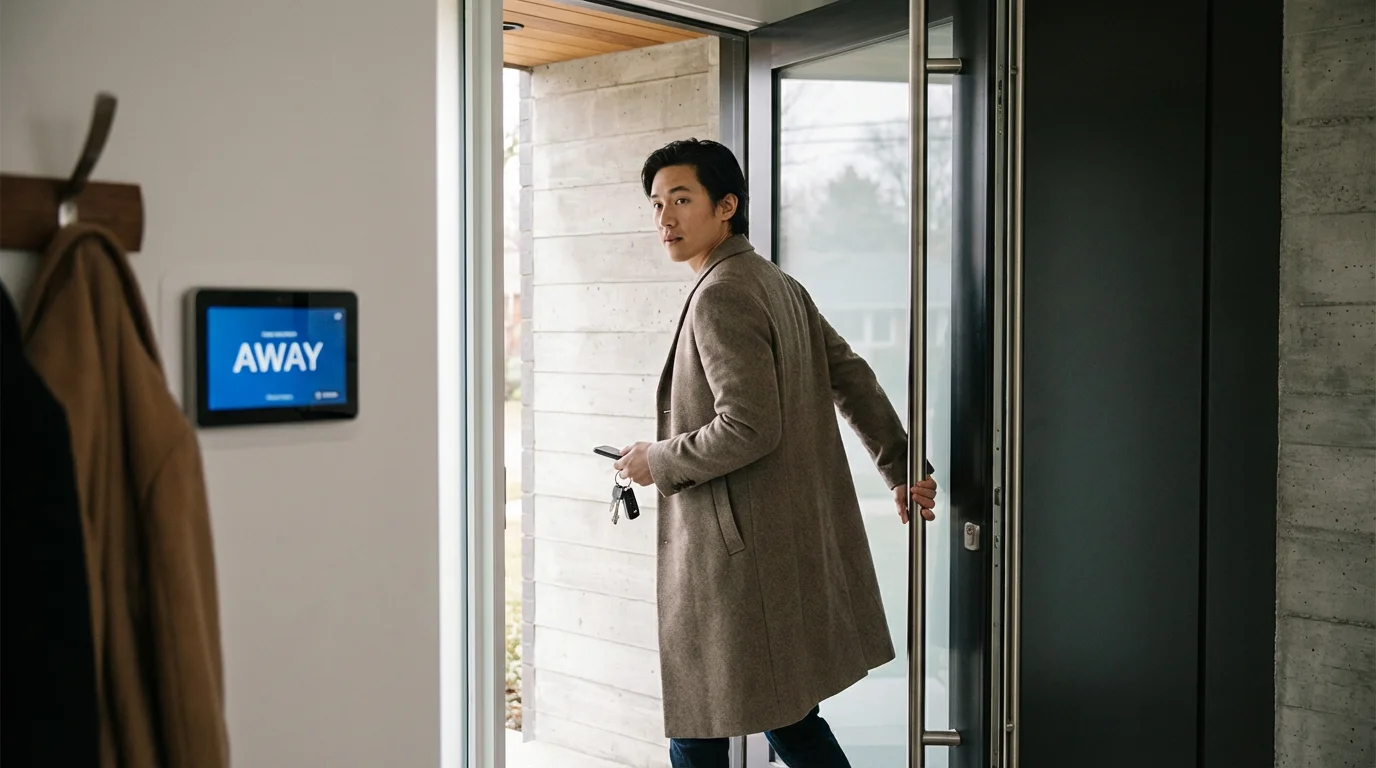
This approach relies less on a clock and more on your location. By using the GPS on your smartphone, the thermostat knows when you leave a designated radius around your home (the geofence) and sets the system to “Away” mode. When you cross the boundary coming home, it resumes your “Home” comfort settings. This is ideal for freelancers, shift workers, or anyone with an unpredictable schedule.

How to Build the Perfect Schedule
Even if you use a learning thermostat, manually tuning your base schedule is often necessary to get the best results. Most successful schedules revolve around four key events in your day.
When programming your app, look for these four distinct blocks:
- Wake: This event should trigger 15 to 30 minutes before your alarm goes off. You want the house to be reaching your target temperature as you get out of bed, not starting the process.
- Leave (Away): Set this to trigger shortly after you typically leave the house. This is your primary energy-saving period. Adjust the temperature by 7–10 degrees from your comfort setting.
- Return (Home): Schedule this to begin 15 to 30 minutes before you walk through the door. This ensures your home is comfortable upon arrival.
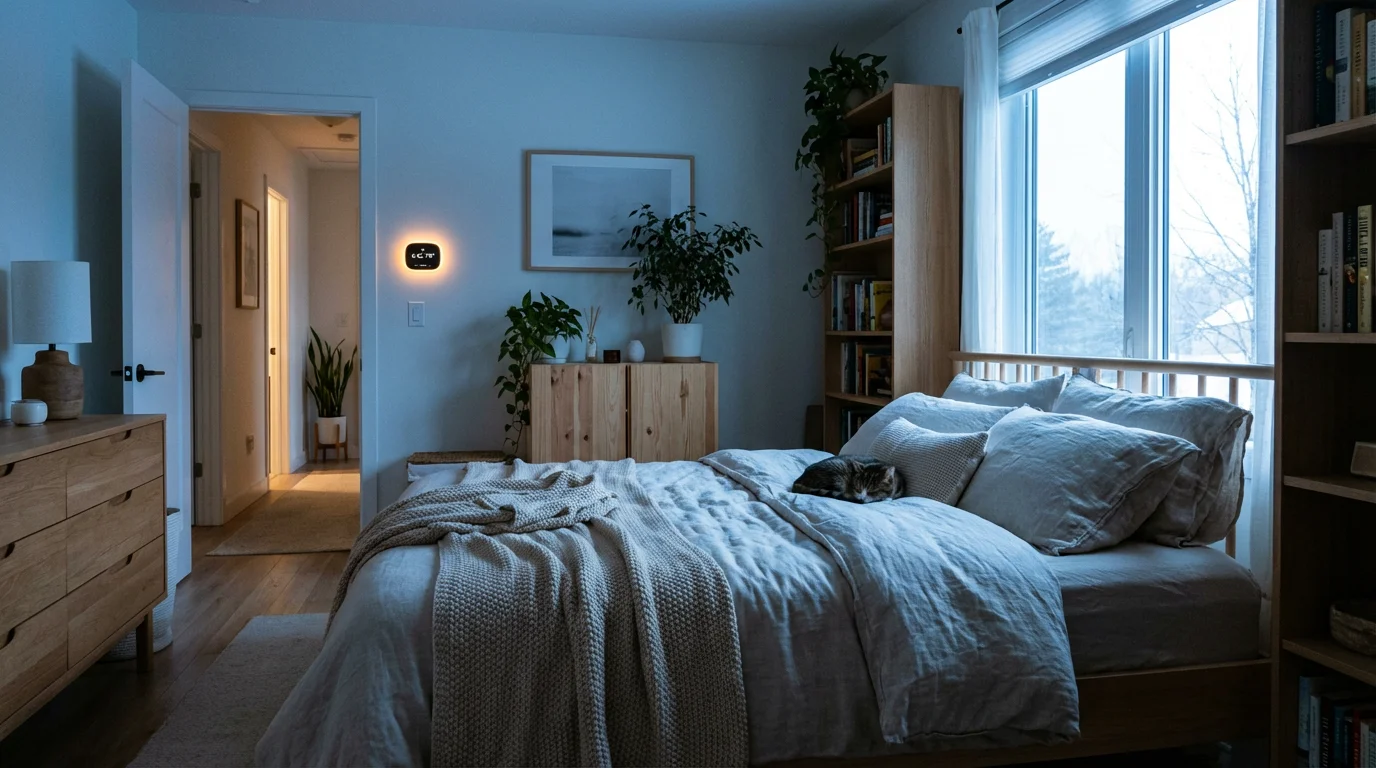
- Sleep: Set this for your bedtime. Most sleep experts agree that cooler temperatures (around 65–68°F) promote better rest. This is also a secondary energy-saving period during winter.
Pro Tip: Do not create drastic temperature swings if you have a heat pump system with electric auxiliary heat (emergency heat). If you ask a heat pump to raise the temperature by 10 degrees instantly, it may trigger the expensive backup heating strips. For heat pumps, keep your setbacks moderate (2–4 degrees).
Advanced Features: Geofencing and Occupancy
Static schedules fail when life happens. If you come home early on a Tuesday, a static schedule leaves you in a cold house. This is where combining scheduling with geofencing creates a truly “smart” home.
Most modern thermostat apps (Ecobee, Nest, Honeywell Home) allow you to enable geofencing as an override to your schedule. Here is how to configure it for the best experience:
- Set the Radius: In your app settings, define the geofence boundary. A larger radius gives your HVAC system more time to recover temperature before you arrive, but might waste energy if you are just driving nearby. A standard setting is usually 3 to 5 miles.
- Multi-User Setup: If you live with others, every adult needs the thermostat app installed on their phone. You must configure the system to switch to “Away” only when the last person leaves, and return to “Home” when the first person arrives.
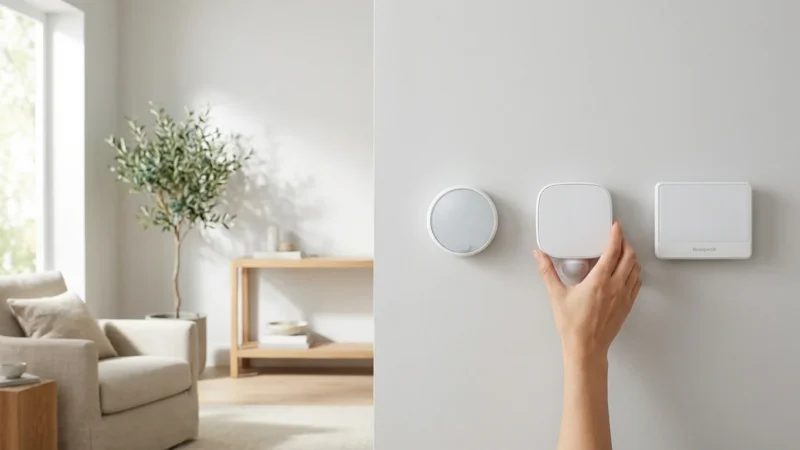
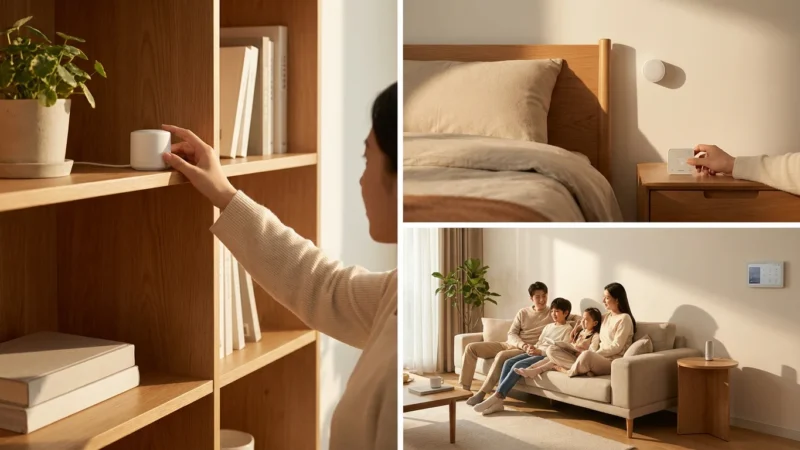
- Occupancy Sensors: Devices like the Ecobee SmartThermostat use remote sensors to detect motion. If your schedule says you are “Away” but the sensor detects motion in the living room (perhaps you stayed home sick), it will override the schedule and turn on the heat. Ensure these sensors are placed in high-traffic areas.
Understanding Smart Recovery and Early Start
One of the most confusing aspects for new users is why their heating turns on at 5:00 PM when the schedule is set for 5:30 PM. This feature is often called “Smart Recovery,” “Early Start,” or “Adaptive Recovery.”
Standard programmable thermostats work like a simple switch: at 5:30 PM, they turn on. Smart thermostats work like a project manager. They calculate how long it takes your specific HVAC system to raise your home’s temperature based on the current weather and indoor insulation.
Why you should leave this on:
- Precision: If you want it to be 72°F at 7:00 AM, the thermostat ensures it hits that number exactly at 7:00 AM.
- Efficiency: Some systems run the HVAC equipment at a lower, more efficient stage (for multi-stage furnaces) over a longer period, rather than blasting high heat at the last minute.
If you prefer to control exactly when the equipment turns on, you can usually disable this feature in the “equipment” or “installation” settings of your app, but for most users, it provides better comfort.
Making Seasonal Adjustments
A schedule that works in January often fails in July. While “Auto-Changeover” modes exist (where the thermostat switches between heat and cool automatically), your temperature preferences likely change with the seasons due to humidity and clothing differences.
Summer Strategy:
Focus on humidity control. You might tolerate a higher temperature (e.g., 76°F) if the humidity is low. Some smart thermostats have a “Cool to Dehumidify” feature—utilize this. Set your “Away” temperature higher, but not so high that humidity builds up and risks mold or damages wood furniture. 80–82°F is a safe upper limit for most homes.
Winter Strategy:
Focus on the “Sleep” setting. You can save substantial money by using heavy duvets and dropping the night temperature to 62–65°F. However, ensure the setback isn’t so low that your pipes are at risk during extreme freezes.

Troubleshooting Schedule Conflicts
Sometimes, your thermostat might seem to have a mind of its own. If your schedule isn’t sticking, check these common culprits:
- Third-Party Integrations: Did you connect your thermostat to Alexa, Google Home, or Samsung SmartThings? A routine in Alexa (e.g., “Good Night” routine) might be sending a command that overwrites your thermostat’s internal schedule.
- Utility Rebate Programs: If you signed up for a “Demand Response” program with your electric company to get a rebate, they may have permission to adjust your thermostat during peak energy hours. This often looks like an unexplained setpoint change on hot afternoons.
- Ghost Schedules: If you moved from a fixed schedule to a learning schedule, ensure you cleared the old fixed points. Sometimes, manual time blocks conflict with algorithmic learning.
Frequently Asked Questions
Does turning the thermostat off save more money than scheduling a setback?
Generally, no. Turning the HVAC system completely off can cause the structure of your home (walls, furniture, floors) to lose or gain too much heat. Recovering from that extreme temperature difference often uses more energy than maintaining a moderate setback temperature, and it can put excessive strain on your equipment.
How do I handle scheduling if I have pets at home?
If you have pets, your “Away” temperature needs to be pet-safe. While you might tolerate a house at 55°F or 85°F, your dog or cat likely cannot. Set your “Away” mode to a conservative range (e.g., 64°F in winter, 78°F in summer) to keep them safe. Consult your veterinarian for the ideal temperature range for your specific breed.
What is the “Hold” feature?
The “Hold” button temporarily overrides your schedule. A “Permanent Hold” keeps the temperature at the current setting indefinitely until you manually cancel it. A “Temporary Hold” usually keeps the temperature until the next scheduled time block begins. Use “Permanent Hold” for vacations or parties, and “Temporary Hold” for one-off adjustments.
Can I use geofencing if I don’t carry my phone everywhere?
Geofencing relies on your mobile device. If you leave the house without your phone, the thermostat will think you are still home and will not switch to “Away” mode. In this case, you might consider using additional motion sensors or manually setting the “Away” mode on the wall unit as you leave.
Disclaimer: This article is for informational purposes only. Smart home devices involve electrical connections and data privacy. Always follow manufacturer instructions for installation. For complex wiring or HVAC work, consult a licensed professional.
Leave a Reply