

Your smart home should simplify your life, not complicate it. When your routines, the automated sequences of actions that define convenience, suddenly stop working, frustration quickly sets in. You rely on your lights to turn on at sunset, your thermostat to adjust before you arrive home, or your doors to lock automatically at night. When these automations fail, your smart home feels anything but smart.
This guide provides practical, actionable steps to diagnose and fix common routine problems. We will walk through a systematic approach to identify why your smart home routine is not working, from basic checks to advanced debugging techniques. You will learn how to restore your smart home’s reliability and ensure your devices respond exactly as you expect.

Understanding Your Routine: The Building Blocks of Automation
Before you can fix a broken routine, you must understand how smart home routines operate. A typical routine involves three core components: a trigger, conditions, and actions.
Whether you are debugging a failure or building a new sequence like the one in the ultimate morning routine automation guide, the underlying logic of triggers and actions remains the same.
- Trigger: This is the event that starts the routine. Examples include a specific time, your arrival or departure from home (geofencing), a sensor detecting motion or an open door, or a voice command like “Alexa, good morning.”
- Conditions (Optional): These are rules that must be true for the routine to proceed after the trigger. For example, a routine might trigger at 7:00 AM, but only if it’s a weekday and your security system is disarmed.
- Actions: These are the tasks your smart home devices perform. This could be turning on lights, adjusting the thermostat, playing music, or locking doors. Many routines involve multiple actions executed in a specific sequence.
Any failure in these components can lead to automation errors. Identifying the exact point of failure is key to effective troubleshooting.
Initial Checks: The First Steps to Fix Routine Problems
Many routine problems stem from simple oversight or temporary glitches. Start with these quick checks before diving into more complex diagnostics.
Often, issues arise from timing overlaps, so it is helpful to know how to schedule your smart devices like a pro to avoid basic configuration errors.
- Check Device Power and Status: Ensure all devices involved in the routine are plugged in, powered on, and not showing any error indicators. A smart bulb unplugged or a smart plug accidentally turned off will halt your routine.
- Verify Internet Connection: Most smart home devices rely on an active internet connection. Check if your router is online and if other internet-dependent devices in your home are working. A weak Wi-Fi signal can also cause intermittent connectivity issues for devices.
- Restart Devices and Hubs: A simple restart often resolves temporary software glitches. Unplug and re-plug your smart home hub, router, and any affected smart devices. Wait a few minutes for everything to reconnect.
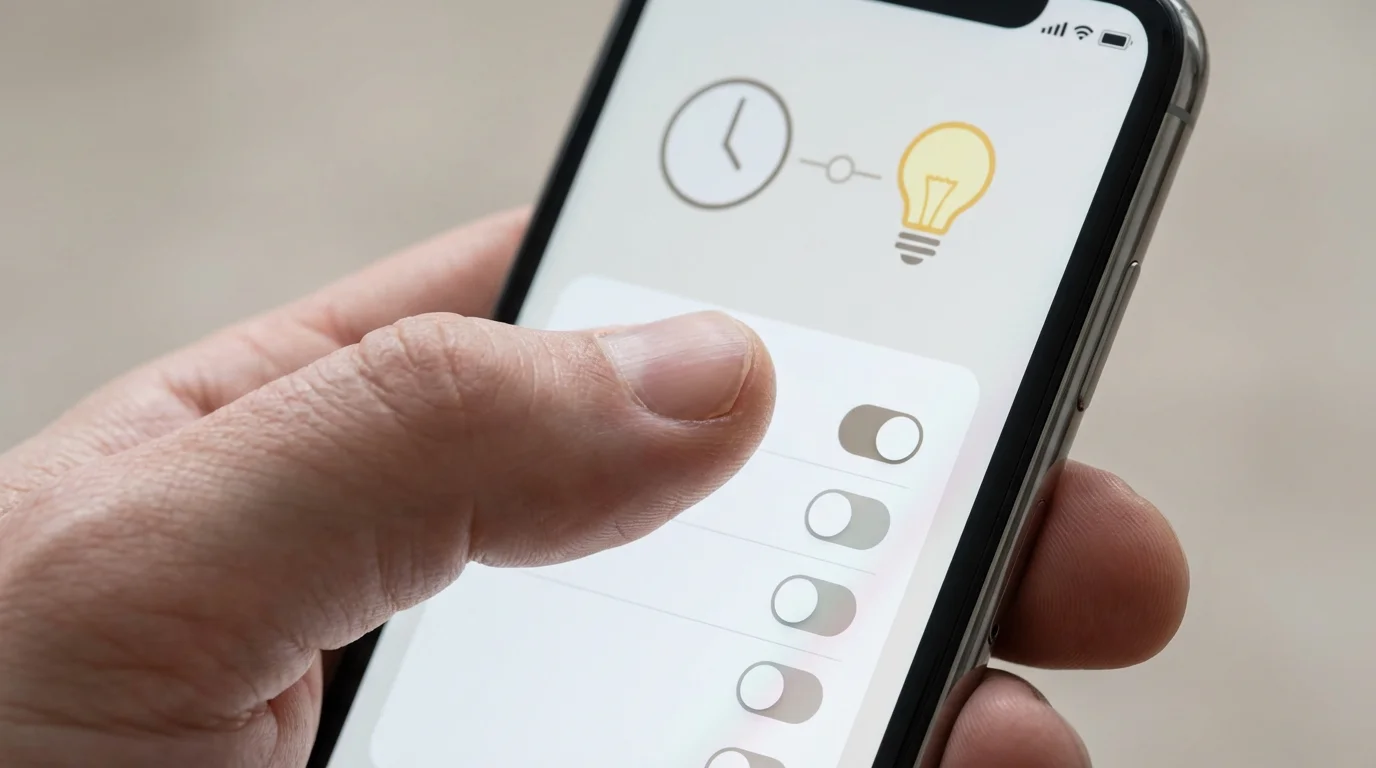
- Review Routine Settings in the App: Open your smart home app (e.g., Alexa app, Google Home app, SmartThings app) and navigate to the specific routine. Carefully review every setting:
- Is the routine enabled?
- Are the trigger conditions correct (time, day, sensor state)?
- Are all devices listed in the actions present and spelled correctly?
- Have any device names changed recently? Updates or re-pairing can sometimes alter device names, breaking existing routines.
- Test Devices Individually: Can you manually control each device involved in the routine directly through the app? If a device cannot be controlled manually, it indicates a broader connectivity or device issue, not just a routine problem.

Network Connectivity: Ensuring Your Devices Are Online
A robust and reliable network forms the backbone of your smart home. Weak Wi-Fi, interference, or an overloaded network are common causes of automation errors.
Assessing Your Wi-Fi Signal
Many smart devices connect directly to your home Wi-Fi network. If a device is too far from your router, it may experience intermittent drops, leading to routine failures.
- Signal Strength: Check your device’s signal strength within its respective app, if available. Move devices closer to the router or consider a Wi-Fi extender or mesh Wi-Fi system for better coverage, particularly for devices in distant rooms or outdoors.
- Band Conflicts: Most smart home devices operate on the 2.4 GHz Wi-Fi band. Ensure your router’s 2.4 GHz band is enabled and distinct from the 5 GHz band. Some dual-band routers “steer” devices, which can occasionally cause issues with certain smart devices expecting a specific band.
Addressing Network Congestion and Interference
An overloaded network struggles to manage all connected devices. Many homes now have dozens of Wi-Fi devices, from phones and laptops to smart TVs and appliances.
- Reduce Network Load: Disconnect old or unused devices from your Wi-Fi network. Consider a router upgrade if you have a very large number of devices.
- Check for Interference: Other wireless devices, such as cordless phones, microwaves, or even neighbor’s Wi-Fi, can interfere with your smart home’s signals. Try changing your router’s Wi-Fi channel if you suspect interference.
- IP Address Conflicts: While less common with modern routers, sometimes a device receives an IP address already in use, causing it to go offline. Restarting your router usually resolves this by assigning new IP addresses. You can also assign static IP addresses to critical smart home devices within your router settings.
For smart homes with many devices, a dedicated smart home hub that uses protocols like Zigbee or Z-Wave can offload traffic from your Wi-Fi, improving reliability. According to a Consumer Reports Smart Home guide, considering a hub can significantly enhance the stability of complex smart home setups.
App Settings and Routine Logic: A Deep Dive into Configuration
Once you confirm network health, the next step involves scrutinizing the routine’s configuration within your smart home app. This is where most automation errors occur.
Examining Triggers and Conditions
The trigger is the entry point for your routine. If the trigger never fires, the routine never starts.
- Time-Based Triggers: Verify the exact time, day of the week, and AM/PM setting. Account for daylight saving time changes, as some systems require manual adjustment.
- Sensor Triggers: Ensure the sensor is reporting correctly. For example, if a motion sensor triggers a light, check if the sensor is accurately detecting motion in its app. Verify its battery level.
- Location (Geofencing) Triggers: Check your phone’s location services settings. The smart home app needs permission to access your location “always” or “allow all the time” for geofencing to work reliably. Ensure your phone’s battery optimization is not aggressively shutting down the app in the background.
- Voice Triggers: Confirm the exact phrasing of your voice command. Slight variations or mispronunciations can prevent the routine from activating. Check your voice assistant’s history for unrecognized commands. For example, if you are struggling with how to fix broken Alexa routines, review the “Voice History” in the Alexa app to see if your commands were understood.
Verifying Actions and Sequences
Once triggered, your routine executes a series of actions. A single failed action can disrupt the entire sequence.
- Device Availability: Confirm every device listed in the routine’s actions is still paired and recognized by your smart home system. If a device was reset or unpaired, the routine will fail to control it.
- Action Order: Some routines rely on actions happening in a specific order. For instance, you might need to unlock a smart door before attempting to open a smart lock on a gate. Review the sequence of actions for any logical dependencies.
- Delays: If your routine includes delays between actions, ensure these are appropriate. A delay too short might cause devices to miss commands, especially if they are slower to respond. A delay too long might make the routine feel unresponsive.
- Device State: Ensure the devices are in a state that allows the action. For example, you cannot turn on a light that is already physically switched off at the wall.

Conflicting Automations: When Routines Fight Each Other
As your smart home grows, you might inadvertently create routines that overlap or contradict each other. This is a common source of automation errors.
Identifying Overlapping Routines
Consider a scenario where one routine turns off your living room lights at 10 PM, but another routine turns them on if motion is detected after 9 PM. These could create a loop or make your lights behave unpredictably.
- Review All Routines: Systematically go through all your active routines and scenes within your primary smart home app. Look for any routines that control the same devices around the same time or triggered by similar events.
- Check Different Platforms: If you use multiple smart home platforms (e.g., Alexa and SmartThings, or Google Home and HomeKit), ensure you haven’t created similar automations on different platforms that target the same device. For instance, an Alexa routine might clash with a native SmartThings automation controlling the same smart bulb.
Resolving Conflicts
Once you identify conflicting routines, you have several options for resolution:
- Prioritize: Decide which routine should take precedence. Disable or delete the less important routine.
- Refine Conditions: Add more specific conditions to one or both routines to prevent them from activating simultaneously. For example, add a condition that the motion-triggered light routine only runs if the time is between 9 PM and 10 PM.
- Consolidate: If two routines perform similar functions, combine them into a single, more comprehensive routine with clear conditions. This reduces complexity and the chance of conflicts.
Firmware and Software Updates: Keeping Your System Current
Outdated firmware or software is a frequent, yet often overlooked, cause of routine problems and general device instability. Manufacturers regularly release updates to improve performance, patch security vulnerabilities, and resolve bugs.
Why Updates Matter
Updates can address specific bugs that prevent routines from executing correctly. They can also improve device compatibility, ensuring newer features or integrations work seamlessly with your existing setup. Neglecting updates leaves your devices vulnerable to known issues.
How to Check for and Apply Updates
- Smart Home Hub/Controller: Your central hub (e.g., SmartThings Hub, Hubitat, Homey) often receives updates automatically. However, it’s good practice to periodically check for manual update options within its web interface or mobile app.
- Individual Smart Devices: Most smart devices, especially Wi-Fi-connected ones, receive firmware updates through their respective manufacturer apps. Open the app for each device (e.g., Philips Hue app for bulbs, Ecobee app for thermostat) and look for a “Firmware Update” or “Device Settings” section.
- Voice Assistant Apps: The Alexa app, Google Home app, and Apple Home app are regularly updated. Ensure your phone or tablet’s operating system (iOS or Android) is also up to date, as app performance can depend on it.
Always follow manufacturer instructions for applying updates. Ensure your devices are powered and have a stable internet connection during the update process to prevent bricking the device.
Testing and Debugging Your Routines Effectively
Systematic testing is crucial for identifying the precise point of failure when your smart home routine is not working. Debugging involves isolating variables and observing device behavior.
Step-by-Step Testing
Do not assume the entire routine is broken. Test each component individually.
- Test the Trigger: If it’s a time-based trigger, set it for one minute from now. For a sensor trigger, manually activate the sensor (e.g., wave your hand in front of a motion sensor). For a voice command, say the command clearly. Observe if the system registers the trigger.
- Simplify the Routine: Temporarily remove all but one action from your routine. Test if that single action executes correctly when the trigger fires. If it does, add actions back one by one, testing after each addition, until you find the action that causes the failure.
- Isolate Devices: If a specific device consistently fails, remove it from the routine and test the routine with other devices. This helps determine if the issue is with the device itself, its connection, or how the routine is trying to control it.
- Check Device Logs/History: Many smart home apps (e.g., SmartThings, Home Assistant) offer logs or activity histories. Review these logs immediately after attempting to run a routine. Look for error messages, device offline reports, or missed commands. This data provides concrete evidence for debugging.
The best smart home is the one you don’t have to manage. Effective debugging gets you closer to that ideal.
Advanced Debugging Tips
- Network Monitoring: Use a network scanner tool on your phone or computer to see all devices connected to your Wi-Fi, their IP addresses, and signal strength. This can help identify devices that are intermittently disconnecting.
- Conditional Logic Review: For complex routines with multiple “if/then” statements or “AND/OR” conditions, walk through the logic mentally. Ensure every condition is met at the time of the trigger. Even a single false condition can prevent the entire routine from running.
- Temporary Routine Duplication: If you have a complex routine, duplicate it and make changes to the copy. This allows you to experiment without breaking your primary setup.
Resetting and Rebuilding: When All Else Fails
Sometimes, despite your best troubleshooting efforts, a routine or even a device remains unresponsive. In these cases, a more drastic approach may be necessary.
Device Reset
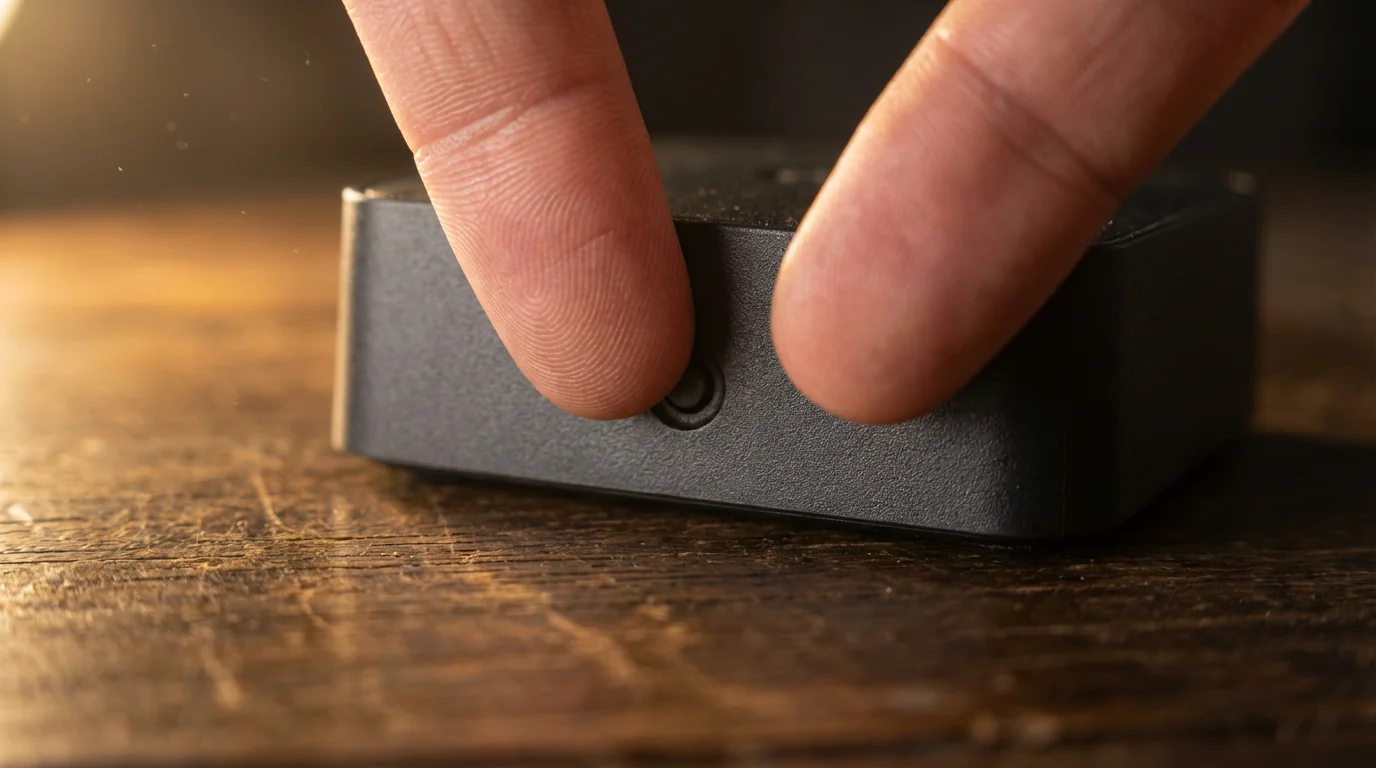
If a specific smart device consistently fails, even when manually controlled, a factory reset might be the solution. This process varies by device but usually involves holding a button or following specific steps in its companion app. Be aware that a factory reset will erase all settings and require you to re-pair the device with your smart home system and re-add it to any routines.
- Consult Manufacturer Instructions: Always refer to the device’s manual or the manufacturer’s support website for precise reset instructions.
- Battery-Powered Devices: For battery-powered sensors, sometimes simply removing and reinserting the batteries can act as a soft reset.
Rebuilding the Routine from Scratch
If you suspect the routine itself is corrupted or contains hidden errors, delete the problematic routine and recreate it. This ensures a clean slate and forces you to re-verify every trigger, condition, and action.
- Delete the Existing Routine: Go to your smart home app, find the routine, and delete it.
- Add Devices Individually (if necessary): If you also reset devices, re-add them to your smart home platform before recreating routines.
- Recreate the Routine: Start from scratch, carefully adding each component. Test after each major addition (e.g., after defining the trigger, test if it fires; then add the first action and test again).
While inconvenient, rebuilding ensures that no residual issues from previous configurations persist. This is often the most effective way to fix broken Alexa routines or other platform-specific automations that have become inexplicably unreliable.
Seeking Support: Manufacturer and Community Resources
Even expert smart home users encounter issues that require external assistance. Do not hesitate to leverage manufacturer support and the vast knowledge of the smart home community.
Manufacturer Support
Your device or platform manufacturer is often the best resource for specific issues related to their products. Most offer:
- Online Knowledge Bases: Comprehensive articles and FAQs covering common problems and setup guides.
- Community Forums: Official forums where users and support staff discuss issues and solutions.
- Direct Customer Support: Phone, email, or chat support for personalized assistance. Provide them with as much detail as possible about your routine problems, the troubleshooting steps you have already taken, and any error messages you observed.
Smart Home Communities and Forums
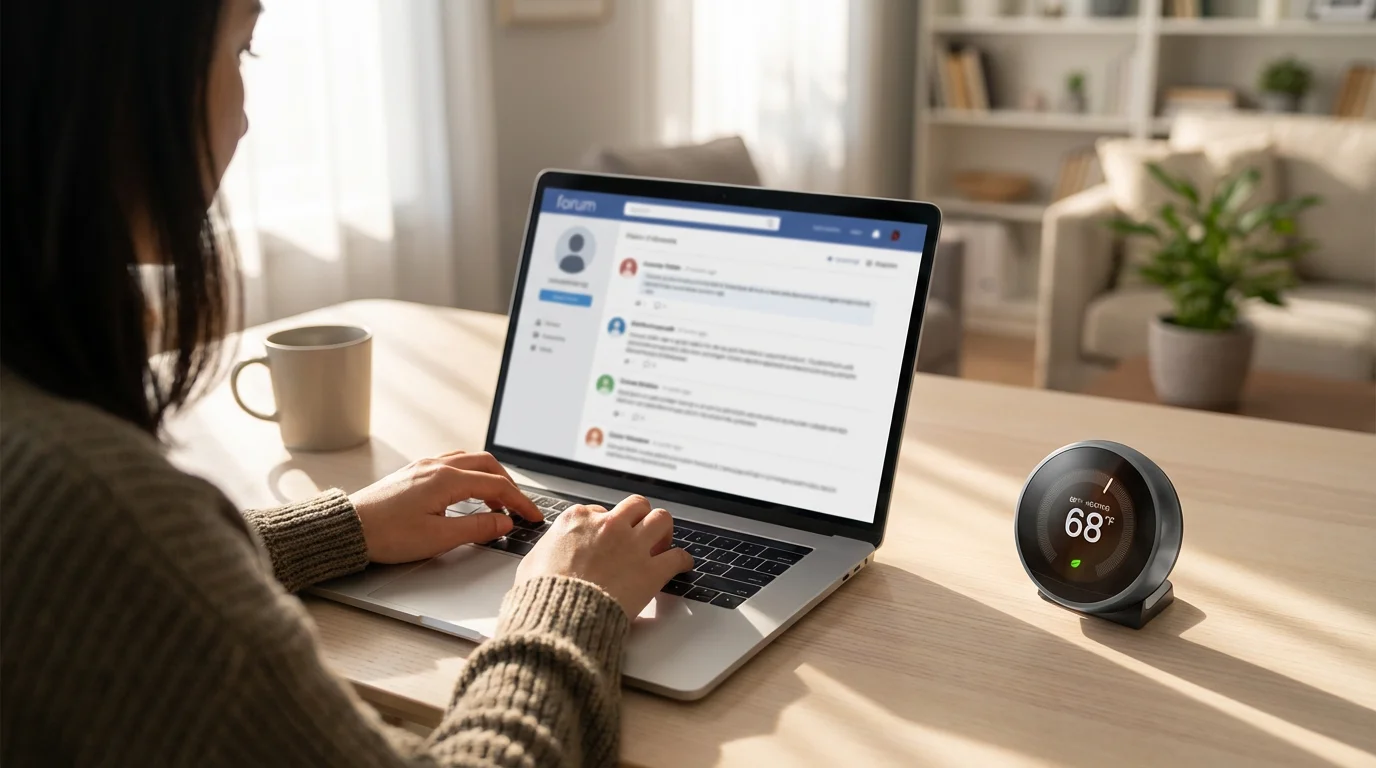
Beyond official channels, vibrant online communities exist where users share experiences and offer advice. Websites like Reddit (e.g., r/smarthome, r/alexa, r/googlehome), enthusiast forums, and even YouTube channels can provide solutions to unique automation errors or offer advanced debugging strategies.
- Search Existing Discussions: Someone else has likely encountered a similar issue. Search forums and communities for your specific device and problem description.
- Post Your Question: If you cannot find a solution, clearly describe your setup, the routine that is not working, and the troubleshooting you have attempted. Include screenshots if helpful.
Leveraging these resources ensures you have a safety net when your smart home routines require expert intervention, helping you keep your system running smoothly.
Frequently Asked Questions
Why do my smart home routines randomly stop working?
Routines often stop working due to network issues, device power loss, or changes in app settings. Intermittent Wi-Fi, a device losing power, or a device’s firmware becoming outdated are common reasons. You should always check device power, internet connectivity, and routine settings within your smart home app first. Confirm that your Wi-Fi signal is strong and stable where your devices operate.
How do I know if my smart home device is offline?
Most smart home apps indicate when a device is offline by displaying a specific icon, graying out the device, or showing an “unresponsive” message. You can often check the device’s status directly in its native app or by looking for an indicator light on the device itself. If a device is offline, restart it and check your Wi-Fi connection.
Can conflicting routines cause problems?
Yes, absolutely. If two or more routines try to control the same device at the same time or based on overlapping conditions, they can conflict. This results in unpredictable behavior, with devices turning on and off unexpectedly, or simply not responding. Review all your routines, especially across different smart home platforms, to identify and resolve any overlaps by adjusting conditions or deleting redundant routines.
What should I do if an Alexa routine isn’t triggering?
If your Alexa routine is not triggering, first verify that the routine is enabled in the Alexa app. Check the exact phrasing of your voice command in the Alexa app’s “Voice History” to ensure it was understood. For time-based or sensor-based triggers, confirm the settings are correct and the sensor is functioning. Restart your Echo device and the problematic smart device to clear any temporary glitches.
When should I reset a device or rebuild a routine?
Consider resetting a device or rebuilding a routine as a last resort, after you have exhausted all other troubleshooting steps. If a specific device is consistently unresponsive and manual control also fails, a factory reset may fix it. If a routine simply refuses to work despite all components appearing correct, deleting and recreating it ensures a clean configuration without hidden errors.
Disclaimer: This article is for informational purposes only. Smart home devices involve electrical connections and data privacy. Always follow manufacturer instructions for installation. For complex wiring or HVAC work, consult a licensed professional.
If you use third-party bridges, make sure you understand how to use IFTTT with your smart home devices to prevent redundant or conflicting commands across platforms.
For more complex needs, learning how to chain multiple automations together can help you organize sequences without creating logical loops.




Leave a Reply