
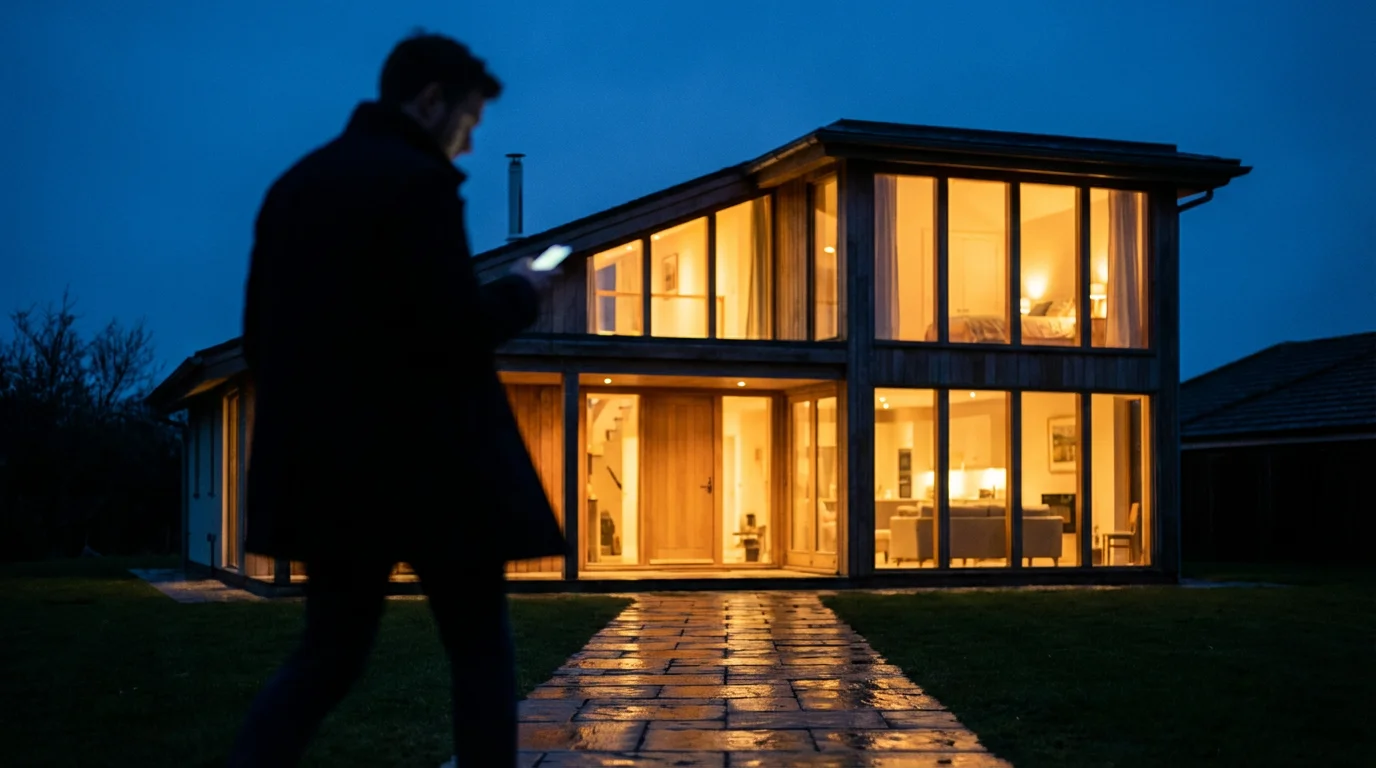
You pack your bags, lock the front door, and head to the airport. But halfway to your destination, a nagging thought creeps in: does your house look empty? For decades, homeowners relied on clunky mechanical timers to solve this problem. These devices turned a single lamp on at 7:00 PM and off at 10:00 PM with mechanical precision. While better than nothing, this predictable pattern is easy for observant burglars to spot. Real life is messy, random, and varied. Your home security measures should reflect that.
Modern smart home technology offers a superior solution called presence simulation. By using smart lights, plugs, and intelligent automation, you can mimic the complex behaviors of an occupied home. Lights can toggle at slightly different times each evening, TVs can flicker in the den, and radios can chatter in the kitchen. This guide explores how to configure these devices to effectively deter burglars and give you total peace of mind while you travel.
The Psychology of Occupancy Mimicry
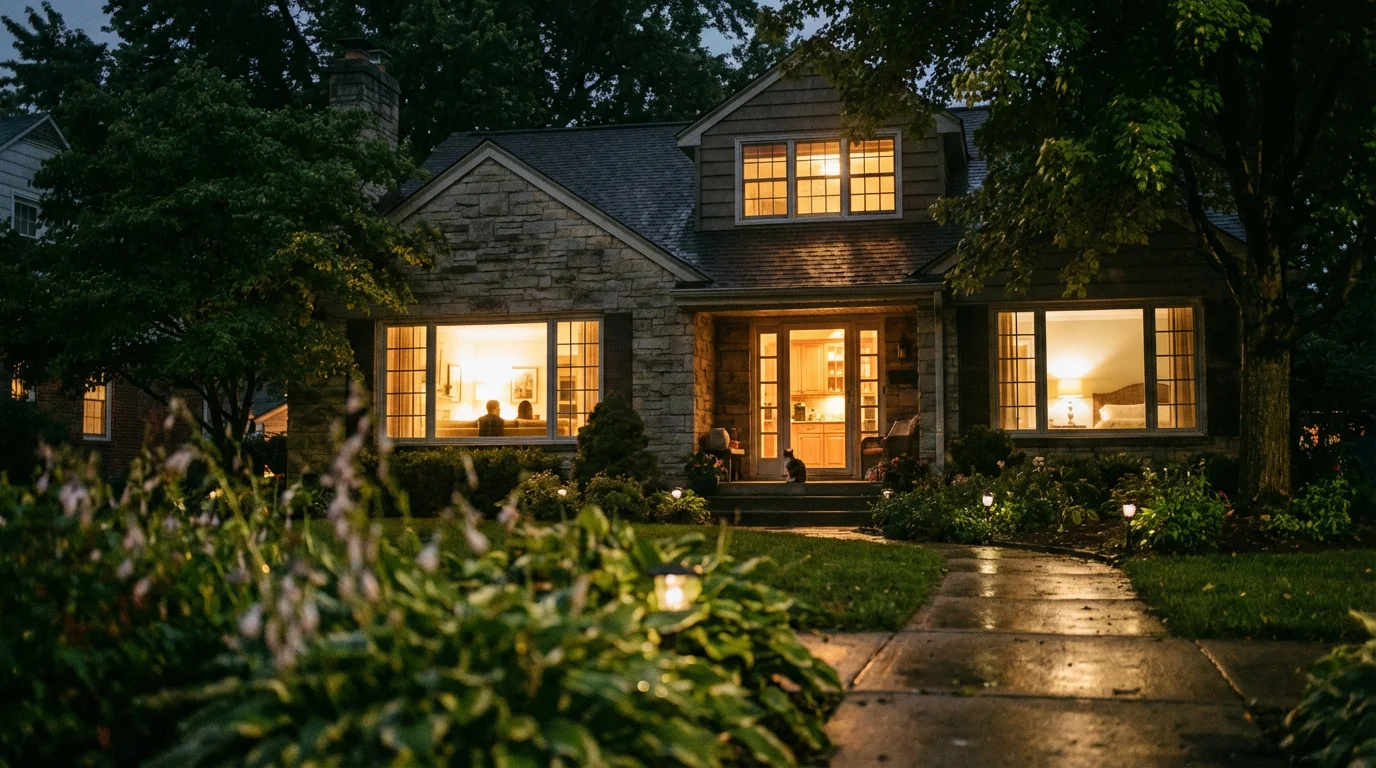
Presence simulation isn’t just about lighting up a room; it is about replicating human behavior. Security experts and law enforcement generally agree that occupied homes are significantly less attractive targets for break-ins. The goal of presence simulation is to create enough doubt in a potential intruder’s mind that they move on to an easier target.
A convincing simulation relies on three core principles:
- Randomization: Humans are creatures of habit, but we aren’t robots. You might enter the living room at 7:05 PM one night and 7:22 PM the next. Automation that varies start and end times prevents observers from detecting a mechanical timer.
- Movement: In an occupied home, activity flows from room to room. You cook in the kitchen, eat in the dining room, and relax in the living room. Lighting should follow this path rather than turning on simultaneously across the entire house.
- Layering: Light is only one sign of life. Shadows, flickering screens, and sound contribute to the illusion of occupancy.
Choosing the Right Hardware
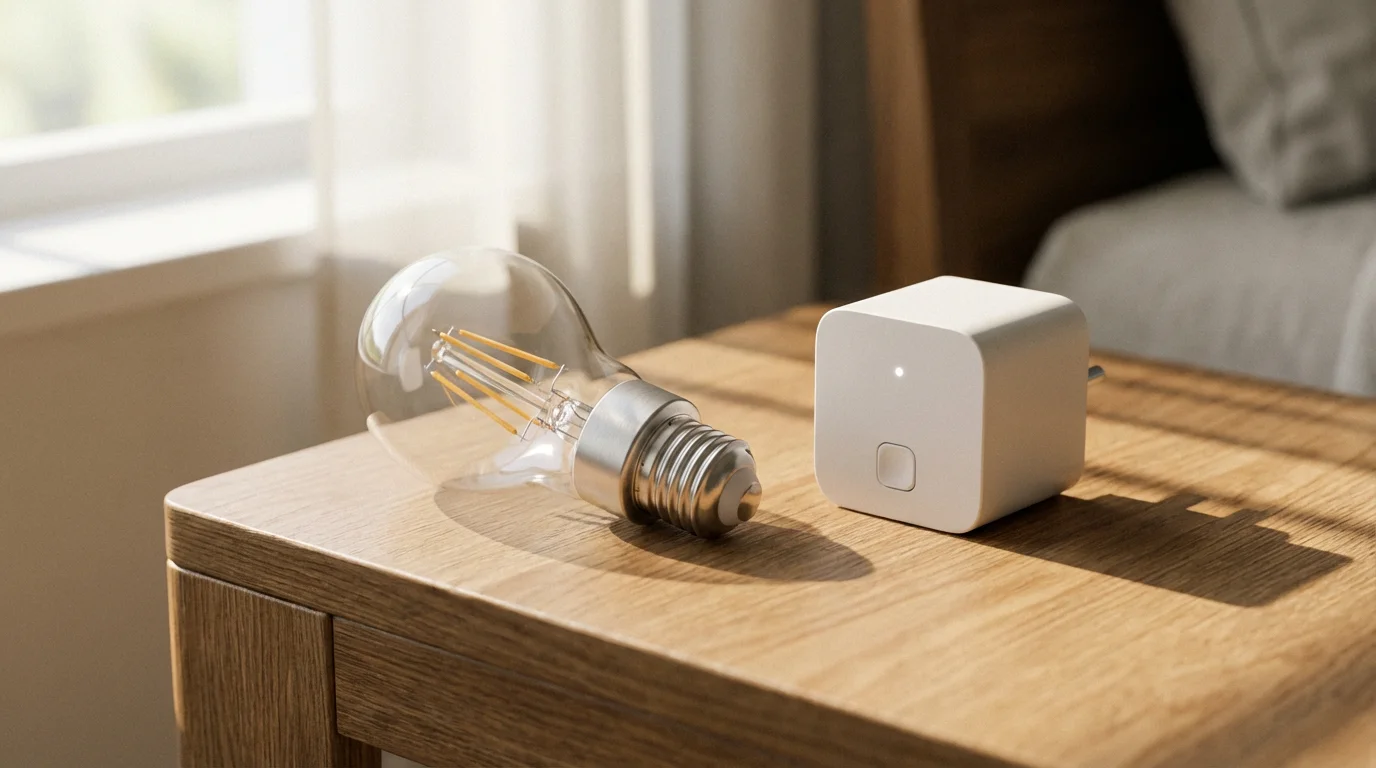
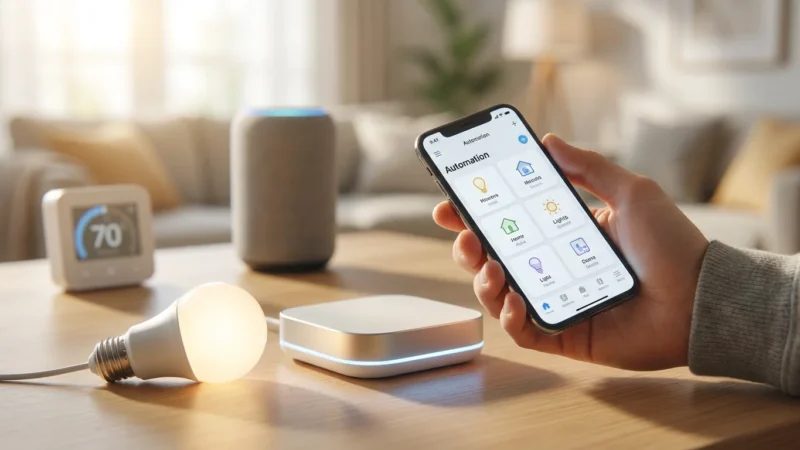
Before you build your automation, you need to select the right tools. You do not need to overhaul your entire electrical system, but a strategic mix of devices yields the best results. Most homeowners build their presence simulation using a combination of three device types.
Smart Bulbs
Smart bulbs, such as those from Philips Hue or LIFX, replace your existing light bulbs. They are ideal for lamps and fixtures where you want control over brightness and color temperature. Dimmable smart bulbs are particularly effective for presence simulation because they can fade on and off, which looks more natural than the harsh click of a mechanical timer.
Smart Plugs
Smart plugs sit between your wall outlet and a device’s power cord. They are the most versatile and affordable entry point for home automation. Use smart plugs for:
- Floor lamps: Turn standard dummy bulbs into smart lights.
- Radios: Automate talk radio to play during the day.
- TV Simulators: Power small LED devices that mimic the flickering light of a television.
Smart Switches
For main overhead lighting, outdoor porch lights, or chandeliers controlled by a wall switch, smart switches are the superior choice. If you install a smart bulb in a fixture controlled by a standard switch, and someone flips that switch off, the automation dies. Smart switches replace the physical mechanism in the wall, ensuring the automation works regardless of the toggle position.
Pro Tip: Focus your budget on “street-facing” rooms. There is little value in automating a closet light or a basement bulb that no one can see from the exterior.
Designing a Realistic Schedule
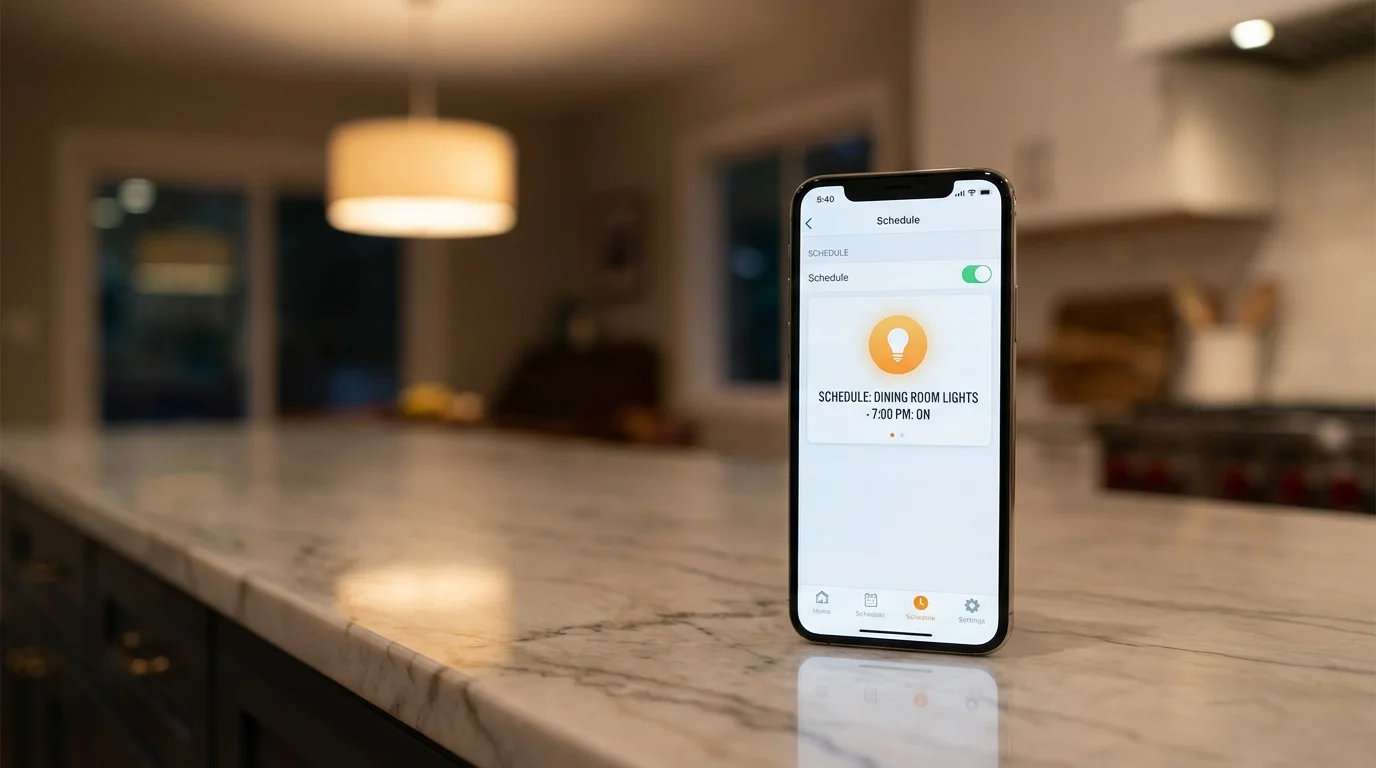
The most common mistake homeowners make is over-lighting their homes. A house with every single light blazing at 2:00 AM looks suspicious. A realistic schedule mirrors your actual routine.
To design your plan, mentally walk through your average evening:
- Sunset (approx. 6:00 PM – 7:00 PM): Kitchen lights and living room lamps turn on. Porch lights illuminate.
- Evening (7:00 PM – 10:00 PM): Kitchen lights dim or turn off. Living room and hallway lights remain active. Perhaps a bedroom lamp turns on briefly.
- Late Night (10:00 PM – 11:30 PM): Main living areas go dark. Master bedroom lights turn on for 20 minutes, then turn off.
- Overnight (12:00 AM – Sunrise): The house is mostly dark, perhaps with a bathroom nightlight left on.
You want to program your smart lights to follow this general flow, but with slight variations in timing each day.
Using Native Vacation Modes
Many smart home ecosystems include built-in features specifically designed to deter burglars. These “set it and forget it” modes are the easiest way to get started. They handle the randomization math for you.
Amazon Alexa: Away Lighting
If you use Alexa-compatible bulbs or plugs, you can utilize a feature called Alexa Guard (often found under the “Guard” or “Emergency” settings in the Alexa app). When you set your system to “Away” mode, Alexa automatically cycles your connected lights on and off to simulate occupancy.
Alexa uses machine learning to determine which lights to toggle based on your historical usage, ensuring the pattern looks natural for your specific household.
Philips Hue: Mimic Presence
The Philips Hue app features a dedicated automation zone. Within the “Automations” tab, you can select “Mimic presence.” You choose which rooms to include and the hours the automation should run (e.g., between sunset and 11:00 PM). The system then randomly toggles lights in those rooms. It is highly effective because it varies the timing slightly every single day without you needing to reprogram it.
Lutron Caséta: Smart Away
Lutron is a leader in smart lighting control. Their “Smart Away” feature will randomly turn lights on and off within a user-defined window (like 6 PM to 11 PM). According to CNET, Lutron’s reliability makes it a top choice for serious smart home enthusiasts, as the hub-based architecture works even if your internet connection is spotty.
Building Custom Automation Sequences
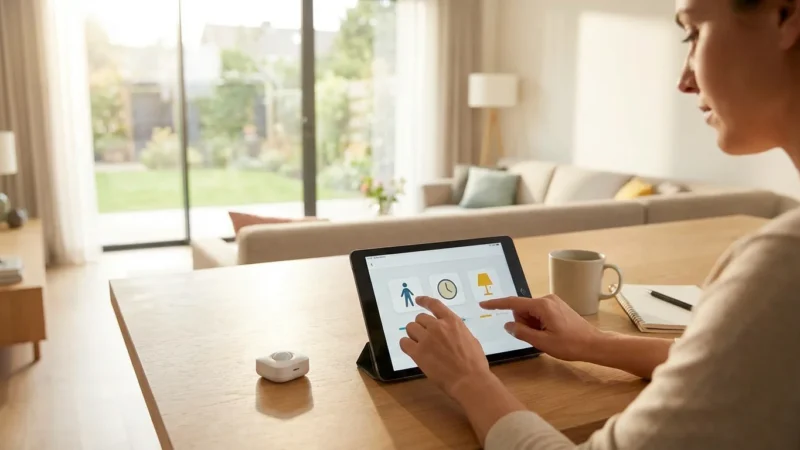
If your devices do not have a dedicated “Vacation Mode,” or if you want granular control, you can build custom routines. This works on almost any platform, including Google Home, Apple HomeKit, or Samsung SmartThings.
The key to a custom routine is avoiding fixed times (e.g., “7:00 PM”). Instead, use solar-based triggers and random delays.
Step-by-Step: The “Sunset Offset” Method
Using a fixed time like 7:00 PM becomes inaccurate as seasons change. A routine set for 7:00 PM in July turns on in daylight, but in December, it turns on long after dark. Always use “Sunset” as your trigger.
- Trigger: Set the automation to start at “Sunset.”
- Action 1: Turn on the Living Room Lamp.
- Wait Command: Add a delay or “wait” action for a random interval if your app supports it (e.g., wait 30 minutes). If your app does not support random variables, create three different automations for different days of the week with different fixed delays (e.g., Monday: Sunset + 15 mins; Tuesday: Sunset + 45 mins).
- Action 2: Turn on the Kitchen Light.
- Trigger (End): Create a separate routine to turn everything off at a logical bedtime, or set a “turn off after X hours” timer.
Multi-Platform Grouping
If you have a mix of brands (e.g., TP-Link Kasa plugs and LIFX bulbs), use a master ecosystem like Google Home or Amazon Alexa to group them. Create a “Vacation” group that includes one light from each street-facing room. You can then apply a single routine to this group rather than programming every device individually.
Adding Audio and Visual Depth
Lighting is the primary deterrent, but audio and visual movement seal the deal. A silent house with lights turning on and off can still feel eerie and unoccupied. Adding sound makes the simulation convincing.
The TV Simulation
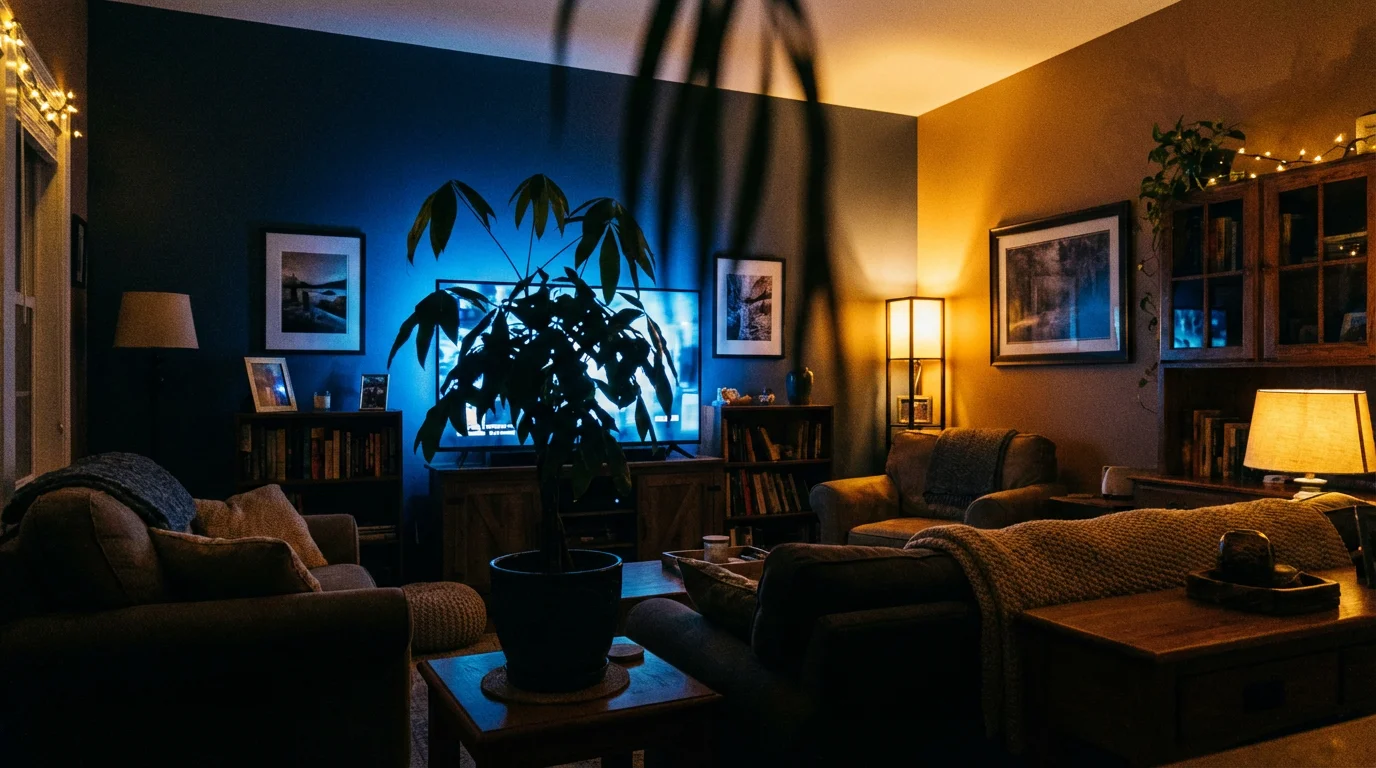
Few things say “someone is home” quite like the blue, shifting glow of a television against a living room window. You have two options here:
- Smart LED Strips: Place a color-changing light strip behind your actual TV or near a window. Program it to switch colors randomly between cool white, blue, and dim purple every few seconds. Some advanced automations can even sync these lights to a dummy video signal.
- Dedicated TV Simulators: These are small, standalone devices that plug into a smart plug. They contain LEDs specifically engineered to mimic the scene changes, fades, and swells of a television program. Plug one into a smart plug and schedule it to run from 8:00 PM to 10:00 PM in the living room.
Audio Presence
Use smart speakers (Echo, Nest Audio, or Sonos) or a simple radio connected to a smart plug.
For smart speakers, create a routine that plays a talk radio station or a podcast at moderate volume starting around dinner time. Talk radio is superior to music because the cadence of human voices suggests conversation. If a potential intruder is casing the house and hears muffled voices through the door, they will likely assume the residents are home.
Ensuring Reliability While Away
The best automation is useless if it fails the moment you leave the driveway. Smart homes rely on electricity and internet connectivity, both of which can be unpredictable. Here is how to bulletproof your setup.
Power Outage Recovery
When power is restored after an outage, smart bulbs behave differently depending on their settings. Some default to “On” at 100% brightness (a safety feature), while others return to their “Last State.”
Check the settings in your device’s companion app. For vacation security, “Last State” is usually preferred. If the power flickers at 3:00 AM, you do not want every light in the house to blast on and stay on, signaling to the neighborhood that the electronics have reset.
Connectivity Issues
If your Wi-Fi goes down, cloud-based automations (like those running from Alexa or Google Home servers) may fail. Hub-based systems like Philips Hue (Zigbee) or Lutron Caseta (Clear Connect) store schedules locally on the bridge. This means even if your internet cuts out, your lights will continue to turn on and off according to the schedule stored on the hub.
If you rely heavily on Wi-Fi smart plugs, ensure your router is stable. Consider putting your modem and router on a standard Uninterruptible Power Supply (UPS) to keep the network alive during short power blips.
Frequently Asked Questions
Does presence simulation increase my electricity bill?
The impact is negligible, especially if you use LED smart bulbs. A modern LED bulb costs pennies to run for a few hours a day. The security benefit of deterring a break-in far outweighs the minimal cost of electricity used during your vacation.
Can I use smart plugs with mechanical timers?
It is not recommended to chain devices. Plugging a smart plug into a mechanical timer (or vice versa) creates unnecessary points of failure. Stick to one method. Smart plugs offer far more customization and randomization than mechanical timers.
Do I need a smart home hub to set up presence simulation?
No, you do not strictly need a hub. Many Wi-Fi smart plugs and bulbs (like Kasa, LIFX, or Wiz) connect directly to your router and offer scheduling features in their apps. However, hub-based systems like Philips Hue or Lutron often provide more reliability if your internet connection drops.
Is it safe to automate a space heater on a smart plug?
No. Never automate high-wattage heating appliances or devices that pose a fire risk if left unattended. Stick to lamps, radios, and low-voltage electronics for presence simulation.
Disclaimer: This article is for informational purposes only. Smart home devices involve electrical connections and data privacy. Always follow manufacturer instructions for installation. For complex wiring or HVAC work, consult a licensed professional.
Leave a Reply