
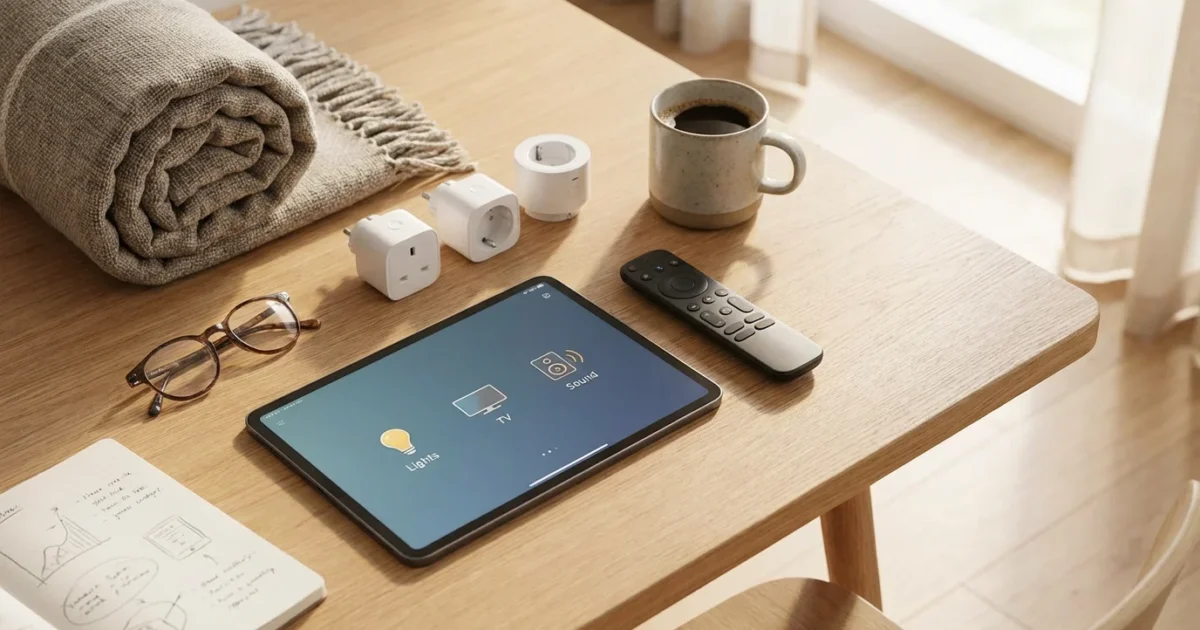
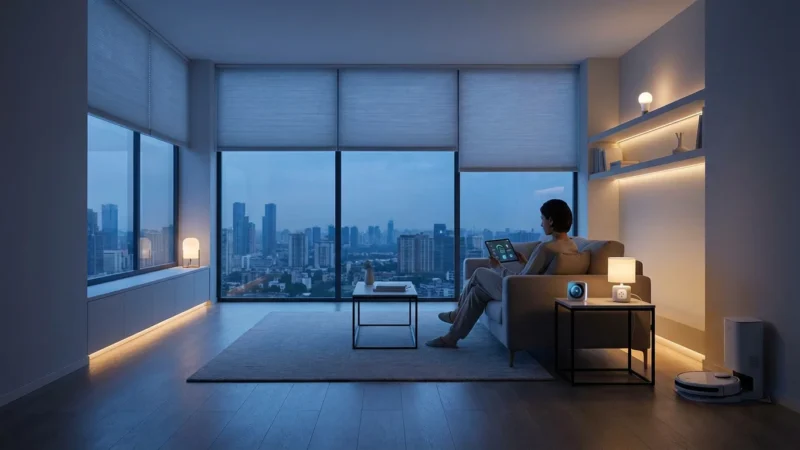
Imagine settling onto your couch, ready for an immersive film experience. With a simple voice command or a tap on your phone, your lights dim, shades close, and your TV powers on, all without lifting a finger. This seamless transition from everyday living to cinematic bliss is not a futuristic dream. It is achievable today through smart home automation. You can create a perfect movie night atmosphere with minimal effort.
This guide demystifies the process of setting up an `entertainment automation` routine. We will show you how to transform your living room into an automated home theater setup. Prepare to elevate your viewing experience, save energy, and add unparalleled convenience to your leisure time.
Why Automate Your Movie Night?
Automating your movie night setup brings significant benefits beyond simple convenience. It enhances your viewing experience, boosts energy efficiency, and provides an impressive showcase for your smart home. Consider these compelling reasons to implement a dedicated `TV mode` routine.
- Unmatched Convenience: Say goodbye to fumbling for multiple remote controls or walking around the room to adjust lights. A single command or trigger initiates every action. You enjoy instant comfort and relaxation.
- Enhanced Immersion: Proper lighting and sound settings deepen your cinematic immersion. Automation ensures your environment consistently supports the film, creating a true home theater experience every time.
- Energy Savings: Smart lighting and power management reduce energy consumption. Your automation can dim lights to a precise level and ensure devices like unused sound systems turn off when not in use. This prevents phantom power drain. Consumer Reports notes that smart home devices can contribute to overall energy efficiency by allowing precise control over lighting and temperature.
- Consistency and Reliability: Your chosen settings apply uniformly, eliminating guesswork. Each `movie night` will offer the same perfectly tuned environment.
- Personalization: You tailor the scene exactly to your preferences. Whether you prefer warm, ambient light or complete darkness, your routine executes your vision flawlessly.
Implementing a `movie night` scene transforms a good viewing experience into a great one. You streamline operations and focus purely on the entertainment.
Essential Gear for Your Entertainment Automation
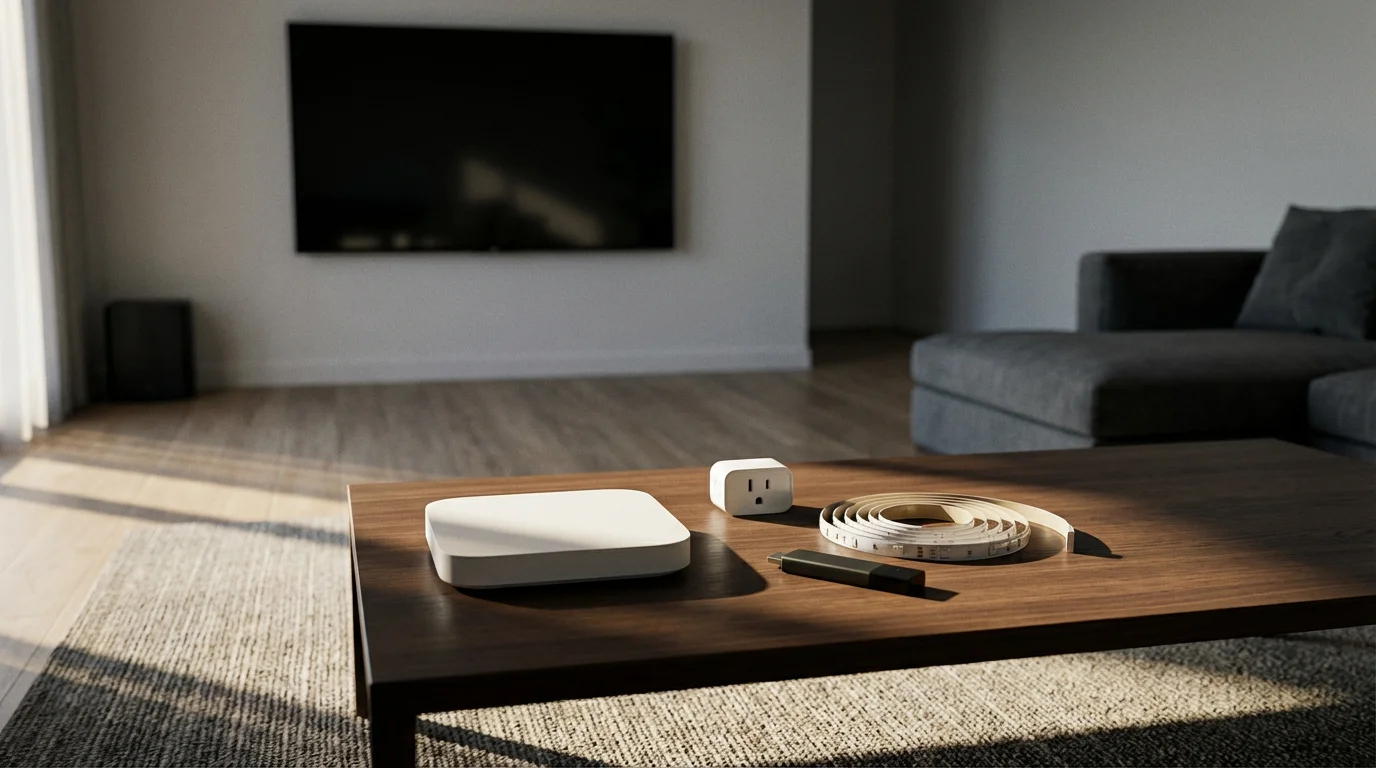
Building a robust `movie night` automation requires a few key smart devices. The specific components depend on your existing setup and desired level of control. Here is a list of common smart home devices vital for an `automated home theater setup`.
1. A Smart Home Hub or Platform:
This is the brain of your smart home. It allows different devices to communicate and work together. Popular platforms include:
- Amazon Alexa: Excellent for voice control and a wide range of compatible devices.
- Google Home/Assistant: Integrates well with Android devices and offers powerful voice commands.
- Apple HomeKit: Provides strong privacy features and seamless integration within the Apple ecosystem.
- Samsung SmartThings: Offers broad device compatibility and advanced customization options for routines.
Choose a platform that aligns with your current smart devices and personal preferences.
2. Smart Lighting:
Adjustable lighting is crucial for setting the mood. Consider these options:
- Smart Bulbs: Easily replace existing bulbs. They offer dimming, color changes, and scheduling. Brands like Philips Hue, Sengled, and Wyze are popular choices.
- Smart Light Switches/Dimmers: Control entire circuits of non-smart bulbs. These are ideal for recessed lighting or fixtures with multiple bulbs. Installation often requires basic electrical knowledge. Consult a professional if you are unsure.
You can achieve perfect dimming levels for any film genre with smart lighting.
3. Smart Plugs:
These simple devices turn any “dumb” appliance into a smart one. You plug them into an outlet, then plug your device into the smart plug. They are perfect for:
- TVs and Sound Systems: Ensure they power down completely when not in use, preventing standby power drain.
- Accent Lamps: Integrate additional lighting that does not use smart bulbs.
- Popcorn Machines or Projectors: Power these on precisely when your routine activates.
4. Smart Entertainment Devices:
Many modern entertainment systems offer direct smart home integration.
- Smart TVs: Most recent smart TVs from Samsung, LG, Sony, and others integrate with Alexa, Google Assistant, or HomeKit. This allows voice control over power, input, and volume.
- Streaming Devices: Apple TV, Roku, Amazon Fire TV, and Google Chromecast often have smart home capabilities. You can typically use them to power on your TV or launch specific apps.
- AV Receivers/Soundbars: Look for models with Wi-Fi or Bluetooth connectivity that integrate with your chosen smart home platform.
5. Smart Blinds or Shades (Optional but Recommended):
For ultimate immersion, blocking out ambient light is key. Smart blinds automatically close at the start of your routine. Brands like Lutron Serena or IKEA smart blinds offer good integration.
Before purchasing, check device compatibility with your chosen smart home platform. This ensures a smooth integration process for your `entertainment automation`.
Planning Your Perfect Movie Night Scene
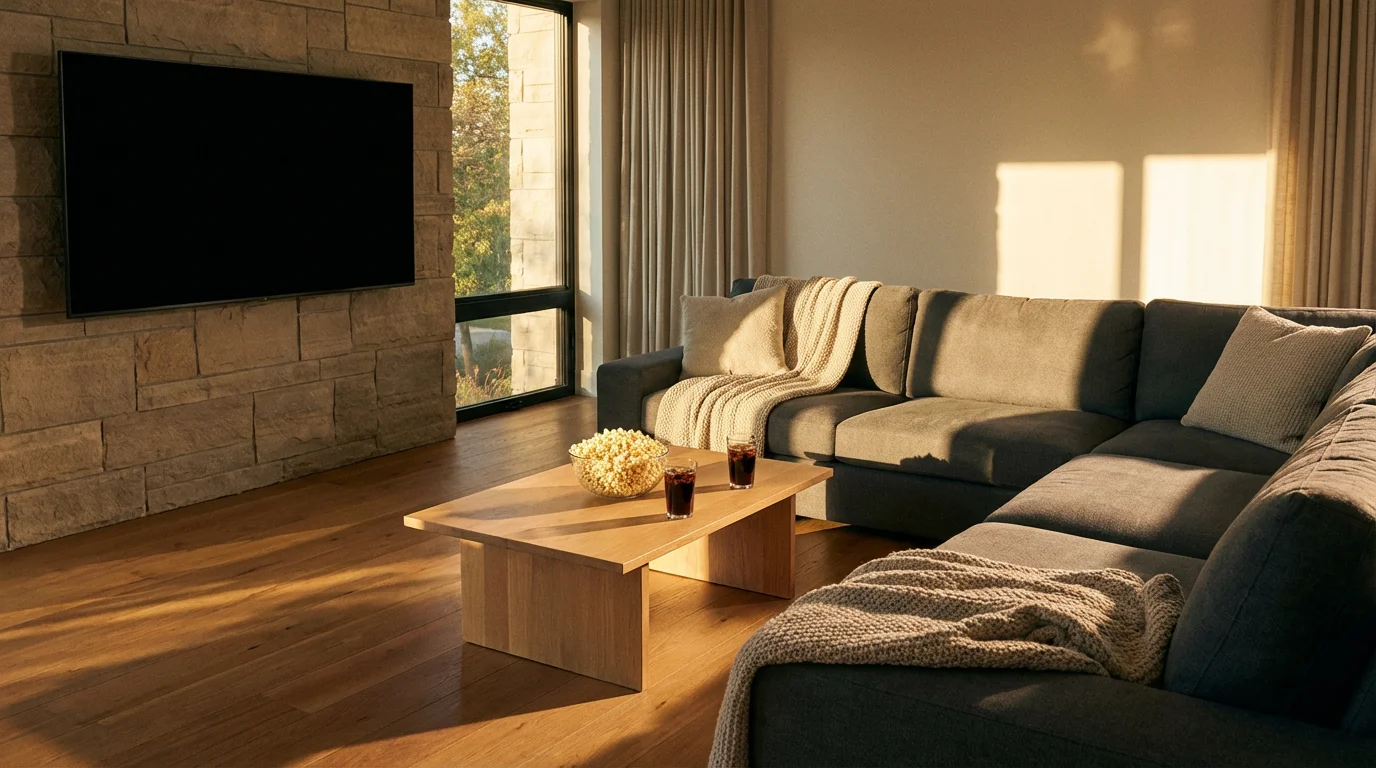
Effective automation starts with clear planning. Before you dive into app settings, visualize your ideal `movie night` experience. Consider every element that contributes to the perfect ambiance. This proactive approach helps you create a truly seamless `how to create movie night smart home scene`.
Step 1: Define Your Desired Outcome
What do you want to happen when you say “Movie Night” or press a button? Think about the sequence of events.
- Do you want the main lights to dim gradually or turn off completely?
- What color temperature do you prefer for accent lights, warm white or a subtle color?
- Should your smart blinds or curtains close?
- Which TV input should activate, and should the volume be at a specific level?
- Do you want the thermostat to adjust for optimal viewing comfort?
Step 2: List Your Participating Devices
Identify every smart device you want to include in your `movie night` scene. This might include:
- Living room overhead lights
- Floor lamps with smart bulbs
- Smart plugs connected to a soundbar or projector
- Your smart TV or streaming device
- Smart blinds
- Thermostat
Ensure all these devices are already set up and linked to your main smart home platform. If not, add them now.
Step 3: Determine Trigger Conditions
How will you activate your `movie night` automation? Common triggers include:
- Voice Command: “Alexa, turn on Movie Night.” This is highly convenient.
- Button Press: A smart button or scene controller placed strategically.
- Time-Based: For a recurring weekly movie night, set it to activate at a specific time.
- Geofencing: Less common for a specific scene, but you could trigger it when you arrive home after a certain time.
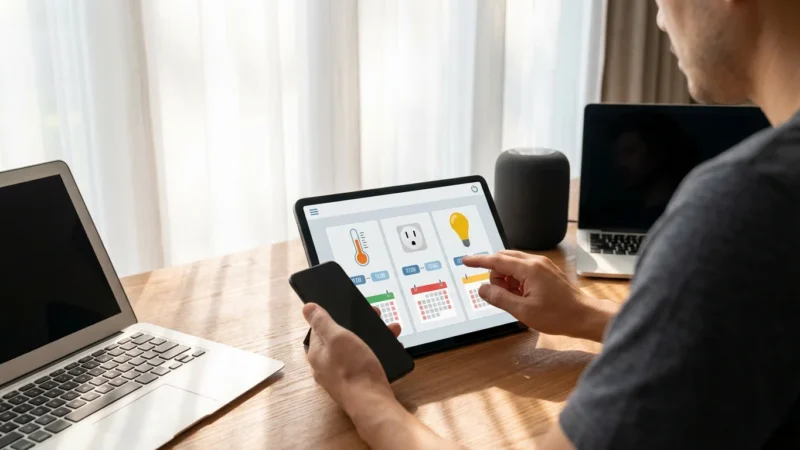
- App Tap: Manually activate the scene from your smart home app.
Choose the trigger that best suits your lifestyle. For most users, a voice command offers the most fluidity.
Step 4: Sketch Out the Sequence of Actions
Outline the exact order in which actions should occur. This helps prevent conflicts or awkward transitions. For example:
- Main lights dim to 10%.
- Accent lights turn warm white.
- Smart blinds close fully.
- Smart TV powers on and switches to HDMI 1.
- Soundbar powers on and sets volume to 30%.
- Thermostat adjusts to 70°F.
Thinking through this sequence makes the setup process within your smart home app much smoother. It ensures your `TV mode` activates perfectly.
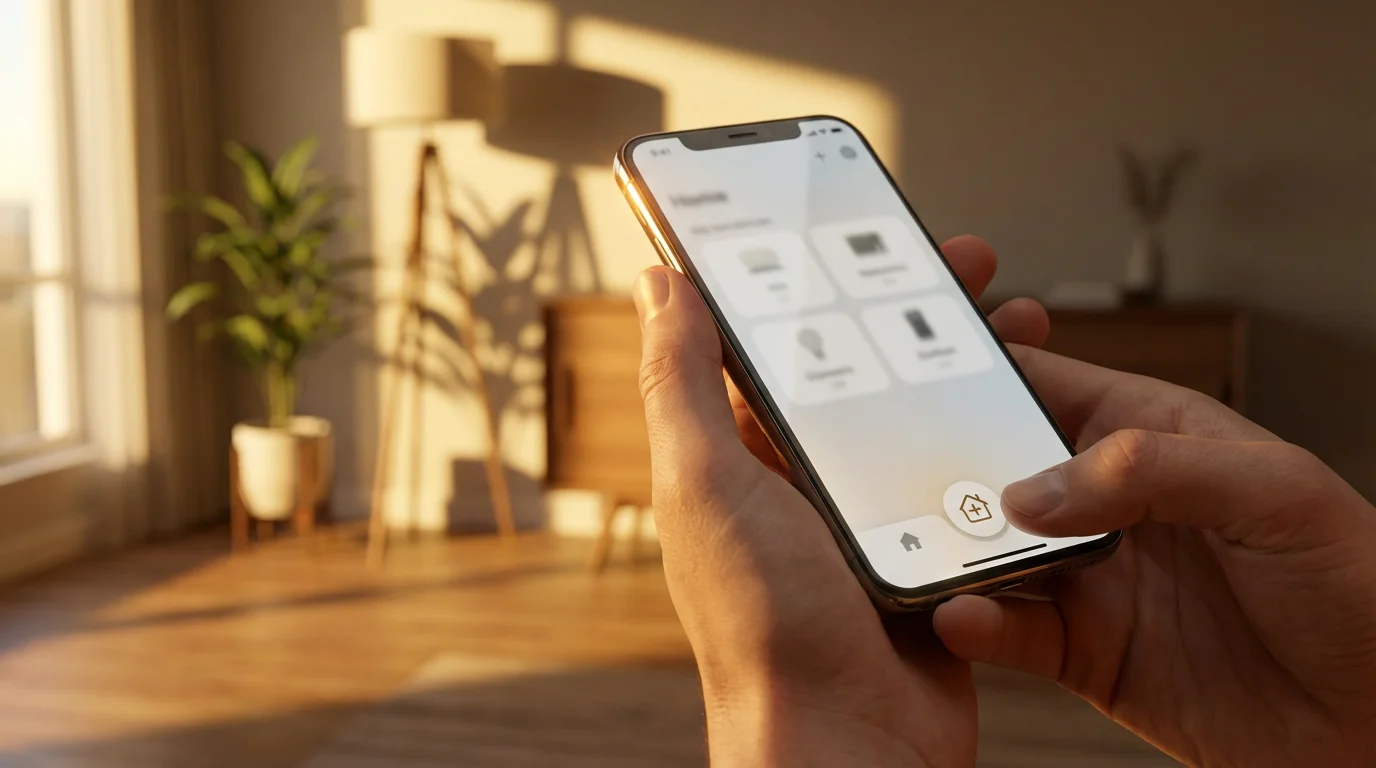
Step-by-Step: Building Your “Movie Night” Routine
Now that you have planned your ideal `movie night` experience, it is time to build the automation. The exact steps vary slightly depending on your smart home platform. We will outline the general process applicable to most systems like Amazon Alexa, Google Home, or Apple HomeKit. This detailed guide demonstrates `how to create movie night smart home scene` with ease.
Step 1: Open Your Smart Home App
Launch the primary app for your smart home hub or platform. Examples include the Alexa app, Google Home app, Apple Home app, or SmartThings app.
Step 2: Navigate to Routines, Scenes, or Automations
Look for a section typically labeled “Routines,” “Scenes,” “Automations,” or “Shortcuts.” This is where you create multi-device commands.
- Alexa: Tap “More” > “Routines.”
- Google Home: Tap “Routines” on the home screen.
- Apple HomeKit: Tap the “Automation” tab > “+” > “Add Scene.”
- SmartThings: Tap “Automations” > “Add Scene” or “Add Routine.”
Step 3: Create a New Routine/Scene
Select the option to create a new routine or scene. You will usually be prompted to give it a name. Name it something clear and easy to remember, like “Movie Night” or “Cinema Mode.”
Step 4: Add Your Trigger
Specify what activates your scene. This is the “When this happens” part.
- Voice Command: If using Alexa or Google Assistant, select “Voice” or “When I say” and enter phrases like “Movie Night,” “Turn on Movie Night,” or “It’s showtime.”
- Button Press: If you have a smart button, assign it here.
- Time: Select “Schedule” or “Time” and set a specific time and days.
Step 5: Add Actions (Your Devices and Their States)
This is the core of your automation. You will add each device and specify its desired state. This addresses how to create a movie night smart home scene effectively.
- Lights: Add your smart bulbs or switches. Set them to dim to your desired percentage (e.g., 10%) and choose a warm color if applicable.
- Blinds/Shades: Add your smart blinds and set them to “Close” or a specific percentage.
- TV/Streaming Device: Add your smart TV or streaming stick. Set it to “Power On,” “Switch Input” (e.g., HDMI 1), and optionally set the volume. (Some platforms may require a smart plug for older TVs or specific integrations for full control.)
- Sound System: Add your smart soundbar or receiver. Set it to “Power On” and specify a default volume level. If using a smart plug, ensure the plug turns on.
- Thermostat: Add your smart thermostat and set it to your preferred movie-watching temperature.
Most platforms allow you to adjust the order of actions and sometimes add a delay between steps. This creates a smoother transition, for example, dimming lights before the TV turns on.
Step 6: Review and Save
Carefully review all your settings. Ensure every device is included and set to its correct state. Save your new routine or scene. You have now created your first `entertainment automation` for your `movie night`.
Test your routine immediately. Activate it with your chosen trigger to ensure everything works as expected. Make any necessary adjustments in the app to perfect your `TV mode`.
“The best smart home is the one you don’t have to manage. It anticipates your needs and acts on your behalf, enhancing your daily life seamlessly.”
Advanced Automated Home Theater Setup Ideas
Once you master the basic `movie night` automation, you can explore more sophisticated enhancements. These advanced ideas take your `automated home theater setup` to the next level, offering even greater convenience and immersion.
To achieve even more complex sequences, you can explore how to chain multiple automations together for a truly sophisticated theater environment.
1. Dynamic Lighting Effects:
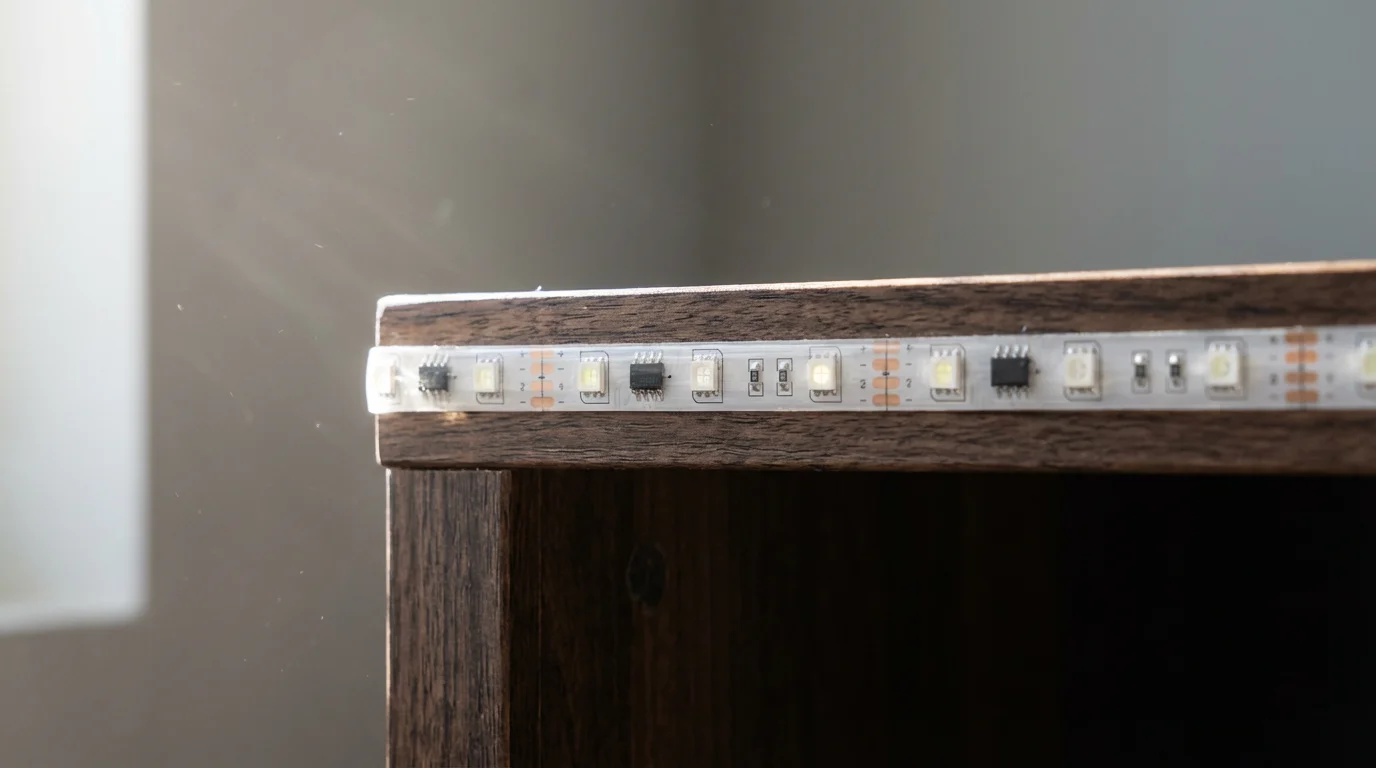
Move beyond simple dimming. Implement dynamic lighting that responds to your content. Some advanced smart lighting systems, like Philips Hue Play or Govee LED strips, can sync with your TV screen. They project ambient colors that match the on-screen action, creating a truly immersive experience. This enhances your `TV mode` dramatically.
2. Post-Movie Cleanup Automation:
Your `movie night` does not end when the credits roll. Create a “Movie Over” routine. This automation could:
- Gradually brighten the lights.
- Open the smart blinds slightly.
- Power off the TV and sound system after a short delay (e.g., 10 minutes for credits).
- Set the thermostat back to its energy-saving default.
3. Popcorn Machine Integration:
If you have a dedicated popcorn maker, connect it to a smart plug. Integrate it into your `movie night` routine to turn on the machine at the start of the movie, or create a separate voice command like, “Alexa, make popcorn.”
4. Motion Sensor for Breaks:
Install a motion sensor in your living room or near the door. Configure it to detect when someone leaves the room during the movie. This could trigger a temporary pause in the routine, such as:
- Lights dimming up slightly for safe passage.
- TV pausing if your platform supports it.
When motion is no longer detected for a set period, the routine resumes. This prevents interruptions to the `entertainment automation`.
5. Multi-Room Audio Sync:
If you have smart speakers in adjacent rooms, consider syncing them to play the movie audio at a lower volume. This allows you to step out for a snack or restroom break without missing dialogue, maintaining immersion in your `automated home theater setup`.
Create a simplified “Guest Movie Night” routine. This might have fewer complex actions or more forgiving light levels, making it easy for visitors to use without needing a full tutorial. You can also include a reminder about your Wi-Fi password in the routine’s welcome message.
Exploring these advanced options allows you to fine-tune your smart home for a truly personalized and effortless viewing experience. Your `movie night` becomes a seamless, integrated event.
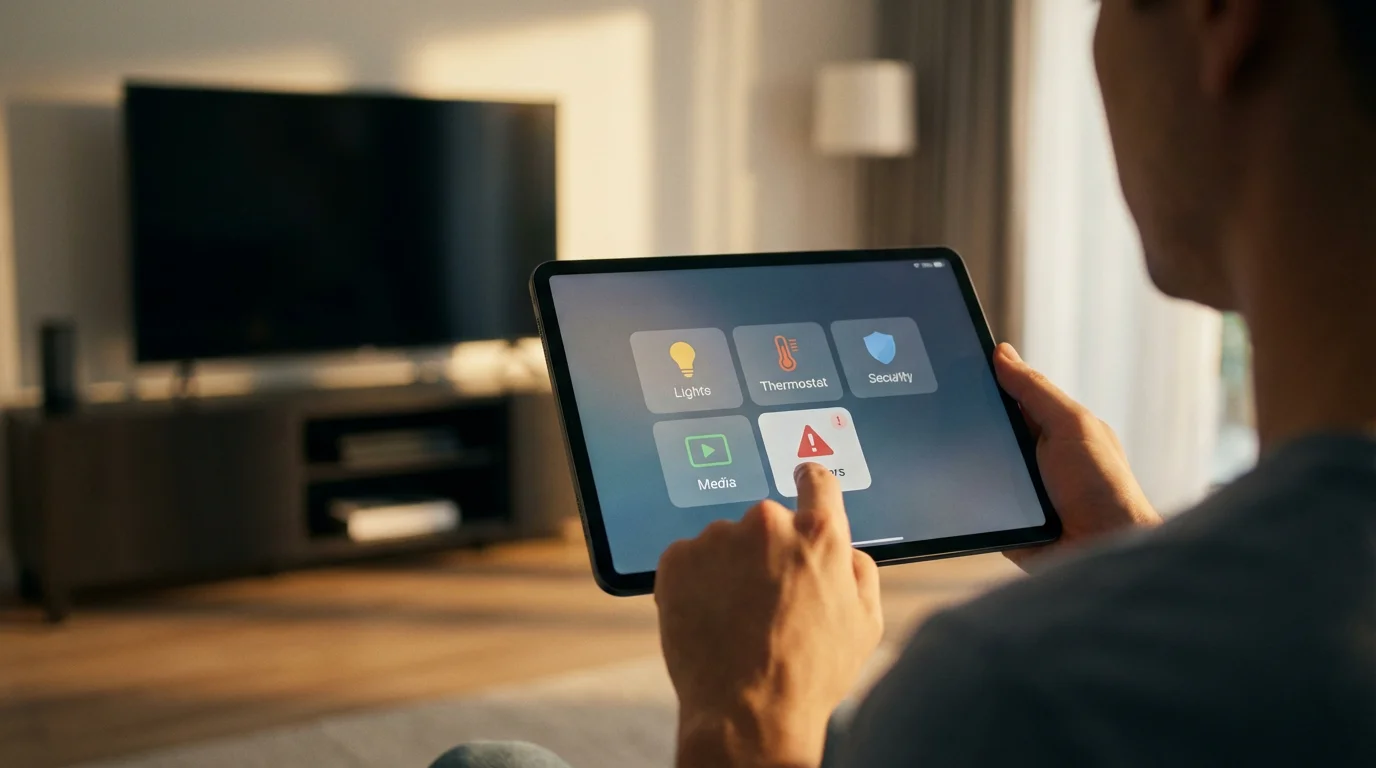
Troubleshooting Your Entertainment Automation
Even the most meticulously planned `entertainment automation` can encounter hiccups. When your `movie night` scene does not perform as expected, a systematic approach to troubleshooting helps identify and resolve issues quickly. Here are common problems and their solutions.
1. Device Not Responding:
If a specific smart light or plug fails to respond, check its connection:
- Power: Ensure the device has power. Is the smart plug switched on? Is the bulb screwed in correctly?
- Wi-Fi/Network: Verify your home Wi-Fi is active and the device remains connected. Many devices rely on a stable 2.4GHz connection.
- App Status: Check your smart home app. Does the app show the device as online and responsive? Try manually controlling it from the app.
- Reboot: Power cycle the device by unplugging it for 30 seconds and plugging it back in. Sometimes, a simple reboot resolves connection issues.
2. Routine Not Triggering:
If your “Movie Night” routine does not start when you expect it to, check the trigger settings.
- Voice Command: Are you using the exact phrase you configured? Did your smart assistant confirm it heard you? Check the activity history in your app to see if the command registered.
- Time-Based: Confirm the scheduled time and days of the week are correct. Also, ensure your smart hub’s time zone settings match your location.
- Button/Sensor: If using a smart button or sensor, test its functionality independently. Ensure its battery is not depleted.
3. Actions Out of Sync or Incorrect:
Sometimes, devices activate, but not in the right order or with the wrong settings.
- Review Routine Steps: Open your smart home app and meticulously review each step in your “Movie Night” routine. Ensure the desired action and state are correctly set for every device. For example, check if the dimmer level is 10% or 100%.
- Add Delays: If devices are acting out of order, introduce small delays (e.g., 5-10 seconds) between actions. This gives devices time to execute their commands fully before the next one starts. For example, dim lights before the TV powers on.
- Interference: Ensure no other routine or manual command is conflicting with your `movie night` scene. Smart home platforms can sometimes have routine conflicts.
4. Platform-Specific Issues:
Each smart home ecosystem has its quirks. If you encounter persistent issues, consult the support documentation for your specific platform. For complex integrations, such as an `automated home theater setup` with many components, checking forums or community groups for your platform can often yield solutions from other users.
Patience and systematic testing are key to resolving automation issues. Most problems stem from minor configuration errors or temporary network glitches. You can get your `TV mode` back on track by following these steps.
Frequently Asked Questions
What is a smart home scene or routine?
A smart home scene or routine is a set of automated actions performed by multiple smart devices in response to a single trigger. For instance, a “Movie Night” scene might dim lights, close blinds, and turn on the TV all at once. This simplifies control and enhances convenience.
Do I need a smart home hub to create a movie night automation?
Not always. Many individual smart devices, like smart bulbs or smart plugs, offer basic scene creation within their own apps. However, a central smart home hub or platform like Alexa, Google Home, or SmartThings allows seamless integration and coordination of devices from different brands, offering a more robust `automated home theater setup`.
What is the minimum setup for a basic movie night automation?
For a basic `movie night` automation, you need a smart home platform (like Alexa or Google Home), at least one smart lighting device (a smart bulb or switch), and either a smart TV with integration or a smart plug for a non-smart TV. This allows you to control lights and TV power with a single command.
Can I integrate my existing non-smart TV into a movie night scene?
Yes, you can often integrate a non-smart TV using a smart plug. The smart plug controls the TV’s power. You can also use an IR blaster compatible with your smart home system to send power, input, and volume commands to your TV and sound system. This enhances your `entertainment automation` capabilities.
How can I make my movie night automation more energy efficient?
To make your `movie night` more energy efficient, ensure your routine dims lights to the lowest comfortable level and powers off non-essential devices. Use smart plugs to completely cut power to TVs, sound systems, and streaming devices when not in use, preventing standby power consumption. Integrating a smart thermostat to optimize room temperature also contributes to energy savings.
Disclaimer: This article is for informational purposes only. Smart home devices involve electrical connections and data privacy. Always follow manufacturer instructions for installation. For complex wiring or HVAC work, consult a licensed professional.
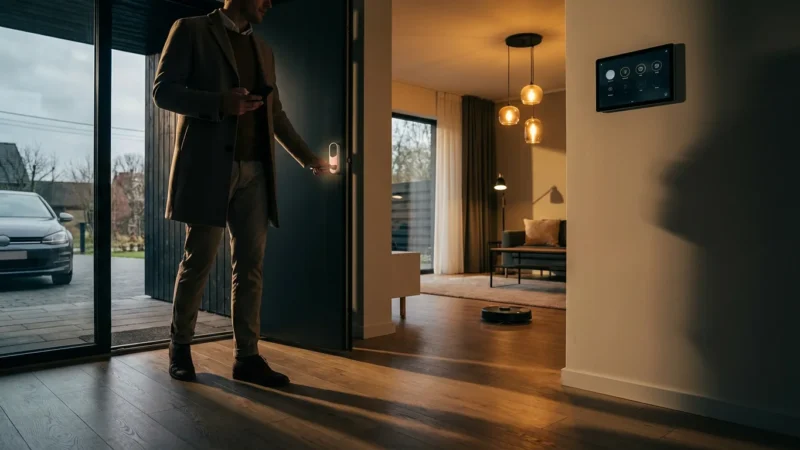
Setting triggers for these scenes is as intuitive as automating your home for when you leave and arrive, ensuring your environment matches your movement.
Once the cleanup routine is complete, you can effortlessly transition into a comprehensive goodnight routine to secure your home for the night.

Leave a Reply