
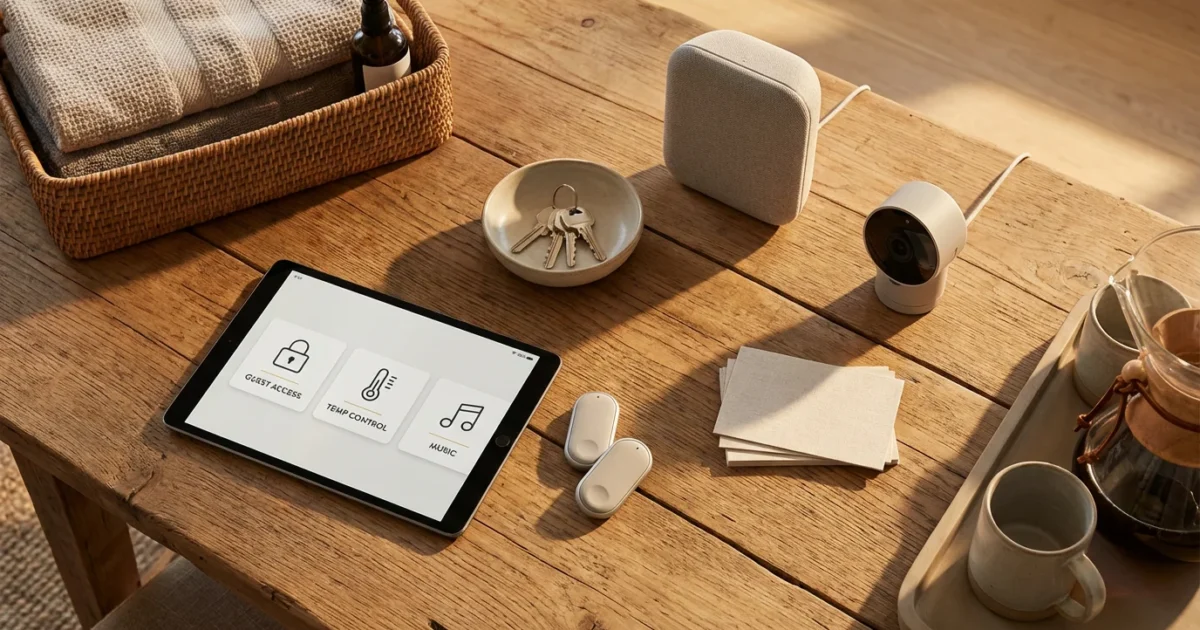
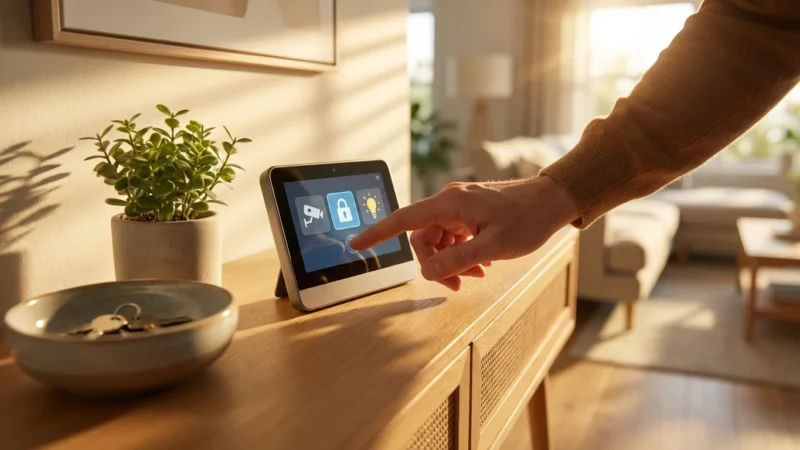
Hosting friends or family offers immense joy, but it also presents a unique challenge for smart home owners. You want your guests to feel welcome and comfortable, yet you must also protect your privacy and maintain control over your connected devices. This is where a well-implemented smart home guest mode becomes indispensable. It allows you to grant temporary, controlled access to specific functionalities, ensuring convenience for your visitors without compromising your home’s security or your personal data.
Setting up a guest mode provides peace of mind. You can provide seamless entry, adjust environmental controls, and even manage entertainment options, all tailored to their stay. Learn how to craft a visitor experience that balances hospitality with smart home intelligence, transforming how you host.
Understanding the Benefits of a Smart Home Guest Mode
A smart home guest mode simplifies the hosting experience significantly. It moves beyond manually adjusting every device, offering an automated, streamlined solution. You achieve both enhanced hospitality and robust control over your home’s connected ecosystem.
Implementing a dedicated set of visitor settings delivers several clear advantages:
- Enhanced Guest Experience: Guests easily access necessary amenities without needing extensive instructions. They can unlock doors, adjust temperatures, or control lights with minimal effort.
- Improved Security: You grant temporary access to specific devices, like smart locks, which automatically revoke after a set period. This prevents unauthorized access after your guests depart.
- Maintained Privacy: Your personal routines, sensitive data, and private camera feeds remain separate from guest interactions. You choose exactly what your guests can see and control.
- Energy Efficiency: Automate climate control or lighting to conserve energy when guests are out, or to ensure optimal comfort when they are present. This prevents unnecessary usage.
- Reduced Hassle: Eliminate the need to share physical keys, write down complex Wi-Fi passwords, or give detailed tutorials for every smart device.
The best smart home is one that anticipates your needs and adapts seamlessly, even for your guests.
These benefits combine to create a more enjoyable and secure environment for everyone. Understanding these advantages motivates the practical steps you take to configure your guest mode.
Key Considerations Before Setting Up Guest Access
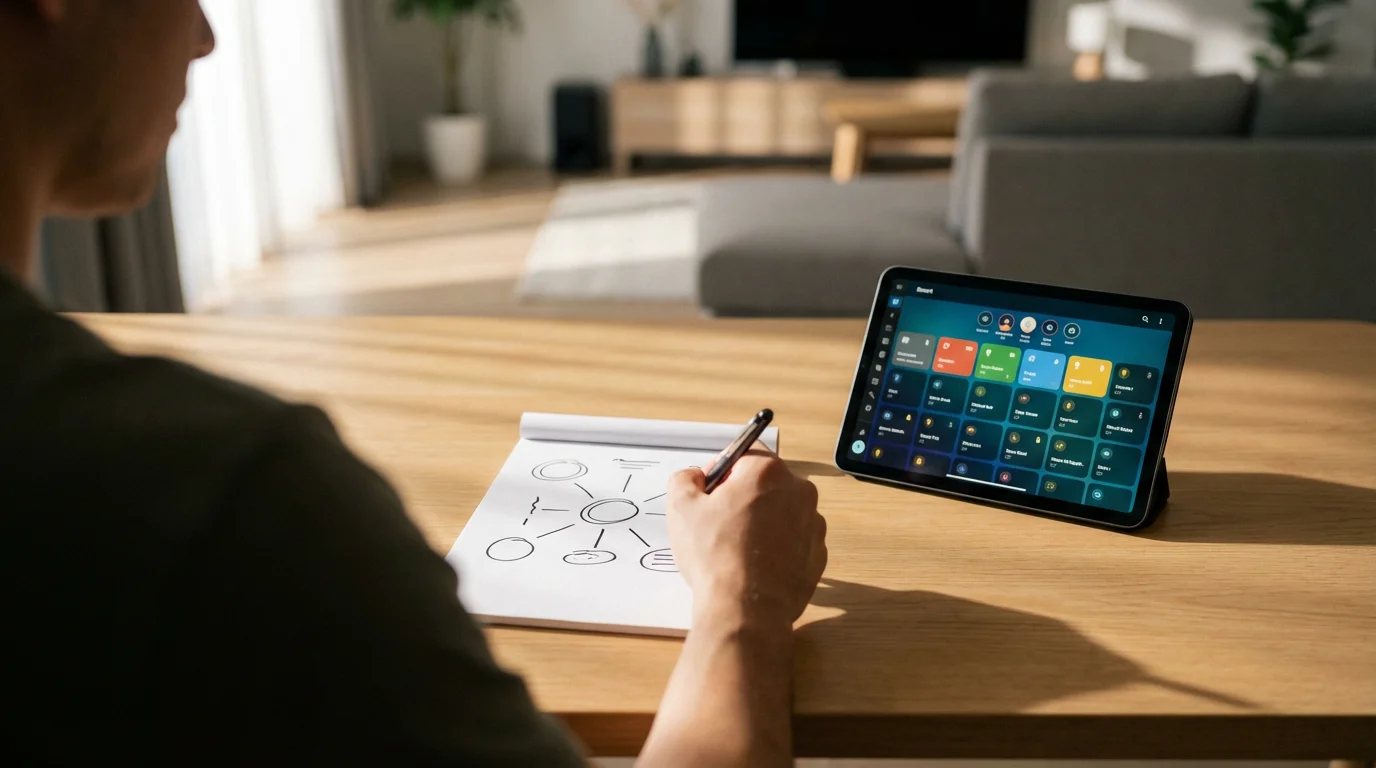
Before you dive into configuring a guest mode, consider a few fundamental aspects. Thoughtful planning ensures a smooth setup and prevents potential issues. Addressing these points upfront defines the scope of your guest mode.
Think about these critical factors:
- Define Access Levels: Determine precisely which devices and functionalities your guests need to access. Do they require entry only, or also lighting, climate, and entertainment? Granular control helps protect your core systems.
- Duration of Access: Plan for how long guests will stay. Smart home systems often allow you to set specific start and end times for temporary access codes or permissions. This automates revocation.
- Device Compatibility: Verify that your existing smart devices support guest access features. Most modern smart locks, thermostats, and lighting systems offer this functionality through their respective apps or central hubs.
- Guest Wi-Fi Network: Seriously consider setting up a separate guest Wi-Fi network. This isolates your personal devices from potential security risks introduced by guest devices. Your router likely supports this feature.
- Privacy Implications: Understand what data your guests might interact with or generate. For example, voice assistant interactions could be recorded, or camera feeds might capture their presence. Ensure you inform them transparently.
Addressing these points forms the foundation of your effective smart home guest mode. It ensures you create a practical and secure environment for your visitors.
Granting Temporary Access: Smart Locks and Entry Systems
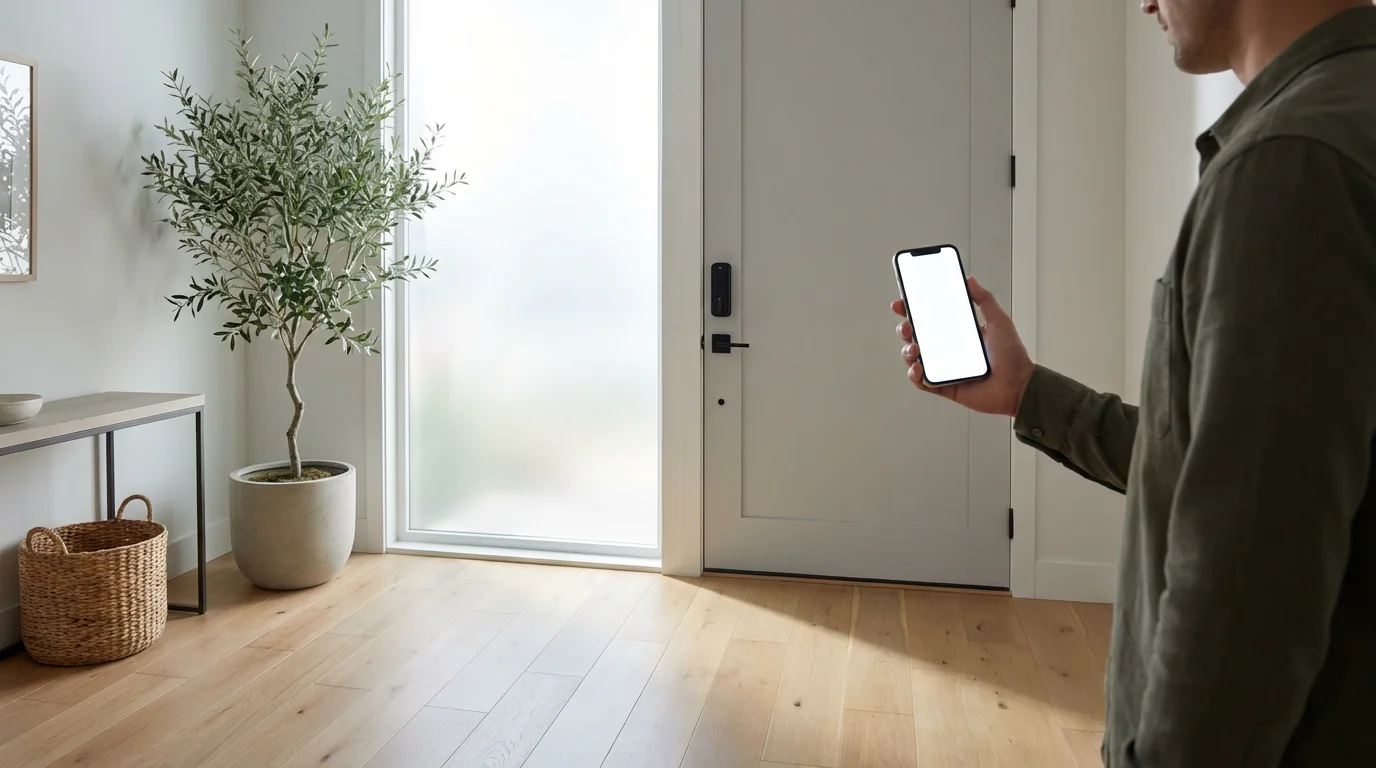
Smart locks provide one of the most practical applications for a smart home guest mode. Eliminating physical keys simplifies entry for your guests and enhances security by allowing you to manage and revoke access digitally. You gain complete control over who enters your home and when.
Managing guest entry is quite similar to automating your home for when you leave and arrive yourself.
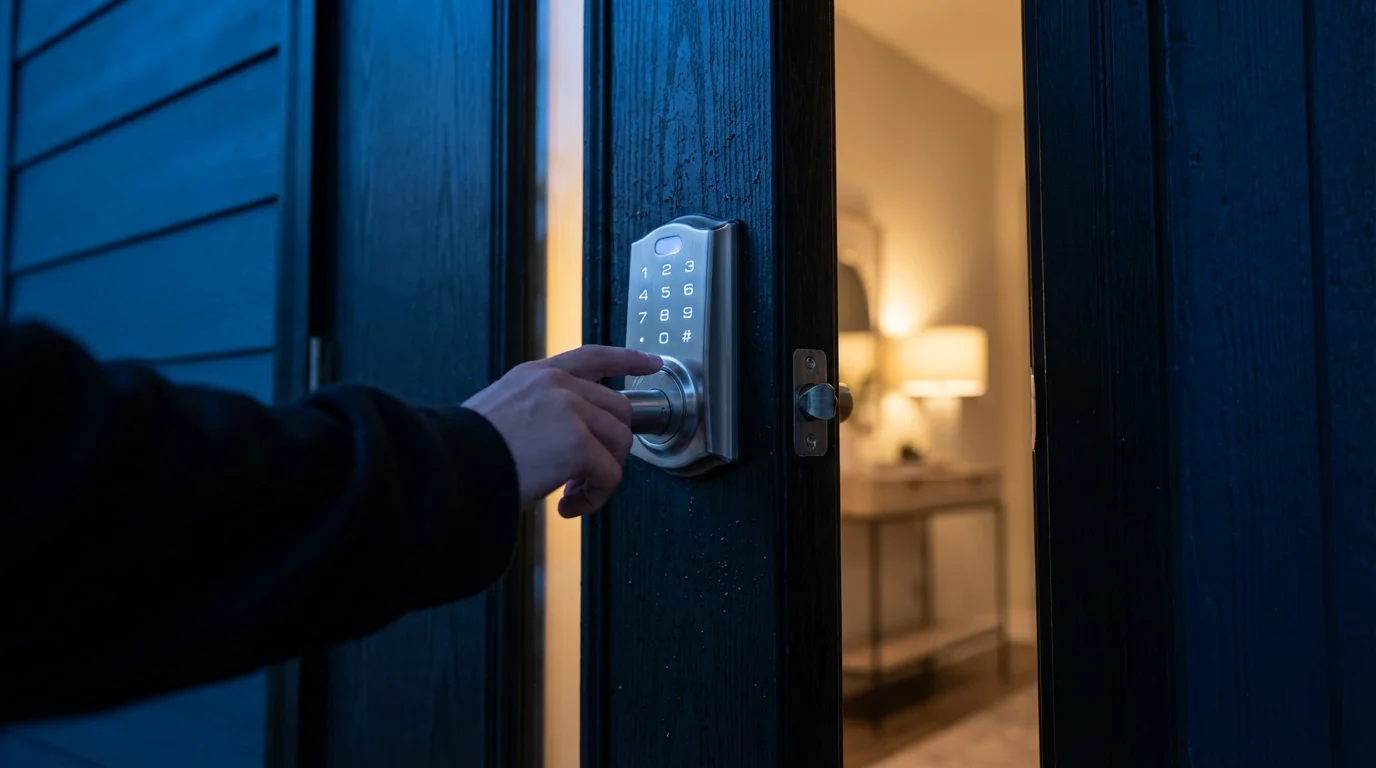
Most smart locks, such as those from August, Schlage, or Yale, integrate directly with their brand-specific apps or a broader smart home hub. You create unique entry codes or virtual keys for visitors. These codes can activate within specific date and time ranges. This ensures temporary access expires automatically after their stay.
Follow these steps to set up temporary access for smart locks:
- Open Your Smart Lock App: Access the dedicated application for your smart lock (e.g., August, Yale Access, Schlage Engage).
- Navigate to “Guest” or “User Management”: Look for an option to add new users or guests. This might be under a “Settings” or “Access” menu.
- Create a New User Profile: Input a name for your guest, or simply label it “Guest 1.”
- Generate a Unique Entry Code: The app prompts you to create a personalized four- to eight-digit code. Choose something easy for your guest to remember but distinct from your personal codes.
- Set Access Schedule: Crucially, define the period during which the code remains active. Specify a start date and time, and an end date and time. This ensures the code automatically deactivates.
- Share the Code: Communicate the unique entry code and its validity period to your guests before their arrival. Explain how to use the lock.
- Monitor Activity (Optional): Many smart lock apps provide an activity log. You can review entries and exits, offering an additional layer of security and oversight.
An example of this in action involves creating a code that activates at 3 PM on Friday and expires at 11 AM on Sunday. Your guests use this code to enter during their visit, and you do not need to remember to deactivate it manually. This automates the management of temporary access, a key component of effective visitor settings.
Managing Lighting and Climate with Visitor Settings
Beyond entry, adjusting lighting and climate creates an immediate sense of welcome and comfort for your guests. You can pre-set environments that align with their anticipated arrival and daily rhythms, all while maintaining control over energy consumption. Integrating these aspects into your smart home guest mode elevates their experience.
Consider creating specific scenes or routines within your smart lighting and thermostat apps. Products like Philips Hue, Lutron Caséta, Ecobee, or Nest allow for detailed scene creation. These scenes activate a coordinated set of actions across multiple devices with a single command or schedule.
Here is how you can manage these settings:
- Create a “Guest Arrival” Scene:
- Set the smart lights in common areas and guest bedrooms to a welcoming brightness and color temperature.
- Adjust the smart thermostat to a comfortable temperature, perhaps slightly warmer or cooler depending on the season and your guests’ preferences.
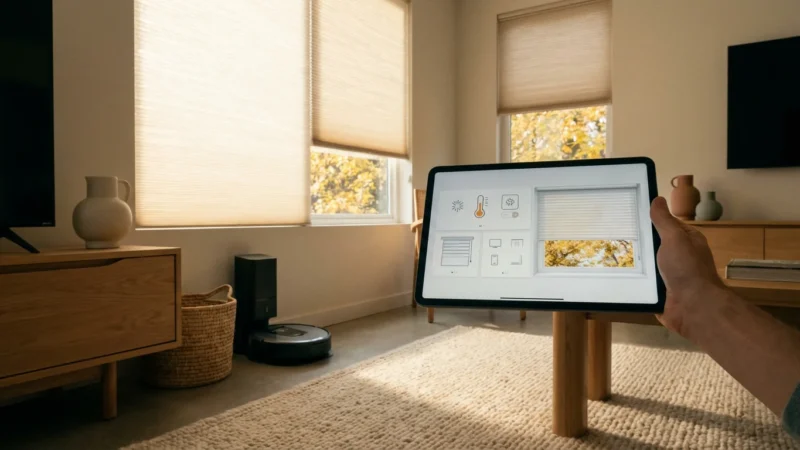
- Ensure any smart blinds or shades are in an open or partially open position.
- You can trigger this scene manually, via a schedule, or even using geofencing if you track guest device presence (with their permission).
- Implement “Guest Good Night” or “Guest Away” Scenes:
- A “Guest Good Night” scene might dim bedroom lights, turn off common area lights, and slightly adjust the thermostat for sleep.
- An “Guest Away” scene, triggered by motion sensors or a time schedule, can turn off all guest-assigned lights and revert the thermostat to an energy-saving setting when the guest room is unoccupied.
- Provide Limited Access to Controls:
- Instead of full app access, consider providing physical smart switches or remotes pre-programmed for the guest room lights.
- If your thermostat has a local interface, show guests how to adjust the temperature directly there, rather than granting app access.
- Some platforms allow you to create a “guest profile” within their app, limiting access to specific devices or scenes.
For example, if you know guests arrive at 6 PM, your “Guest Arrival” scene could turn on the porch light, illuminate the hallway, and set the living room lights to a warm glow, all while the thermostat ensures a cozy 72 degrees Fahrenheit. This preparation makes a significant positive impression.
Securing Your Home While Guests Stay: Cameras and Alarms
While hospitality is paramount, maintaining your home’s security remains a top priority during a guest’s visit. Smart security systems, including cameras and alarms, offer powerful ways to protect your property. Thoughtful configuration ensures your guests feel safe without compromising your privacy or the integrity of your security setup.
For broader protection, you may also find it helpful to learn about automating your home for vacation security for when your property is unoccupied.
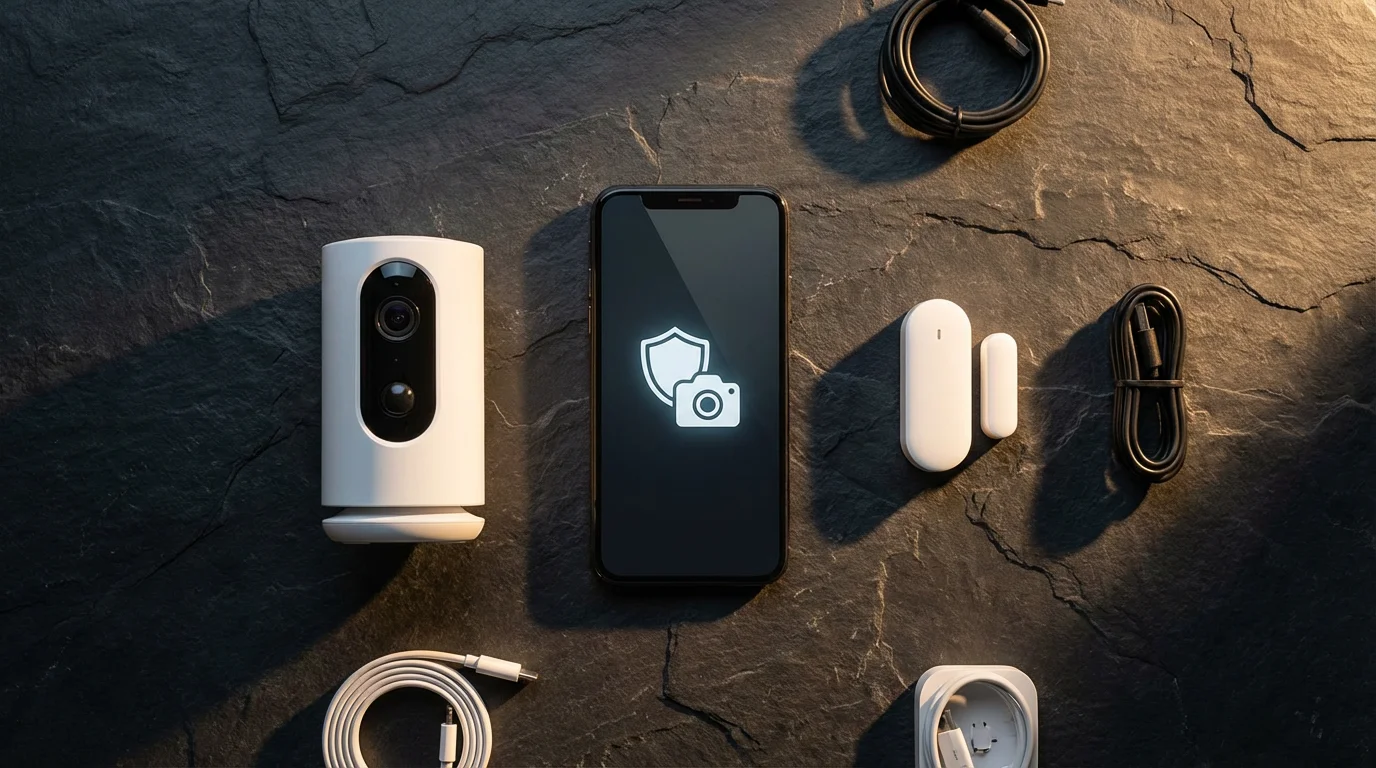
Many smart security cameras, like those from Ring, Arlo, or Eufy, allow you to disable specific cameras or zones temporarily. Similarly, smart alarm systems such as SimpliSafe or Abode let you arm and disarm different areas or grant temporary alarm access to trusted individuals.
Consider these strategies for security during a guest’s stay:
- Temporarily Disable Interior Cameras: If you have indoor cameras in guest-accessible areas, temporarily disable their recording or live-view functions during the stay. Most apps provide a quick toggle for this. Re-enable them after your guests depart.
- Utilize Privacy Zones: Many modern cameras offer privacy zones, allowing you to “black out” specific areas within the camera’s field of view. Define a privacy zone over the guest sleeping area or bathroom if your camera inadvertently covers it.
- Inform Your Guests About Cameras: Always be transparent with your guests about the presence of any active cameras, especially exterior ones. This fosters trust and respects their privacy.
- Grant Limited Alarm System Access: If your guests need to arm or disarm your alarm system (e.g., if they are leaving the house), create a unique PIN for them. Most systems allow you to assign a temporary code that can be easily removed later. Explain which zones to arm, like “Away” or “Stay,” and how to manage the system.
- Maintain Core Security: Ensure your perimeter security, such as door/window sensors and outdoor cameras, remains active. Your guest mode should focus on modifying access to specific internal devices, not disabling critical exterior defenses.
For example, you can set your Ring indoor camera in the guest living area to “disarmed” for the duration of the visit, while your outdoor cameras continue to monitor the property. This balances guest comfort with robust home security. You maintain peace of mind throughout their stay.
Advanced Smart Home Settings for House Guests: Wi-Fi and Entertainment
Moving beyond basic entry and environment controls, advanced smart home settings for house guests enhance their overall comfort and convenience significantly. These additions ensure your guests have a connected experience without interfering with your personal network or device preferences. You provide a complete smart home experience tailored for them.
To truly delight your visitors, you can create a movie night automation in minutes for a shared cinematic experience.
Focus on creating a seamless connection to your home’s digital amenities while safeguarding your private data. This involves careful management of your Wi-Fi network and any shared entertainment systems.
Here are advanced considerations:
- Dedicated Guest Wi-Fi Network: This is arguably the most crucial advanced step. Set up a separate Wi-Fi network specifically for guests on your router.
- Security Isolation: Guest networks isolate guest devices from your primary network, preventing them from accessing your personal computers, smart storage, or other critical devices.
- Bandwidth Management: Some routers allow you to allocate specific bandwidth to the guest network. This prevents guests from inadvertently slowing down your own internet speed with heavy streaming or downloads.
- Simple Access: Provide a straightforward Wi-Fi name and password for your guests, distinct from your main network credentials.
- Entertainment System Integration:
- Smart TVs: Consider creating a “guest profile” on your smart TV or streaming device (e.g., Roku, Apple TV, Fire TV). This prevents guests from inadvertently logging out of your accounts or altering your watch history.
- Voice Assistants: If you have smart speakers in guest areas (e.g., Echo Dot, Google Nest Mini), explain their basic functions. Guests can use them for music, weather, or answering questions. Ensure you have privacy settings configured to avoid recording sensitive interactions. You might temporarily disable purchasing or personal data access via voice.
- Universal Remotes: If you use a universal smart remote (like a Logitech Harmony hub or a smart home tablet interface), create a simplified guest profile that only shows controls for the TV, streaming box, and perhaps lights.
- Smart Appliance Access (If Applicable):
- If you have smart coffee makers or other accessible appliances, provide instructions for their basic manual operation rather than app access.
For example, by creating a guest Wi-Fi network, your visitors can stream movies, browse the internet, and connect their devices without ever accessing your personal files or network-attached storage. This elevates their digital experience while maintaining your security. This level of smart home settings for house guests truly defines a modern hosting experience.
Automating Guest Mode Activation and Deactivation
Manual activation and deactivation of guest settings can become cumbersome, especially for frequent hosts. Automating your guest mode streamlines the process, ensuring consistent application of your visitor settings. You set it once, and your smart home manages the transitions seamlessly.
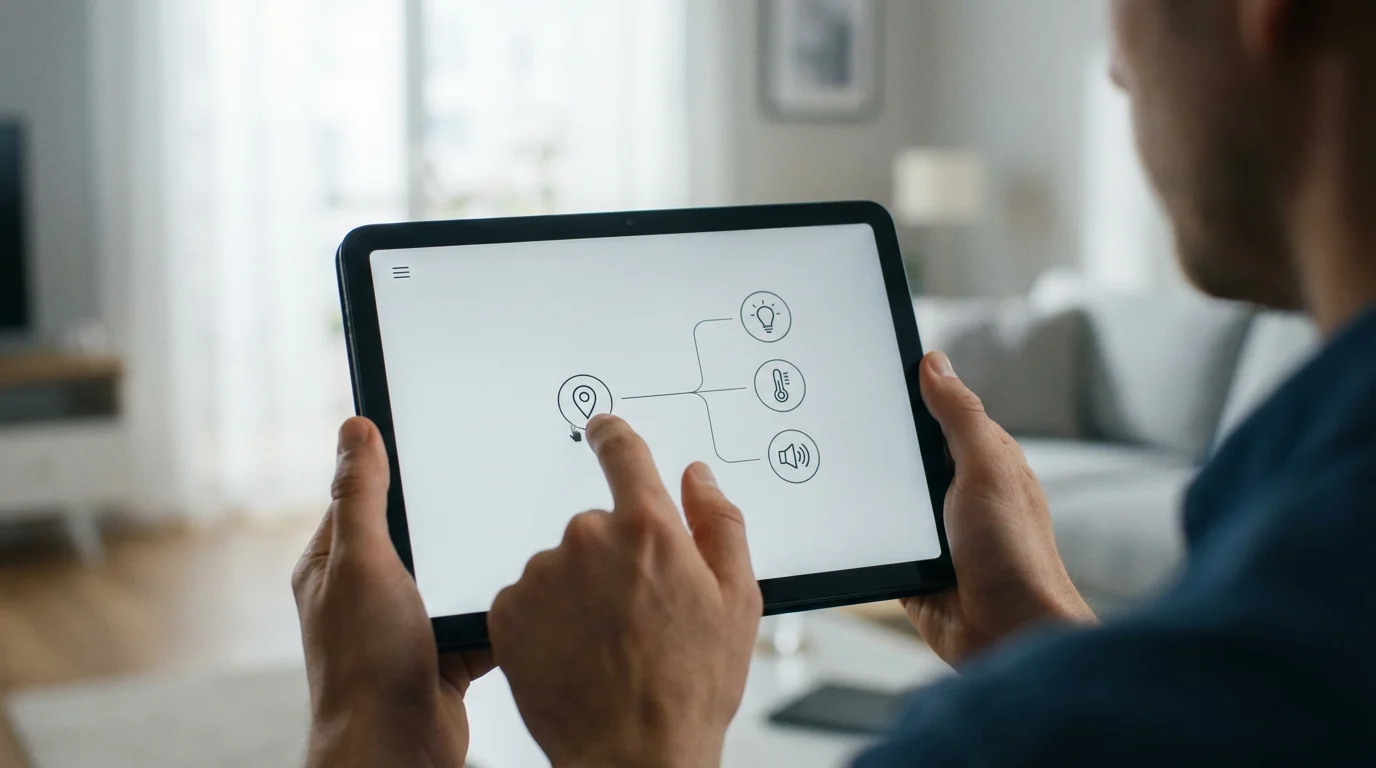
Leverage your smart home hub’s routines, scenes, or automation rules to trigger your guest mode based on specific conditions. This might involve time, presence, or even a simple voice command.
Consider these automation triggers:
- Time-Based Schedules:
- Arrival: Schedule your “Guest Arrival” scene to activate a few hours before your guests’ anticipated arrival time. This ensures the home is welcoming upon their entry.
- Departure: Set a routine to deactivate all guest settings, revoke temporary access codes, and re-enable private cameras an hour after their planned departure time.
- Geofencing (with Consent):
- If guests are willing to share their location temporarily, use geofencing to trigger events. When their phone enters a defined home perimeter, initiate the “Guest Arrival” scene. When they leave, activate an “Away” scene for their designated areas. This offers highly responsive automation.
- Smart Button or Voice Command:
- Program a smart button (e.g., Philips Hue Dimmer Switch, SmartThings Button) to activate or deactivate the entire guest mode with a single press. Place this button in an accessible location for yourself.
- Create a custom voice command (e.g., “Alexa, activate guest mode” or “Hey Google, goodby guests”) to trigger the entire sequence of guest settings. This offers convenience and immediate control.
- Calendar Integration:
- Some advanced smart home platforms or third-party integrators like IFTTT allow connection to your calendar. When a calendar event for “Guest Arrival” begins, it can trigger your guest mode.
For example, you can set a routine to run daily at 7 AM while guests stay. This routine opens the guest bedroom blinds, turns on a soft bedside lamp, and raises the thermostat slightly. This proactive approach to smart home settings for house guests makes their stay more pleasant. Automating how to set up smart home guest mode saves you time and ensures consistency.
Best Practices for Maintaining Privacy and Security
Even with a dedicated guest mode, ongoing vigilance and adherence to best practices protect your smart home’s privacy and security. You ensure that granting temporary access does not create long-term vulnerabilities. Proactive measures are key to a safe and secure smart home environment for both you and your visitors.
Follow these essential guidelines:
- Regularly Review and Revoke Access: After guests leave, always confirm that all temporary access codes for locks, alarm systems, and guest Wi-Fi passwords have been revoked or changed. Do not assume automatic expiration.
- Change Default Passwords: If you temporarily change any device passwords for guest access, ensure you revert them to more secure, complex passwords for your personal use immediately after their departure.
- Enable Two-Factor Authentication (2FA): Always use 2FA for your primary smart home accounts. This adds a critical layer of security, protecting against unauthorized access even if a password becomes compromised.
- Educate Your Guests (Politely): Briefly explain how certain smart devices work, especially regarding privacy implications. For example, mention if a voice assistant is active in a common area. Transparency builds trust.
- Monitor Activity Logs: Periodically check the activity logs of your smart locks, cameras, and alarm systems. This helps you confirm that only authorized entries and exits occurred during the guest’s stay.
- Keep Software Updated: Regularly update the firmware of your smart devices and the apps on your phone. Manufacturers release updates to patch security vulnerabilities and improve performance.
- Backup Configurations: If your smart home hub allows it, back up your smart home configurations before making significant changes for guest mode. This provides a restore point if any settings are inadvertently altered.
Adhering to these best practices safeguards your smart home infrastructure. You protect your personal data and ensure the continued security of your connected devices, even after guests depart. A secure smart home is a smart home you can trust.
Troubleshooting Common Guest Mode Issues
Even with careful planning, occasional issues can arise when implementing a smart home guest mode. Understanding common problems and their solutions allows you to quickly address them, ensuring a smooth experience for your visitors. You resolve issues efficiently, minimizing disruption.
Here are frequent challenges and how to tackle them:
- Access Code Not Working:
- Check Validity: Verify the temporary access code or virtual key is still within its active date and time range. Often, codes expire automatically.
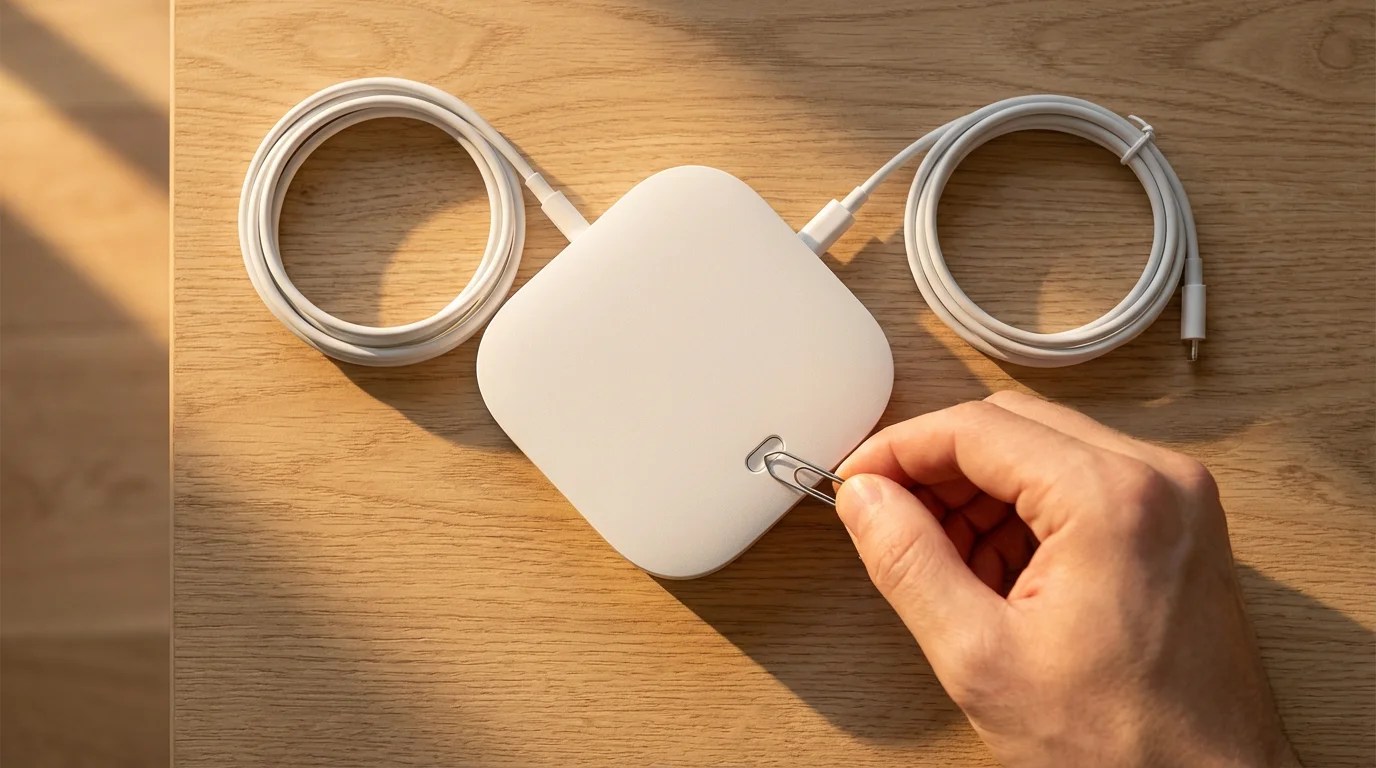
- Device Sync: Ensure the smart lock or entry system has successfully synced with the app. Sometimes, a poor Wi-Fi connection delays code updates. Try manually syncing from the app.
- Incorrect Entry: Confirm the guest entered the code correctly. Human error is a common factor.
- Lights or Thermostat Not Responding to Guest Settings:
- Scene Activation: Confirm the “Guest Arrival” or relevant scene actually triggered. Check your smart home hub’s activity log.
- Device Connectivity: Ensure all smart lights, switches, and thermostats are online and connected to your network. A power outage or Wi-Fi interruption can cause disconnections.
- Conflicting Routines: Look for other active routines or schedules that might override your guest settings. For example, a “Good Morning” routine might conflict with a guest-specific lighting setting.
- Guest Wi-Fi Connectivity Problems:
- Router Status: Check your router to ensure the guest Wi-Fi network is enabled and broadcasting.
- Password Accuracy: Double-check the guest Wi-Fi password for typos.
- Signal Strength: Ensure your guest is within good range of the Wi-Fi signal, especially if they are in an area far from the router.
- Voice Assistant Misinterpretation:
- Specific Commands: If guests struggle with voice commands, ensure they use the exact phrases you configured. Share a simple list of commands.
- Privacy Settings: Verify that your voice assistant’s privacy settings are not overly restrictive, preventing basic commands from working for guests.
Most troubleshooting involves checking basic connectivity, reviewing your setup within the app, and confirming the intended logic of your automations. A systematic approach to checking these elements typically resolves the issue. This makes managing your smart home settings for house guests much simpler.
Frequently Asked Questions
Is a smart home guest mode necessary for all homeowners?
While not strictly “necessary,” a smart home guest mode significantly enhances convenience and security for anyone who frequently hosts visitors. It protects your privacy and simplifies access management. You benefit from temporary controls over locks, lights, and climate without sharing permanent credentials.
Can I grant guest access to individual devices, or must it be a whole-home setting?
You can almost always grant access to individual devices or specific groups of devices. Most smart home ecosystems offer granular control, allowing you to tailor visitor settings precisely. You avoid giving full access to your entire smart home system.
How does guest mode affect my personal smart home routines?
A well-configured guest mode should not negatively impact your personal routines. You design guest settings to either operate independently or temporarily override specific aspects of your routines in designated guest areas. Always test your guest mode to ensure it coexists smoothly with your daily automations.
What is the most important security measure when setting up a guest mode?
Implementing a separate guest Wi-Fi network stands as the most critical security measure. This isolates guest devices from your primary network, protecting your personal data and devices from potential vulnerabilities introduced by visitor hardware. You maintain a strong security perimeter.
Can I set a guest mode using only voice commands?
Yes, many smart home platforms allow you to create routines or scenes that activate a guest mode with a simple voice command, such as “Alexa, activate guest mode.” You must configure these commands within your smart home app or voice assistant’s settings. This offers a highly convenient way to manage your visitor settings.
Creating a guest mode for your smart home offers both convenience and peace of mind. You provide a welcoming and secure environment for your visitors, simplifying their stay while maintaining complete control over your home’s technology. By implementing these practical, actionable steps, you transform how you host, ensuring every guest feels right at home, but on your terms. This tailored approach makes your smart home truly adaptive and hospitable.
Disclaimer: This article is for informational purposes only. Smart home devices involve electrical connections and data privacy. Always follow manufacturer instructions for installation. For complex wiring or HVAC work, consult a licensed professional.

Leave a Reply