
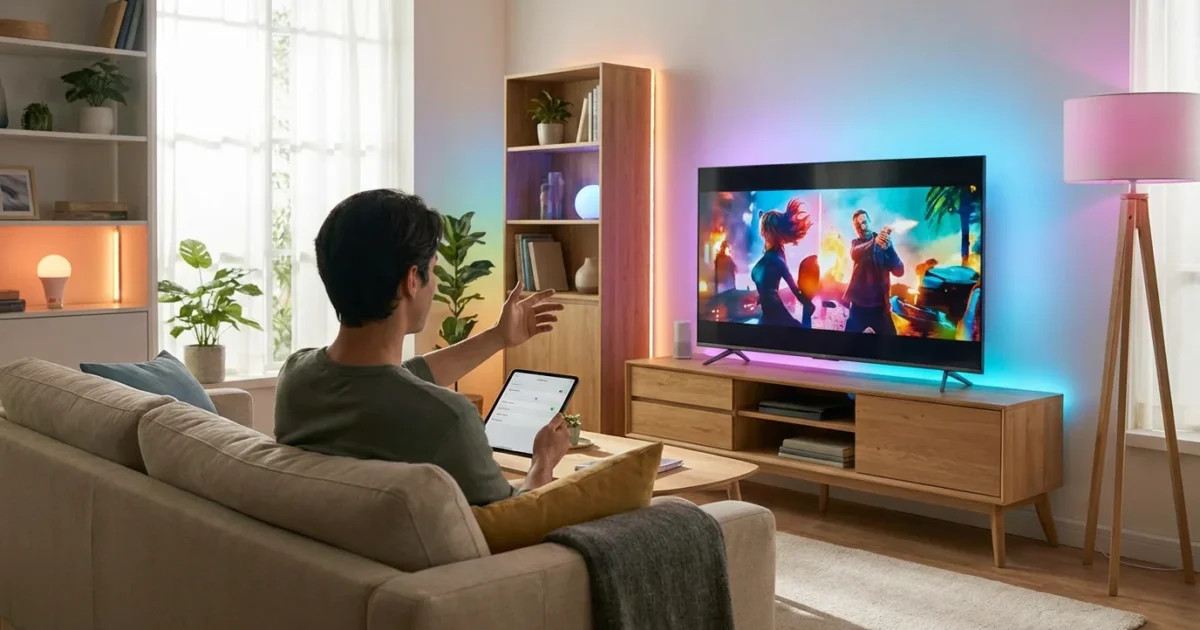
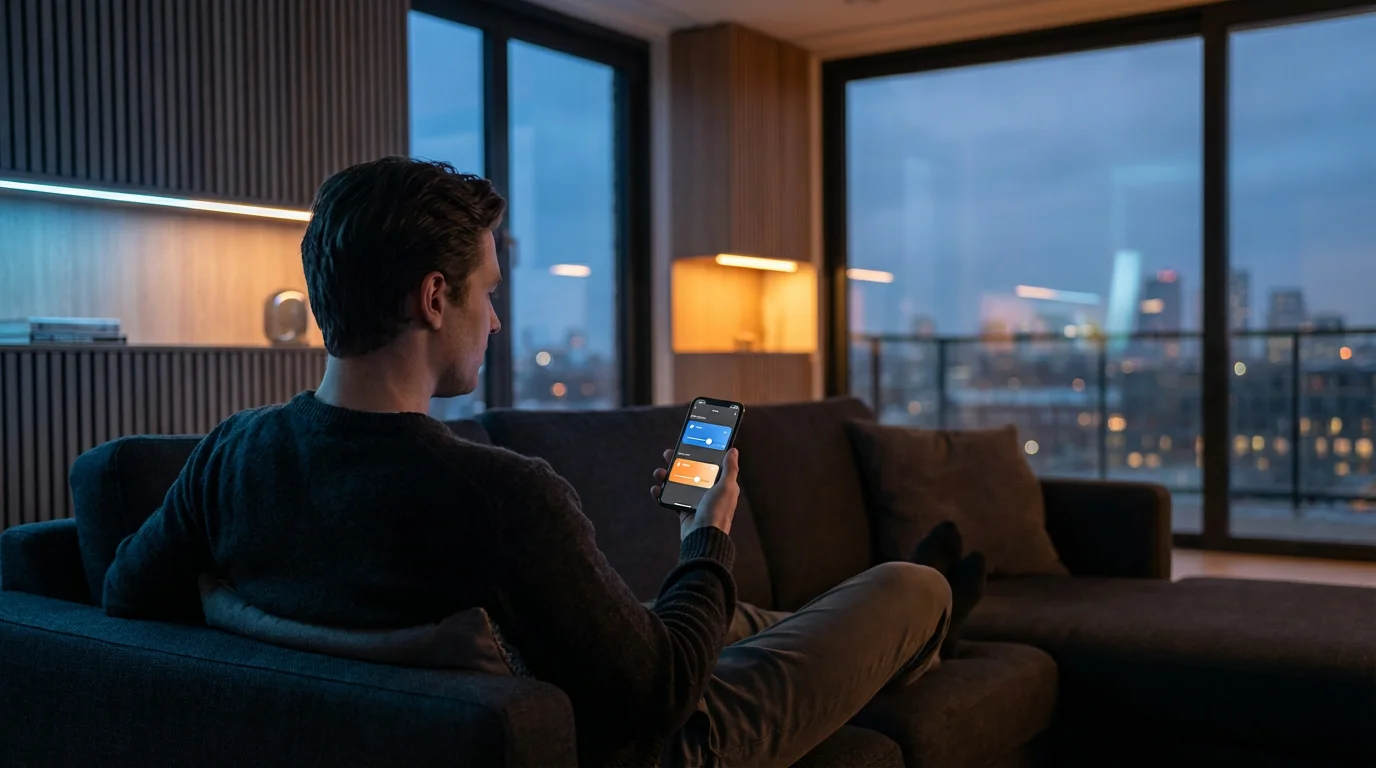
Transform your living room into an immersive entertainment hub by syncing your smart lights with your favorite music and movies. This guide walks you through the practical steps to create dynamic lighting effects, enhancing everything from movie nights to dance parties. You gain control over your ambiance, making every moment more engaging.
Before diving into entertainment, ensure you know how to set up smart bulbs in every room to build a solid foundation for your smart home.
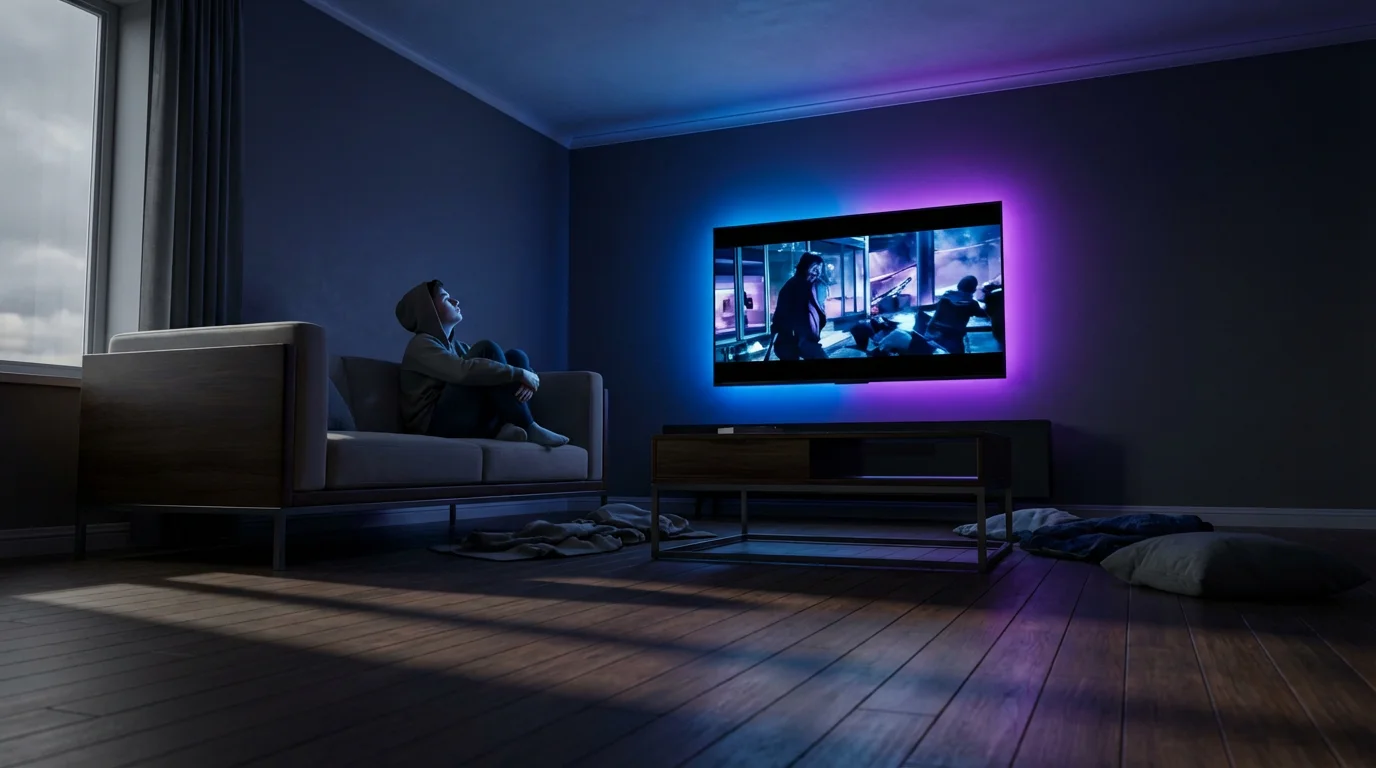
Why Sync Your Lights? Elevate Your Entertainment Experience
Syncing your smart lights with your media offers an unparalleled sensory experience. The subtle shifts in color and brightness complement on-screen action, pulling you deeper into movies and games. For music, your lights pulse and change with the beat, turning your home into a personal concert venue.
Your experience may also depend on your network speed and which smart bulb protocol is best for handling real-time data transfers.
You unlock several benefits by integrating entertainment lighting:
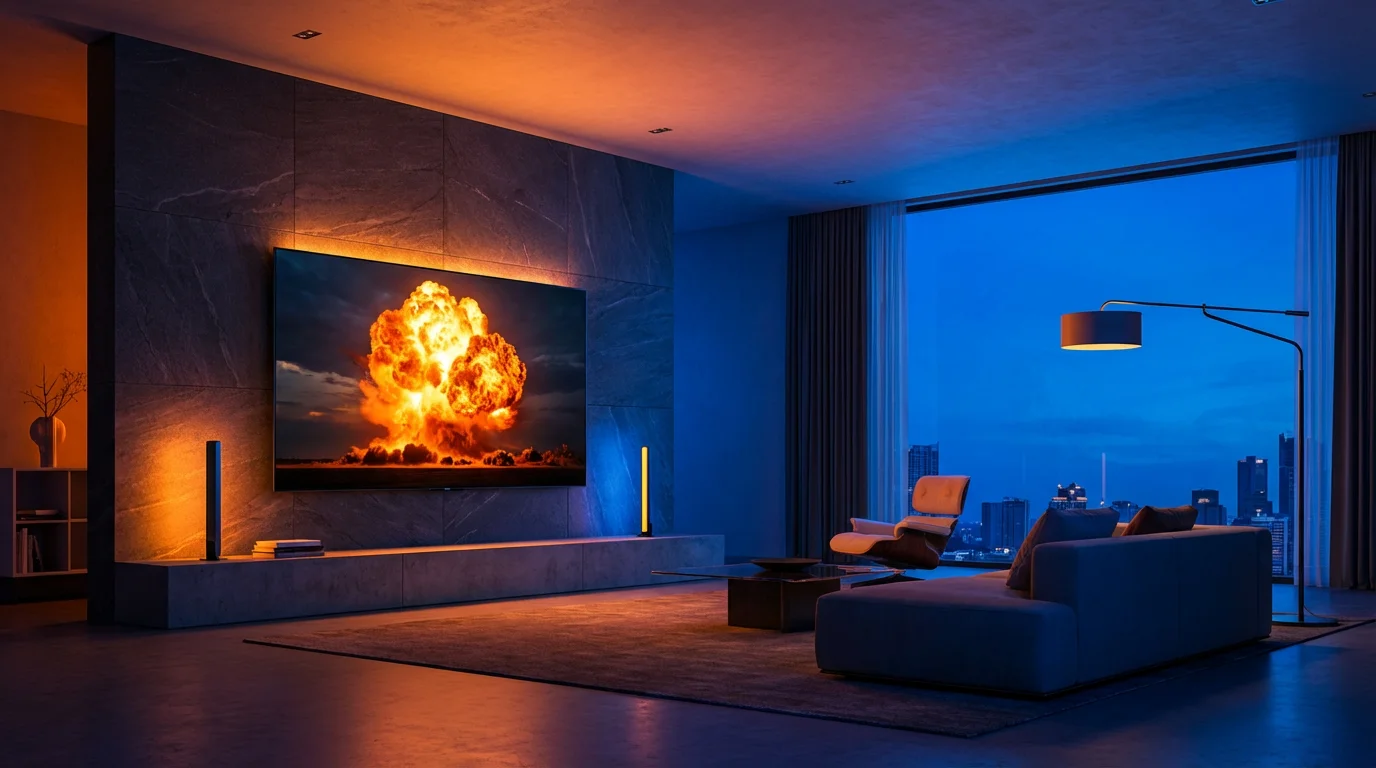
- Enhanced Immersion: Lights extend the visual experience beyond your screen, drawing you into the scene. Explosions flash, serene landscapes glow, and thrillers create a heightened sense of suspense.
- Dynamic Ambiance: Instantly set the mood for any occasion, whether it is a cozy movie night, a lively party, or a relaxing evening with instrumental music. Your environment adapts to your content.
- Party Atmosphere: Music reactive lighting transforms gatherings. Guests engage with your space as lights dance to the rhythm, creating memorable experiences.
- Reduced Eye Strain: Bias lighting behind your TV can reduce eye fatigue during long viewing sessions by minimizing the contrast between a bright screen and a dark room.
Your entertainment space transforms into a dynamic, responsive environment, offering more than just passive viewing or listening.
Understanding the Essentials: What You Need
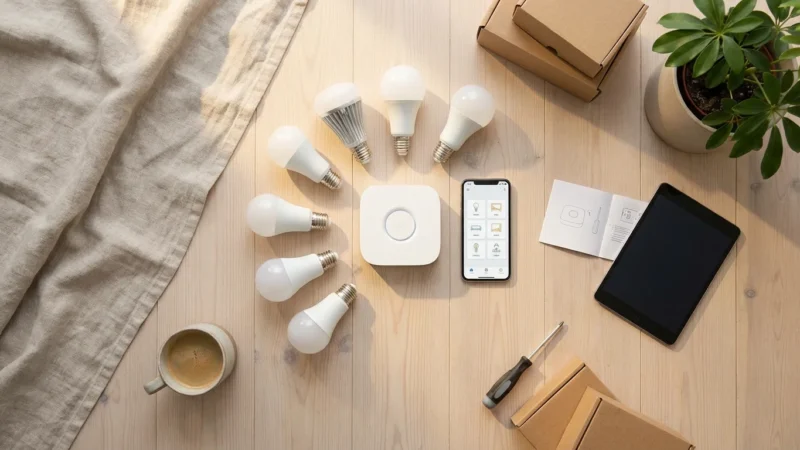
Before you begin syncing your lights, ensure you have the necessary components. Most setups require smart bulbs or light strips, a control device, and a media source. Understanding how these elements interact helps you choose the best syncing method.
While many advanced syncing methods require a controller, you can also find smart bulbs that work without a hub for simpler configurations.
Here are the core requirements:
- Smart Lighting: You need color-capable smart bulbs or light strips. Popular options include Philips Hue, LIFX, Govee, and Wyze. These lights offer a wide spectrum of colors and brightness levels essential for dynamic syncing.
- Control Device: This can be a smartphone, tablet, computer, or a dedicated smart home hub. Your control device sends commands to your smart lights.
- Sound or Video Source: This is the media you want to sync your lights to. It can be a TV, streaming device, gaming console, computer, or an audio system.
Syncing works by analyzing the audio or video content in real-time. Software then translates these patterns into light commands, instructing your smart lights to change color, brightness, or flash in response. Some systems use a microphone to detect audio, while others process video signals directly.
Method 1: Using Dedicated Sync Boxes or Hubs
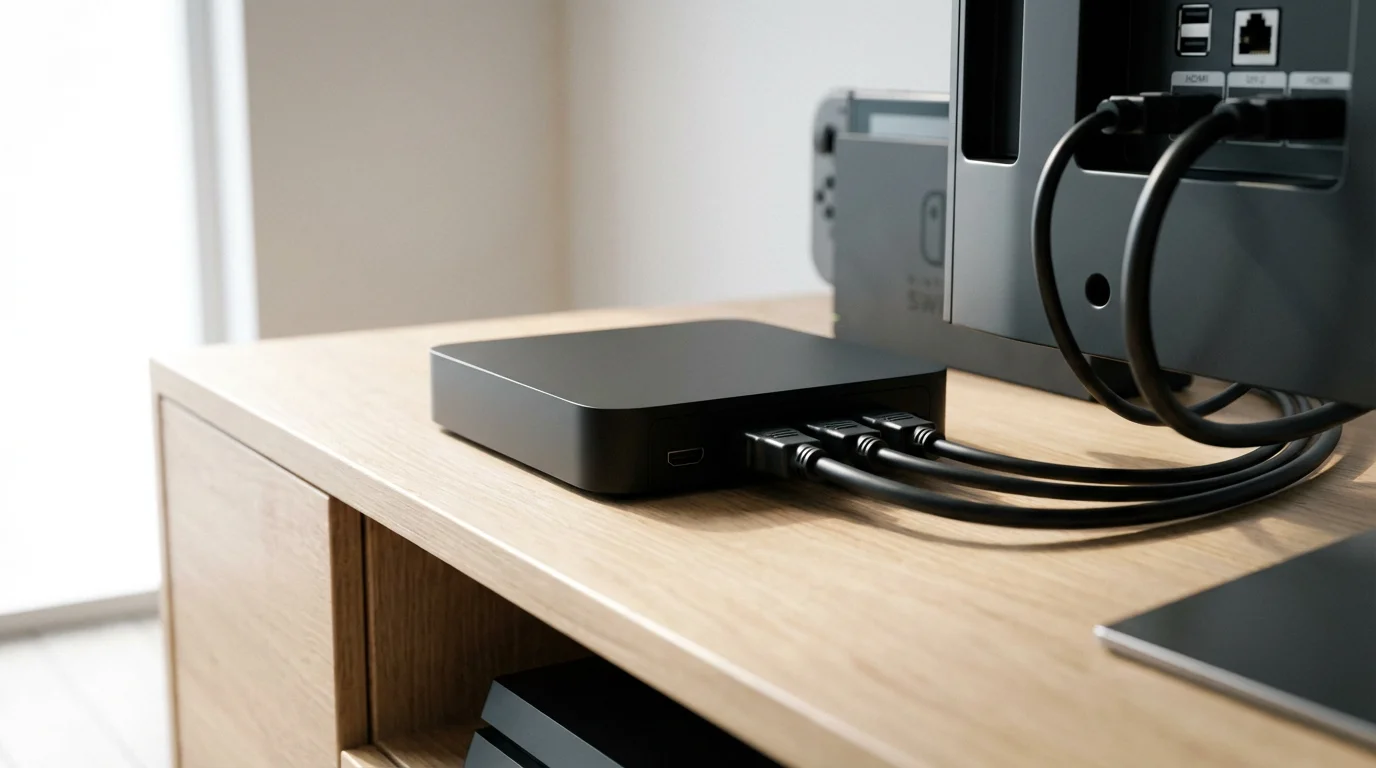
Dedicated sync boxes offer the most integrated and often the most seamless experience for syncing lights with TV content. These devices typically connect directly to your HDMI inputs, allowing them to analyze video signals in real-time. Philips Hue leads this category with its Play HDMI Sync Box.
Setting Up with Philips Hue Play HDMI Sync Box
The Philips Hue Play HDMI Sync Box captures video content from your HDMI devices and translates it into light commands for your Hue lights. This creates a truly immersive effect as the lights mirror the on-screen action.
- Connect Your Sync Box: Plug your media devices (streaming stick, gaming console, Blu-ray player) into the HDMI inputs on the Hue Sync Box. Connect an HDMI cable from the Sync Box’s output to your TV’s HDMI input.
- Power On: Connect the Sync Box to a power outlet.
- Hue Bridge & Lights: Ensure your Philips Hue Bridge is set up and your color-capable Hue lights are added to it and positioned around your TV.
- Install the Hue Sync App: Download the Philips Hue Sync mobile app (separate from the main Philips Hue app) on your smartphone or tablet.
- Pair Devices: Open the Hue Sync app. Follow the on-screen instructions to connect the app to your Hue Bridge and then pair it with your Sync Box. You will select an Entertainment Area you previously configured in the main Hue app. This area defines which lights sync and their relative positions.
- Start Syncing: Begin playing content on your connected HDMI device. Use the Hue Sync app to select the desired sync mode (Video, Music, or Game) and intensity. Your lights immediately react to the media.
This method provides minimal input lag and robust performance, making it ideal for gamers and movie enthusiasts. The integration feels native, as the lights become an extension of your screen.
Pros and Cons of Dedicated Sync Boxes
Consider these points when evaluating a sync box solution:
- Pros:
- Superior video syncing accuracy and low latency, excellent for gaming.
- Dedicated hardware handles the processing, freeing up your computer or phone.
- Seamless integration with the specific smart lighting ecosystem, for example, Philips Hue.
- Easy to use once set up, often with multiple HDMI inputs for various devices.
- Cons:
- High initial cost, as sync boxes are specialized devices.
- Requires a compatible smart lighting ecosystem (e.g., Philips Hue lights and Bridge).
- Typically limited to HDMI sources, meaning content from smart TV apps might not sync directly.
- Adds another piece of hardware to your entertainment setup.
“The best smart home is the one you don’t have to manage. Integrated solutions like dedicated sync boxes simplify complex automations, allowing you to enjoy your experience without constant adjustments.”
Method 2: Software-Based Syncing with Your Computer
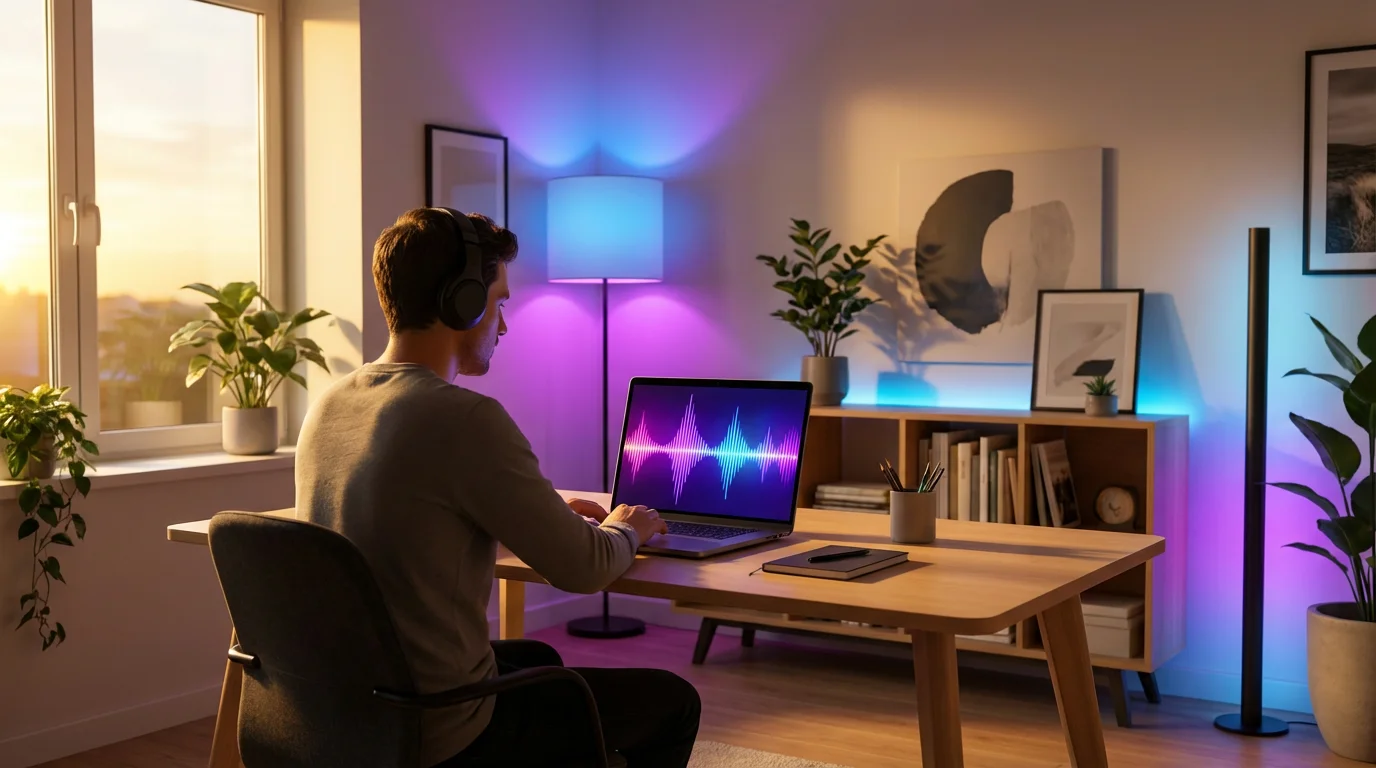
Many smart lighting brands offer desktop applications that allow your computer to act as the brain for syncing. This method uses your computer’s processing power to analyze screen content or audio output, then sends commands to your smart lights.
Philips Hue Sync Desktop App
For Philips Hue users, the Hue Sync desktop application provides excellent music and video syncing capabilities directly from your computer. This works particularly well for streaming services, gaming, or playing music from your PC.
- Download the App: Visit the Philips Hue website and download the Hue Sync desktop application for Windows or macOS.
- Install and Open: Install the application and launch it.
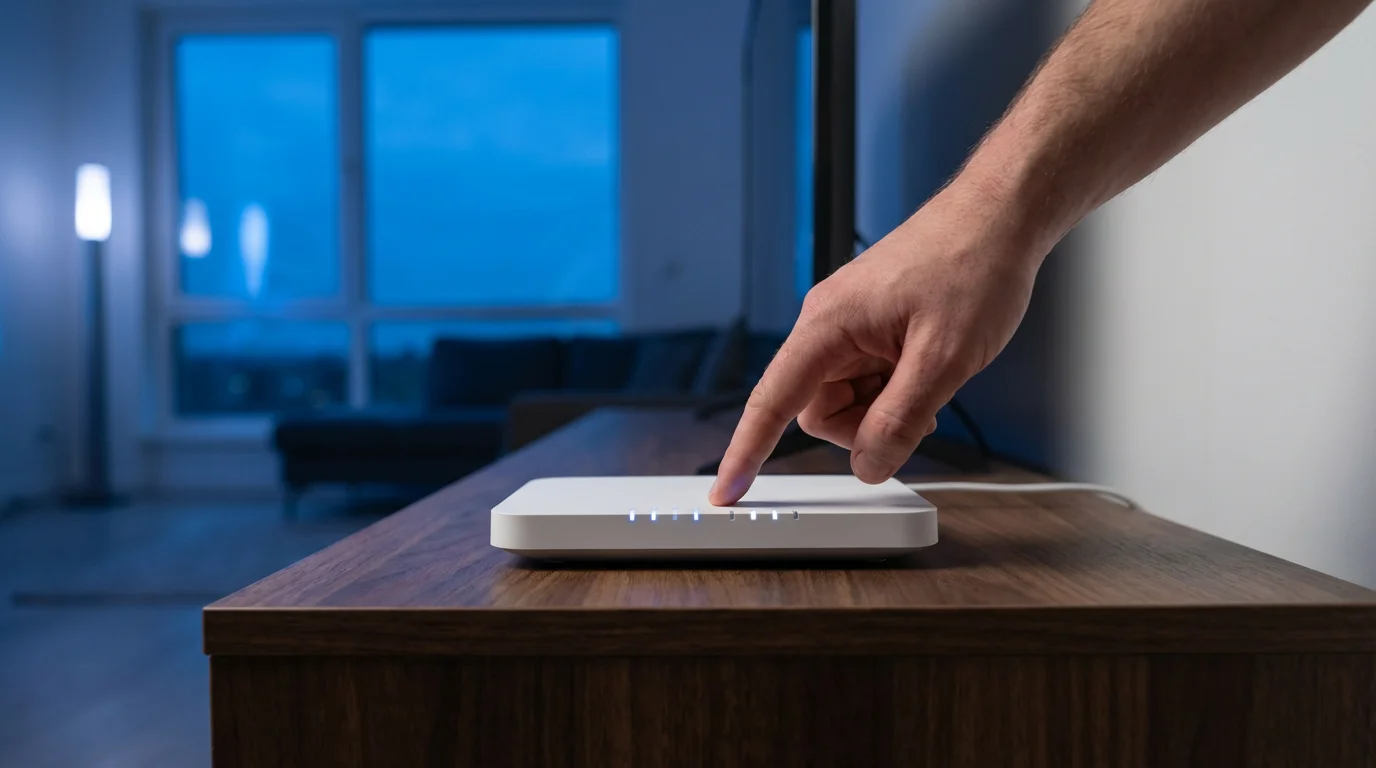
- Connect to Hue Bridge: The app prompts you to connect to your Philips Hue Bridge. Press the button on your Bridge when requested.
- Create an Entertainment Area: The app guides you through creating an Entertainment Area. You select the Hue lights you want to sync and place them on a virtual map, indicating their physical positions relative to your screen. This tells the app how to project colors.
- Choose Sync Mode: Select whether you want to sync for Video, Game, or Music.
- For Video/Game: The app analyzes your computer screen. Start playing content on your PC, and your lights will react.
- For Music: The app analyzes your computer’s audio output. Play music, and your lights will pulse to the beat.
- Adjust Intensity: Use the app’s sliders to control the intensity, brightness, and other effects to customize your experience.
LIFX Desktop Apps and Integrations
LIFX also offers software solutions for syncing their lights. While not as integrated with video as Hue, LIFX excels in music reactivity. Many third-party apps also support LIFX, expanding your options.
- LIFX Polychrome (Third-Party): This desktop application allows for screen-syncing and audio visualization for LIFX lights. Search for it online and follow its specific setup instructions, which often involve connecting to your LIFX account or directly to your lights via your local network.
- Razer Chroma Integration: If you use Razer gaming peripherals, LIFX lights integrate with Razer Chroma, allowing them to sync with game events and music, creating a cohesive lighting experience across your devices.
Pros and Cons of Software-Based Syncing
Consider these advantages and disadvantages:
- Pros:
- No additional hardware cost beyond your smart lights and computer.
- Works with any content playing on your computer, including browser-based streaming and local media files.
- Often offers granular control over light effects and intensity.
- Can sync with your computer’s audio, supporting a wide range of music sources.
- Cons:
- Requires your computer to be on and running the application, consuming system resources.
- May introduce minor input lag for fast-paced gaming if your computer is under heavy load.
- Screen analysis can be less precise than a dedicated HDMI sync box, sometimes affecting color accuracy.
- Not ideal for syncing content played directly on a smart TV or external console without a PC intermediary.
Method 3: Smartphone Apps and Third-Party Integrations
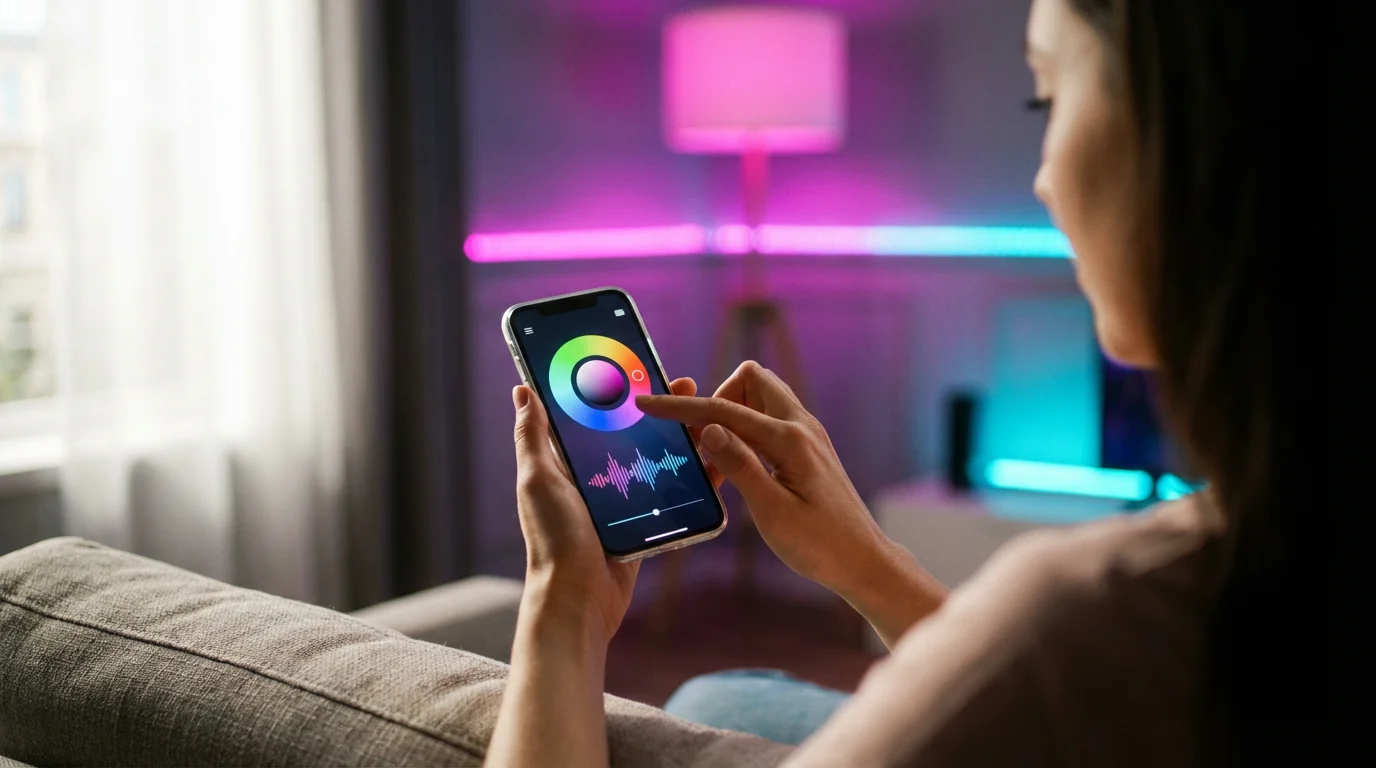
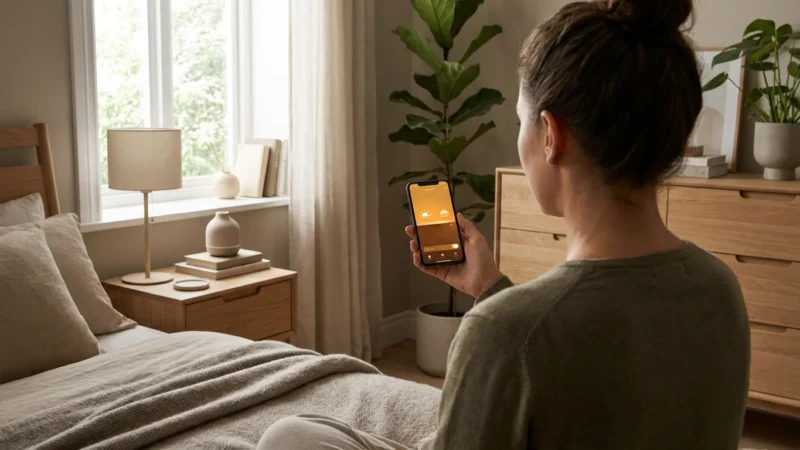
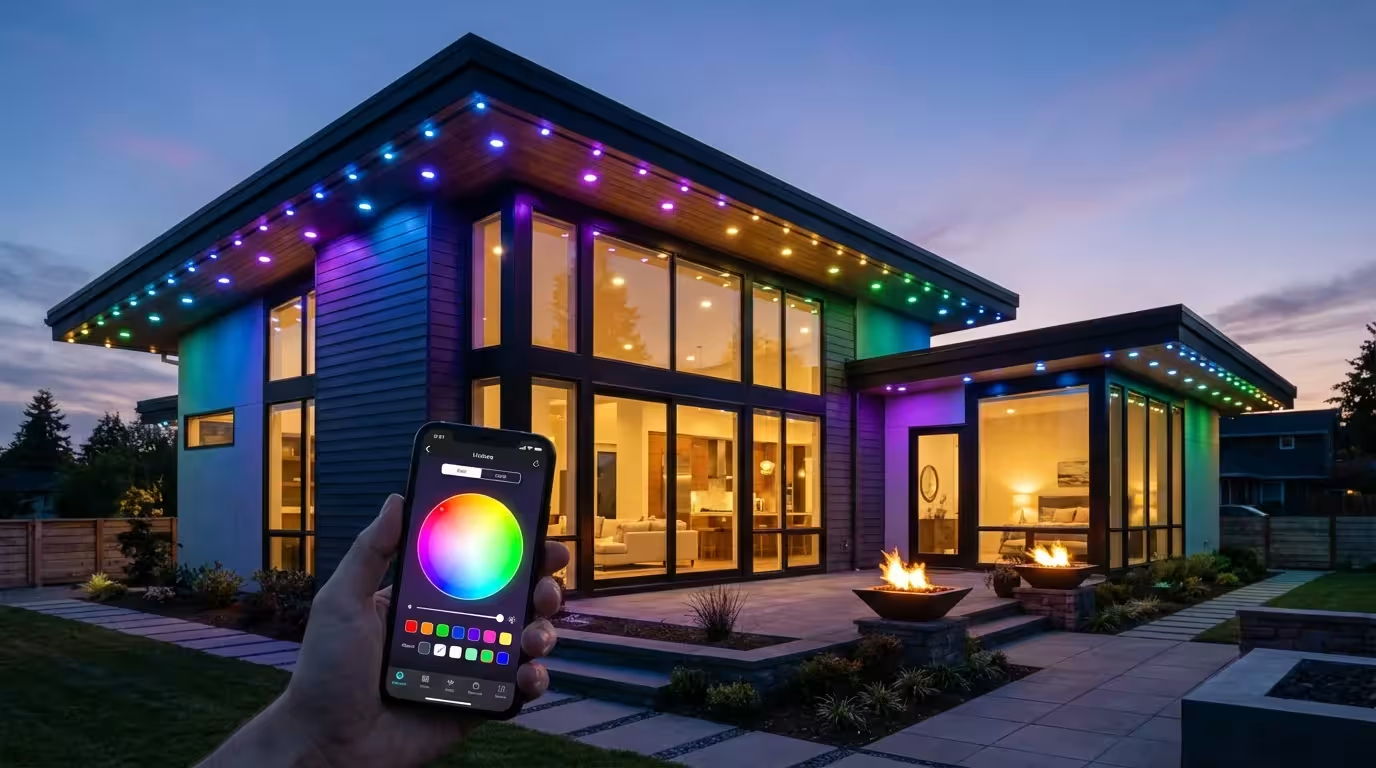
Your smartphone is a powerful tool for controlling and syncing smart lights. Many official brand apps and a thriving ecosystem of third-party applications offer music reactive lighting. These apps often use your phone’s microphone to listen to ambient sound, or they connect directly to streaming music services.
Using Official Smart Light Apps
Some smart light brands include basic music syncing features directly within their primary mobile applications.
- Philips Hue App: The main Hue app offers “Scenes” that can react to music via your phone’s microphone. Navigate to the “Sync” tab, select “Music,” and grant microphone access. Your lights will respond to the music playing in the room.
- Govee Home App: Govee lights are known for their strong music syncing capabilities. The Govee Home app features a “Music” mode that uses your phone’s microphone to pick up sounds and visualize them through your lights. Many Govee light strips even have built-in microphones for direct music reactivity, eliminating the need for your phone to listen.
- LIFX App: While not as robust for microphone-based music syncing, the LIFX app offers various dynamic themes and effects that can create a party atmosphere. LIFX often integrates with other music visualization apps.
Exploring Third-Party Music Reactive Lighting Apps
The third-party app market offers some of the most creative and customizable music syncing experiences. These apps often provide more advanced effects and controls than official applications. You will find many options when searching for “best apps for music reactive lighting.”
Popular examples include:
- Hue Disco (for Philips Hue): This popular app turns your Hue lights into a dynamic dance floor. It uses your phone’s microphone to detect beats and frequencies, creating energetic light shows. You can customize colors, effects, and sensitivity.
- Light DJ (for Philips Hue and LIFX): Light DJ offers advanced control for live music and parties. It features a wide array of visualizers, effects, and even a live control interface, allowing you to manually cue light changes to the music.
- iLightShow (for Philips Hue and LIFX): This app connects directly to music streaming services like Spotify and Apple Music. It analyzes the track’s tempo and energy to create a perfectly synchronized light show, without relying on your phone’s microphone. This provides a more accurate and responsive experience.
Pros and Cons of Smartphone Apps and Third-Party Integrations
Evaluate these points for app-based syncing:
- Pros:
- Highly accessible, as most users already own a smartphone.
- Wide variety of effects and customization options, especially with third-party apps.
- Many apps use the phone’s microphone, syncing with any audio source, including live music.
- No extra hardware costs for syncing, beyond the smart lights themselves.
- Cons:
- Can drain your phone’s battery during extended use.
- Microphone-based syncing can be affected by background noise, leading to less precise reactions.
- Smartphone apps generally do not offer video syncing capabilities, focusing primarily on audio.
- Some advanced third-party apps may come with a one-time purchase or subscription fee.
Optimizing Your Setup: Tips for the Best Experience
Achieving the best entertainment lighting involves more than just plugging in your lights and hitting “play.” Strategic placement, calibration, and understanding your room’s acoustics significantly enhance the experience.
Consider these optimization tips:
- Strategic Light Placement:
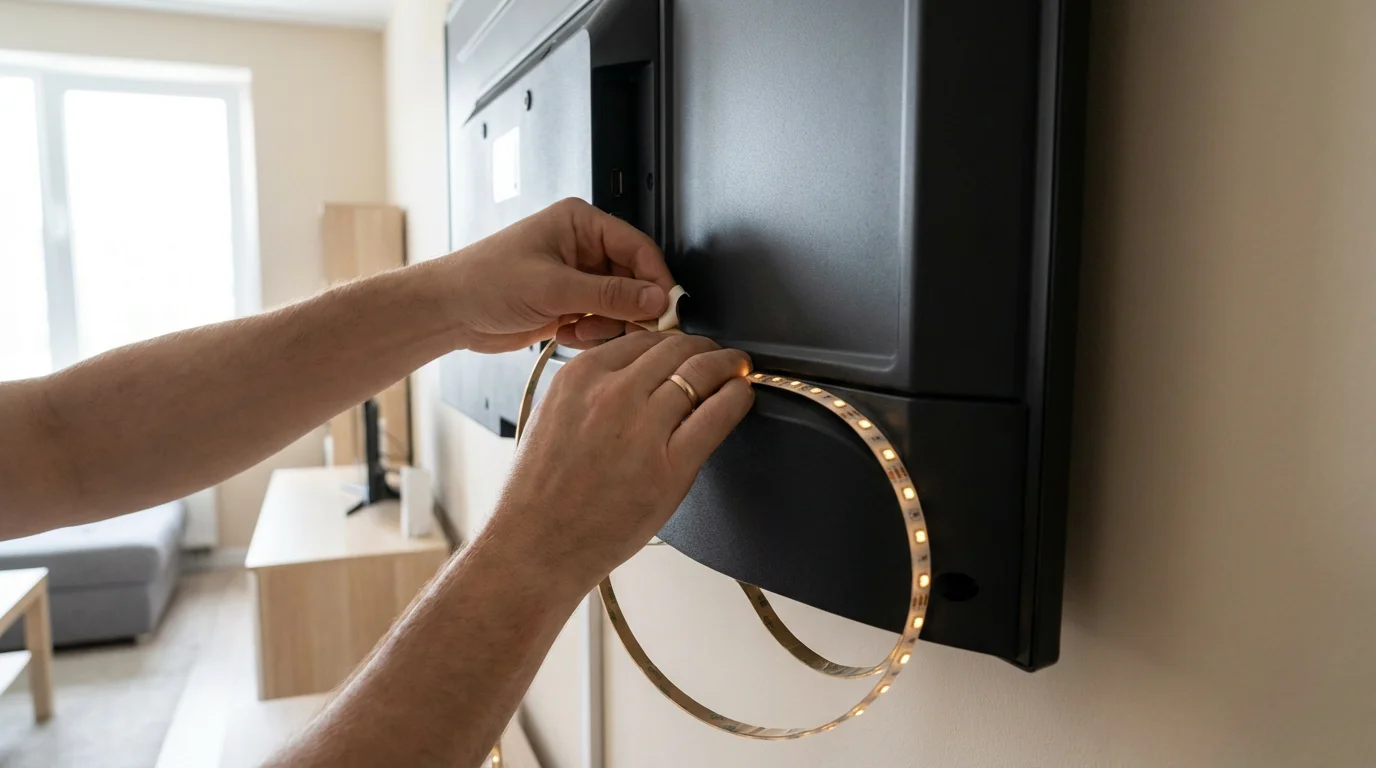
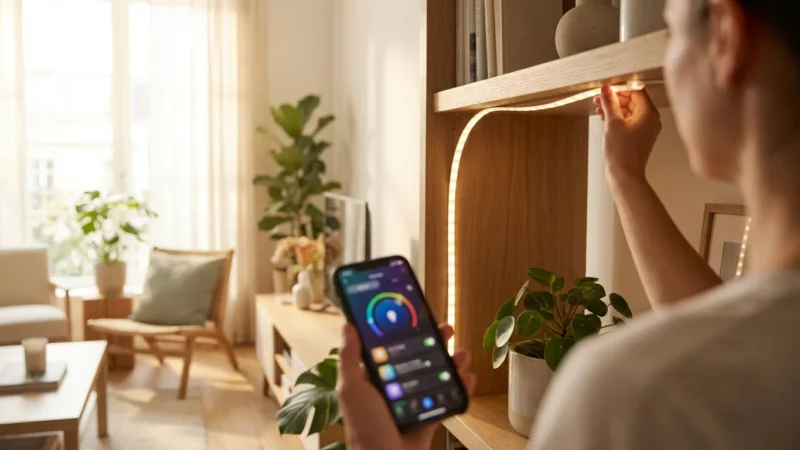
- Behind the TV/Monitor: Place light strips or bars directly behind your screen, positioned to cast light onto the wall. This creates a halo effect that extends the on-screen colors.
- Accent Lighting: Use smart bulbs in lamps positioned in the corners of your room or directed towards walls. These lights can complement the primary screen lighting, filling the room with ambiance.
- Avoid Direct Glare: Ensure lights do not shine directly into your eyes or onto the screen, which can cause reflections and reduce immersion.
- Room Conditions:
- Wall Color: Lighter, neutral-colored walls reflect light more effectively, allowing colors to appear vibrant and true. Darker walls absorb more light, diminishing the effect.
- Ambient Light: Dim the room’s overhead lights to maximize the impact of your synced smart lighting. Excess ambient light washes out the dynamic effects.
- Calibration and Fine-Tuning:
- Entertainment Areas: If your system uses entertainment areas (like Philips Hue), accurately position your lights in the virtual map. This ensures the colors project correctly from the right locations.
- Intensity Settings: Experiment with intensity, brightness, and speed settings in your sync app. Find a balance that enhances the content without being overwhelming.
- Color Temperature: Some apps allow you to restrict the color palette. For movies, you might prefer warmer, more natural tones, while parties might call for bright, saturated colors.
- Audio Source Quality: For microphone-based syncing, ensure your music plays clearly and loudly enough for the app to detect rhythms accurately. Reduce background noise for optimal performance.
By paying attention to these details, you elevate a simple light show into a fully integrated part of your home entertainment.
Beyond Entertainment: Other Smart Lighting Automations
While entertainment lighting offers incredible experiences, smart lighting extends far beyond movie nights and dance parties. Integrating your lights into your broader smart home ecosystem unlocks convenience, energy savings, and enhanced security.
Explore these practical lighting automations:
- Schedule-Based Lighting: Program your lights to turn on at sunset and dim at sunrise, ensuring your home is always appropriately lit. This saves energy and provides a consistent ambiance.
- Motion-Activated Lighting: Connect smart lights to motion sensors in hallways, bathrooms, or entryways. Lights automatically turn on when you enter a room and turn off when you leave, providing convenience and conserving power.
- Voice Control: Integrate your smart lights with voice assistants like Amazon Alexa, Google Assistant, or Apple HomeKit. You can control individual lights, groups, or entire scenes with simple voice commands, making adjustments effortless.
- Circadian Rhythm Lighting: Adjust your light’s color temperature throughout the day to mimic natural light. Cooler, brighter light in the morning boosts productivity, while warmer, softer light in the evening promotes relaxation and prepares you for sleep.
- Security Lighting: Use your smart lights to deter intruders. Schedule lights to turn on and off randomly when you are away, simulating occupancy. You can also link outdoor smart lights to security cameras, triggering them to illuminate if motion is detected.
- Smart Home Platform Integration: Combine your lighting with other smart devices using platforms like Samsung SmartThings, Apple HomeKit, or IFTTT. For instance, your lights can turn on when your smart lock unlocks, or flash red if your smoke detector activates.
These automations create a responsive and intuitive living space, providing peace of mind and significantly improving daily routines.
Choosing the Right Smart Lights for Entertainment
Selecting the ideal smart lights sets the foundation for a great entertainment setup. Different brands offer varying features, ecosystems, and price points. Your choice depends on your budget, desired intensity, and existing smart home ecosystem.
Here are key considerations when making your selection:
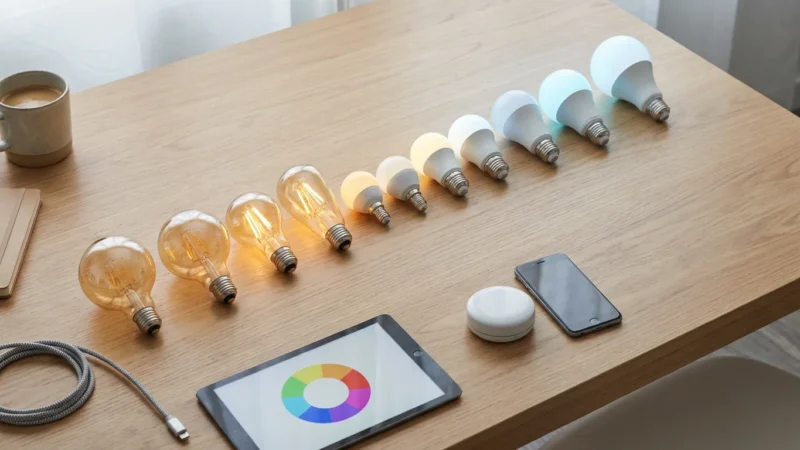
- Brightness (Lumens): Higher lumen counts mean brighter lights. For immersive effects, especially in larger rooms, opt for bulbs with at least 800 lumens, or powerful light strips.
- Color Range: Ensure the lights offer a wide and accurate color spectrum. Rich, saturated colors are crucial for dynamic syncing with movies and music. Check reviews for color accuracy.
- Hub Required: Some brands, like Philips Hue, require a dedicated hub (bridge) to function. Others, like LIFX and some Govee models, connect directly to your Wi-Fi network. A hub often provides better reliability and range but adds to the cost.
- Ecosystem Compatibility: Choose lights that integrate well with your preferred smart home platform (e.g., Alexa, Google Home, Apple HomeKit, SmartThings). This ensures seamless voice control and broader automation possibilities.
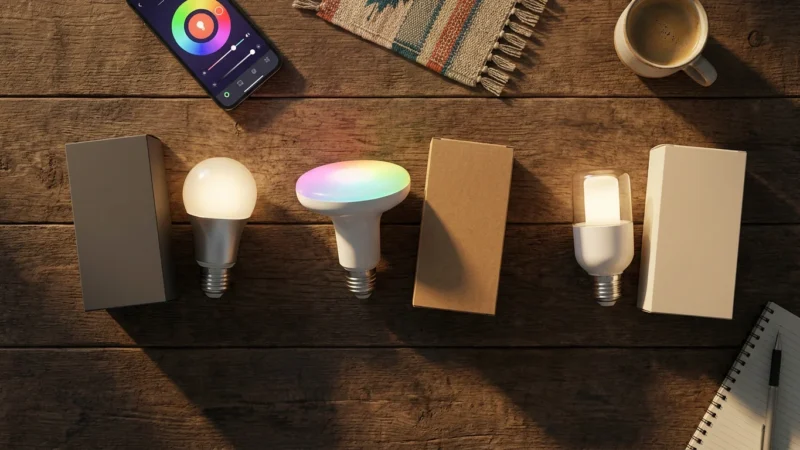
- Form Factor: Consider whether you need standard A19 bulbs for lamps, BR30 bulbs for recessed lighting, or flexible light strips for behind your TV or under cabinets. Light strips are particularly effective for accent lighting.
- Brand Reputation and Support: Opt for established brands known for reliable performance and good customer support. Consumer Reports and Wirecutter often publish reviews and comparisons of smart lighting systems, providing valuable insights.
For example, Philips Hue offers a robust ecosystem and excellent integration with its HDMI Sync Box, ideal for video. LIFX lights are known for their brightness and vibrant colors without needing a separate hub, making them great for music. Wyze offers budget-friendly options, a good starting point for basic setups.
Troubleshooting Common Syncing Issues
Even with the best equipment, you might encounter occasional hiccups. Most issues stem from connectivity or software glitches. You can resolve many common problems with simple troubleshooting steps.
If your lights fail to respond during the sync process, consult our guide on how to fix common smart bulb connection issues for quick solutions.
Address common problems with these solutions:
- Check Network Connectivity: Ensure your smart lights, hub (if applicable), and control device (computer or smartphone) are all connected to the same Wi-Fi network. A strong, stable Wi-Fi signal is crucial for reliable communication.
- Verify Device Power: Confirm all devices, including your smart lights, sync box, and media source, are properly plugged in and powered on.
- Update Software and Firmware: Always keep your smart light apps, desktop applications, and light firmware updated to the latest versions. Updates often include bug fixes and performance improvements.
- Restart Devices: A classic but effective solution. Try restarting your Wi-Fi router, smart light hub, sync box, and the app or computer running the sync software. This can clear temporary glitches.
- Check App Permissions: If using a smartphone app for microphone-based syncing, ensure you have granted the app permission to access your phone’s microphone.
- Reconfigure Entertainment Areas: If lights are not reacting correctly to specific screen areas, recheck your entertainment area configuration in the app. Ensure the virtual placement matches your physical setup.
- Reduce Interference: Move your smart lighting hub or Wi-Fi router away from other electronics that might cause interference.
- Factory Reset (Last Resort): If all else fails, a factory reset of individual problem lights or your hub can sometimes resolve persistent issues. Always consult your product’s manual for specific reset instructions.
Persisting issues might require contacting the manufacturer’s support or consulting online forums for specific device troubleshooting.
Frequently Asked Questions
Can I sync any smart lights with music and movies?
Most major smart lighting brands, including Philips Hue, LIFX, and Govee, offer features or integrations for syncing with audio and video. Budget brands like Wyze might have more limited options, often relying on third-party apps. Always check your specific bulb or strip’s capabilities before purchasing.
Do I need a special hub or box to sync my lights?
For the most seamless and immersive video sync, a dedicated HDMI sync box, like the Philips Hue Play HDMI Sync Box, often provides the best experience. However, you can also achieve music and video syncing through software apps on your computer or smartphone, which typically do not require an extra hub beyond your smart light’s native bridge or gateway.
Will syncing my lights cause input lag when gaming?
When using a dedicated HDMI sync box, manufacturers design these devices to minimize input lag, making them suitable for gaming. Software-based syncing might introduce minimal lag depending on your computer’s performance and the specific application, but this usually goes unnoticed for casual viewing. For competitive gaming, test your setup thoroughly.
How many lights do I need for an effective entertainment setup?
You can start with just a few well-placed smart bulbs or light strips. Many users find a compelling effect with two to three lights behind their television or monitor, plus additional accent lighting in the room corners. The key lies in strategic placement and a good color range, not necessarily a large quantity of lights.
Can I sync my lights with music playing from my record player?
Yes, many software-based music syncing apps, especially those on smartphones, use your device’s microphone to listen to ambient sound. This allows you to sync your smart lights with any audio source, including a record player, a Bluetooth speaker, or even live music, provided the sound is clear enough for the microphone to pick up.
Disclaimer: This article is for informational purposes only. Smart home devices involve electrical connections and data privacy. Always follow manufacturer instructions for installation. For complex wiring or HVAC work, consult a licensed professional.
Leave a Reply