
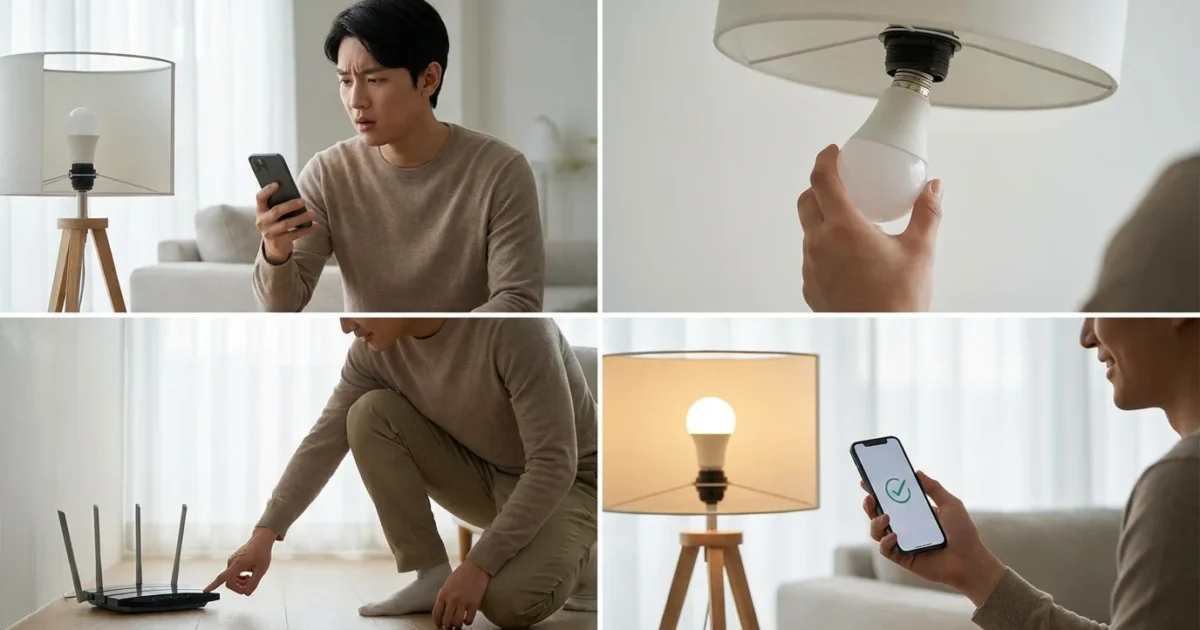
Smart lighting transforms your home, offering convenience, ambiance, and energy savings. Yet, few things are more frustrating than a smart bulb that will not connect or respond. You expect instant control, not a blinking light or a stubborn device refusing to join your network. This guide delivers practical steps and actionable insights to resolve common smart bulb problems, helping you restore control and enjoy your connected home.
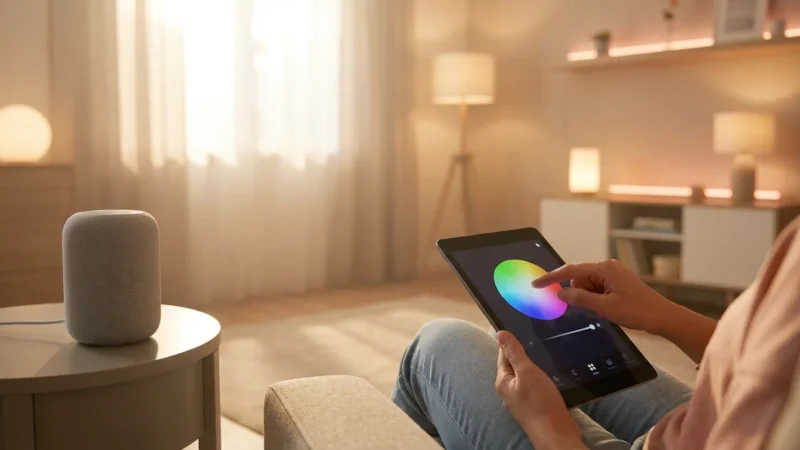
Once your connection is stable, you can explore advanced features like syncing your lights with music and movies for an immersive experience.
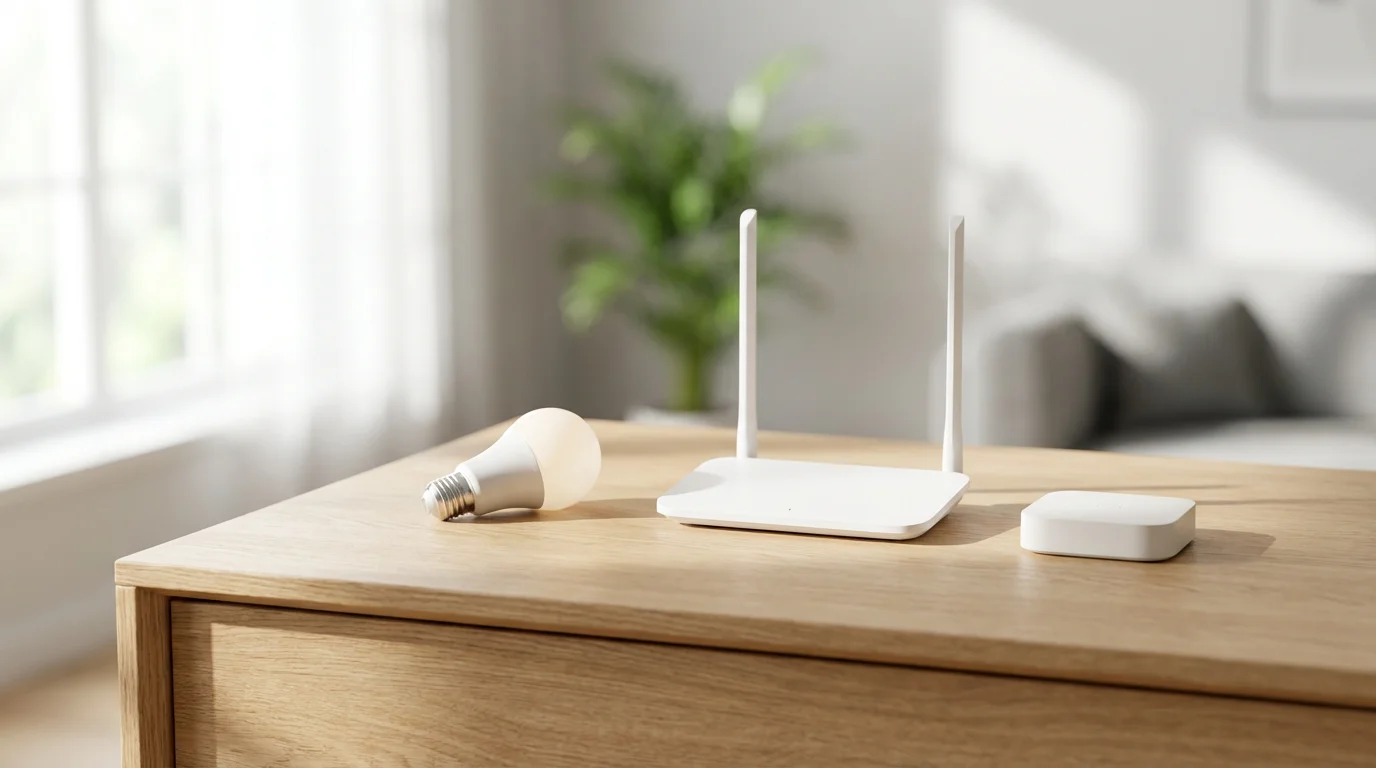
Understanding Smart Bulb Basics and Connection Types
Before you dive into fixes, understanding how smart bulbs communicate helps diagnose issues. Most smart bulbs connect through one of several wireless protocols.
- WiFi: Many popular brands like Kasa, Wyze, and some LIFX bulbs connect directly to your home WiFi network. This offers simplicity, as you typically do not need a separate hub. WiFi connection issues often stem from network congestion or router settings.
- Zigbee: Philips Hue, IKEA Tradfri, and some Sengled bulbs use Zigbee. This low-power mesh network protocol requires a dedicated hub, which then connects to your WiFi. The hub acts as a bridge, translating Zigbee signals into something your home network understands.
- Bluetooth: Some bulbs use Bluetooth for local control, often as a fallback or for initial setup. Bluetooth offers short-range connectivity, unsuitable for whole-home automation.
- Matter: A newer standard, Matter aims to unify smart home devices across different ecosystems. Matter devices can communicate over WiFi or Thread, a mesh networking protocol similar to Zigbee, but IP-based. You might need a Matter controller or bridge, often built into newer smart displays or hubs. This approach simplifies device pairing and improves compatibility. The Matter standard promises greater reliability and interoperability for your devices.
Knowing your bulb’s connection type helps you focus your troubleshooting efforts. A WiFi bulb will not benefit from hub troubleshooting, and a Zigbee bulb needs its hub powered and healthy.
Initial Troubleshooting Steps: The Basics
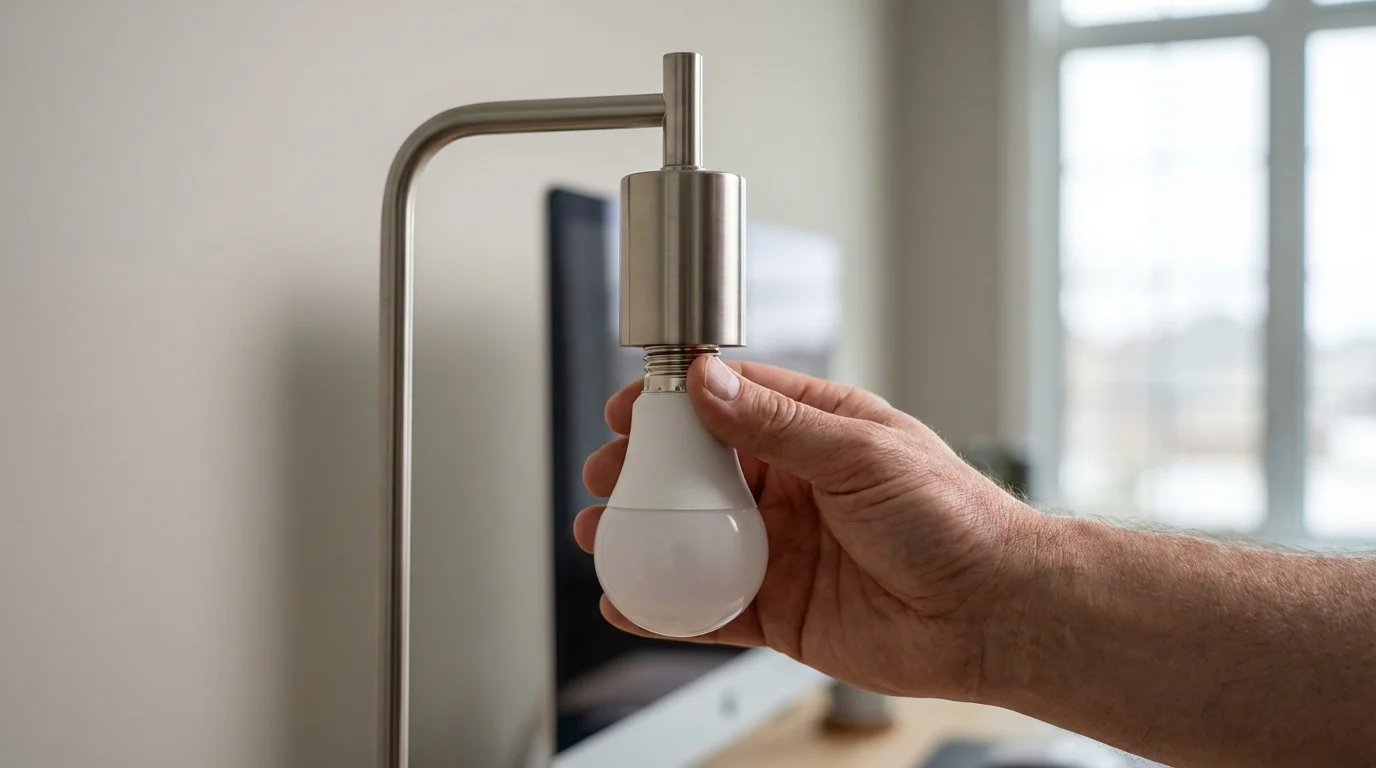
Often, the simplest solutions resolve `smart bulb problems`. Before diving into complex network settings, start with these fundamental checks.
If you are starting a new installation, make sure you follow the proper steps to set up smart bulbs in each room of your house.
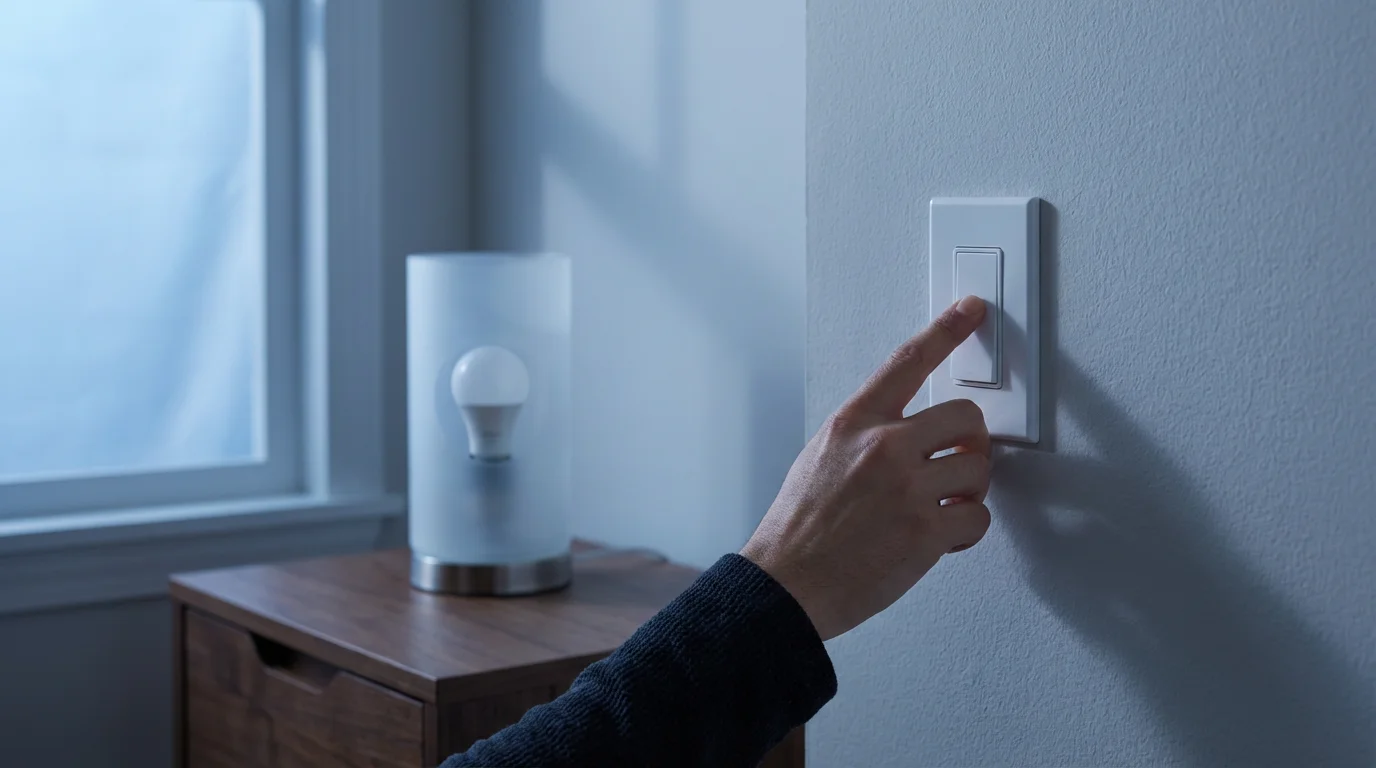
- Power Cycle the Bulb: Turn the light switch off, wait 10-15 seconds, then turn it back on. This resets the bulb’s internal software and can clear temporary glitches.
- Check Physical Connection: Ensure the bulb is screwed in tightly to its socket. A loose connection can cause intermittent power, preventing proper operation or connection.
- Verify Power to the Fixture: Make sure the light fixture itself has power. Test with a regular incandescent bulb if available. A faulty fixture or switch, rather than the smart bulb, might be the root cause.
- Confirm Switch Position: Smart bulbs require continuous power to remain connected and responsive. Ensure the wall switch controlling the bulb is always in the “on” position. Turning off the switch cuts power, making the bulb unreachable.
These basic steps resolve a surprising number of `bulb not responding` complaints. Always start here before proceeding to more advanced diagnostics.
Addressing WiFi Connection Issues
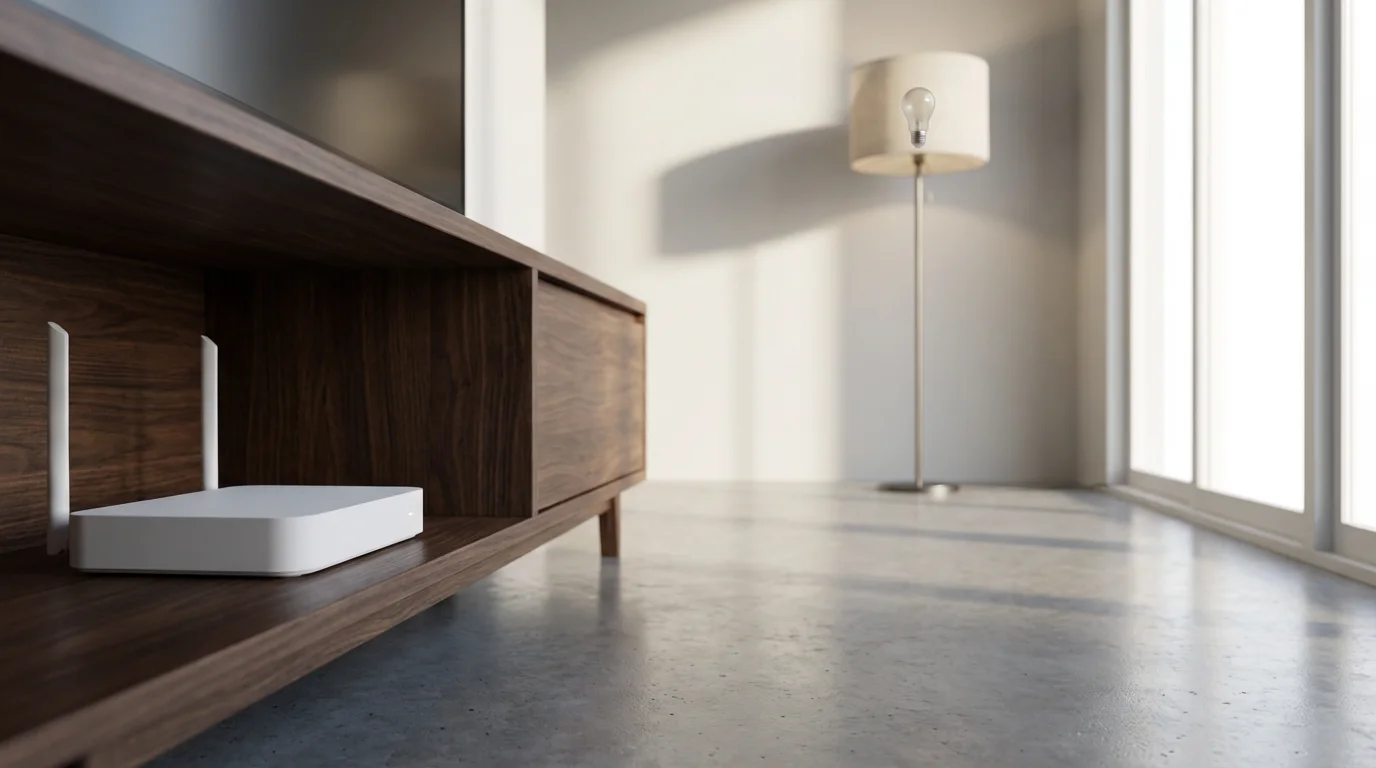
WiFi connectivity is a common culprit when your `smart bulb is not connecting to WiFi`. Many direct-connect bulbs rely entirely on your home network. Optimizing your WiFi setup often resolves these challenges.
Router Placement and Range
Your smart bulb needs a strong, stable WiFi signal. Obstacles like thick walls, floors, and large appliances can degrade signal quality.
- Move the Router: If feasible, reposition your WiFi router to a more central location in your home, especially closer to the problematic bulb.
- Consider Range Extenders or Mesh Systems: For larger homes or dead zones, a WiFi range extender or a mesh WiFi system can significantly improve coverage. These systems create a more robust and widespread network, ensuring devices stay connected.
2.4GHz vs. 5GHz Networks
Most smart home devices, including many smart bulbs, primarily use the 2.4GHz WiFi band. This band offers a longer range and better penetration through walls compared to the 5GHz band. However, it can be slower and more susceptible to interference.
- Separate WiFi Bands: If your router combines 2.4GHz and 5GHz into a single network name (SSID), consider separating them in your router settings. Give the 2.4GHz network a distinct name, such as “MyHomeWiFi_2.4GHz.” This allows your phone to connect specifically to the 2.4GHz network during setup, ensuring the bulb connects to the correct band.
- Temporarily Disable 5GHz: Some routers allow you to temporarily disable the 5GHz band during device setup. This forces your phone and the smart bulb to connect to the 2.4GHz network. Remember to re-enable 5GHz afterward for other devices that benefit from it.
Network Congestion and Channel Interference
Too many devices on your network, or neighboring WiFi networks using the same channel, can cause congestion and slow down communication. This leads to `WiFi connection issues` for your smart bulbs.
- Change WiFi Channel: Access your router’s settings and change the 2.4GHz channel. Channels 1, 6, and 11 are generally recommended as non-overlapping channels. Use a WiFi analyzer app on your phone to identify the least congested channel in your area.
- Limit Concurrent Devices: If you have an exceptionally large number of devices, prioritize essential smart home devices. Consider upgrading your router if it consistently struggles with bandwidth, particularly if you have many streaming devices alongside your smart home gadgets.
Router Firmware and Settings
Outdated router firmware or incorrect settings can cause a `smart bulb not connecting to WiFi`.
- Update Router Firmware: Regularly check for and install firmware updates for your router. Manufacturers often release updates that improve performance, security, and device compatibility.
- Check DHCP Settings: Ensure your router’s DHCP server is assigning IP addresses correctly. A common issue arises if the IP address pool is exhausted or misconfigured.
- Disable Guest Networks: Smart bulbs should connect to your primary home network, not a guest network. Guest networks often have isolation features that prevent devices from communicating with each other or the internet.
By systematically addressing these WiFi-related factors, you significantly improve the chances of resolving `smart bulb problems` tied to your network.
Dealing with Hub-Related Problems
For smart bulbs that rely on a hub, such as Philips Hue or IKEA Tradfri, the hub itself becomes a critical point in the connection chain. If your `bulb not responding`, the hub might be the issue.
Hub Placement and Connectivity
A smart home hub needs to communicate effectively with both your WiFi router and the smart bulbs.
- Optimal Hub Location: Place your hub centrally within your smart lighting setup. While it connects to your router, its proximity to your bulbs is crucial for Zigbee or Z-Wave signals.
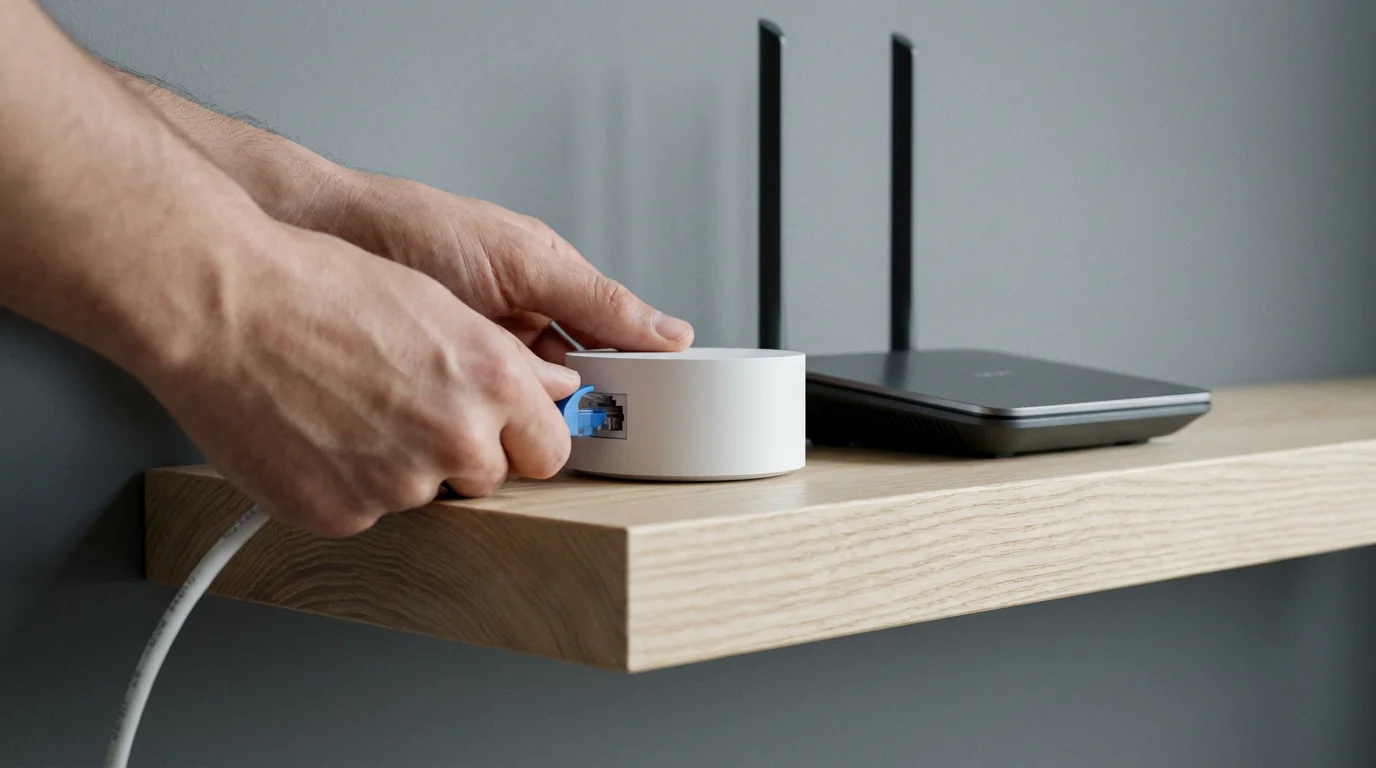
- Wired Connection: Most hubs connect to your router via an Ethernet cable. Ensure this cable is securely plugged into both the hub and a free LAN port on your router. A loose or damaged cable can cut off communication.
Power Cycle the Hub
Just like your smart bulb and router, a hub can benefit from a simple restart. Unplug the hub’s power adapter, wait 30 seconds, and plug it back in. Allow a few minutes for the hub to fully boot up and re-establish its network connections.
Hub Firmware Updates
Hub manufacturers frequently release firmware updates to improve performance, fix bugs, and add compatibility with new devices. An outdated hub firmware could be causing `smart bulb problems`.
- Check for Updates: Use your smart home app, for example the Philips Hue app or SmartThings app, to check for available firmware updates for your hub.
- Install Updates: Follow the app’s instructions to install any pending updates. This process usually takes a few minutes and may require the hub to restart.
Re-pair or Reset the Hub
If all else fails, you may need to re-pair or even factory reset your smart home hub. This is a more drastic step and will typically require re-adding all your connected devices.
- Consult Manufacturer Instructions: Each hub has a specific reset procedure. Refer to your hub’s manual or the manufacturer’s support website for precise instructions.
- Re-add Devices: After resetting the hub, you will need to re-add your smart bulbs and reconfigure any scenes or automations. This ensures a clean slate for all connections.
The best smart home is one that works seamlessly in the background, making your life easier without constant intervention. When troubleshooting, prioritize consistency and a clear, systematic approach to achieve this ideal.
Resetting Your Smart Bulb: A Fresh Start
When a smart bulb becomes completely unresponsive or refuses to connect after other troubleshooting, a factory reset is often the most effective solution. This clears all previous settings and allows you to start fresh, like setting up the bulb for the first time. The process varies by manufacturer.
Here are common reset methods for popular brands:
- Philips Hue:
- Turn the bulb off at the wall switch.
- Open the Philips Hue app, go to Settings, then Light setup, and select the unresponsive bulb.
- Choose “Delete light.”
- If the app cannot find it, you might need a dimmer switch or a Hue Bridge V2 with a specific reset tool, which is often done through the app if the bulb is still partially recognized. For a hard reset without the app, cycle the bulb on/off in a specific pattern, but this is less common for Hue bulbs and typically not officially supported without a hub.
- LIFX:
- Turn the bulb off at the wall switch.
- Turn it on for 5 seconds, then off for 5 seconds.
- Repeat this pattern 5 times (on-off-on-off-on-off-on-off-on-off).
- The bulb will flash red, green, and blue, then settle on white, indicating a successful reset.
- Wyze:
- Turn the bulb off at the wall switch.
- Turn it on for 3-5 seconds, then off.
- Repeat this cycle three times (on-off-on-off-on-off).
- The bulb will begin to pulse to indicate it is in pairing mode.
- TP-Link Kasa:
- Turn the bulb off at the wall switch.
- Flip the switch on and off five times, waiting 1-2 seconds between each flip.
- The bulb will blink three times and then start pulsing to indicate it is ready for setup.
Always consult your specific bulb’s manual or the manufacturer’s website for the most accurate reset procedure. Incorrect cycling patterns may not initiate the reset, leaving your `unresponsive smart bulbs` still problematic.
App and Software Solutions
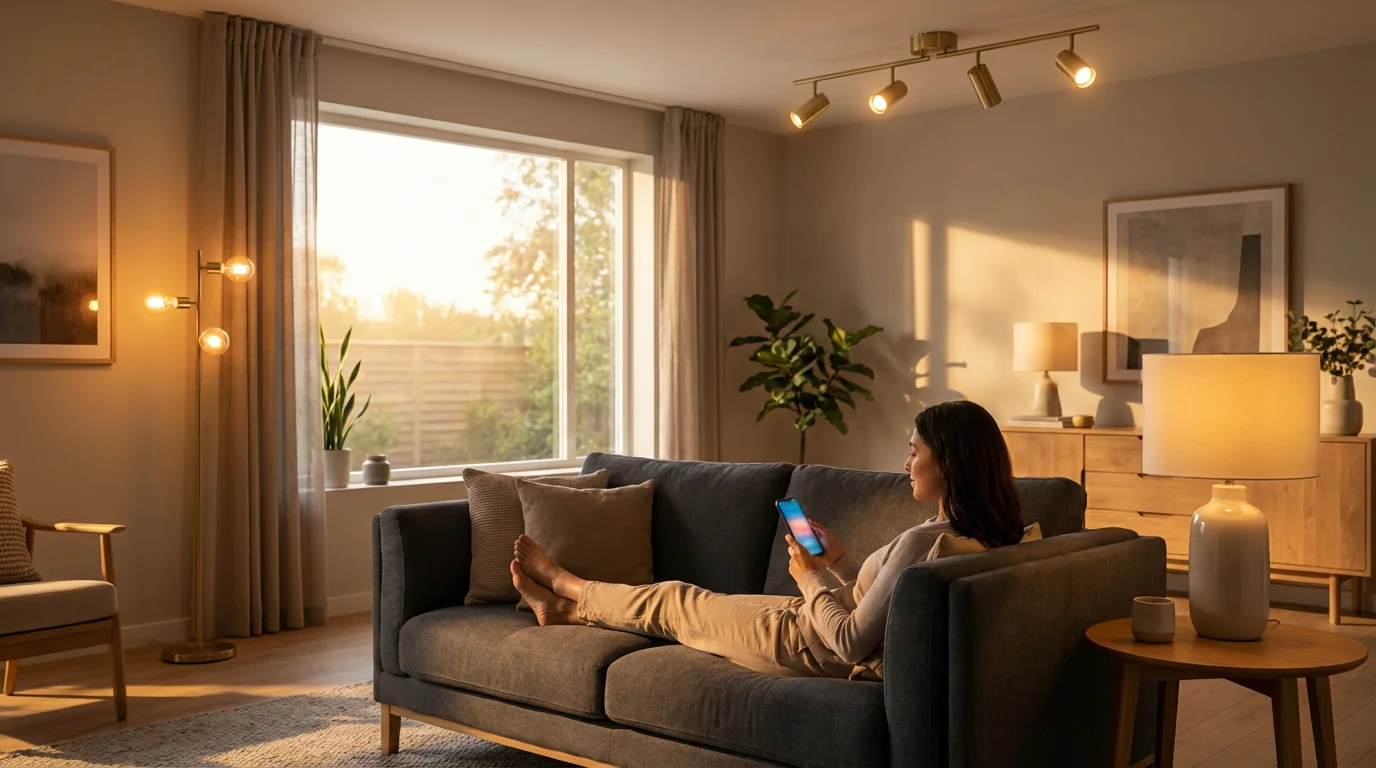
Sometimes, the issue is not with the bulb or your network, but with the software controlling it. Your smart home app acts as the command center, and problems here can manifest as `smart bulb problems`.
Update the Smart Home App
App developers regularly release updates to fix bugs, improve compatibility, and add new features. An outdated app might struggle to communicate with your bulbs or hub.
- Check App Store: Visit your device’s app store, either the Apple App Store or Google Play Store.
- Install Updates: Search for your smart bulb’s app, for example Hue, LIFX, or Kasa Smart, and install any pending updates.
Clear App Cache or Reinstall
Cached data can sometimes become corrupted, causing app malfunctions. Clearing the cache or reinstalling the app can resolve these software glitches.
- Clear Cache (Android): Go to your phone’s Settings, then Apps, select your Smart Bulb App, then Storage, and finally Clear Cache.
- Reinstall App (iOS/Android): Uninstall the app from your phone, then download and install it again from the app store. This provides a completely fresh installation of the application.
Check Account Credentials and Permissions
Ensure you are logged into the correct account within the app. Sometimes, a forgotten password or an unauthorized login attempt can cause connection issues. Also, verify that the app has necessary permissions, such as local network access, especially after operating system updates on your mobile device.
Remove and Re-add the Bulb in the App
If you have performed a factory reset on the bulb, you must remove it from the app’s device list and then re-add it as a new device. This process clears any lingering corrupted data from the app’s side and establishes a fresh connection.
- Delete Bulb from App: In your smart home app, find the unresponsive bulb in your device list and select the option to delete or remove it.
- Add New Device: Follow the app’s instructions to “Add Device” or “Discover Lights.” The app will guide you through the pairing process, usually involving a reset bulb in pairing mode.
Applying these software-focused solutions can often fix instances of `unresponsive smart bulbs` that resist hardware troubleshooting.
Interference and Environmental Factors
Your home is a complex environment, and various elements can interfere with wireless signals, leading to `smart bulb problems` that seem inexplicable.
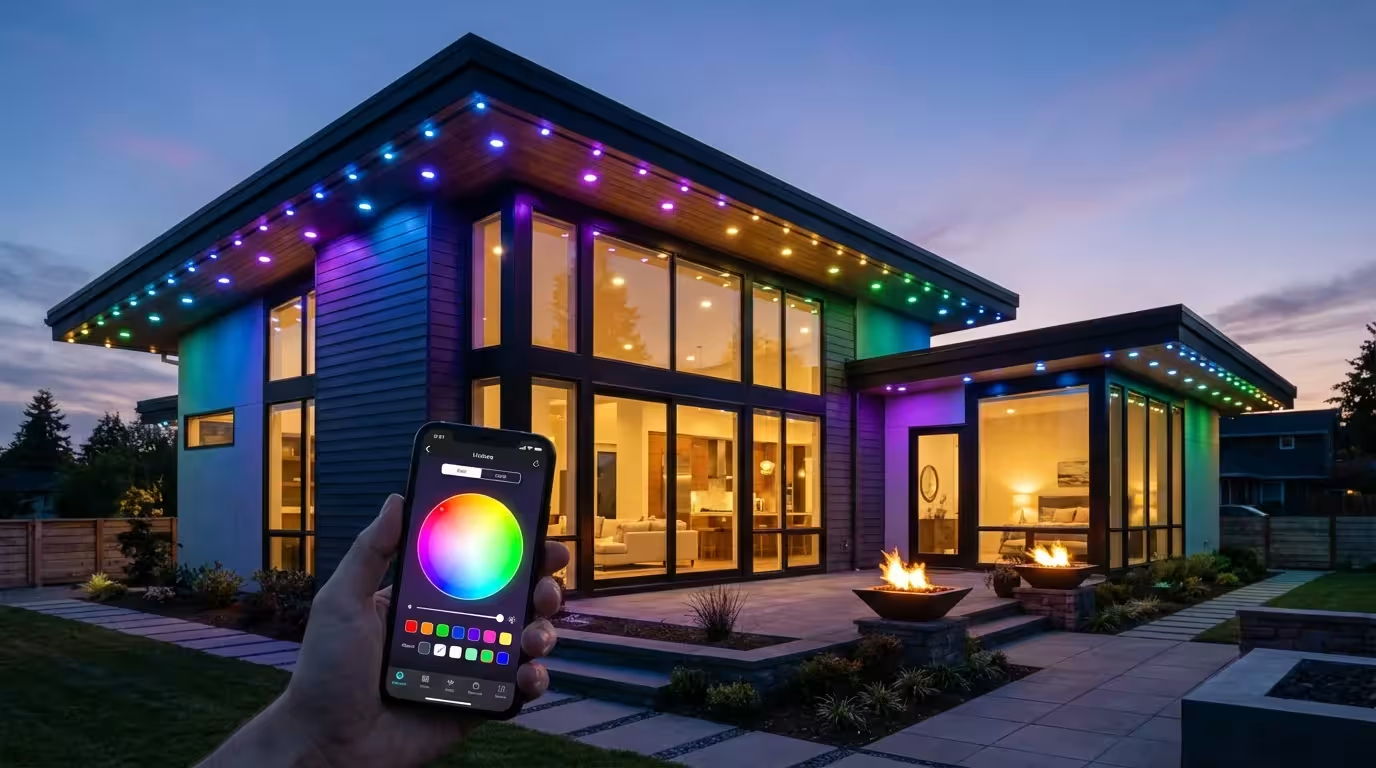
Signal range issues are particularly common with outdoor smart lighting where distance and external walls create signal barriers.
Electromagnetic Interference (EMI)
Many common household devices emit electromagnetic interference that can disrupt WiFi or Zigbee signals.
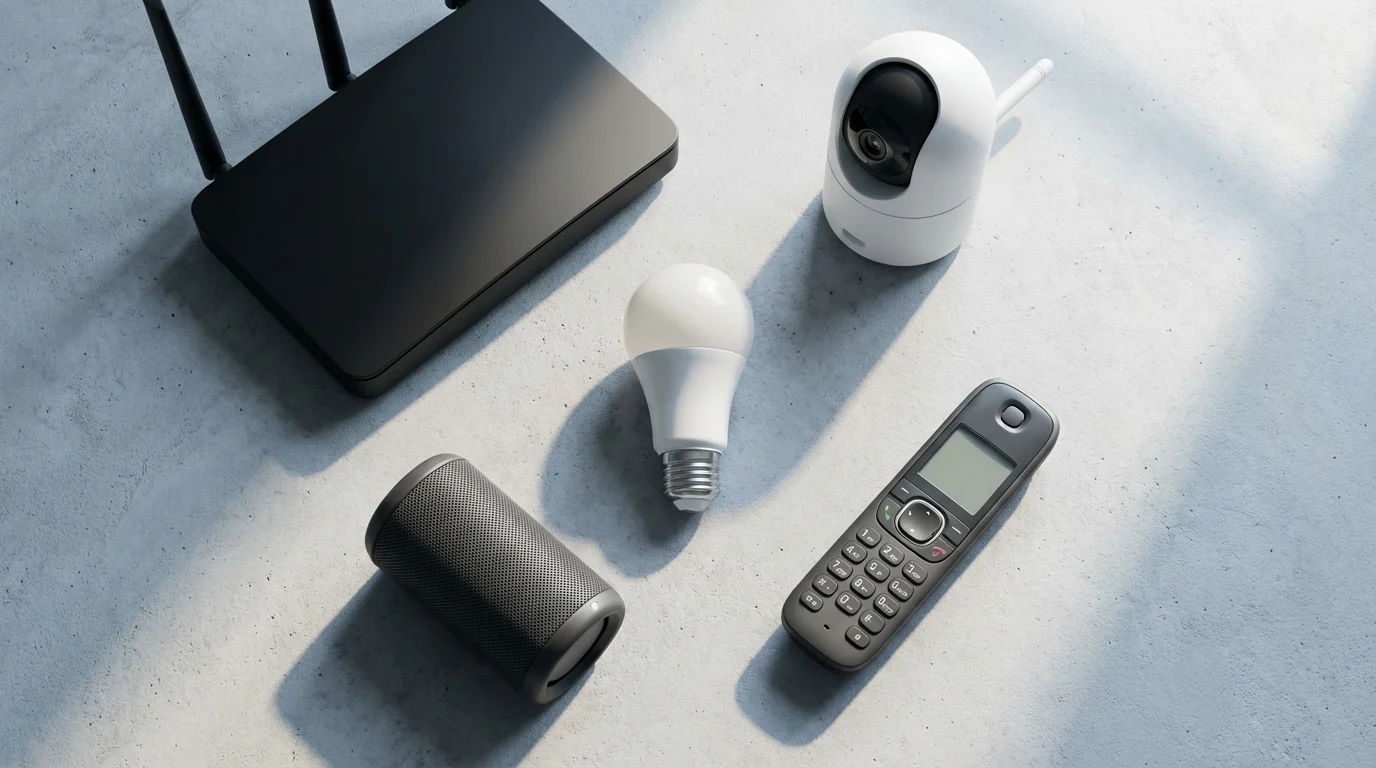
- Common Sources: Microwave ovens, cordless phones, baby monitors, and even some older fluorescent lights can generate EMI. These devices often operate on similar frequency bands to your smart home devices.
- Mitigation: Keep smart bulbs and their associated hubs away from these potential sources of interference. If a bulb consistently disconnects when a specific appliance is in use, you have likely identified the culprit.
Building Materials
The materials your home is constructed from can significantly impact wireless signal propagation.
- Dense Materials: Concrete, brick, metal studs, and certain types of insulation can absorb or reflect wireless signals, creating dead zones. This is particularly true for WiFi and Zigbee.
- Remedy: If a bulb is in an area with dense building materials, consider a WiFi repeater or a mesh node to boost the signal. For Zigbee bulbs, adding more Zigbee devices, even smart plugs, can extend the mesh network and strengthen the signal to distant bulbs.
Firmware Incompatibility
Occasionally, an older smart bulb might have firmware that is not fully compatible with a brand-new router or a recent smart home platform update. This is less common but can occur with older generations of smart devices, especially as standards evolve.
- Check Compatibility: Verify your bulb’s model number and check the manufacturer’s support forums or website for known compatibility issues with your specific router or hub.
- Consider Updates or Replacement: Ensure both bulb firmware (if available) and router firmware are up to date. If persistent issues remain, an upgrade to a newer bulb might be necessary to ensure full compatibility with modern systems.
Understanding these environmental factors helps you create a more resilient smart home network, preventing `why is my smart bulb not connecting to WiFi` from becoming a recurring question.
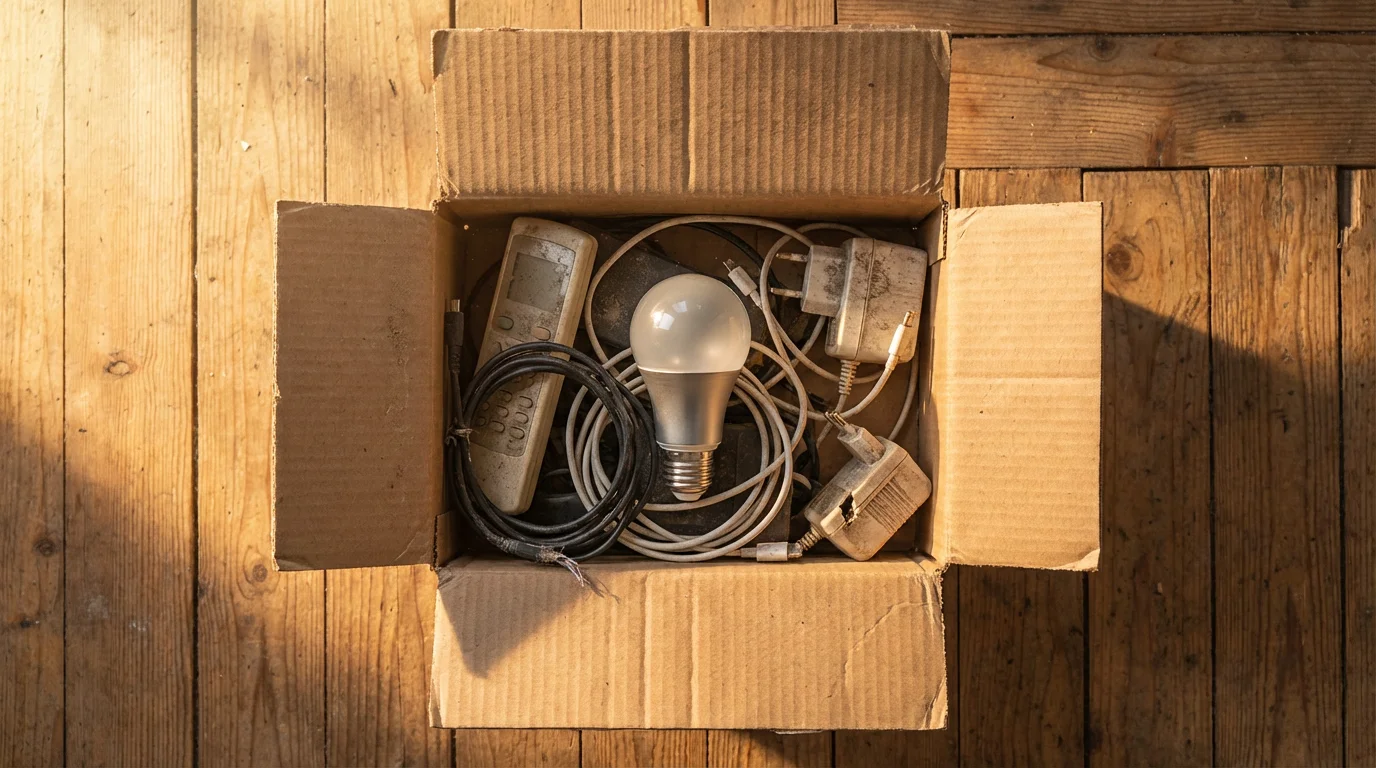
When to Seek Further Help or Consider Replacement
After exhausting all troubleshooting steps, you might still face `smart bulb problems`. At this point, it is wise to consider reaching out for professional help or evaluating whether the bulb has reached the end of its life.
Contact Manufacturer Support
Smart bulb manufacturers have dedicated support teams trained to handle specific product issues. Provide them with a detailed description of the problem and the troubleshooting steps you have already taken.
- Gather Information: Have your bulb’s model number, purchase date, and your router’s model information ready.
- Describe Steps Taken: Explain what you have tried, for example power cycling, factory reset, or app reinstallation, to avoid redundant suggestions.
- Inquire About Warranty: Many smart bulbs come with a warranty. If your bulb is still under warranty and is confirmed faulty, you might receive a replacement at no cost.
Consult Online Forums and Communities
Smart home enthusiasts often share solutions to niche `smart bulb problems` that might not be in official guides. Search manufacturer-specific forums, Reddit smart home communities, or broader tech forums. You might find someone who encountered the exact same issue and discovered a unique fix specific to your situation.
Consider Bulb Replacement
Like all electronics, smart bulbs have a lifespan. While LEDs last a long time, the internal electronics that handle connectivity can fail. If a bulb consistently refuses to connect, is outside of warranty, and no troubleshooting resolves the issue, it might be time for a replacement.
- Signs of Failure: Flickering, inconsistent brightness, or completely failing to turn on, even with a basic power source, can indicate hardware failure.
- Explore New Options: Technology advances quickly. A new bulb might offer improved reliability, better features, or compatibility with newer standards like Matter. Consumer Reports often provides insights into the best smart light bulbs, helping you make an informed choice.
Knowing when to stop troubleshooting and consider professional help or replacement saves you time and prevents ongoing frustration. Your smart home should bring convenience, not a constant battle with unresponsive devices.
Frequently Asked Questions
Why does my smart bulb keep disconnecting from WiFi?
Your smart bulb might keep disconnecting due to several reasons, including poor WiFi signal strength, interference from other devices, network congestion on the 2.4GHz band, or outdated router firmware. Ensure your router is centrally located, its firmware is updated, and consider separating your 2.4GHz and 5GHz WiFi networks. Resetting the bulb and re-pairing it can also help.
How do I know if my smart bulb is faulty?
A faulty smart bulb typically shows signs such as consistently failing to turn on, flickering even after power cycling, refusing to connect to the network after multiple resets and troubleshooting attempts, or not responding to commands from its app or voice assistant. If it does not work in a different fixture or after a factory reset, it is likely faulty.
Can a smart bulb work without a hub?
Yes, many smart bulbs work without a hub. These typically connect directly to your home’s WiFi network, for example Wyze, Kasa, and some LIFX models. However, other smart bulbs use protocols like Zigbee or Z-Wave and require a dedicated hub, such as Philips Hue or IKEA Tradfri, to bridge the connection to your WiFi and smart home ecosystem.
Is it better to connect smart bulbs to 2.4GHz or 5GHz WiFi?
It is almost always better to connect smart bulbs to the 2.4GHz WiFi band. This band offers a longer range and better wall penetration, which is ideal for devices scattered throughout your home. While 5GHz is faster, its shorter range and poorer penetration make it unsuitable for most smart home devices that do not require high bandwidth.
How do I prevent future smart bulb connection issues?
To prevent future issues, maintain a robust WiFi network by ensuring good router placement and updated firmware. Separate your 2.4GHz and 5GHz networks. Regularly update your smart bulb apps and hub firmware. Avoid placing bulbs or hubs near sources of strong electromagnetic interference. Consider investing in a mesh WiFi system for larger homes to ensure consistent coverage.
Disclaimer: This article is for informational purposes only. Smart home devices involve electrical connections and data privacy. Always follow manufacturer instructions for installation. For complex wiring or HVAC work, consult a licensed professional.
Leave a Reply