
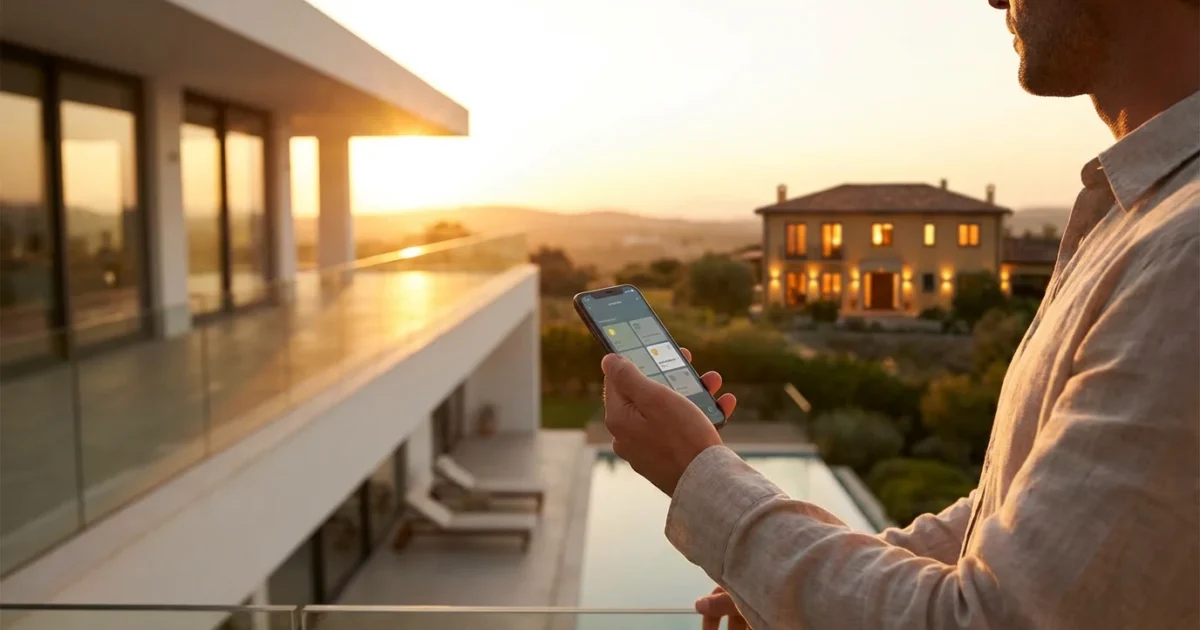
When you leave your home, you often worry about its security and efficiency. Leaving lights on wastes energy, yet keeping them off signals an empty house, potentially inviting unwelcome attention. Smart lighting offers a powerful solution, allowing you to manage your home’s ambiance and security from anywhere in the world. This guide empowers you to control your smart lights remotely, providing peace of mind and energy savings whether you are at work, on vacation, or simply running errands.
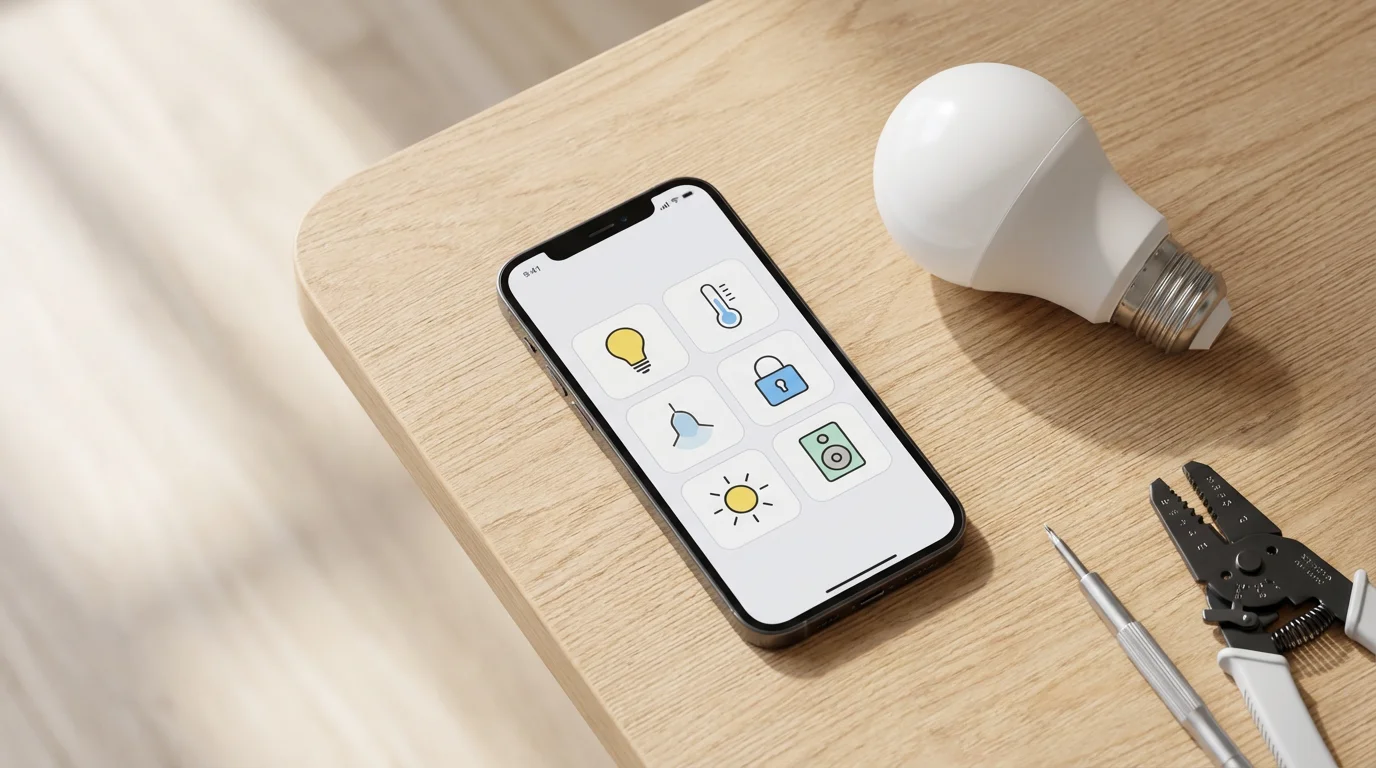
Why Remote Light Control is Essential
Controlling your lights remotely offers significant benefits for any homeowner or renter. You gain enhanced security, improved energy efficiency, and unparalleled convenience. Understanding these advantages helps you maximize your smart home investment.
Boost Your Home Security with Away Lighting
An empty house often becomes a target. Remote light control creates the illusion of occupancy, deterring potential intruders. You can activate `away lighting` routines that mimic your usual patterns, making your home appear lived in even when you are thousands of miles away. Many smart home experts, including those at CNET Smart Home, emphasize the security benefits of randomized lighting schedules.
Save Energy and Money
Leaving lights on accidentally wastes electricity and increases your utility bills. With `remote light control`, you can check your lights’ status and turn them off from your phone. This eliminates guesswork and ensures you only use energy when necessary, contributing to a greener home and lower expenses.
Experience Unmatched Convenience
Imagine arriving home to a well-lit pathway and living room, or turning off the kids’ forgotten bedroom light from your office. Remote control provides convenience that traditional switches cannot match. It simplifies daily routines and enhances comfort, giving you effortless command over your home’s ambiance.
Core Components for Remote Lighting
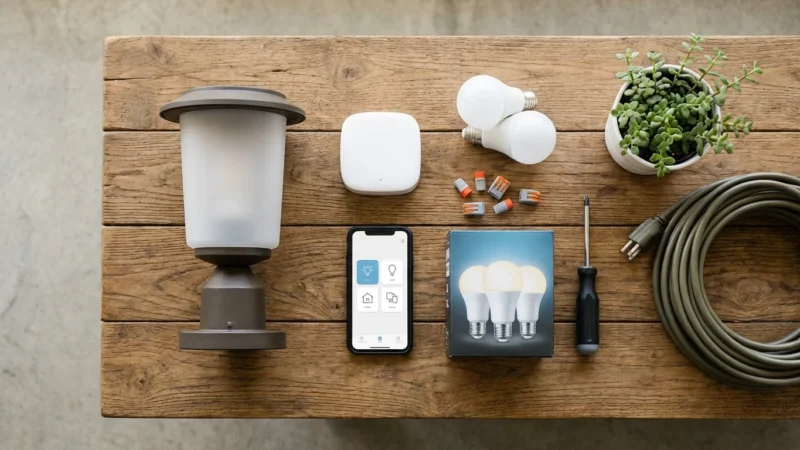
Successful `remote light control` relies on several key components working together. Understanding these elements helps you build a robust and reliable smart lighting system. You need smart bulbs or switches, a reliable Wi-Fi network, and a control method.
Smart Bulbs and Switches
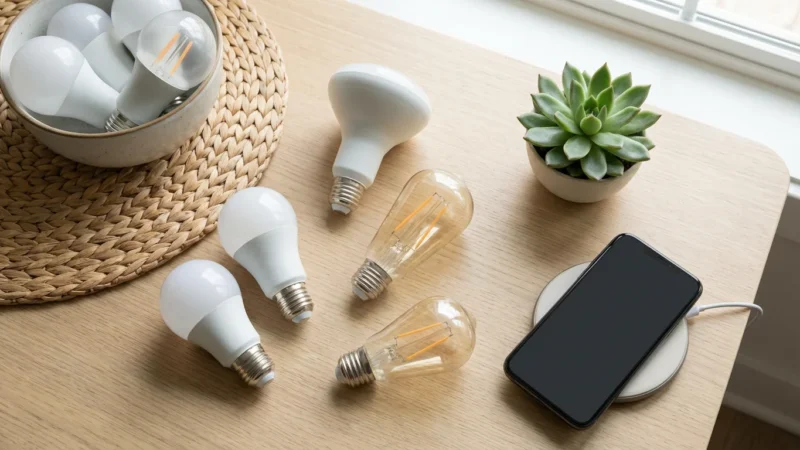
The foundation of any smart lighting system lies in its hardware. You choose between smart bulbs or smart switches, depending on your preferences and existing setup.
- Smart Bulbs: These bulbs contain the necessary smart technology directly within the bulb itself. You screw them into existing fixtures. They offer full control over color, brightness, and sometimes even color temperature. Brands like Philips Hue, LIFX, and Wyze offer a wide array of smart bulbs.
- Smart Switches/Dimmers: These replace your existing wall switches. They turn any traditional bulb into a “smart” light by controlling the power flow to the fixture. This option maintains the aesthetic of your preferred light fixtures and simplifies bulb replacement. TP-Link Kasa and Lutron Caséta provide popular smart switch solutions.
The Importance of a Reliable Home Network
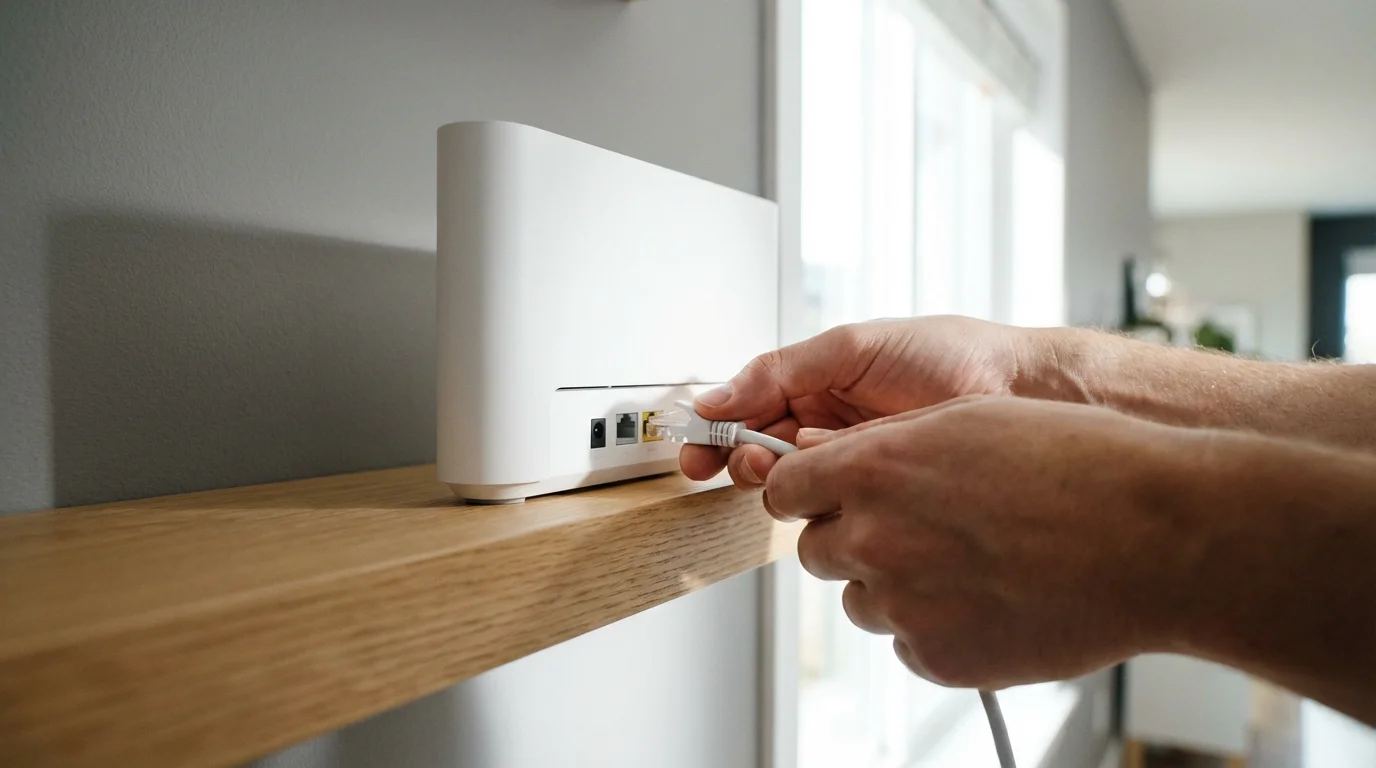
Your home’s Wi-Fi network serves as the backbone for remote light control. Most smart devices connect directly to Wi-Fi or communicate with a hub that uses Wi-Fi. A stable internet connection ensures your commands reach your devices without delay. Consider your router’s range and capacity, especially in larger homes or those with many smart devices.
Smart Hubs and Bridges: When Are They Needed?
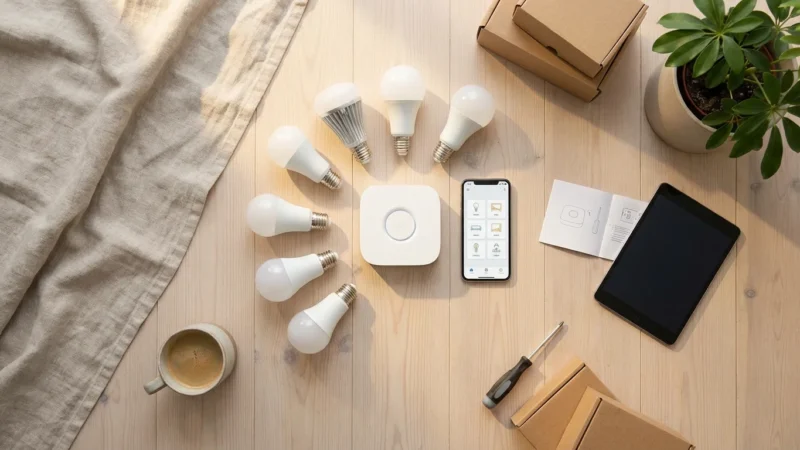
Some smart lighting systems, particularly those using Zigbee or Z-Wave protocols, require a dedicated hub or bridge. These devices translate commands from your Wi-Fi network to the smart lighting protocol.
- Benefits of a Hub:
- Reduces Wi-Fi congestion by offloading device connections.
- Enables advanced automation and local processing, even without internet access for some functions.
- Provides better range and reliability for certain wireless protocols.
- Examples: The Philips Hue Bridge is essential for most Hue bulbs, connecting them to your home network. SmartThings Hubs support various Zigbee and Z-Wave devices.
Newer standards like Matter aim to simplify connectivity, potentially reducing the need for specific brand hubs in the future, allowing devices from different manufacturers to communicate more seamlessly, as highlighted by the CSA-IoT.
Your Smartphone: The Ultimate Remote
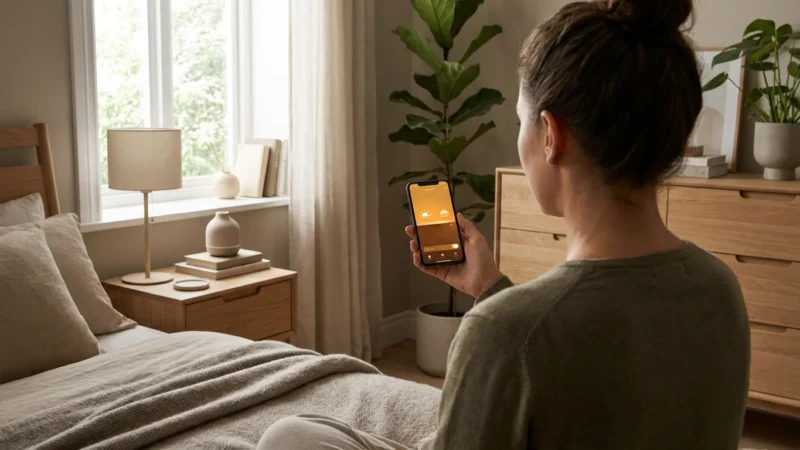
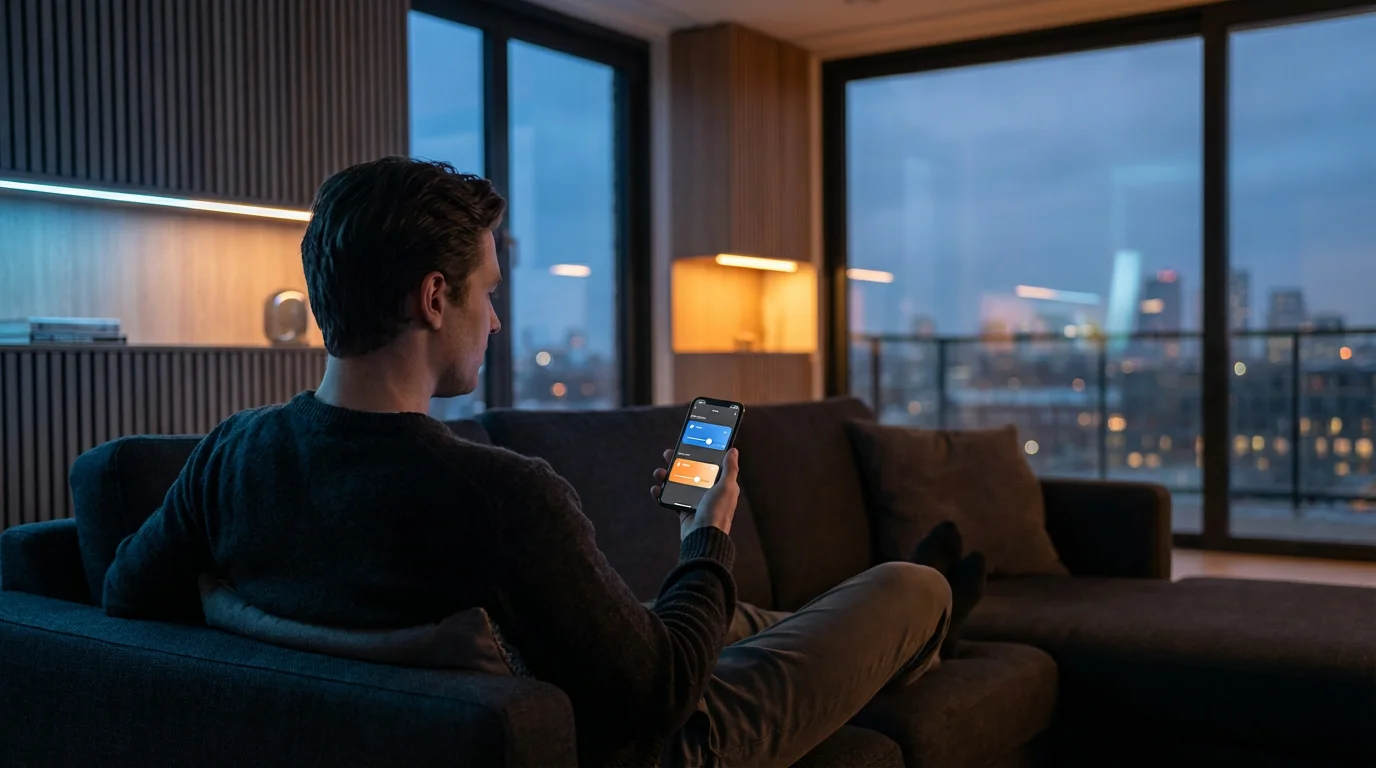
Your smartphone acts as the central control panel for your smart lights. You download the manufacturer’s app or a broader smart home platform app. This app sends your commands over the internet to your home network, which then communicates with your smart lights.
How to Enable Remote Access: Step-by-Step
Setting up `remote light control` is a straightforward process. While specific steps vary slightly by brand, the general procedure remains consistent. Follow these steps to gain control over your lights from anywhere.
Step 1: Install Your Smart Lights or Switches
Begin by physically installing your smart lighting hardware.
- For Smart Bulbs: Screw the smart bulb into your desired lamp or fixture. Ensure the fixture’s power switch remains in the “on” position.
- For Smart Switches: Turn off power at your circuit breaker for the light fixture you intend to modify. Carefully remove the old switch. Connect the new smart switch, following the manufacturer’s wiring diagrams. If you are uncertain about electrical wiring, consult a licensed electrician for safety. Restore power at the breaker.
Step 2: Download and Set Up the Manufacturer’s App
Each smart lighting brand provides its own dedicated app. This app facilitates the initial setup and local control.
- Download the app for your specific brand (e.g., Philips Hue, LIFX, Wyze Home, Kasa Smart).
- Create an account or log in.
- Follow the in-app instructions to discover and add your new smart lights. This usually involves powering the lights on and off a few times or pressing a button on a hub.
Step 3: Enable Remote Access in the App
Most smart lighting apps require you to explicitly enable remote access. This links your local setup to the manufacturer’s cloud services, allowing control when you are away from your home network.
- Open your smart lighting app.
- Navigate to the settings menu. Look for options like “Remote Access,” “Out of Home Control,” or “Cloud Services.”
- Follow the prompts to enable this feature. This often involves verifying your account or linking it to a cloud service.
- Test the connection by momentarily turning off your phone’s Wi-Fi and using cellular data. Try turning a light on and off. If it works, you have successfully configured `remote light control`.
Step 4: Integrate with a Smart Home Platform (Optional but Recommended)
For a unified experience, integrate your smart lights with a broader smart home platform like Google Home, Amazon Alexa, or Apple HomeKit. This allows you to control all your connected devices from a single app and use voice commands.
- Open your preferred smart home platform app (e.g., Google Home, Amazon Alexa, Apple Home).
- Navigate to “Add device” or “Set up device.”
- Select your smart lighting brand from the list of compatible services.
- You will be prompted to log in to your smart lighting brand’s account to authorize the connection.
- Assign your lights to specific rooms for easier organization and voice control.
Mastering Away Lighting and Vacation Mode
The true power of `remote light control` comes alive when you implement advanced automations. These strategies enhance security and convenience, making your home truly smart, especially when you are away. Implement sophisticated `vacation mode` settings for ultimate peace of mind.
Scheduled Lighting: Simulating Occupancy
Scheduling lights to turn on and off at specific times remains a fundamental `away lighting` strategy. You can mimic your daily routine, even when you are not there.
- Fixed Schedules: Set specific times for lights to activate, for instance, kitchen lights at 7 PM and bedroom lights at 10 PM.
- Sunrise/Sunset Routines: Integrate with local sunrise and sunset times. Your outdoor lights can turn on automatically at dusk and off at dawn, adjusting throughout the year.
- Randomized Schedules: Many smart lighting systems offer a “randomize” or “occupancy simulation” feature. This varies activation times slightly each day, making the lighting patterns less predictable and more realistic. This is a crucial element for an effective `vacation mode`.
Geofencing: Lights That React to Your Location
Geofencing uses your smartphone’s location to trigger actions. Your lights can respond automatically as you leave or approach your home.
- Leaving Home: All lights can turn off automatically when your phone exits a defined geofence perimeter around your house.
- Arriving Home: Exterior and interior lights can illuminate as you enter your geofence, providing a welcoming and safe return. This is especially useful for `away lighting` on a daily basis, not just for extended trips.
Motion and Contact Sensors for Enhanced Security
Integrate motion and contact sensors with your smart lighting for dynamic security responses.
- Outdoor Motion Lights: Connect exterior smart lights to outdoor motion sensors. If motion is detected after dark, these lights can trigger, surprising potential intruders and notifying you via your phone.
- Door/Window Sensors: If a contact sensor on a door or window detects an opening, interior lights can flash or turn on brightly, drawing attention to a breach. This serves as a powerful deterrent.
Activating “Vacation Mode”
Many smart lighting apps and smart home platforms offer a dedicated `vacation mode` feature. This often bundles several automation rules into one easy-to-activate setting.
Smart home systems excel at automating tasks you would otherwise do manually, or forget to do entirely. This principle makes vacation mode invaluable.
To set up a typical `vacation mode`:
- Access Vacation Settings: In your smart lighting app or smart home platform, look for “Vacation Mode,” “Away Mode,” or “Security” settings.
- Define Schedules: Set up randomized light schedules for various rooms to simulate normal activity. Consider different days of the week.
- Integrate Sensors: Link motion sensors or door/window sensors to trigger specific lighting responses if activity occurs.
- Review and Activate: Confirm your settings and activate the `vacation mode` before you leave. Remember to deactivate it upon your return.
Creating Ambiance with Light Strips and Accent Lighting
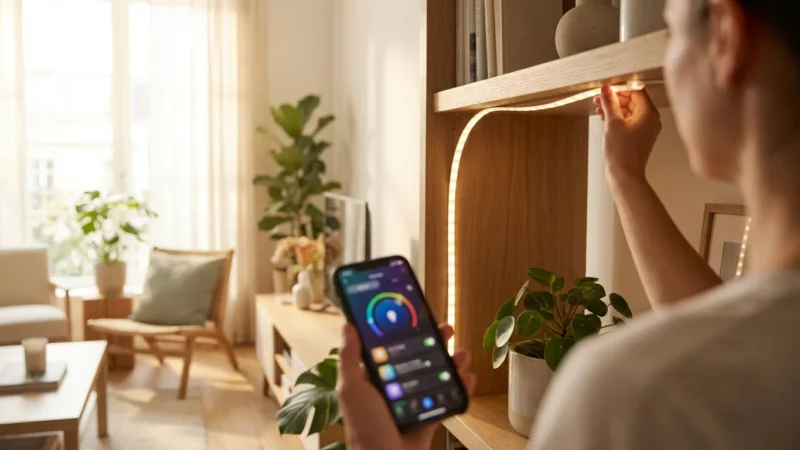
`Away lighting` does not just serve a security purpose. It can also enhance your home’s appearance, even from afar. Smart light strips and accent lighting add depth and color. For example, you can schedule LED light strips behind your TV or under cabinets to turn on in the evenings, creating a soft glow that suggests someone is relaxing at home. Similarly, accent lights on artwork or bookshelves can periodically illuminate, adding to the lived-in illusion.
Choosing the Right Smart Lighting System
Selecting the ideal smart lighting system involves considering various factors. Your choice impacts ease of use, functionality, and future expansion. Evaluate your needs against product features, connectivity, and cost.
Key Smart Lighting Brands
Several reputable brands dominate the smart lighting market, each offering unique strengths.
- Philips Hue: Renowned for its extensive ecosystem, vibrant colors, and robust third-party integrations. Hue bulbs generally require a Hue Bridge for full functionality, particularly for `remote light control` and complex automations. They offer excellent color temperature and circadian rhythm lighting options.
- LIFX: Known for bright, vivid colors and Wi-Fi direct connection, often eliminating the need for a separate hub. LIFX offers a wide range of bulb types and light strips for accent lighting. Their app is intuitive, making it a strong contender for `best app for controlling lights away from home` for direct Wi-Fi bulbs.
- Wyze: Offers budget-friendly smart bulbs and light strips, often integrating well with the broader Wyze ecosystem (cameras, sensors). Wyze bulbs usually connect directly to Wi-Fi.
- TP-Link Kasa Smart: Provides reliable Wi-Fi smart bulbs, switches, and plugs without requiring a hub. Kasa products are generally affordable and simple to set up, making `remote light control` accessible.
- Lutron Caséta: Focuses on highly reliable smart dimmer switches and fan controls. While it uses its own hub (the Smart Bridge), it excels in dimming performance and wired reliability, connecting seamlessly to various platforms.
Connectivity Options: Wi-Fi, Zigbee, Z-Wave, Matter
The communication protocol dictates how your smart lights connect to your network and each other.
- Wi-Fi: Devices connect directly to your home Wi-Fi router.
- Pros: No hub needed for many devices, easy initial setup.
- Cons: Can congest Wi-Fi network with too many devices, higher power consumption than other protocols.
- Zigbee: Requires a hub, creating a mesh network.
- Pros: Lower power consumption, creates a robust mesh network where devices relay signals, extending range.
- Cons: Requires a hub, can have compatibility challenges between brands without a universal standard. Philips Hue uses Zigbee.
- Z-Wave: Similar to Zigbee, also creates a mesh network and requires a hub.
- Pros: Excellent range due to mesh networking, less prone to interference than Wi-Fi.
- Cons: Requires a hub, devices can be more expensive.
- Matter: A new, universal smart home standard aiming for interoperability.
- Pros: Designed to unify devices across different brands and platforms, simplifies setup.
- Cons: Still relatively new, widespread device availability is growing.
Bulbs vs. Switches: Which is Right for You?
Your choice between smart bulbs and smart switches depends on your goals.
- Choose Smart Bulbs If: You want control over individual bulb color and brightness, desire accent lighting with light strips, or prefer simple screw-in installation. They offer greater flexibility for specific lighting effects.
- Choose Smart Switches If: You want to control existing “dumb” bulbs, prefer the aesthetic of your current fixtures, or need to control ceiling fans. Smart switches are ideal for whole-room control without replacing every bulb.
Troubleshooting Common Remote Control Issues
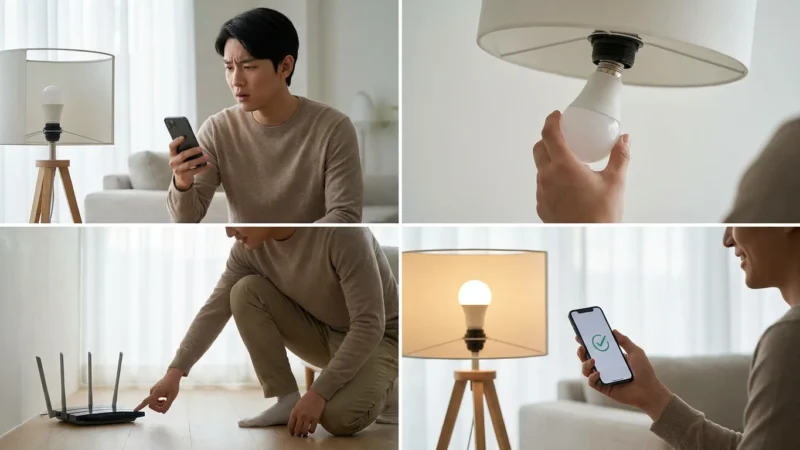
Even with the best setup, you might encounter occasional issues with `remote light control`. Many problems have simple solutions. Addressing common hurdles quickly helps you maintain seamless control.
Lights Unresponsive or Offline
If your lights fail to respond or appear offline in your app, investigate these common causes.
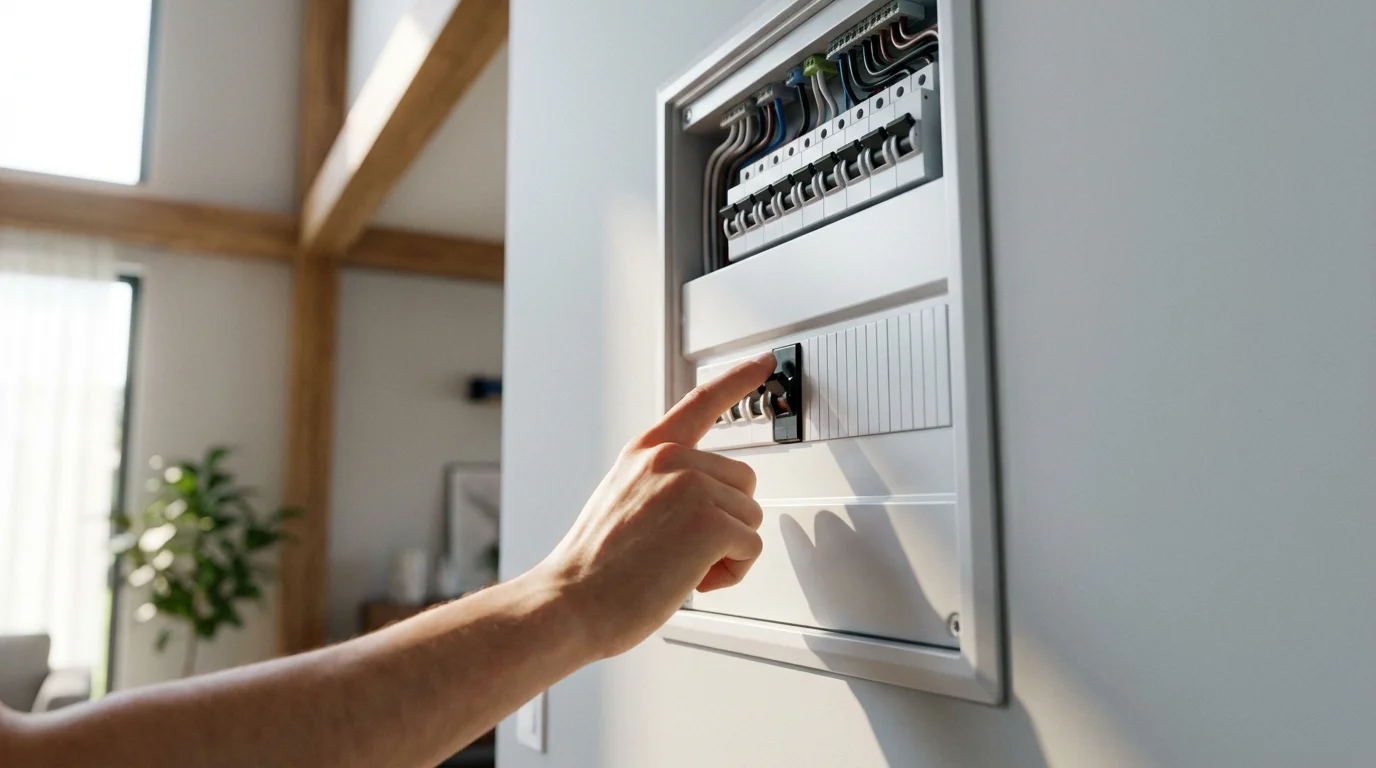
- Check Power: Ensure the light switch for your smart bulb is in the “on” position. For smart switches, confirm the circuit breaker has not tripped.
- Verify Internet Connection: Confirm your home internet service is active and your router functions correctly. Most `remote light control` relies on cloud services, requiring an active internet connection.
- Router/Hub Restart: Power cycle your Wi-Fi router and any smart home hub you use (e.g., Philips Hue Bridge). Unplug them for 30 seconds, then plug them back in.
- App Restart: Close and reopen your smart lighting app on your phone. Sometimes the app itself requires a refresh.
- Signal Interference: If you have many Wi-Fi devices or strong interference, consider moving your hub or adding a Wi-Fi extender. Thick walls or large distances can also weaken signals.
Delayed Responses or Inconsistent Behavior
Delays in commands or lights not always responding indicate a communication issue.
- Wi-Fi Congestion: Too many devices on your Wi-Fi network can cause slowdowns. Consider a Wi-Fi 6 router or a system that uses a hub (Zigbee/Z-Wave) to offload devices from your main Wi-Fi.
- Firmware Updates: Ensure your smart bulbs, switches, and hubs run the latest firmware. Manufacturers often release updates that improve performance and reliability. Check your app’s settings for update options.
- App Cache: Clear the cache for your smart lighting app on your smartphone. Accumulated data can sometimes cause glitches.
Remote Access Fails, But Local Control Works
If you can control lights when connected to your home Wi-Fi, but not when away, the issue lies with cloud connectivity.
- Cloud Service Status: Check the status pages for your smart lighting brand or smart home platform. Occasionally, cloud services experience outages.
- Remote Access Setting: Re-verify that the “Remote Access” or “Out of Home Control” setting remains enabled in your device’s app. Sometimes, updates or reconfigurations can disable it.
- Account Authentication: Ensure you are logged into the correct account and that your account is properly linked to the cloud service. Re-authenticating your account within the app can resolve connection problems.
Securing Your Smart Lighting System
As with any internet-connected device, securing your smart lighting system protects your privacy and your home. Implement robust security practices to safeguard your `remote light control`.
- Strong, Unique Passwords: Use complex passwords for all your smart home accounts. Avoid reusing passwords across different services.
- Enable Multi-Factor Authentication (MFA): Activate MFA whenever available. This adds an extra layer of security, requiring a second verification step (like a code from your phone) in addition to your password.
- Secure Your Wi-Fi Network: Use WPA2 or WPA3 encryption for your home Wi-Fi. Choose a strong, unique password for your network. Consider separating your smart home devices onto a guest network if your router supports it, isolating them from your main personal devices.
- Keep Firmware and Apps Updated: Regularly update your smart device firmware and companion apps. Manufacturers frequently release security patches to address vulnerabilities.
- Review App Permissions: Grant only necessary permissions to your smart home apps. Understand what data an app collects and how it uses that information.
Frequently Asked Questions
Smart lighting often brings up common questions, especially when it comes to remote control. We address some of the most frequent queries here.
Can I control smart lights without an internet connection?
Local control of smart lights is possible for some systems, especially those with a hub. For example, Philips Hue lights can operate locally via the Bridge for basic functions, even if your internet goes out. However, `remote light control` always requires an active internet connection at your home and on your control device, as commands travel through cloud services.
What happens to my smart lights during a power outage?
During a power outage, your smart lights will lose power like any other electrical device. When power returns, most smart bulbs default to an “on” state at full brightness or to their last known setting, depending on the manufacturer. You will regain `remote light control` once your internet and Wi-Fi router have fully reconnected.
Is it safe to leave my smart lights on vacation mode indefinitely?
Yes, it is generally safe to leave your smart lights in `vacation mode` indefinitely. The routines use minimal power, and the primary purpose of such a mode is to deter potential intruders by simulating occupancy over extended periods. Ensure your Wi-Fi remains stable and your remote access settings are secure.
Which is the best app for controlling lights away from home?
The “best app for controlling lights away from home” depends on your specific lighting brand and smart home ecosystem. Manufacturer apps like Philips Hue, LIFX, or Kasa Smart offer direct, comprehensive control for their respective devices. For a unified experience across multiple brands, Google Home, Amazon Alexa, or Apple Home apps often provide the most convenient `remote light control`.
Can smart lights integrate with other smart home security systems?
Absolutely. Many smart lighting systems integrate seamlessly with broader smart home security platforms. For example, you can link your smart lights with smart doorbells, security cameras, or motion sensors. This integration allows for advanced automations, such as flashing lights if a camera detects an unfamiliar person or turning on all lights if a security system alarm is triggered, enhancing your `away lighting` strategy.
Disclaimer: This article is for informational purposes only. Smart home devices involve electrical connections and data privacy. Always follow manufacturer instructions for installation. For complex wiring or HVAC work, consult a licensed professional.
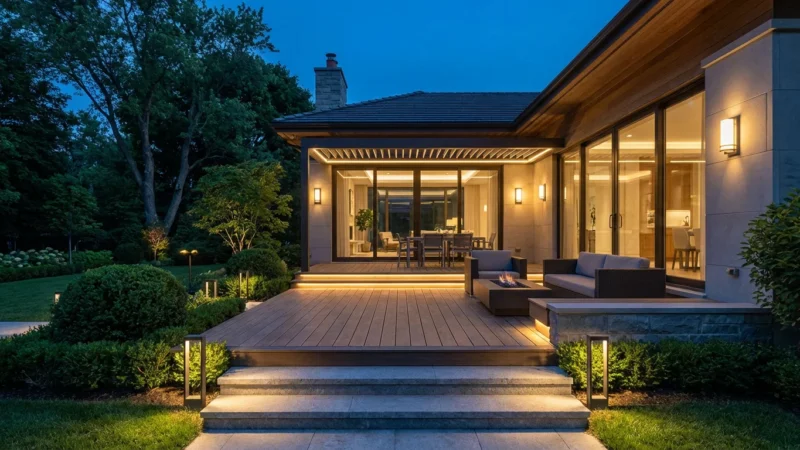
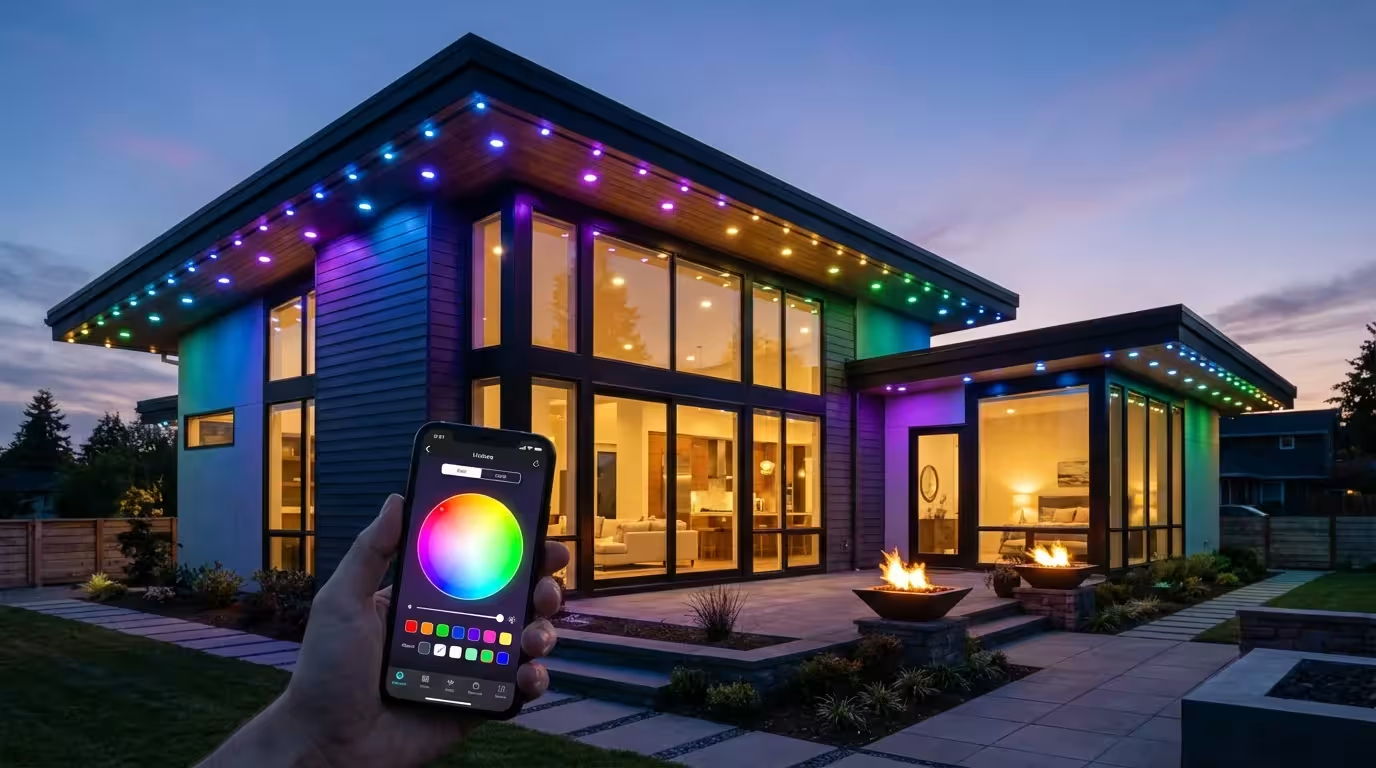
Properly configured outdoor smart lighting adds an extra layer of protection to your home’s perimeter while you are away.
Leave a Reply