
You know the feeling. You just unboxed a new smart plug, bulb, or camera. You’re excited to add it to your automation routine. You plug it in, open the app, tap “Add Device,” and wait. And wait. Then, the dreaded error message appears: “Connection Failed” or “Device Not Found.”
Few things kill the excitement of building a smart home faster than a device that refuses to pair. Connectivity issues are the most common hurdle for both beginners and experienced automation enthusiasts. The problem usually isn’t a broken device; it is often a simple network setting, a protocol mismatch, or a misunderstood software permission.
Before you pack the device back into its box and process a return, walk through this troubleshooting guide. We will move from the simplest fixes to advanced network adjustments, ensuring you get your smart home up and running.
The Sanity Check: Start Here
Troubleshooting can get technical quickly, so we start with the absolute basics. These steps sound obvious, but they account for a surprising number of failed setups. Setup fatigue can make you miss the simple things.
Run through this quick checklist before changing router settings:
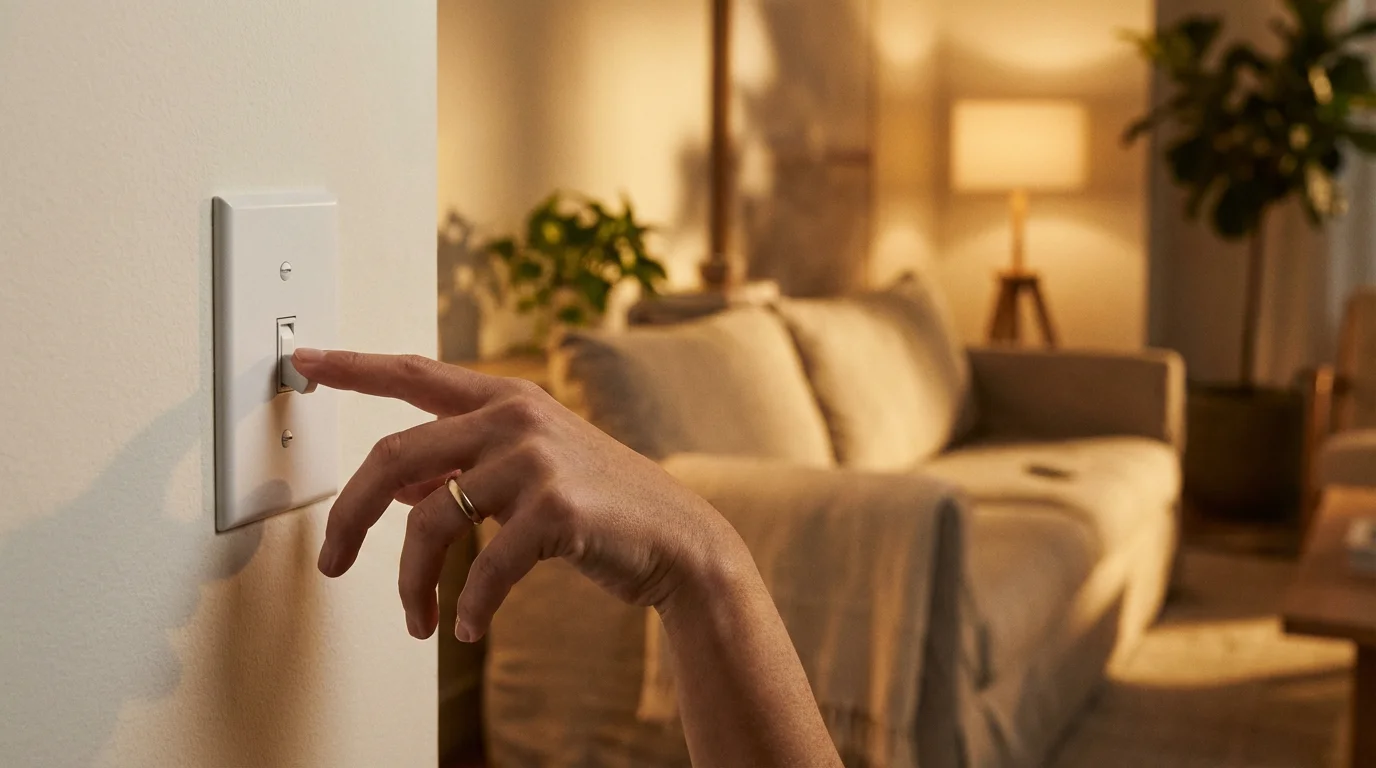
- Check the physical switch: If you are installing a smart bulb, ensure the wall switch powering the fixture is flipped on. If the switch is off, the radio inside the bulb has no power to broadcast.
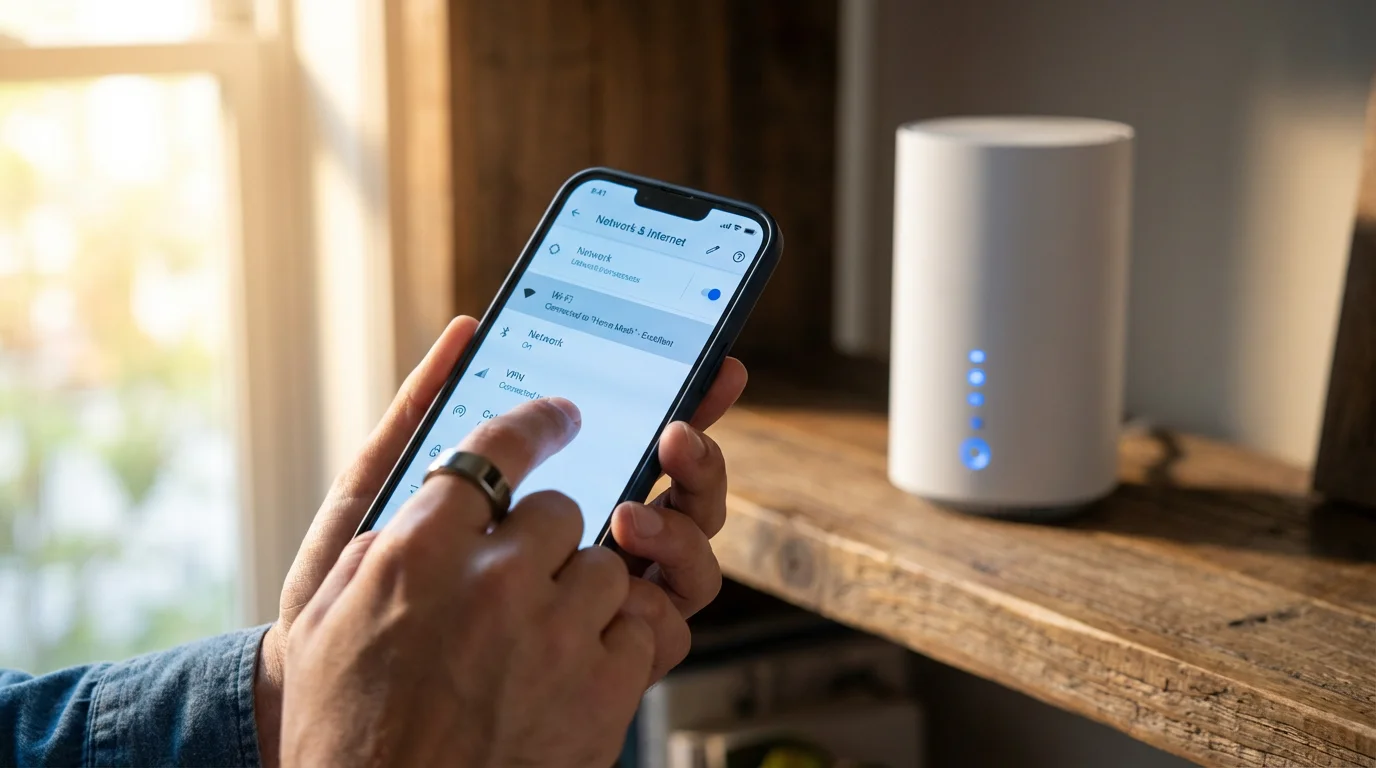
- Verify your phone’s connection: Your smartphone needs to be connected to the same Wi-Fi network you want the device to join. If your phone is using cellular data (LTE/5G) or a guest network, the initial handshake will fail.
- Remove VPNs and Ad Blockers: If you use a VPN or a system-wide ad blocker on your phone, turn it off during setup. These services often block local network discovery, preventing your phone from finding the new device.
- Check device distance: During the pairing process, move the device close to your router. Even if you plan to install a camera in the backyard, pair it inside first. Once connected, you can move it and test the range.
The Wi-Fi Band Dilemma (2.4GHz vs. 5GHz)
This is the single most common reason smart home setups fail. Modern routers are “dual-band” or “tri-band,” meaning they broadcast Wi-Fi on both 2.4GHz and 5GHz frequencies. However, the vast majority of smart home devices—especially smart plugs, bulbs, and budget cameras—only contain a 2.4GHz radio chip to save costs and extend range.
The problem arises because your smartphone usually prefers the faster 5GHz band. When you try to pass your Wi-Fi credentials to the smart device, the app sees your phone is on 5GHz, but the device is listening for 2.4GHz. They can’t see each other, and the setup times out.
How to Fix the Band Issue
If your router broadcasts both bands under a single name (SSID), you have three options to force a connection:
- Temporarily split the networks: Log into your router’s admin panel (usually via a web browser or the ISP app). Rename the 5GHz network to something different (e.g., “MyHome_5G”). Connect your phone to the normal “MyHome” (now only 2.4GHz) and try the setup again. You can revert the names later.
- The “Walk Away” trick: 2.4GHz signals travel further than 5GHz. If you cannot split the networks, walk to the far end of your home or into the driveway. Your phone will eventually drop the weaker 5GHz signal and switch to the stronger 2.4GHz signal. Once your phone switches, start the setup process.
- AP Isolation Mode: Some routers have a “Guest Mode” that isolates devices from each other. Ensure you are not trying to set up your device on a Guest Network, as these often block devices from talking to one another.
Bluetooth and Phone Permissions
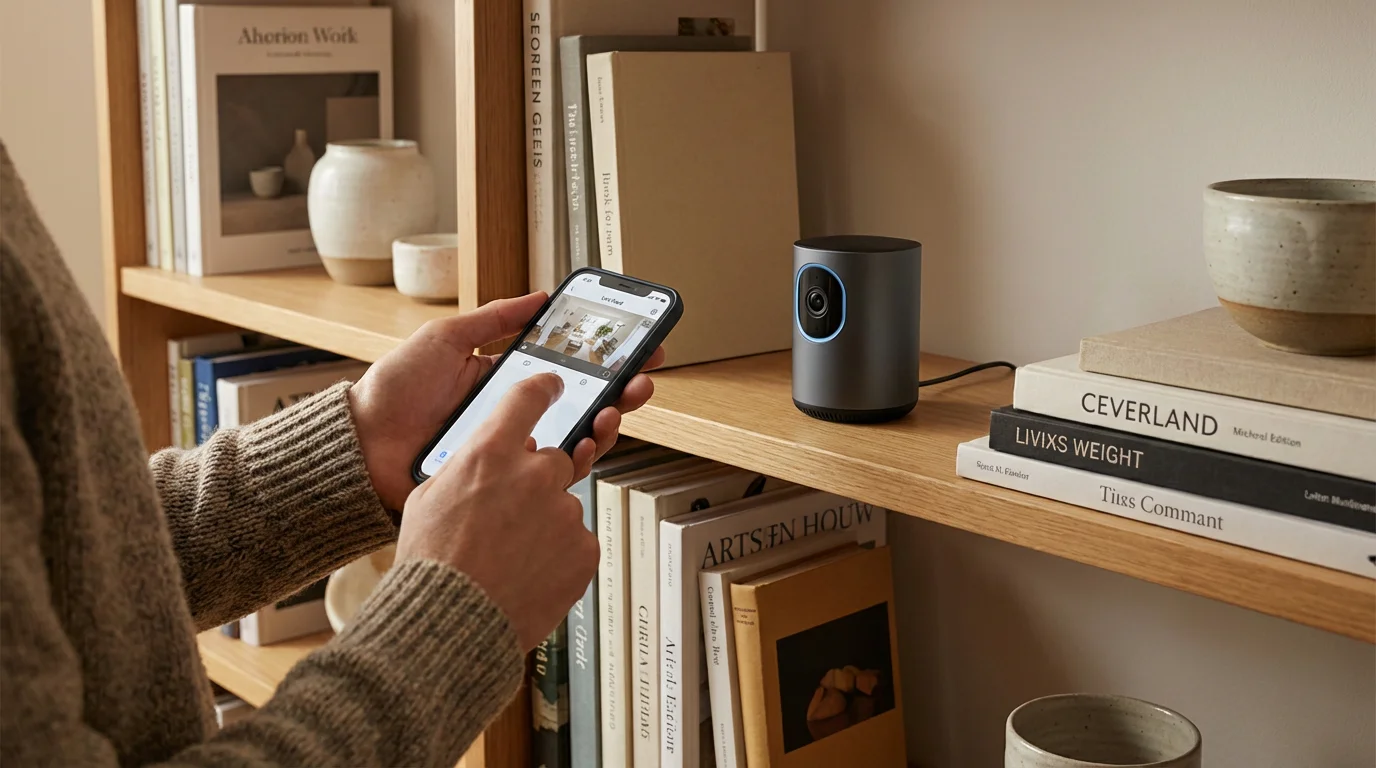
Modern setup processes, particularly those from major brands like Amazon, Google, and Nanoleaf, rely on Bluetooth Low Energy (BLE) for the initial handshake. Even if the device eventually connects via Wi-Fi, it uses Bluetooth to find your phone first.
If you denied Bluetooth permissions when you first installed the manufacturer’s app, the setup will fail immediately. This is a privacy feature in iOS and Android, but it breaks smart home onboarding.
Correcting Permission Issues
Go into your smartphone settings and find the specific app (e.g., Tuya, Smart Life, Hue, Alexa). Verify the following permissions are enabled:
- Bluetooth: Must be “On” or “Allowed.”
- Local Network: (iOS specifically) This switch must be green. It allows the app to see other devices on your Wi-Fi.
- Location Services: Many Android versions require “Precise Location” to be enabled to scan for Wi-Fi networks. You can usually set this to “Only while using the app.”
Hub Requirements: Zigbee, Z-Wave, and Matter
Not every smart device connects directly to your Wi-Fi. If you bought a Philips Hue bulb, a Ring Alarm sensor, or a Lutron Caséta switch, you might be trying to connect a device that doesn’t speak Wi-Fi at all.
These devices use protocols like Zigbee, Z-Wave, or Clear Connect. They require a specific “hub” or “bridge” to translate their signals into something your router understands. If you buy a Zigbee bulb and try to add it directly to Alexa (without an Echo device that has a built-in hub), it will not work.
Checking for Matter Compatibility
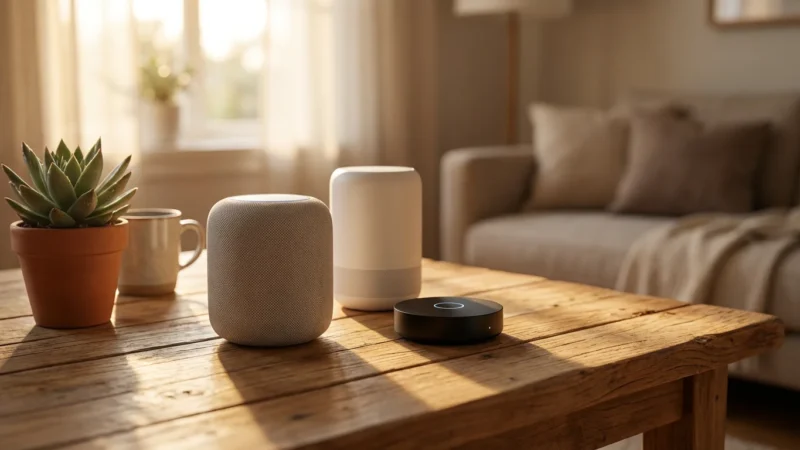
The industry is currently transitioning to Matter, a universal standard designed to make devices work across all platforms. According to the Connectivity Standards Alliance, Matter devices allow for local operation and easier setup, but they often require a “Thread Border Router” (like a HomePod Mini, Nest Hub Gen 2, or Apple TV 4K) to function optimally.
If your new device has the Matter logo:
- Ensure you have a compatible Matter controller (hub) in your home.
- Locate the QR code on the device. Matter relies heavily on scanning this specific code.
- Do not lose the QR code; it is often the only way to pair the device.
Advanced Network Troubleshooting
If you have verified the bands, permissions, and hub requirements, and the device still fails, the issue may lie deep within your network configuration. This is common in homes with older routers or highly secure firewall settings.
Device Limits
Standard ISP-provided routers often have a hard limit on the number of clients they can handle—sometimes as low as 30 or 40 devices. If you have phones, laptops, tablets, TVs, and 20 smart bulbs, you may have hit the capacity cap. If this happens, your router will simply refuse to let a new device join. The solution is upgrading to a Mesh Wi-Fi system designed for high device density.
Firewall and MAC Filtering
Check if “MAC Address Filtering” is enabled on your router. This security feature blocks any device whose unique ID (MAC address) hasn’t been manually approved. Unless you are a networking expert, it is best to leave this disabled for smart home setups.
The Factory Reset Protocol
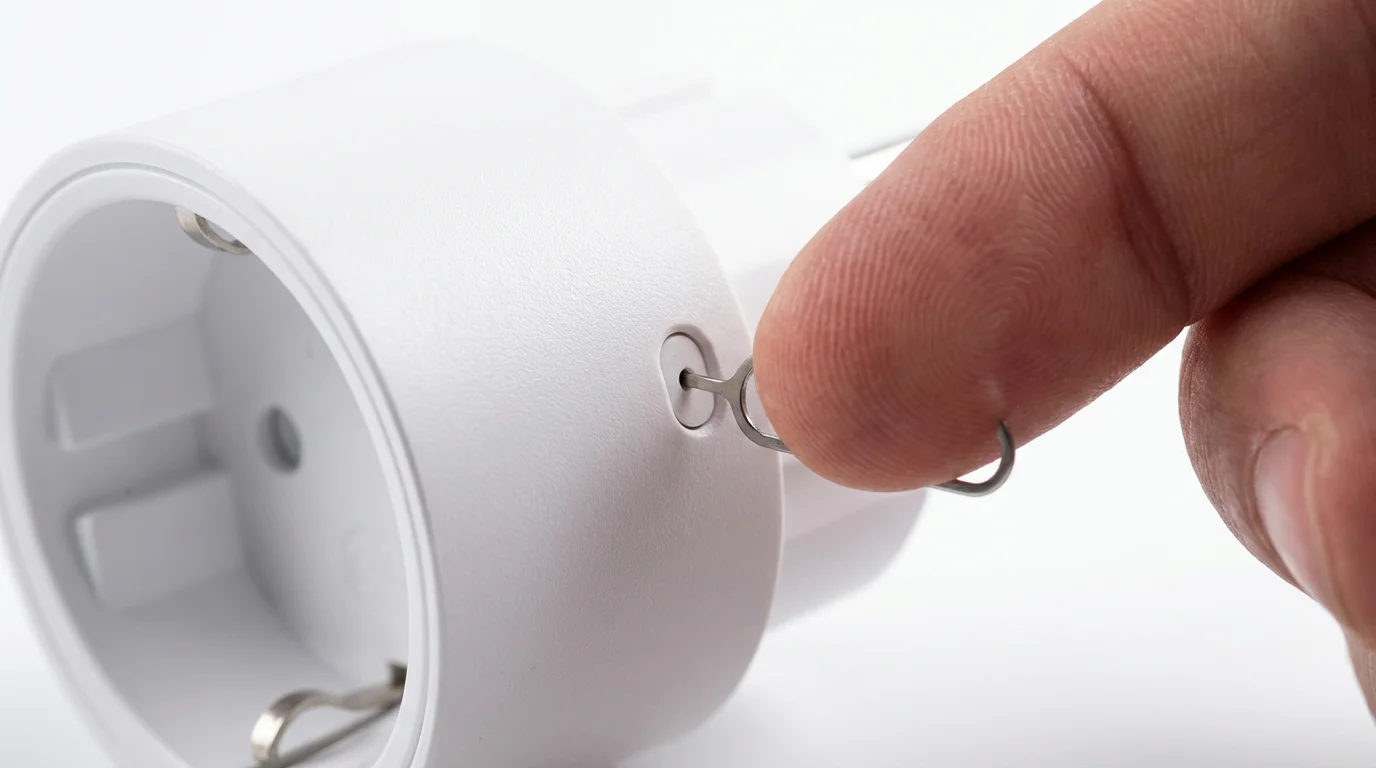
If you bought a device used, open-box, or if you previously attempted a setup that failed halfway through, the device might be in a “zombie” state. It isn’t fully paired, but it isn’t in pairing mode either. You need to force a factory reset.
Reset procedures vary, but here are the universal standards:
- Smart Bulbs: The “flicker” method. Turn the light switch off and on 5 to 10 times in rapid succession (about 1 second per flip). The bulb should flash rapidly or change colors to indicate it is reset.
- Smart Plugs: Hold the physical power button on the side of the plug for 10–15 seconds until the LED indicator changes from solid to blinking fast.
- Cameras/Doorbells: Look for a small pinhole reset button. Use a paperclip to hold the button down for 20 seconds.
Pro Tip: After resetting the device, restart your smartphone as well. This clears the Bluetooth cache and gives you a clean slate for the new connection attempt.
When to Call Support or Return
Sometimes, the hardware is simply defective. Smart home devices are mass-produced electronics, and lemons happen. You should consider returning the device or contacting support if:
- No LED activity: The device shows no lights when plugged in, even after trying different outlets.
- Hot to the touch: The device becomes dangerously hot immediately after plugging it in.
- SSID invisible: For devices that broadcast their own temporary Wi-Fi network for setup (AP Mode), if that network never appears in your phone’s list despite a factory reset, the Wi-Fi radio is likely dead.
Before you give up, check major tech news outlets like CNET or the manufacturer’s server status page. Occasionally, the issue isn’t your house—it’s a cloud outage on the manufacturer’s end preventing new registrations.
Frequently Asked Questions
Why does my smart device say “Provisioning Failed”?
Provisioning failed usually means the app found the device but couldn’t pass the Wi-Fi password to it. This is typically caused by incorrect Wi-Fi passwords (check for typos and capitalization) or the router blocking the connection due to firewall settings. Double-check that your phone didn’t auto-switch back to a different Wi-Fi network during the process.
Can I set up smart devices without a 2.4GHz network?
Most budget and mid-range smart home devices strictly require 2.4GHz. If your router is 5GHz only (which is extremely rare), you cannot connect them. However, most modern routers allow you to enable a 2.4GHz band in the settings or create a dedicated “IoT Network” specifically for these gadgets.
I lost the QR code for my device. Can I still pair it?
For standard Wi-Fi devices, yes—you can usually pair manually by selecting the model in the app and following the AP Mode instructions. However, for HomeKit and Matter devices, the QR code is mandatory for security. Check the device body closely; the code is often printed on the back, bottom, or inside the battery compartment.
Do I need to buy a hub for my smart lights?
It depends on the brand. Ecosystems like Philips Hue (Zigbee) and Lutron Caséta (Clear Connect) require hubs for full functionality and reliability. Brands like LIFX, TP-Link Kasa, and Govee connect directly to Wi-Fi without a hub. Always check the packaging for “Hub Required” or “Hub Free” labels.
Disclaimer: This article is for informational purposes only. Smart home devices involve electrical connections and data privacy. Always follow manufacturer instructions for installation. For complex wiring or HVAC work, consult a licensed professional.

Leave a Reply