
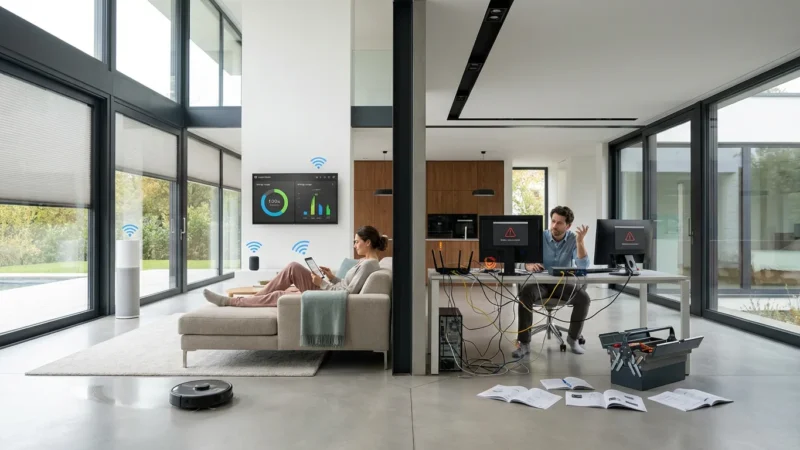
Few things are more frustrating in a modern home than walking through your front door, issuing a voice command to turn on the lights, and being met with silence—or worse, a robotic response stating, “I’m having trouble connecting right now.” You bought smart devices to make your life easier, not to spend your evenings debugging network issues. Yet, connectivity drops remain the single most common complaint among smart home owners.
When a smart camera goes offline or a smart plug becomes unresponsive, the immediate instinct is to blame the device itself. While faulty hardware is occasionally the culprit, the reality is often more complex. Your smart home is an ecosystem relying on an invisible infrastructure of radio waves, IP addresses, and software protocols. If one variable shifts, the connection breaks.
This guide dives deep into the root causes of smart device disconnects. We will move beyond basic “turn it off and on again” advice to explore network congestion, frequency interference, and protocol-specific instability. By the end of this article, you will have a clear roadmap to stabilize your system and ensure your automation works every time you need it.
The Router Capacity Limit: Too Many Devices
The standard router provided by your Internet Service Provider (ISP) is generally designed for a typical household of the early 2010s: a couple of laptops, a few smartphones, and a streaming stick. It was never intended to handle the explosive growth of the Internet of Things (IoT). Today, even a modest smart home can easily surpass 40 or 50 connected clients once you account for smart bulbs, switches, sensors, speakers, and appliances.
Every device connected to your Wi-Fi fights for a slice of the router’s attention—specifically, its airtime and memory. When an entry-level router hits its client limit, it doesn’t necessarily shut down; instead, it starts kicking the “quietest” devices off the network to make room for active ones. Since a smart light bulb might only check in once every few minutes, it is often the first victim of this digital eviction.
Signs Your Router is Overloaded
- Random Dropouts: Devices disconnect and reconnect without you doing anything.
- Latency: There is a noticeable delay between pressing a button in your app and the device responding.
- Streaming Buffers: Your Netflix buffers when someone turns on a smart camera.
- Device Limit Errors: You try to add a new smart plug, and the setup fails repeatedly despite the correct password.
If you suspect capacity is the issue, check your router’s administrative interface to see the total number of connected clients. If you are approaching 30 or 40 devices on a standard ISP router, you have likely hit a hardware bottleneck. This is a common realization for many enthusiasts; according to Wirecutter’s smart home research, a robust network foundation is essential as you scale up your device count.
Signal Strength, Range, and Physical Obstacles
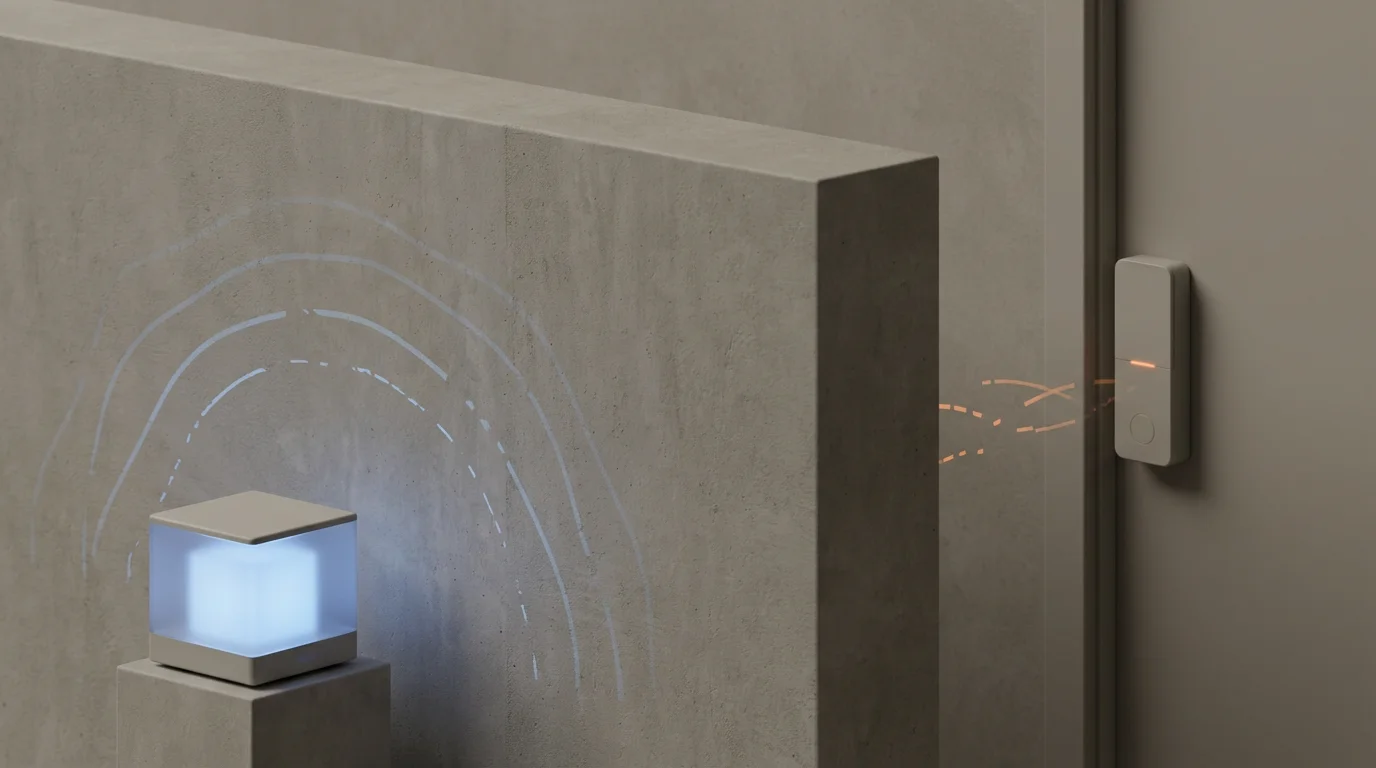
Wi-Fi signals are radio waves, and like all radio waves, they degrade over distance and struggle to penetrate dense materials. A device might show “connected” in the app but have a signal so weak (low RSSI – Received Signal Strength Indicator) that it fails to respond to commands reliably. This is particularly common with outdoor smart devices, such as video doorbells or floodlight cameras, which are often placed on the exterior of the house, far from the central router.
Understanding the layout of your home is critical. A router placed in a basement corner or tucked inside a media cabinet is fighting an uphill battle. The materials your home is built from matter just as much as the square footage.
Common Signal Blockers
- Metal: Large appliances like refrigerators, furnaces, and even metal studs in walls act as shields, reflecting Wi-Fi signals.
- Water: Fish tanks and hydronic heating systems absorb radio waves effectively.
- Masonry: Brick, concrete, and stone are notoriously difficult for Wi-Fi to penetrate.
- Mirrors: The silver backing on mirrors reflects signals, creating dead zones behind them.
To diagnose this, many smart home apps allow you to view the “Device Health” or “Network Info.” Look for the RSSI value. This number is usually negative. An RSSI of -50 dBm is excellent, while -75 dBm or lower (e.g., -80) indicates a connection on the brink of failure. If your device is in a dead zone, no amount of software resetting will fix it; you need to move the router, move the device, or introduce a Wi-Fi extender or mesh point.
The Frequency Wars: 2.4GHz vs. 5GHz
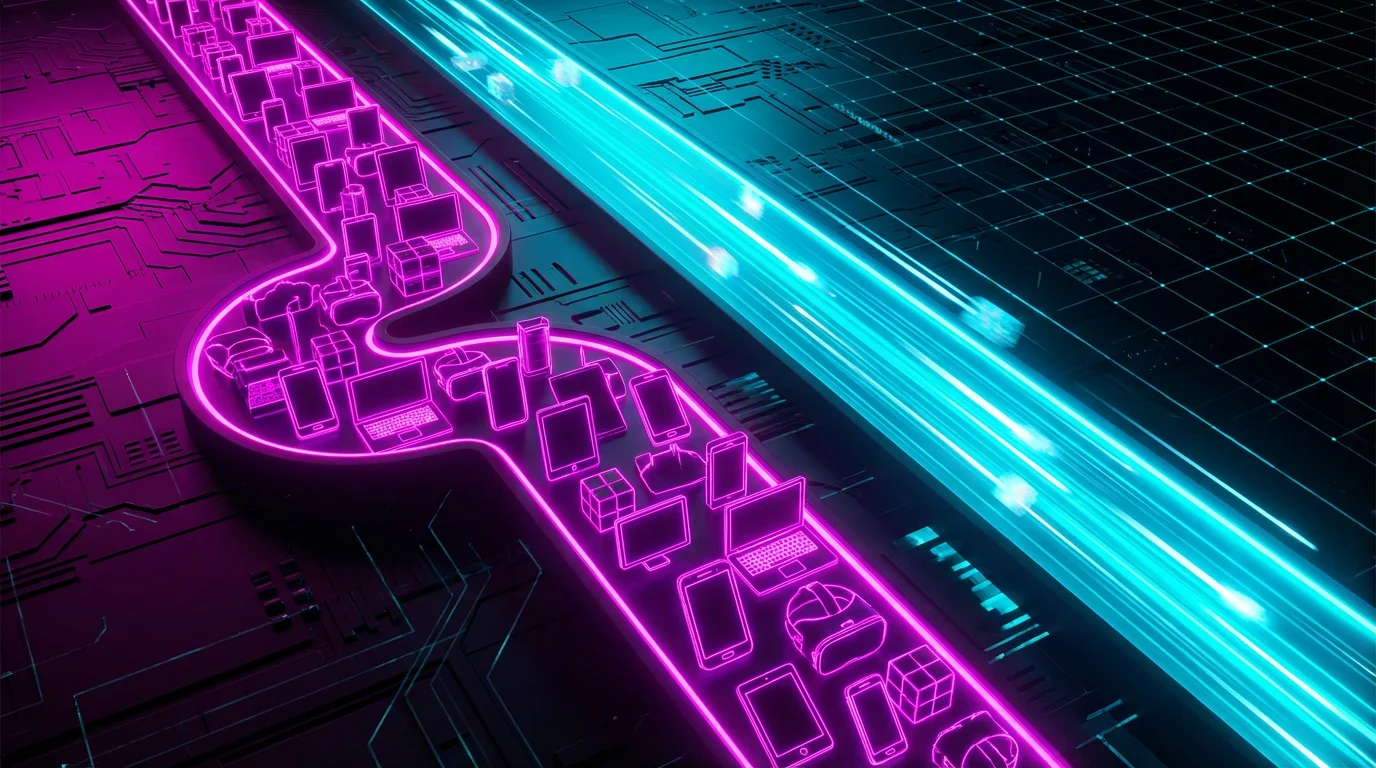
Modern routers are typically “dual-band,” meaning they broadcast two different Wi-Fi networks: 2.4GHz and 5GHz. Understanding the difference between these two bands is arguably the most important technical knowledge for a smart home owner.
- 2.4GHz: Offers longer range and better penetration through walls but is slower and more prone to interference. Most smart home devices (bulbs, plugs, vacuums) operate exclusively on this band.
- 5GHz: Offers incredibly fast speeds but has a shorter range and struggles with obstacles. This is ideal for streaming 4K video or gaming.
The problem arises with “Band Steering.” Many modern mesh systems and ISP routers combine these two bands into a single network name (SSID). The router then decides which band a device should use. Unfortunately, simple IoT devices often get confused by this. They try to connect, see the 5GHz signal, fail (because they don’t support it), and give up. Or, they connect to the 2.4GHz band but get pushed to 5GHz by the router, causing them to drop off.
How to Fix Frequency Issues
If you are struggling to set up a device or keep it connected, try these steps:
- Separate the Bands: If your router allows it, create separate names for your networks (e.g., “HomeWiFi-2.4” and “HomeWiFi-5”). Connect all smart devices to the 2.4GHz network.
- Enable the Guest Network: If you cannot separate the main bands (common with Google Nest Wifi or Eero), enable the “Guest Network.” Guest networks on many routers default to 2.4GHz or allow for easier IoT connectivity.
- The “Walk Away” Trick: During setup, walk far enough away from your router that your phone drops the 5GHz signal (which has short range) and switches to 2.4GHz. Once your phone is on 2.4GHz, attempt the device setup again.

IP Address Conflicts and DHCP Issues
Every device on your network needs a unique identifier called an IP address (e.g., 192.168.1.50). Your router assigns these addresses automatically through a system called DHCP (Dynamic Host Configuration Protocol). Think of DHCP as a parking attendant assigning spots to cars.
Sometimes, the parking attendant gets confused. If a smart bulb goes offline and reconnects, it might request its old “parking spot.” If the router has already given that spot to your iPad, you have an IP conflict. Neither device will communicate correctly. This frequently happens after a power outage where all devices try to reconnect simultaneously, overwhelming the DHCP server.
The Solution: Reserved Static IPs
For critical devices—especially bridges (like Philips Hue Bridge) or main smart home hubs (like Hubitat or Home Assistant)—you should set a DHCP Reservation in your router settings. This tells the router to always reserve a specific address (like 192.168.1.20) for that specific device. It ensures that no matter how many times you reboot the network, your hub is always found at the same address, stabilizing the connection for all the devices that depend on it.
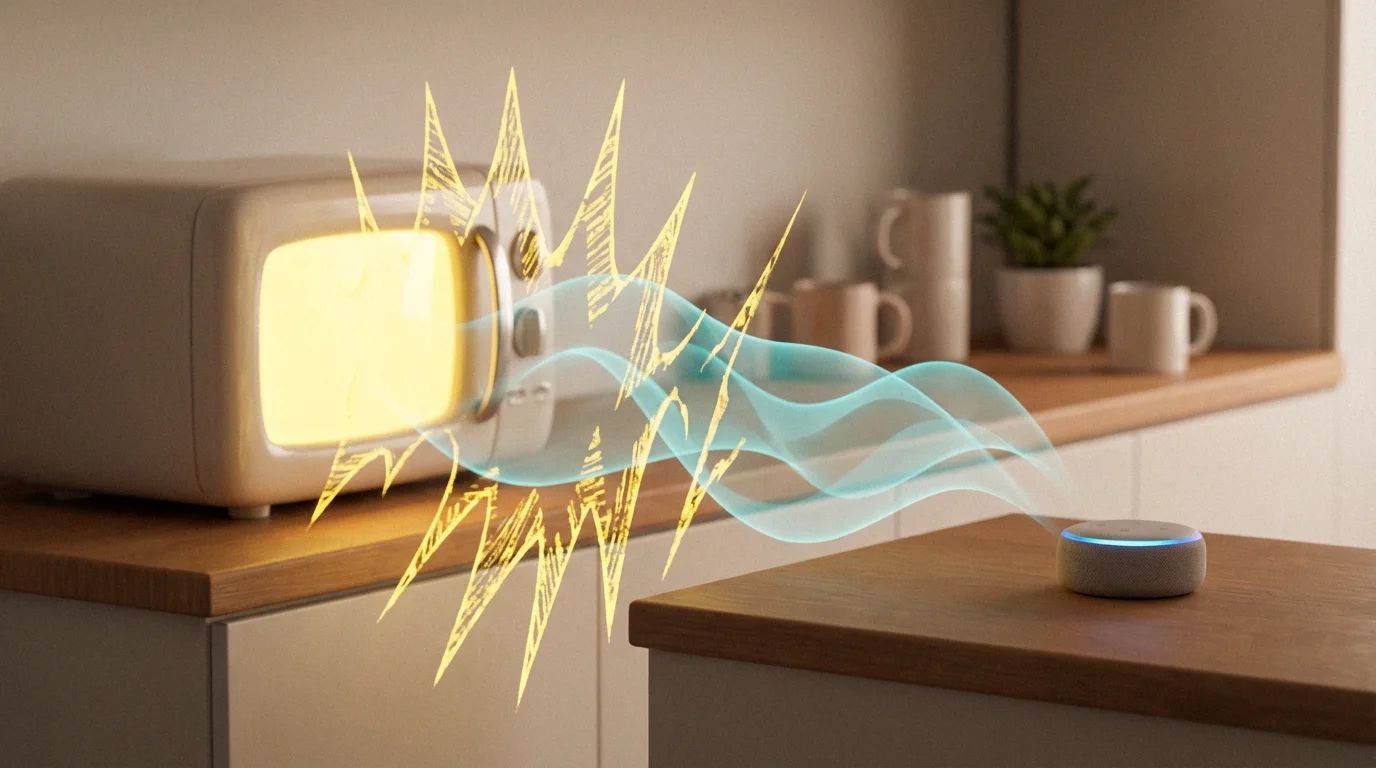
Interference from Neighbors and Appliances
Even if your router is powerful and your settings are perfect, invisible external factors can sabotage your smart home. The 2.4GHz spectrum is incredibly crowded. It is not just used by Wi-Fi; it is also the highway for Bluetooth, Zigbee, baby monitors, and even microwave ovens.
When you turn on a microwave, it emits interference that can completely obliterate 2.4GHz Wi-Fi signals in the immediate vicinity. If you have a smart plug behind the microwave or a smart display in the kitchen, this could explain why it disconnects whenever you heat up lunch.
Furthermore, if you live in an apartment complex or a dense suburban neighborhood, your neighbors’ Wi-Fi networks are screaming over yours. Wi-Fi channels overlap, and if everyone is on Channel 6, the noise floor rises, and signals get lost.
Managing Channel Congestion
You can download a “Wi-Fi Analyzer” app on your smartphone to see which channels are most crowded in your house. If Channel 6 is swamped by neighbors, log into your router and manually switch your 2.4GHz network to Channel 1 or Channel 11. By moving your traffic to a less congested lane, you can instantly improve reliability.
“The best smart home is the one you don’t have to manage constantly. Solving interference issues at the root is key to that stability.”
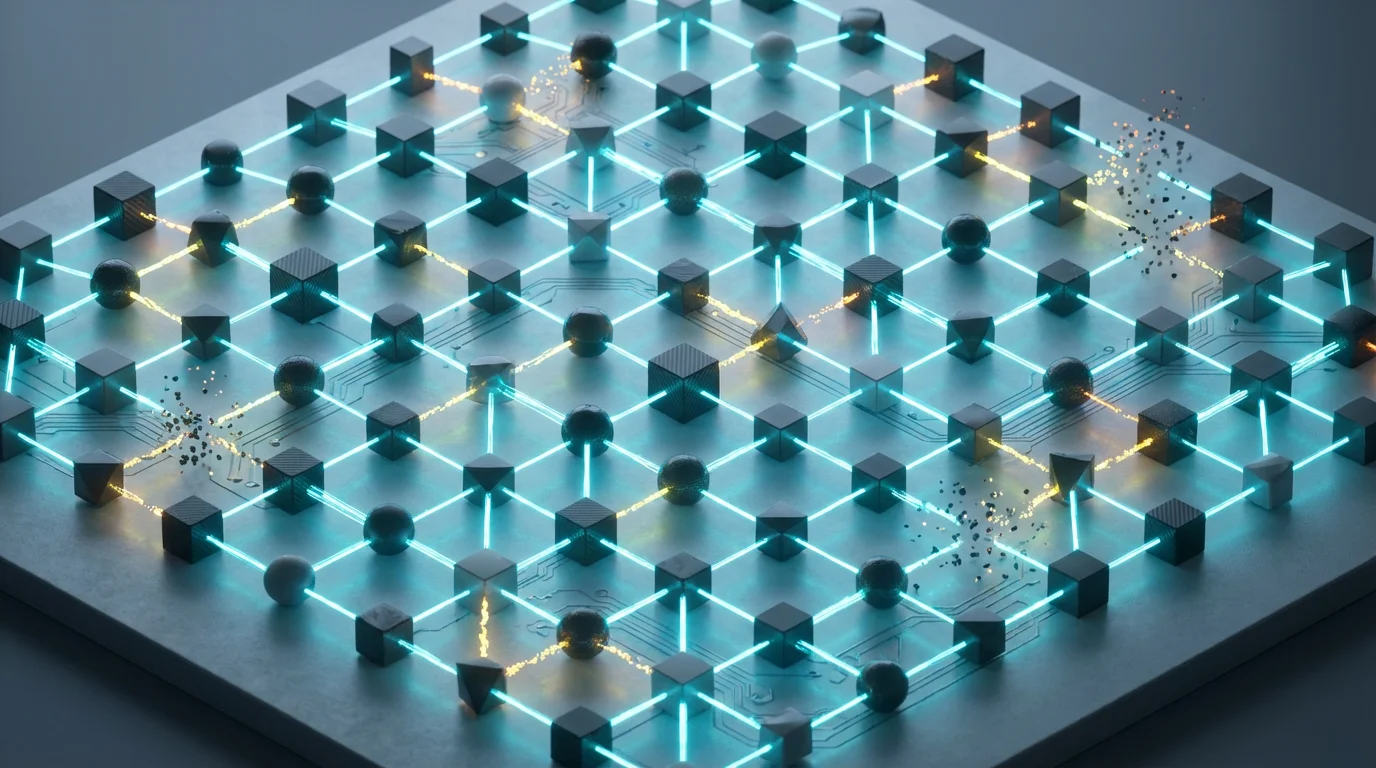
Zigbee and Z-Wave Mesh Network Health
Not all smart devices use Wi-Fi. Many popular ecosystems, such as Philips Hue, Samsung SmartThings, and various sensors, utilize Zigbee or Z-Wave. These are low-power radio protocols that create a “mesh network.” In a mesh, devices talk to each other, passing the signal along like a bucket brigade until it reaches the hub.
If a Zigbee sensor keeps disconnecting, the issue is rarely the sensor itself—it is usually a weak mesh. Battery-powered devices (like door sensors) do not repeat signals; they only send them. They rely on “powered” devices (like light bulbs or smart plugs) to act as repeaters.
How to Heal a Broken Mesh
If you have a sensor far from the hub that keeps dropping offline, do not just move the sensor. Instead, add a powered device halfway between the hub and the sensor. A simple Zigbee smart plug placed in a hallway can act as a bridge, strengthening the mesh and giving the distant sensor a strong partner to talk to.
Additionally, be aware of Zigbee and Wi-Fi interference. Zigbee channels and Wi-Fi channels share the same spectrum. If your Wi-Fi is on Channel 6 and your Zigbee network is on Channel 15, they are overlapping significantly. Consult the Connectivity Standards Alliance (CSA) or enthusiast forums to map out non-overlapping channels for your specific hardware.
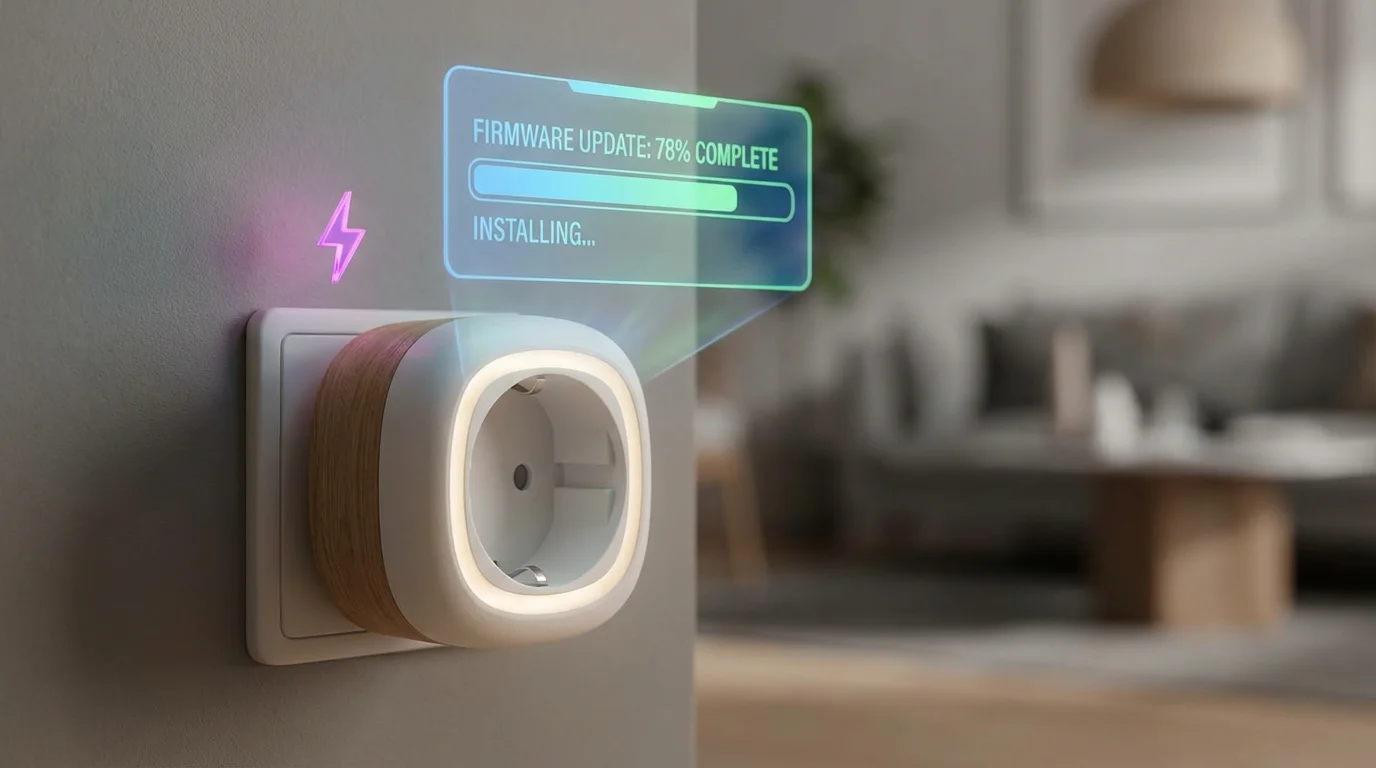
Power Fluctuation and Firmware Stability
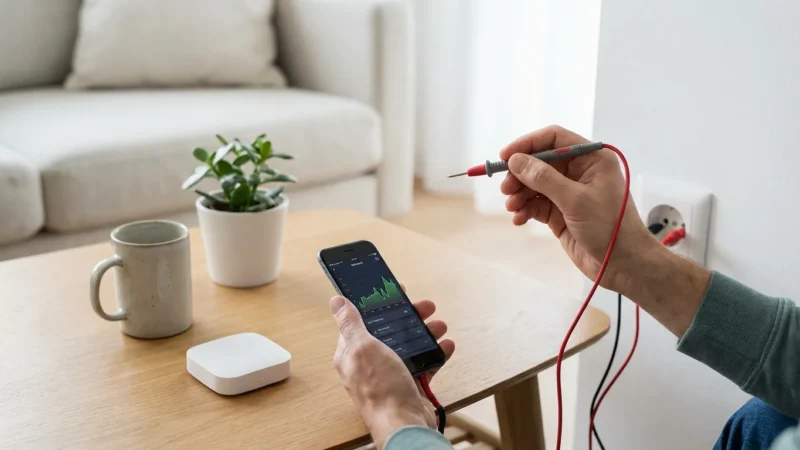
Before tearing your network apart, check the physical basics. Smart devices are computers, and they require stable power. “Smart” bulbs placed in fixtures with dimmer switches often flicker or disconnect because the dimmer restricts the voltage the bulb needs to operate its radio, even when the dimmer is at 100%.
- Wiring: Ensure smart switches are wired correctly, particularly regarding the neutral wire. Without a neutral wire, some switches siphon power through the bulb, leading to instability with low-wattage LEDs.
- Batteries: As batteries deplete, the voltage drops. Often, a device will have enough power to function locally (e.g., detect motion) but not enough power to fire up the radio and transmit that data to the hub. If a battery device is acting flaky, replace the battery even if it reports 20% remaining.
Finally, check your firmware. Manufacturers release updates to patch connectivity bugs frequently. However, bugs can also be introduced in updates. If a reliable device suddenly starts failing after an automatic update, check online forums to see if other users are experiencing the same glitch. You may need to wait for a hotfix.
8. router
9. and
10. embrace
11. the
12. future
13. with
1
When to Upgrade Your Network Hardware
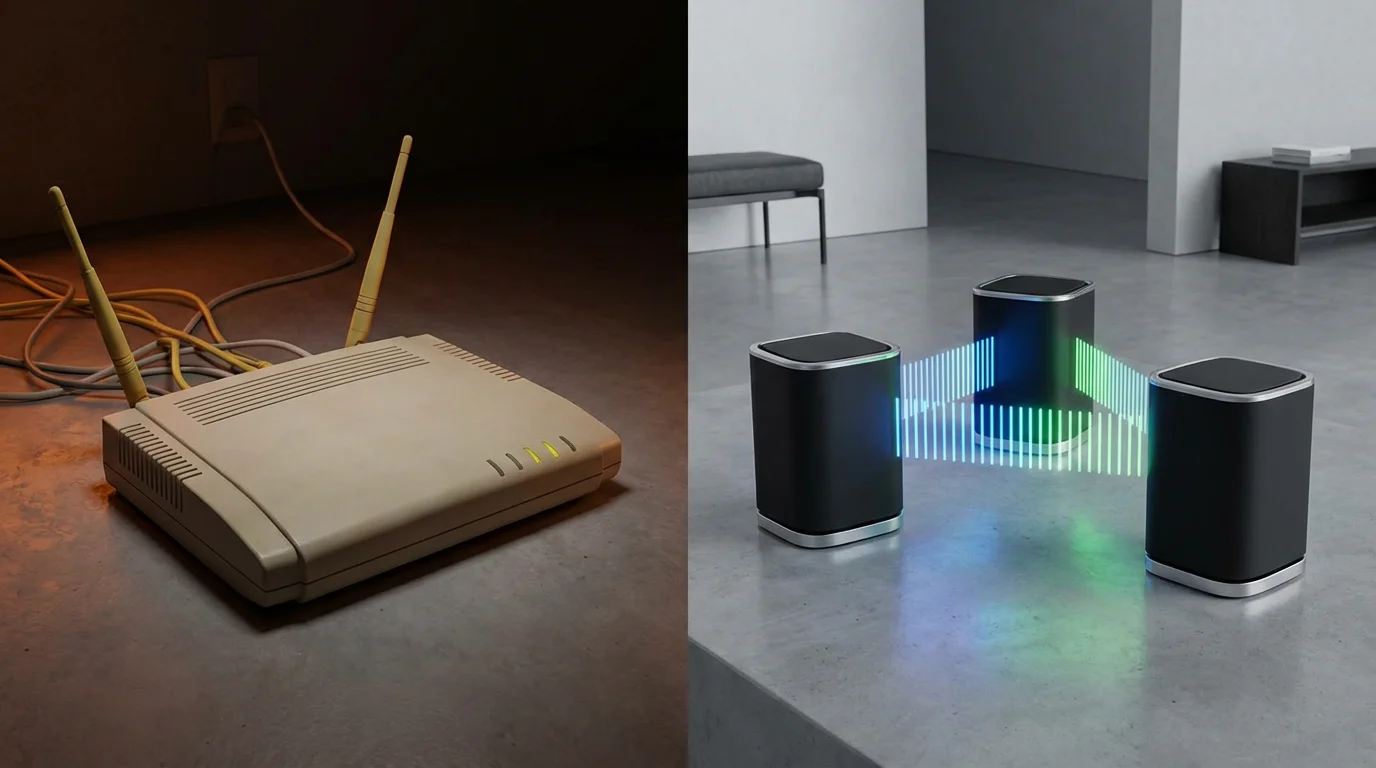
You have separated your bands, checked for interference, and reserved IP addresses, but your devices are still dropping. It might be time to admit that your current hardware cannot support your ambition. If you have over 50 devices, reliance on a single ISP-provided router is a recipe for failure.
Upgrading to a Mesh Wi-Fi System (like Eero, Google Nest Wifi, or TP-Link Deco) is the single most effective upgrade for a smart home. Mesh systems use multiple nodes to blanket your home in Wi-Fi, eliminating dead zones and handling device density much better than traditional routers. According to CNET, modern mesh systems are specifically optimized to handle the traffic patterns of smart homes, ensuring that your thermostat doesn’t get kicked offline just because someone started downloading a video game.
When shopping, look for systems that support Wi-Fi 6 (802.11ax). Wi-Fi 6 was designed specifically with IoT in mind, featuring technology (like OFDMA and Target Wake Time) that allows the router to communicate with many low-bandwidth devices simultaneously without congestion.
Frequently Asked Questions
Why do my smart bulbs say “unresponsive” in Alexa or Google Home?
This usually happens because the physical light switch on the wall has been turned off, cutting power to the bulb. Alternatively, the bulb may have lost Wi-Fi connection due to weak signal or router congestion. Ensure the wall switch is on and check your Wi-Fi signal strength near the fixture.
How do I connect 2.4GHz devices to a dual-band router?
If your router blends 2.4GHz and 5GHz into one name, try moving farther away from the router during setup until your phone drops to the 2.4GHz band. Alternatively, access your router settings to temporarily disable 5GHz or create a dedicated “IoT” guest network that only uses the 2.4GHz band.
Can too many smart devices slow down my internet?
Generally, smart devices use very little bandwidth (internet speed), so they won’t slow down your Netflix streaming. However, they do take up “airtime” on the router. Too many devices can cause network congestion (latency), making the internet feel sluggish even if you have high speeds. Upgrading to a Wi-Fi 6 or Mesh system resolves this.
Why does my smart camera go offline at night?
This is often a power issue. When night vision (IR LEDs) turns on, the camera draws more power. If the cable is too long, the power adapter is weak, or the battery is old, the voltage drop can cause the Wi-Fi radio to disconnect. Ensure you are using the original power cable and adapter.
Disclaimer: This article is for informational purposes only. Smart home devices involve electrical connections and data privacy. Always follow manufacturer instructions for installation. For complex wiring or HVAC work, consult a licensed professional.


Leave a Reply